The Jotform Canva App makes it easy to collect and manage responses directly from your Canva designs. Whether you’re creating invitations, presentations, surveys, registration pages, or marketing materials, the app helps turn your designs into interactive experiences where people can submit information without leaving the content they’re viewing.
This can be especially useful for creators, businesses, educators, nonprofits, and teams that want a smoother way to gather and organize responses while keeping their designs visually engaging. From collecting RSVPs and feedback to managing sign-ups and inquiries, the app helps streamline the way you handle form submissions and keep everything more connected in one workflow.
Managing Form Data on Connected Account
Once you’ve added forms to your Canva designs and started collecting responses, managing submissions is simple. Here’s how to get started:
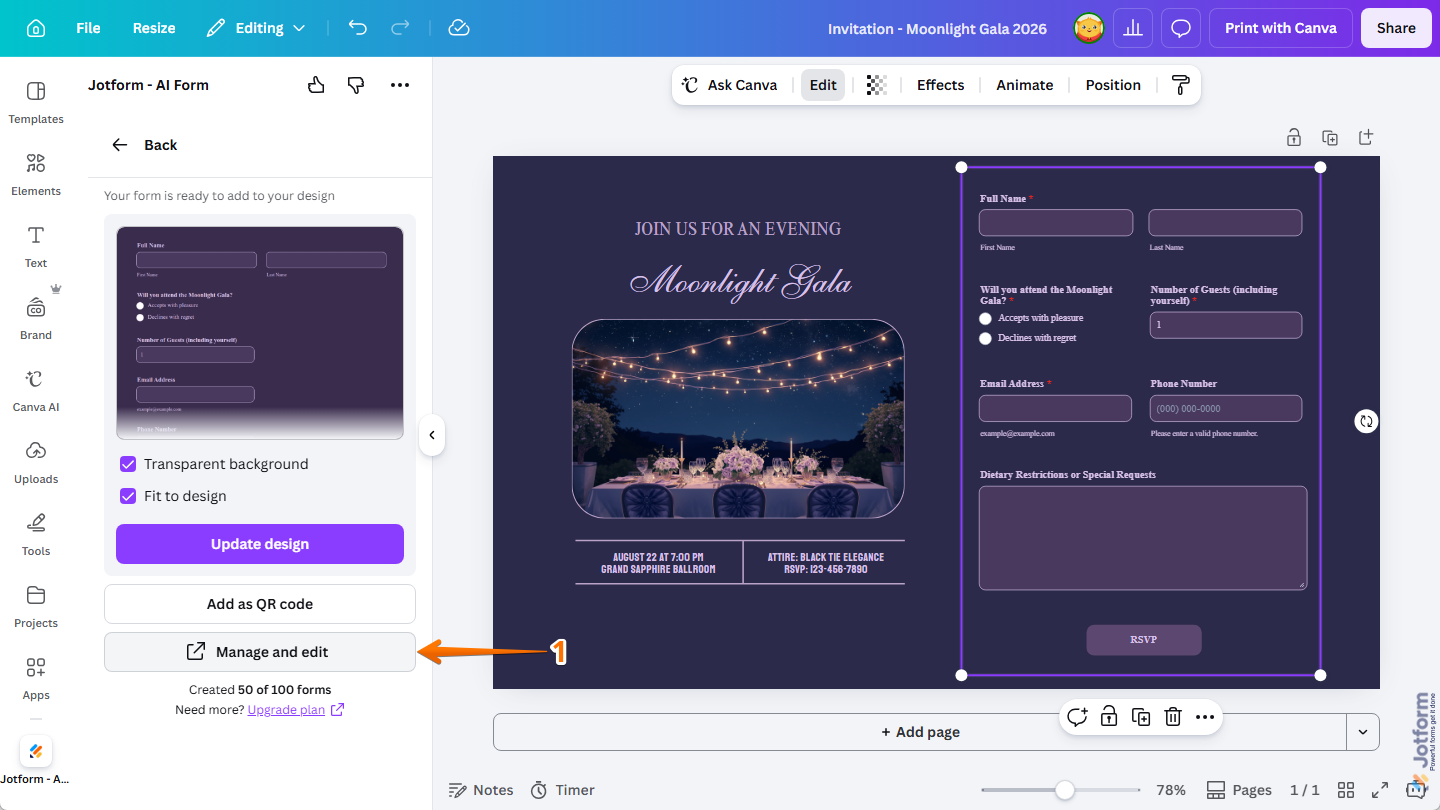
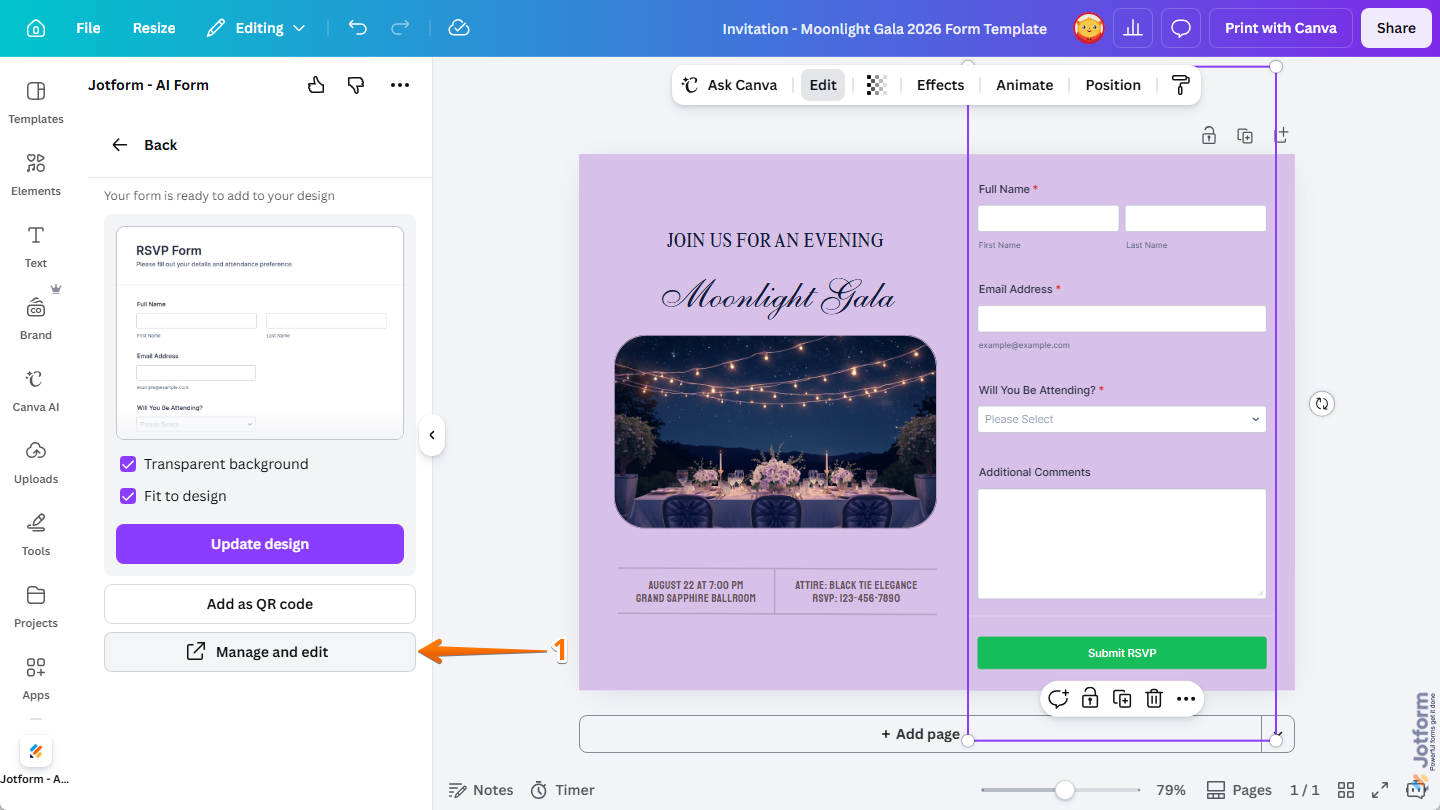
- In Canva Design Editor, while your form is selected in your design, click on Manage and Edit at the bottom of the Jotform Canva App.
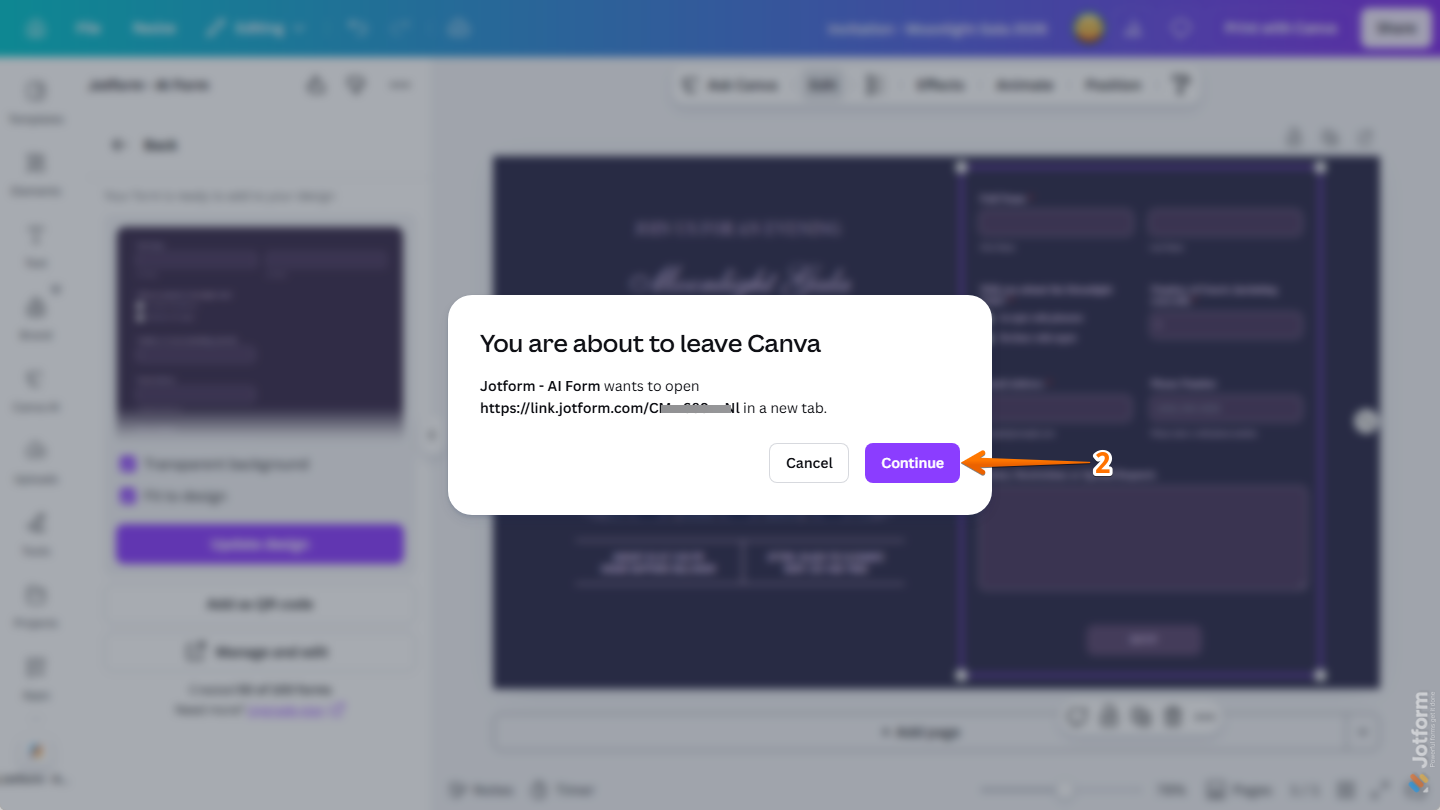
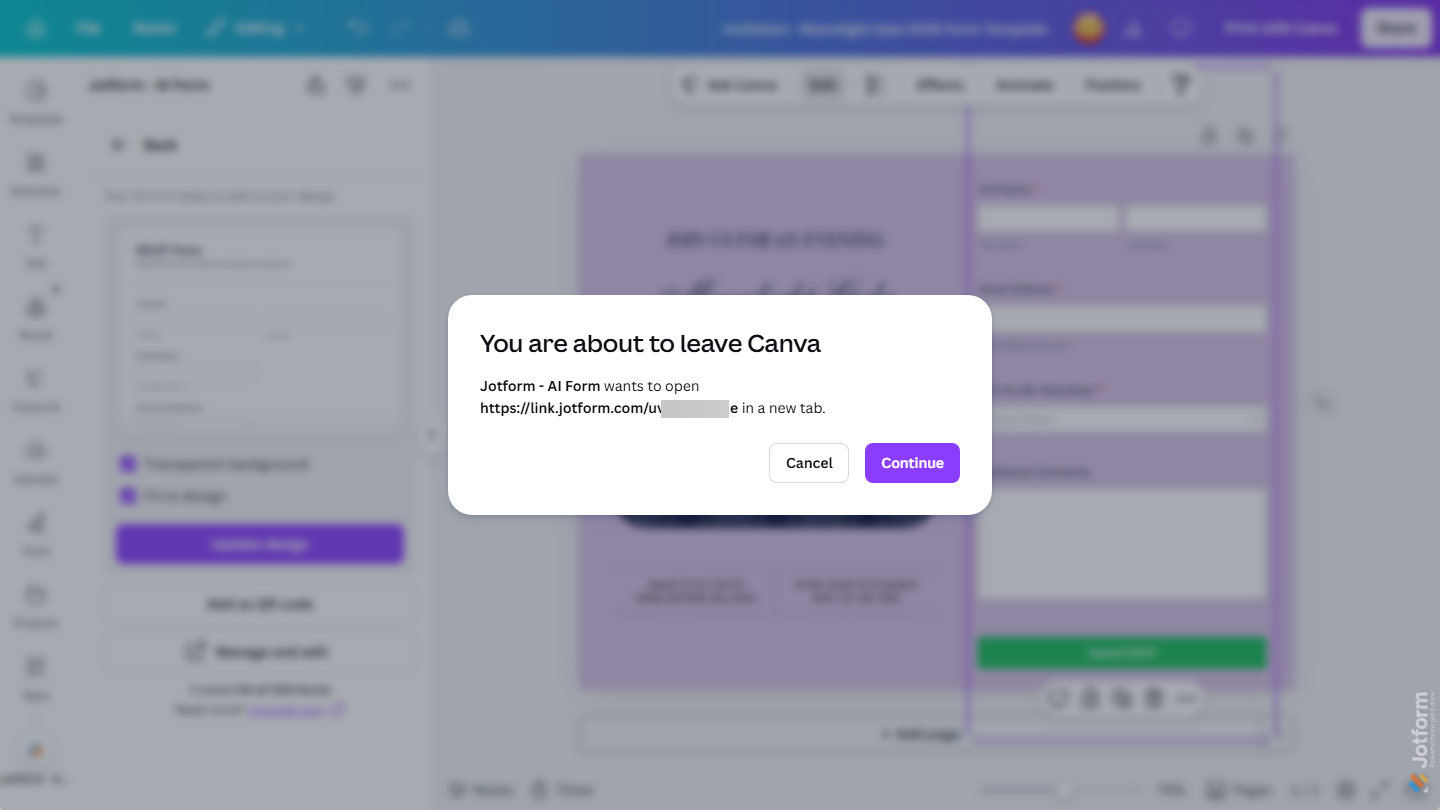
- Then, in the confirmation window that pops up, click on Continue to open the form in the Jotform account connected to the app in a new browser tab.
Note
If your form is saved on a Guest account and you’re not sure how to connect the app to your Jotform account, check out the Moving Forms From a Guest Account section below.
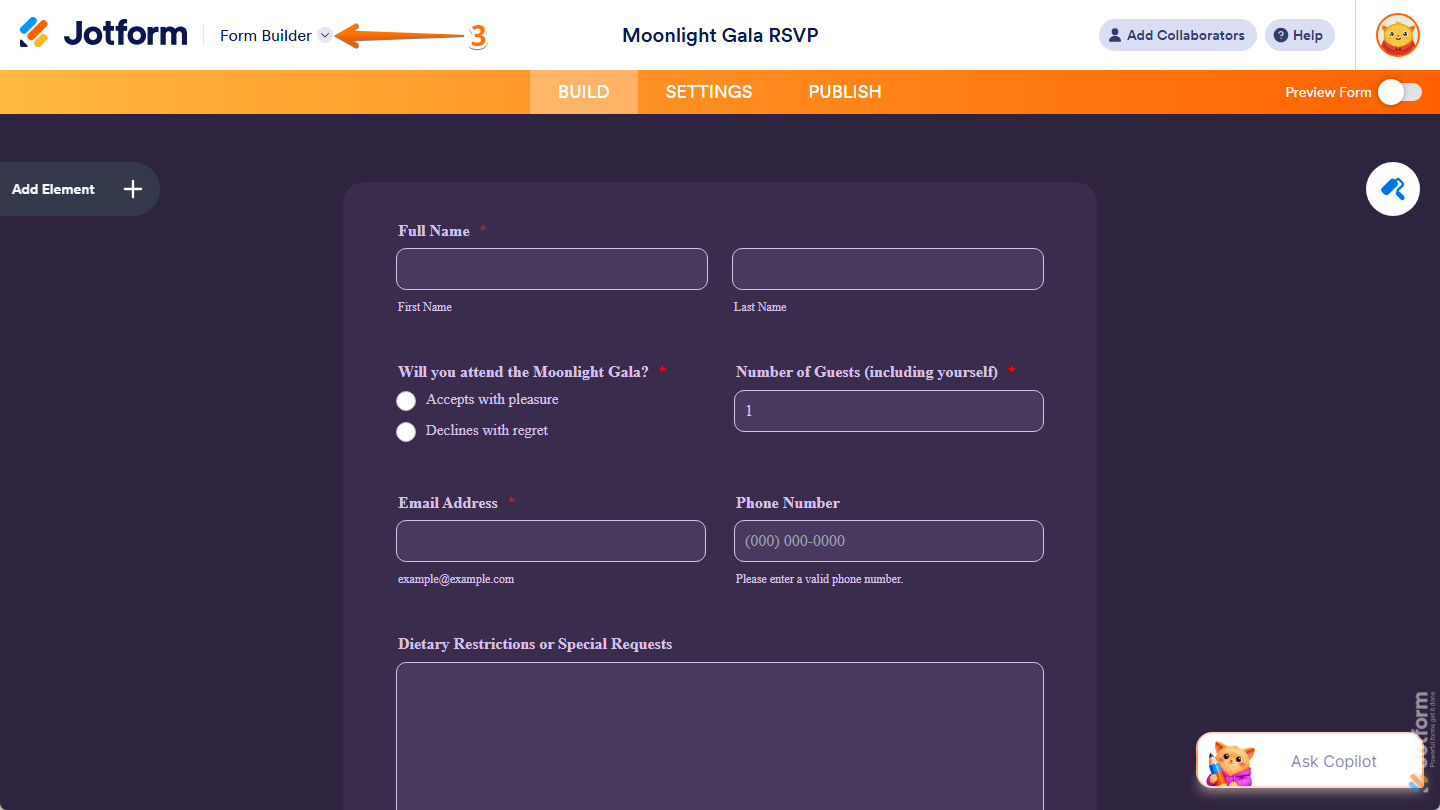
- On the top left side of Form Builder, click on the Downward Arrow icon next to the Jotform logo.
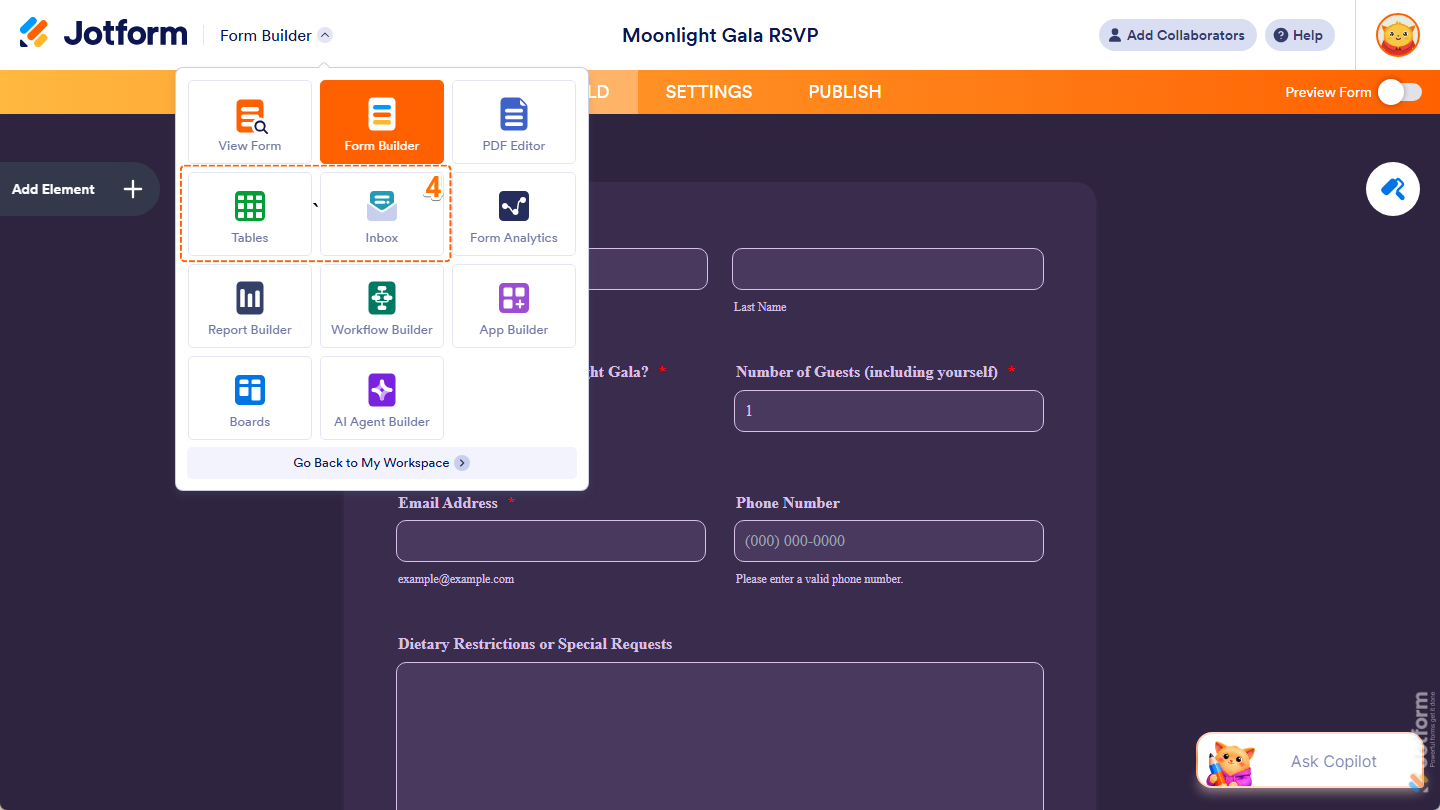
- Then, in the menu that opens, select one of the following options to access your form submissions:
- Tables — This opens your form in Jotform Tables, where you can view, organize, and manage submissions in a structured table format. Looking for more info? Our Jotform Tables user guide chapter has you covered.
- Inbox — This opens your form in Jotform Inbox, which gives you a conversation-style view for reviewing and managing form submissions. Need help getting started? Check out our Jotform Inbox user guide chapter.
That’s it! Now, depending on what you chose, you can review and manage your form submissions in the way that works best for you.
Moving Forms From a Guest Account
Once you generate a form with AI or create one using templates in the Jotform Canva App that’s not connected to your Jotform account, it will initially be saved to a Guest account. You can move it to your account in a few easy steps. Here’s how:
- In Canva Design Editor, while your form is selected in your design, click on Manage and Edit at the bottom of the Jotform Canva App.
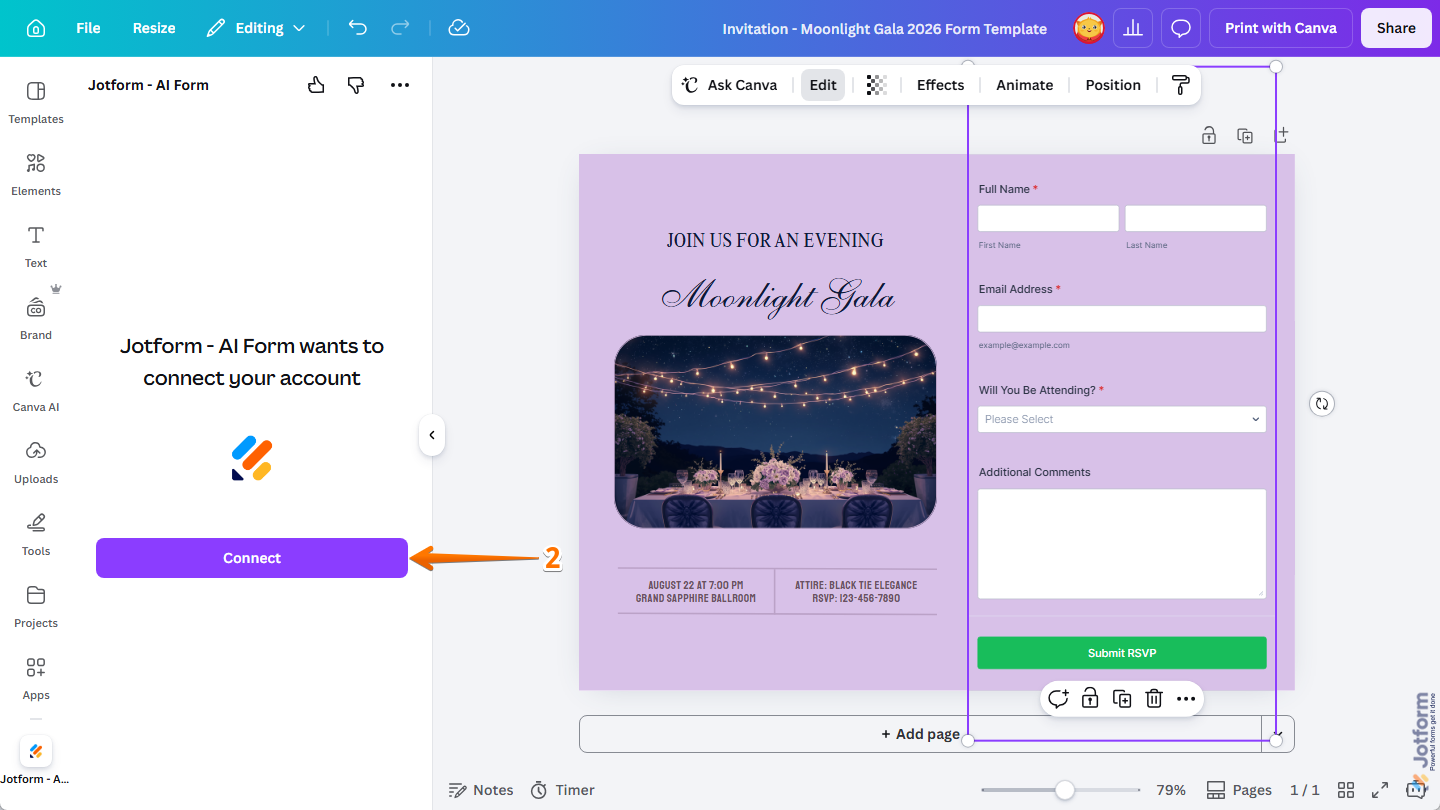
- Then, click on Connect.
- Next, in the Jotform Login window that comes up, log in to your Jotform account.
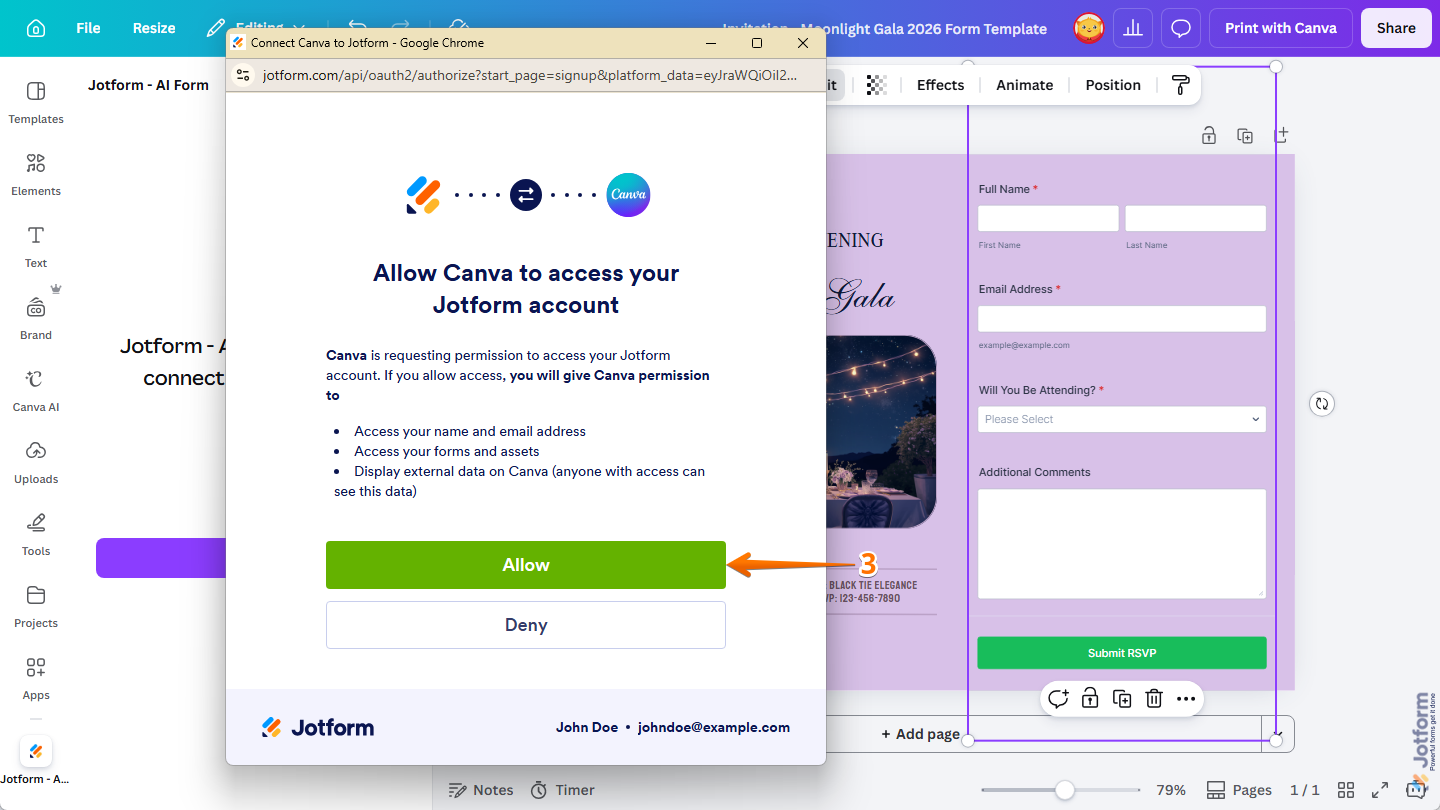
- Then, in the Connect Canva to Jotform window, click on Allow to authorize access for Canva to your account.
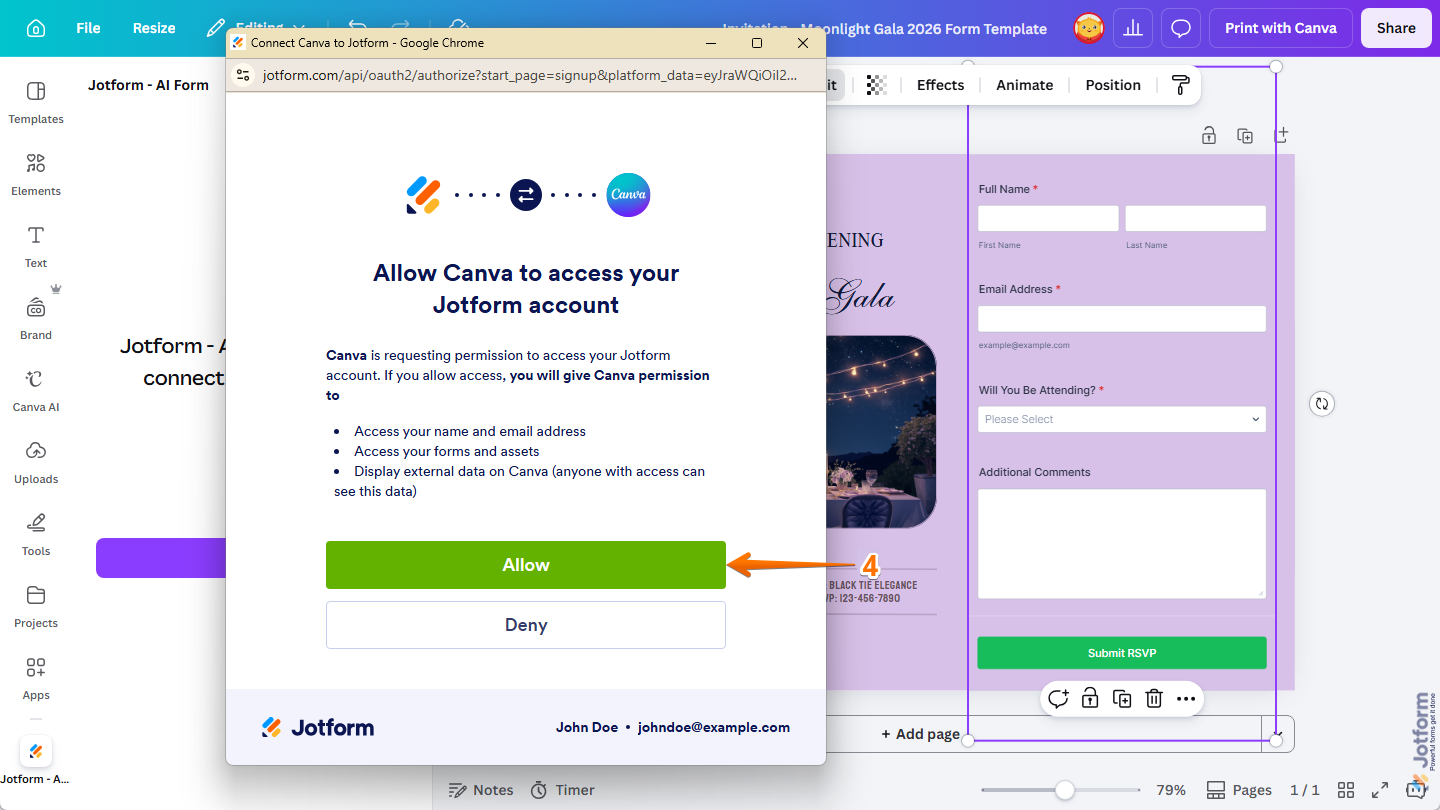
That’s it! Your account is now connected to the Jotform Canva App, and your form has been moved to it. A confirmation window with a Continue button will also pop up if you want to immediately open your form in the Jotform Form Builder in a new browser tab.
Note
The forms you create using the Jotform Canva App and move to your Jotform account will count toward your account’s Form Count Limit. You’ll find more info in our guide on Understanding Your Jotform Account Usage and Limits.

Send Comment: