With Jotform’s Canva App, you can easily add a custom form to a Canva design and turn a simple page into something more interactive, without needing to code. It is a handy option for Canva websites, landing pages, invitations, presentations, or marketing materials when you want a smoother way to gather feedback, registrations, survey responses, or other visitor input.
It is a great fit for creators, small businesses, event organizers, educators, and teams that want their Canva content to do more than just look good. With Jotform’s Canva integration, you can pair your design with customizable forms built for collecting information and organizing responses, all while keeping the experience inside your Canva project.
Using the Jotform Canva App
You can use the Jotform Canva App to create new forms or access your existing ones directly while working on your new or existing designs in Canva. Here’s how to get started:
- Log in to your Canva account and in the menu on the left side of the page, click on More.
- Then, in the menu that opens, click on Apps.
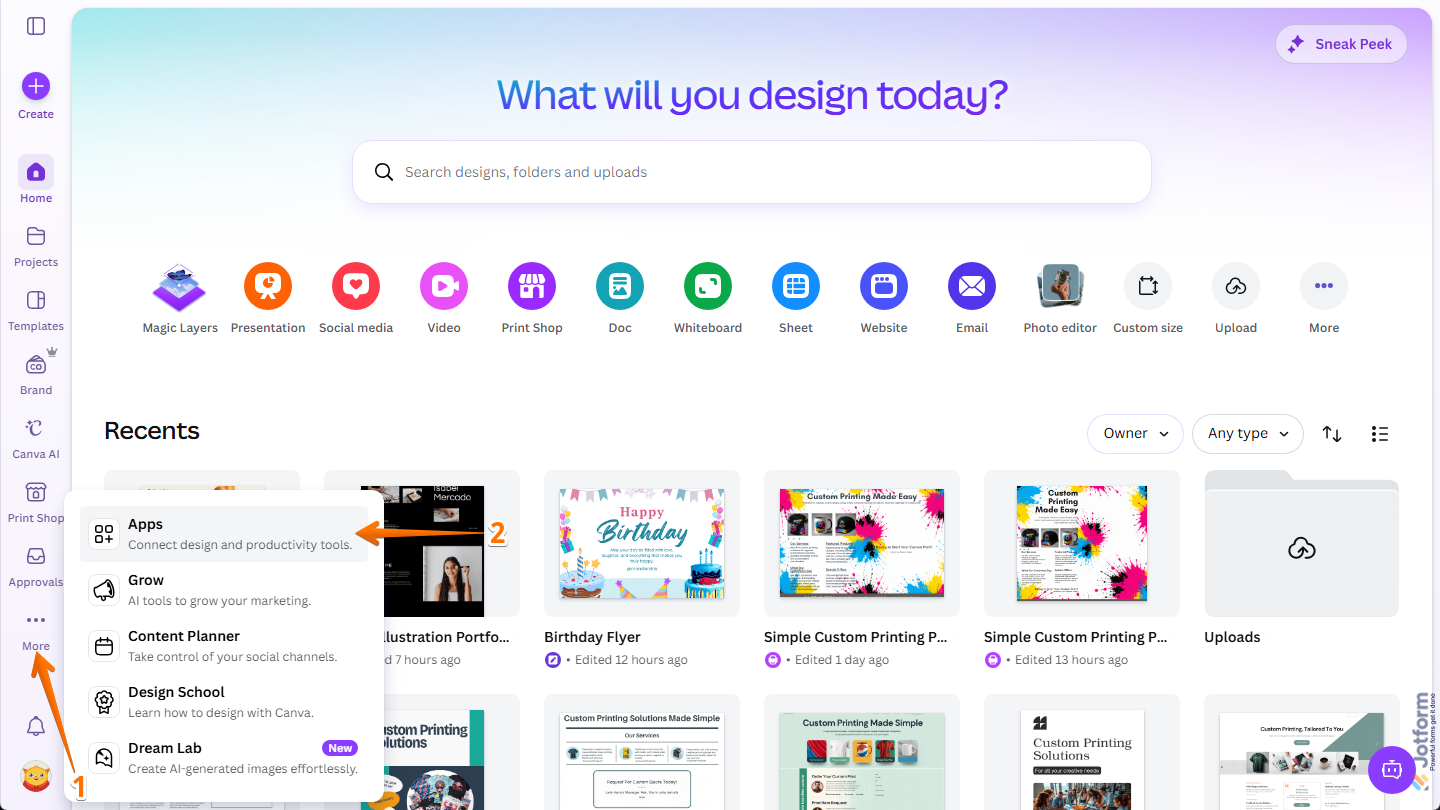
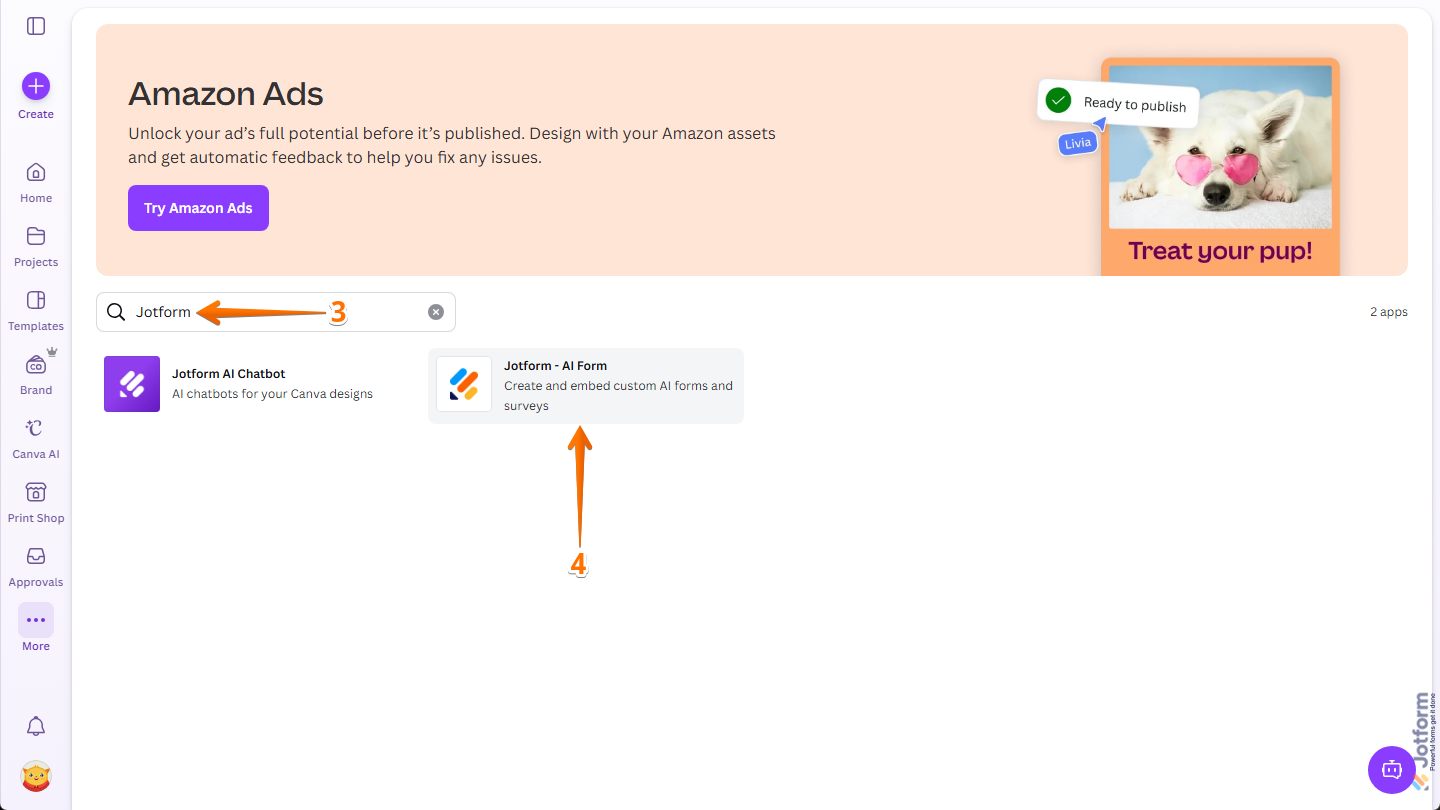
- Next, in the Search bar at the top of the page, type Jotform and press the Enter key on your keyboard.
- Then, in the search results, click on Jotform – AI Form.
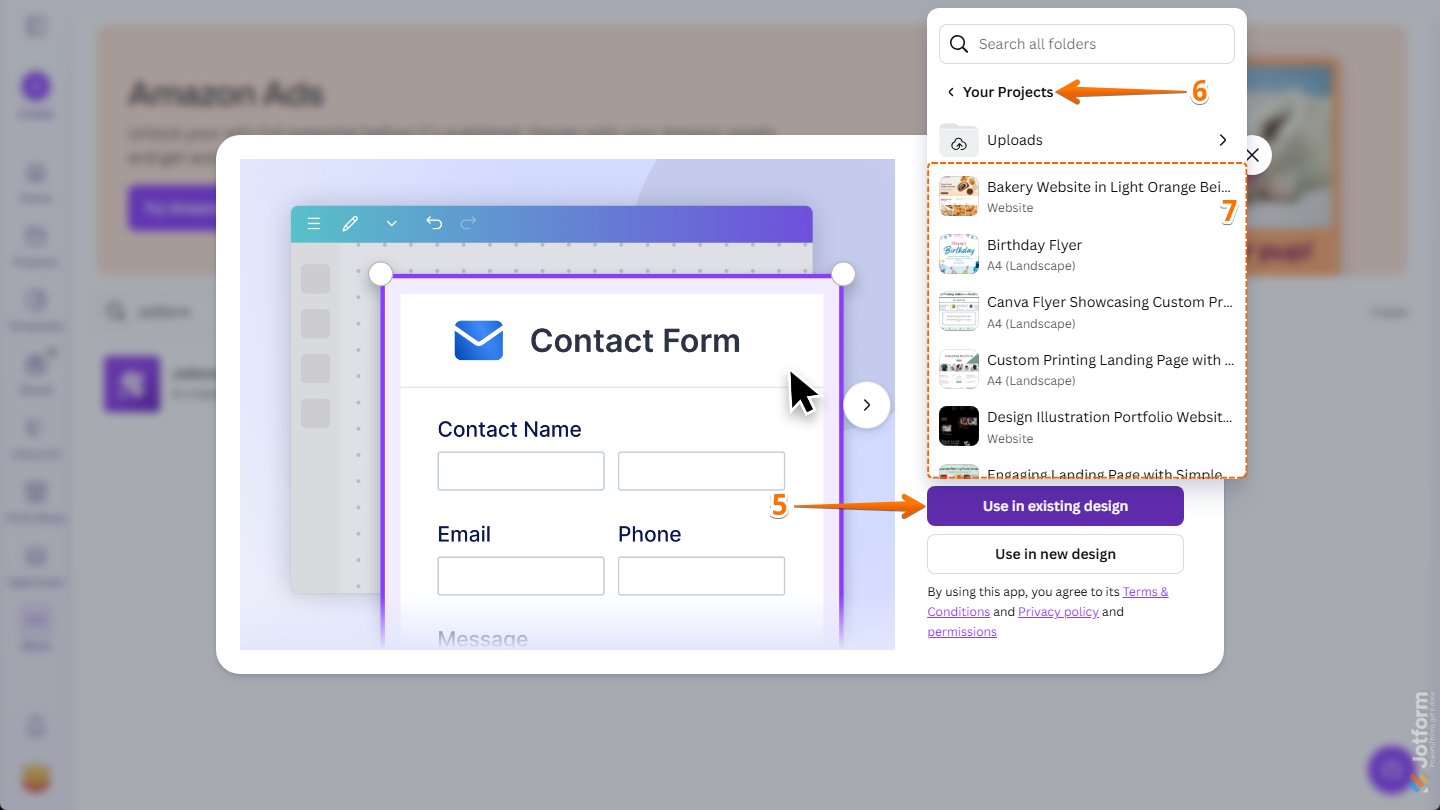
- Now, in the window that pops up, click on Use in Existing Design.
- Then, in the menu that opens, expand the Your Projects section or the Shared With You section. You can use the Search bar at the top of the menu to find one easily.
- Next, select the design you want to add a form to.
- To create a new design that you can add a form to, click on Use in New Design instead.
- Then, in the menu that opens, select the one you would like to create. You can use the Search bar at the top of the menu to find one easily.
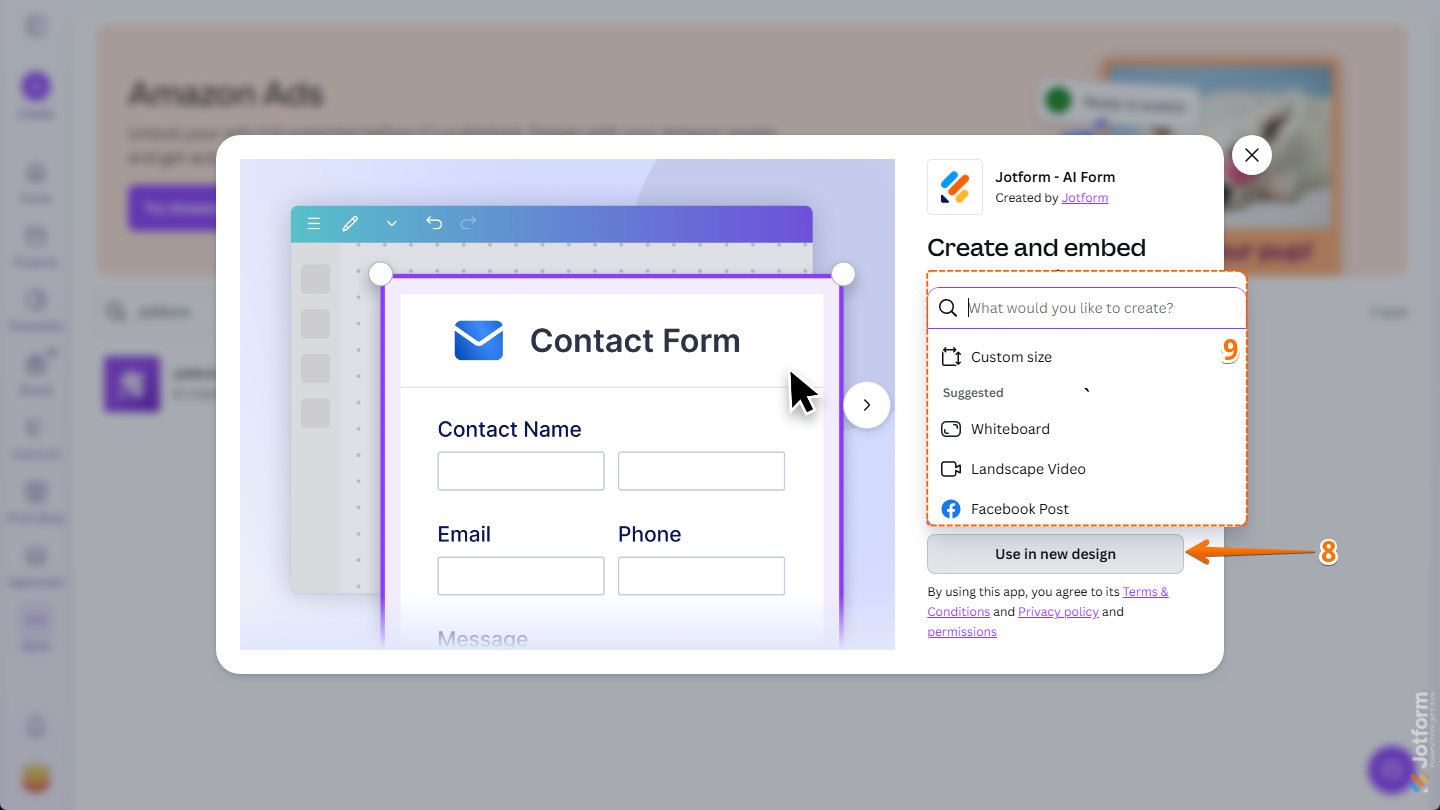
- To set a specific size for your new design, select Custom Size and enter the width and height for the design you want to create.
- Then, click on Create New Design.
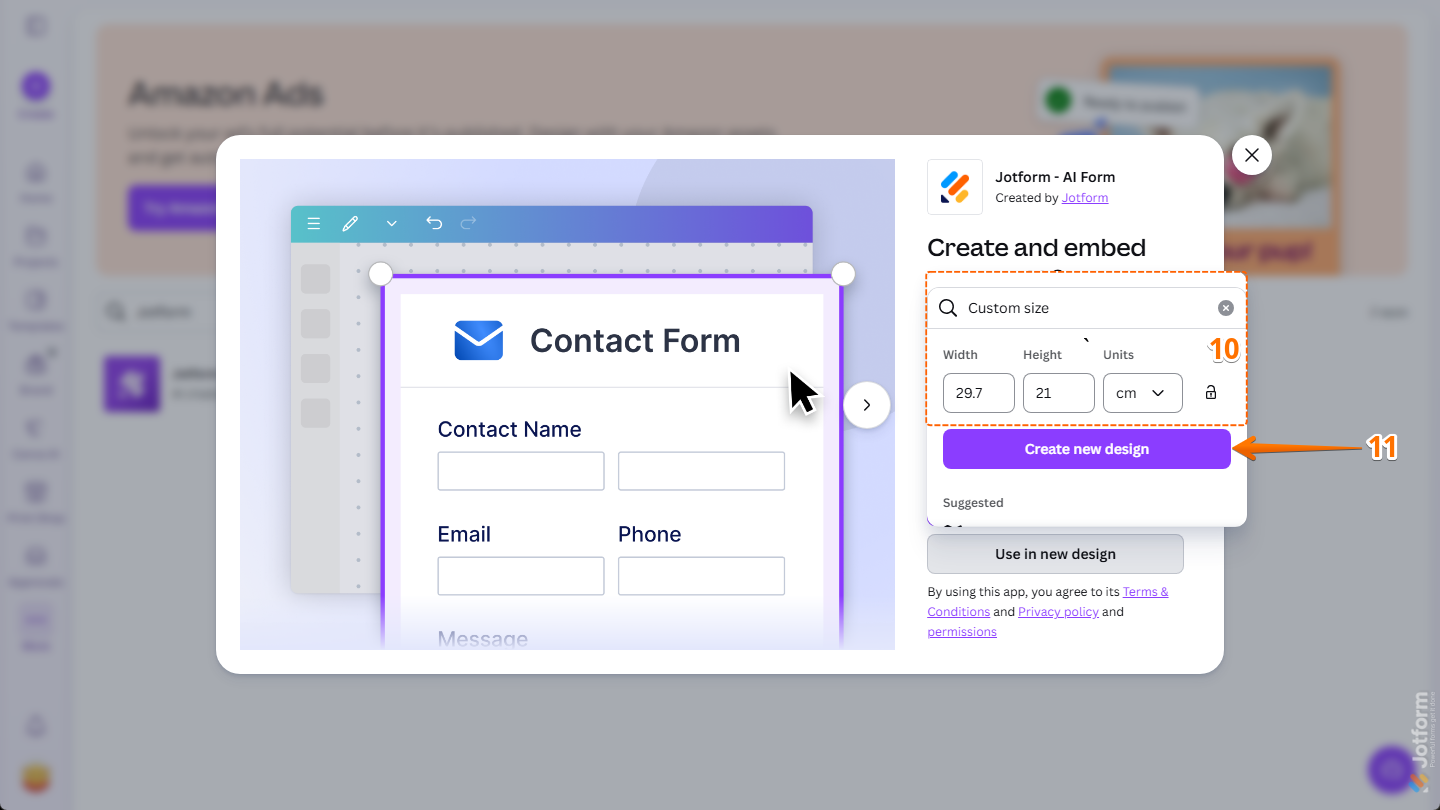
That’s it! Whether you selected an existing design or created a new one, this will automatically open the Jotform Canva App in Canva Design Editor in a new browser tab and allow you to add forms using the following options:
Adding Forms Created with AI to Your Designs
You can easily generate a new form with AI and add it directly to your design without starting from scratch. Here’s what to do:
- While you’re in the Jotform Canva App in Canva Design Editor, under the Create tab, keep Create With AI selected.
- Then, in the Prompt box below it, enter the description of the form you want to add to your design.
- Once everything’s set, click on Generate Form.
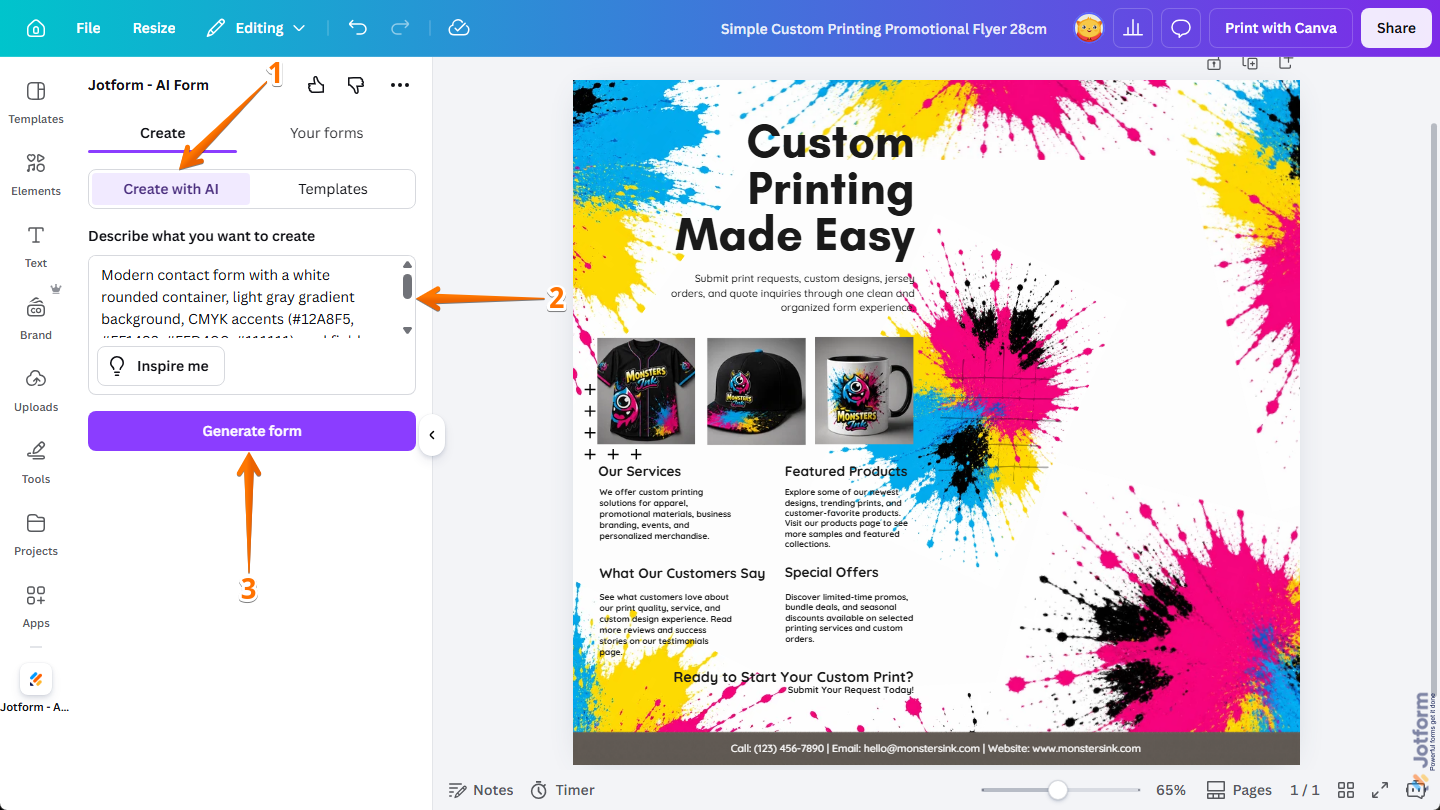
That’s it! Your AI-generated form has been added to your design, and you can now resize and position it the way you like.
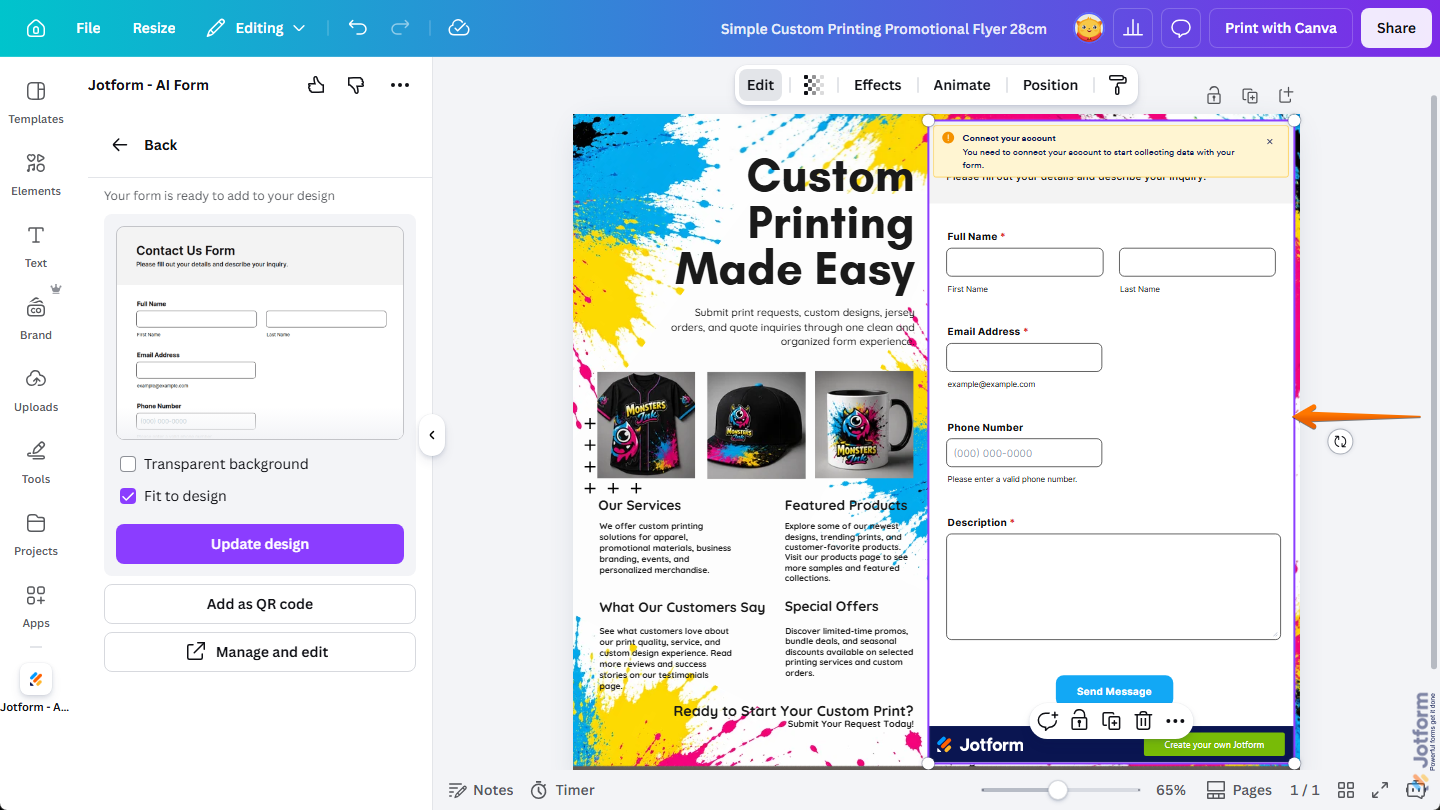
Note
A Connect Your Account message is shown at the top of forms generated while using the Jotform Canva App as a guest. Log in to your Jotform account in the app to move your form from a Guest account to your connected account. If you’re not sure how to do it, check out our guide on How to Collect and Manage Data From Forms Added to Canva to learn more.
Adding Forms from Templates to Your Designs
Creating professional forms for your designs using ready-made templates is quick and easy. You can do it in a few simple steps:
- While you’re in the Jotform Canva App in Canva Design Editor, under the Create tab, select Templates.
- Then, hover your mouse over the template you want to use and click on Use Template. You can also apply filters and use the Search bar to find one easily. Curious about how it works? Check out our guide on How to Filter Form Templates for Your Canva Designs.
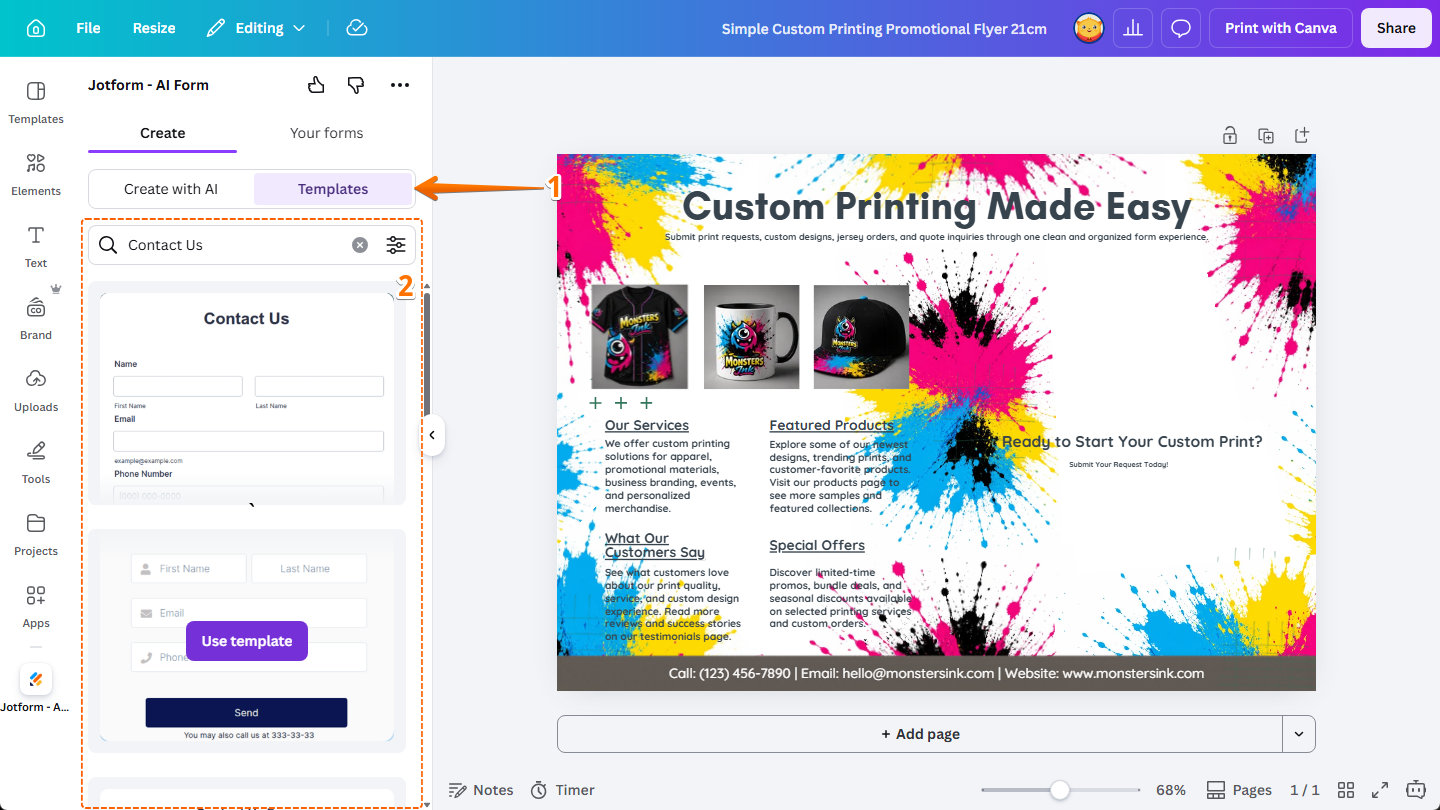
That’s it! Your template-based form has been added to your design, and you can now adjust it to fit your layout.
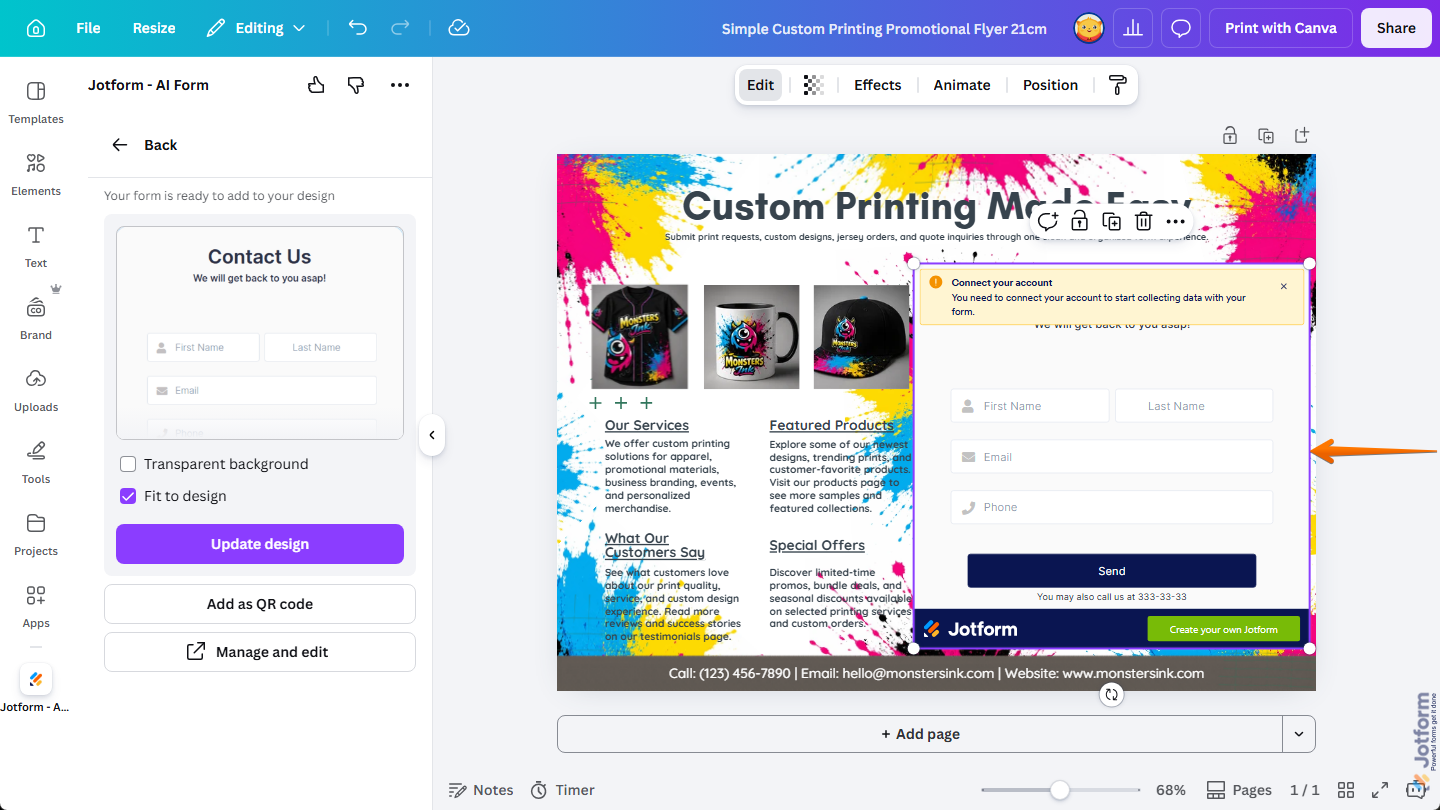
Note
A Connect Your Account message is shown at the top of forms created from templates in the Jotform Canva App while using it as a guest. Log in to your Jotform account in the app to move your form from a Guest account to your connected account. If you’re not sure how to do it, check out our guide on How to Collect and Manage Data From Forms Added to Canva to learn more.
Adding Existing Forms to Your Designs
You can connect your Jotform account to access your existing forms and add them directly to your designs. Here’s what to do next:
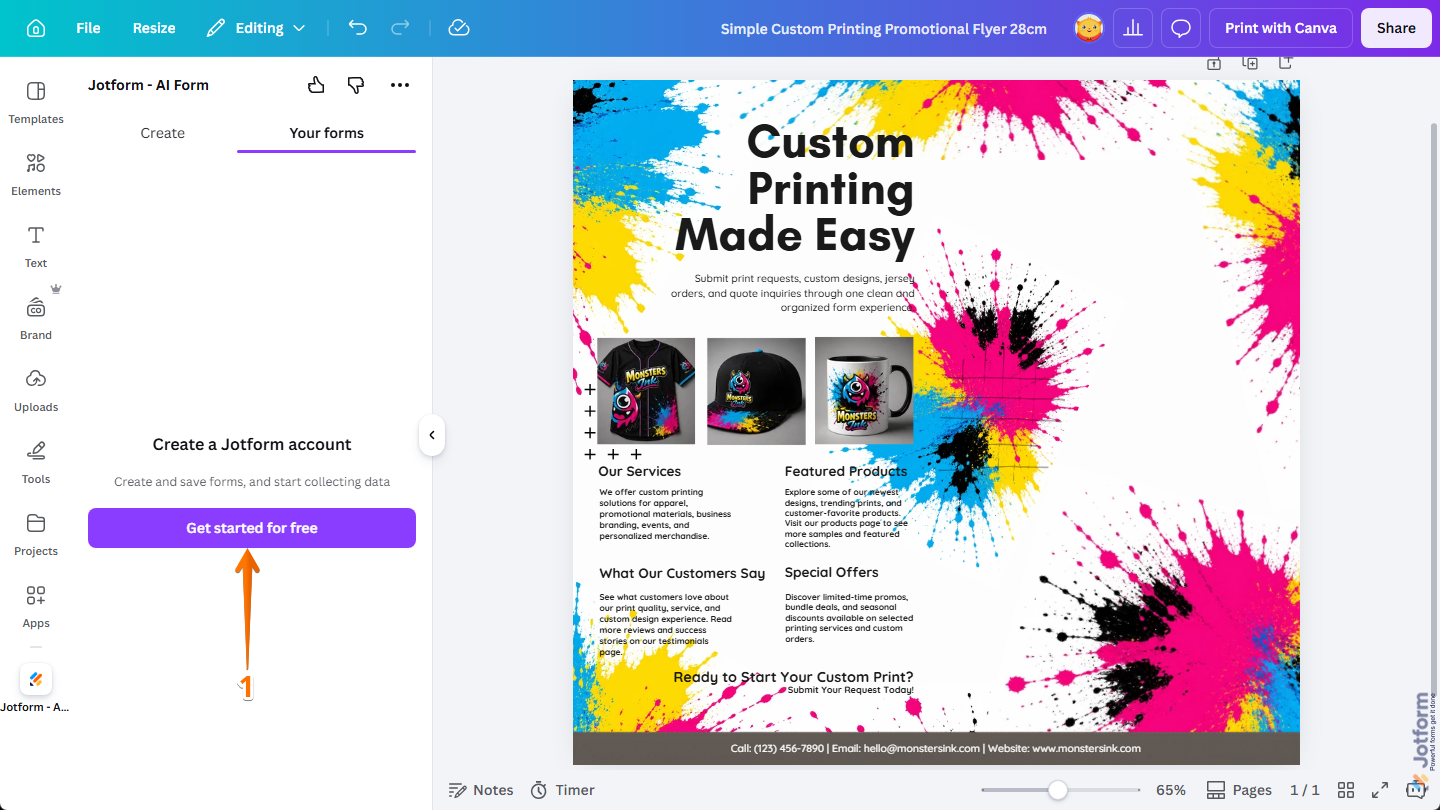
- While you’re in the Jotform Canva App in Canva Design Editor, under the Your Forms tab, click on Get Started for Free.
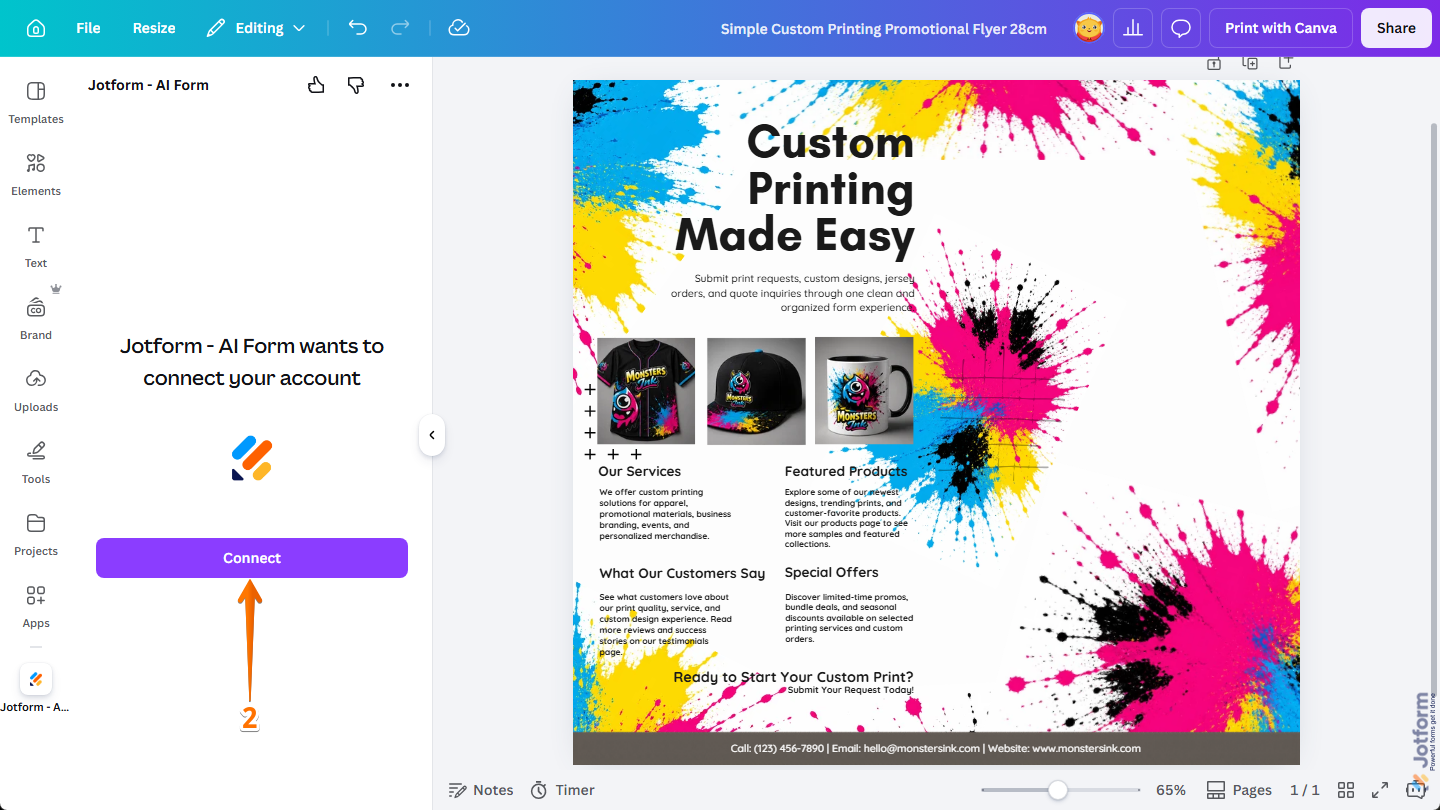
- Then, in the middle of the window, click on Connect.
- Next, in the Jotform Login window that comes up, log in to your Jotform account.
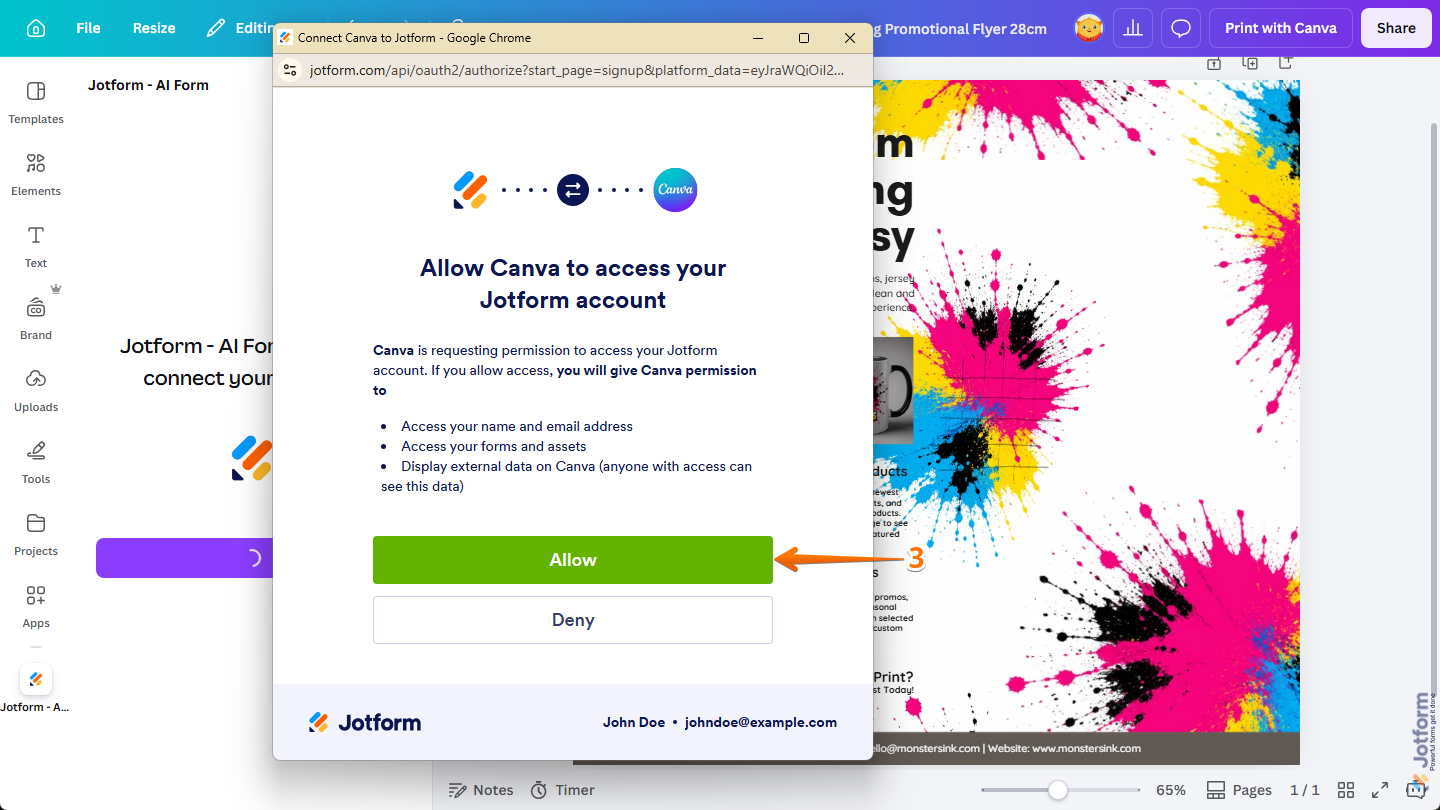
- Then, in the Connect Canva to Jotform window, click on Allow to authorize access for Canva to your account.
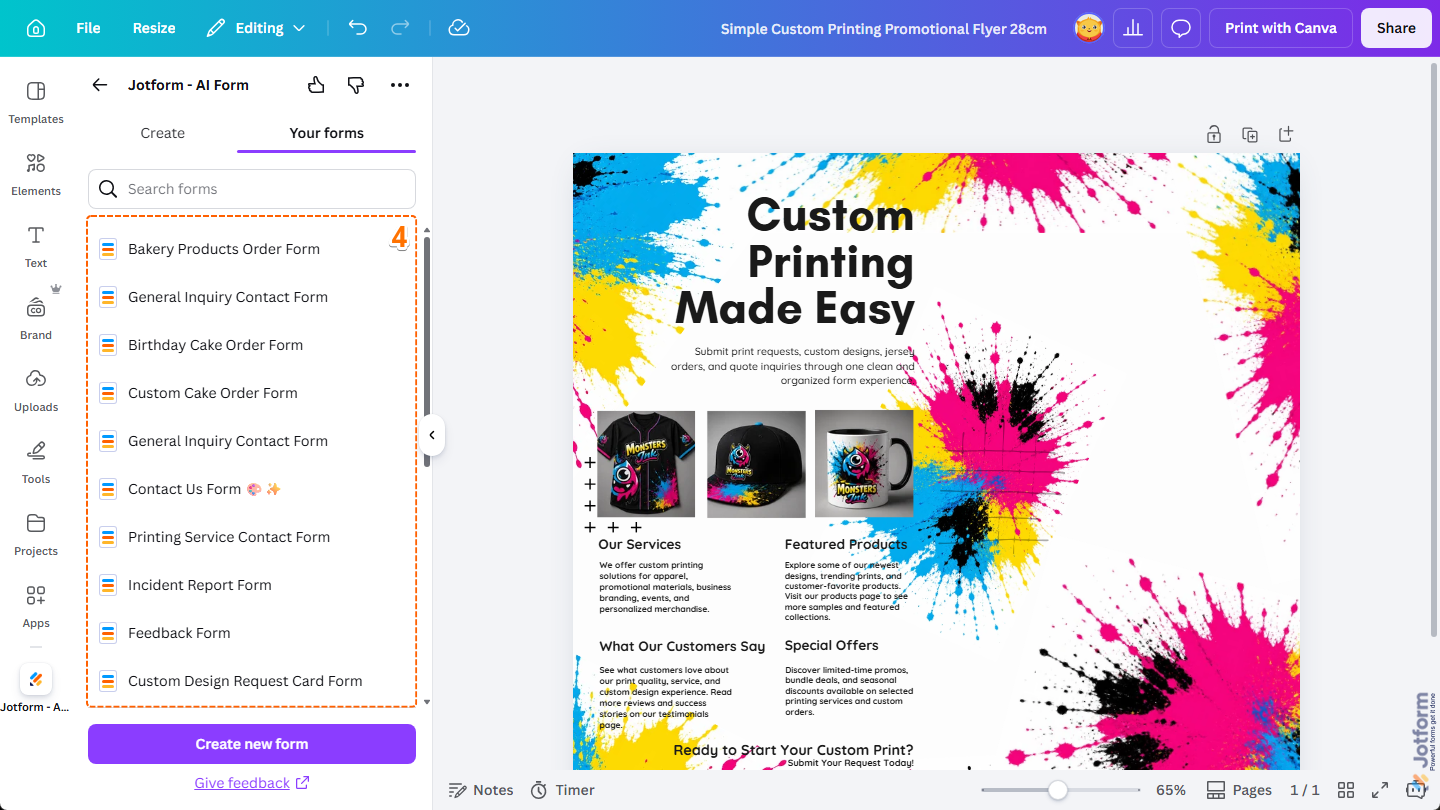
- Now, click on the form you want to add to your design. Or, use the Search bar at the top of the list to find one easily.
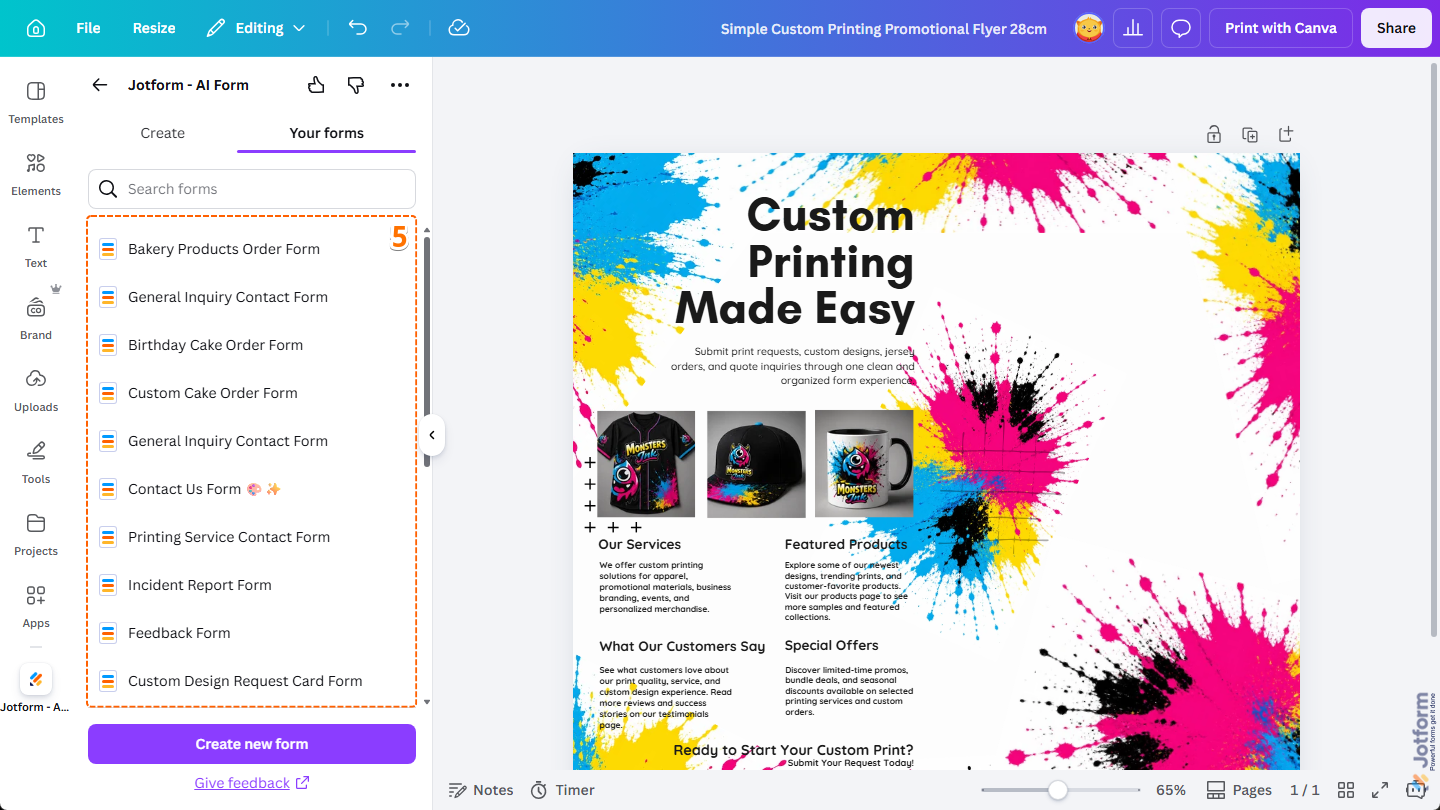
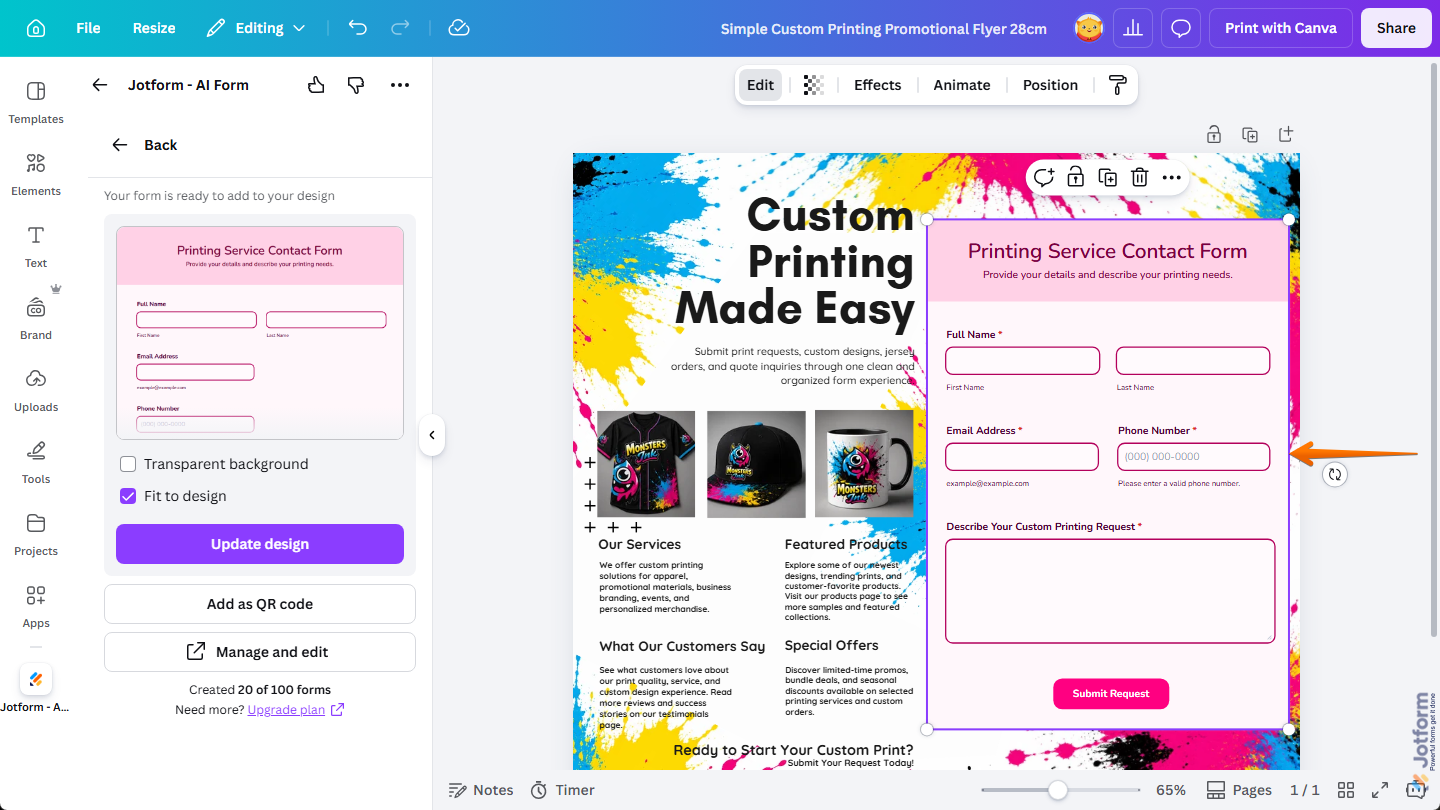
That’s it! Your existing form has been added to your design, and you can now resize and position it to fit your layout.
Notes
- When your Jotform account is connected to the Jotform Canva App, any forms generated with AI or created using templates within the app will automatically be saved or moved to your account. They will count toward your account’s Form Count Limit. You’ll find more info in our guide on Understanding Your Jotform Account Usage and Limits.
- Changes you make to forms added to your Canva designs from your connected Jotform account will automatically be reflected in those designs. Want to learn more about how to match your forms with your Canva designs? You’ll find more info in our guide on Customizing Forms for a Canva-Perfect Look.
Embedding Existing Forms to Canva
You can also use your form URL to embed an existing form from your Jotform account into your Canva designs. While we recommend using the Jotform Canva App for a more streamlined experience, this option still works well. Here’s how to set it up:
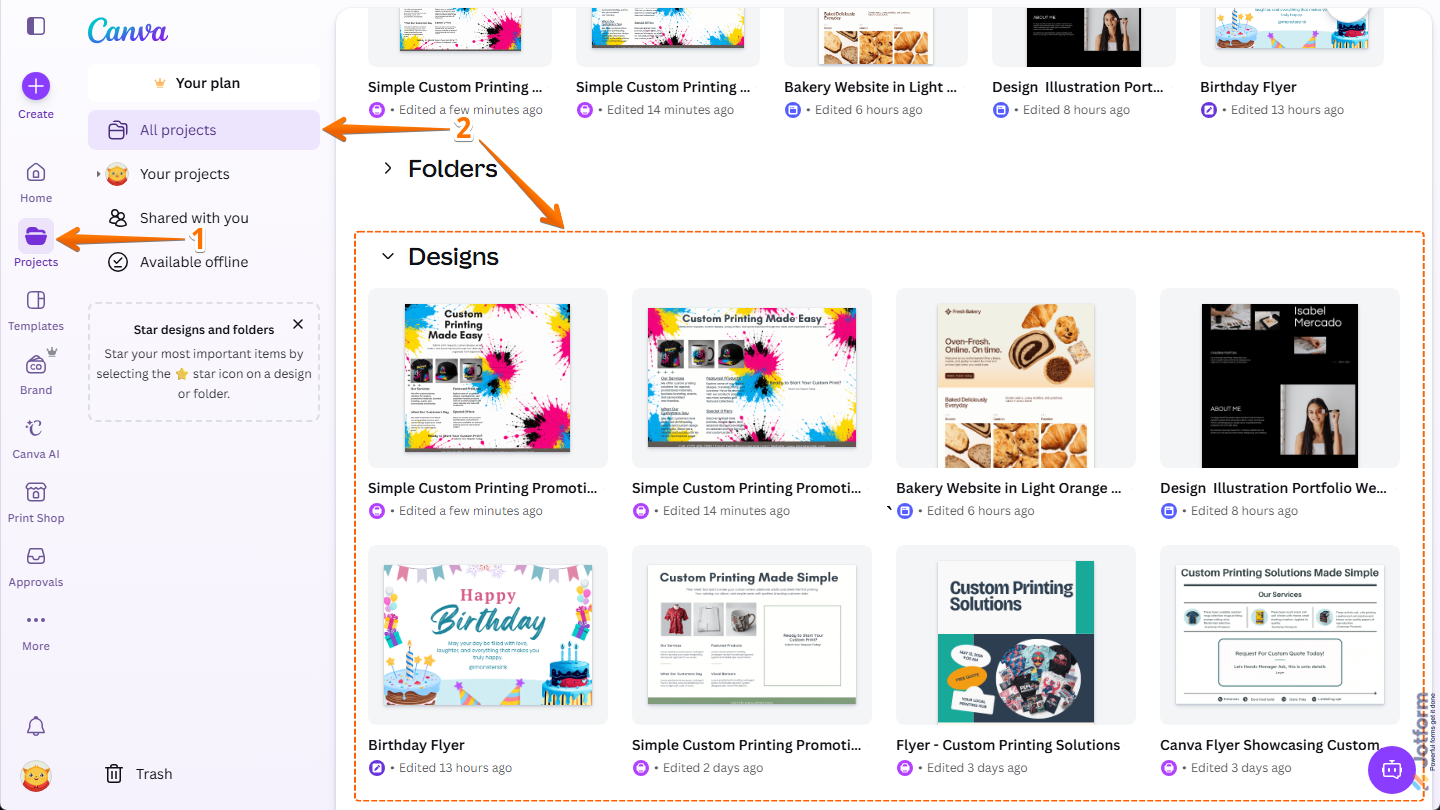
- Log in to your Canva account, and in the menu on the left side of the page, click on Projects.
- Then, under All Projects, in the Designs section, click on the design you want to embed your form into.
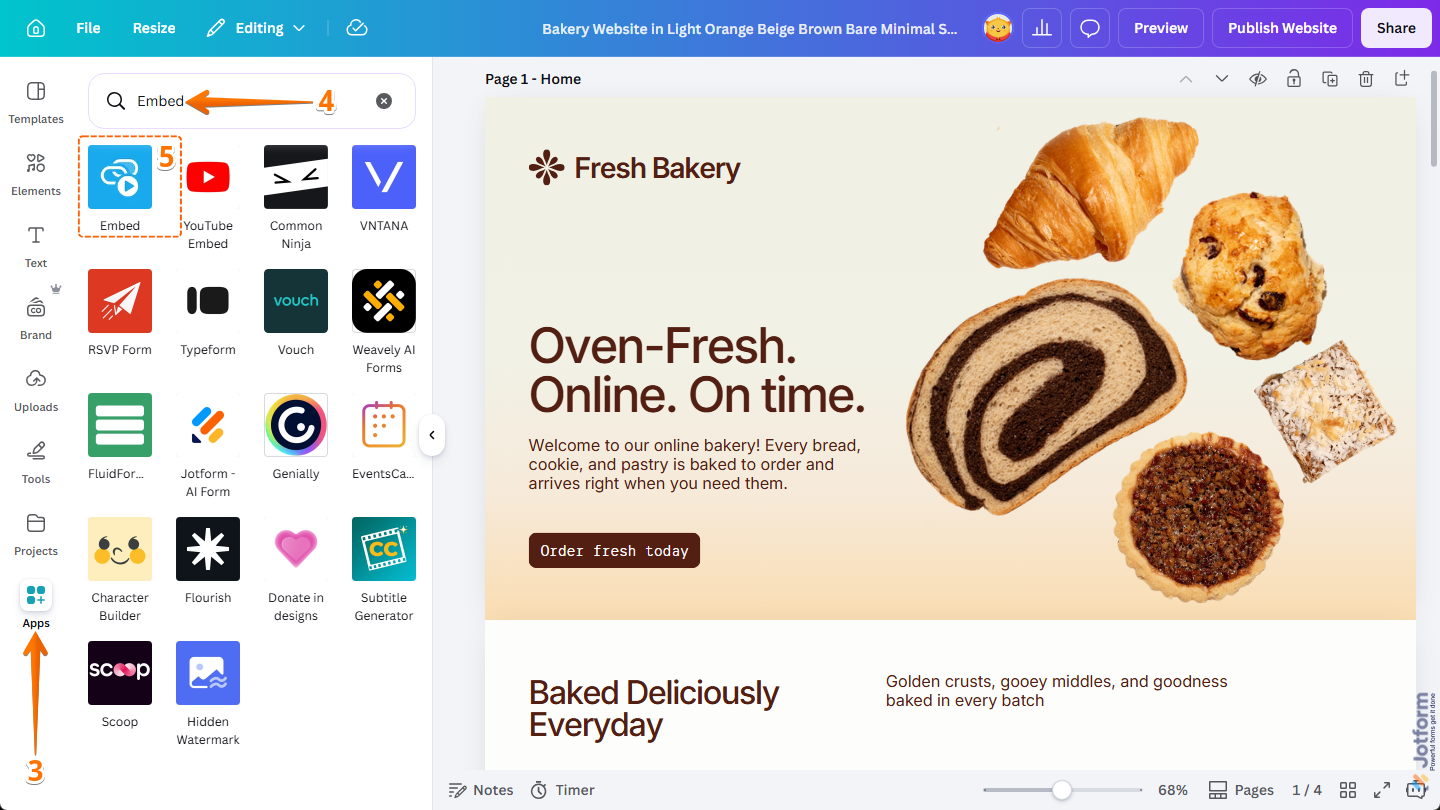
- In the Canva Design Editor that opens in a new browser tab, click on Apps on the left side of the page.
- Now, in the Search bar at the top of the menu that comes on the right, type Embed and press the Enter key on your keyboard.
- Then, in the search results, click on Embed.
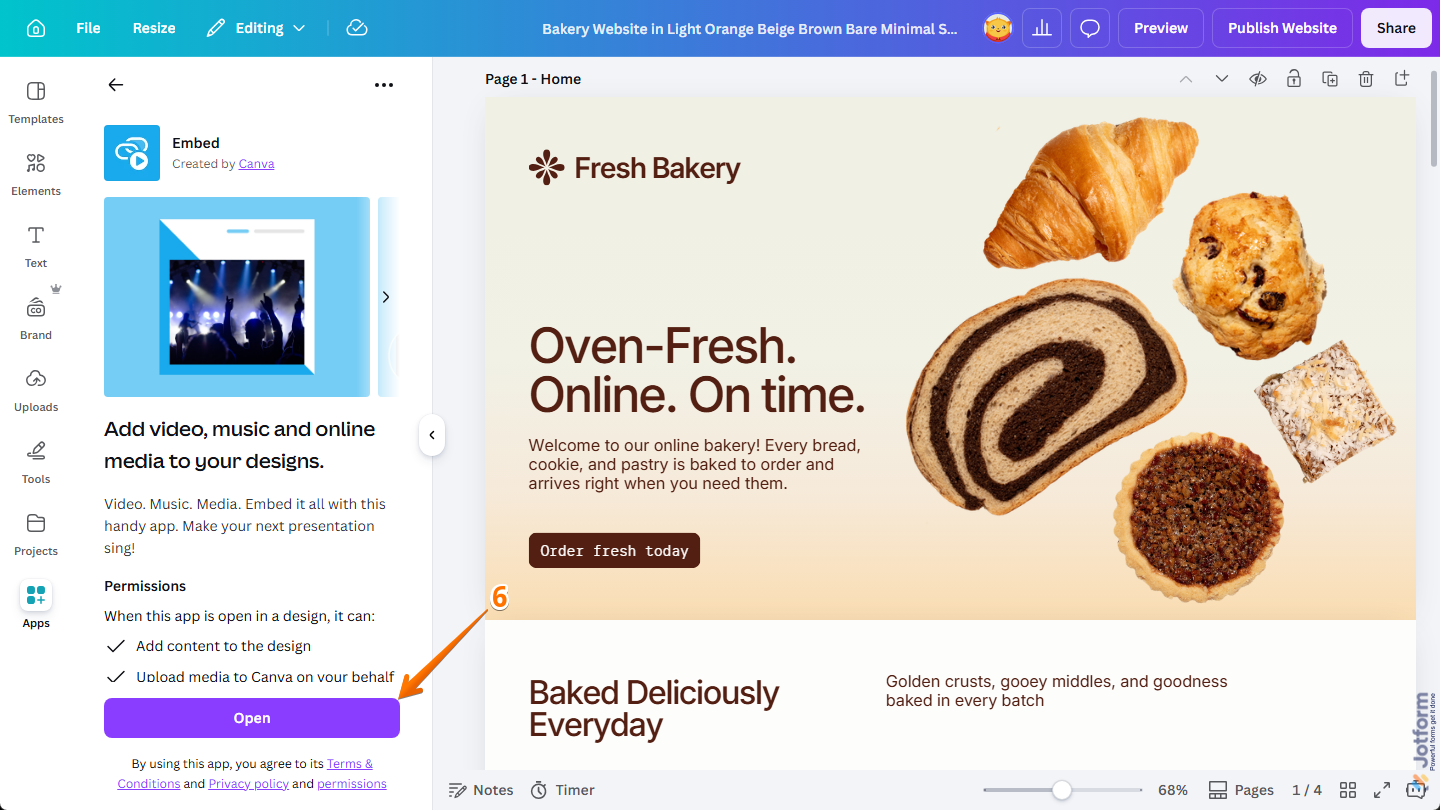
- Next, at the bottom of the Embed App section, click on Open.
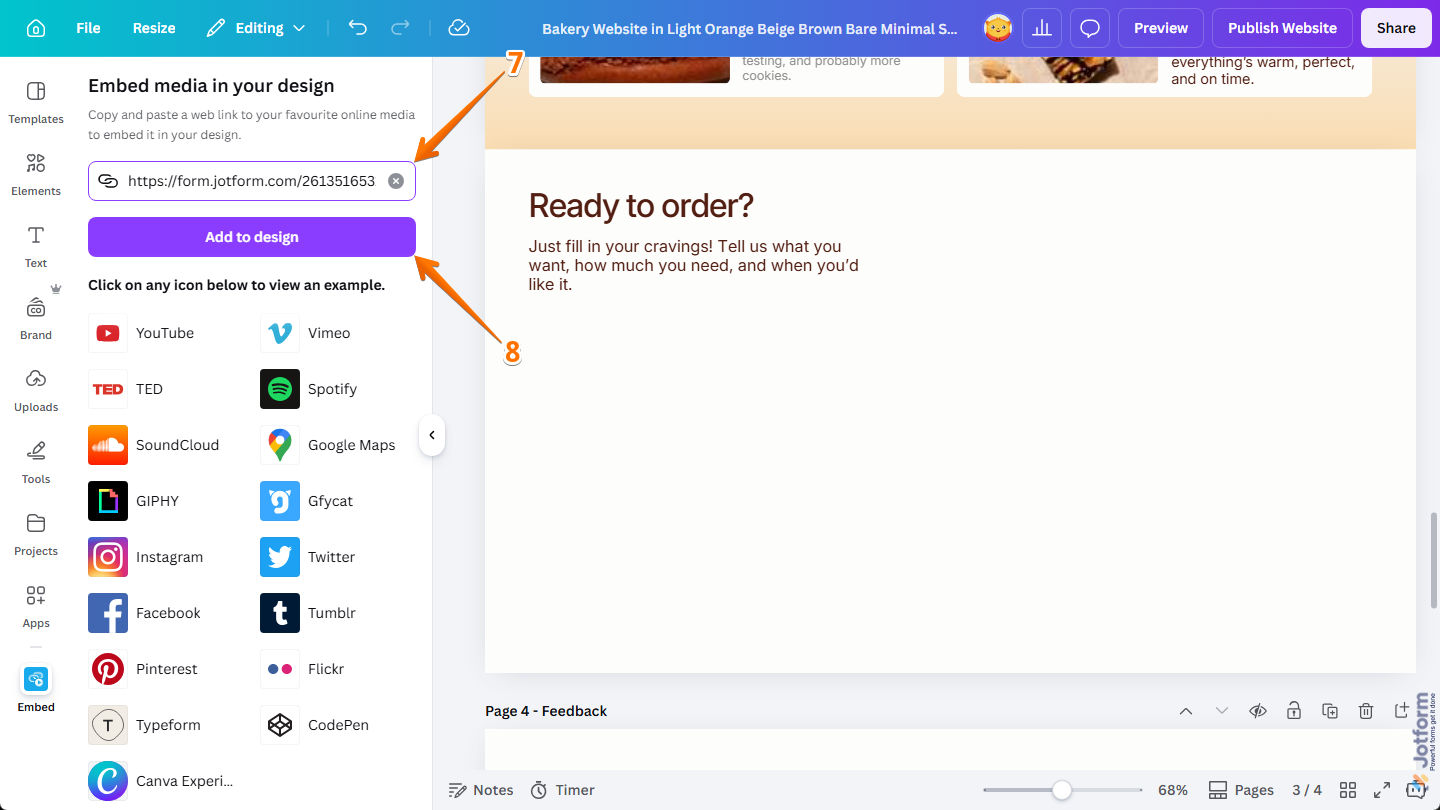
- Now, in the Embed Media in Your Design section, enter your Form URL. If you’re not sure where to find it, check out our guide on How to Find Your Form URL to learn more.
- Once everything’s set, click on Add to Design.
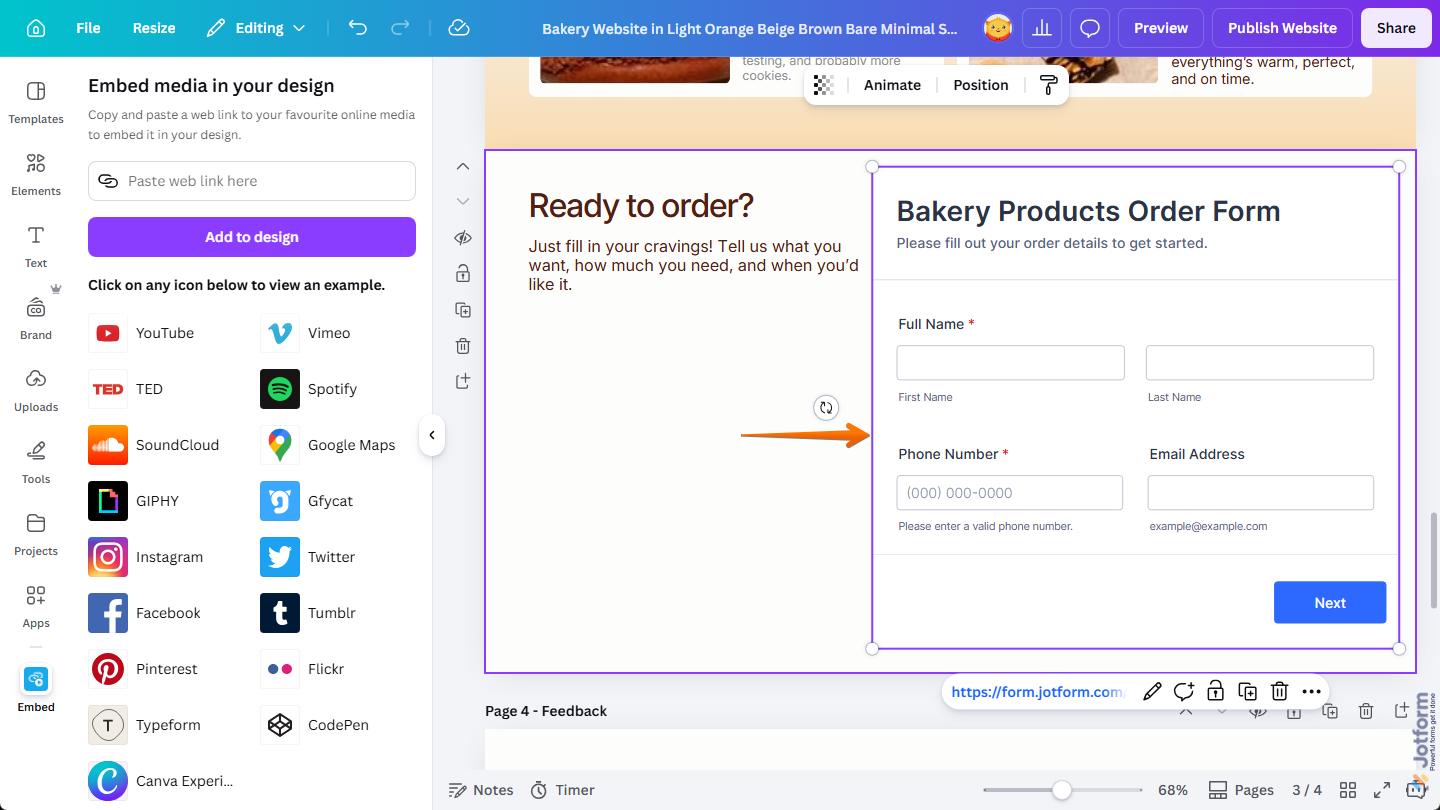
That’s it! Your form has been embedded into your Canva design, and you can now resize and position it to fit your layout.
Pro Tip
If you need a chatbot for your Canva design or webpage, try using Jotform’s Canva Chatbot to answer your customers’ questions. You’ll find more info in our guide on How to Create an AI Chatbot in Canva.

Send Comment:
5 Comments:
February 18, 2026
Es fabulosa esta integración, sobre todo cuando estamos afiliados a Canva.
January 15, 2026
Wenn ich das Formular in eine Canva-Datei eingefügt habe, welchen Download (Dateiart) muss ich wählen, damit ich das Formular ausfüllen kann?
August 4, 2025
Je souhait colaboret avèc vous sit vou est enterese apèl mois
February 4, 2025
Hi,
I'm interested in Jotform x Canva. I currently have a few forms on Jotform, whereby I use the Jotform live link rather than embed the forms.
If I start using them through the Canva app, will the URL change to a Canva one or can the Jotform URL I have been using remain?
January 29, 2025
I've added my Jotform to my Canva design and downloaded it as a PNG file so that I can share it in an email. However, from my email I'm not able to fill out the form. What do I need to do to get this to work properly?