Jotform makes it easy to generate and add form QR codes directly to your Canva designs through the Jotform Canva App. With a quick scan, people can instantly access RSVP forms, surveys, registrations, contact forms, feedback pages, and more, making it easy to connect printed or digital materials with online forms without relying on long, hard-to-type links.
This feature is especially useful for event organizers, businesses, educators, marketers, and content creators. Whether you’re creating invitations, flyers, posters, presentations, product packaging, or social media graphics, adding a QR code gives your audience a fast and convenient way to respond, sign up, or share information.
Once you’ve added a form to your Canva design, you can generate a QR code for it and add it to your project in just a few clicks. Here’s what to do:
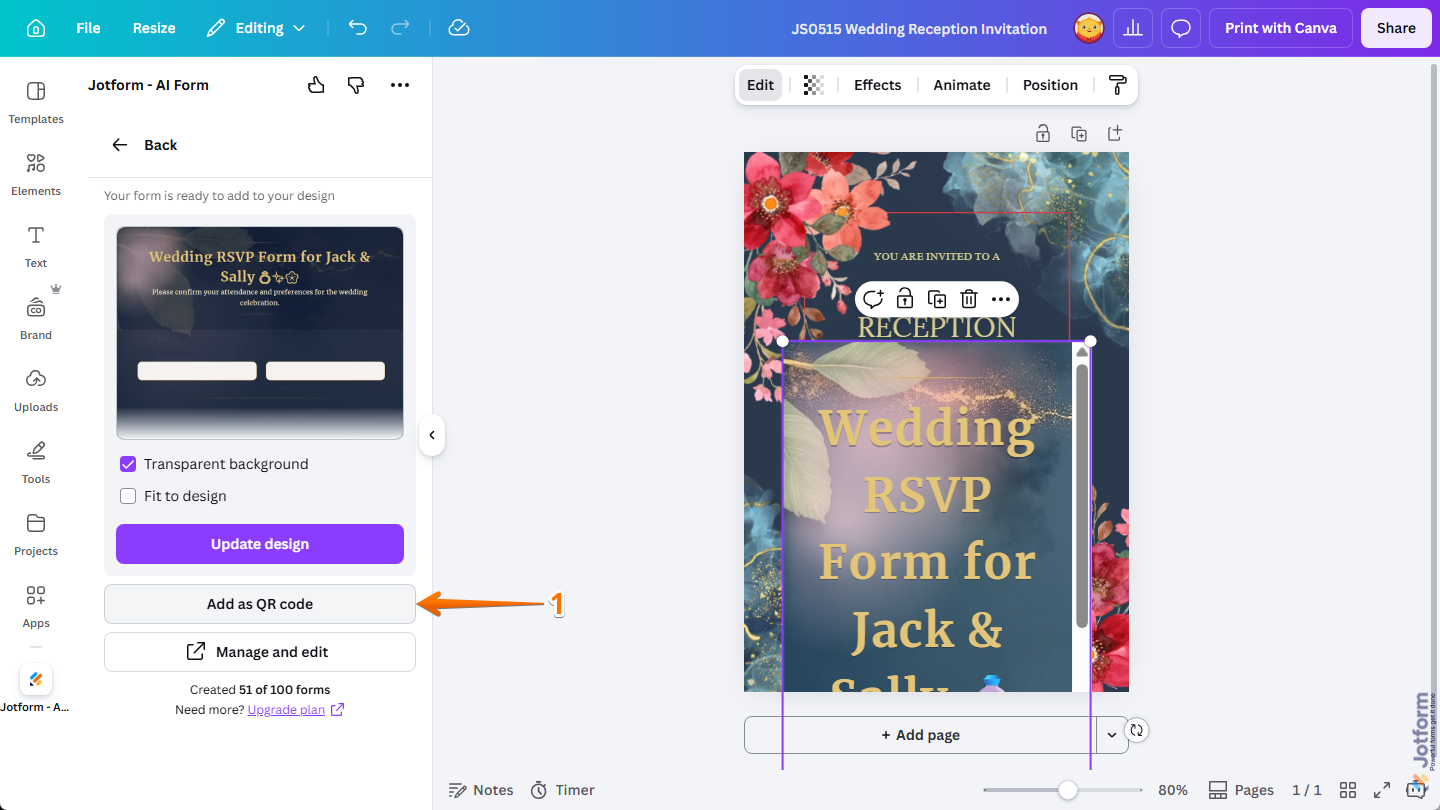
- In Canva Design Editor, while your form is selected in your design, click on Add as QR Code in the Jotform Canva App.
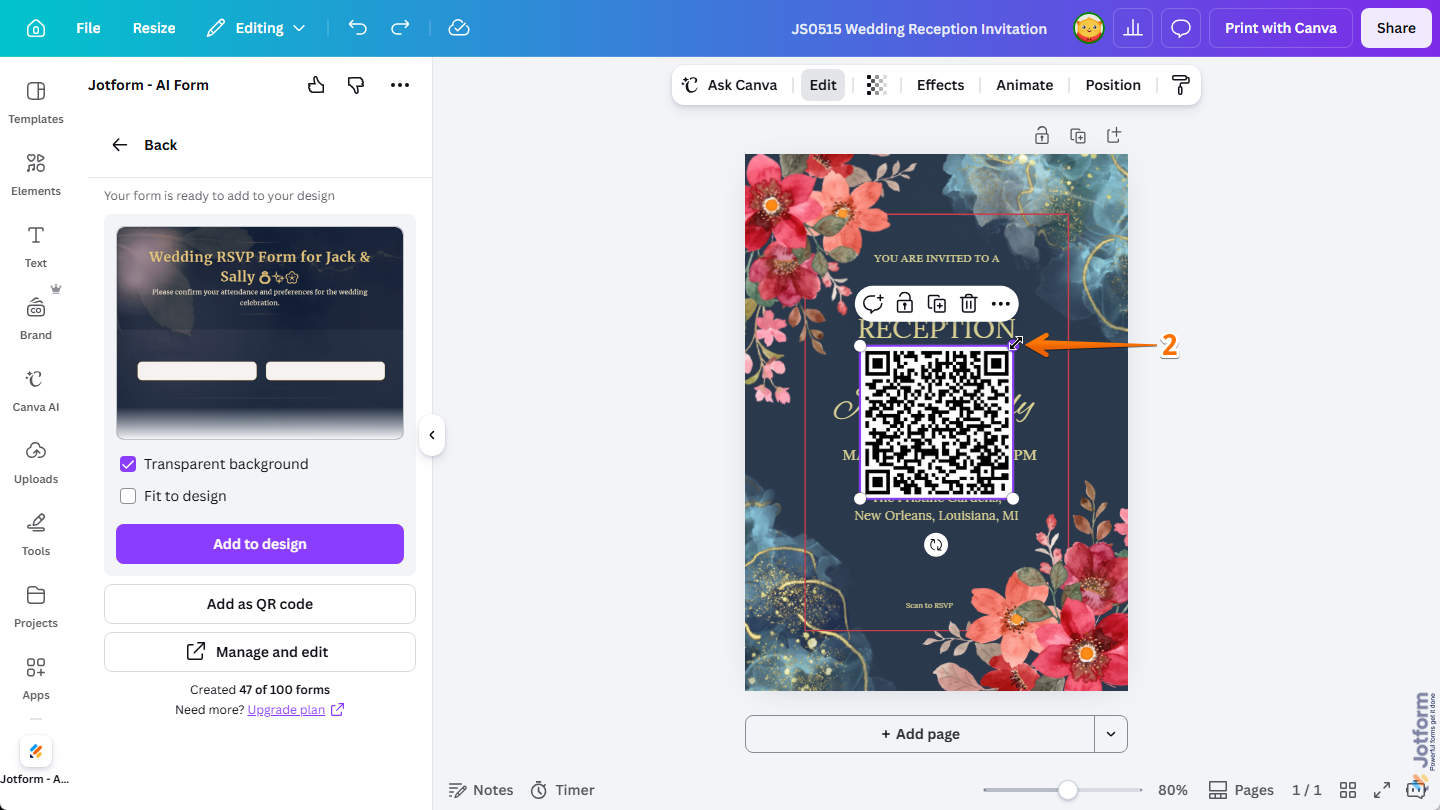
- Now, to resize the QR code in your design, click on and hold one of the dots around its corners, then drag it inward or outward.
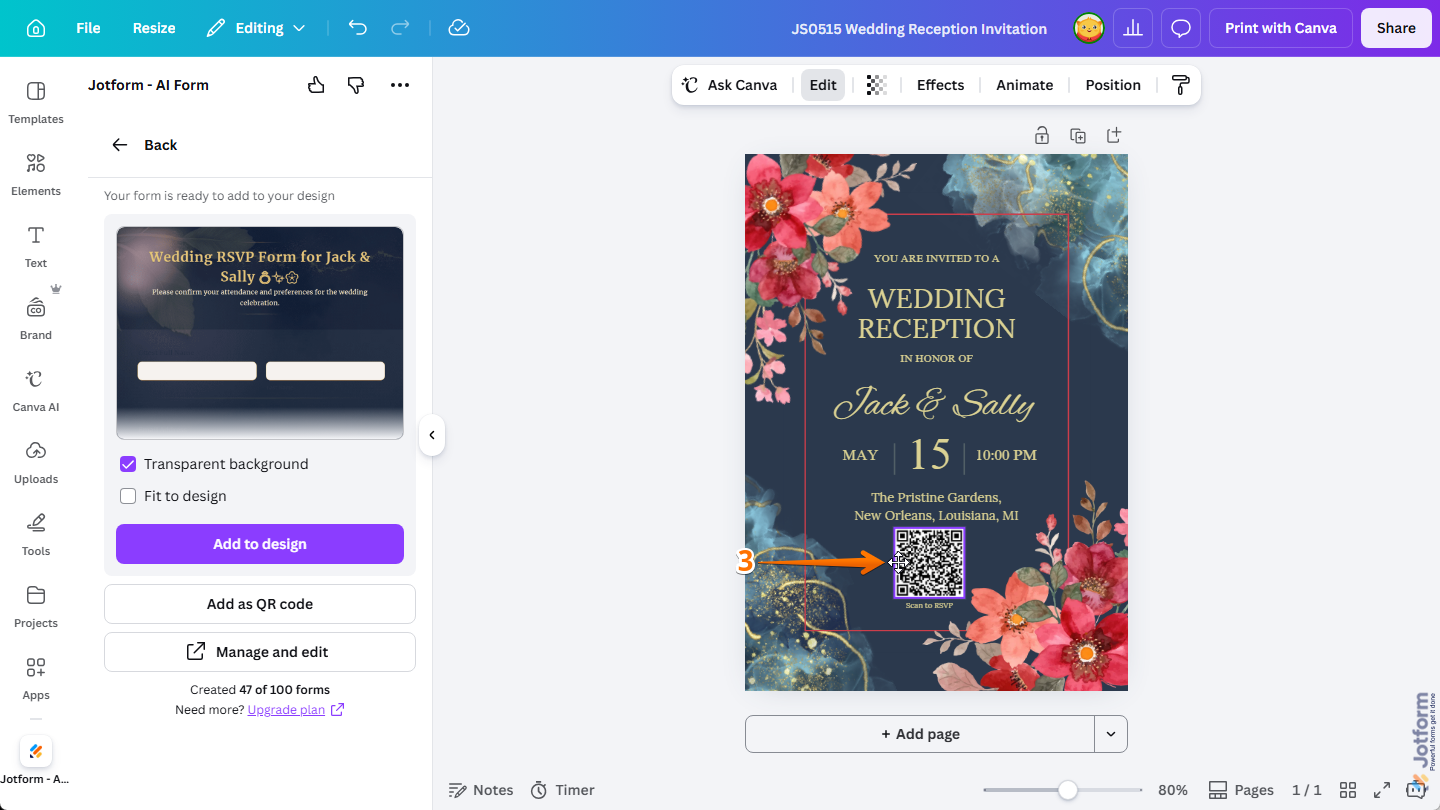
- Then, to reposition the QR code, click on it and hold it, and then drag it to wherever you want it to be in your design.
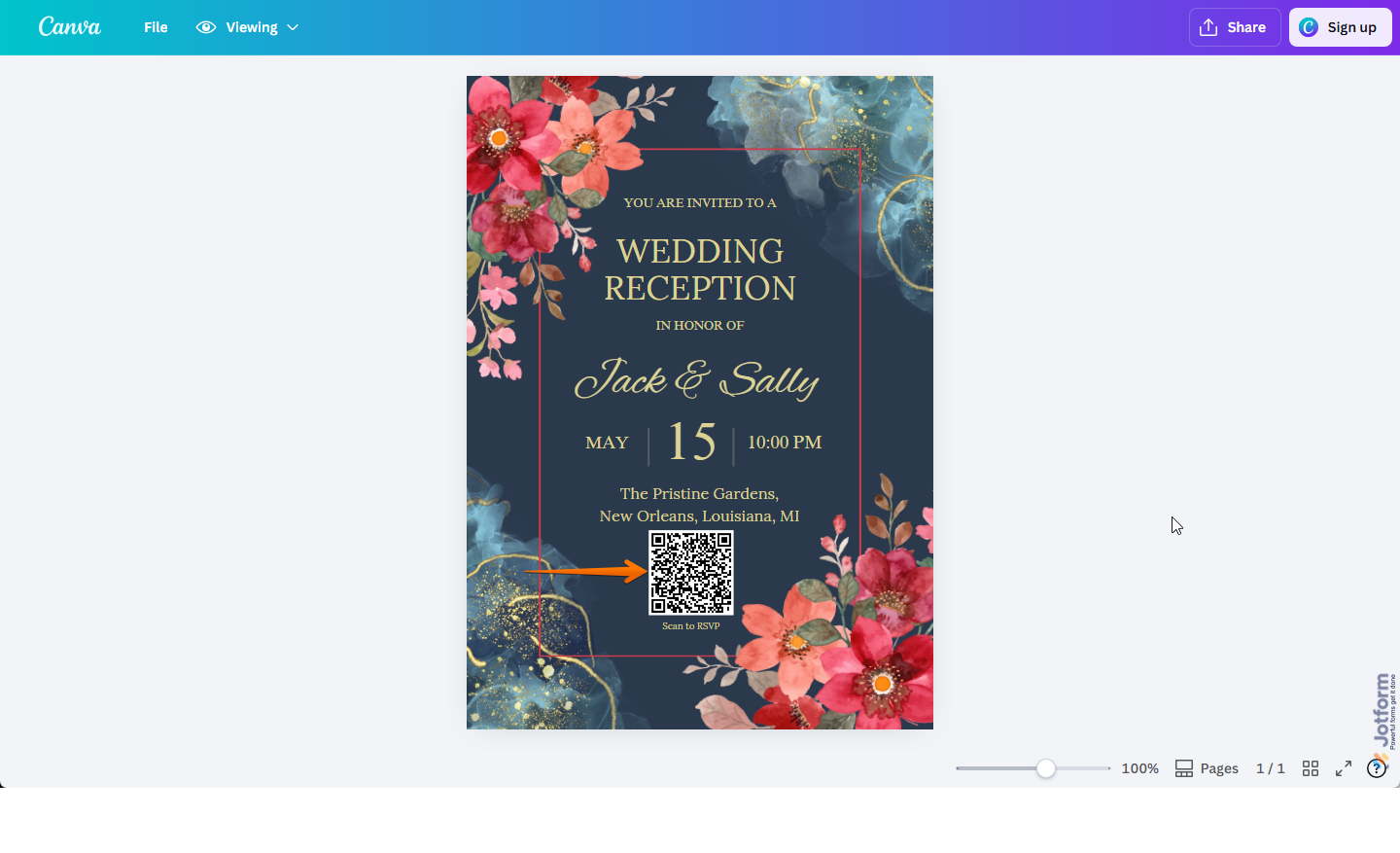
That’s it! Users can now scan the QR code directly from your design to instantly open the direct link to your form.
Pro Tip
If you need a chatbot for your Canva design or webpage, you can use Jotform’s Canva Chatbot to answer your customers’ questions. You’ll find more info in our guide on How to Create an AI Chatbot in Canva.

Send Comment: