The Smart Signals feature notifies you of significant performance shifts across your assets. Within the platform, you can oversee these notifications by utilizing tools to filter, search, and export data, as well as by adjusting your specific alert preferences. You can find all the details about Smart Signals on the Insights page.
Below, you can find details about viewing and managing smart signals:
How to View Smart Signals
Smart Signals are located under the Insights page. On the Insights page, we provide visualized data about your assets’ performances and allow you to receive a report of unusual events based on this data in the Smart Signals page. Follow the steps below to locate Smart Signals:
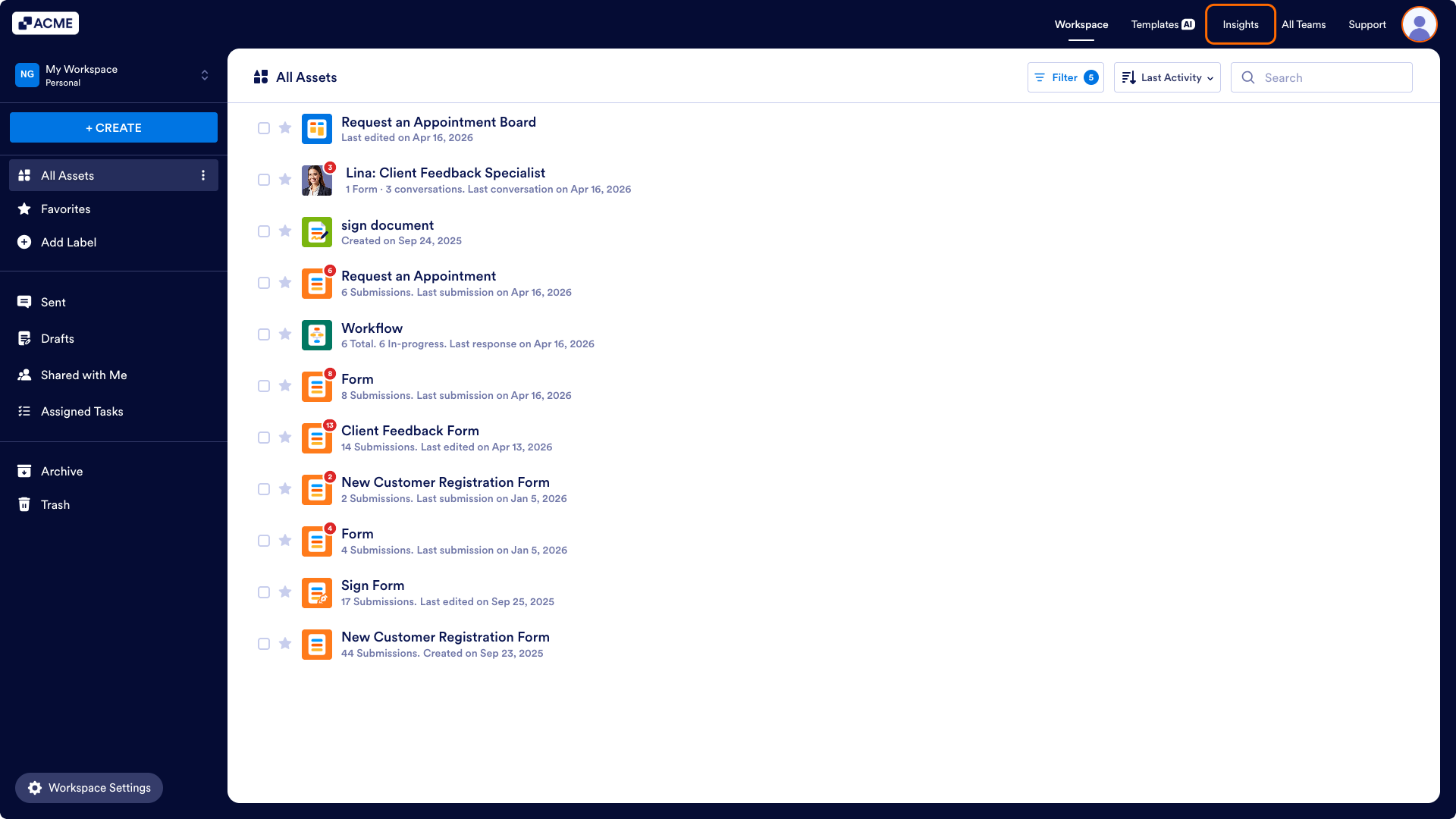
- On the My Workspace page, click the Insights in the top navigation bar.
- Then click Smart Signals from the left panel on the Insights page.
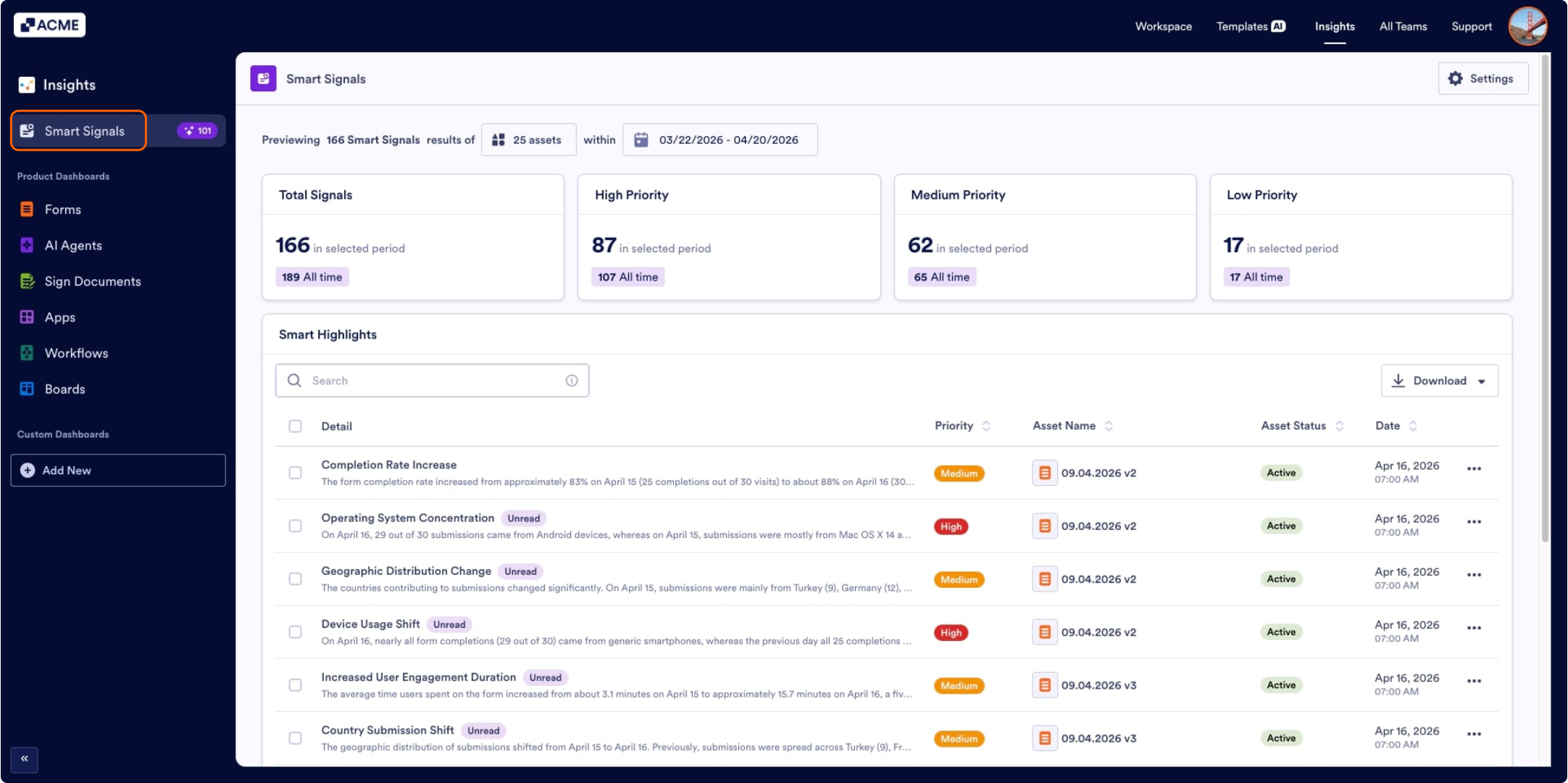
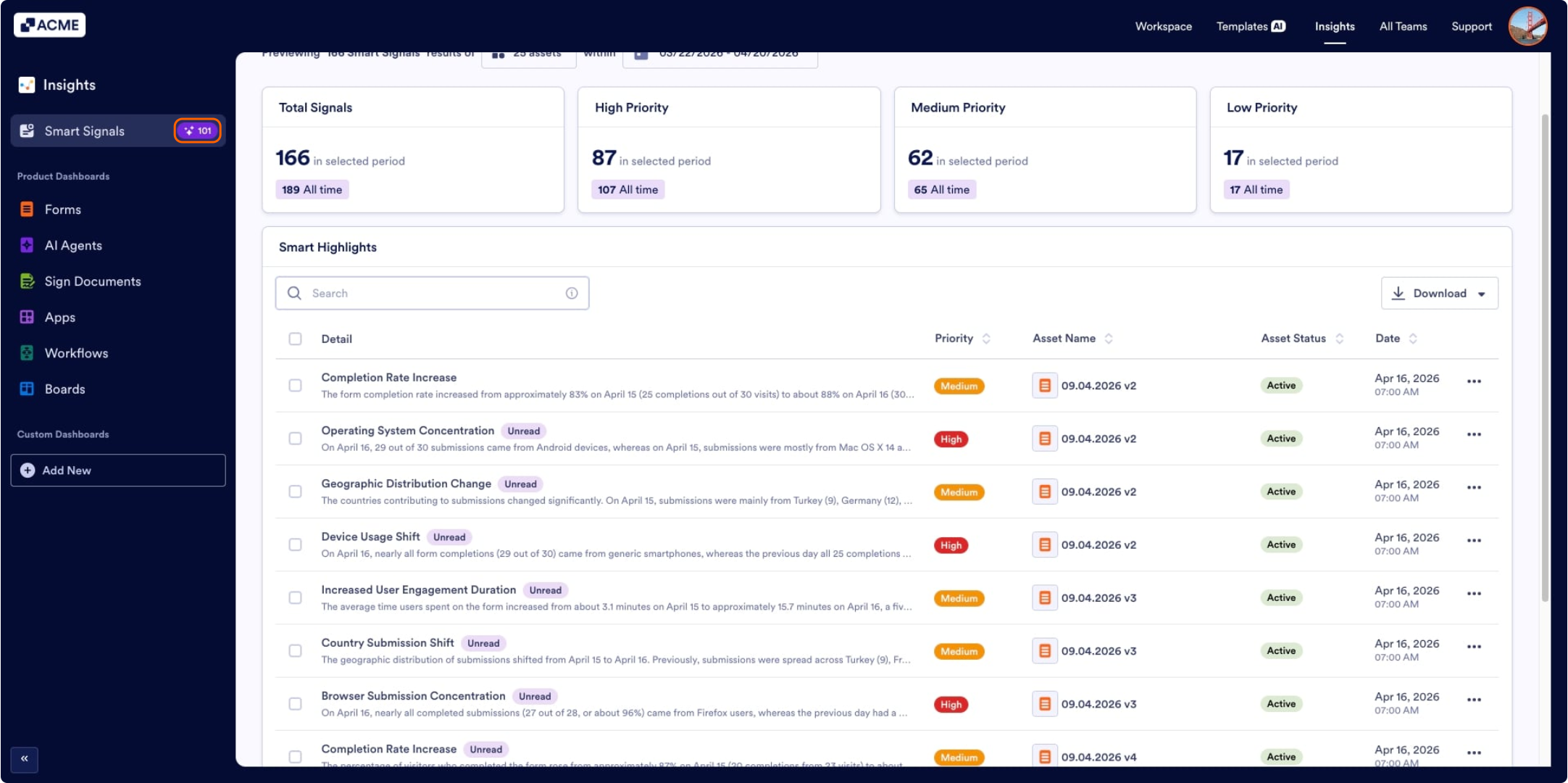
The number of the unread signals will be displayed next to the Smart Signals in the left panel:
Filtering Smart Signals
You can view smart signals related to specific assets in a specific date range. To perform this task, use the filter options:
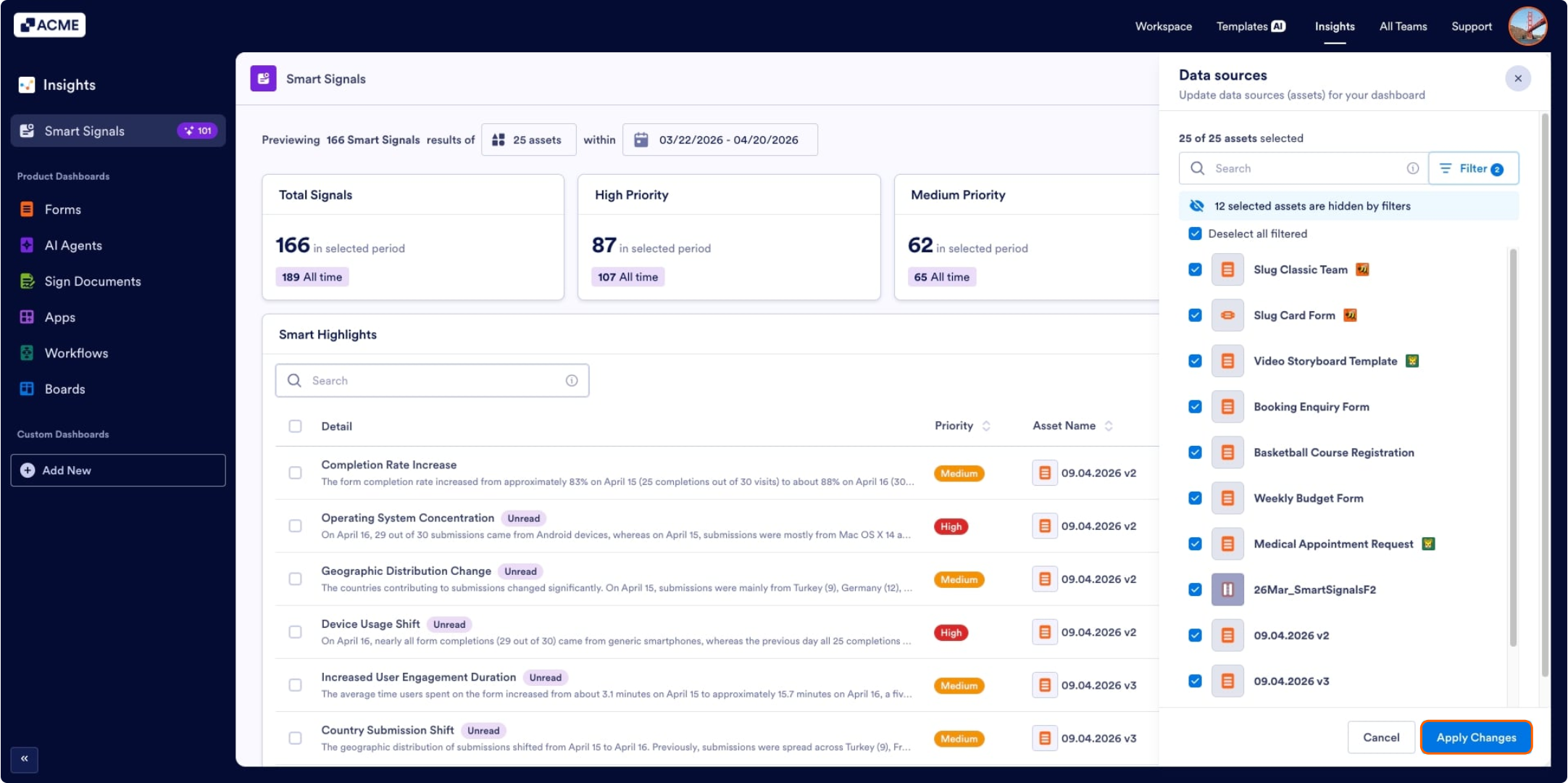
Filtering the Data Source:
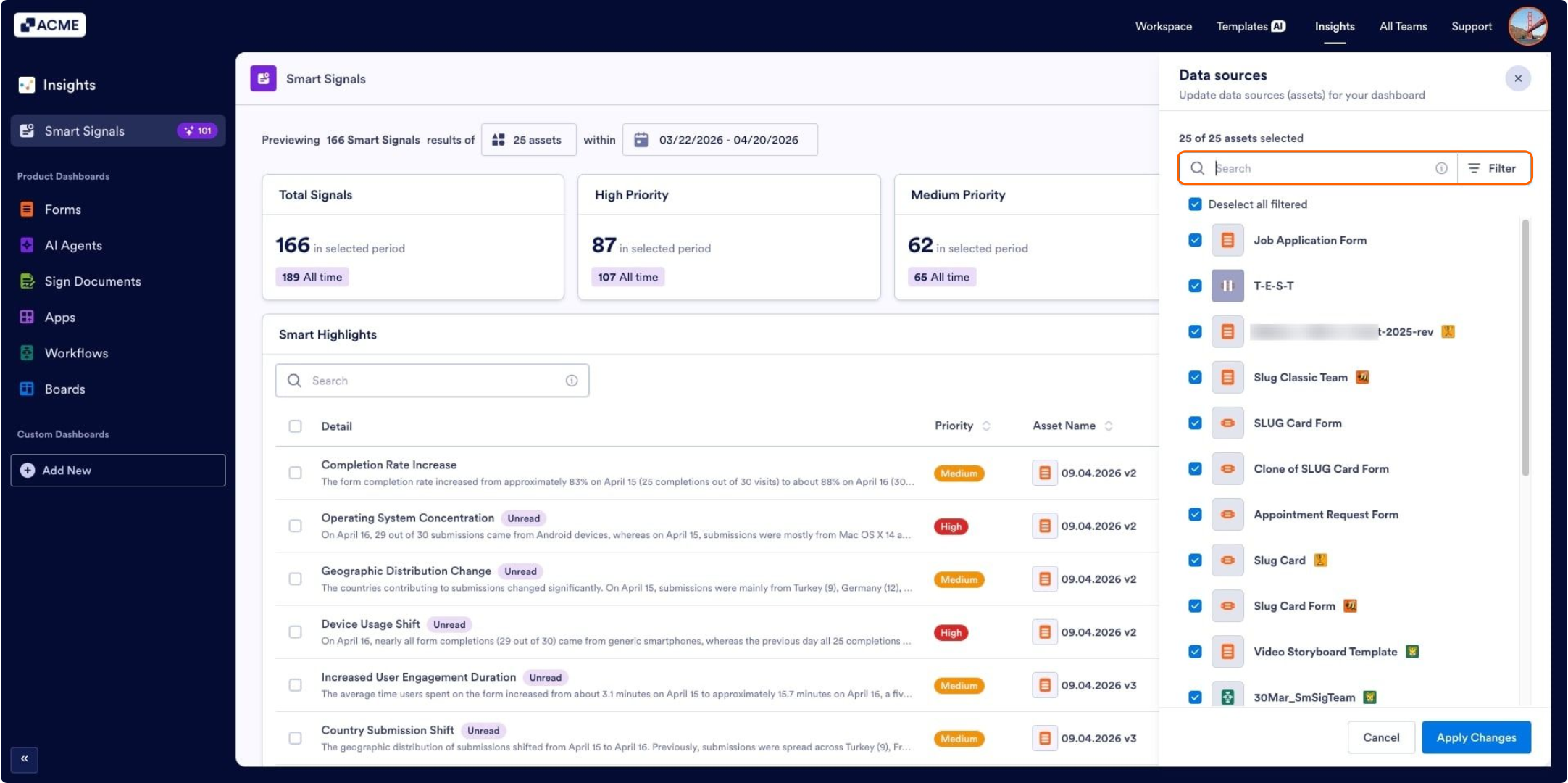
- In the Smart Signals tab, click the asset number box under the page header.
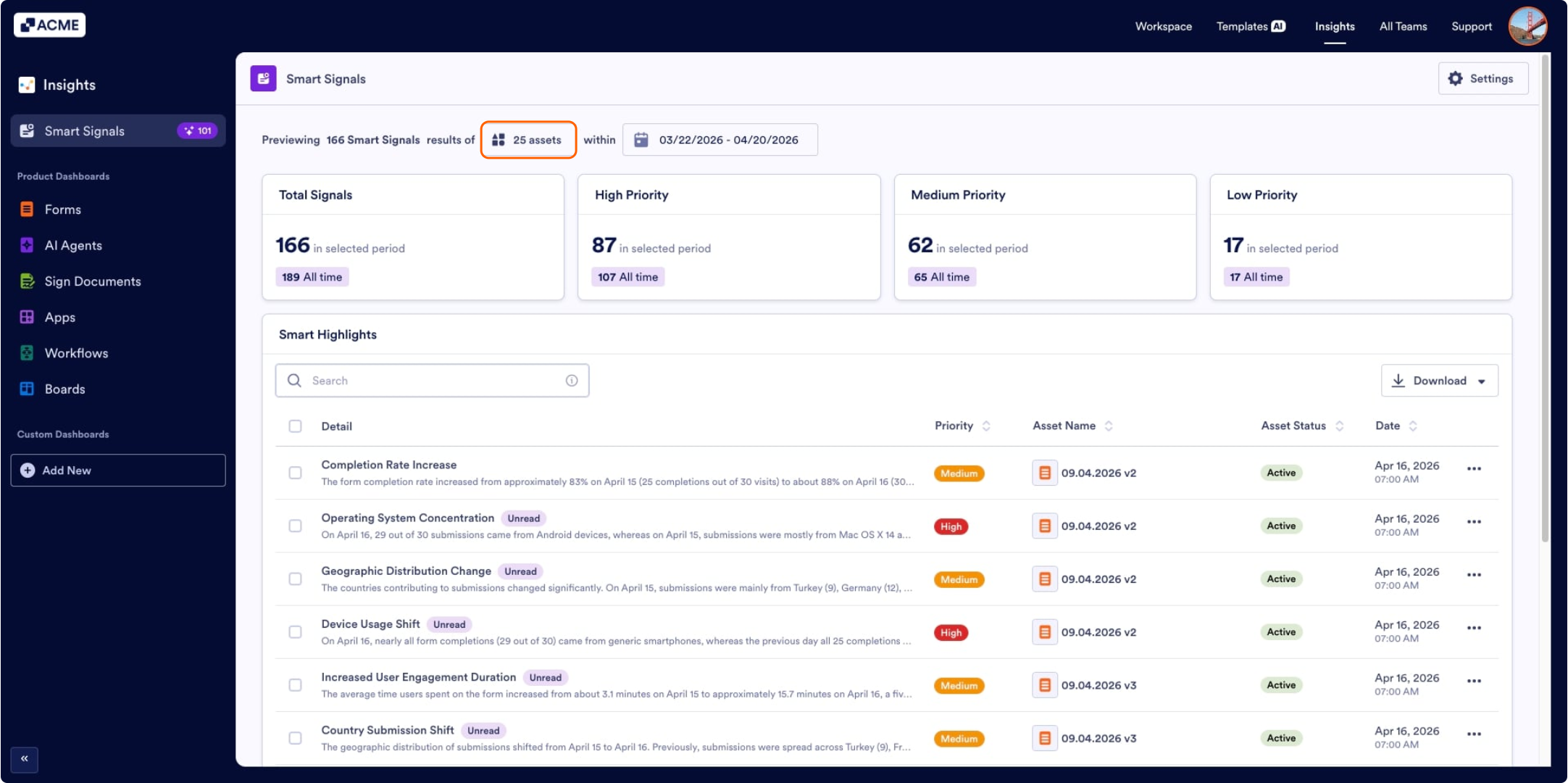
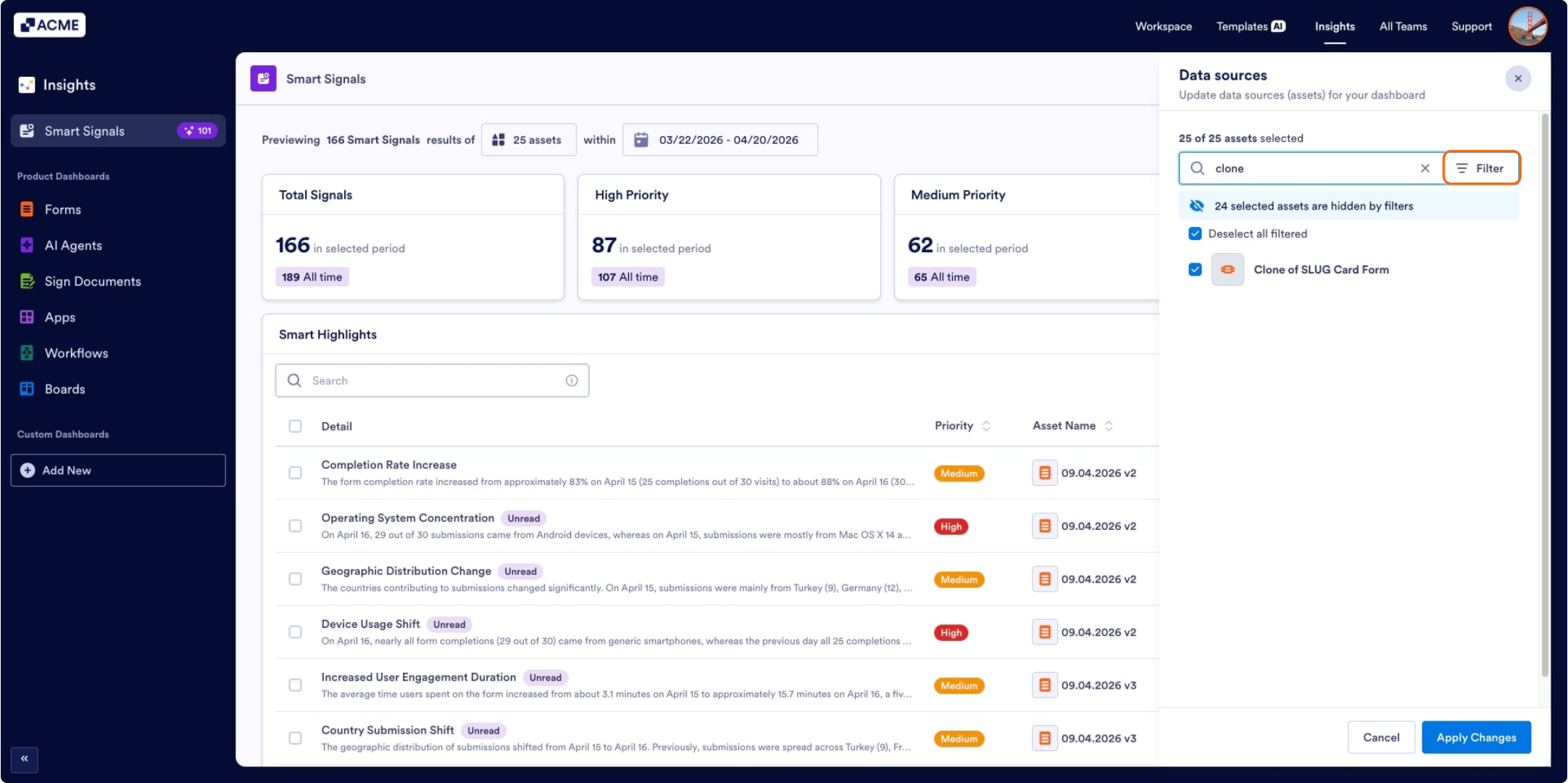
- From the right panel, click the Search Bar and search the assets by their ID or title.
- Click the Filter next to the search bar for a more thorough search.
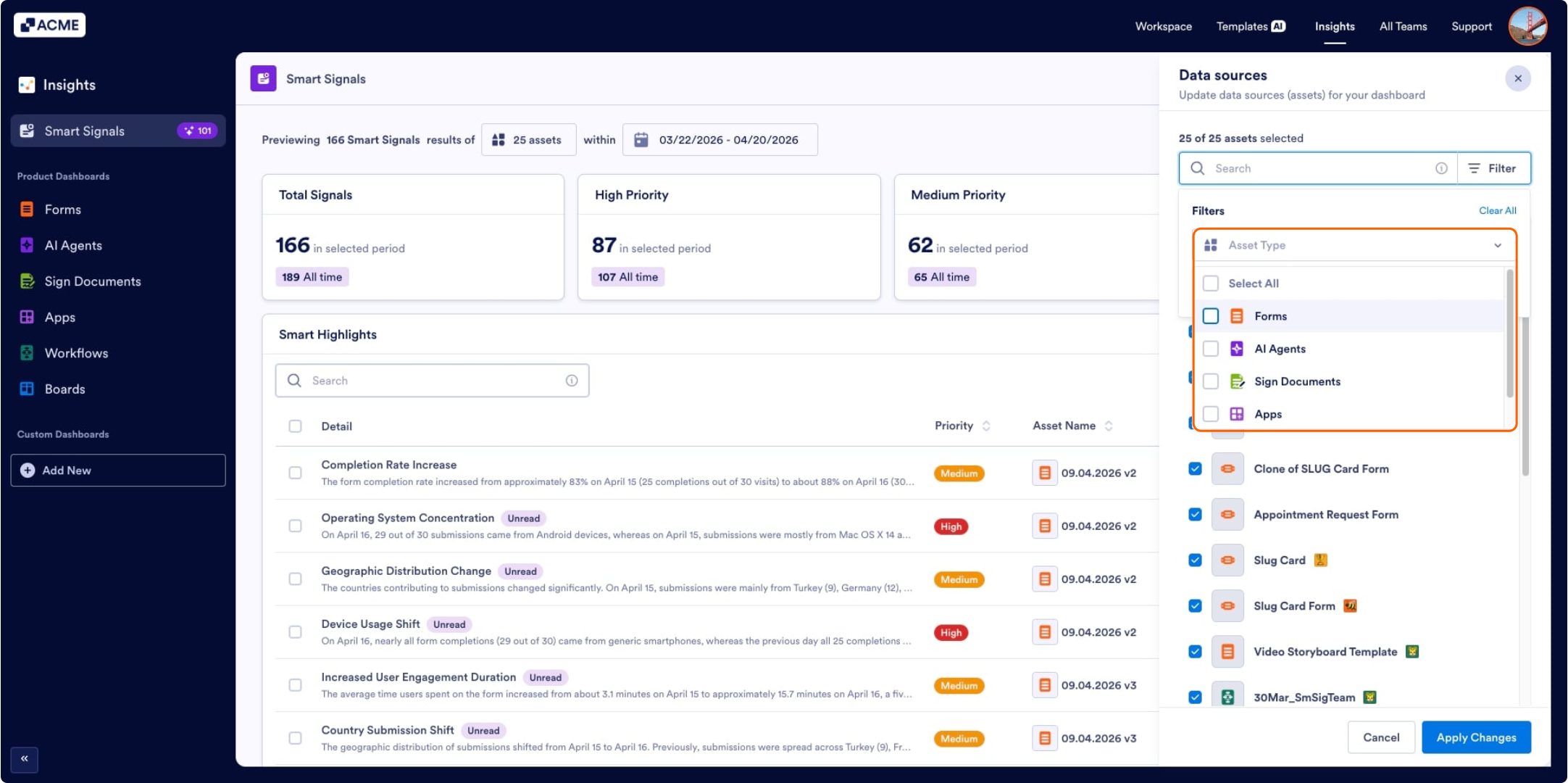
- Select the type of asset (Forms, AI agents, sign documents, apps) you are looking for from the Asset Type dropdown.
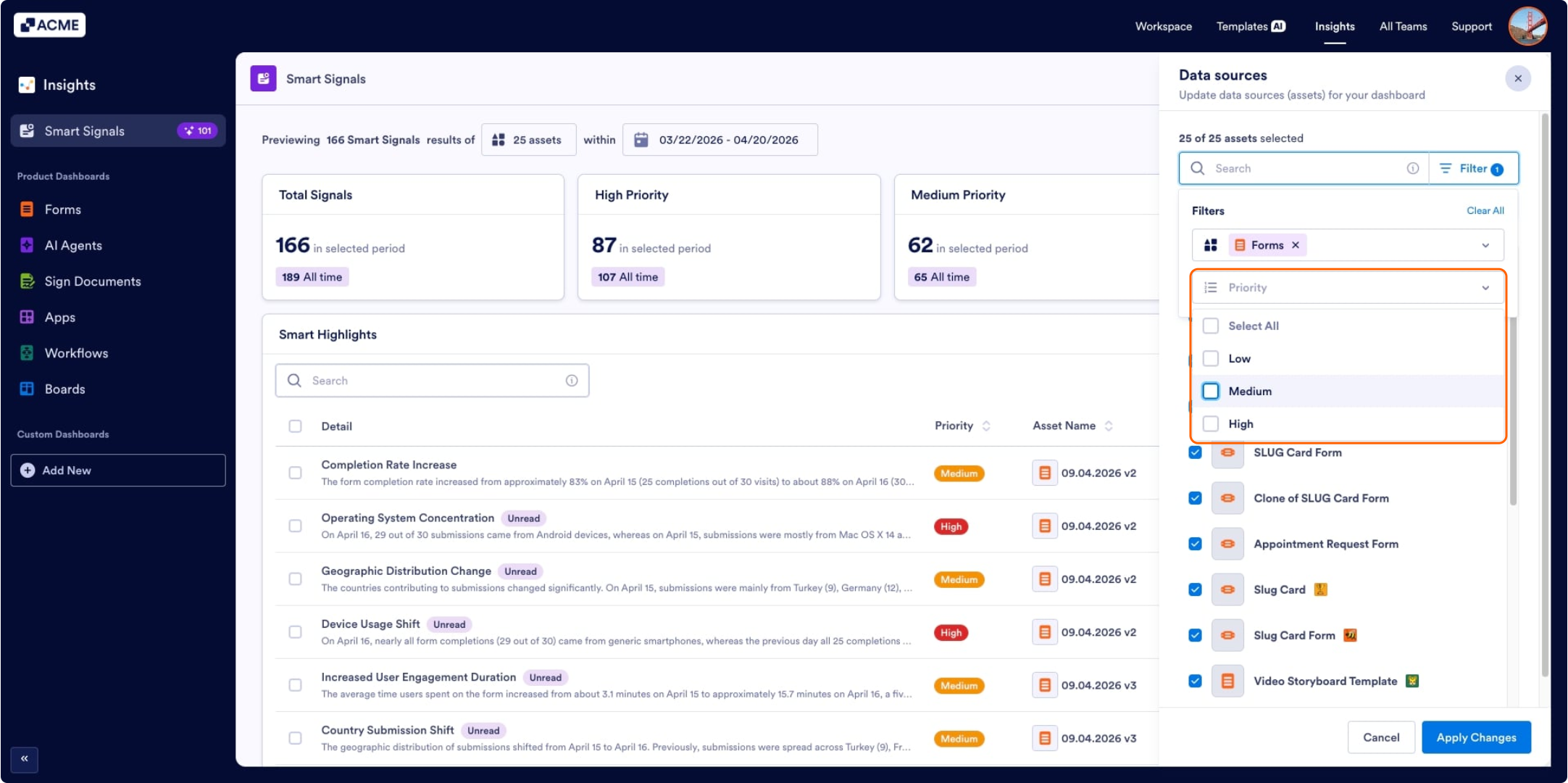
- Then select the Priority of the alerts you’re looking for.
- Finally, click on Apply Changes at the bottom right side.
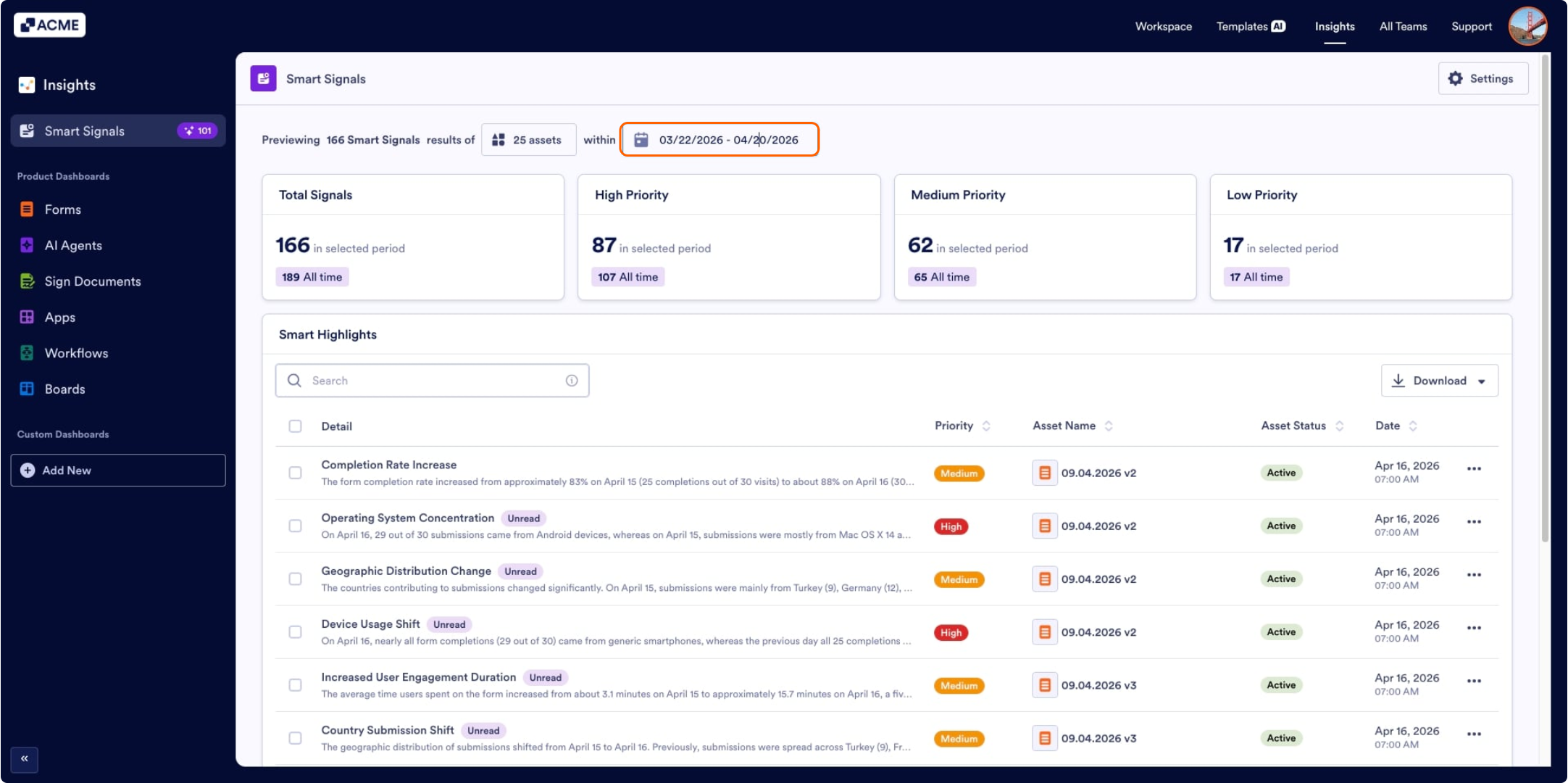
Filtering the Date Range:
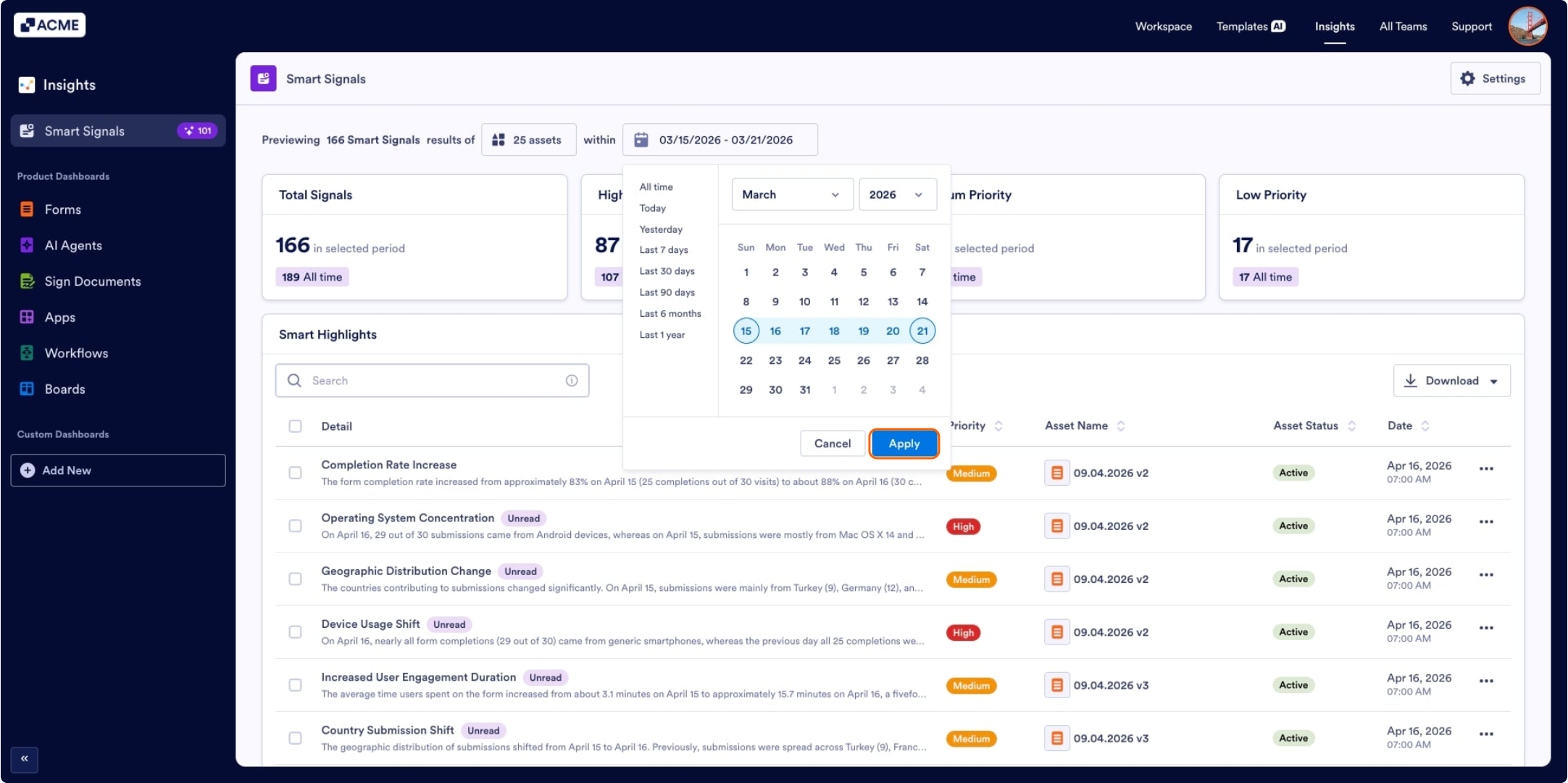
- In the Smart Signals tab, click the Date Range under the page header.
- Select the desired dates from the calendar pop-up and click on Apply.
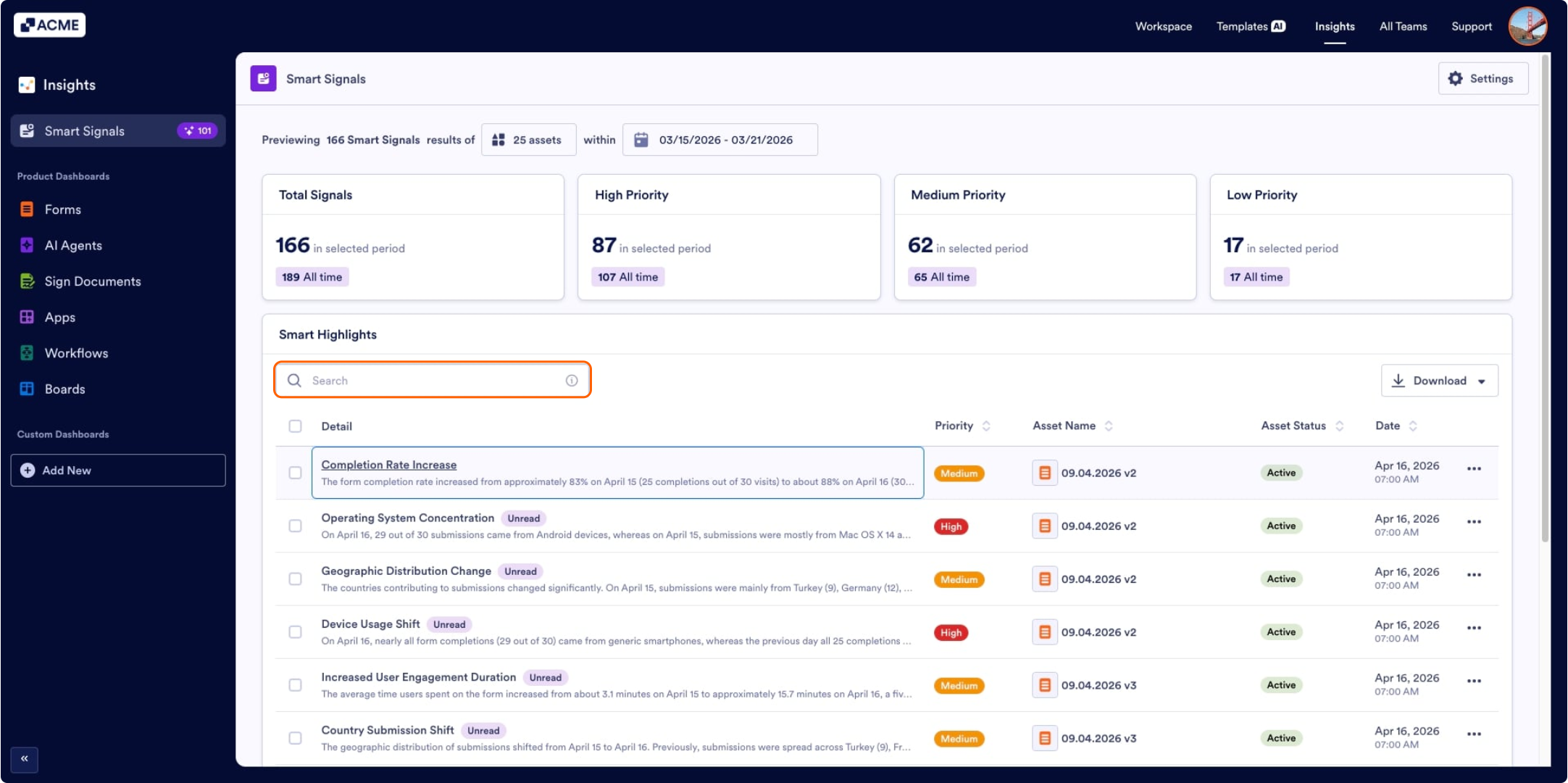
Smart Highlights List
On the Smart Signals page, all alerts from the assets are listed in a single list. To find specific highlights, you can use the search bar and search by entering the asset type, detail, or keywords for suggestions such as “low submission,” “low completion rate,” etc.
Viewing Details
To view details of the individual alerts, you can click on Detail in the Smart Highlights list.
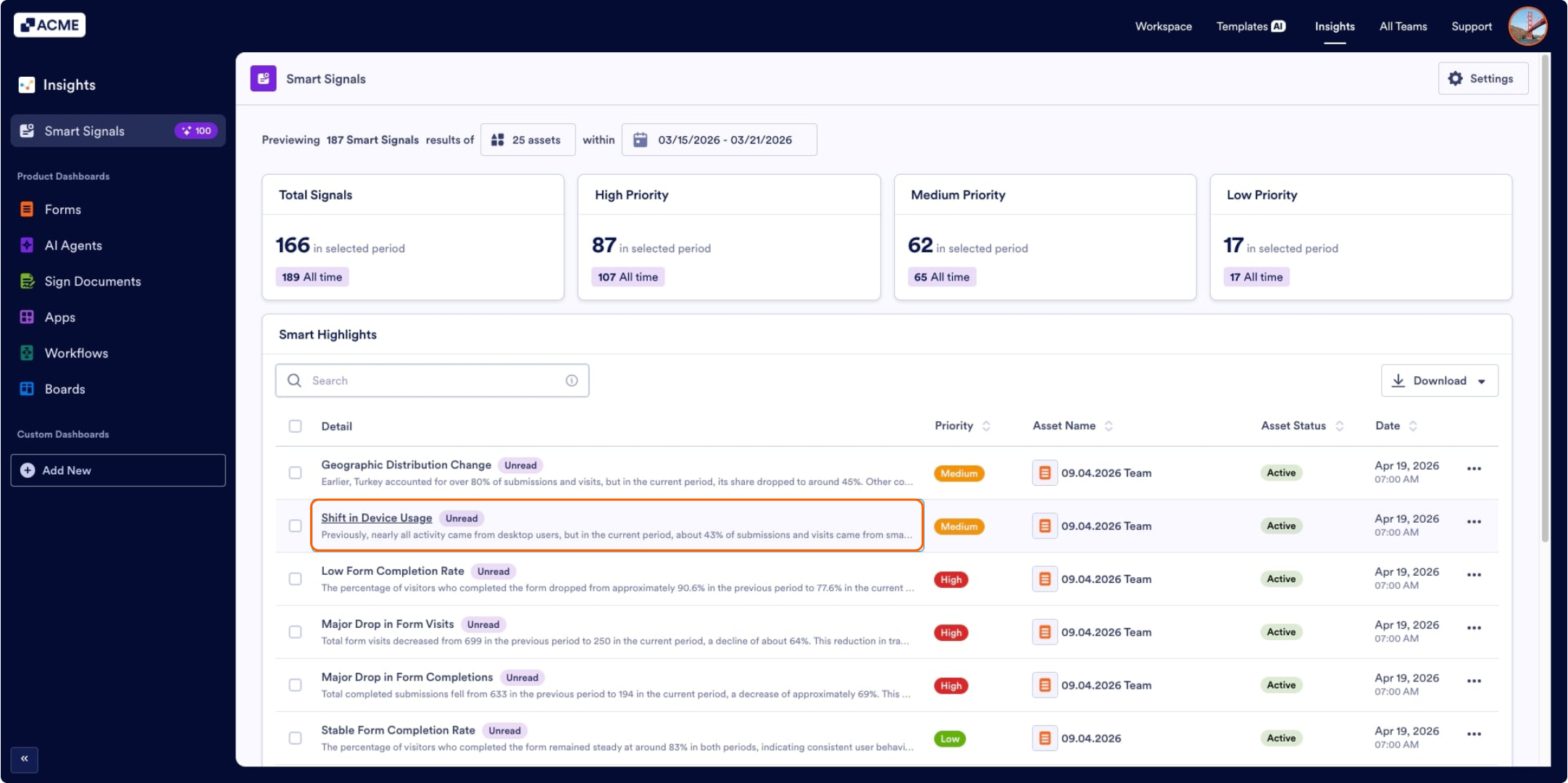
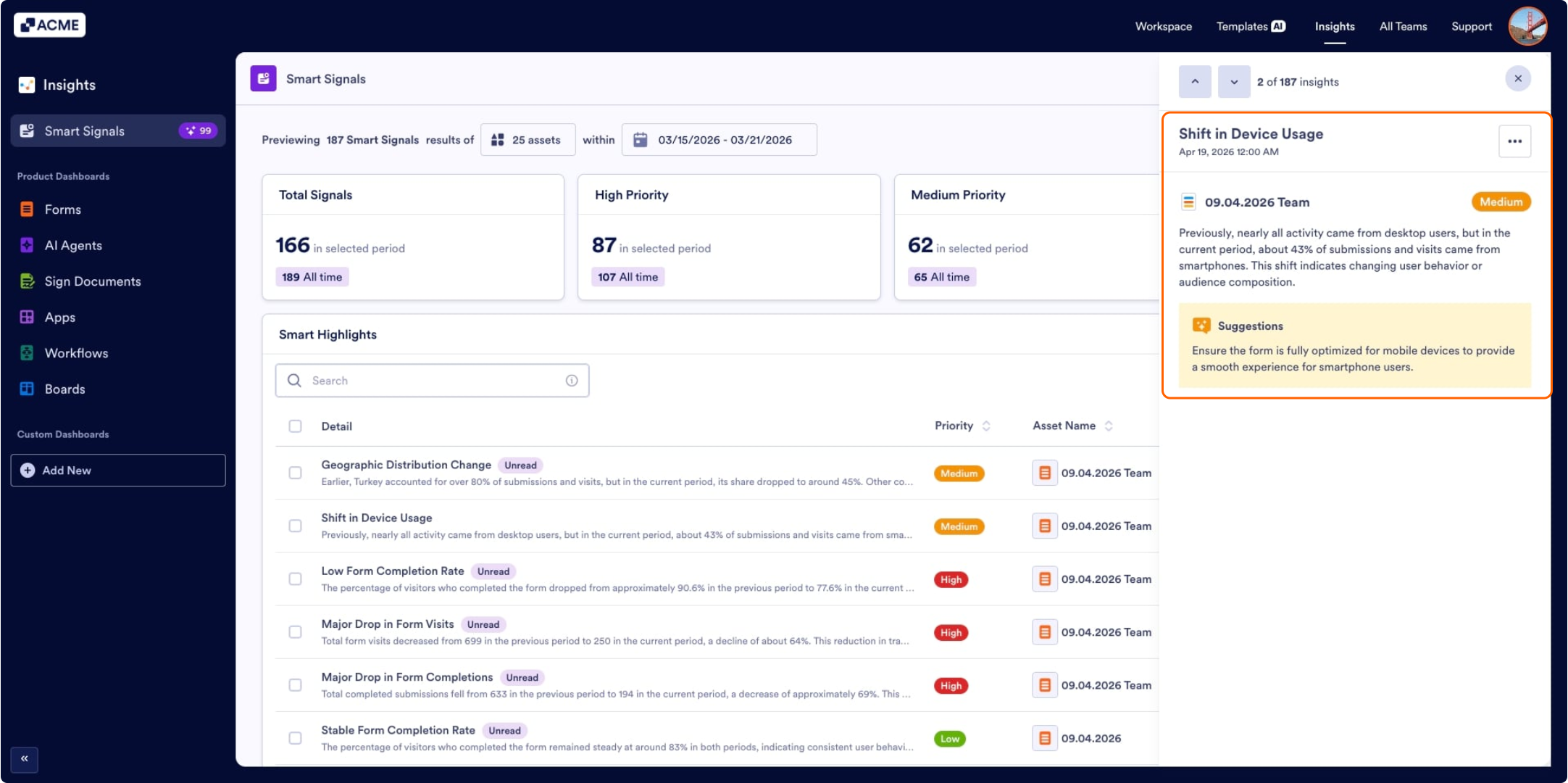
You will see the alert details and suggestions to observe the issues about the radically changed asset performances.
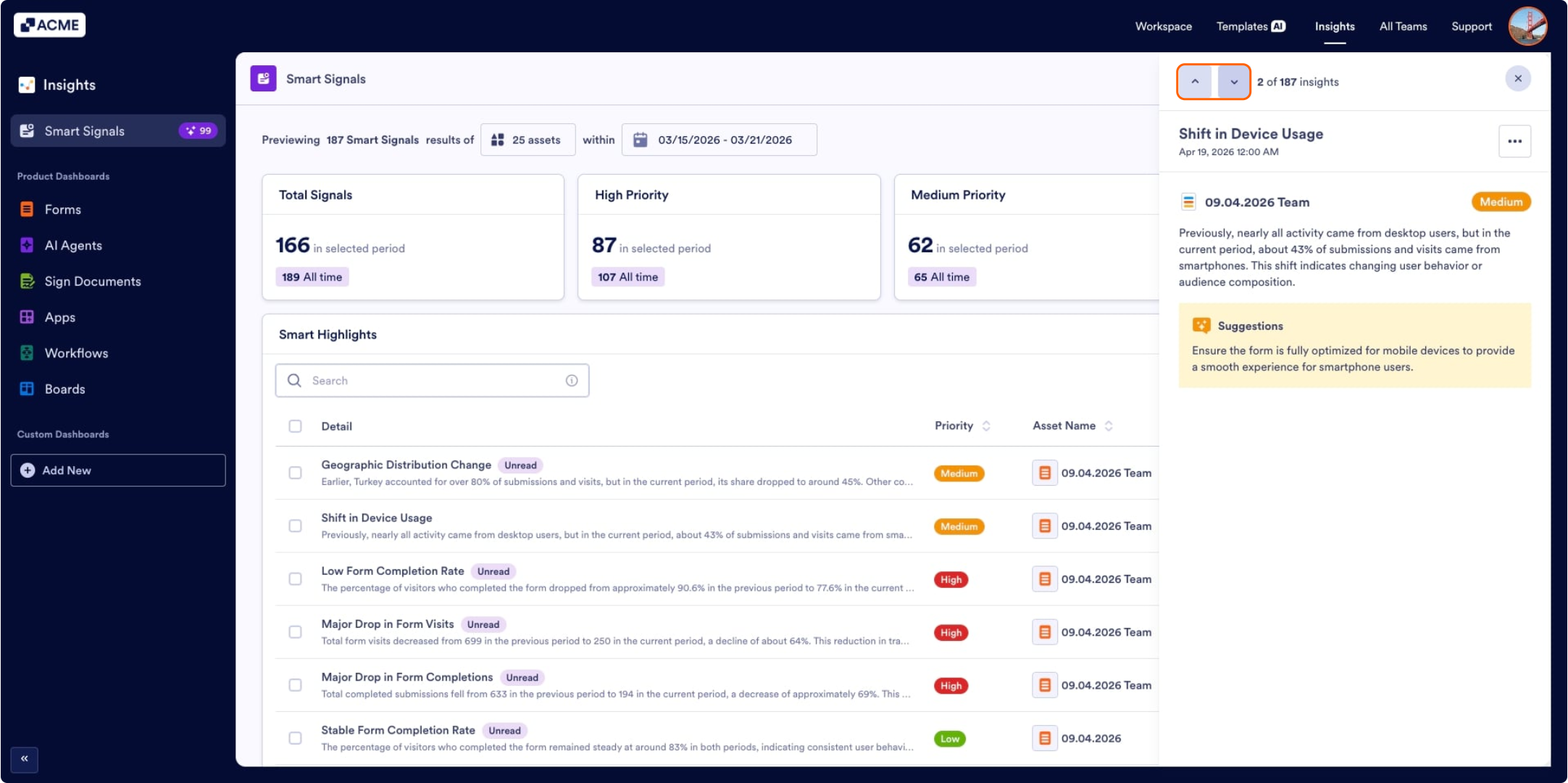
You can use the upward and downward icons at the top of the panel to switch between other highlighted alerts:
Smart Signals Settings
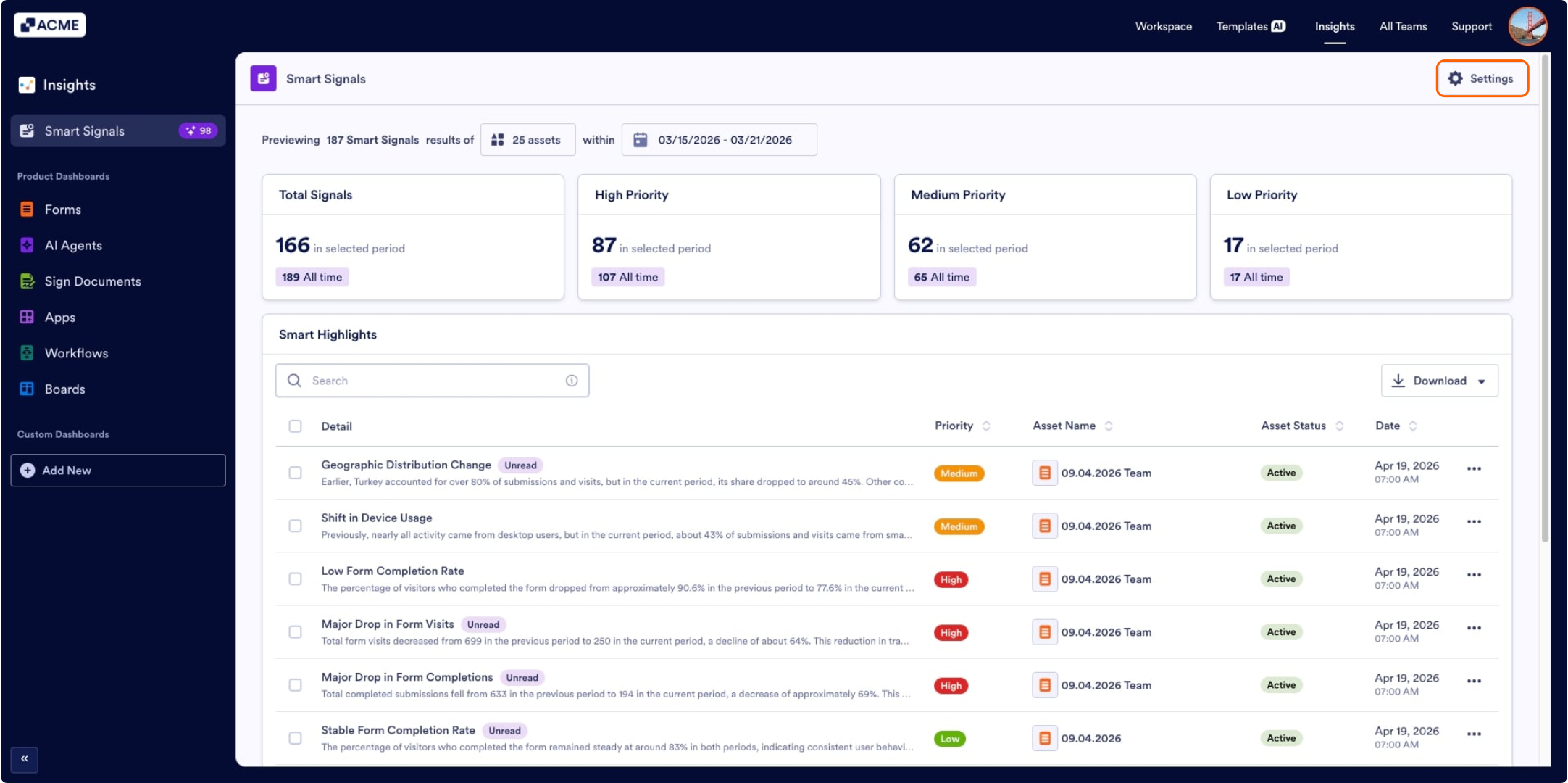
In the top right corner of the Smart Signals page, you can see the Settings icon. From the Smart Signals settings, you can enable or disable the Smart Signals or allow email notifications.

Send Comment: