Smart Highlights evaluates asset performance and generates alerts regarding anomalous activity by comparing current results with historical usage data. Then the system generates suggestions to restore the usual performance. Based on these suggestions, you can take actions easily without leaving to search for the assets, edit links, gain insight data, etc.
You can find these options easily on the Smart Signals page:
How to Take Actions Based On Suggestions
On the Smart Signals page, we provide options that can help you locate assets and manage them based on the suggestions:
- In the Smart Signals page, click on the Three Dots next to an alert.
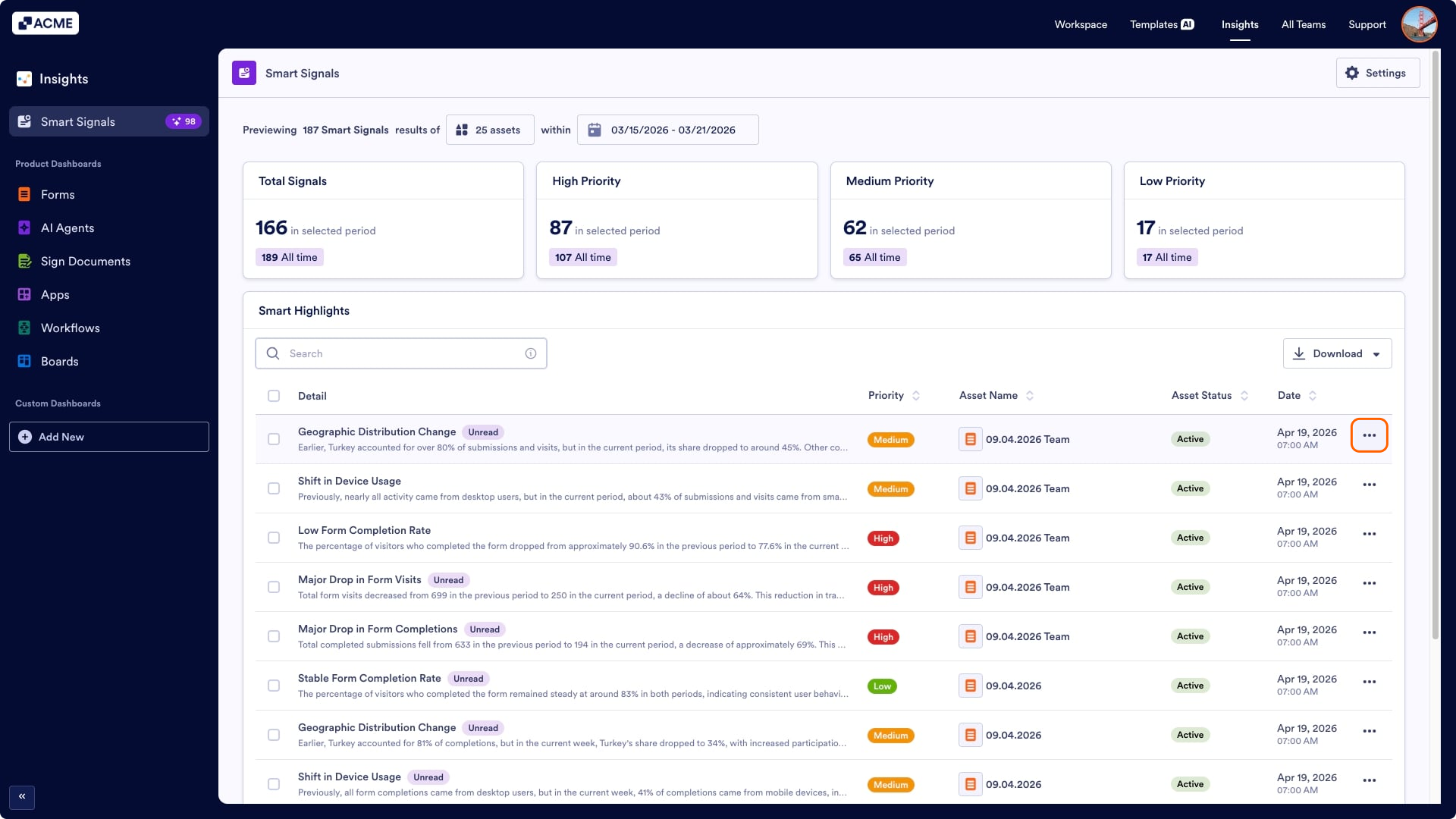
- In the list that opens, select one of the options suitable for your goal. Here are the options we provide for forms as an example:
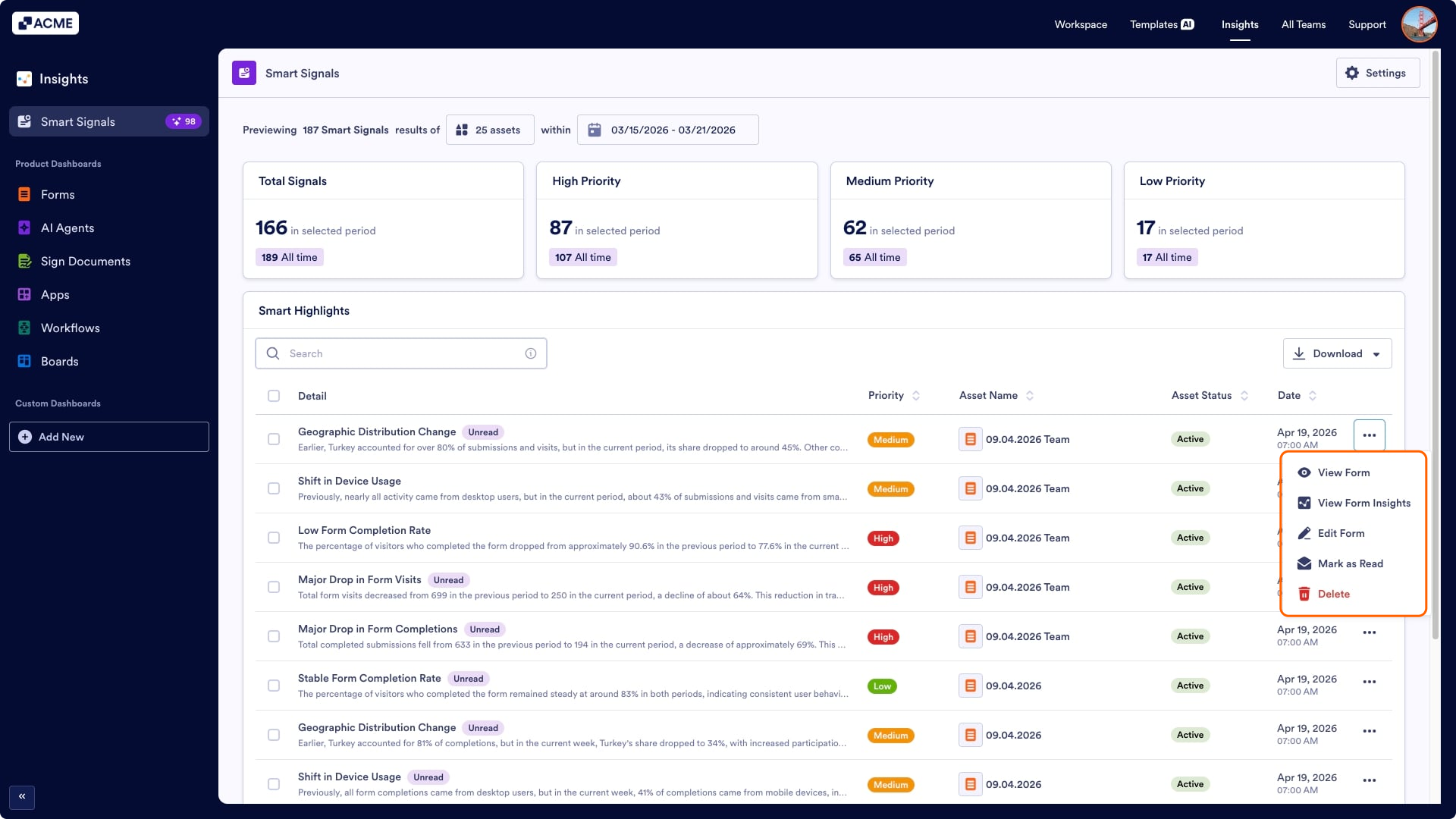
- View Form: This option opens the form in a new tab.
- View Form Insights: This opens the Form Insights page in a new tab.
- Edit Form: This option opens the form builder in a new tab.
- Mark as Unread: Marks the highlighted alert as Unread.
- Delete: Deletes the highlighted alert permanently.
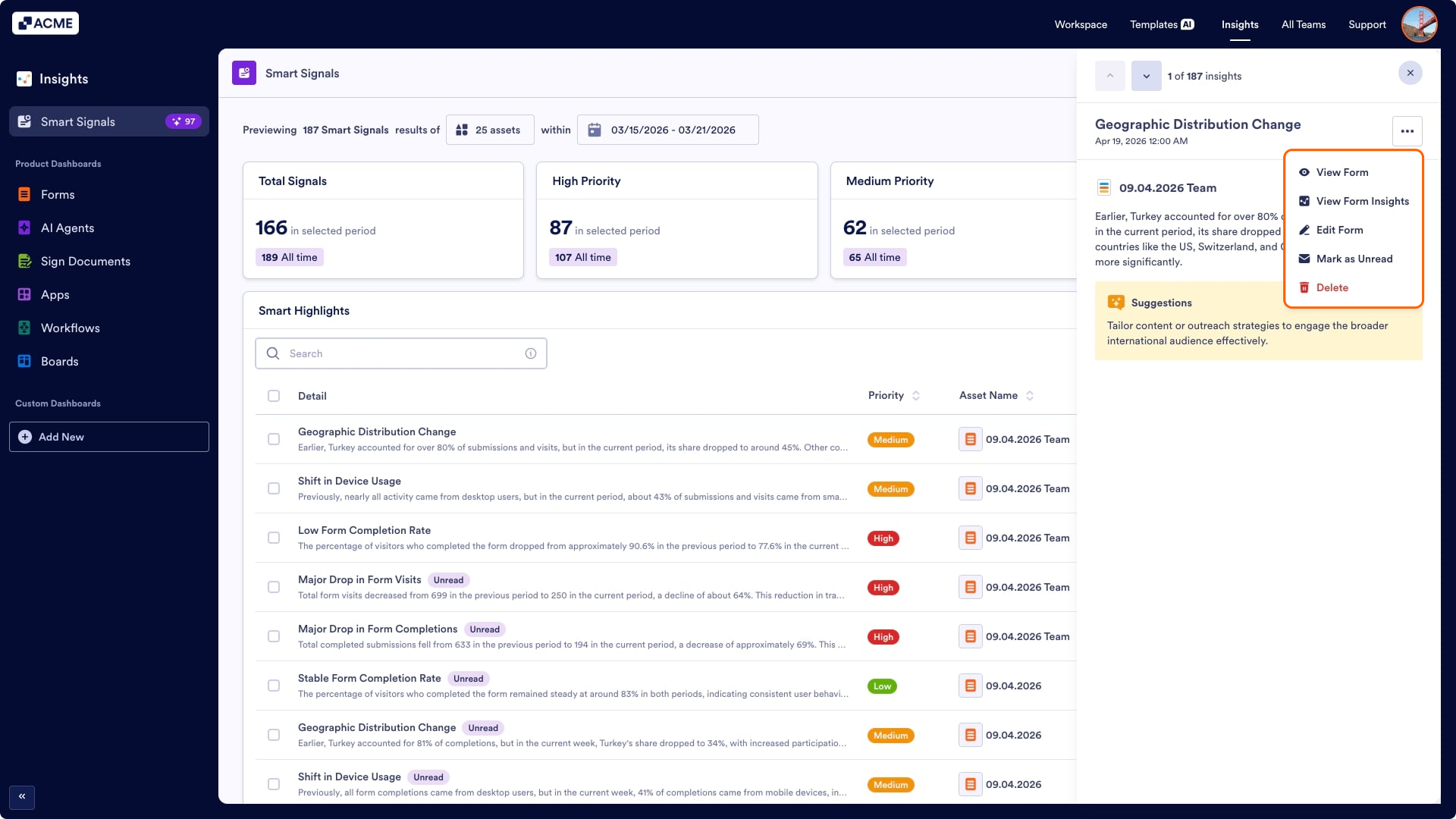
You can also reach and view these management options from the Smart Signal details page:
- In the Smart Signals page, click on the Details of an alert.
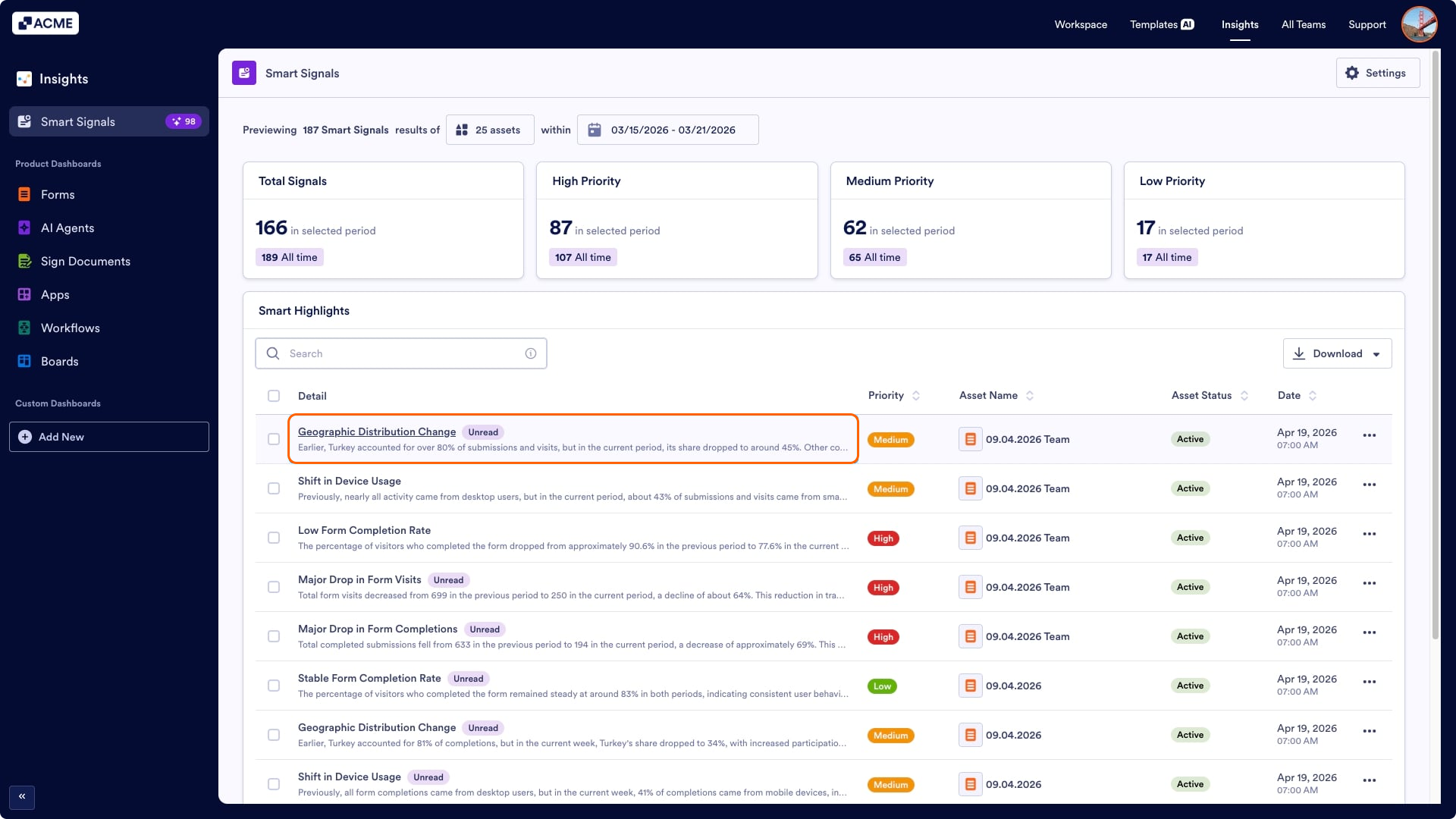
- Then click on the Three Dots in the Details panel that opens on the right side of the page.
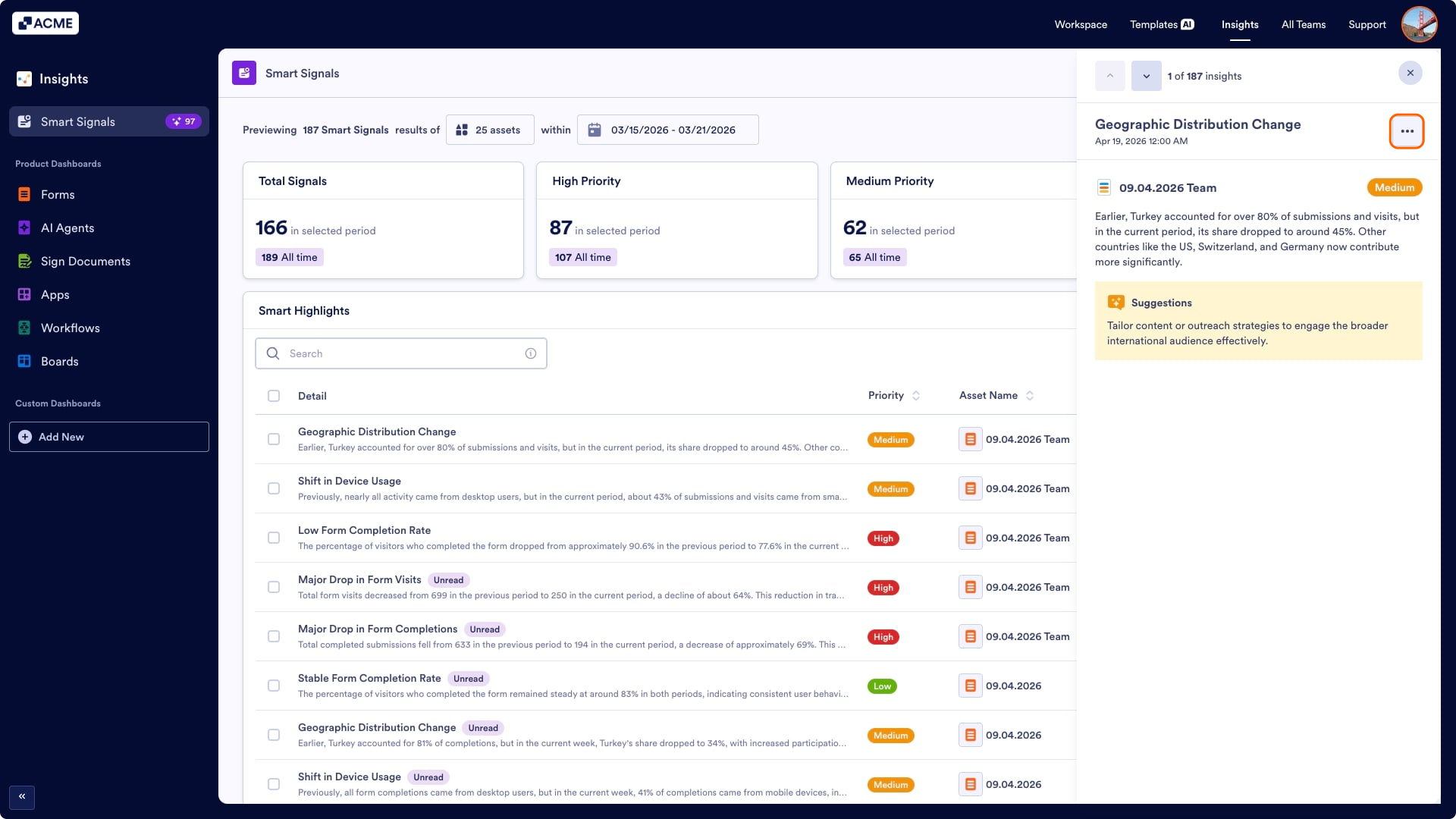
- Select one of the actions (View Form, View Form Insights, Edit Form, Mark as Read/Unread, Delete) you want to apply.
Mark as Read or Unread in Bulk
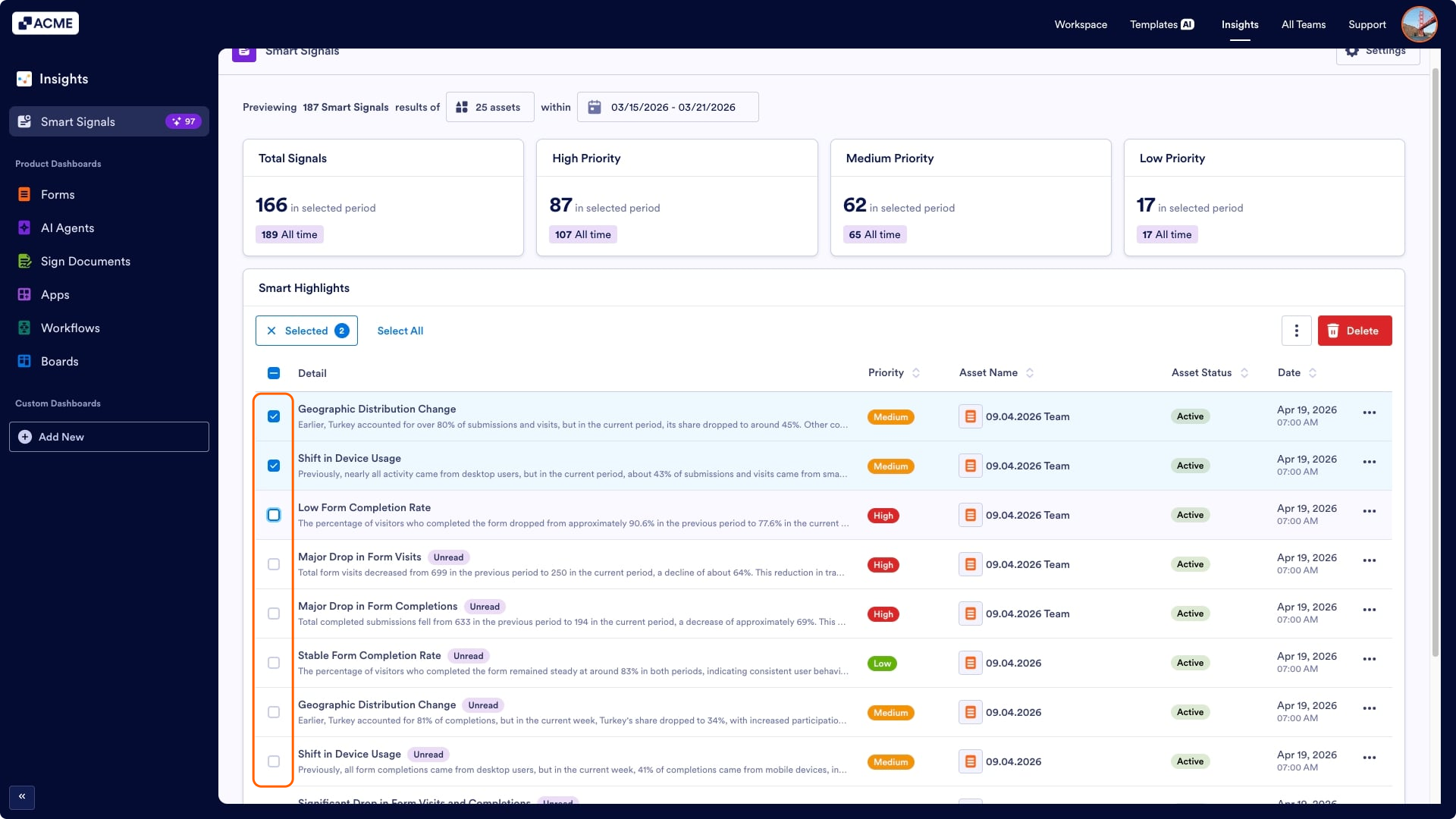
You can also mark multiple Smart Signals as Read/Unread:
- Click the Checkboxes next to the alerts.
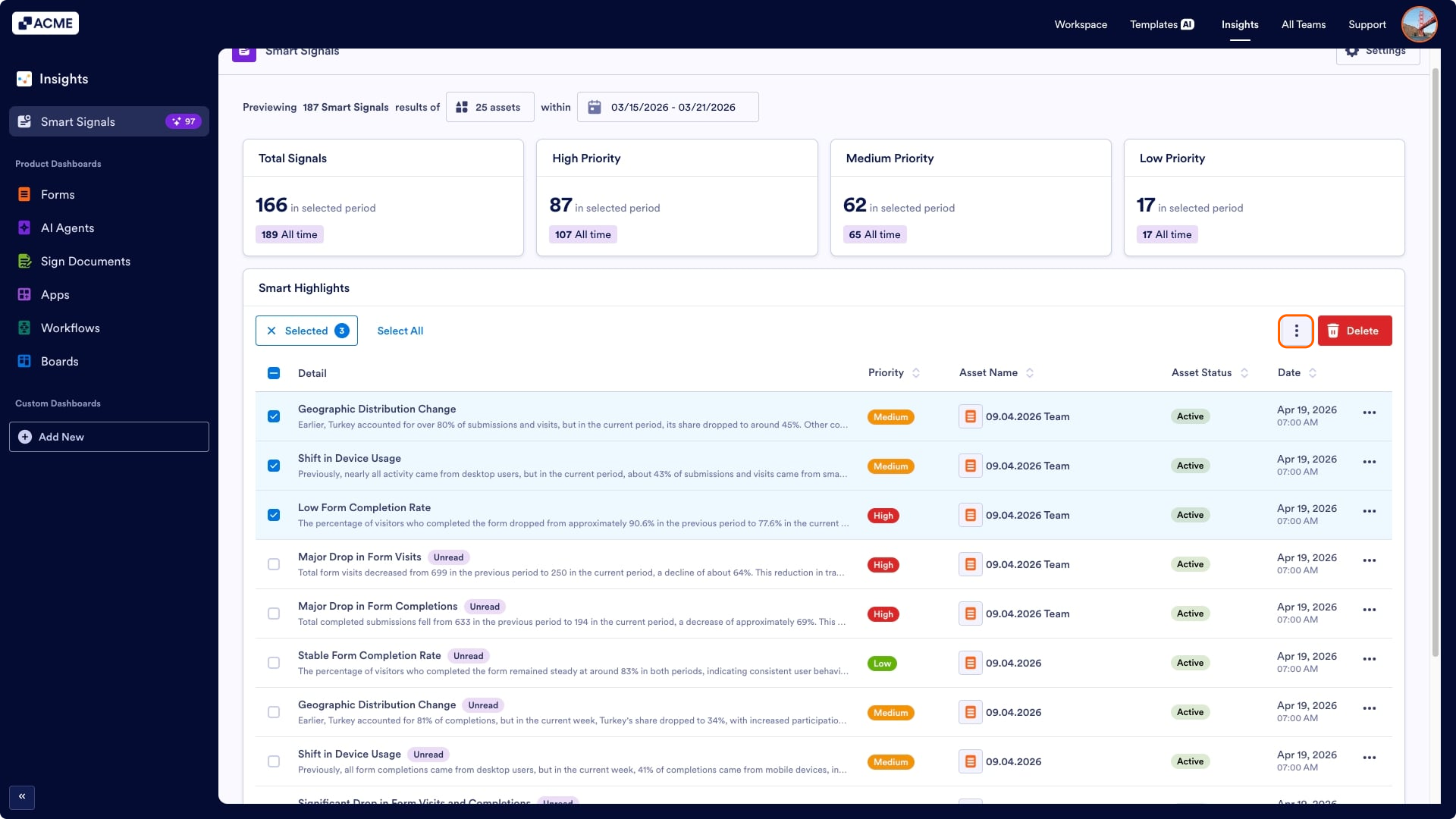
- Then click the Three Dots on top of the list.
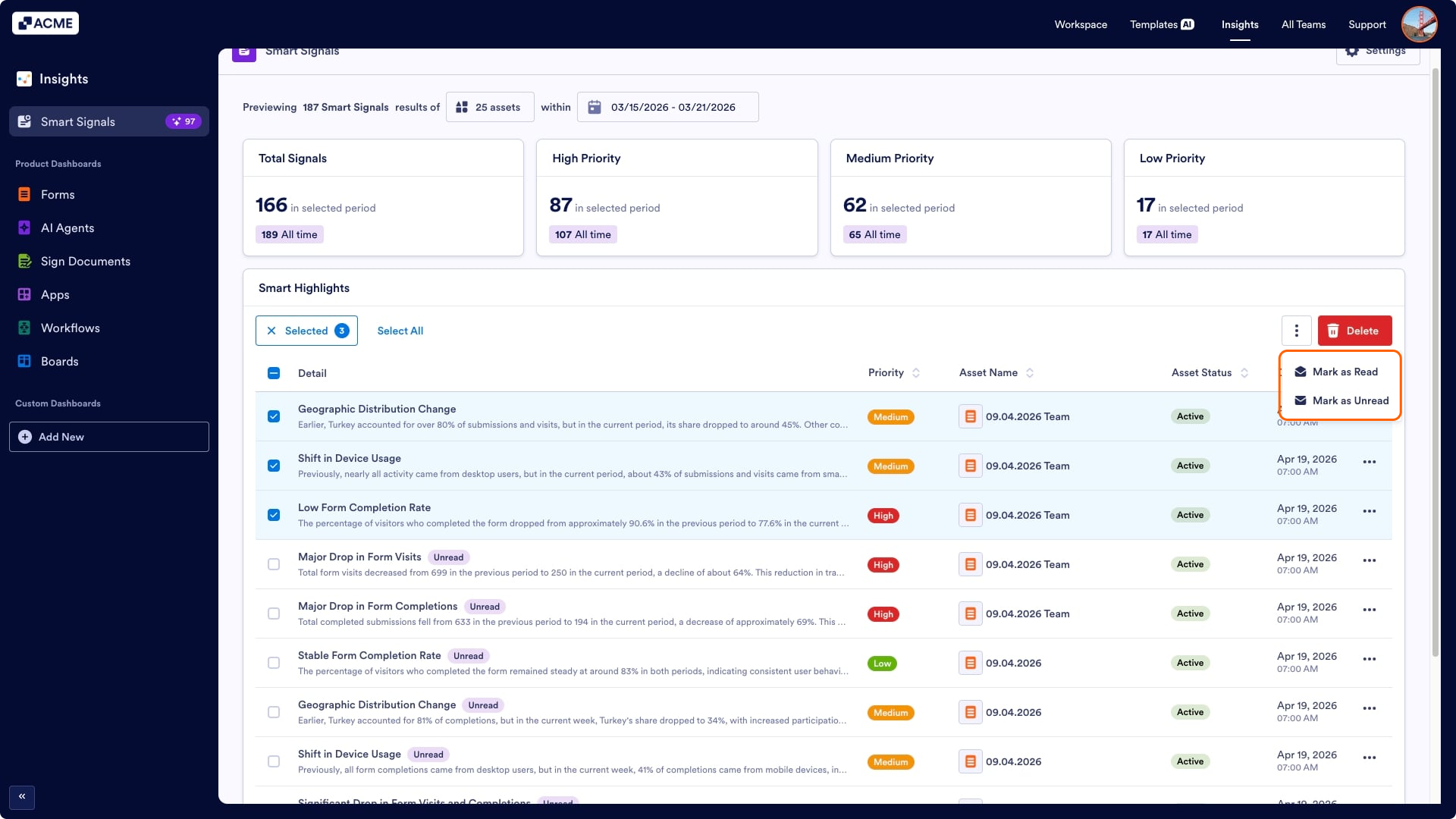
- Select Mark as Read or Mark as Unread.
Deleting Smart Highlights in Bulk
You can also delete multiple Smart Signals in bulk:
- Click the Checkboxes next to the alerts.
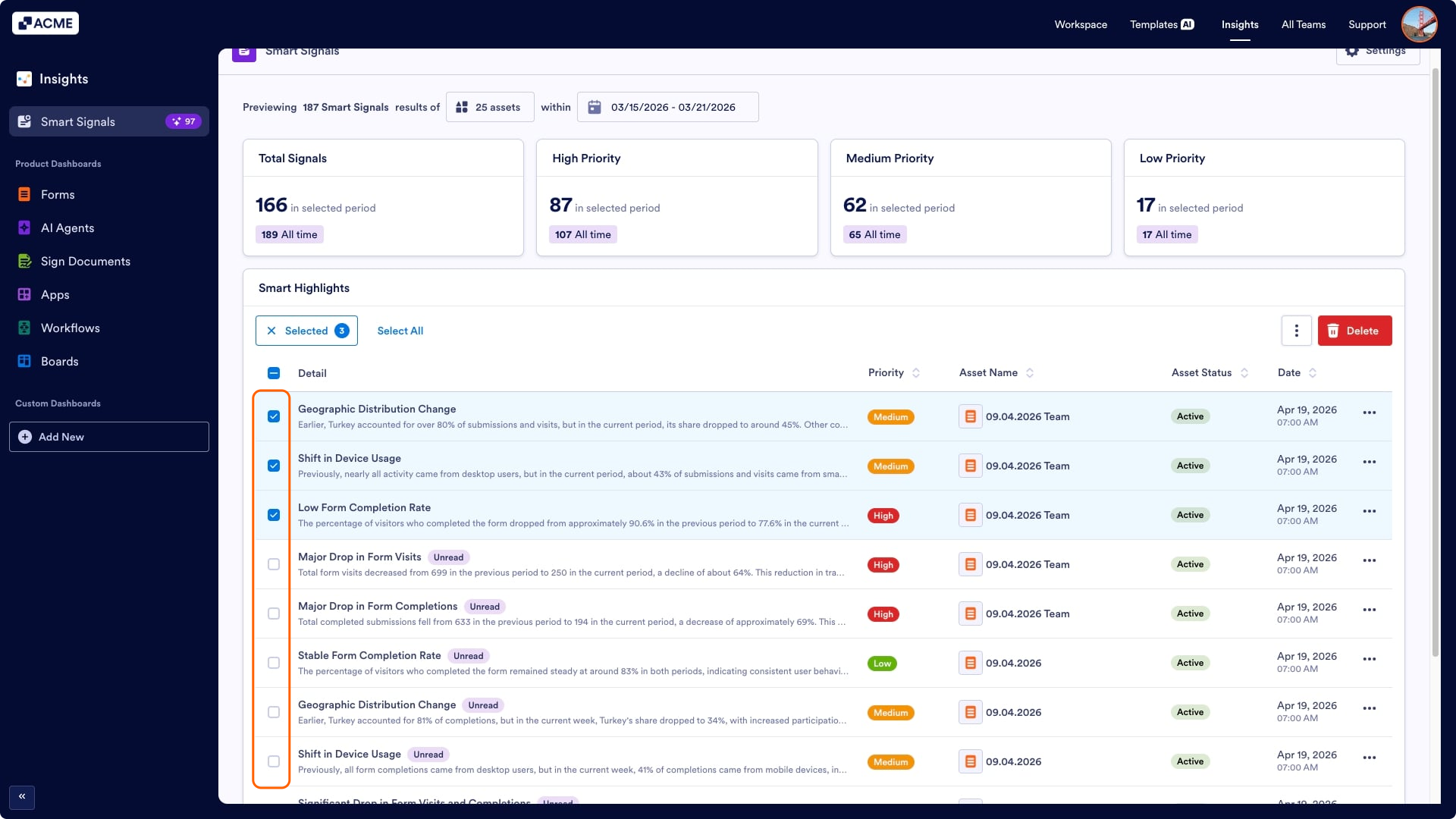
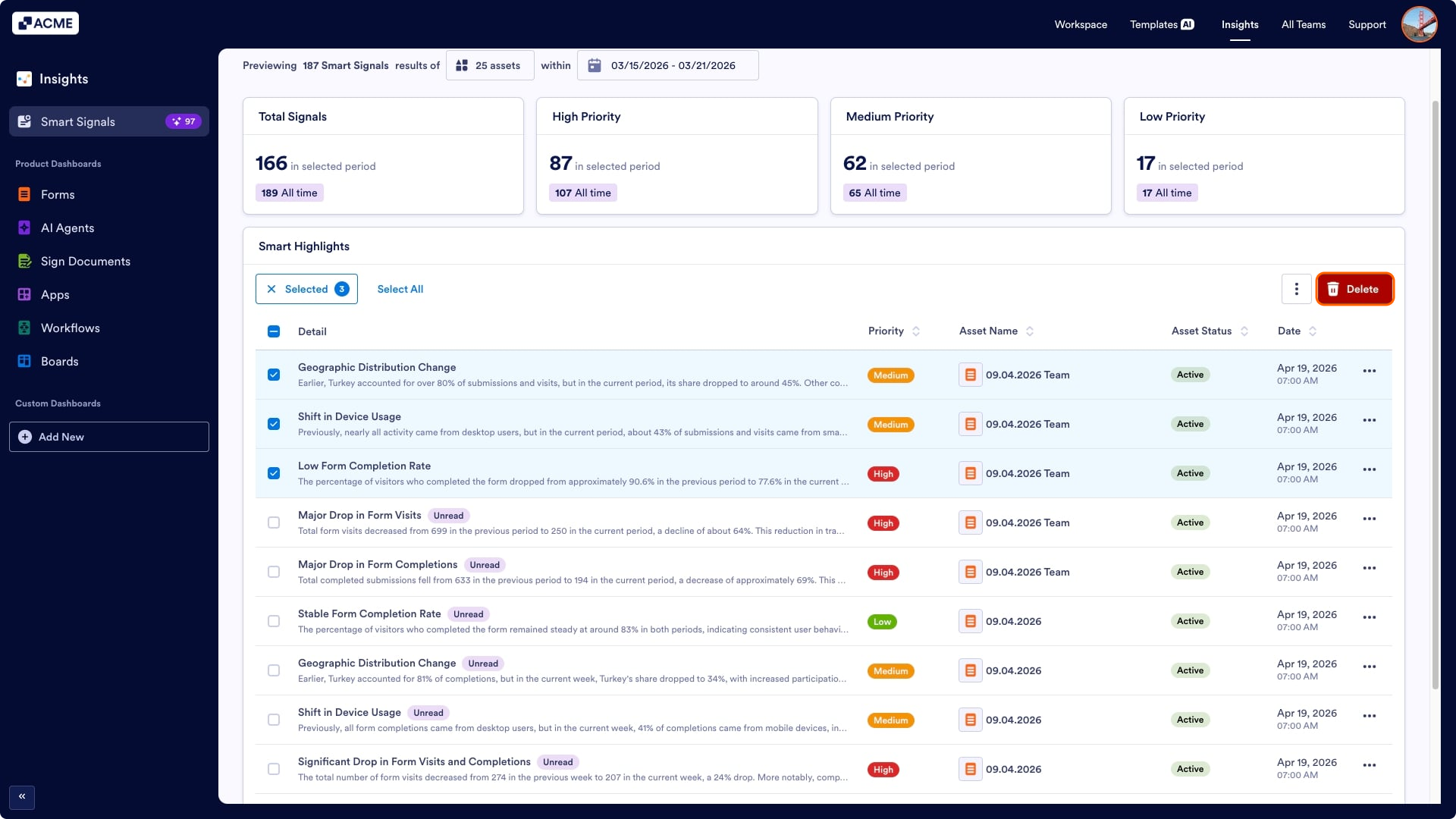
- Then click Delete on the top right side of the list.
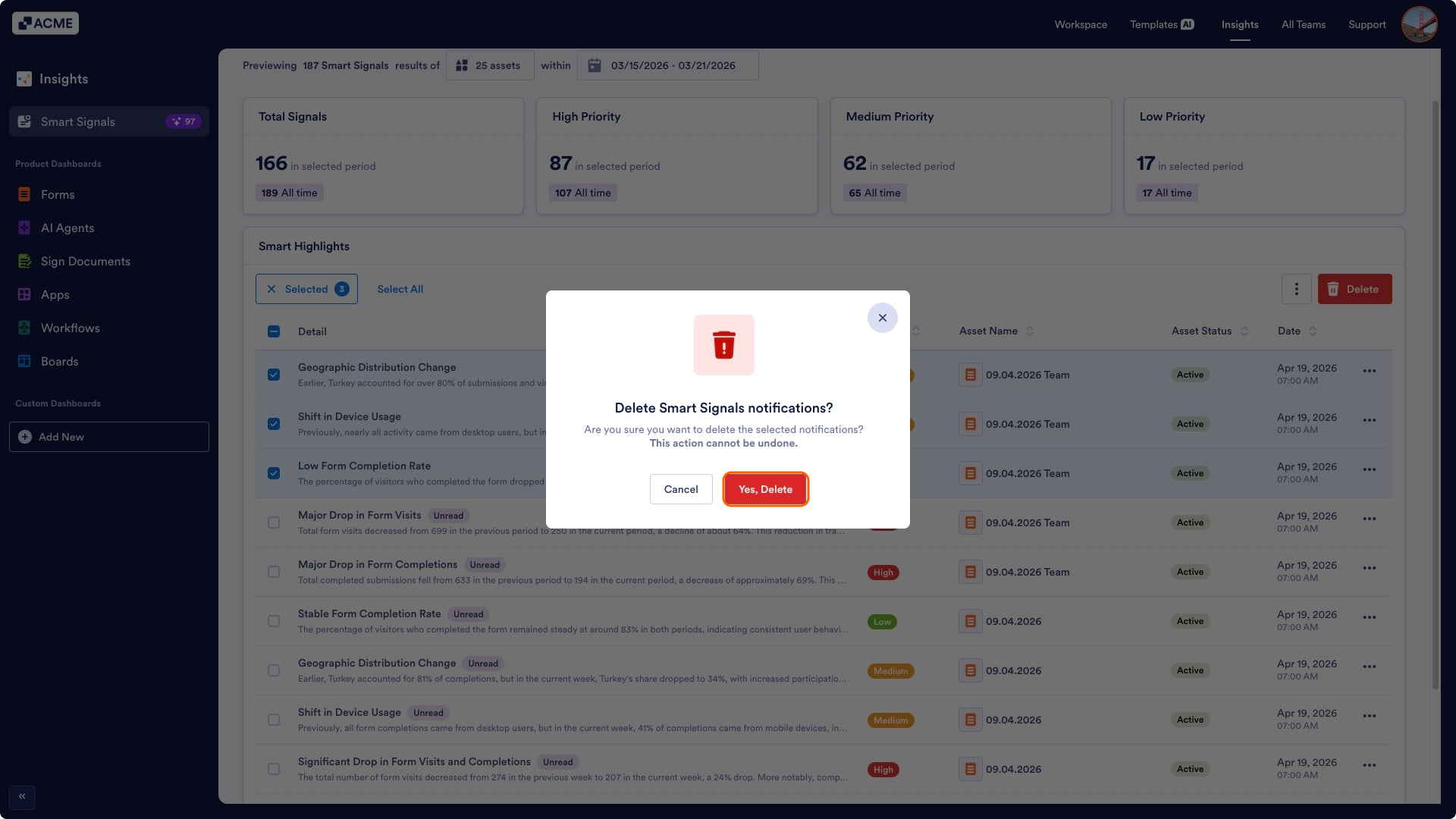
- In the pop-up window, confirm your decision by clicking on Yes, Delete.

Send Comment: