Smart Signals monitors asset performance and detects anomalies by comparing current results with past usage data. It then offers actionable recommendations to bring performance back to its typical levels. You can decide on enabling or disabling this feature.
Enabling Smart Signals
- In the Insights page, click Smart Signals on the left panel.
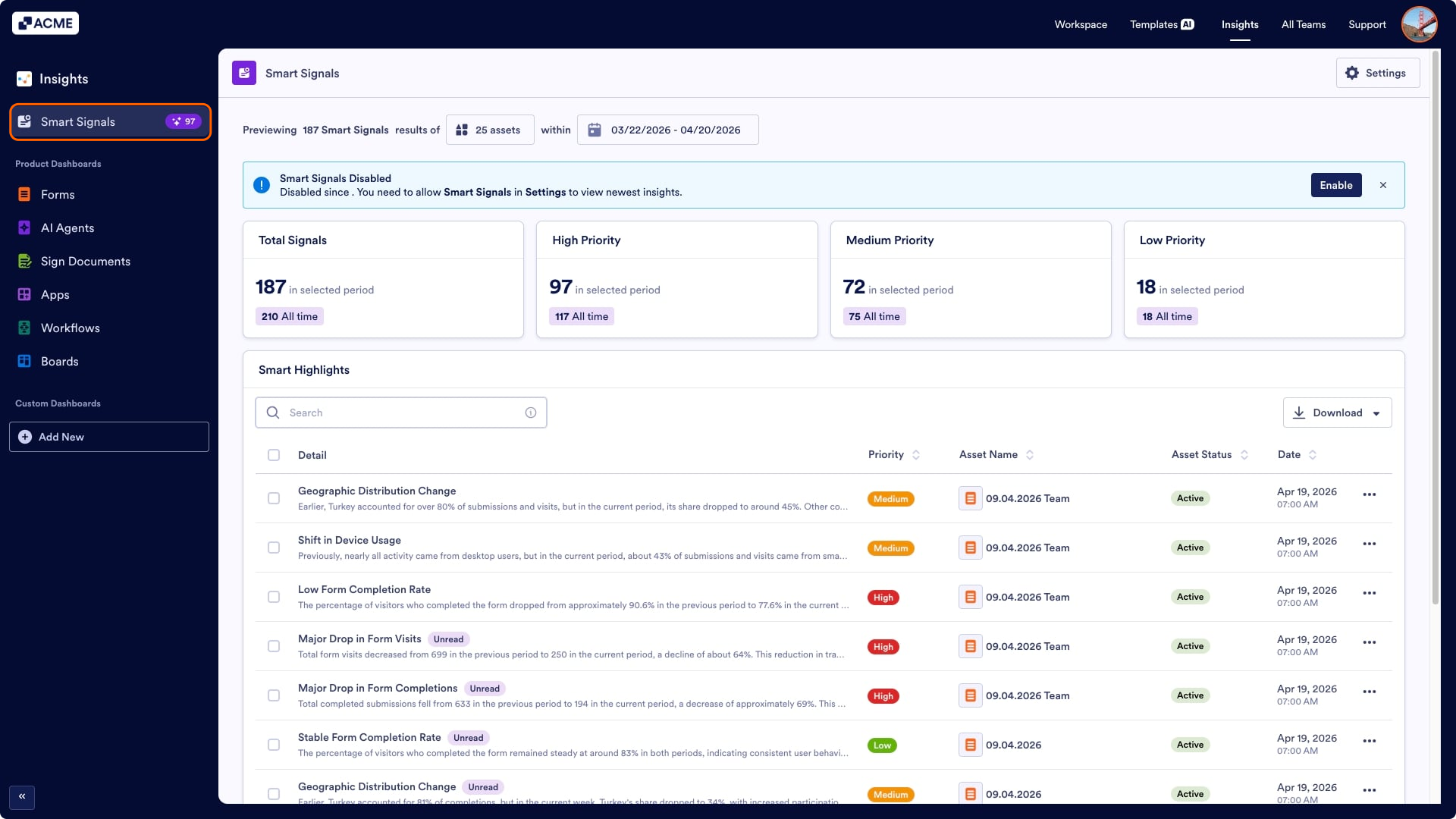
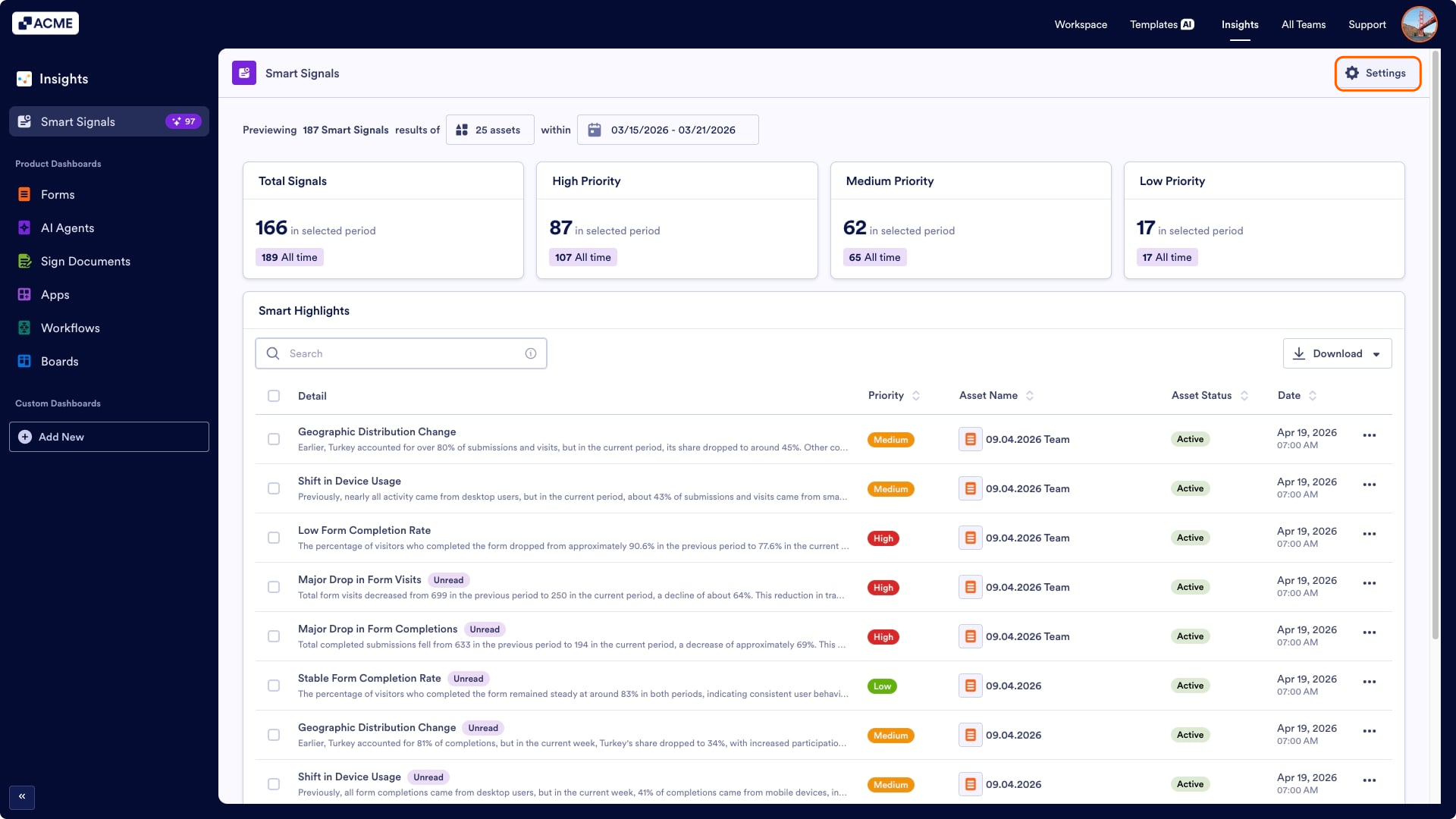
- In the Smart Signals tab, click Settings on the top right side of the page.
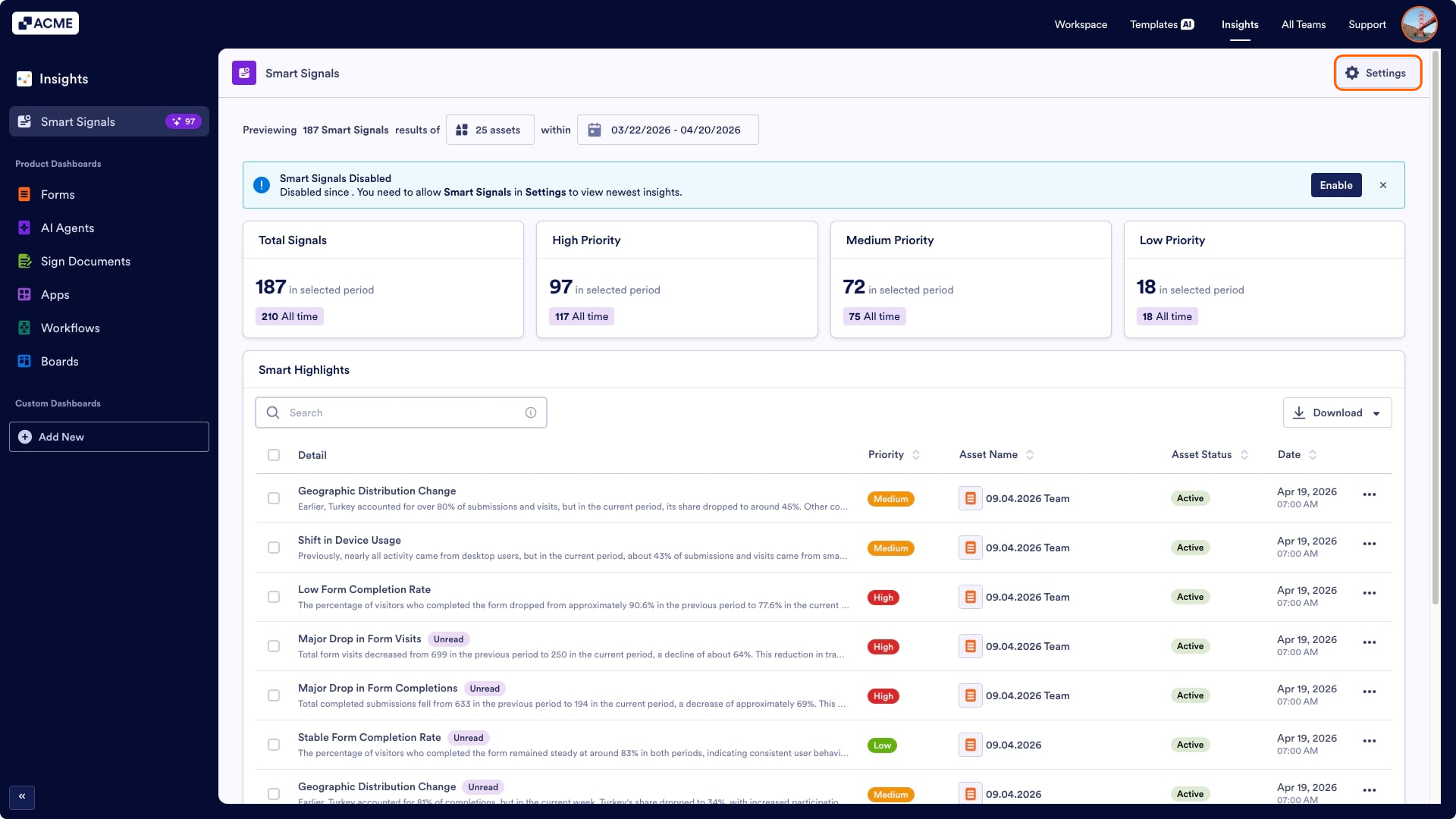
- Toggle On the Allow Smart Signals option.
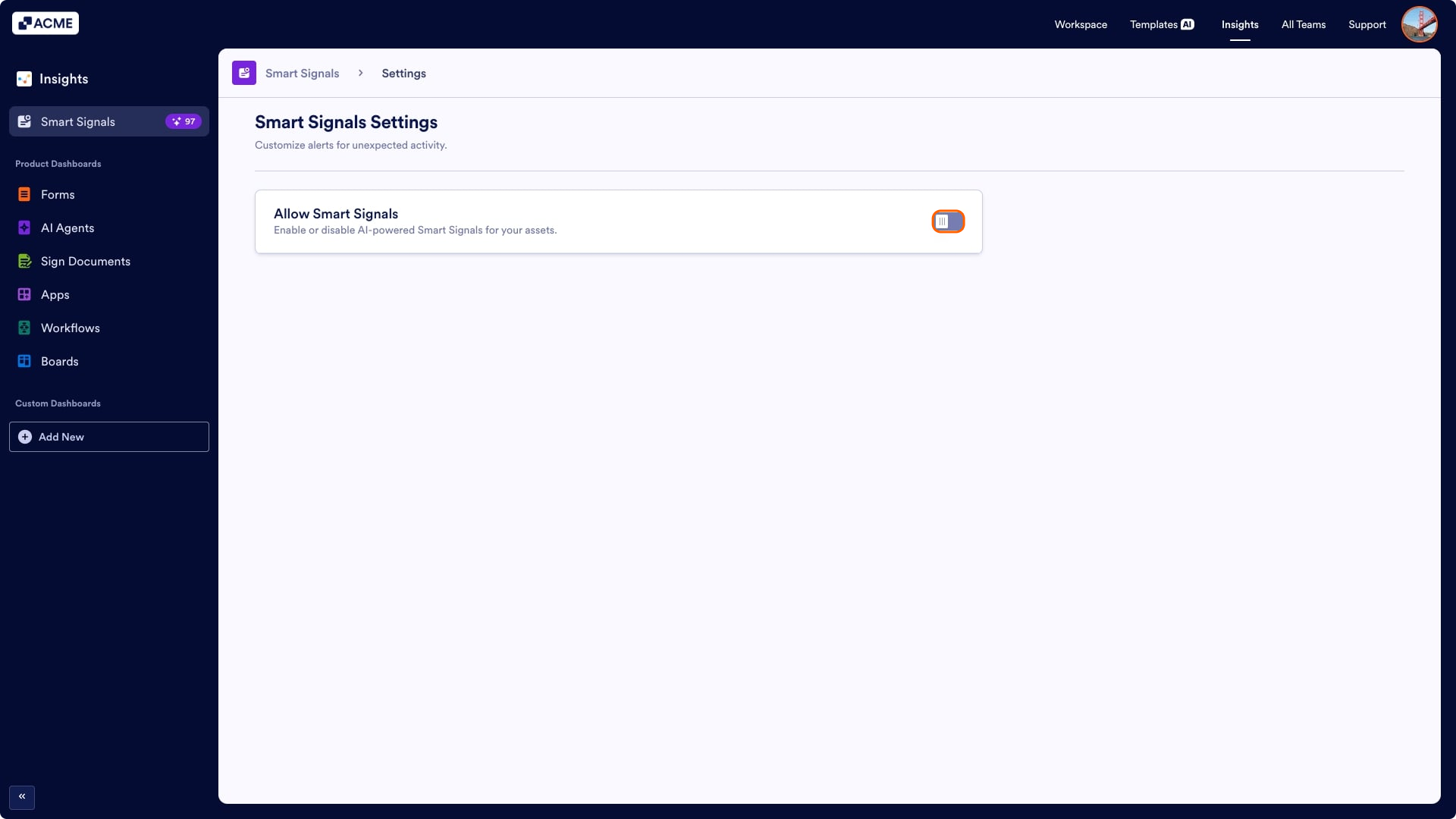
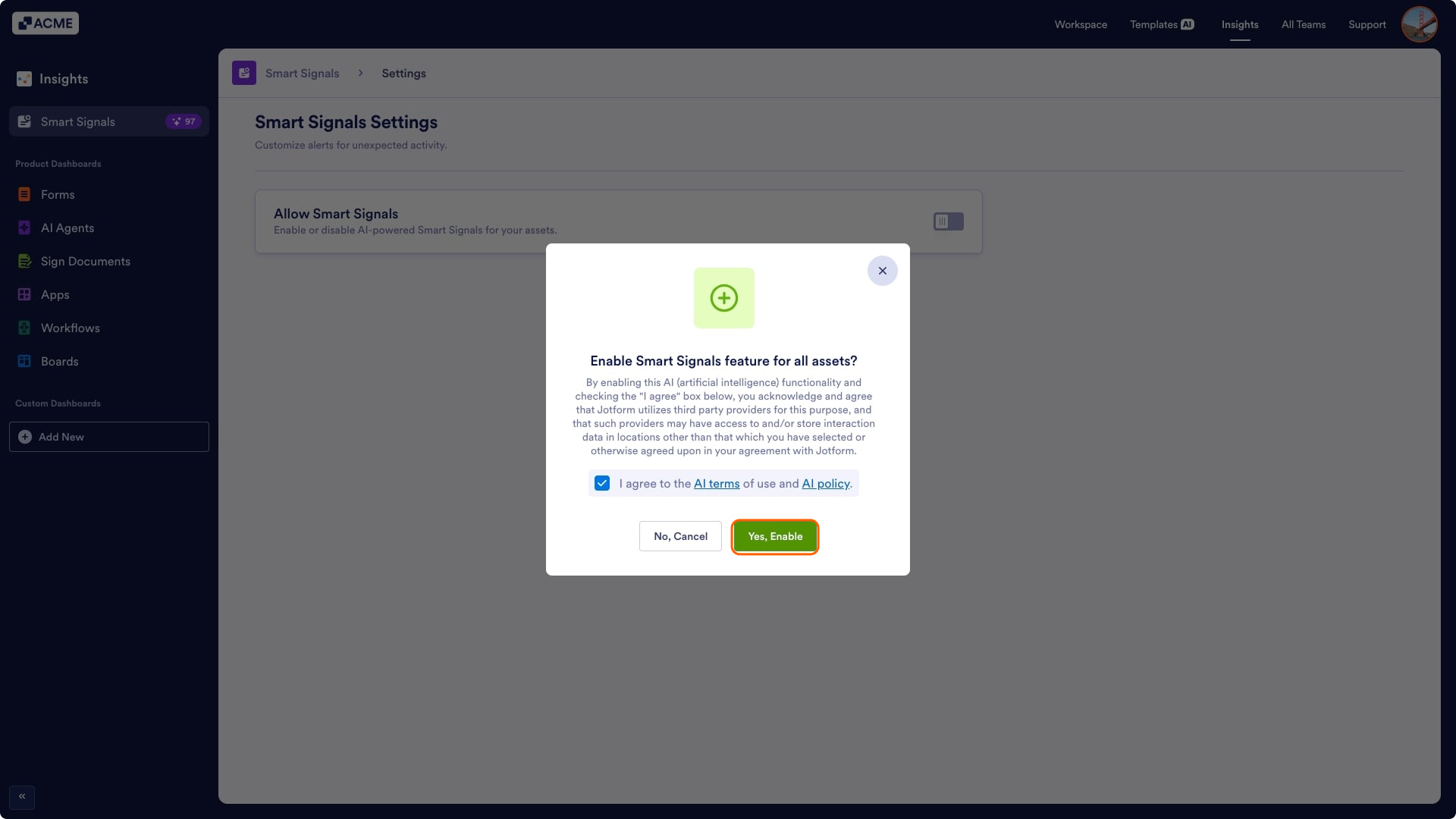
- In the pop-up window, click on the checkbox next to “I agree to the AI terms of use and AI policy.”
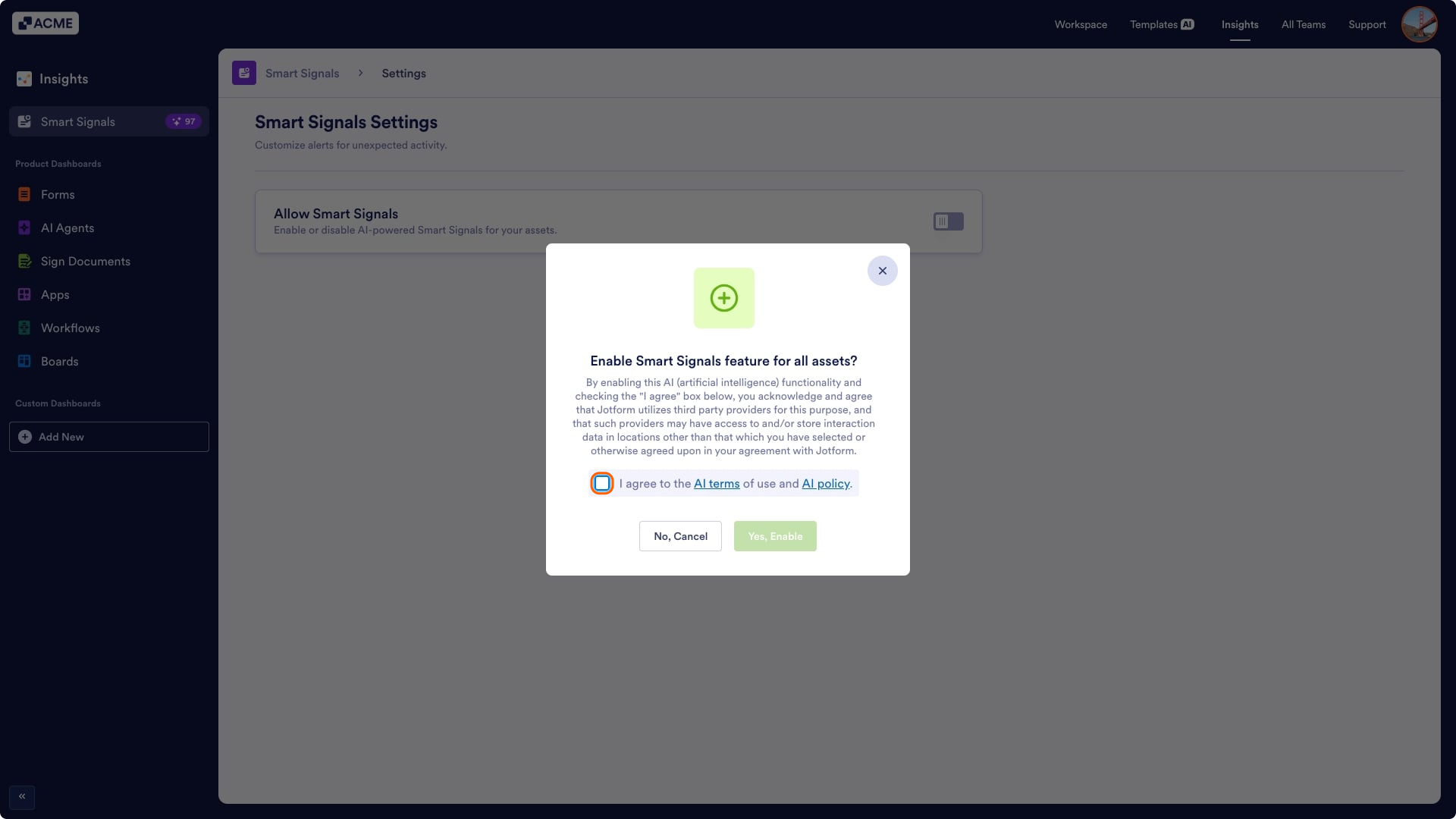
- Finally, click Yes, Enable.
Disabling Smart Signals
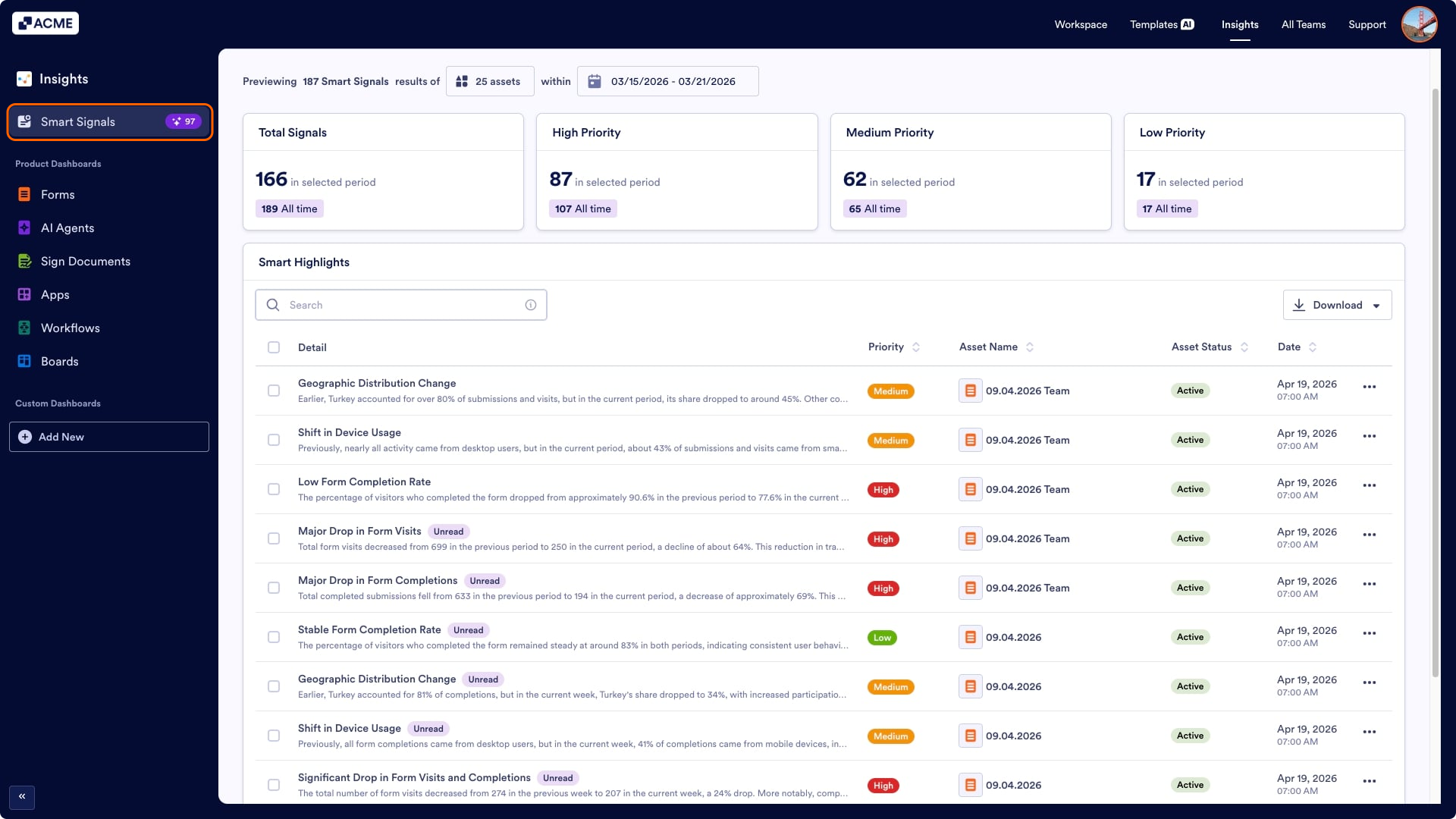
- In the Insights page, click Smart Signals on the left panel.
- In the Smart Signals tab, click Settings on the top right side of the page.
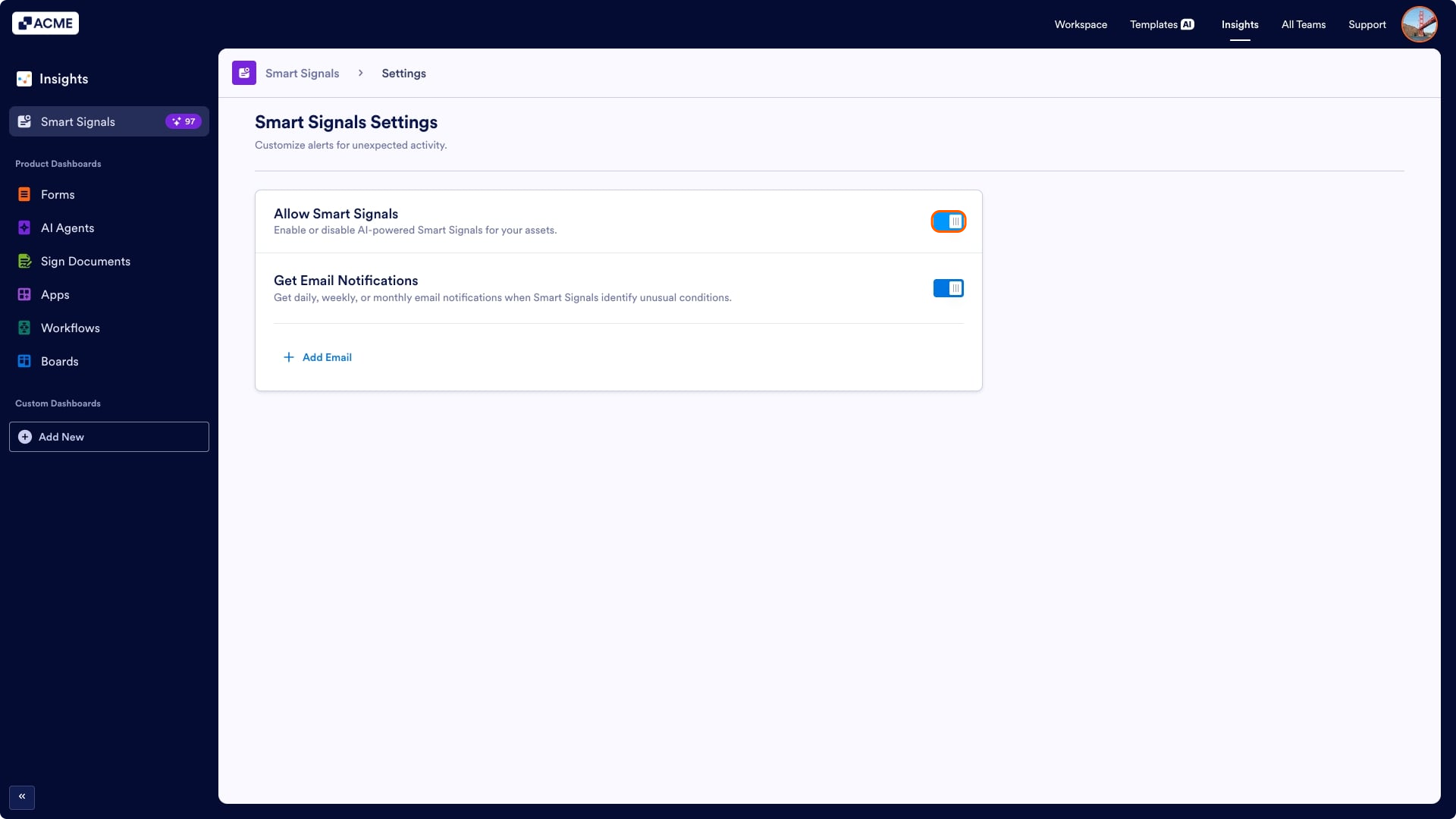
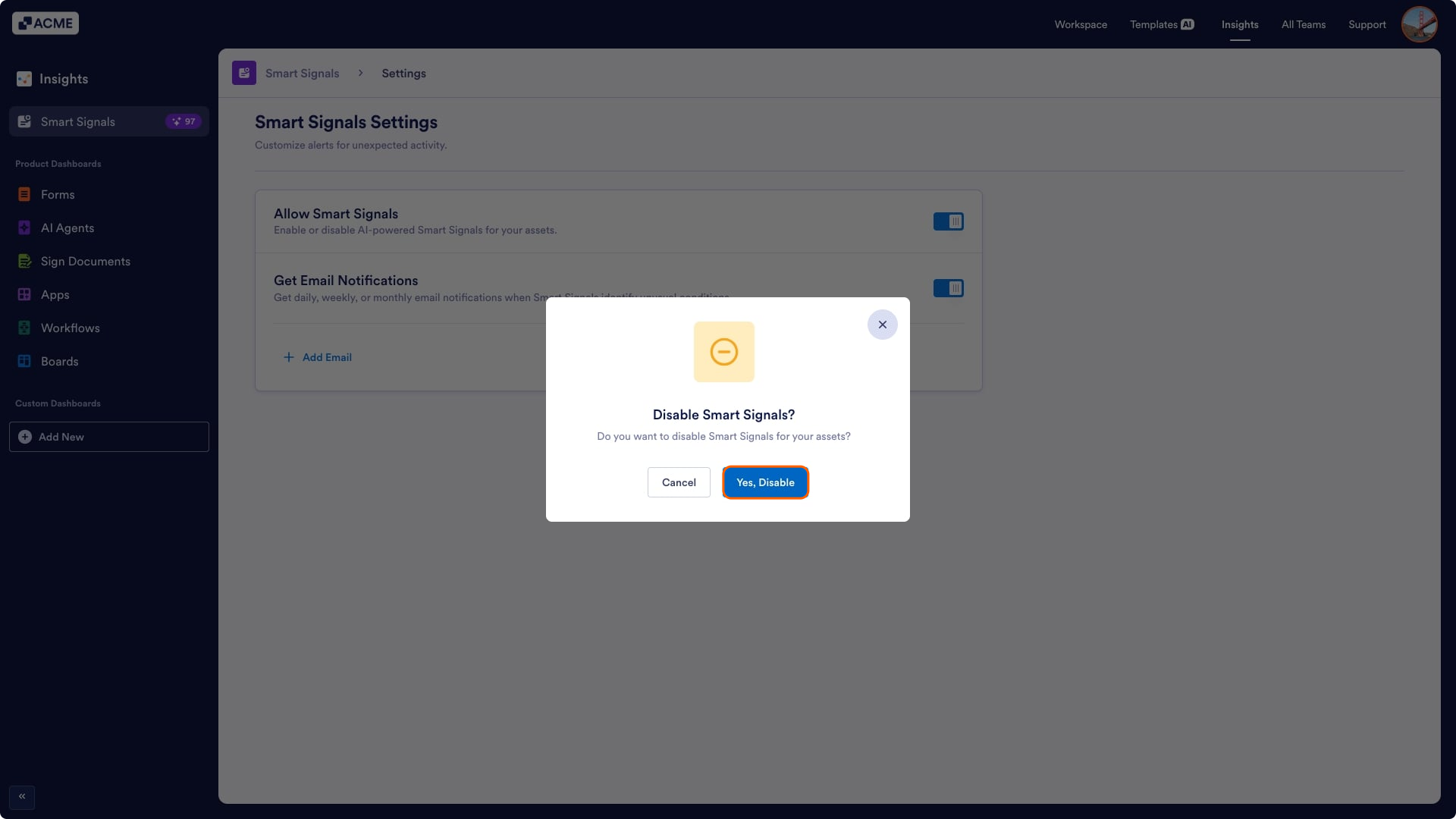
- Toggle Off the Allow Smart Signals option.
- In the pop-up window, click on Yes, Disable.
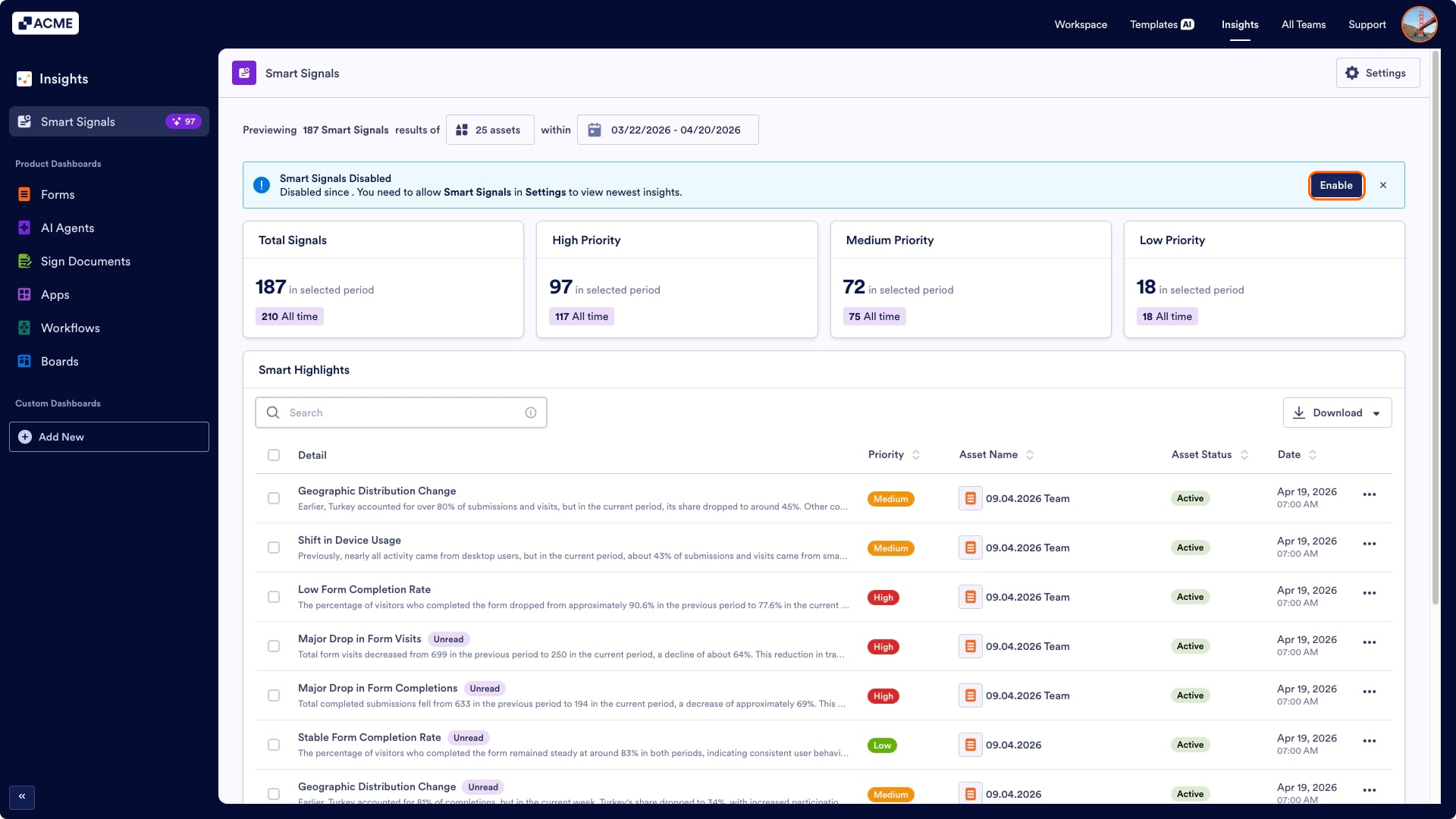
When the Smart Signals are disabled, you’ll see a warning about when it was disabled; you can also click on Enable there.
Note
The email notification will also be disabled if you disable the Smart Signals.

Send Comment: