# Split PDF | Free and Easy PDF Splitting Tool | Jotform

# Split PDFs in Seconds

Easily split PDFs and separate pages into new documents with Jotform’s free PDF splitting tool. Choose a custom range or select individual pages, and turn large PDF files into smaller, more manageable documents.

## Try other Jotform PDF tools

### [Merge PDF Combine multiple PDF files into a single, seamless document with ease.](https://www.jotform.com/pdf/merge/)### [Compress PDF Reduce PDF file sizes without compromising quality for easy sharing and storage.](https://www.jotform.com/pdf/compress/)### [Flatten PDF Lock your PDF content by converting layers and fields into a fixed format.](https://www.jotform.com/pdf/flatten/)### [AI PDF Summarizer Quickly extract key insights and summaries from lengthy PDF documents.](https://www.jotform.com/ai/summarizer/pdf/)### [AI Chat with PDF Interact with your PDF using AI to answer questions and retrieve specific information instantly.](https://www.jotform.com/ai/chat-with-pdf/)

## How to split your PDFs online

![Image 1: Upload your PDFs](https://cdn.jotfor.ms/image/r/aHR0cHM6Ly9jZG4uam90Zm9yLm1zL3AvcGRmL2Fzc2V0cy9pbWctbWluL3NwbGl0L2hvdy1ib3gtMS5wbmc=/how-box-1.png?w=663&t=1)

## Upload your PDFs

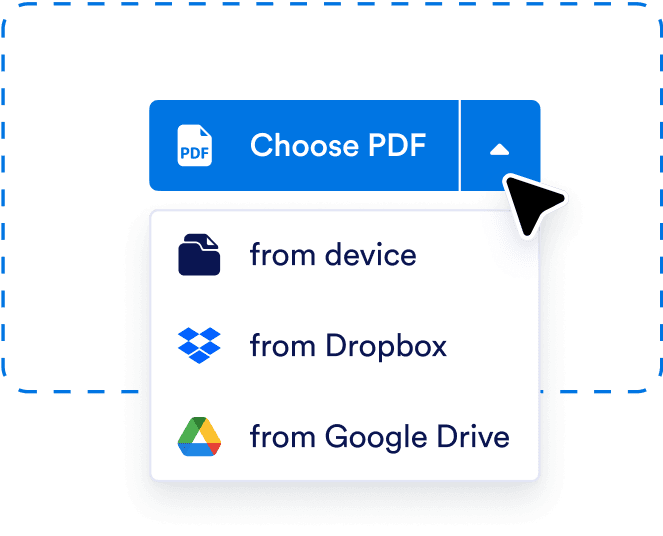
Drag and drop your PDF or click **Choose a PDF** to upload a file from your device, Dropbox, or Google Drive.
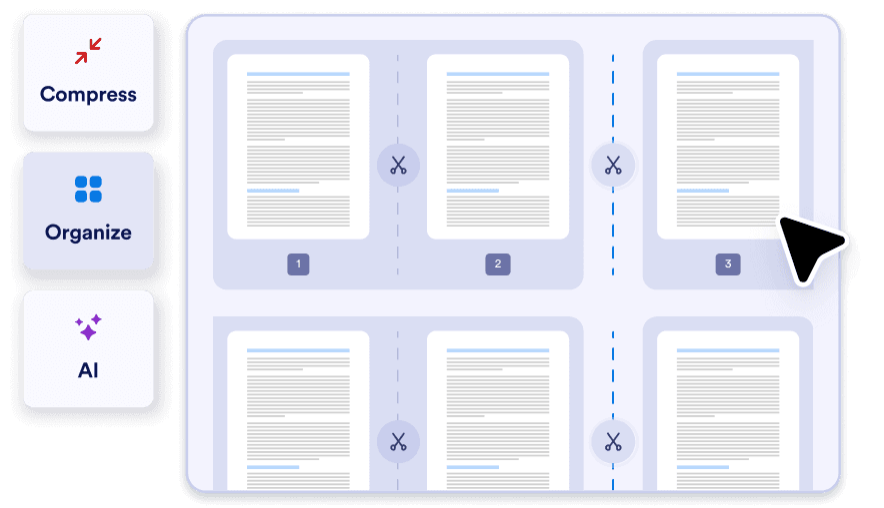
![Image 2: Pick the pages you want to split](https://cdn.jotfor.ms/image/r/aHR0cHM6Ly9jZG4uam90Zm9yLm1zL3AvcGRmL2Fzc2V0cy9pbWctbWluL3NwbGl0L2hvdy1ib3gtMi5wbmc=/how-box-2.png?w=884&t=1)

## Pick the pages you want to split

Click on the scissors icon to select where you want to split your document, or check the **Split by Number of Pages** box.

![Image 3: Download your new PDF](https://cdn.jotfor.ms/image/r/aHR0cHM6Ly9jZG4uam90Zm9yLm1zL3AvcGRmL2Fzc2V0cy9pbWctbWluL3NwbGl0L2hvdy1ib3gtMy5wbmc=/how-box-3.png?w=591&t=1)

## Download your new PDF

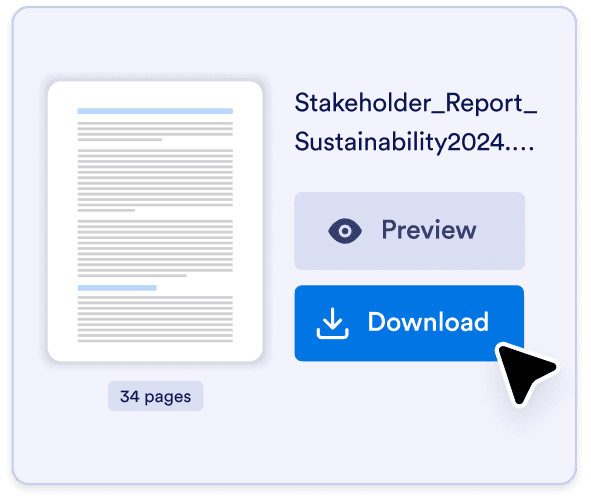
Once you’ve split up your file, you can preview your new PDFs and download them to your device.

![Image 4: Download your new PDF](https://cdn.jotfor.ms/image/r/aHR0cHM6Ly9jZG4uam90Zm9yLm1zL3AvcGRmL2Fzc2V0cy9pbWctbWluL3NwbGl0L2hvdy1ib3gtMy5wbmc=/how-box-3.png?w=40&t=1)

## Download your new PDF

Once you’ve split up your file, you can preview your new PDFs and download them to your device.

![Image 5: Upload your PDFs](https://cdn.jotfor.ms/image/r/aHR0cHM6Ly9jZG4uam90Zm9yLm1zL3AvcGRmL2Fzc2V0cy9pbWctbWluL3NwbGl0L2hvdy1ib3gtMS5wbmc=/how-box-1.png?w=40&t=1)

## Upload your PDFs

Drag and drop your PDF or click **Choose a PDF** to upload a file from your device, Dropbox, or Google Drive.

![Image 6: Pick the pages you want to split](https://cdn.jotfor.ms/image/r/aHR0cHM6Ly9jZG4uam90Zm9yLm1zL3AvcGRmL2Fzc2V0cy9pbWctbWluL3NwbGl0L2hvdy1ib3gtMi5wbmc=/how-box-2.png?w=40&t=1)

## Pick the pages you want to split

Click on the scissors icon to select where you want to split your document, or check the **Split by Number of Pages** box.

![Image 7: Download your new PDF](https://cdn.jotfor.ms/image/r/aHR0cHM6Ly9jZG4uam90Zm9yLm1zL3AvcGRmL2Fzc2V0cy9pbWctbWluL3NwbGl0L2hvdy1ib3gtMy5wbmc=/how-box-3.png?w=40&t=1)

## Download your new PDF

Once you’ve split up your file, you can preview your new PDFs and download them to your device.

![Image 8: Upload your PDFs](https://cdn.jotfor.ms/image/r/aHR0cHM6Ly9jZG4uam90Zm9yLm1zL3AvcGRmL2Fzc2V0cy9pbWctbWluL3NwbGl0L2hvdy1ib3gtMS5wbmc=/how-box-1.png?w=40&t=1)

## Upload your PDFs

Drag and drop your PDF or click **Choose a PDF** to upload a file from your device, Dropbox, or Google Drive.

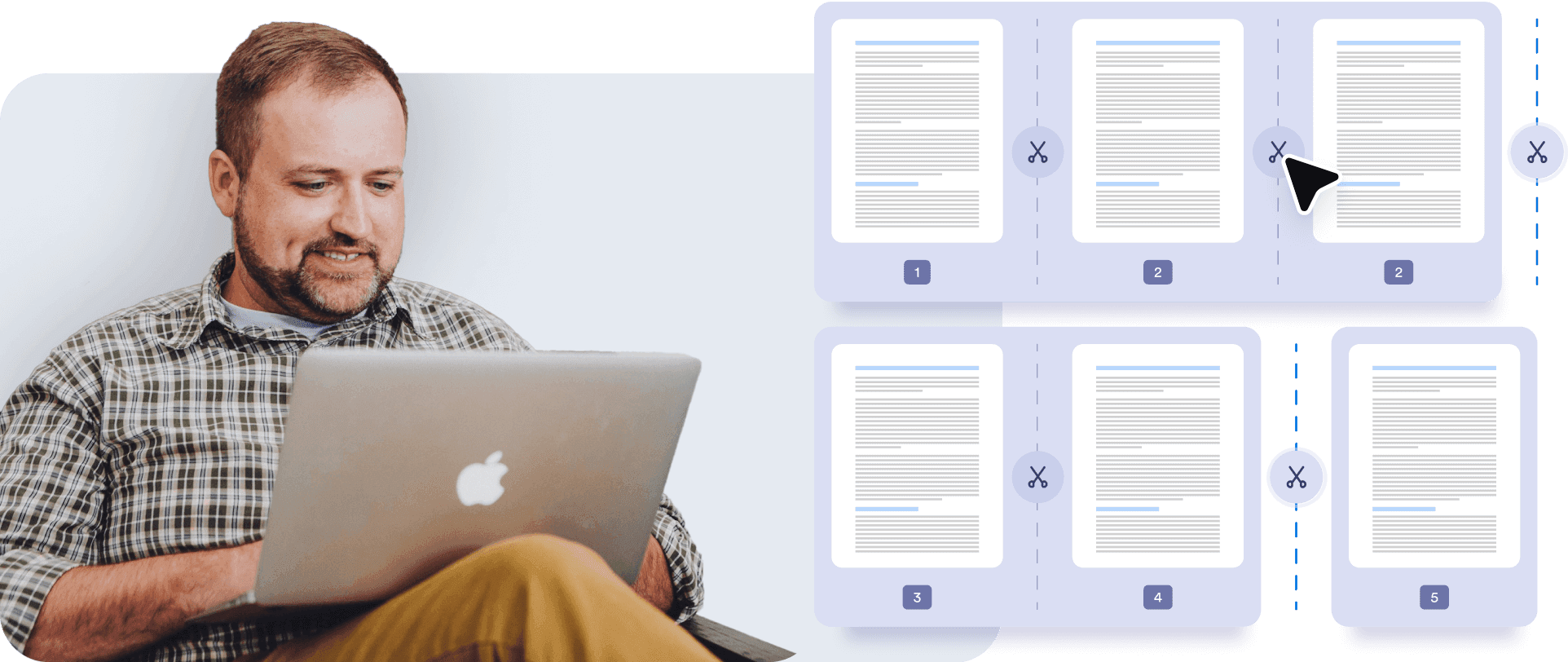
## Effortless Splitting

Split PDFs into two or more files with just a few clicks. The visual interface makes it easy to identify specific pages and divide your document exactly where you want.
![Image 9: Effortless Splitting](https://cdn.jotfor.ms/image/r/aHR0cHM6Ly9jZG4uam90Zm9yLm1zL3AvcGRmL2Fzc2V0cy9pbWctbWluL3NwbGl0L3NlY3Rpb24tMS1iZy5wbmc=/section-1-bg.png?w=40&t=1)

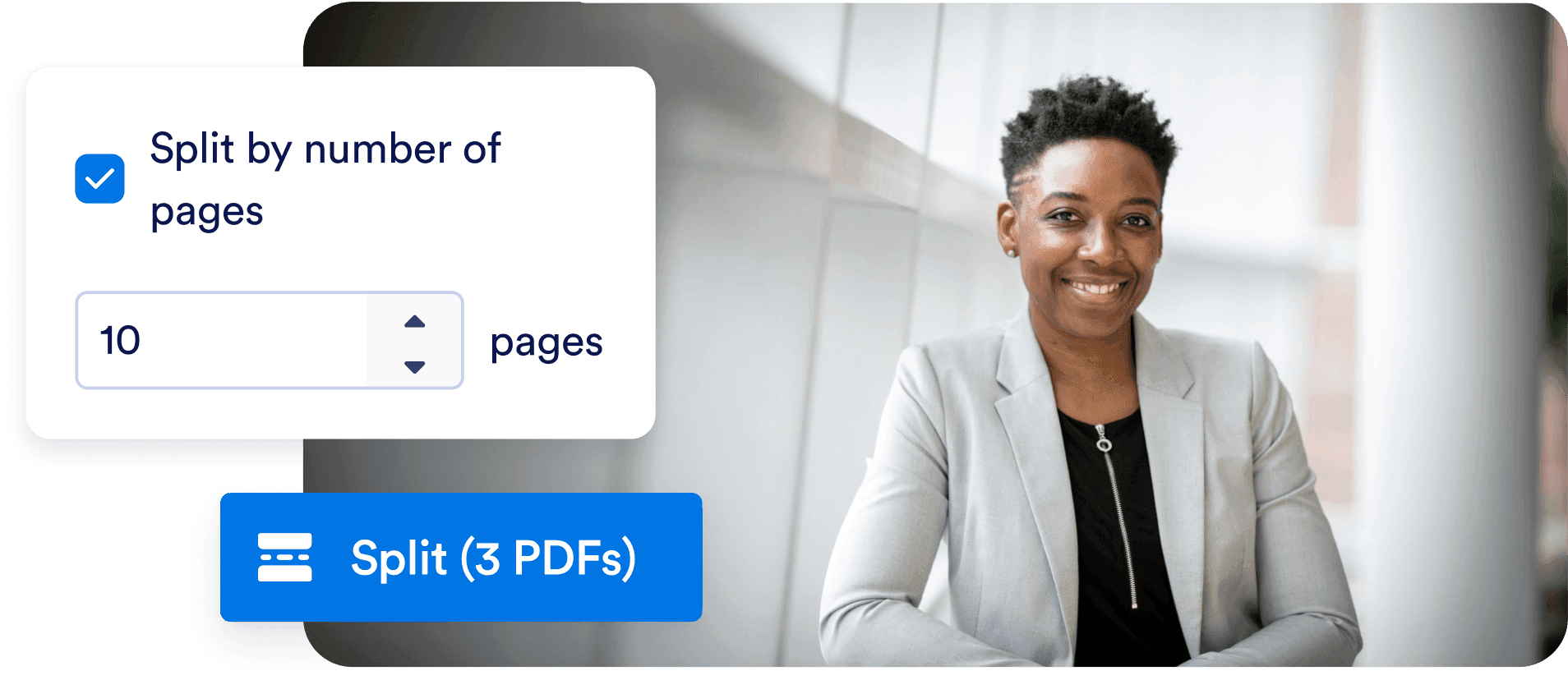
## Custom Page Ranges

Choose specific page ranges or extract individual pages to create multiple new files.
![Image 10: Custom Page Ranges](https://cdn.jotfor.ms/image/r/aHR0cHM6Ly9jZG4uam90Zm9yLm1zL3AvcGRmL2Fzc2V0cy9pbWctbWluL3NwbGl0L3NlY3Rpb24tMi1iZy5wbmc=/section-2-bg.png?w=40&t=1)

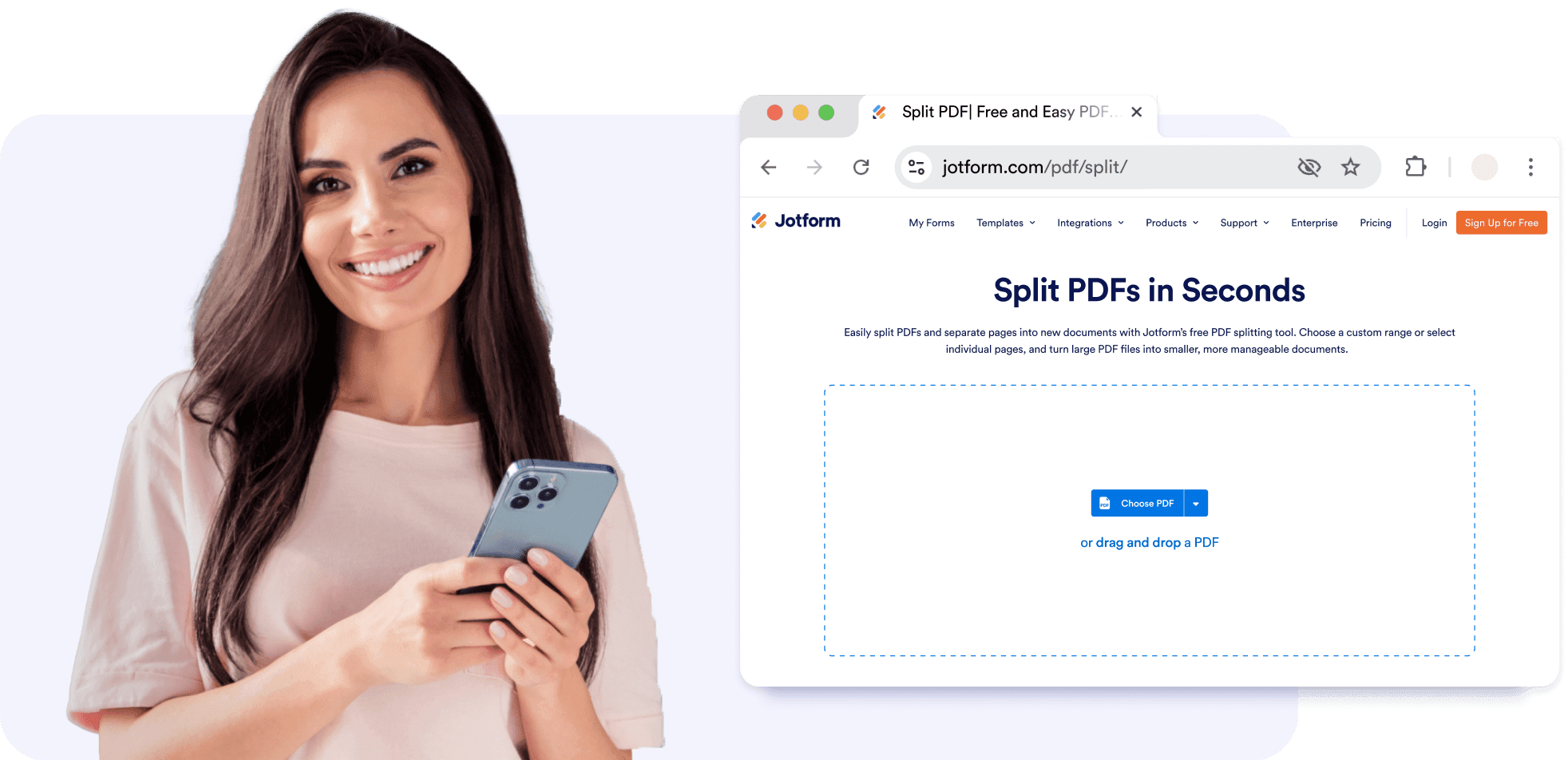
## No Installation Needed

Easily access the PDF splitting tool from any device without the need to download software.
![Image 11: No Installation Needed](https://cdn.jotfor.ms/image/r/aHR0cHM6Ly9jZG4uam90Zm9yLm1zL3AvcGRmL2Fzc2V0cy9pbWctbWluL3NwbGl0L3NlY3Rpb24tMy1iZy5wbmc=/section-3-bg.png?w=40&t=1)

## Explore More Jotform PDF Solutions

Enhance your document management with Jotform’s powerful tools. Check out our additional solutions:

### Smart PDF Forms


![Image 12: Smart PDF Forms](https://cdn.jotfor.ms/image/r/aHR0cHM6Ly9jZG4uam90Zm9yLm1zL3AvcGRmL2Fzc2V0cy9pbWctbWluL2V4cGxvcmUtbW9yZS0xLnBuZw==/explore-more-1.png?w=40&t=1)

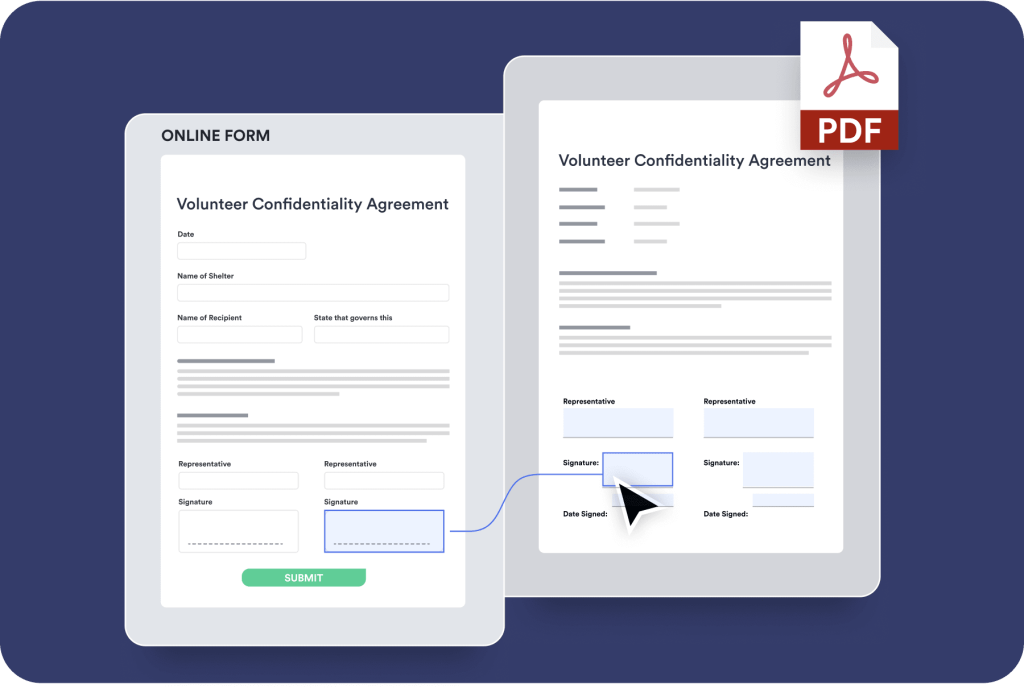
Instantly transform your existing PDF files into shareable forms and collect responses online without any coding.

[Learn More](https://www.jotform.com/products/smart-pdf-forms/)

### PDF Editor


![Image 13: PDF Editor](https://cdn.jotfor.ms/image/r/aHR0cHM6Ly9jZG4uam90Zm9yLm1zL3AvcGRmL2Fzc2V0cy9pbWctbWluL2V4cGxvcmUtbW9yZS0yLnBuZw==/explore-more-2.png?w=40&t=1)

Automatically turn form submissions into custom PDFs you can download, share, print, and edit online.

[Learn More](https://www.jotform.com/products/pdf-editor/)

### PDF Tools


![Image 14: PDF Tools](https://cdn.jotfor.ms/image/r/aHR0cHM6Ly9jZG4uam90Zm9yLm1zL3AvcGRmL2Fzc2V0cy9pbWctbWluL2V4cGxvcmUtbW9yZS0zLnBuZw==/explore-more-3.png?w=40&t=1)

Easily [compress](https://www.jotform.com/pdf/compress/), [flatten](https://www.jotform.com/pdf/flatten/), [merge](https://www.jotform.com/pdf/merge/), and [split](https://www.jotform.com/pdf/split/) up files with Jotform’s PDF tools. You can also use Jotform’s AI features to generate summaries and provide useful insights.

## FAQ about Split PDF

*    
### Is Jotform’s Split PDF tool free to use? Yes, this tool is completely free to use.   
*    
### How do I extract certain pages from a PDF? Once you’ve uploaded your PDF, click on the scissors in between the pages to indicate where you want to split the file. Select the scissors on either side of an individual page, click the **Split** button to extract it, and download the page as a new, separate file.   
*    
### Are there any page limits when splitting PDFs? No, there are no page limits. You can split your document into multiple files with a custom number of pages or even divide it up so each page is its own unique file.   
*    
### Can I split a password-protected PDF? No, password-protected PDFs aren’t compatible with Jotform’s PDF splitter.   
*    
### Can I merge the split PDFs back together later? Yes, it’s easy to do with our PDF Merge tool.   
*    
### Does the tool work on mobile devices? Yes, Jotform’s PDF splitter is accessible from any desktop or mobile device.   
*    
### Are there any file size limitations for splitting PDFs? Jotform’s PDF splitting tool has a file size limit of 30 MB.   
*    
### How can I save new PDF files after I split a PDF? Once you’ve selected the points where you would like to split your document, click the **Split** button to see a preview of your new PDF files. You can preview each individual document and download them to your device by clicking the **Download** button.   
*    
### How can I share my split PDF files after they’re created? After downloading your split PDFs, you can easily share them via email, print them, or upload them to your cloud storage.   
*    
### Does Jotform offer other PDF editing tools? Jotform offers a variety of free tools you can use to merge PDFs, flatten them for better printing, or compress them for easier file sharing.   

View More

## Ready to Split Your PDFs?

Extract pages and reduce the size of your files with our easy-to-use splitting tool.
Start Splitting PDFs for Free!