Jotform makes it easy to control how much text form fillers can enter in your Short Text and Long Text fields. Whether you want to require more detailed answers or prevent responses from being too long, setting entry limits helps you manage submissions more effectively.
You can set minimum and maximum character limits for both field types, making it easier to collect consistent and organized responses. This is especially useful for applications, feedback forms, descriptions, and other fields where response length matters.
Setting Up Character Limits in a Short Text Field
You can limit how many characters users can enter in a Short Text field by enabling the Character Limit option in the field settings. Here’s how to set it up:
- In Form Builder, select the Short Text field and then click on the Gear icon.
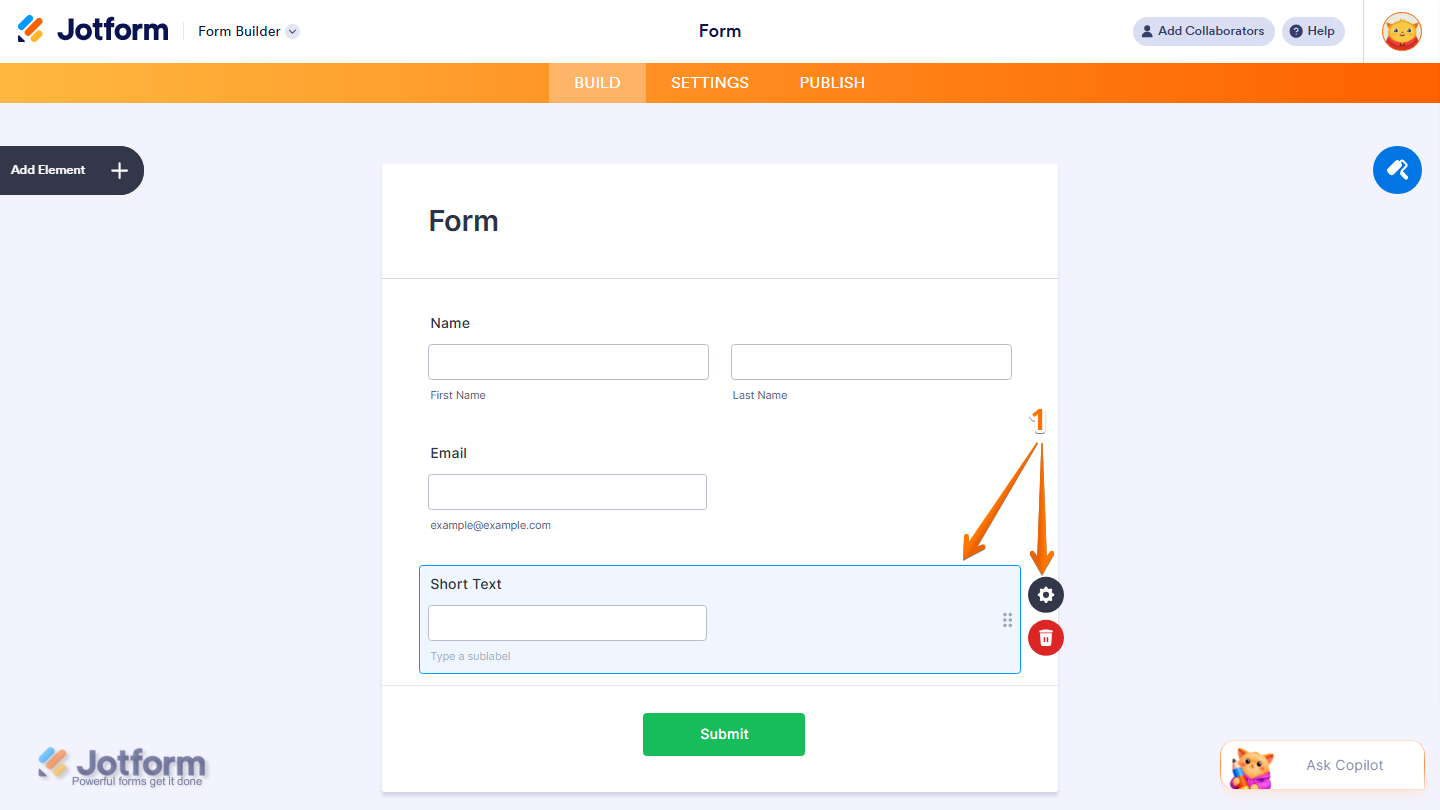
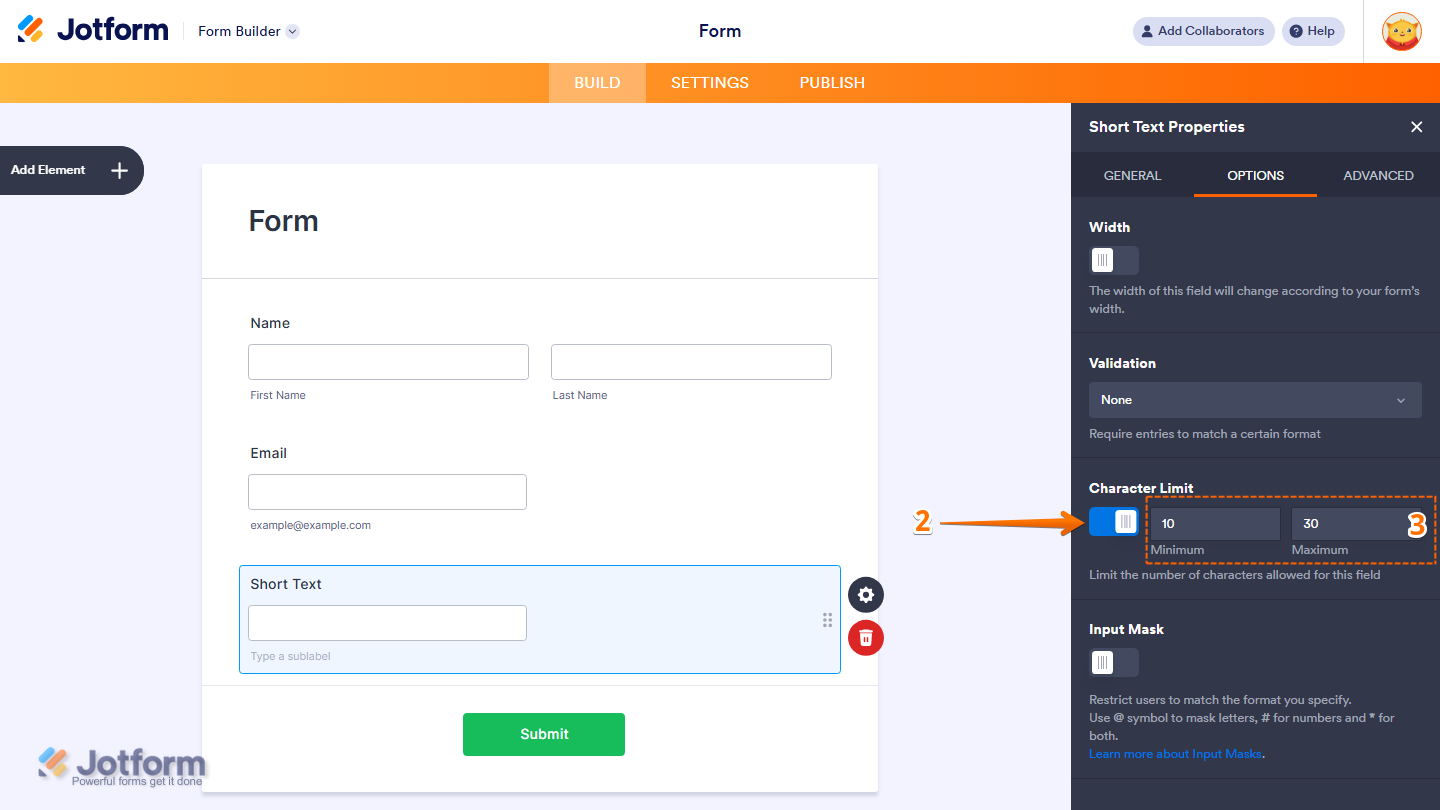
- Then, in the Short Text Properties window that opens on the right side of the page, under the Options tab, toggle on the Character Limit.
- Now, enter the minimum and maximum number of characters in the Minimum Input and Maximum Input boxes, and you’re done.
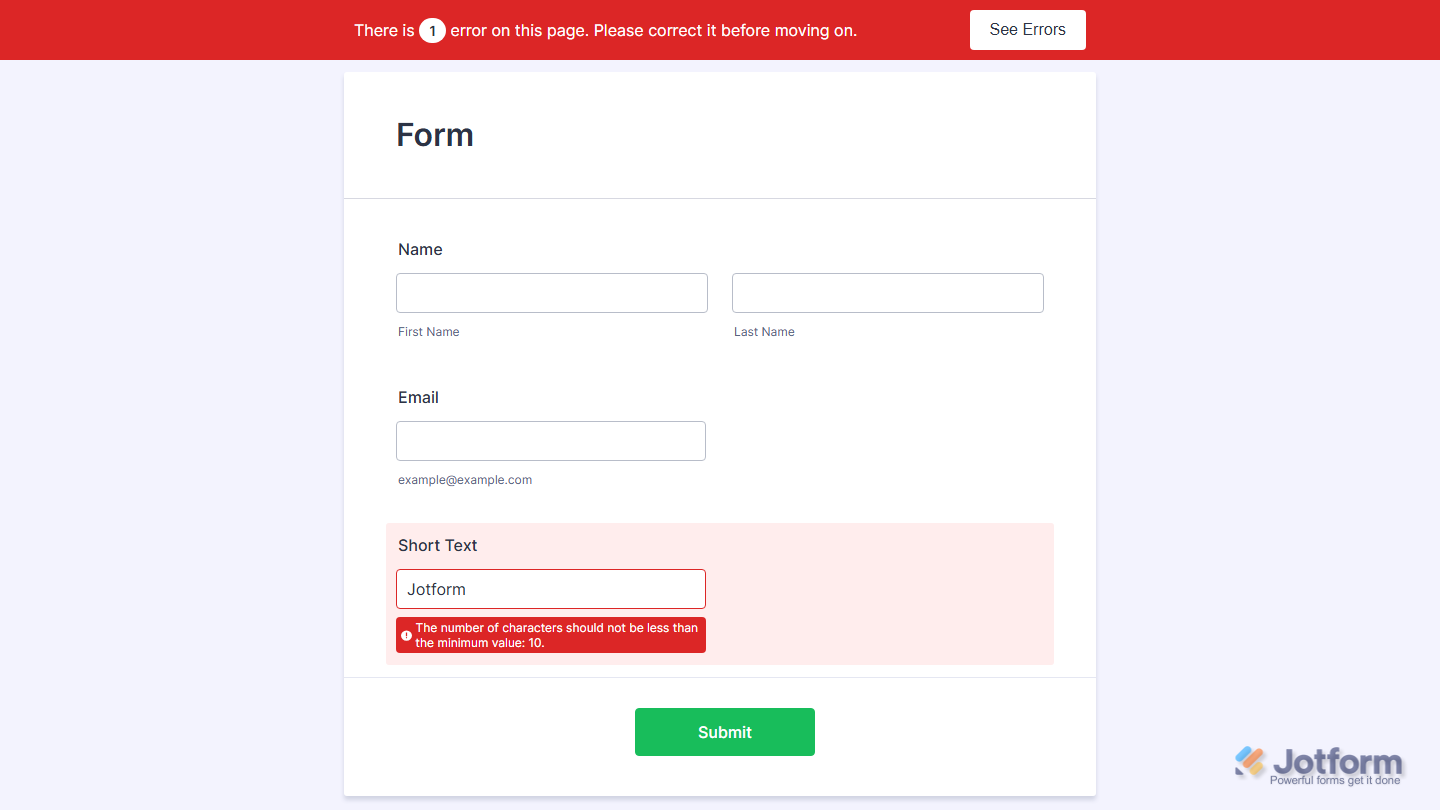
When a minimum is set, the form will display an error if it’s not met. There is no error for the maximum, but it will not allow input if it’s reached. Here’s how the error will look if it isn’t met:
Setting Up Character Limit in Long Text Field
You can also control how much users can enter in a Long Text field by setting word or character limits. Setting it up is quick—here’s how:
- In Form Builder, select the Long Text field and then click on the Gear icon.
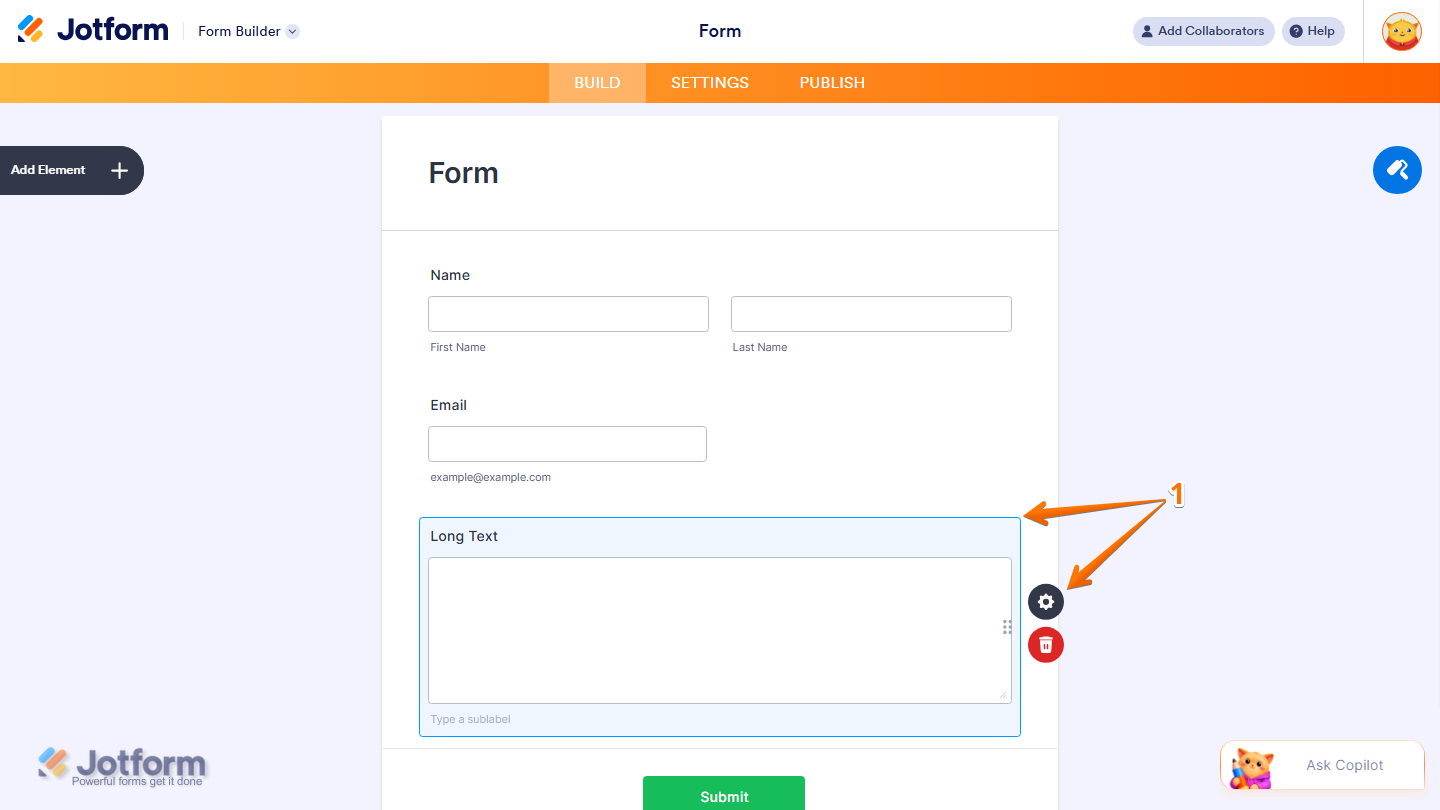
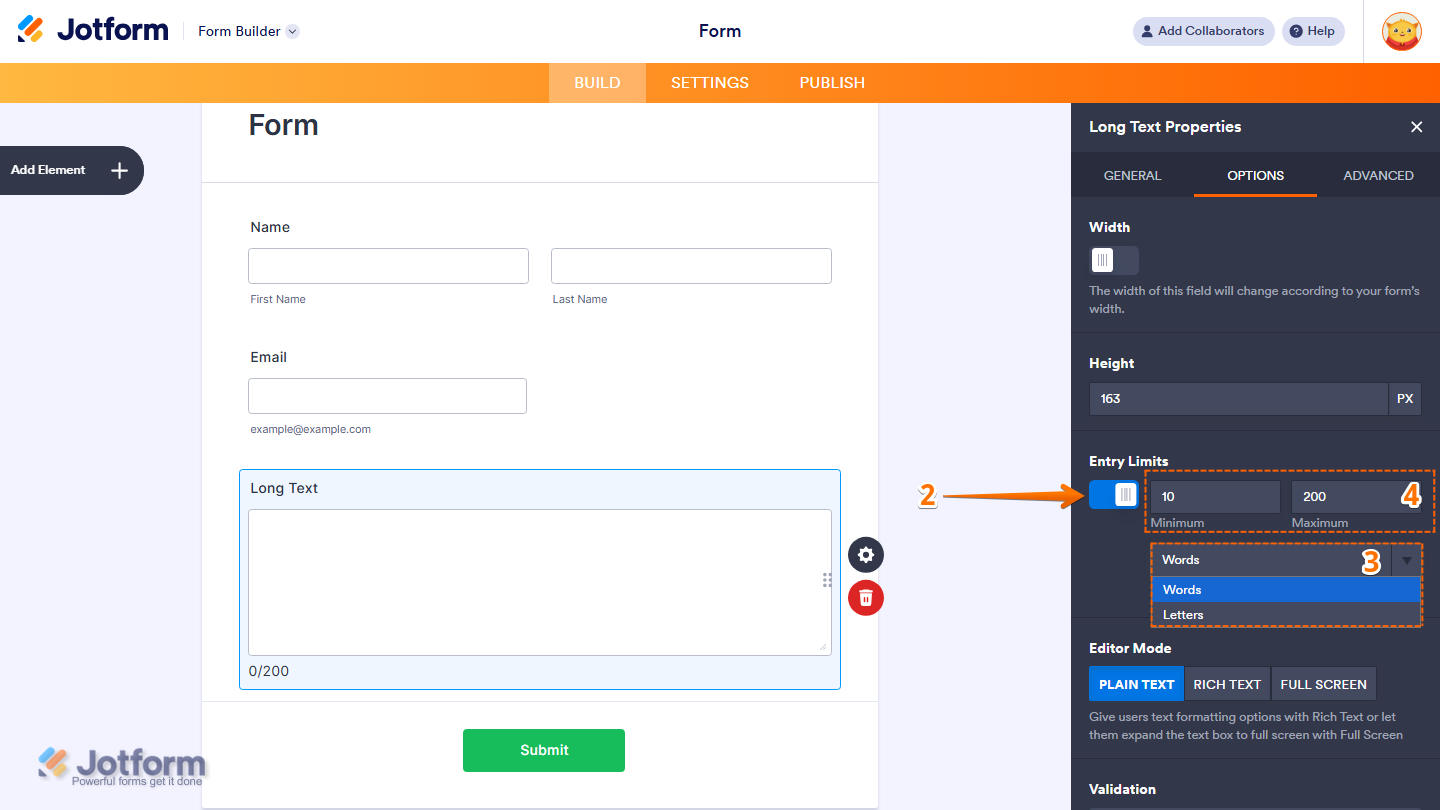
- Then, in the Long Text Properties window that opens on the right side of the page, under the Options tab, toggle on the Entry Limits.
- Next, click on the Limit Type Dropdown and then select the type of limit you want to apply:
- Words — Limit the number of words respondents can enter.
- Letters — Limit the number of characters respondents can enter.
- Now, enter the minimum and maximum number of characters in the Minimum Input and Maximum Input boxes, and you’re good to go.
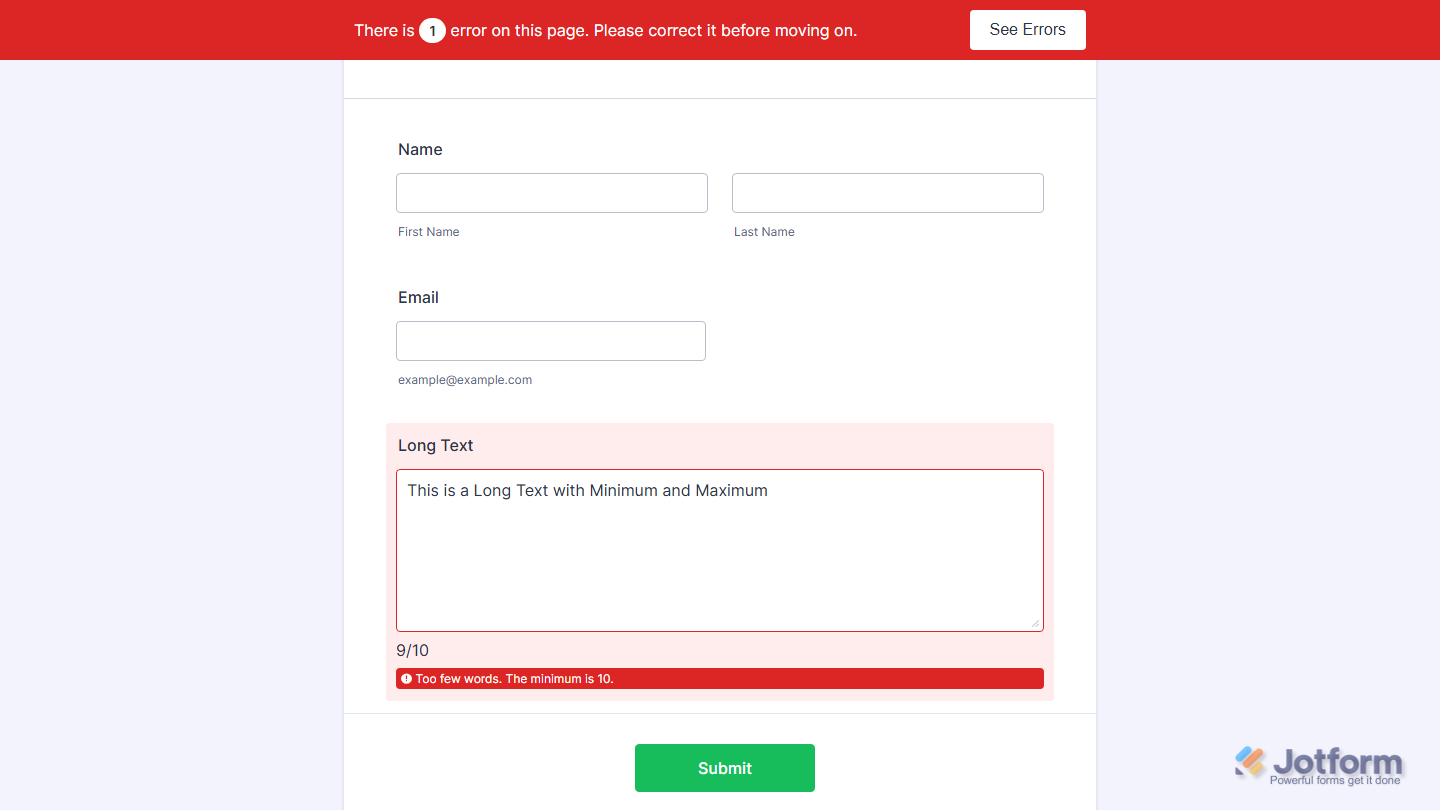
The Long Text field also displays an error message when the minimum requirement is not met, and it will stop accepting additional input once the maximum limit is reached. You’ll also see a live counter at the bottom-left side of the input area showing how many words or characters have been entered. Here’s an example of the warning message and limit indicator:
Pro Tip
- If you want to customize the error message that appears, check out our guide on How to Change Form Warnings to learn more about it.
- You can also translate the error message that appears when a limit is not met. To learn how it’s done, see our guide on How to Make Your Forms Multilingual.
That’s it! With entry limits in place, your Short Text and Long Text fields will collect more consistent and structured responses. You can always go back to the field settings to adjust the limits whenever your needs change.

Send Comment:
2 Comments:
July 10, 2025
I have a recommendation. For my form we use the "Single Choice" form Element and enable the Add Other Option as an option to be selected and the text box so they can makes comments and remarks. That text box should also have a character limit. This would enable form creators to have an automatic condition function and would prompt the form user to fill out the box more seamlessly.
November 27, 2023
Is there any way to change the character limit for comments in a approval workflow?