Jotform Teams makes it easy for Team Admins to manage members and keep their workspace organized. As a team admin, you can update member roles, adjust permissions, or remove users whenever needed to make sure everyone has the right level of access.
There are a few different ways to manage team members in Jotform Teams. You can do it directly from your Team Workspace page or through your Team Settings, depending on which option works best for your workflow.
Managing Team Members From Your Team’s Workspace Page
You can manage your team members directly from your Team Workspace page, where you can update member roles or remove users from the team. Here’s how to get started:
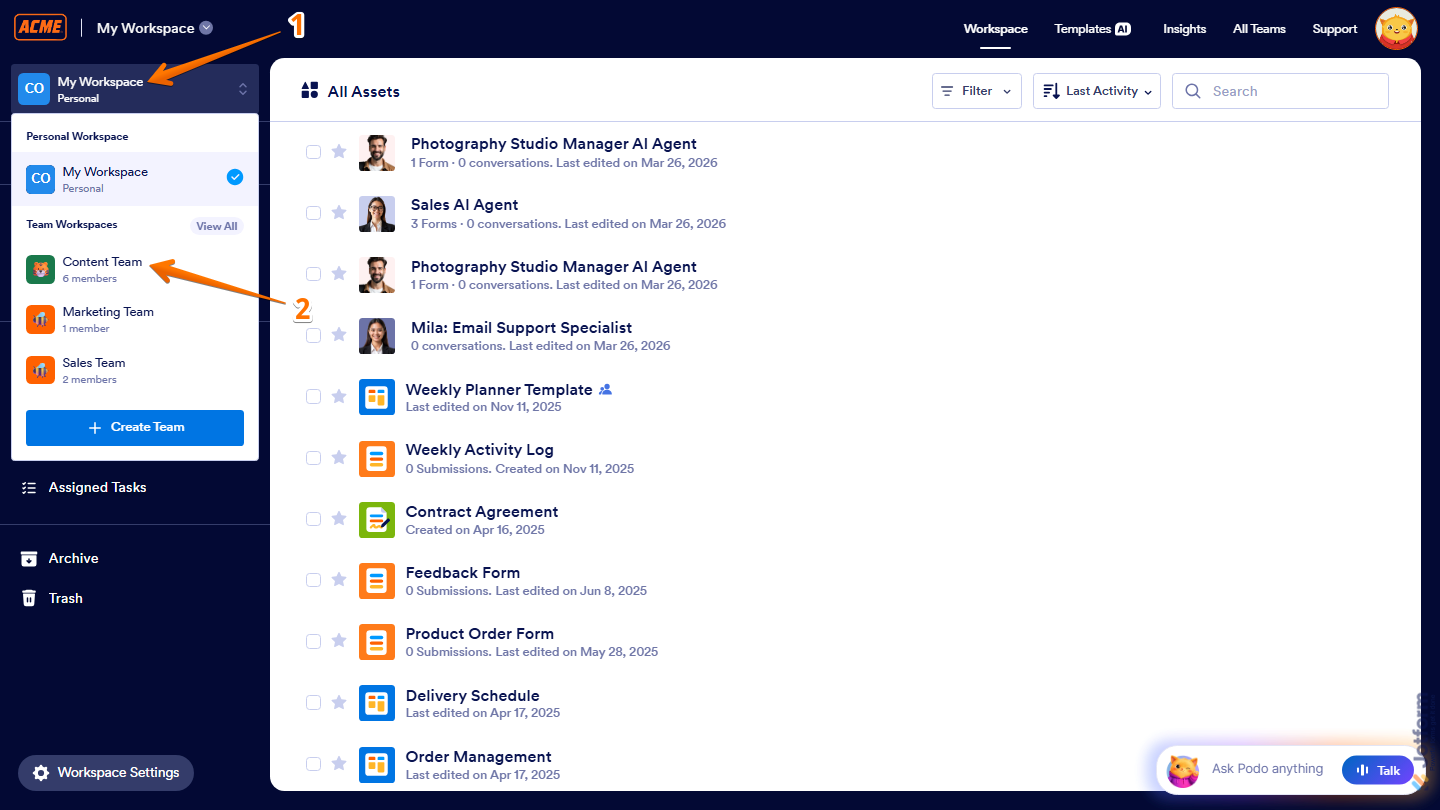
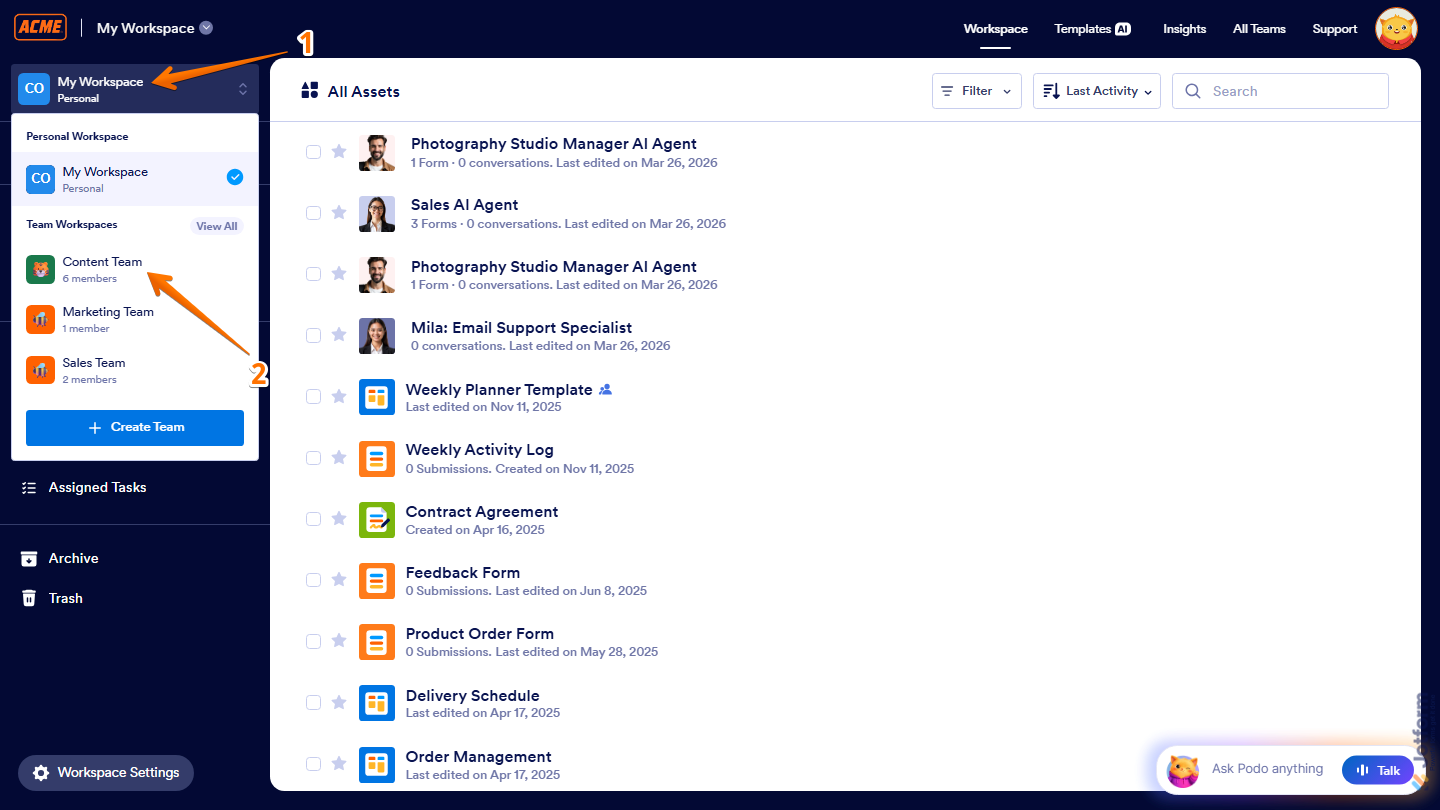
- On your Workspace page, in the menu on the left side, click on My Workspace.
- Then, in the menu that comes up, under Team Workspaces, select the team you want to manage. For example, the Content Team.
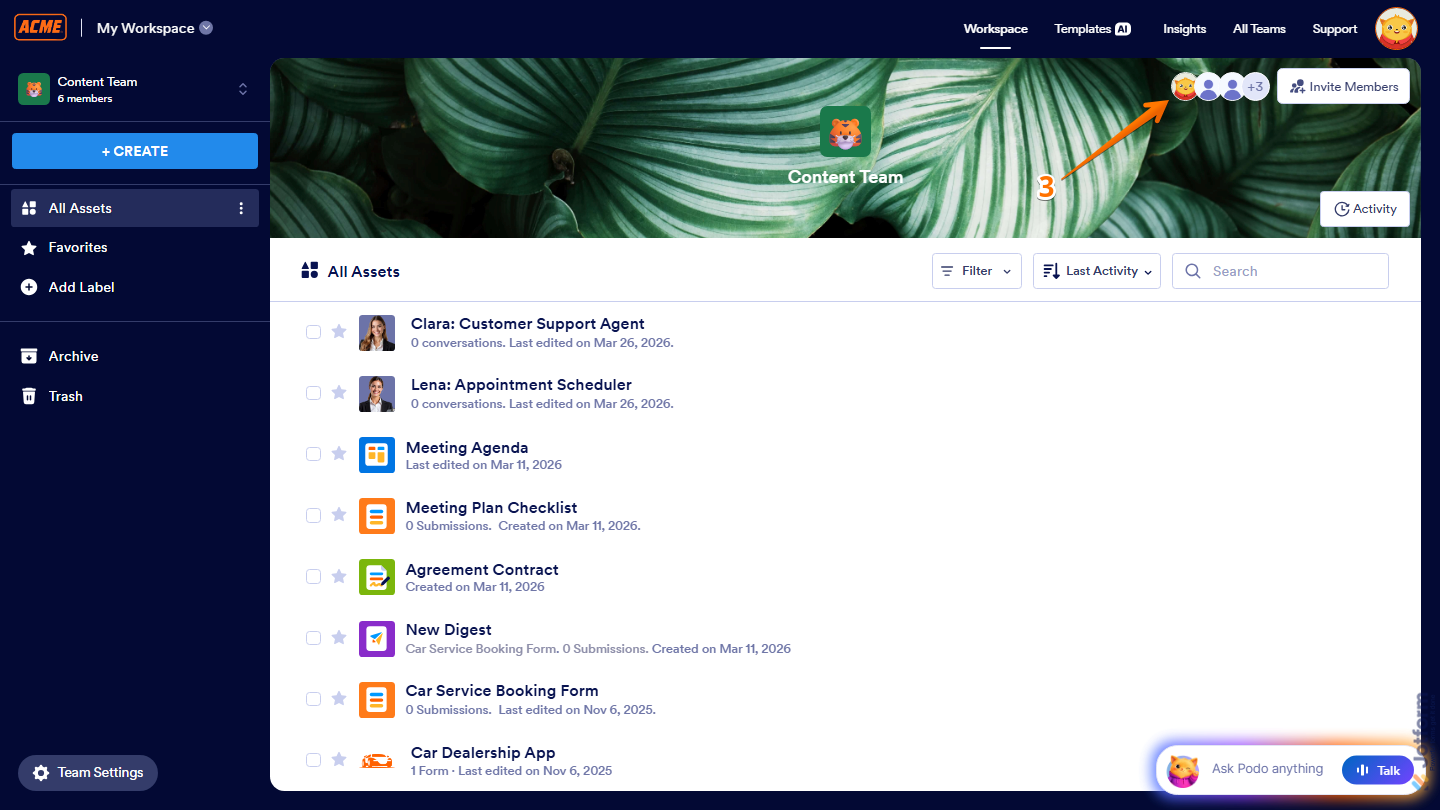
- Now, on the Team Workspace page for the team you selected, click on the Members icon in the top-right corner of the page.
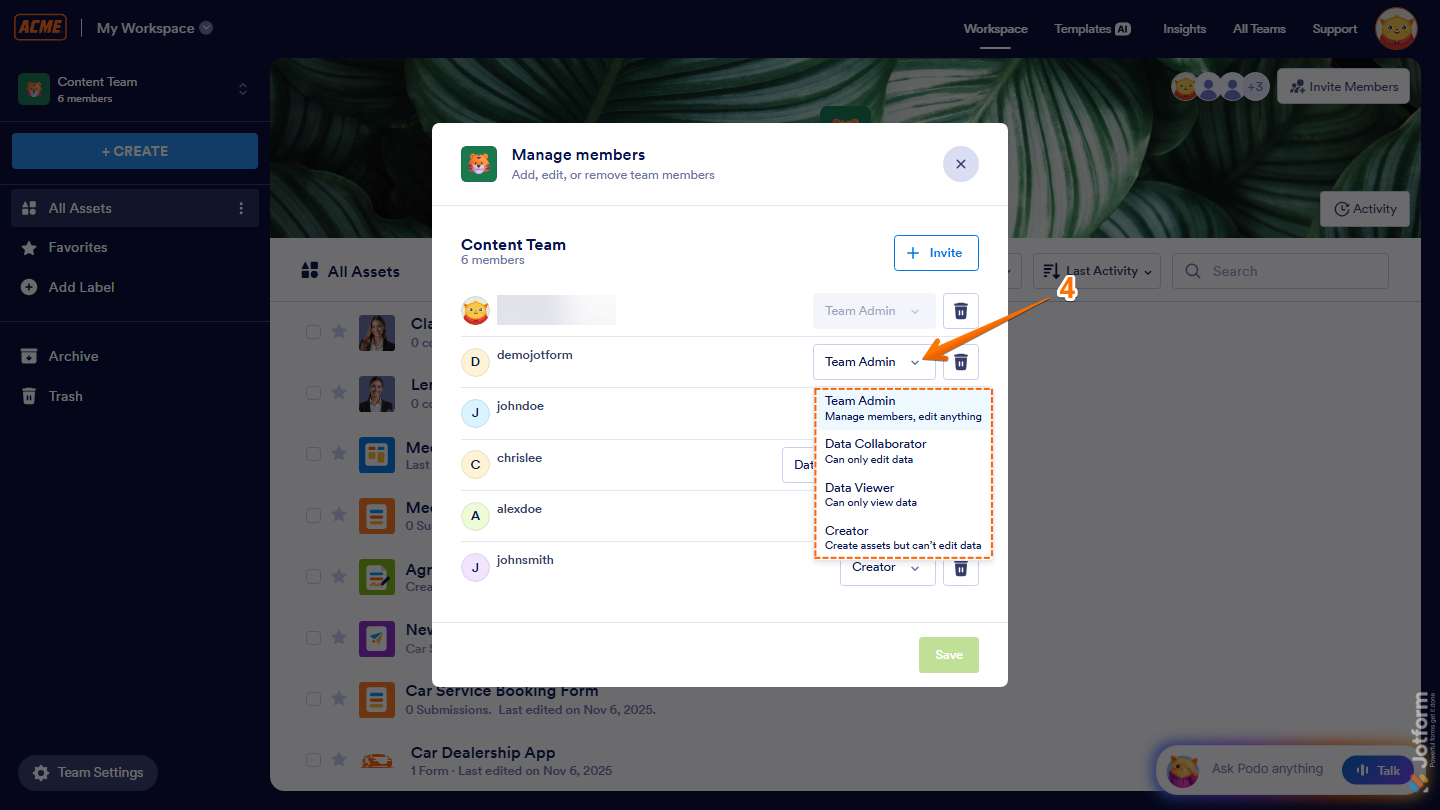
- Next, in the Manage Members window that opens, click on the Downward Arrow icon on the right side of your team member and then select one of the following role options:
- Team Admin — Can manage members and view, move, edit, and delete assets and data.
- Data Collaborator — Can view assets and edit data.
- Data Viewer — Can only view assets and data.
- Creator — Can view and edit assets but can’t view data.
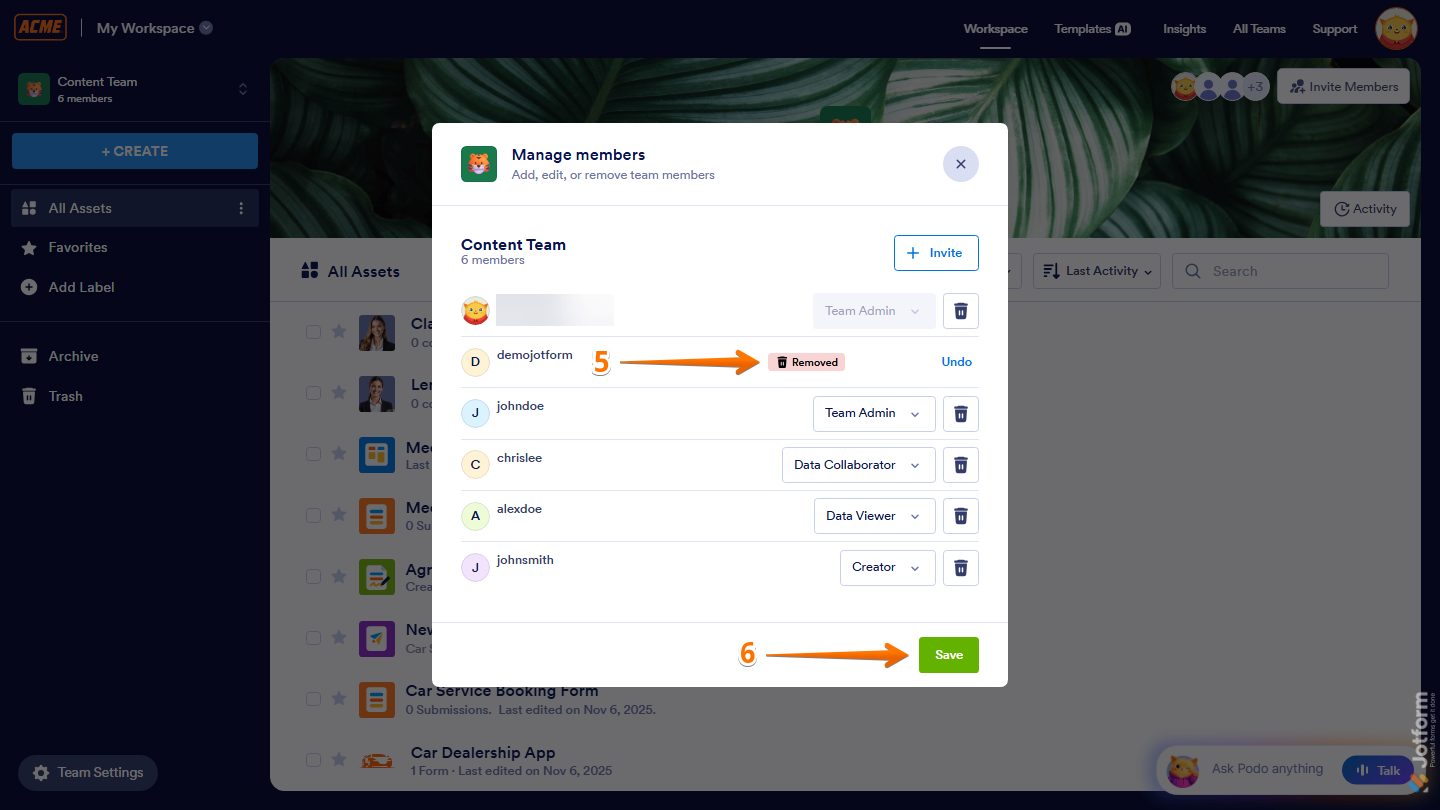
- Now, to remove a member, click on the Trash Can icon next to the member you want to remove.
- Then, click on Save at the bottom of the window, and you’re done.
Managing Team Members From the Team Settings
You can also manage team members from the Team Settings page to access additional member management options and permissions. Setting it up is quick—here’s how:
- On your Workspace page, in the menu on the left side, click on My Workspace.
- Then, in the menu that comes up, under Team Workspaces, select the team you want to manage. For example, the Content Team.
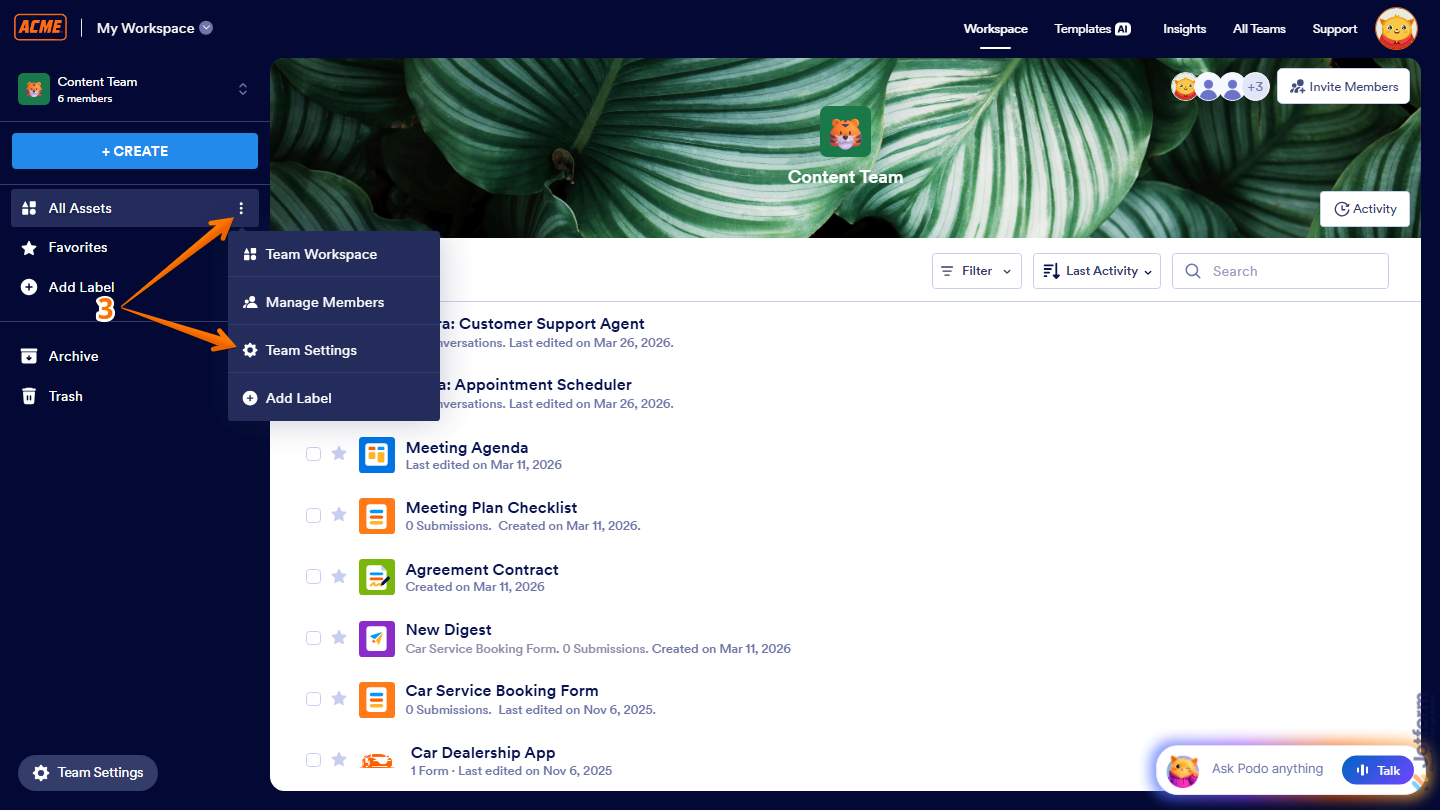
- Now, on the left side of your Team Workspace page, click on the Three Dots icon next to All Assets, and then select Team Settings.
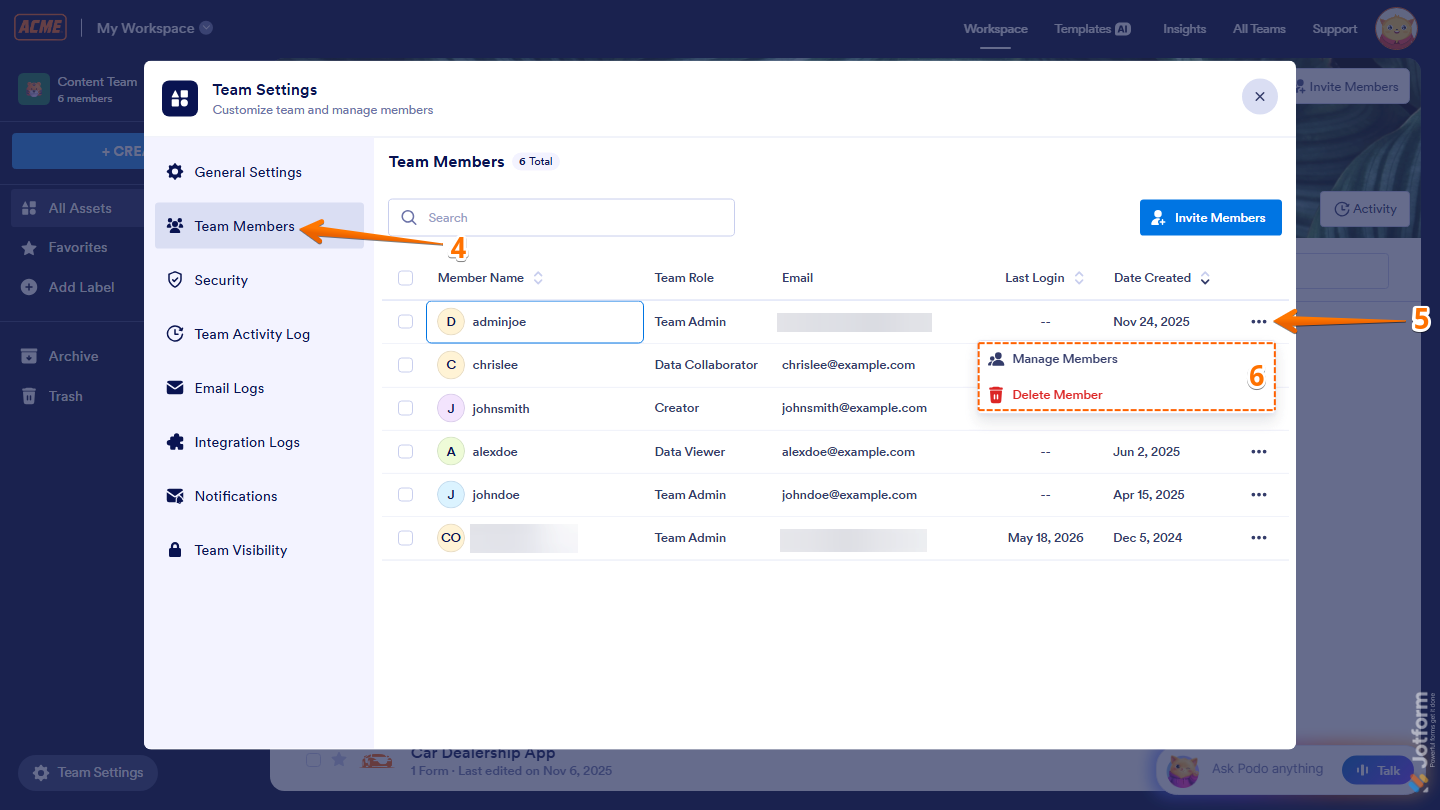
- Next, in the Team Settings window that opens, in the menu on the left, click on Team Members.
- Now, hover your mouse over the team member you want to manage, and then click on the Three Dots icon on the right side of the team member.
- Then, in the menu that opens, select one of these actions:
- Manage Members — Manage the selected team member’s access and permissions.
- Delete Member — Remove the selected user from the team.
That’s it. Managing team members in Jotform Teams helps keep your workspace organized by giving each member the right level of access and control.

Send Comment:
1 Comment:
July 5, 2024
is this function only for enterprise accounts?