Jotform makes it easy to add new members to your team so you can collaborate and manage your workspace more efficiently. With Jotform Teams, you can quickly invite people to join your workspace, assign roles, and control what they can access. Whether you’re working with a small group or a growing team, it helps keep everyone on the same page while keeping your data secure.
Accessing the Add New Members Option
Before you can invite new members, you’ll need to open the Invite Members window from your workspace. Here’s how to access it:
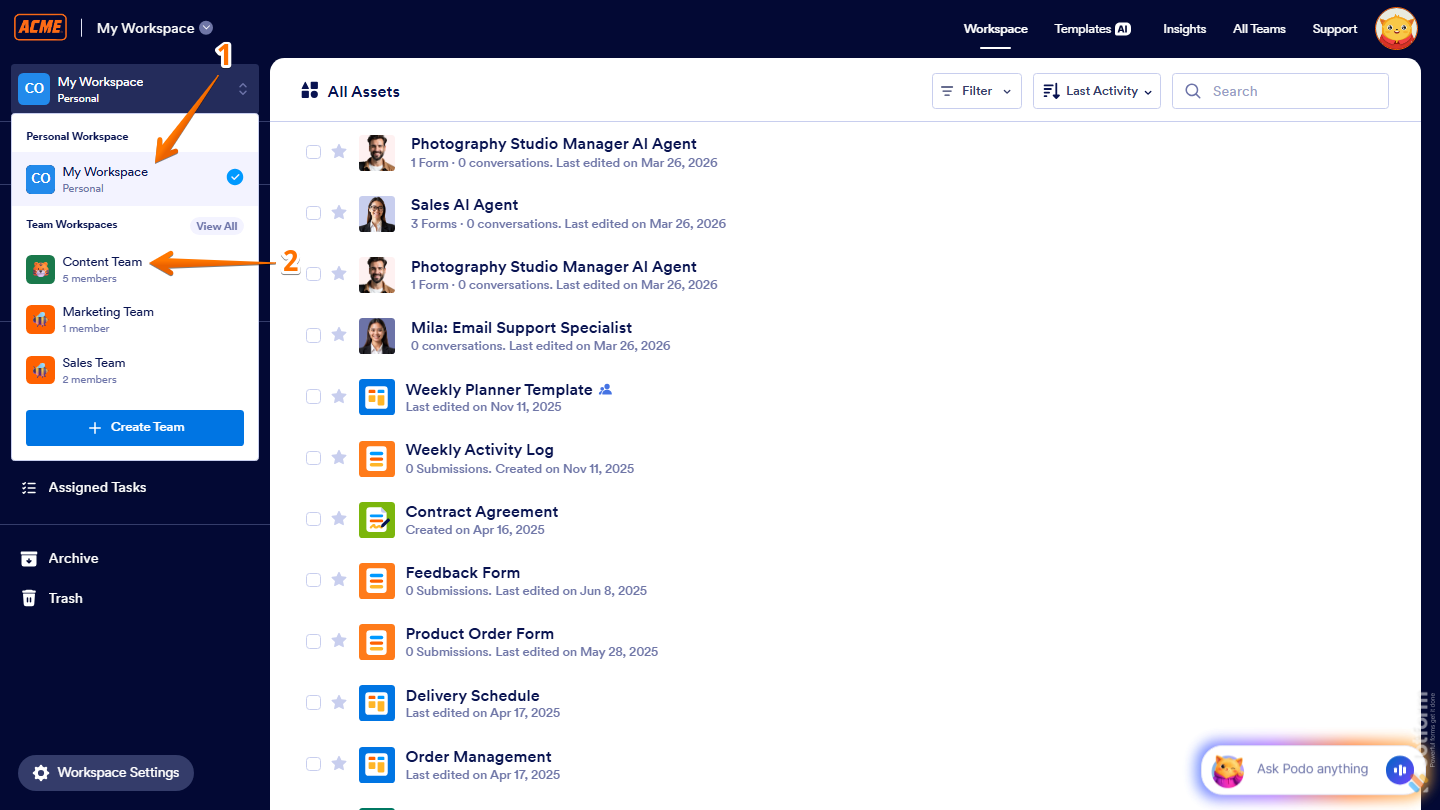
- On the left side of your Workspace page, click on My Workspace.
- Then, in the menu that comes up, under Team Workspaces, select the team you want to manage. For example, the Content Team.
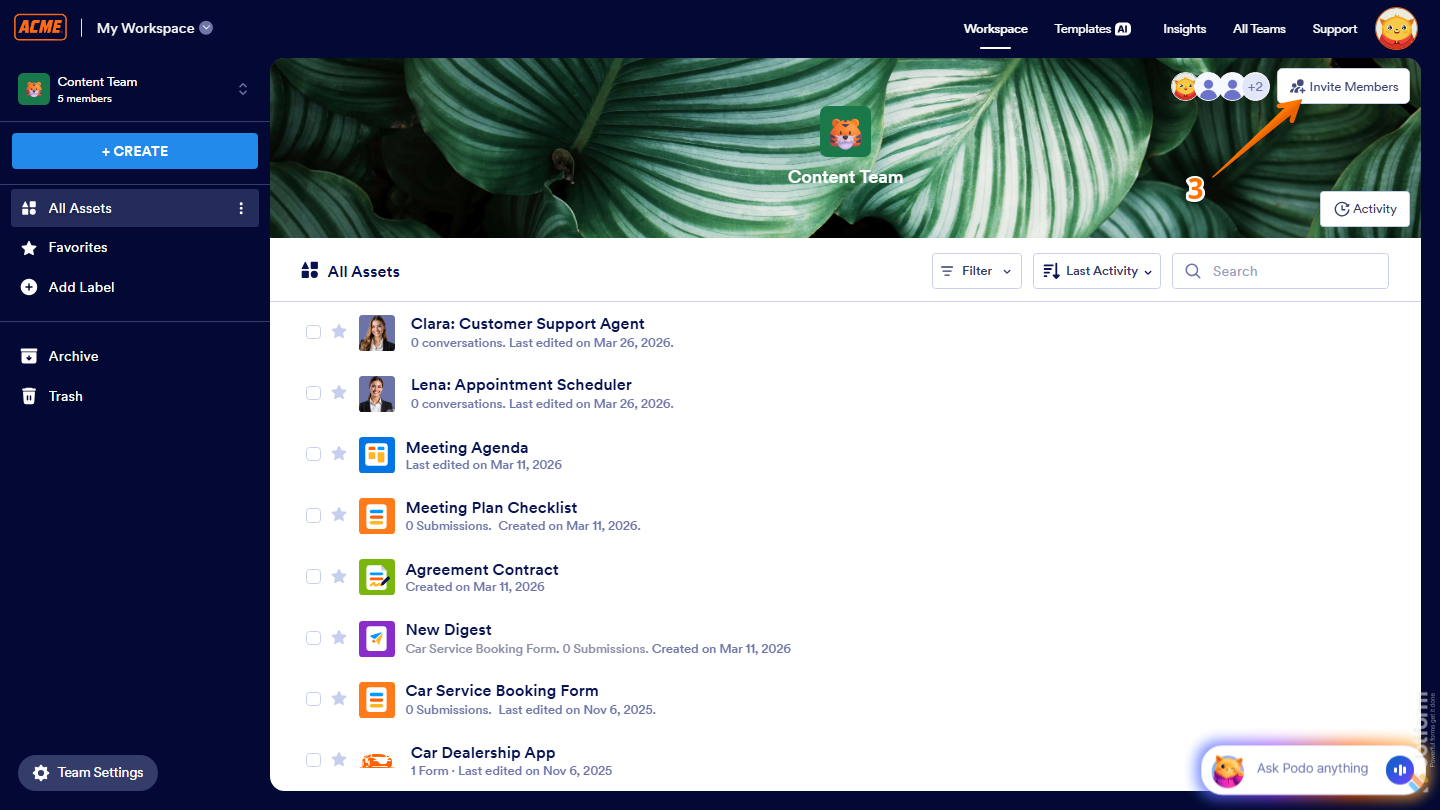
- Next, on the top-right side of the page, click on Invite Members.
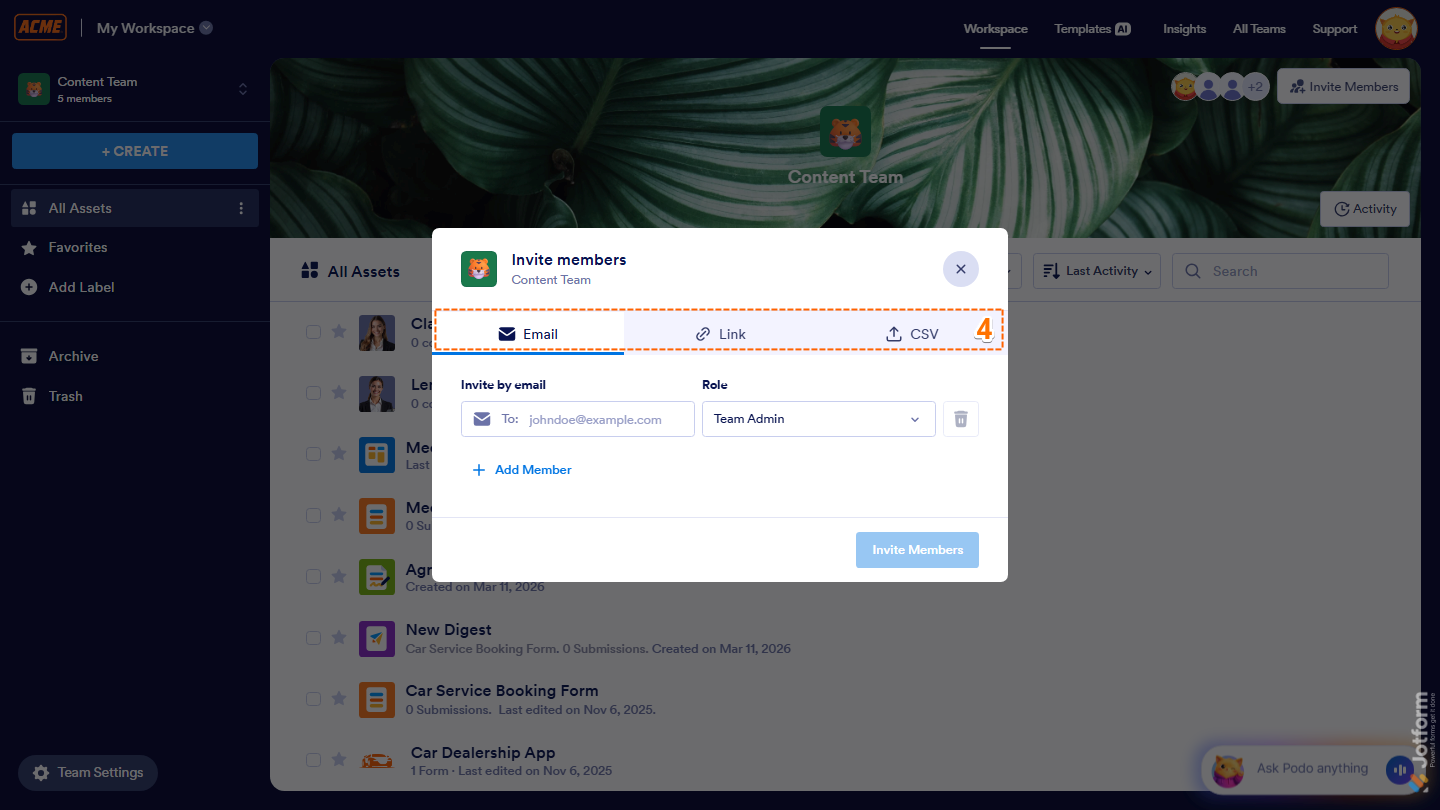
- Now, in the Invite Members window that opens, you’ll see different ways to add new team members:
- Email — Send invitations directly using email addresses.
- Link — Share an invite link with your team.
- CSV — Upload a CSV file to invite multiple users at once.
Let’s go over each option below.
Inviting Team Members with by Email
If you want to invite someone directly, you can send them an email and assign their role right away. Here’s how:
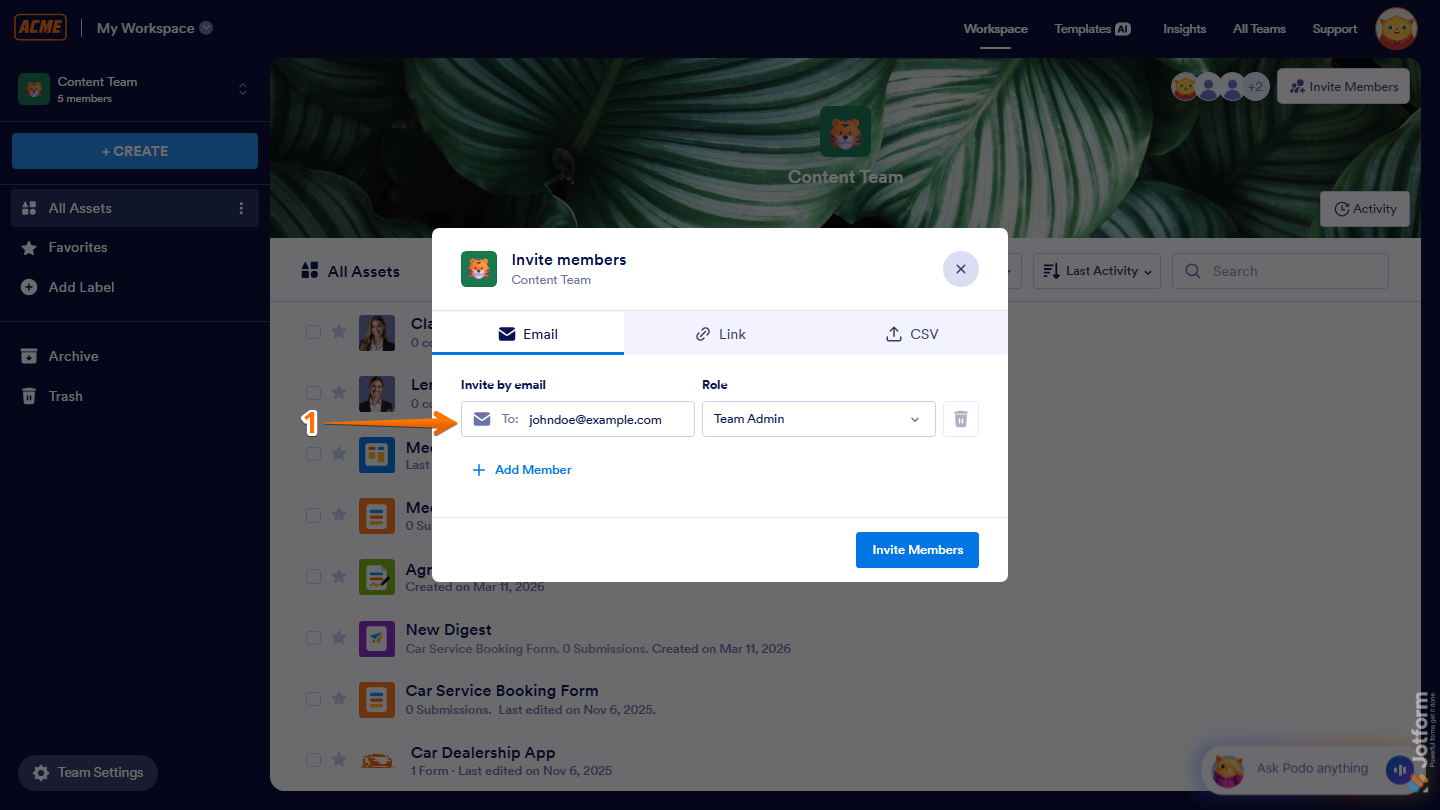
- Under the Email tab, in the Invite by Email Input box, enter the email address of the user you want to invite.
- Then, click on the Role Dropdown menu and then select the Default Role for your team members:
- Team Admin — They can manage members and view, move, edit, and delete forms and data.
- Data Collaborator — They can view forms and data
- Data Viewer — They can only view forms and data.
- Creator — They can view and edit forms but can’t view data.
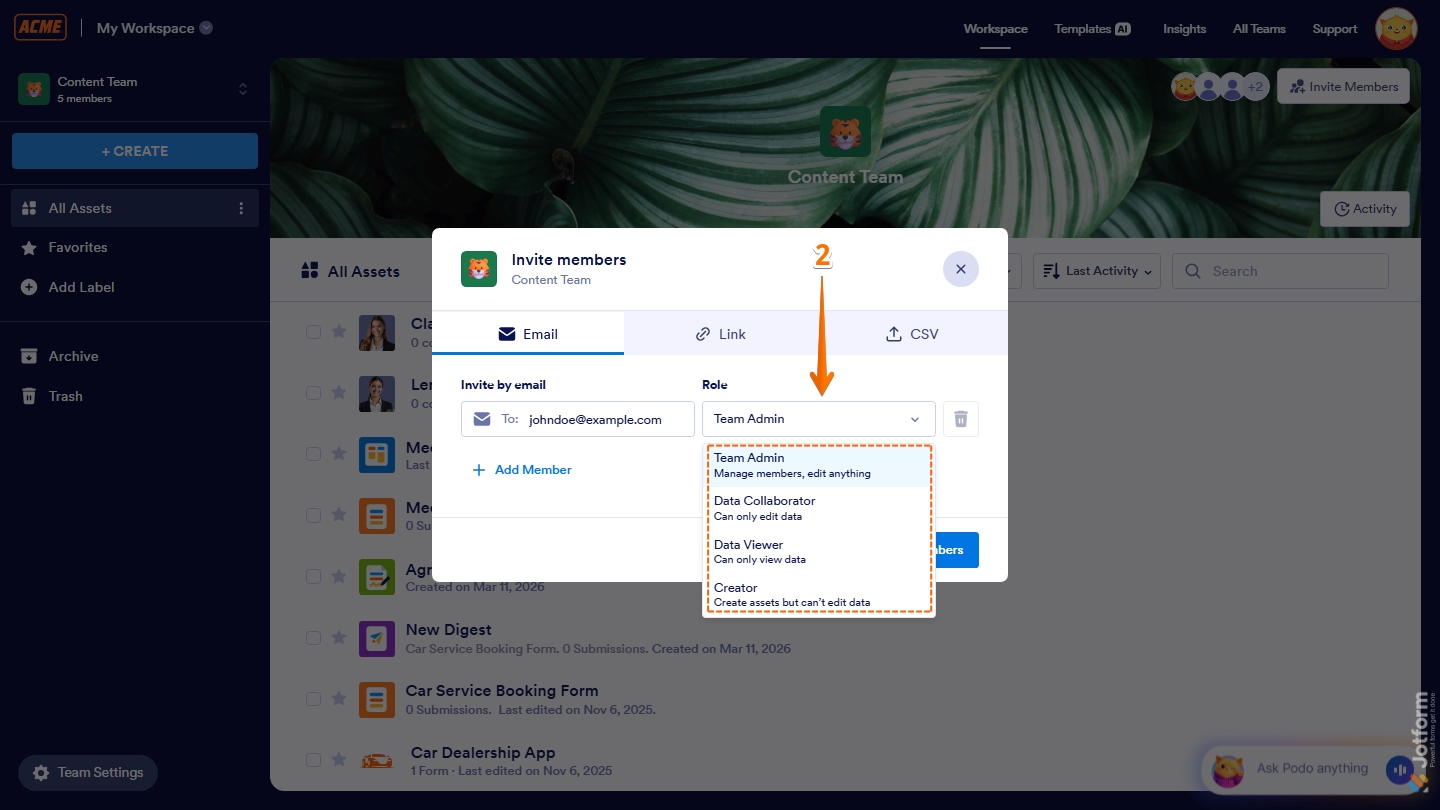
- If you want to invite more people, click on Add Member, and then enter additional email addresses and assign roles.
- Now, click on Invite Members at the bottom of the window, and you’re done.
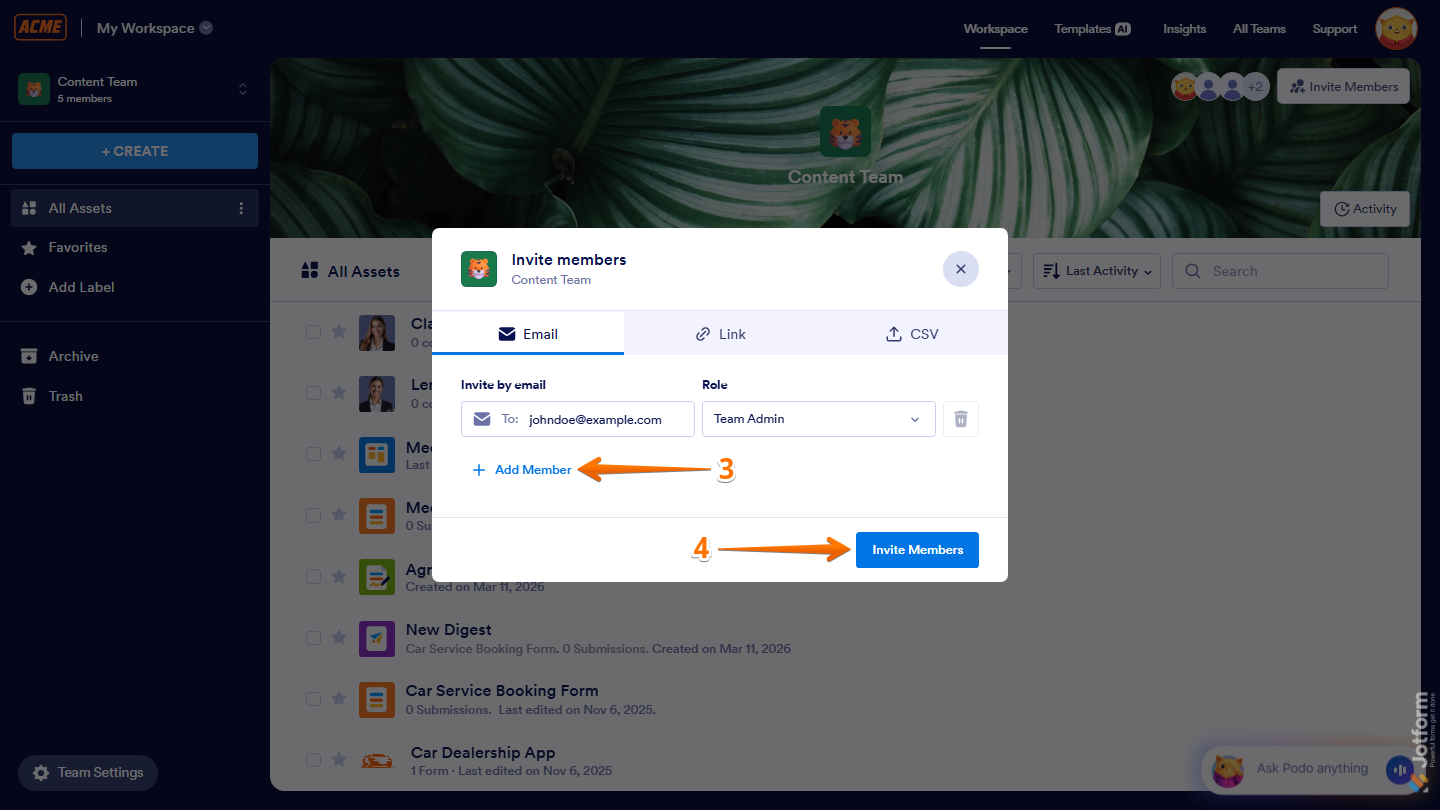
That’s it! Your teammate will get an email with the invite and can join your Jotform Team in one click.
Inviting Team Members with an Invite Link
You can also generate a shareable invite link that lets people join your team with a single click. This is especially useful when inviting multiple users at once. Here’s how to set it up:
- Under the Link tab, in the Role Given by this Link, click on the Role Dropdown menu and set the Default Role of the link:
- Team Admin — They can manage members and view, move, edit, and delete forms and data.
- Data Collaborator — They can view forms and data
- Data Viewer — They can only view forms and data.
- Creator — They can view and edit forms but can’t view data.
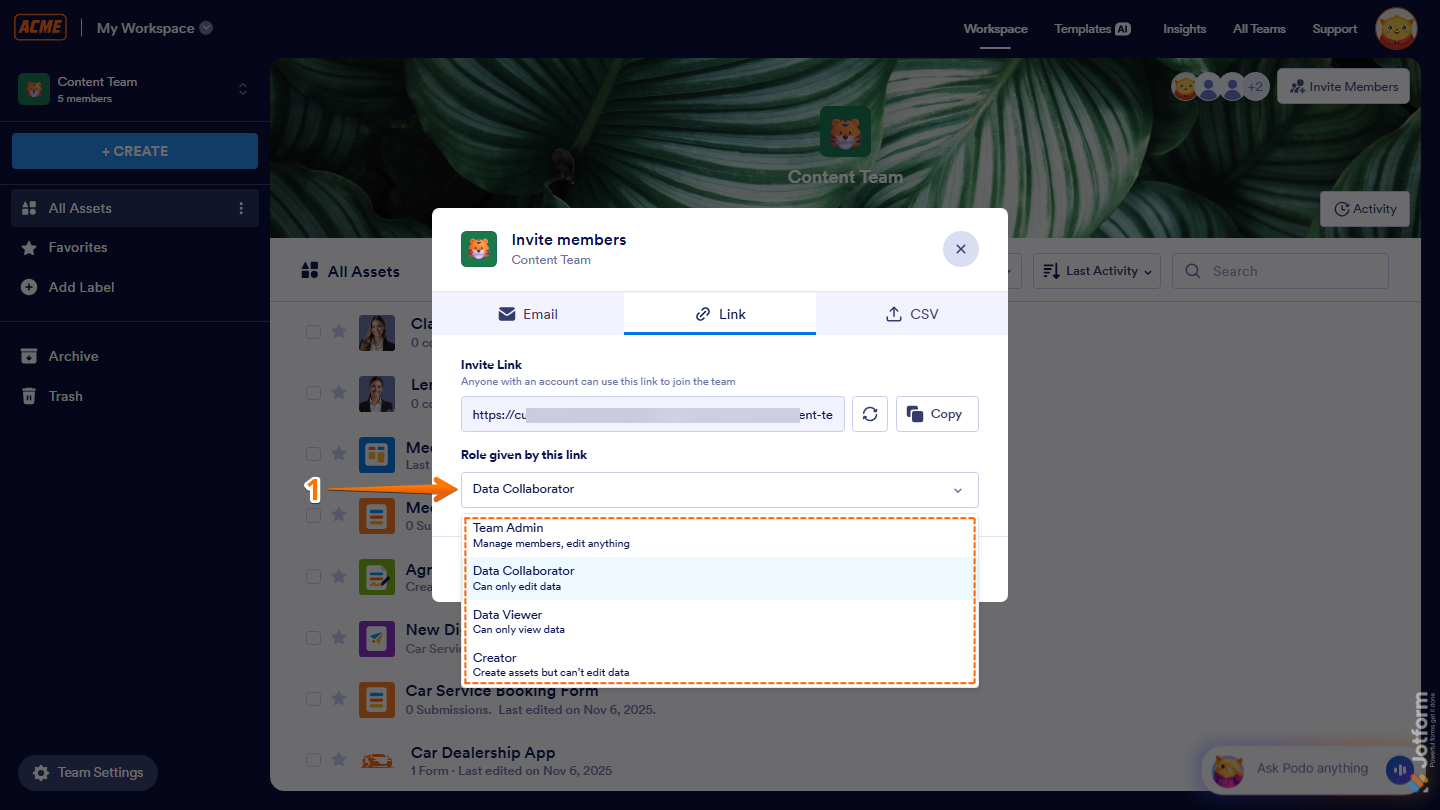
- Now, in the Invite Link section, click on Copy Link and you’re all set.
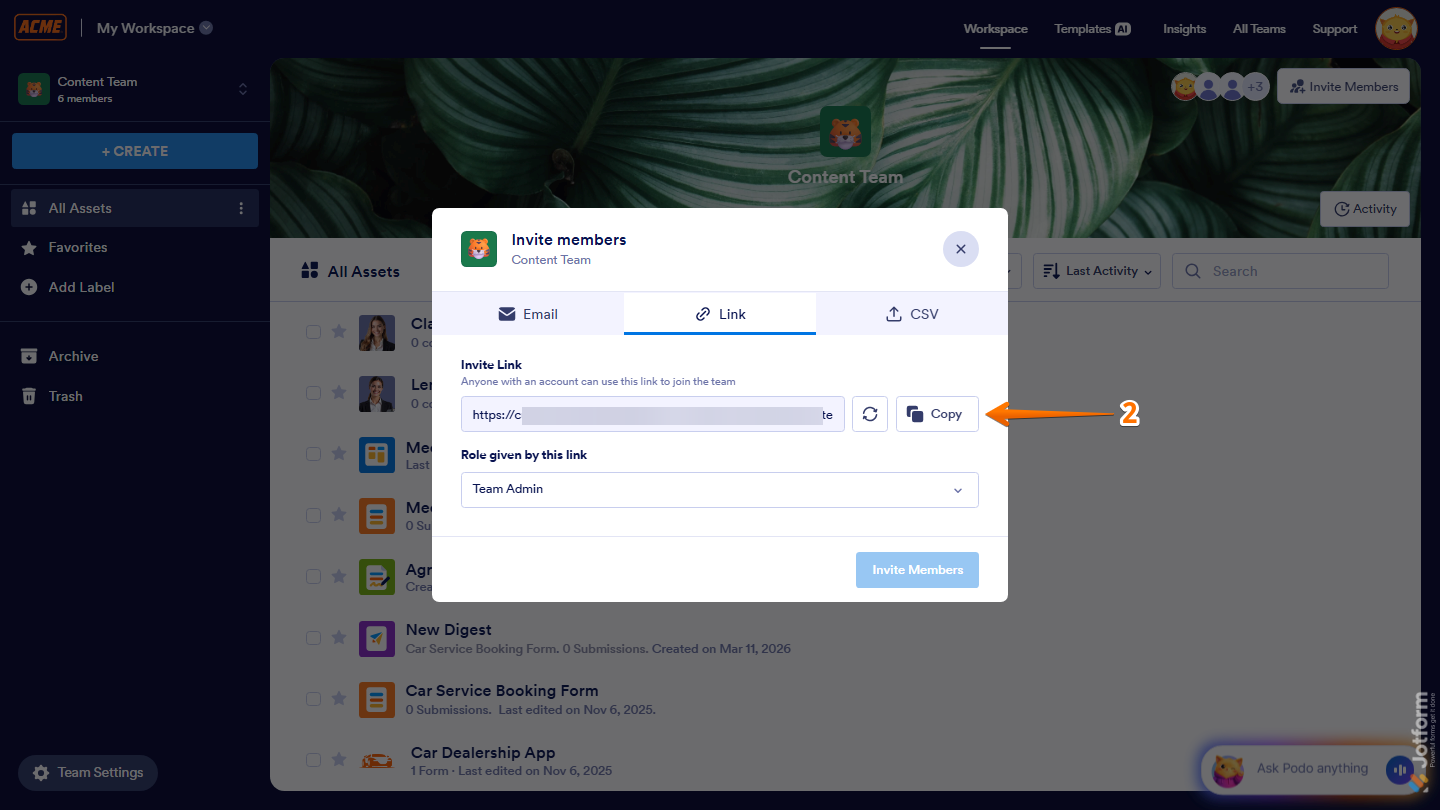
Once you see the Copied confirmation, you can share the link with your team members so they can quickly join your workspace.
Note
Anyone who uses this link will automatically be added to your team with the selected role.
Inviting Multiple Team Members Using CSV
If you need to add multiple people at once, uploading a CSV file is the quickest way to invite them. Just prepare your list, upload the file, and assign a default role. You can do it in a few simple steps:
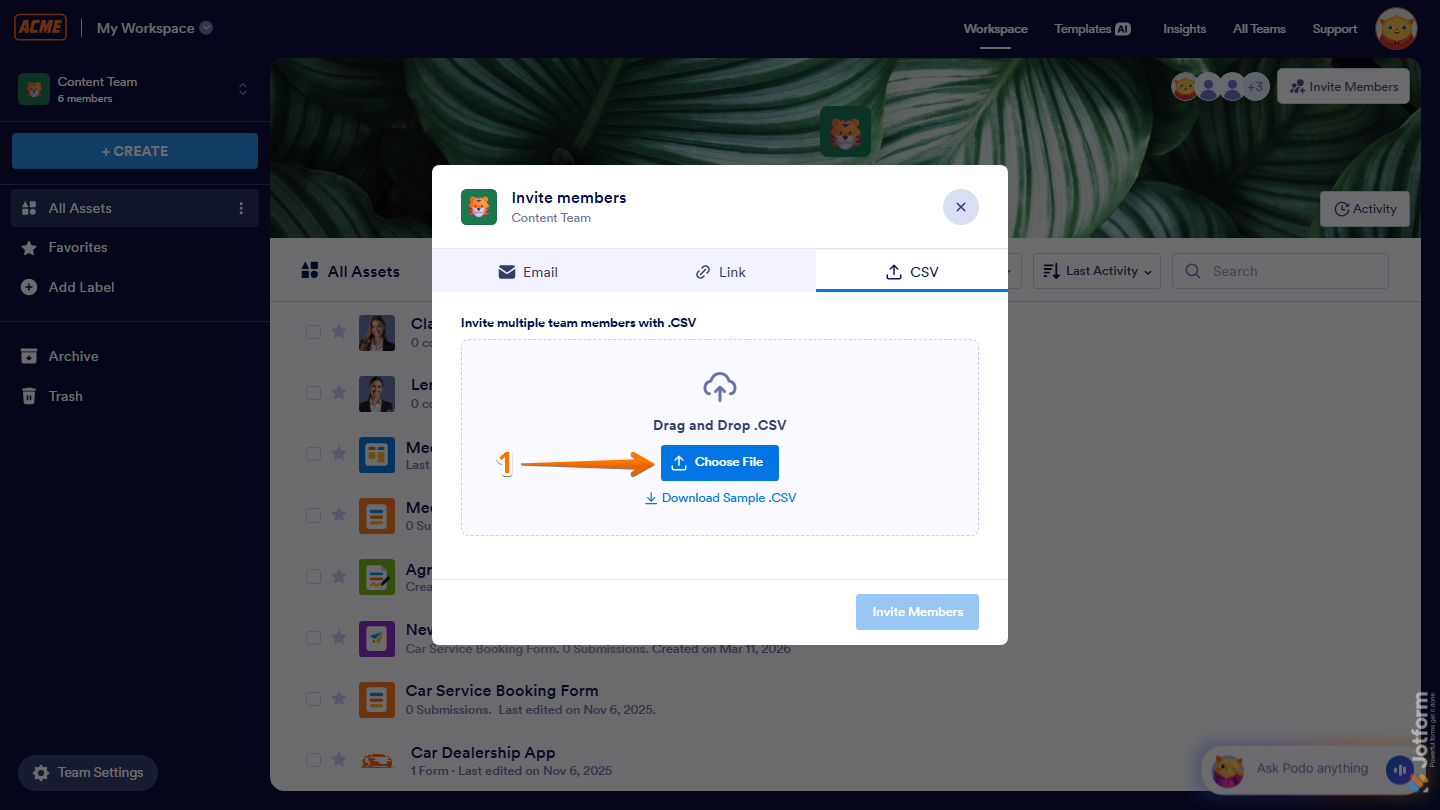
- Under the CSV tab, click on Choose file, and then select your CSV file from your device. Or, just drag and drop the CSV file into it.
- After uploading, you’ll be redirected to the Email tab with the uploaded email addresses already filled in.
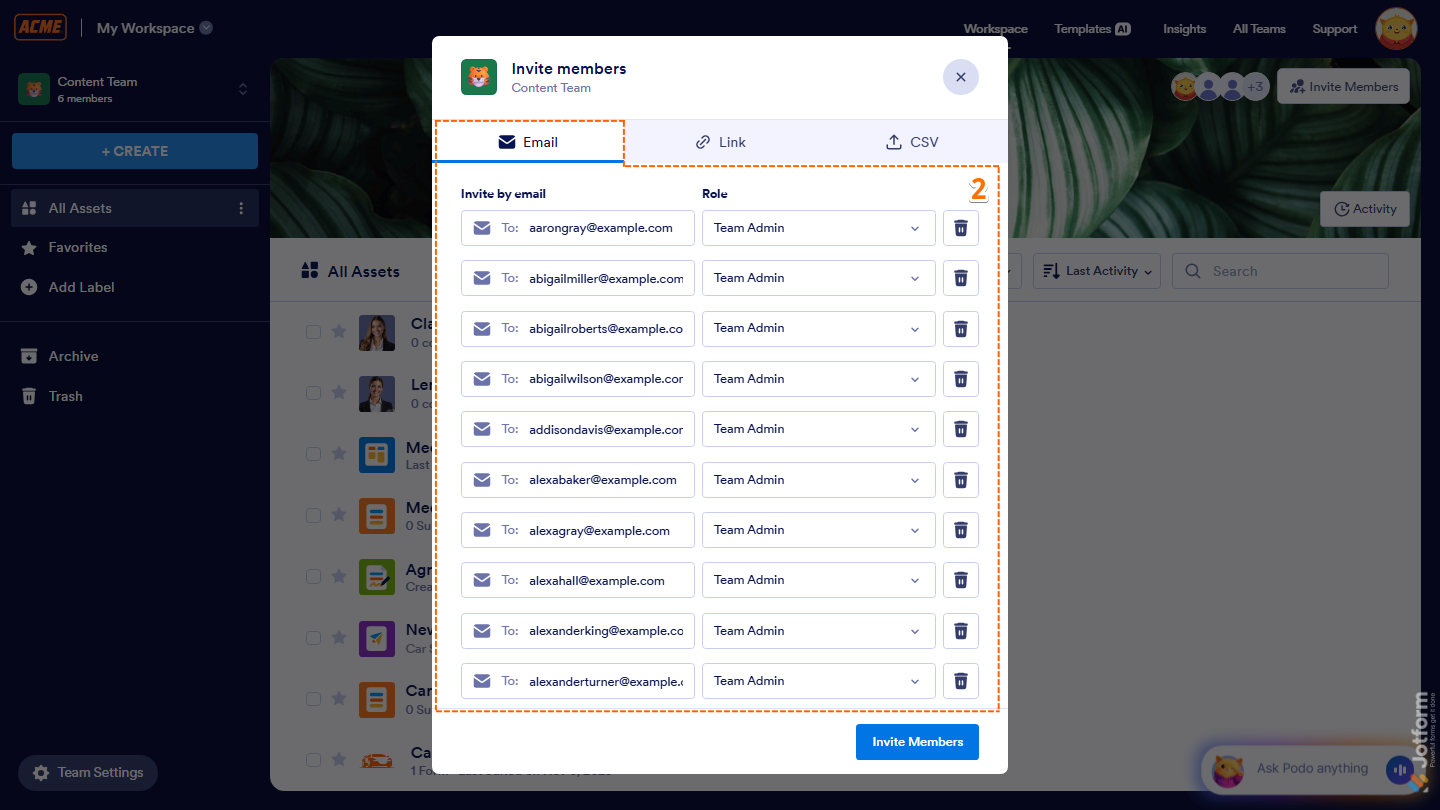
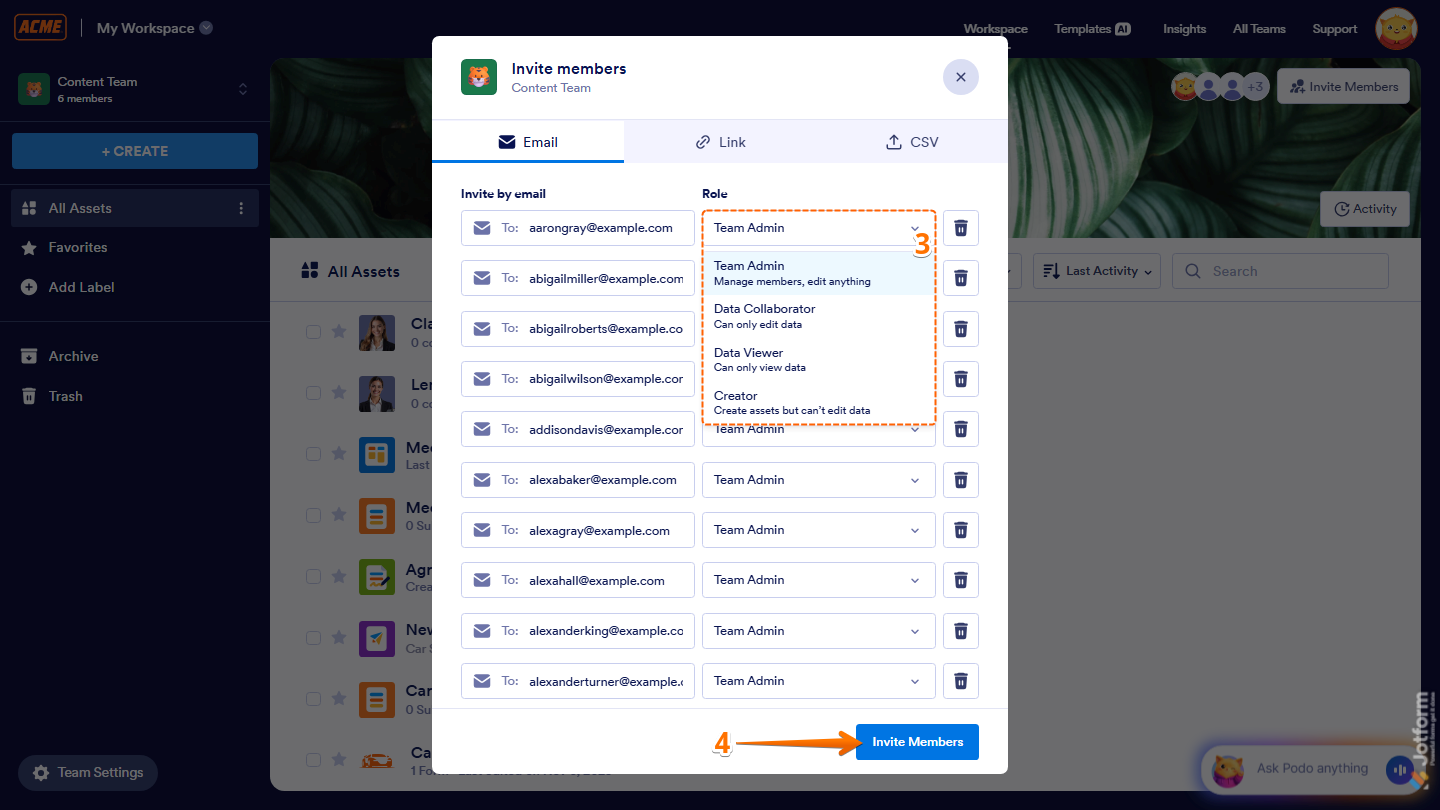
- Review the list of Recipients and for each user, click on the Role Dropdown menu and select a role:
- Team Admin — They can manage members and view, move, edit, and delete forms and data.
- Data Collaborator — They can view forms and data
- Data Viewer — They can only view forms and data.
- Creator — They can view and edit forms but can’t view data.
- Once everything is set, click on Invite Members at the bottom of the window.
Note
Each user will receive an email invitation and can join your workspace after accepting it.
And that’s it. Now you can start inviting your team members and working together more efficiently in your workspace. Whether you’re adding people one by one or inviting a whole group at once, Jotform Teams makes it easy to manage access and keep everything organized.

Send Comment:
5 Comments:
January 10, 2025
Is this feature only available at enterprise level?
October 17, 2024
I just signed up for 'Bronze' level. When will I be able to start adding people to a team?
July 3, 2024
Inviting members to my team does NOT work. I keep getting a link to an Enterprise Sales Rep (but that form does not work either).
May 26, 2024
that does not work
February 9, 2024
I'm having difficulties with inviting staff