Jotform Sign makes it easy to connect your documents with Egnyte so you can automatically store and manage signed files in one place. Integrating Egnyte with Jotform Sign helps keep your completed documents organized and easier to access after the signing process is finished.
Once the integration is connected, your signed documents can be automatically sent to your Egnyte storage, making it easier to manage files, share documents with your team, and keep everything backed up and organized.
Connecting Your Egnyte Account
You can connect your Egnyte account and configure the integration in just a few steps. Here’s how to get started:
- In Sign Builder, in the green navigation bar at the top of the page, click on Settings.
- Then, in the menu on the left side of the page, click on the Integrations tab.
- Now, search for Egnyte, and then click on it.
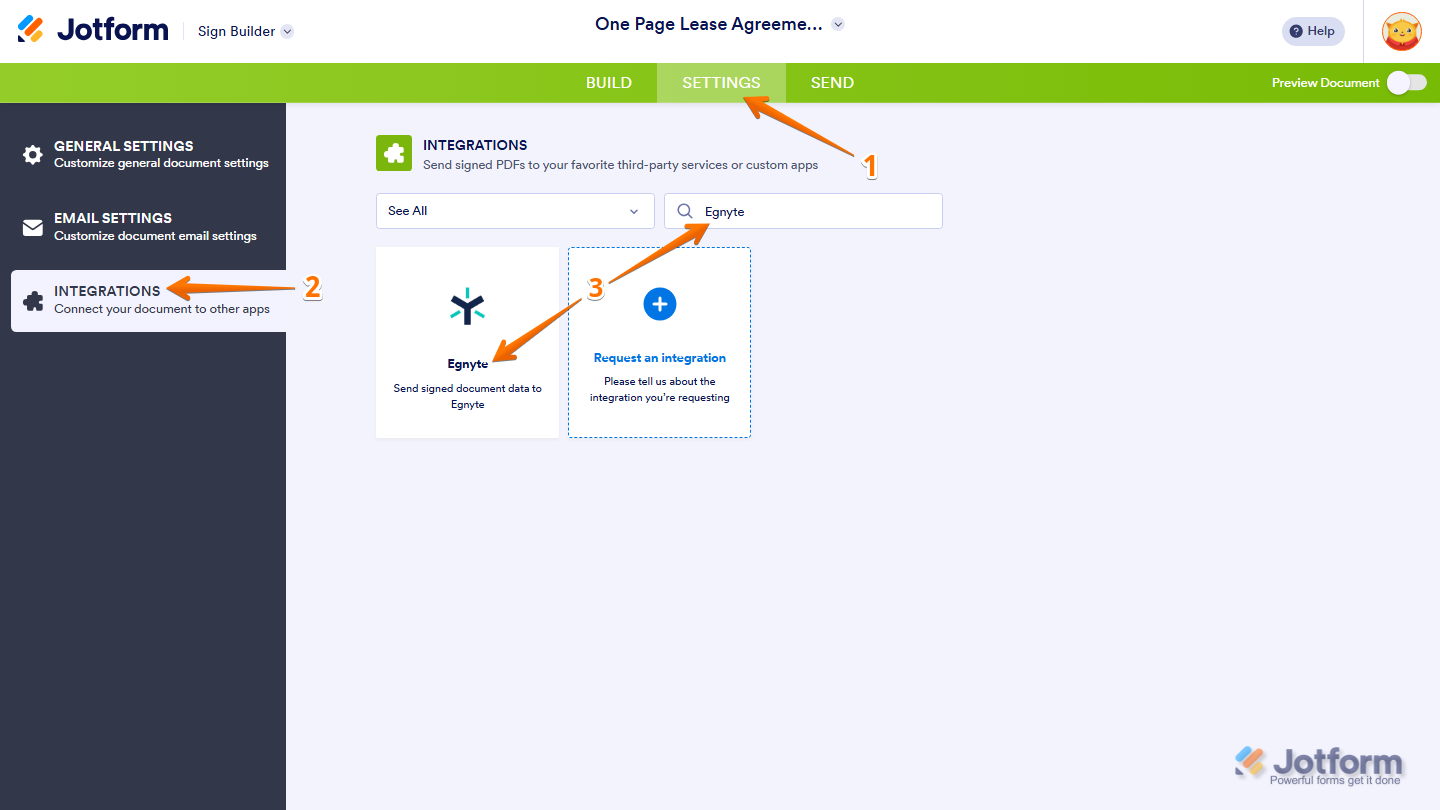
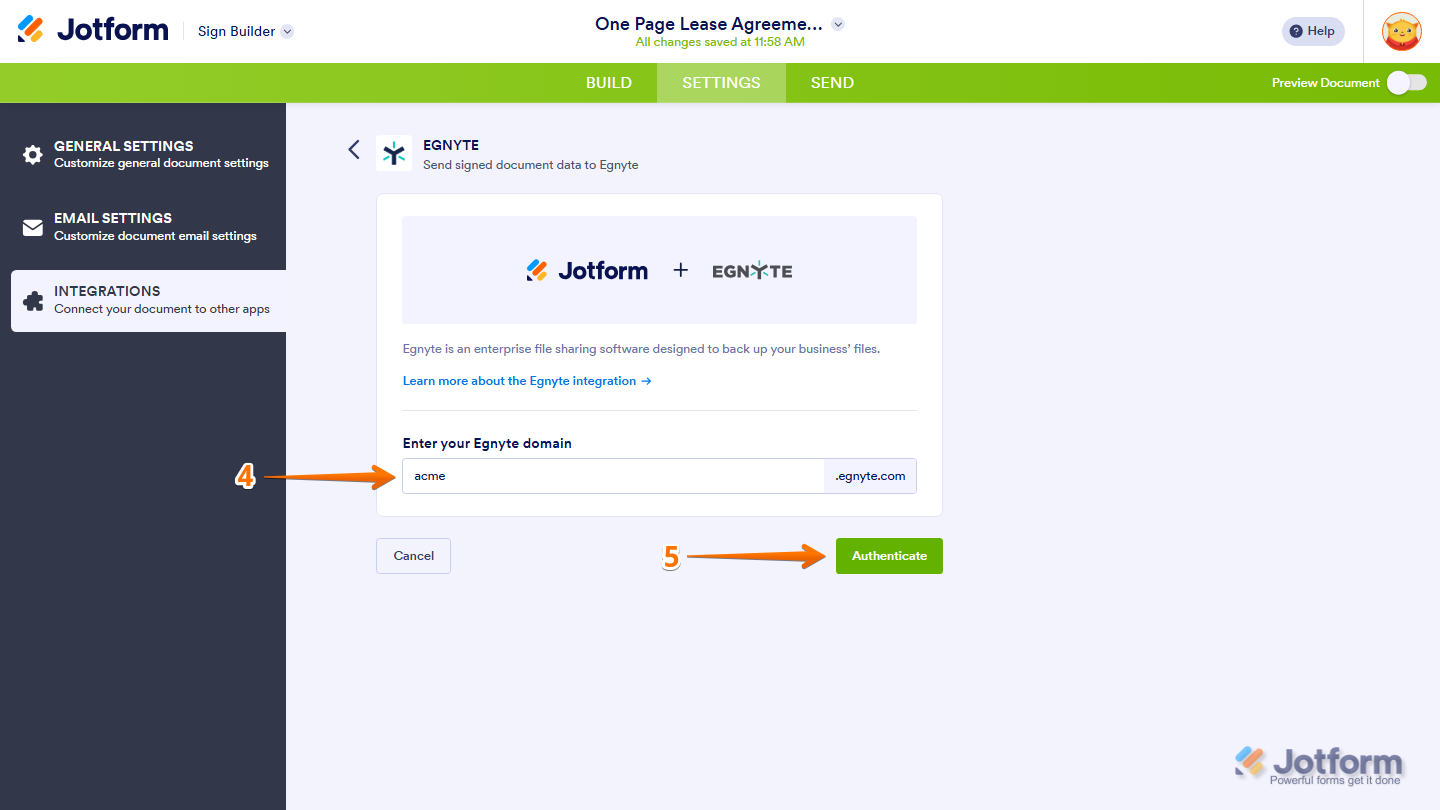
- Next, enter your Egnyte Domain.
- Then, click on Authenticate and log in to your Egnyte Account.
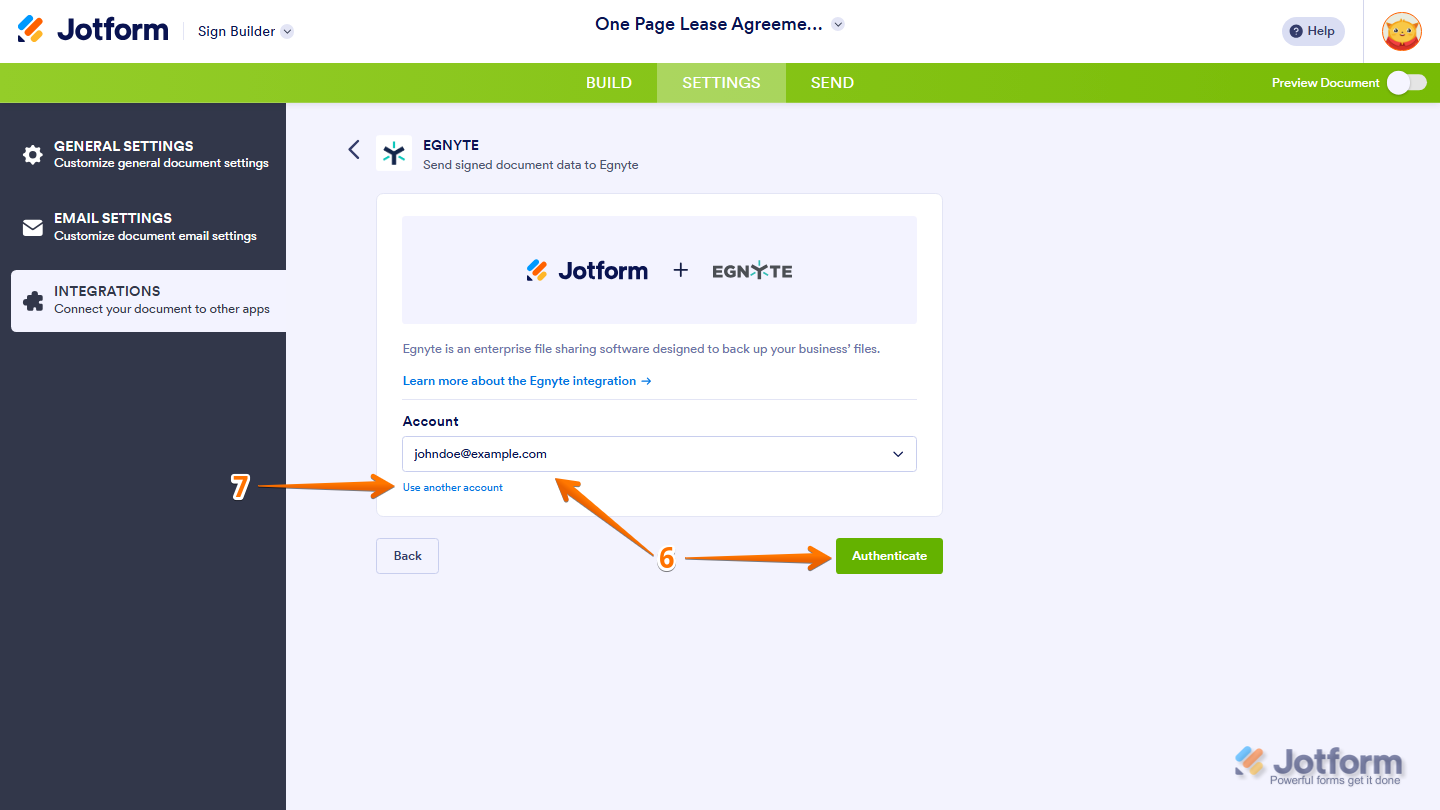
- If you’ve logged in before through one of your other forms, select that Egnyte account from the Dropdown menu and then click on Authenticate.
- Or, to use a different one, click on Use Another Account.
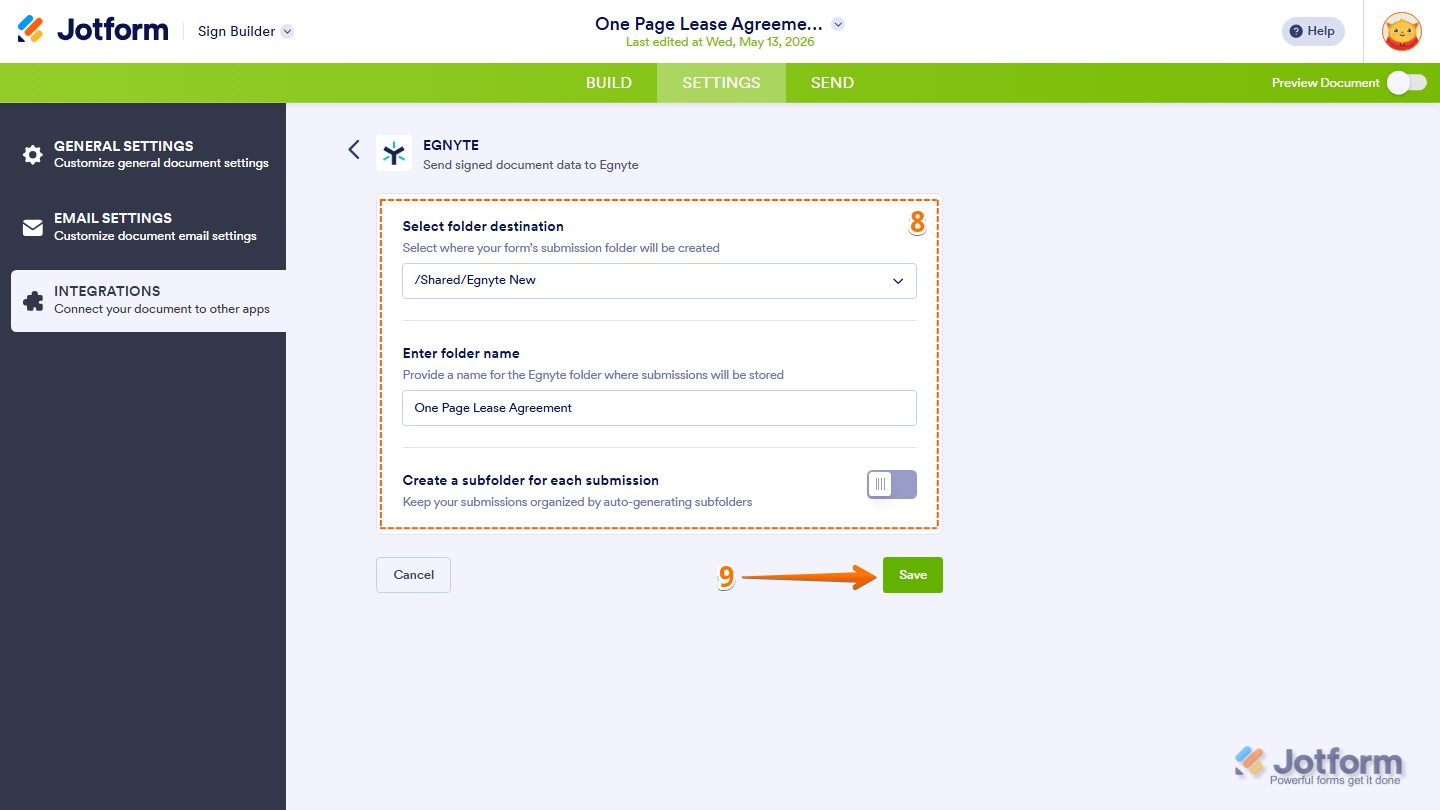
- Once connected, configure these things:
- Select Folder Destination — Choose where your signed documents will be stored in Egnyte.
- Enter Folder Name — Set the name of the folder that will contain your files.
- Create a Subfolder for Each Submission — Toggle this on to automatically create separate subfolders for every signed submission.
- Finally, click on Save, and you’re all set.
That’s it! Your signed documents will now be automatically uploaded to your selected Egnyte folder based on your configured settings.
Managing Your Egnyte Integration Actions
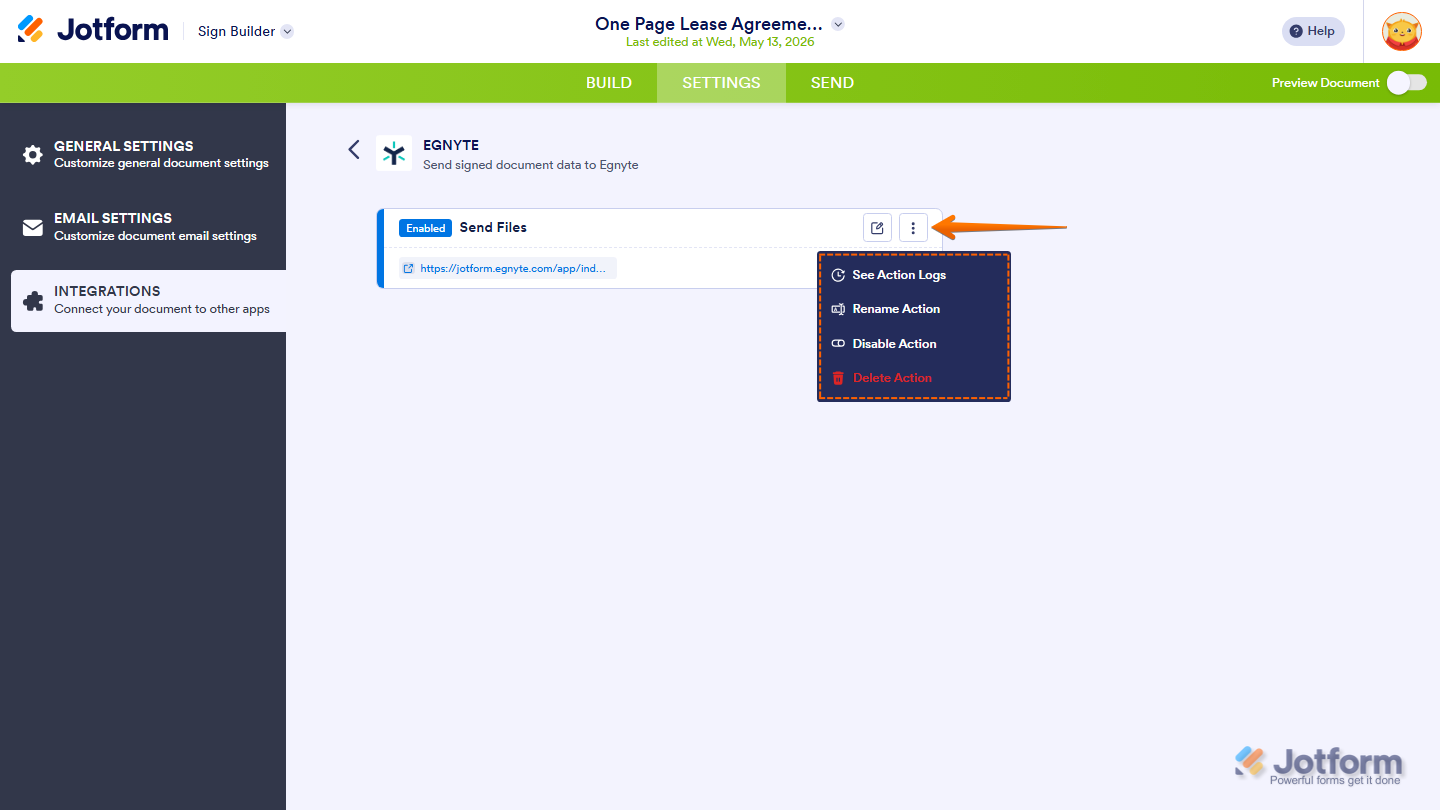
After saving the integration, you’ll see the action you’ve set up on the page. Hover your mouse over it and click on the Pencil icon to edit it or the Three Dots icon to access more options:
- See Action Logs — View successful and failed runs. It’s helpful for troubleshooting.
- Rename Action — Change the action’s title.
- Disable Action — Temporarily stop the integration from sending data.
- Delete Action — Remove the action from your Sign Document.

Send Comment: