Jotform helps you keep your forms secure and accessible only to the right people. With Password Protection, you decide who can view or submit your form. It’s perfect for internal requests, exclusive signups, or time-sensitive promotions that you don’t want open to everyone.
Enabling Password Protection on Your Form
You can easily set a password to restrict access to your form in a few steps. Here’s how to do it:
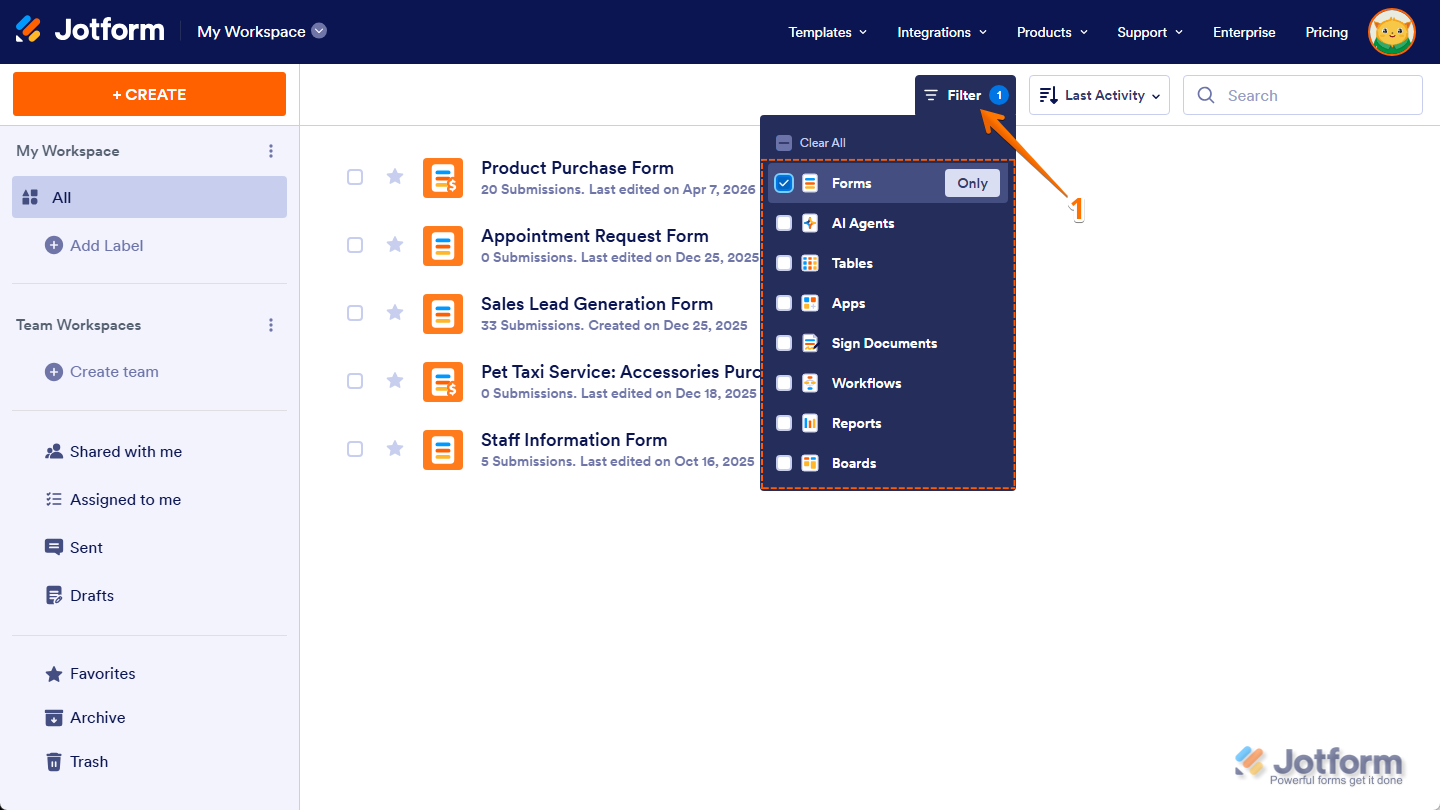
- On your Workspace page, click on Filter at the top, and in the Dropdown menu that opens, tick the box next to Forms, so only they’ll be shown on the page.
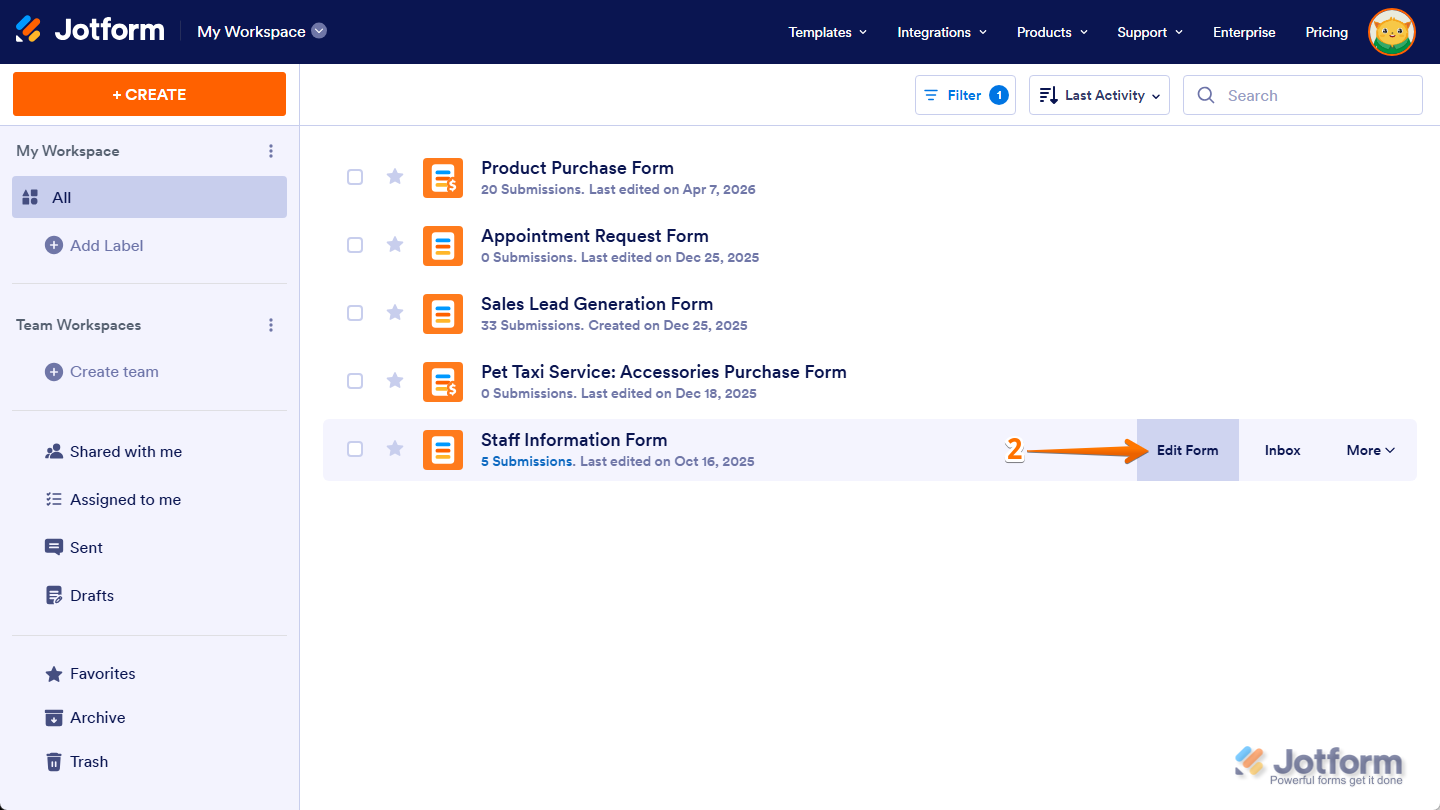
- Hover your mouse over the form you want to password protect and click on Edit Form on the right side of the page.
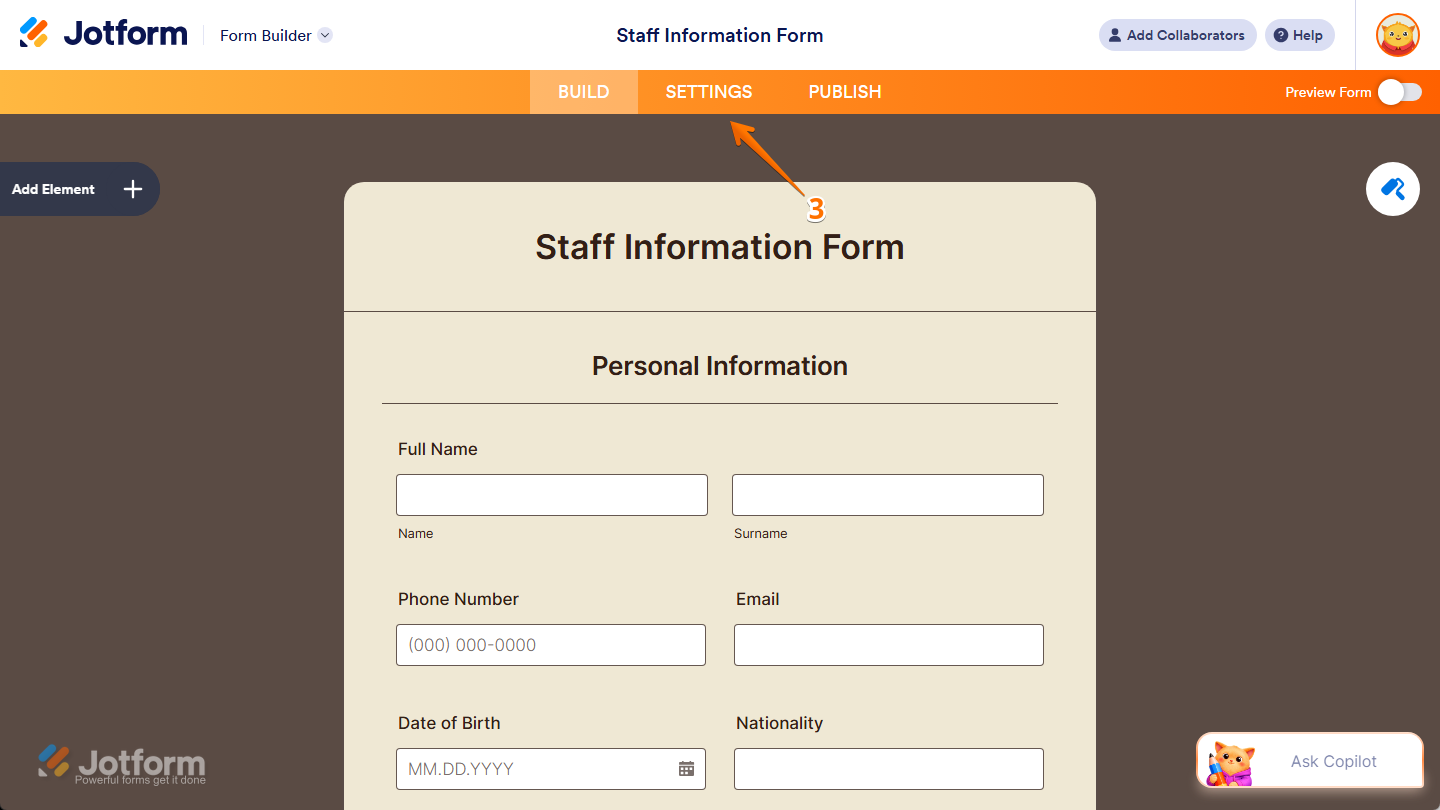
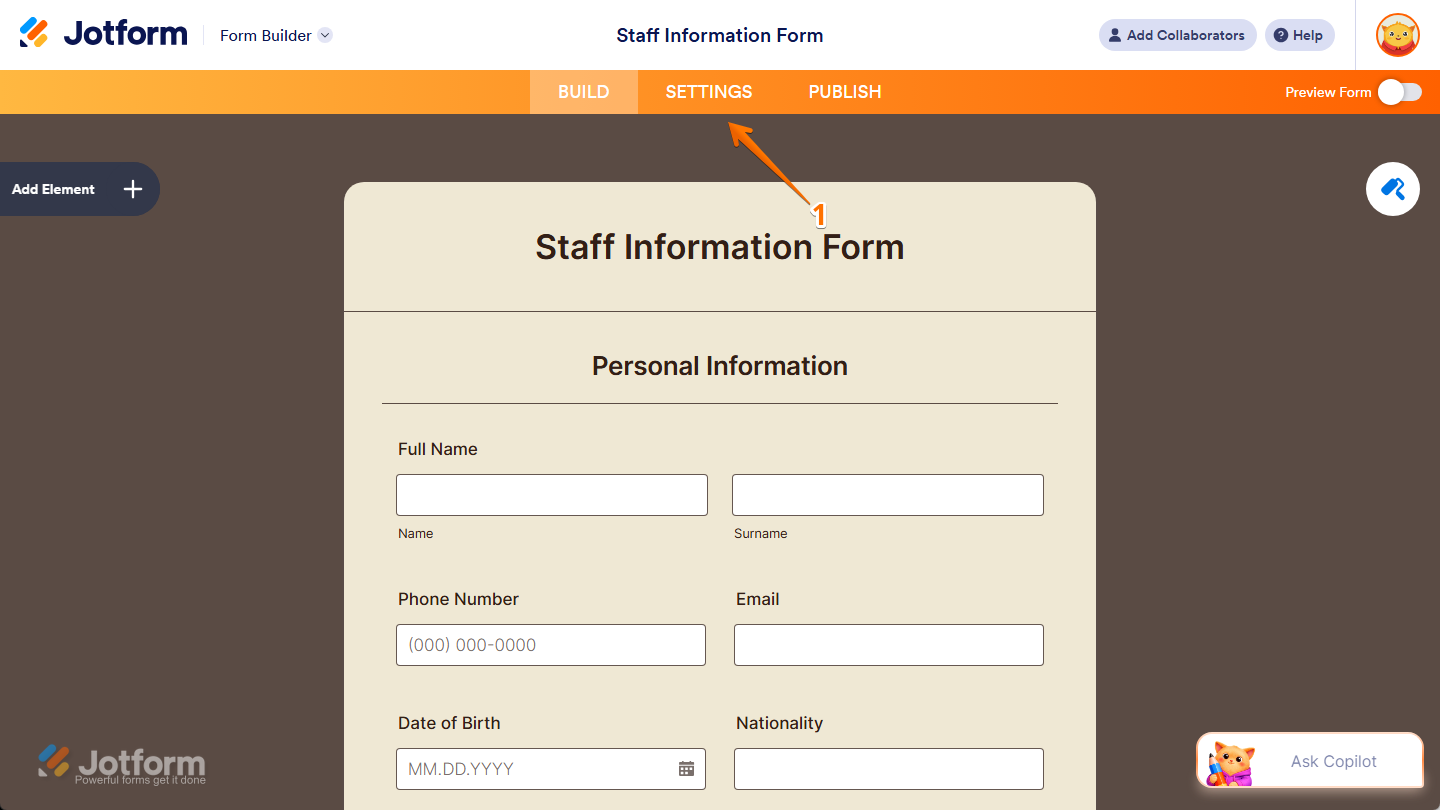
- Then, in Form Builder, in the orange navigation bar at the top of the page, click on Settings.
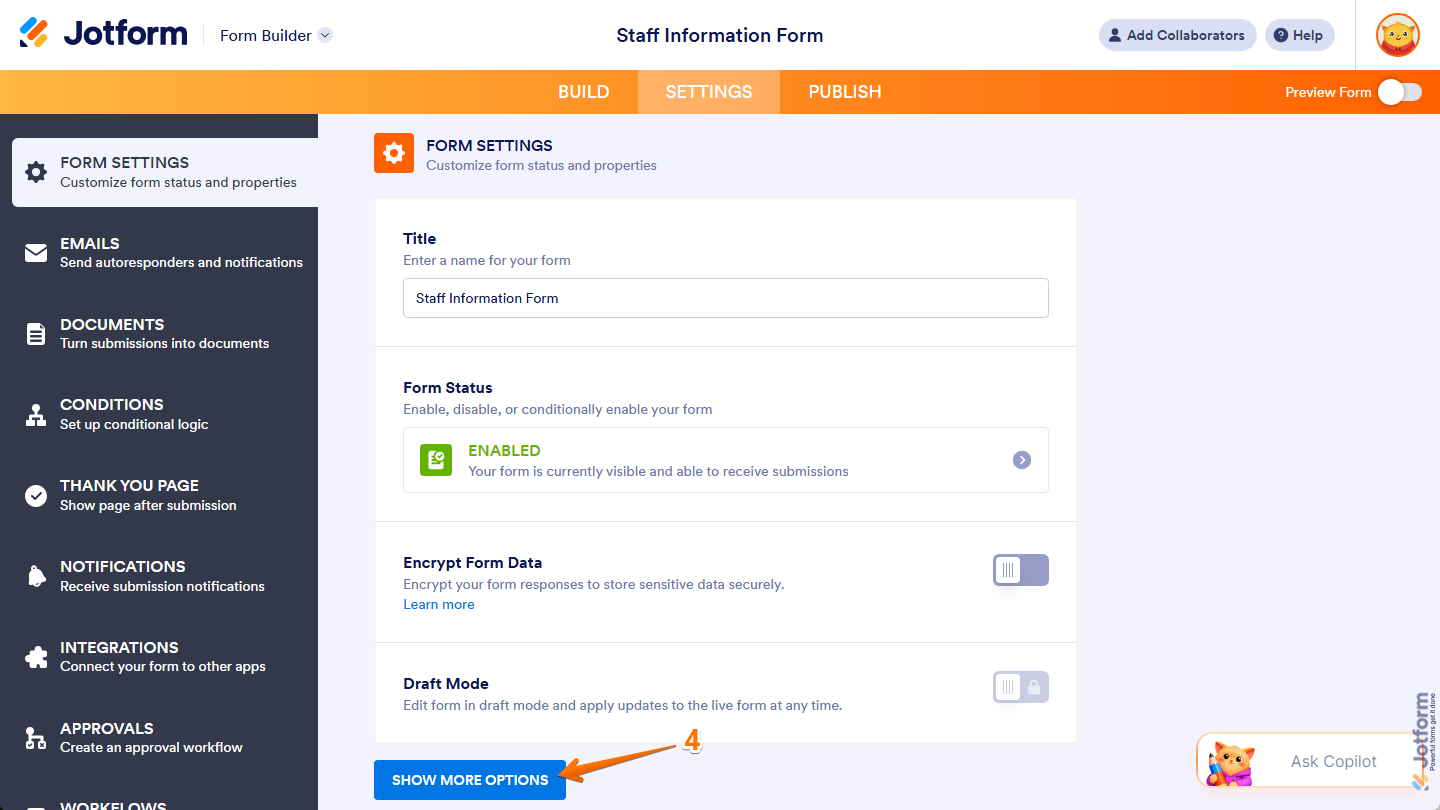
- Now, under Form Settings, click on Show More Options at the bottom.
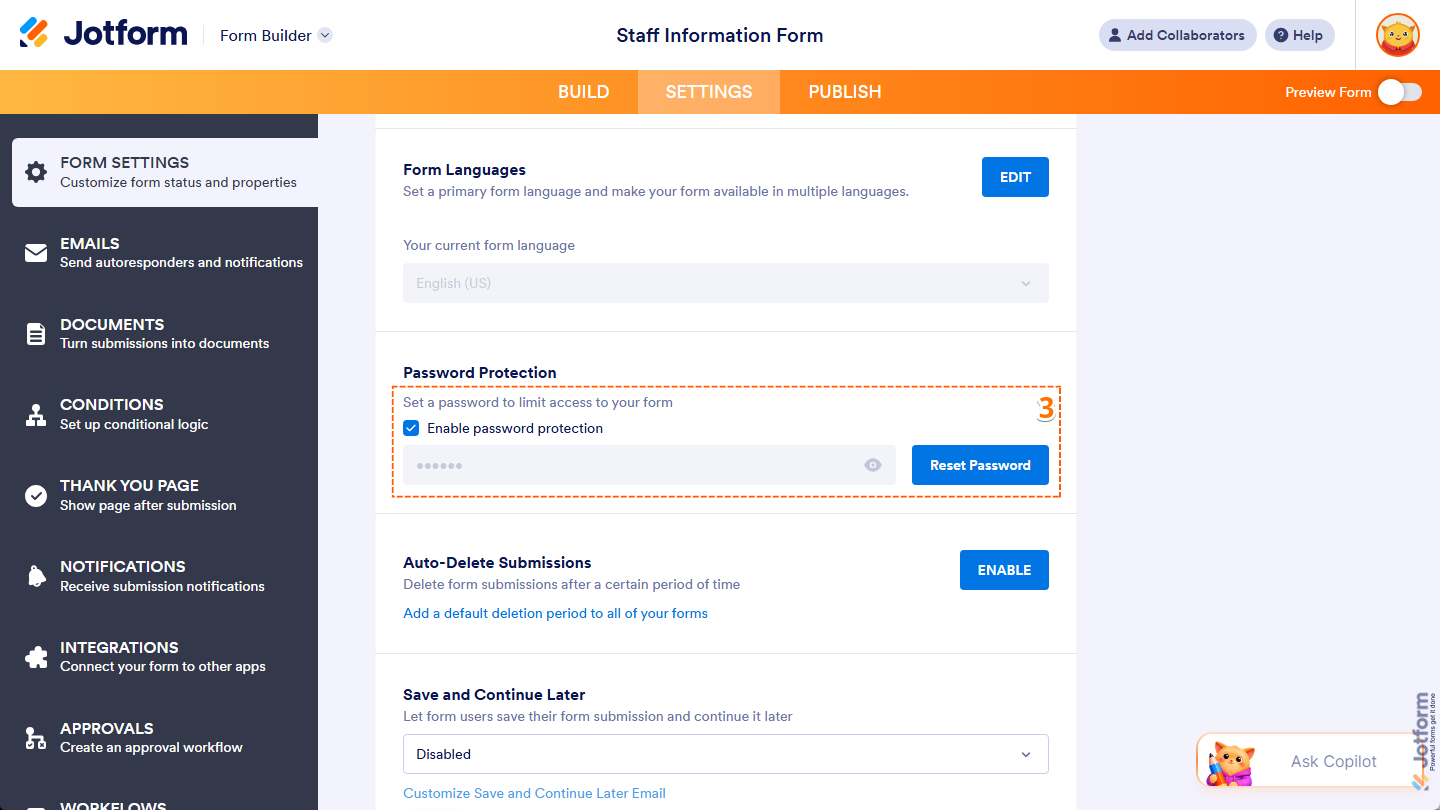
- Next, scroll down to the Password Protection section and tick the box next to Enable Password Protection.
- Then, enter the password you want to use in the input box that comes up, and click anywhere outside the box to save it. A message will appear right below the box confirming that the password has been set for your form.
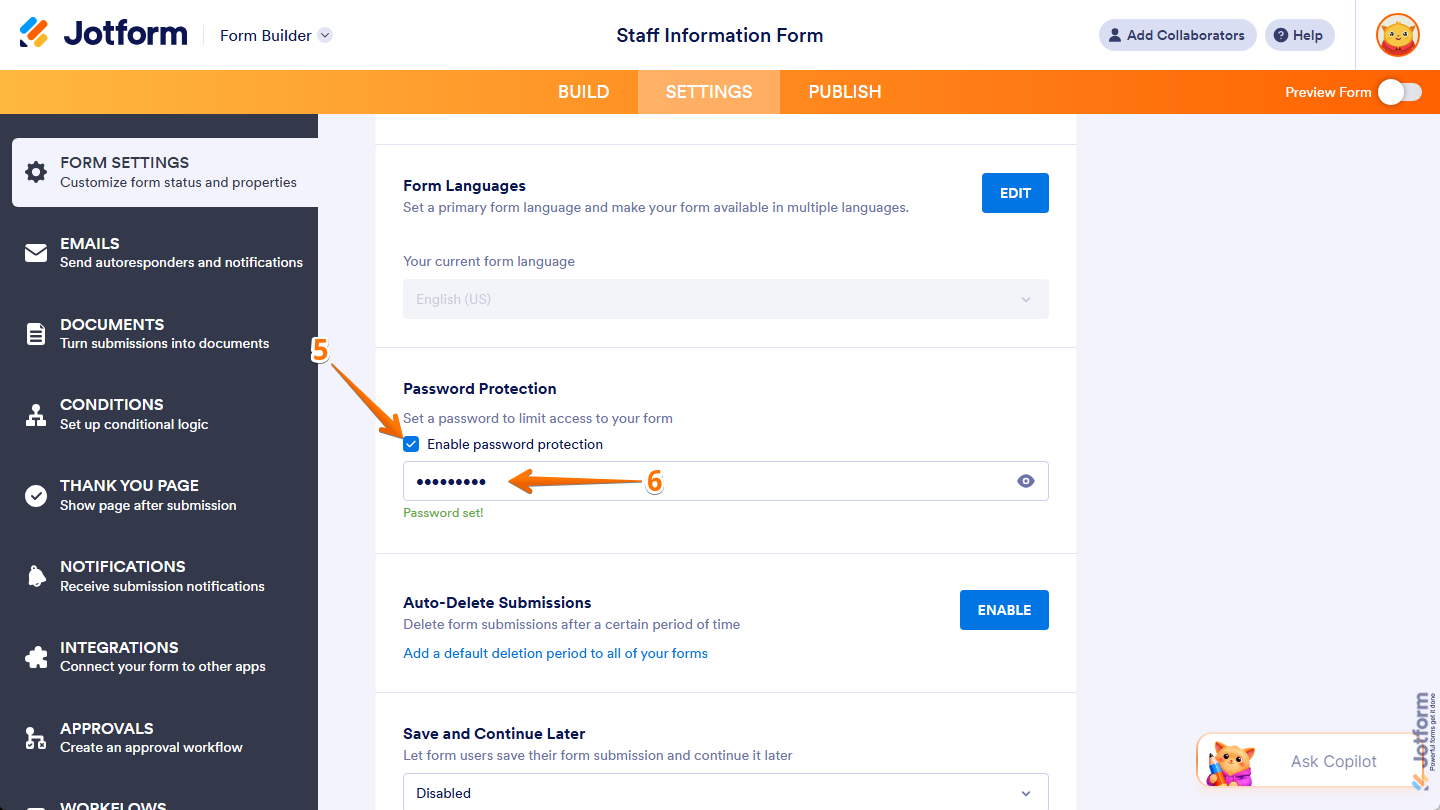
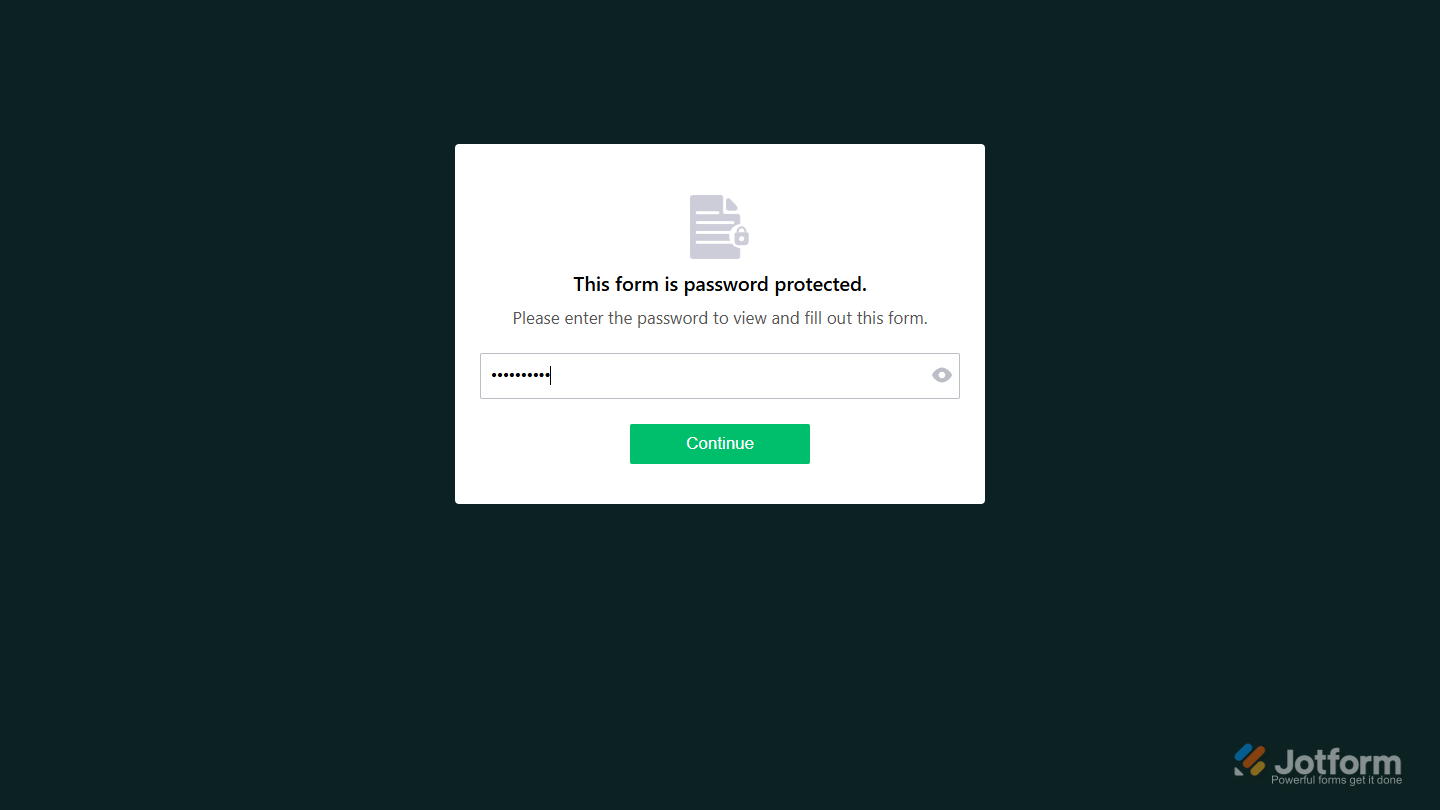
That’s it! You’ve successfully added a password to your form, restricting access to only those with the code. Now, anyone who tries to open the form will need to enter the password before they can view or submit it.
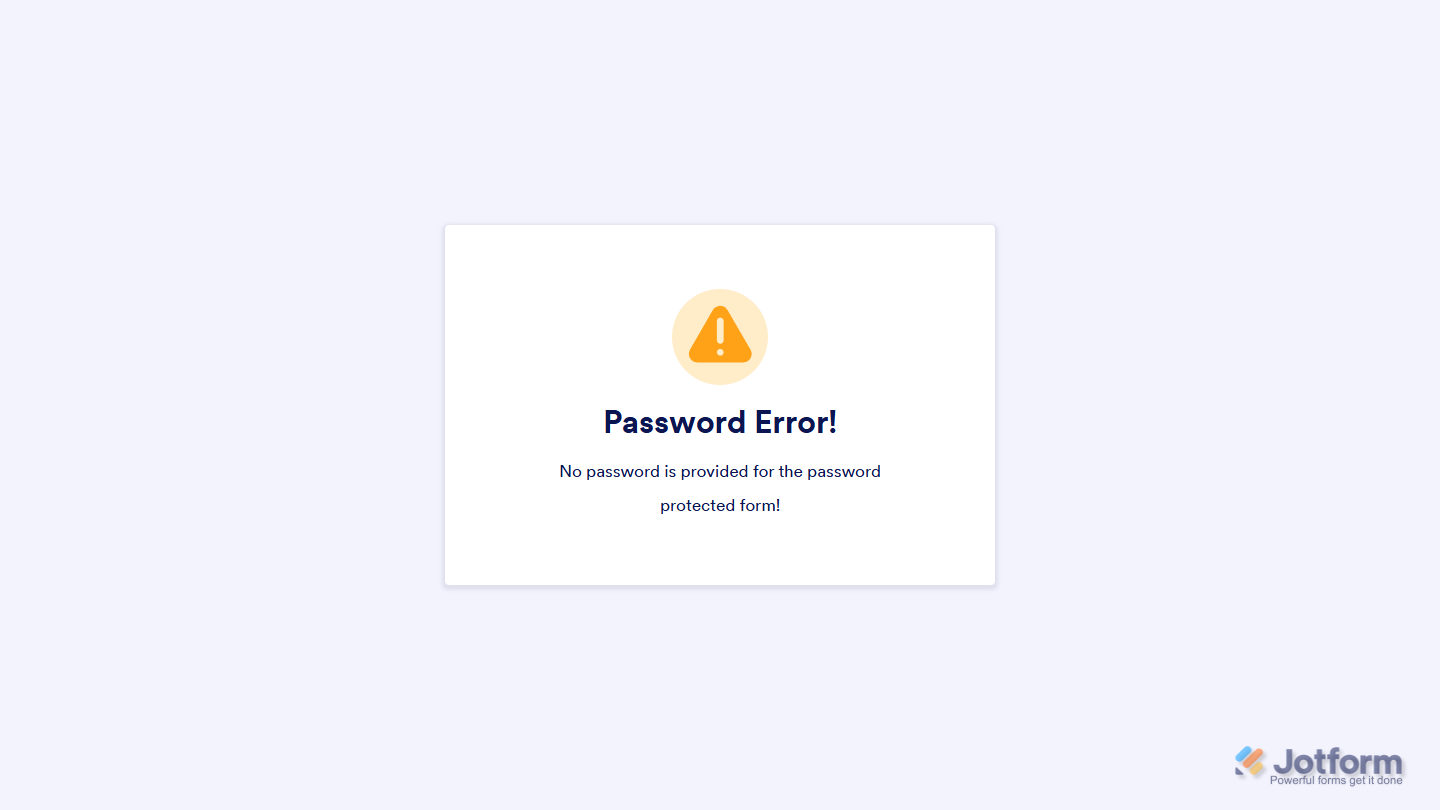
If someone is filling out the form when a password is set, they’ll see an error message upon submission saying no password was provided for the password-protected form.
Changing or Removing Your Form’s Password Protection
You can change or remove your form’s Password Protection anytime. Here’s how to do it:
- While in Form Builder, in the orange navigation bar at the top of the page, click on Settings.
- Now, under Form Settings, click on Show More Options at the bottom.
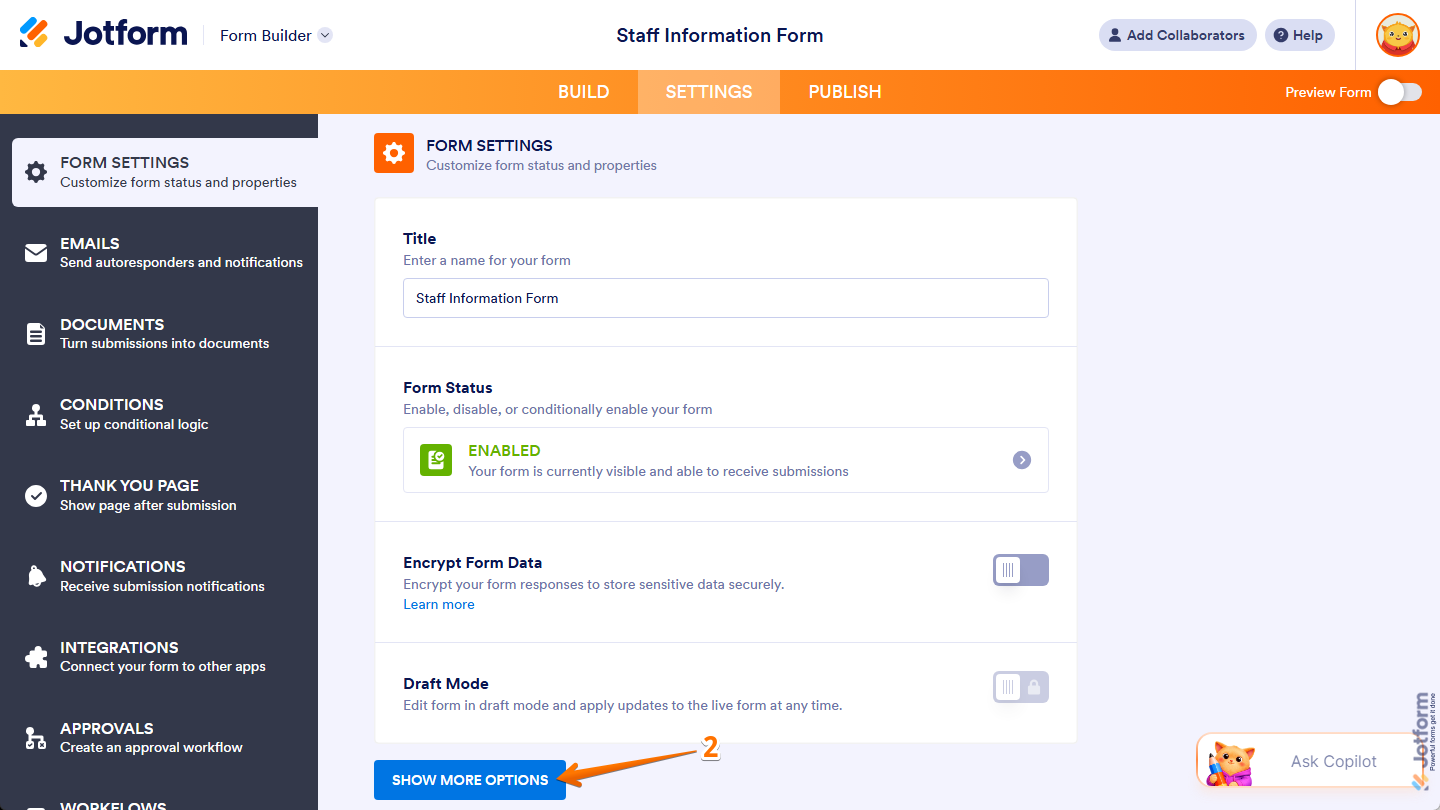
- Next, scroll down to the Password Protection section, and depending on what you want to do:
- Click on Reset Password on the right to set up a new password.
- Uncheck the box next to Enable Password Protection to remove the Password Protection from your form.

Send Comment:
8 Comments:
February 10, 2025
If I change the password for a form now, can I open old copies of the completed for with the new password? Or does that only apply to new completed forms going forward?
October 20, 2024
Can you enable a password per person filling forms out? Can each person get assigned a password depending on there email?
August 10, 2023
What to do if you have forgotten the password?
I find it crazy that the admin of the account can't disable the client-facing password without first knowing the password.
The form is currently rendered useless
July 1, 2022
akun saya di suspend oleh pihak jotform, kemungkinan karena saya mengumpulkan informasi berupa password. password ini saya gunakan untuk membatasi siapa saja pihak yang dapat mengisi form yang saya buat. bisakah jotform memulihkan akun saya?
June 6, 2022
How many times can an incorrect password be entered before someone has to want to try again?
March 23, 2022
How do I change the password page text? Do I have to go through a line of code? where can I find it?
March 3, 2022
This comes u p in english. I have selected norwegian, but I can not translate this..
December 1, 2021
Password not working. Said it wasn’t valid. I have the code
numbers but don’t know
where to put them