There are times when you may want to limit when users can access or submit your form. For example, you might only accept responses during business hours or run time-based promotions.
With Jotform, you can control form availability by combining a Time field with Conditional Logic. This setup lets you show or hide form fields depending on the time a user opens your form—no manual enabling or disabling needed.
To set this up, you’ll need the following:
- Time Field — Captures the user’s current time when they open your form.
- Paragraph Field — Displays a message letting users know the form is unavailable.
- Conditions — Check if the form was opened within your allowed timeframe.
Adding and Setting Up the Time Field
To control form availability based on time, you’ll first need to add and configure a Time field that automatically captures the current time when the form is opened. Here’s how:
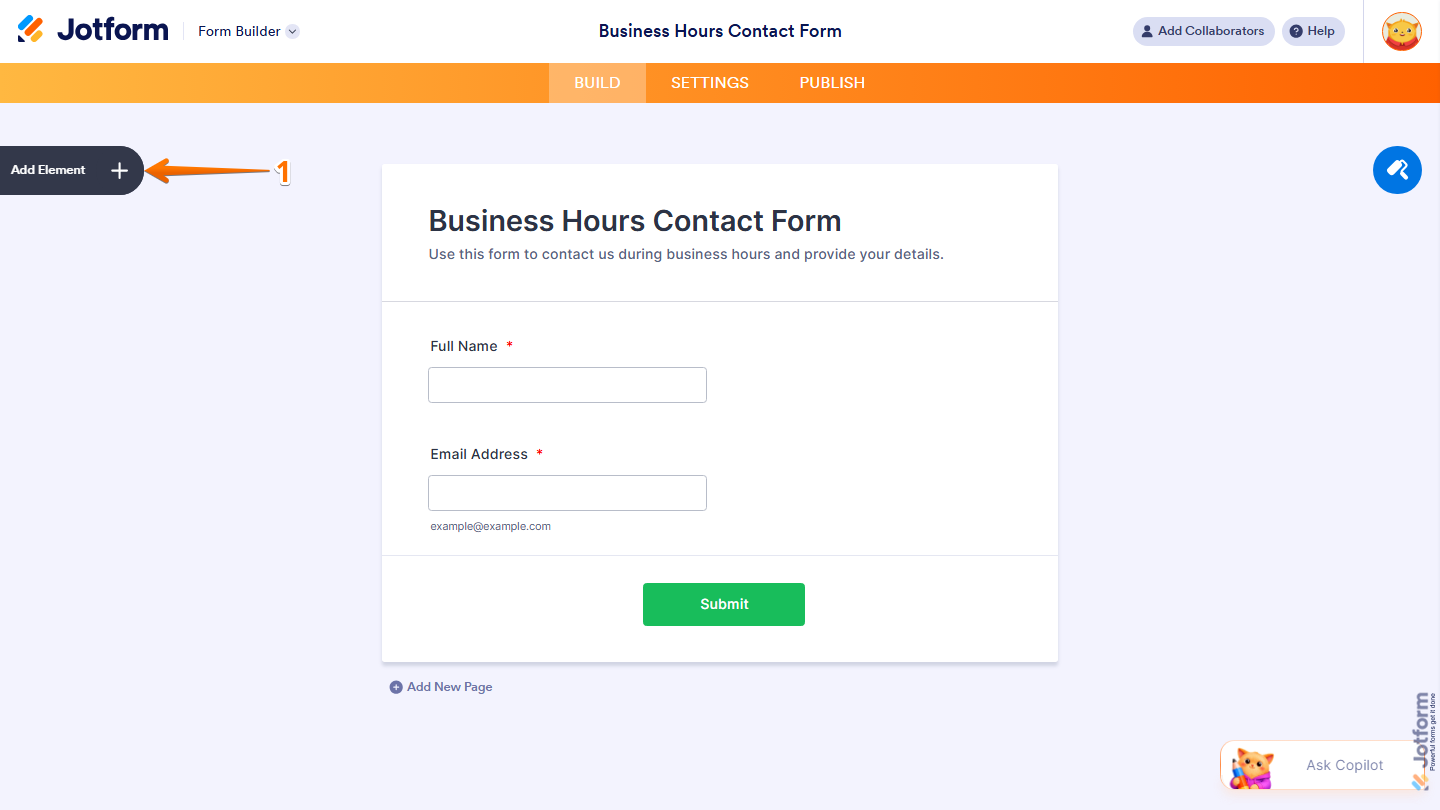
- In Form Builder, click on Add Element on the left side of the page.
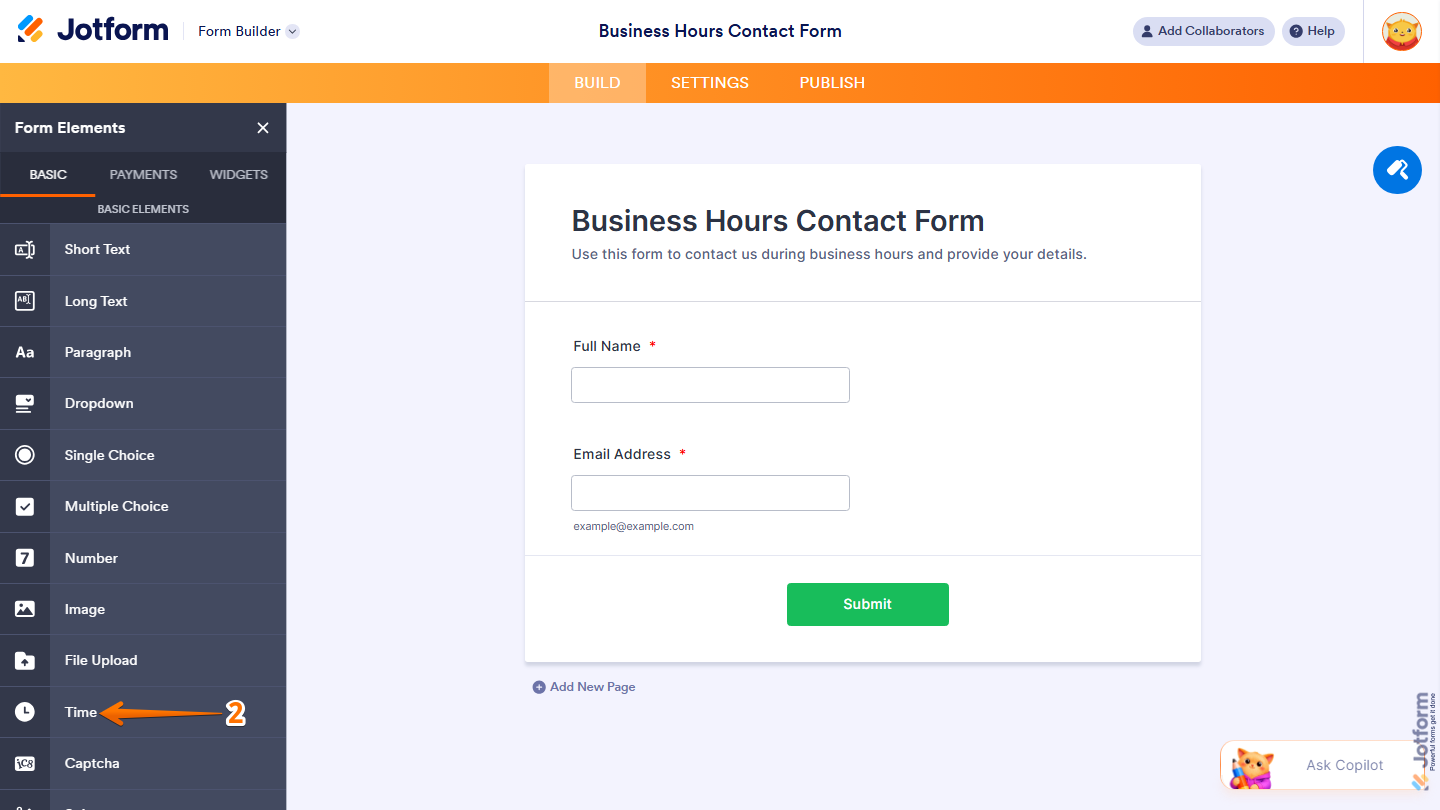
- Now, in the Form Elements menu, under the Basic tab, scroll down and click on Time. Or, just drag and drop it to where you want it to be on your form.
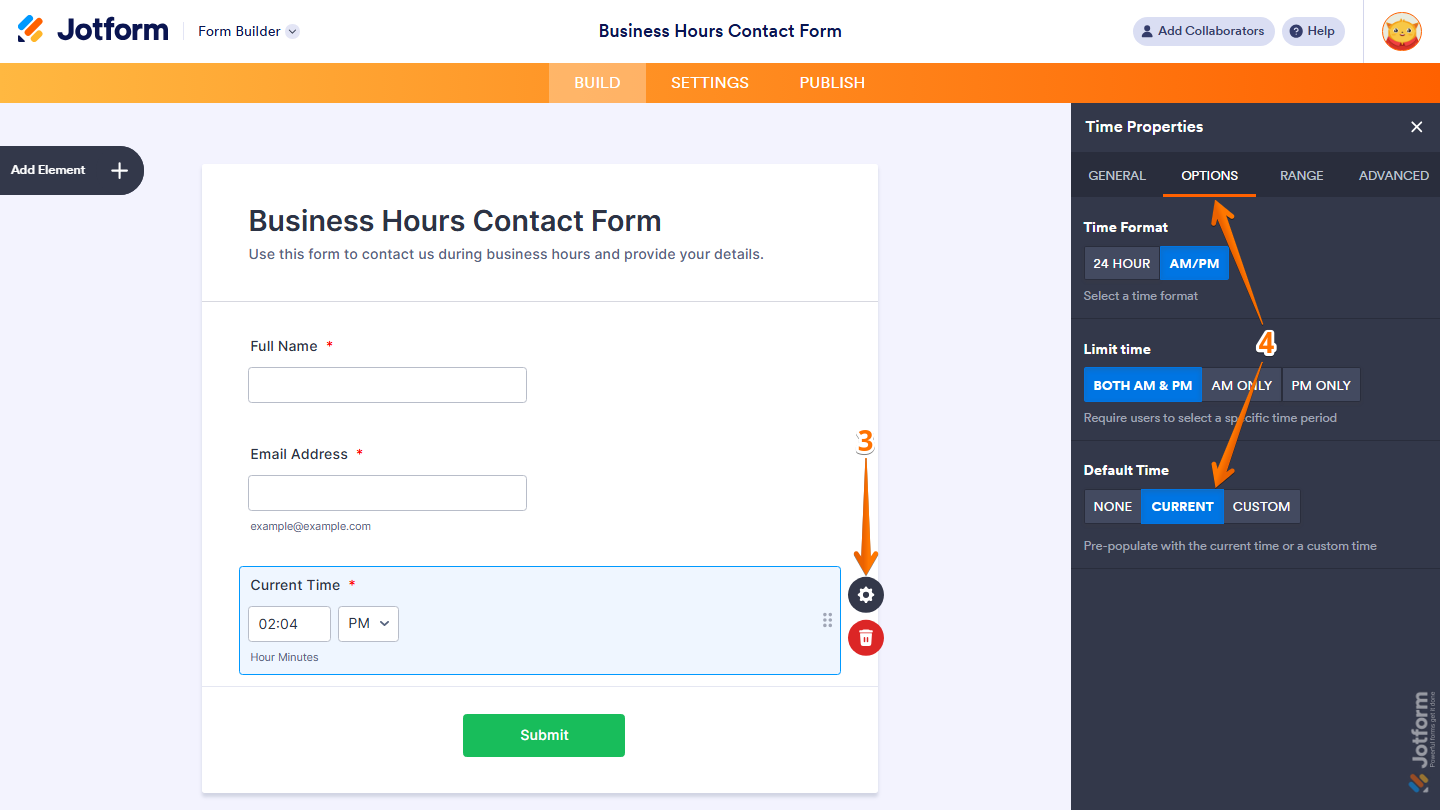
- Next, click on the Gear icon to open the Time Properties menu on the right side of the page.
- Then, under the Options tab, set the Default Time to Current.
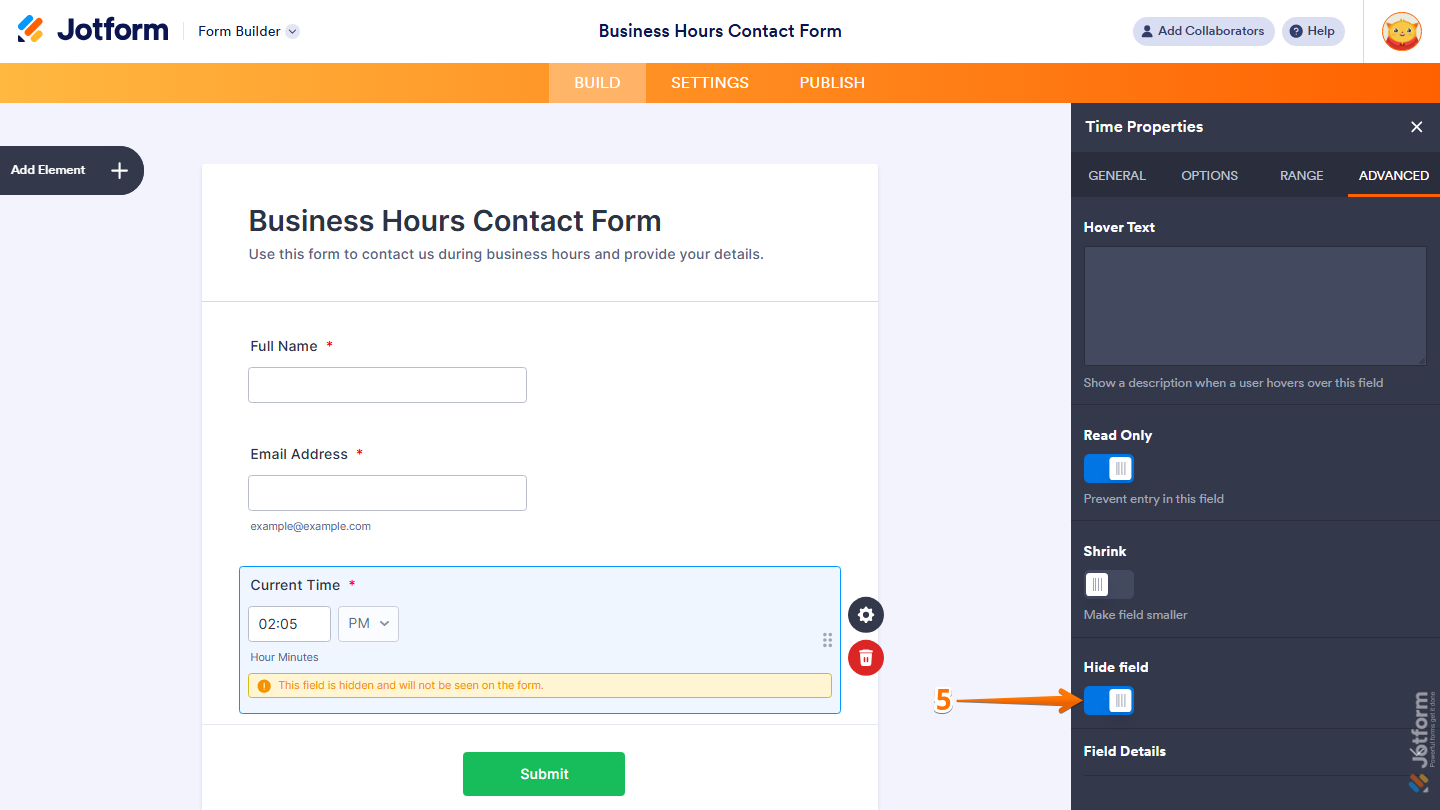
- Now, under the Advanced tab, in the Hide Field section, toggle it on to keep the field hidden from the users, and you’re done.
That’s it. You’ve now set up your form to capture the current time using the Time element. If you want to explore more ways to configure and use the Time element in your forms, check out our guide on How to Add and Set Up the Time Element on Your Form.
Adding and Setting Up the Paragraph Field
To inform users when the form is unavailable, you’ll need to add a Paragraph field that displays a custom message. This is how it’s done:
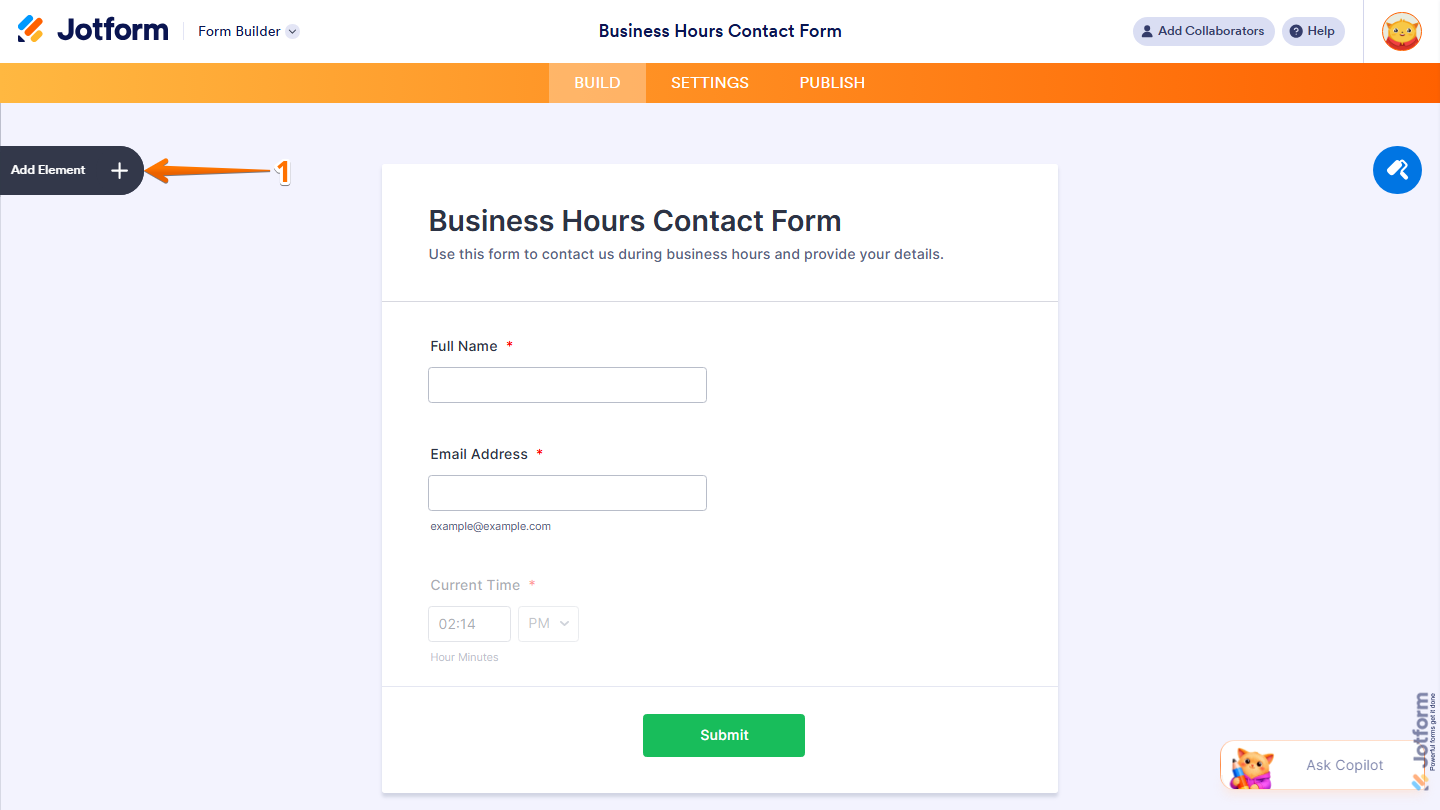
- In Form Builder, click on Add Element on the left side of the page.
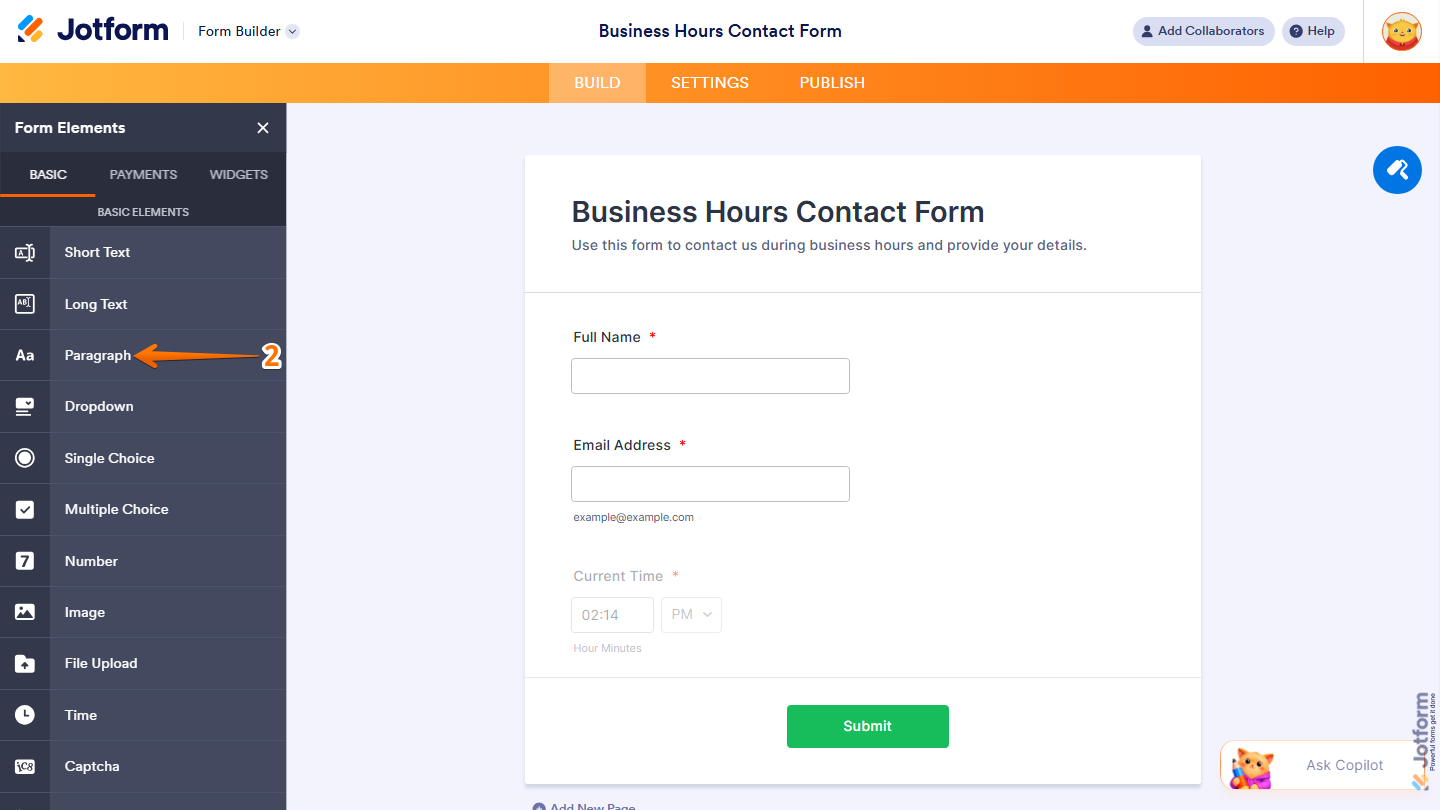
- Now, in the Form Elements menu, under the Basic tab, scroll down and click on Paragraph. Or, just drag and drop it to where you want it to be on your form.
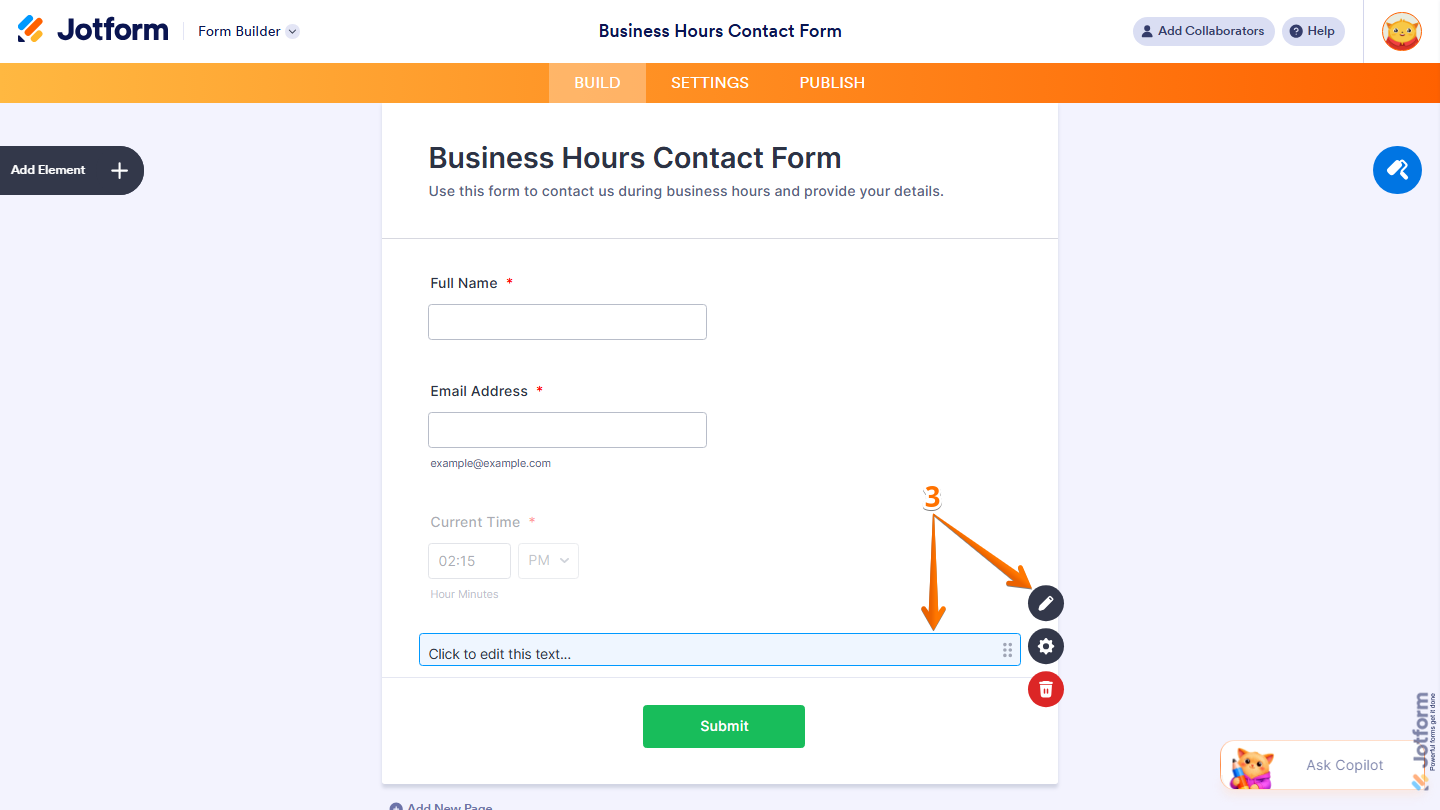
- Next, click on Click to Edit this Text or the Pencil icon.
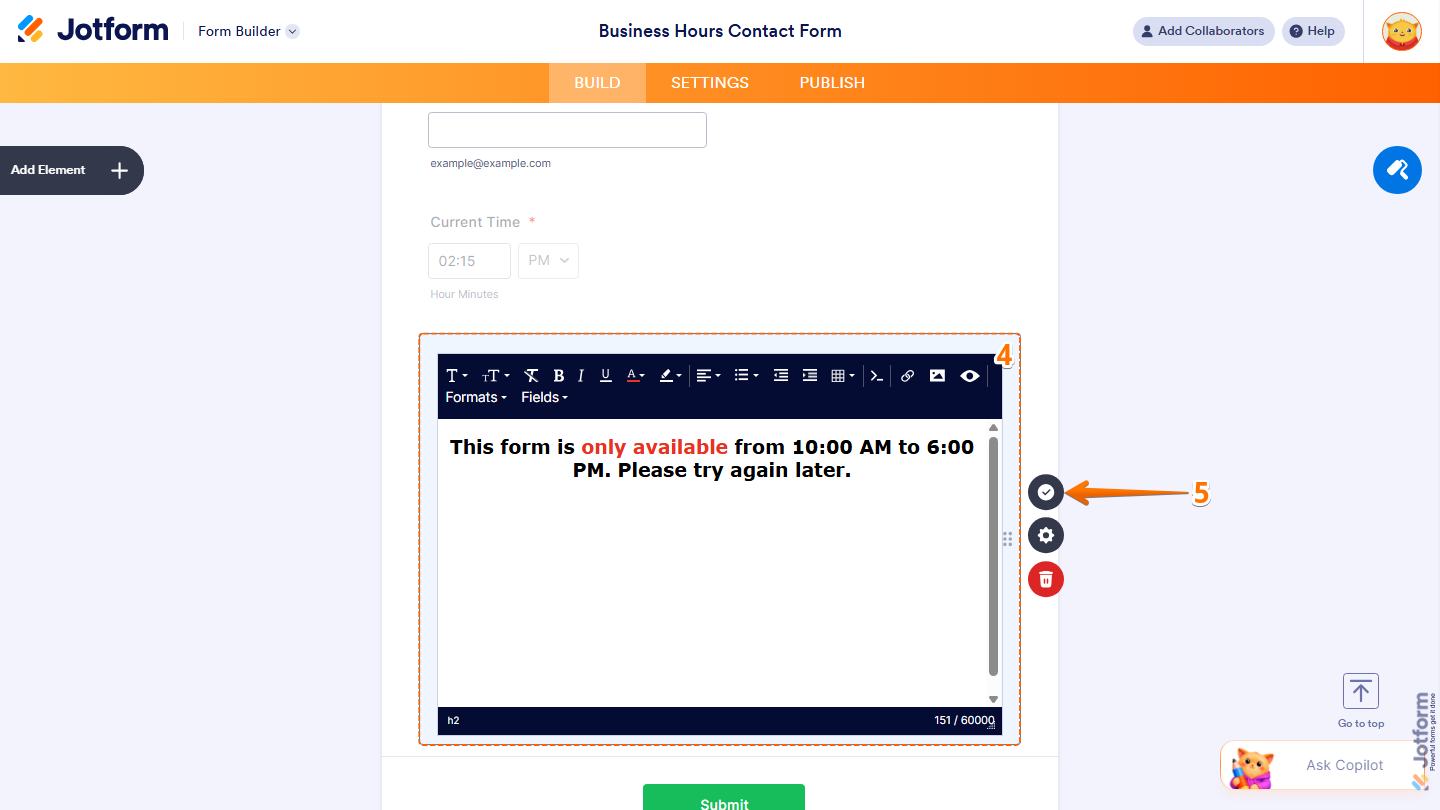
- Then, in the Paragraph Editor, enter the message you want to display when your form is not available. For example: “This form is only available from 10:00 AM to 6:00 PM. Please try again later.”
- Once done, click on the Encircled Checkmark icon to save your changes.
That’s it. You’ve now set up your form to display a custom message using the Paragraph element. If you want to explore more ways to customize how messages are presented in your forms, check out our guide on How to Add and Set up the Paragraph Element.
Setting Up the Conditional Logic
Now that your fields are set up, it’s time to define when your form should be available using Conditional Logic. For example, if you want your form to be available from 10:00 AM to 6:00 PM only, here’s how to set it up:
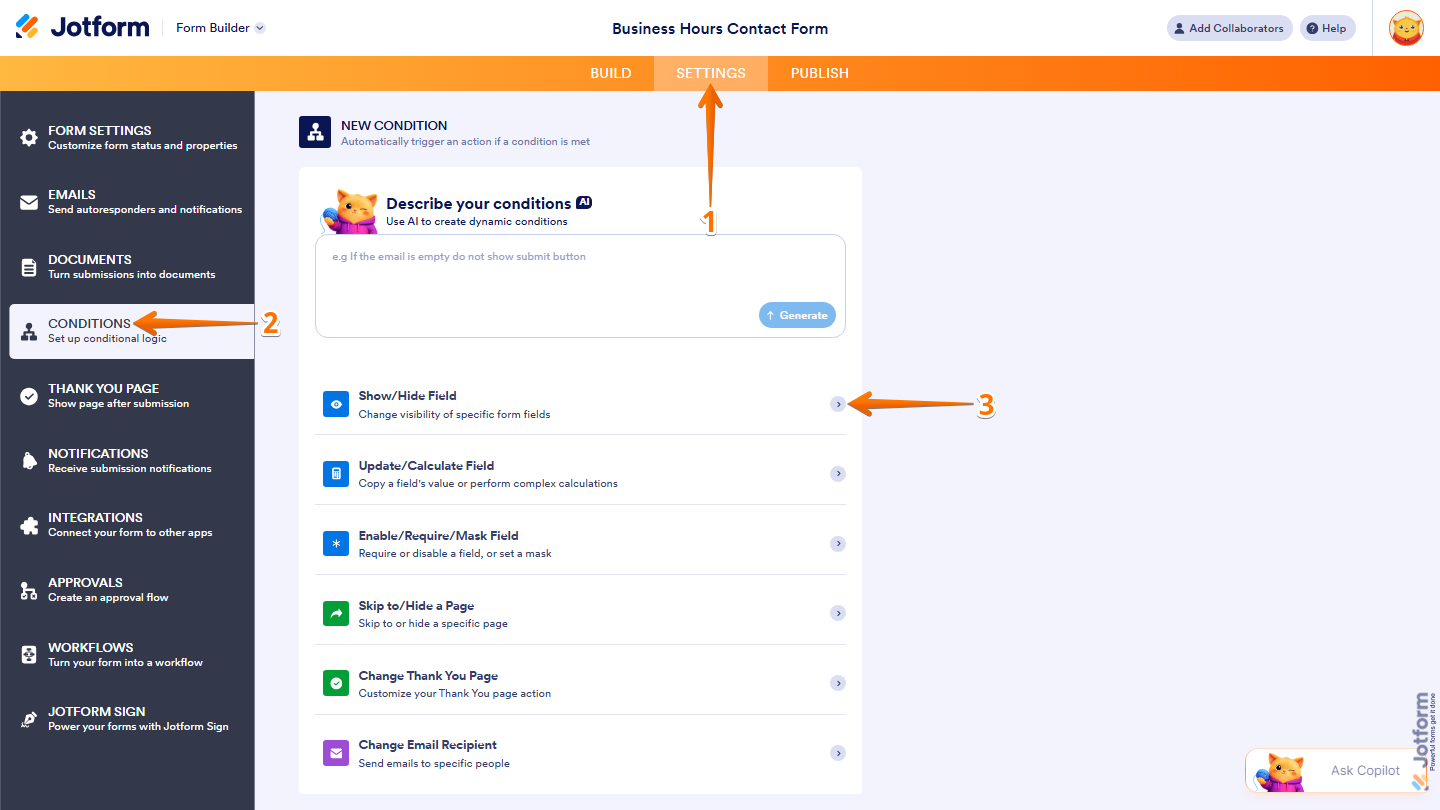
- In Form Builder, in the orange navigation bar at the top of the page, click on Settings.
- Then, in the menu on the left side of the page, click on Conditions.
- Now, in the New Condition menu, click on Show/Hide Field.
- Then, set the conditions like you see below and click on Save:
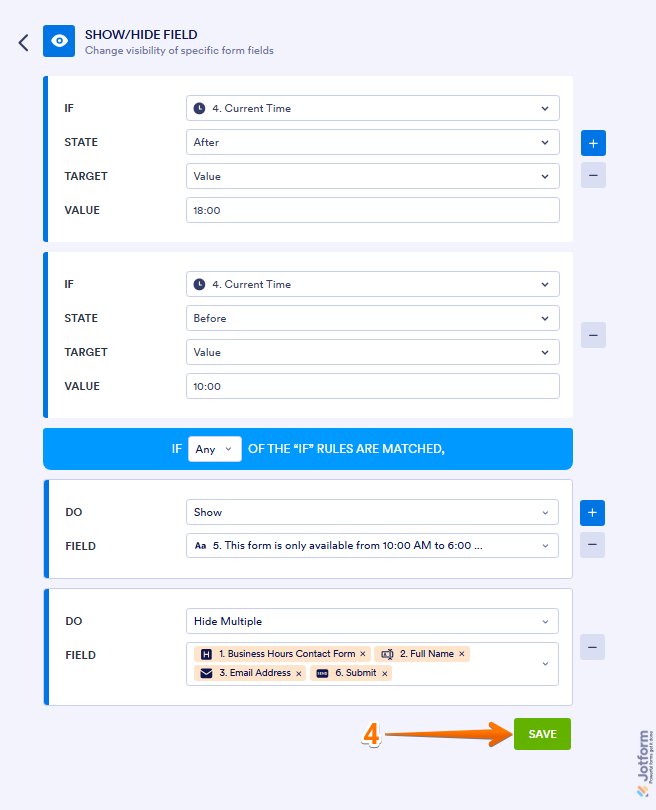
In the condition above, if a user opens the form outside of your set hours, they’ll see the unavailability message instead of the form fields. Looking for more info? Check out these helpful guides for more details:
See how it comes together in this live Demo Form. You can also clone the form to explore it further and adjust the time settings as needed. For a quick how-to, check out our guide on How to Clone and Existing Form From a URL.
Note
- This setup only uses the Time field. If you also want to include dates, just add a Date Picker and update your condition to match both date and time. Check out our guide on How to Add and Set up the Date Picker Element on Your Form to learn more.
- If you only need to disable your form on a specific date or once it reaches a submission limit, Jotform has built-in options for that. Check out our guide on How to Enable or Disable a Form to learn more about it.

Send Comment:
9 Comments:
September 29, 2025
Is there a way to timestamp a survey users responses, for example, if we want to make sure a user is properly completing a task and not just clicking 'next', is there a way for jotform to track when they start a question/open a new survey page and when they finish a question/click to the next survey page? Many thanks, Hubbub
May 9, 2025
Hi, is it possible to set the form to be inactive after 48hour? I’m getting clients book in weeks after first enquiry and could do with a bit more control over how long the booking link lasts, thanks
May 2, 2024
I have the times set, and it works! How do I make sure that the form is only available on Monday - Friday?
April 25, 2024
Part of my form is not showing after published. HELP!
April 15, 2024
Hello,
How can I set it to automatically disable a form if a client did not complete it in 48 hours?
Thanks
March 18, 2023
This is good for making forms available out of hours however is there a way of blocking on certain weekdays? In your example above you specify the form unavailable outside certain hours and that includes full closure on certain days.
December 13, 2022
Hi Jotform. Love this example with time. Than you for this. Is there a way to setup a form so that it only shows for the first three weeks of a month and does not show the last week of a month?
September 22, 2022
How do you set the time for am or pm when setting a from to be disabled
March 2, 2022
The above guide look comprehensive, thank you. I only wish the form to open at a set date and time. Could we add this to the Form Setting page where you can set a date and time to disable. Could have an option to set a date and time to enable please.
Thank you