With Jotform PDF Editor, you can customize your PDF submission reports to better match your preferred layout and design. You can add Form Fields, change the styling, apply templates, and rearrange elements to create more organized and professional PDF documents.
In this guide, you’ll learn how to:
- Add Elements and Form Fields
- Customize the Layout of your PDF document
- Customize the Styles in your PDF document
- Apply Templates
- Reposition Elements and Form Fields
- Resize Elements and Form Fields
- Delete Elements and Form Fields
Note
By default, when you create a new PDF document, the PDF Editor automatically adds the same question-and-answer fields from your web form. If you only need a simple PDF with your submission data, the default template will usually work just fine. However, if you want full control over the layout and design, this guide will walk you through everything you need to know.
Adding Elements and Form Fields to Your PDF Document
You can customize your PDF document by adding Elements and Form Fields to organize your layout and display submission data. Getting started is simple—here’s what to do:
- In PDF Editor, click on the Add Element menu on the left side of the page.
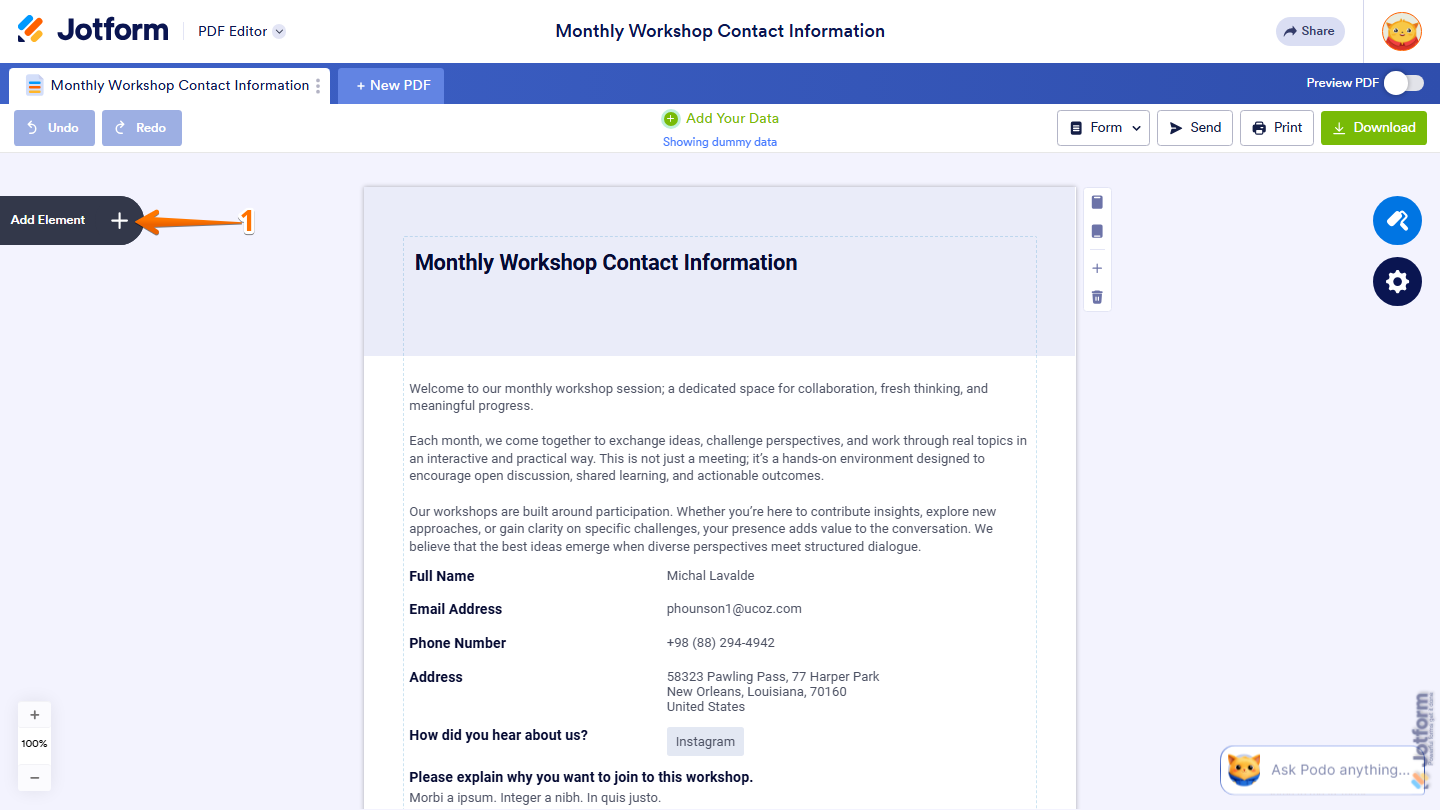
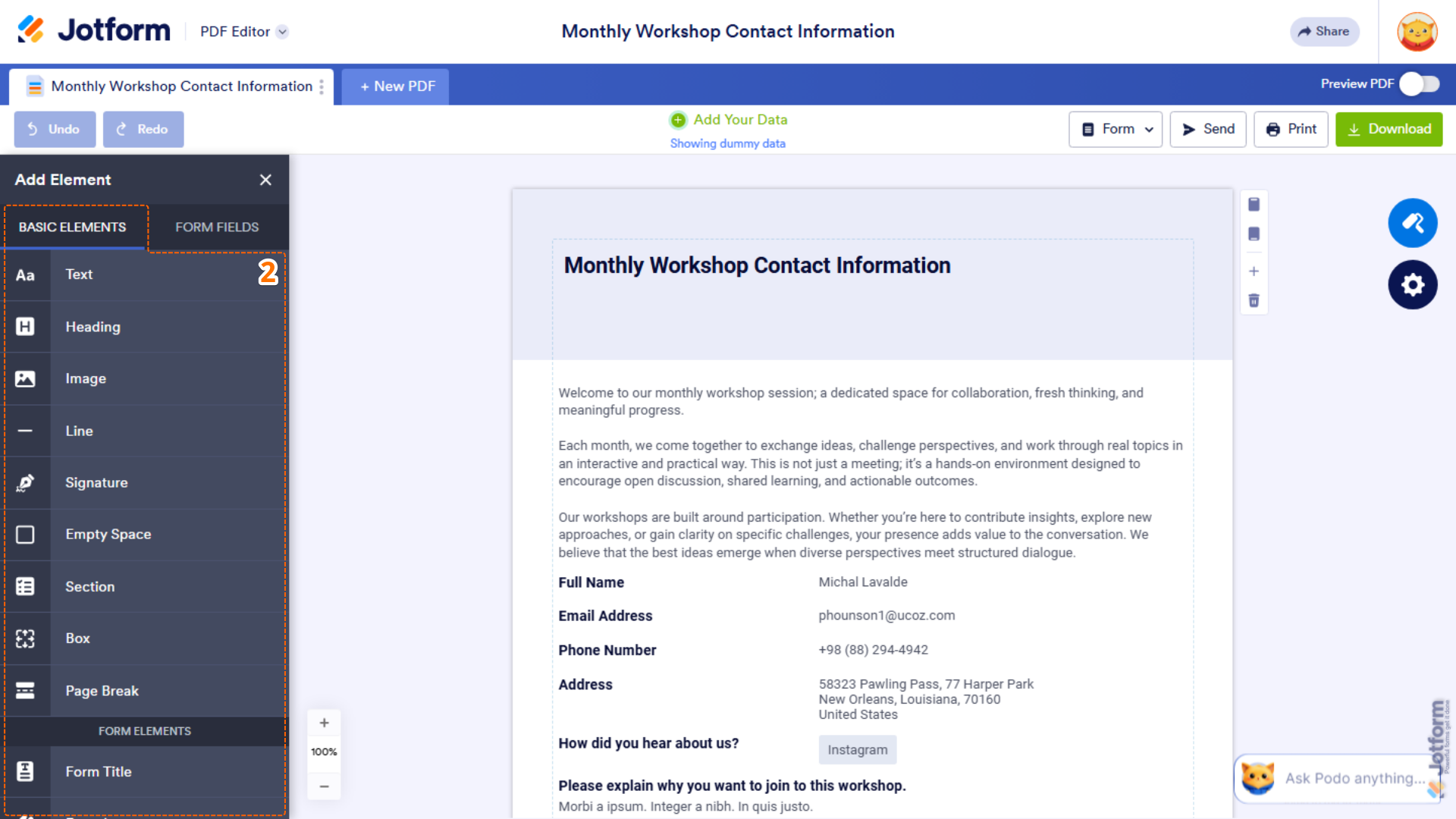
- Then, under the Basic Elements tab, click on an element that you want to add. Or drag and drop it into your PDF Document.
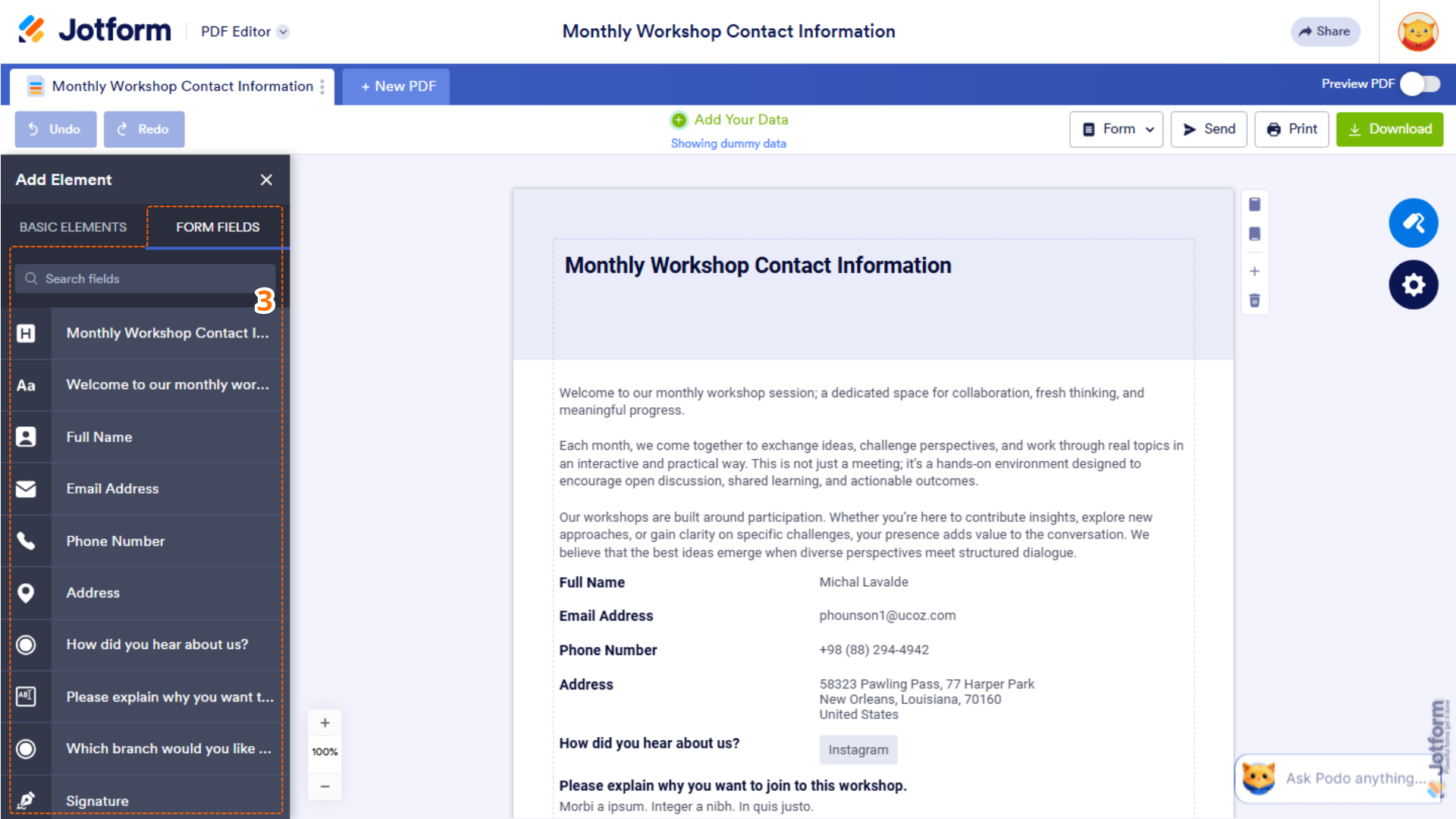
- Now, if you want to display submission data from your form, under the Form Fields tab, click on an element that you want to add. Or, drag and drop it into your PDF document.
Note
The PDF Editor automatically links your Form Fields to the submission data collected from your form, so you don’t need to set up any mappings manually.
Customizing the Layout of Your PDF Document
If you want to adjust the structure and spacing of your PDF document, you can customize the layout settings in PDF Designer. Setting it up is quick—here’s how:
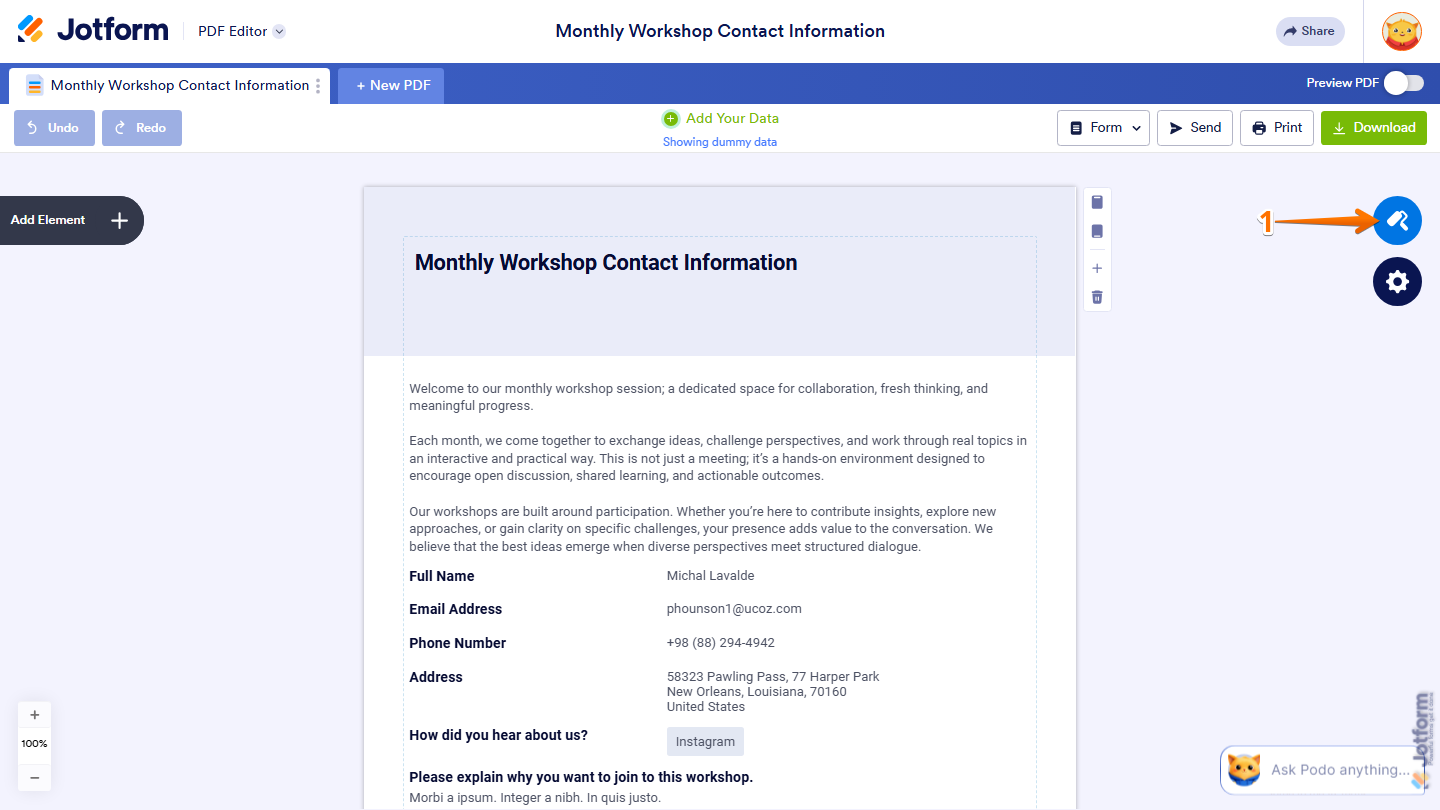
- In PDF Editor, on the right side of the page, click on the Paint Roller icon.
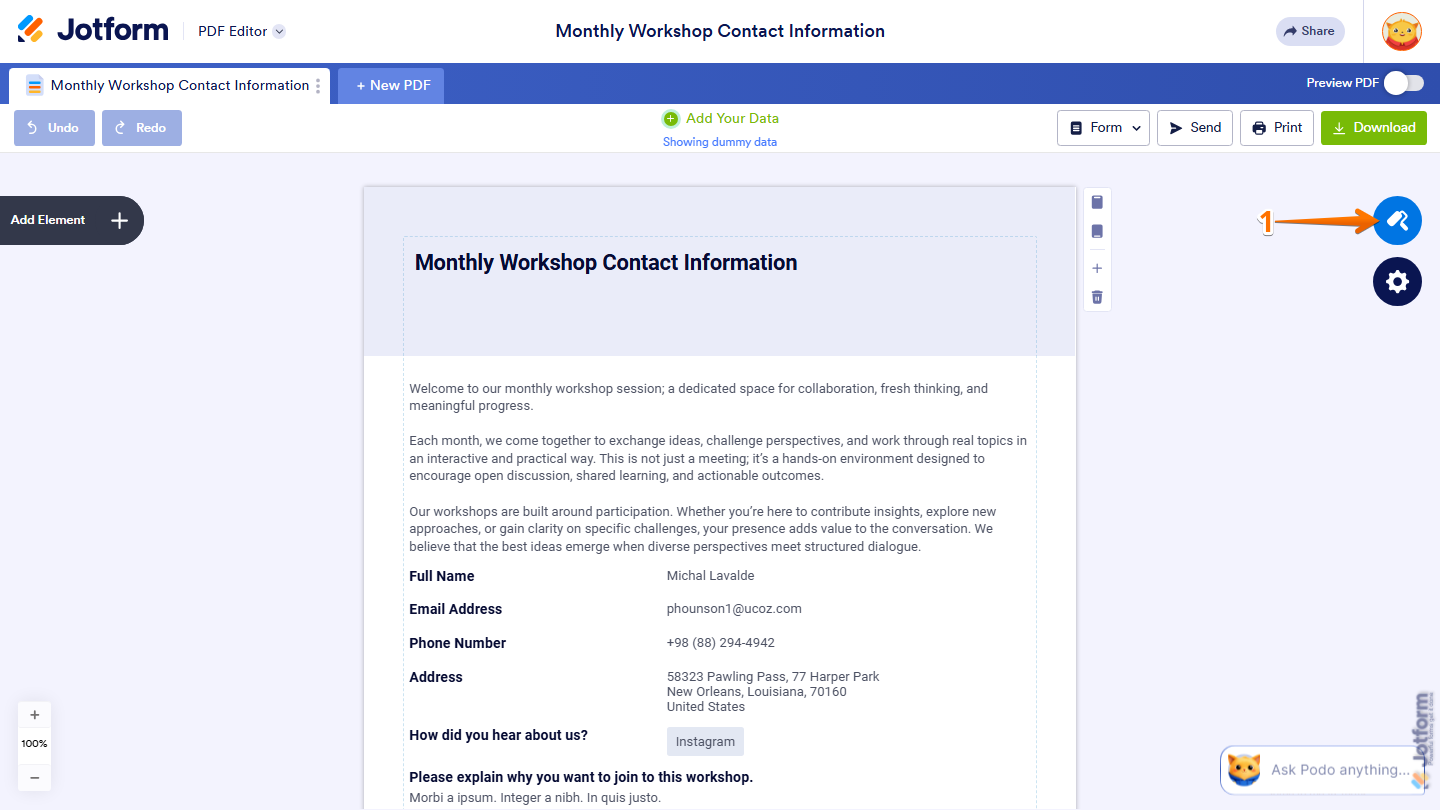
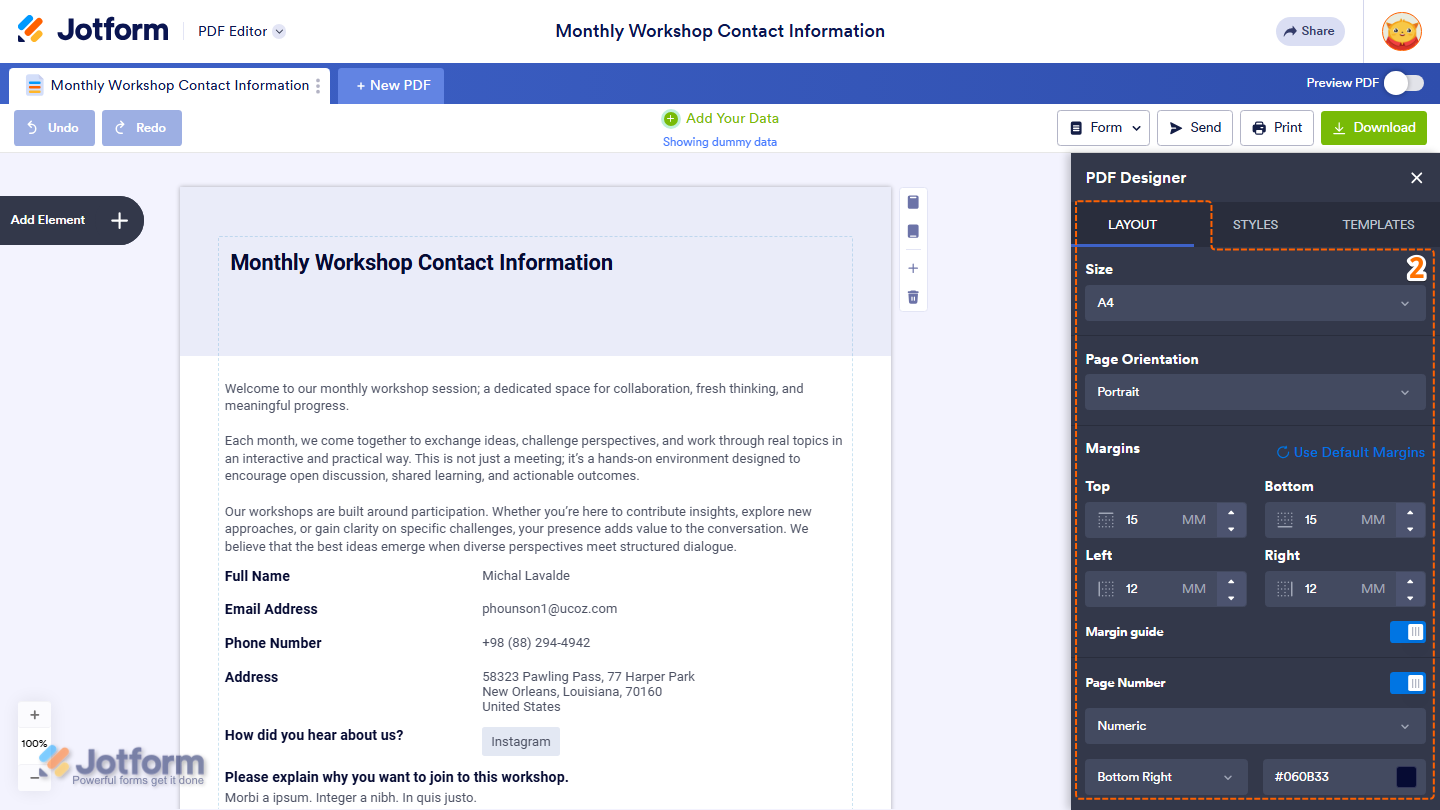
- Now, in the PDF Designer window that opens, under the Layout tab, set up these things:
- Size — Change the size of your PDF pages, such as A4 or Letter.
- Page Orientation — Choose whether your PDF uses a portrait or landscape layout.
- Margins — Adjust the spacing between your content and the edges of the page.
- Margin Guide — Toggle this on or off to help align your content while editing.
- Page Number — Toggle this on to add and customize how page numbers appear in your PDF document.
Customizing the Styles in Your PDF Document
You can also personalize the appearance of your PDF document by customizing its colors, fonts, and background design. Want to set it up? Just do this:
- In PDF Editor, on the right side of the page, click on the Paint Roller icon.
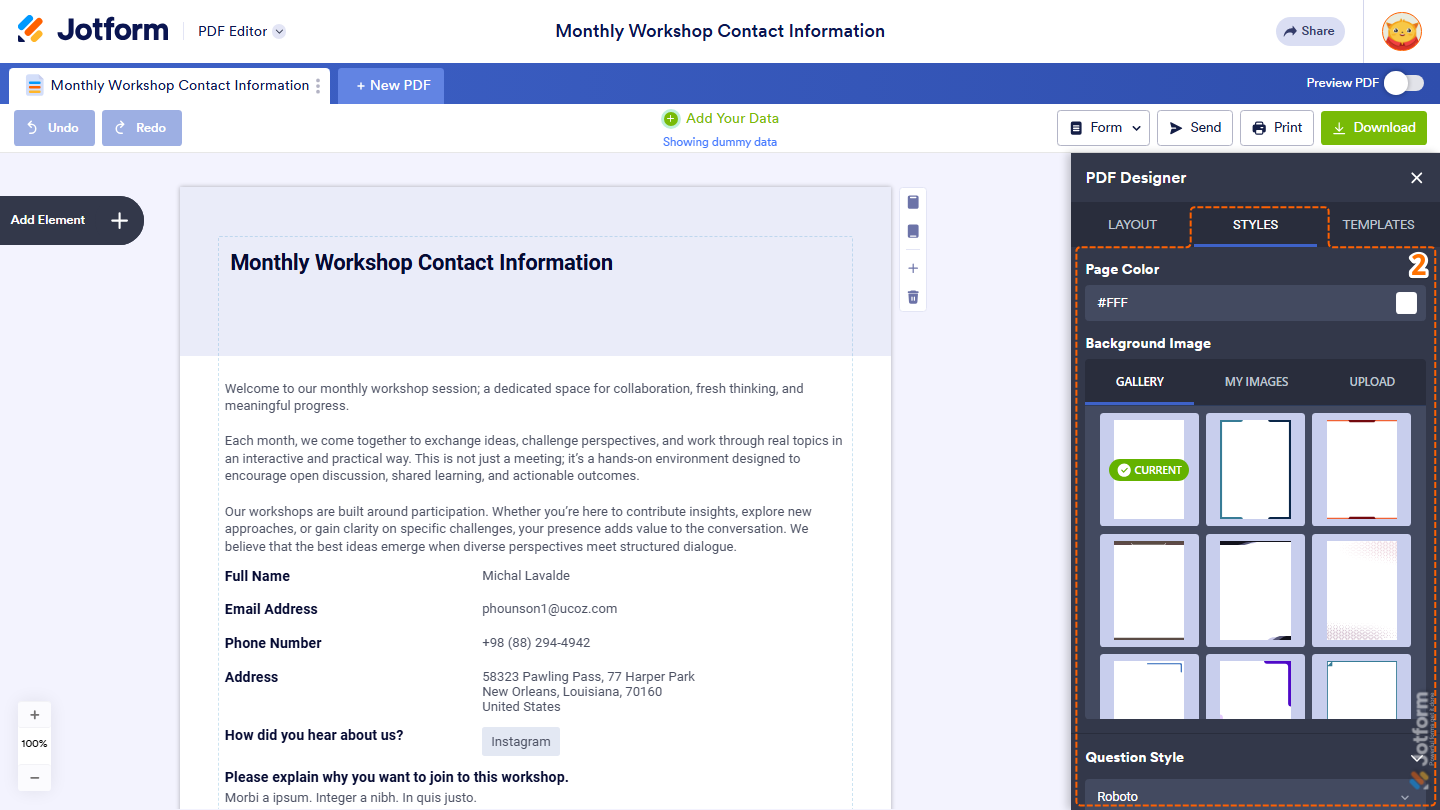
- Then, in the PDF Designer window that opens, under the Styles tab, customize these things:
- Page Color — Change the background color of your PDF pages.
- Background Image — Add a background design or image to your PDF document. You can choose from:
- Gallery — Select from available background designs.
- My Images — Use images from your uploaded files.
- Upload — Upload a new background image from your device.
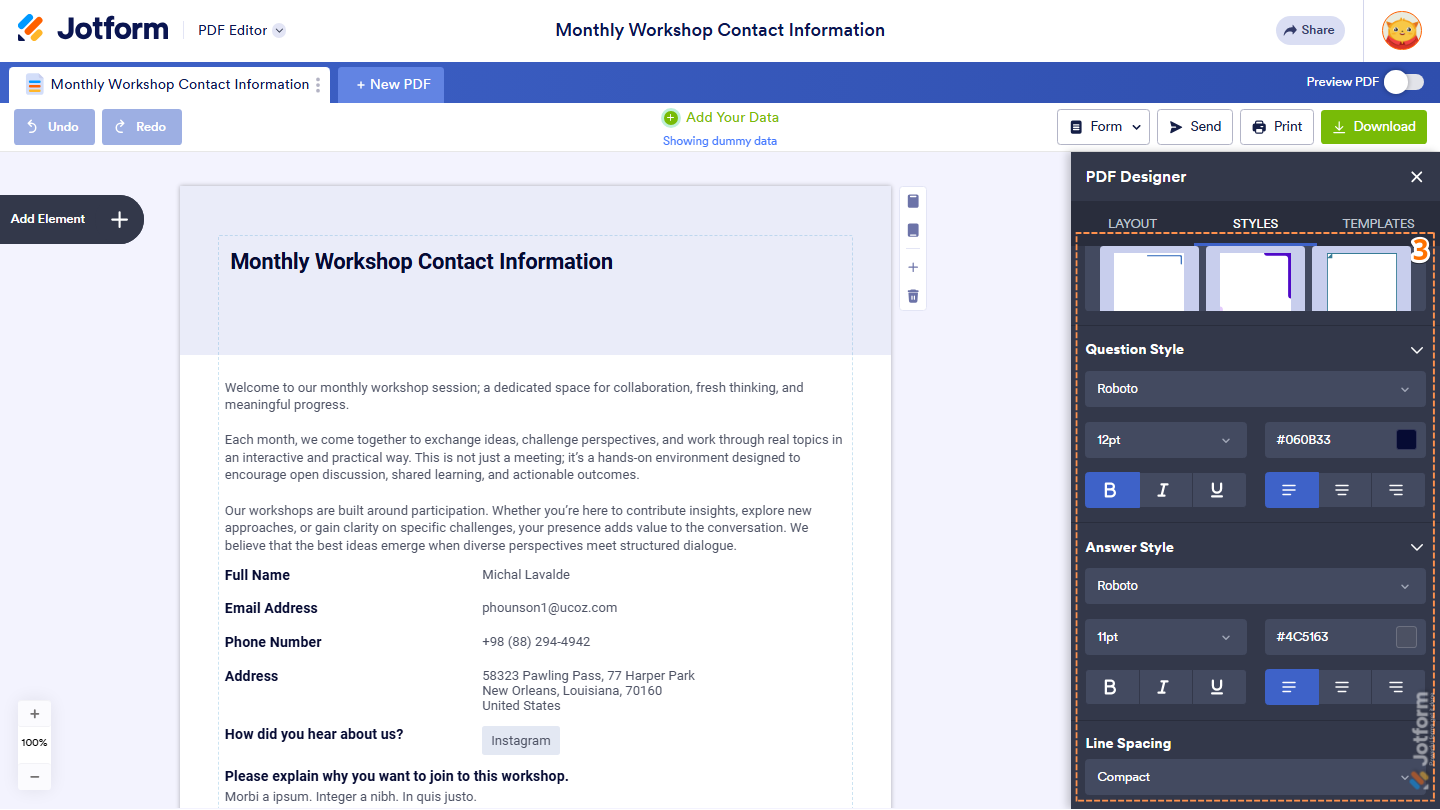
- Now, scroll down to the bottom and continue to customize these things:
- Question Style — Customize the appearance of question labels, including the font, font size, color, text formatting, and alignment.
- Answer Style — Customize the appearance of answer fields and submission data.
- Line Spacing — Adjust the spacing between lines of text in your PDF document.
Take a peek at our guide on How to Add a Background Pattern in Jotform PDF Editor to learn more.
Applying a Template to Your PDF Document
To quickly change the overall design of your PDF document, you can apply one of the ready-made templates available in PDF Designer. Here’s the quick way to do it:
- In PDF Editor, on the right side of the page, click on the Paint Roller icon.
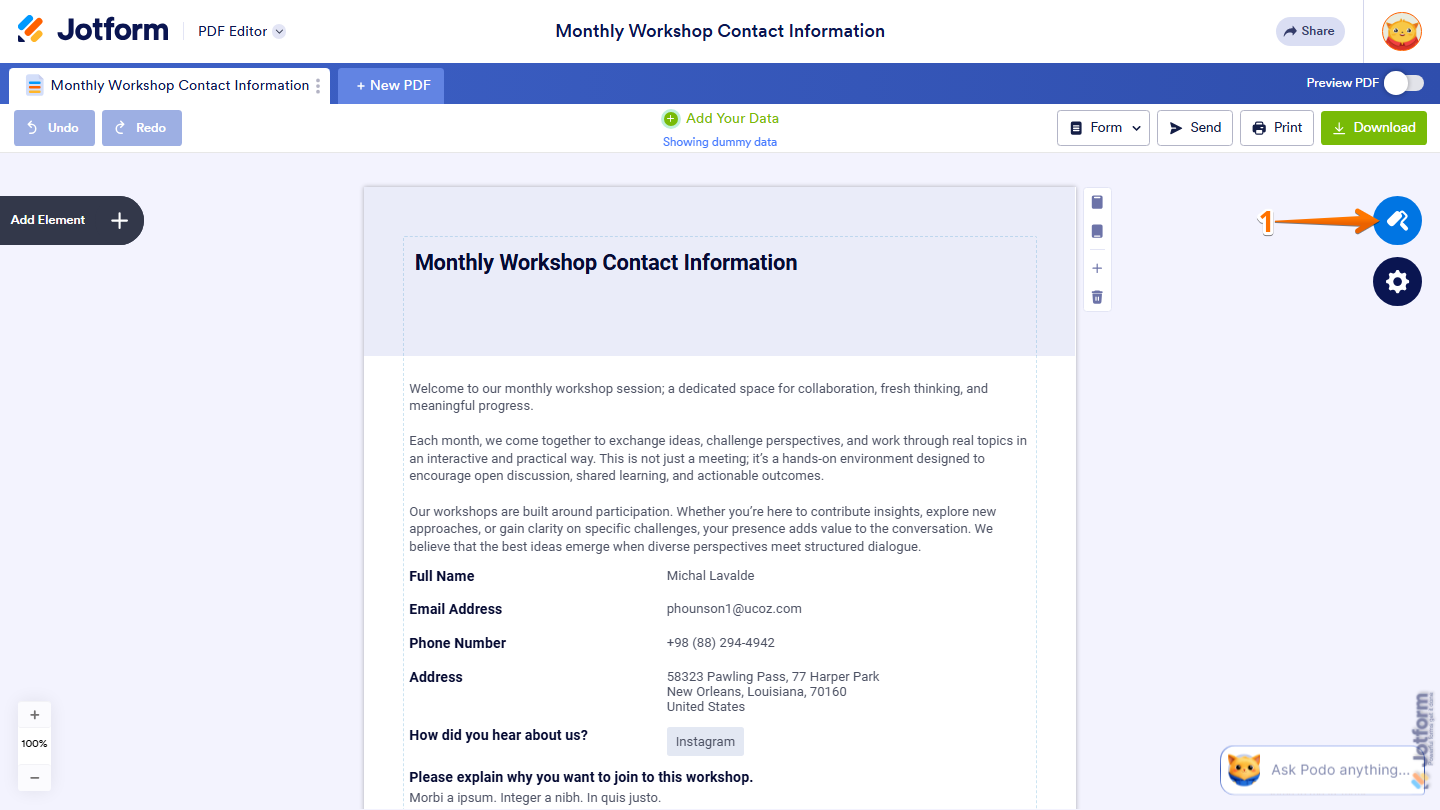
- Now, in the PDF Designer window that opens, under the Templates tab, select and click on the Template you want to use for your PDF document and you’re done.
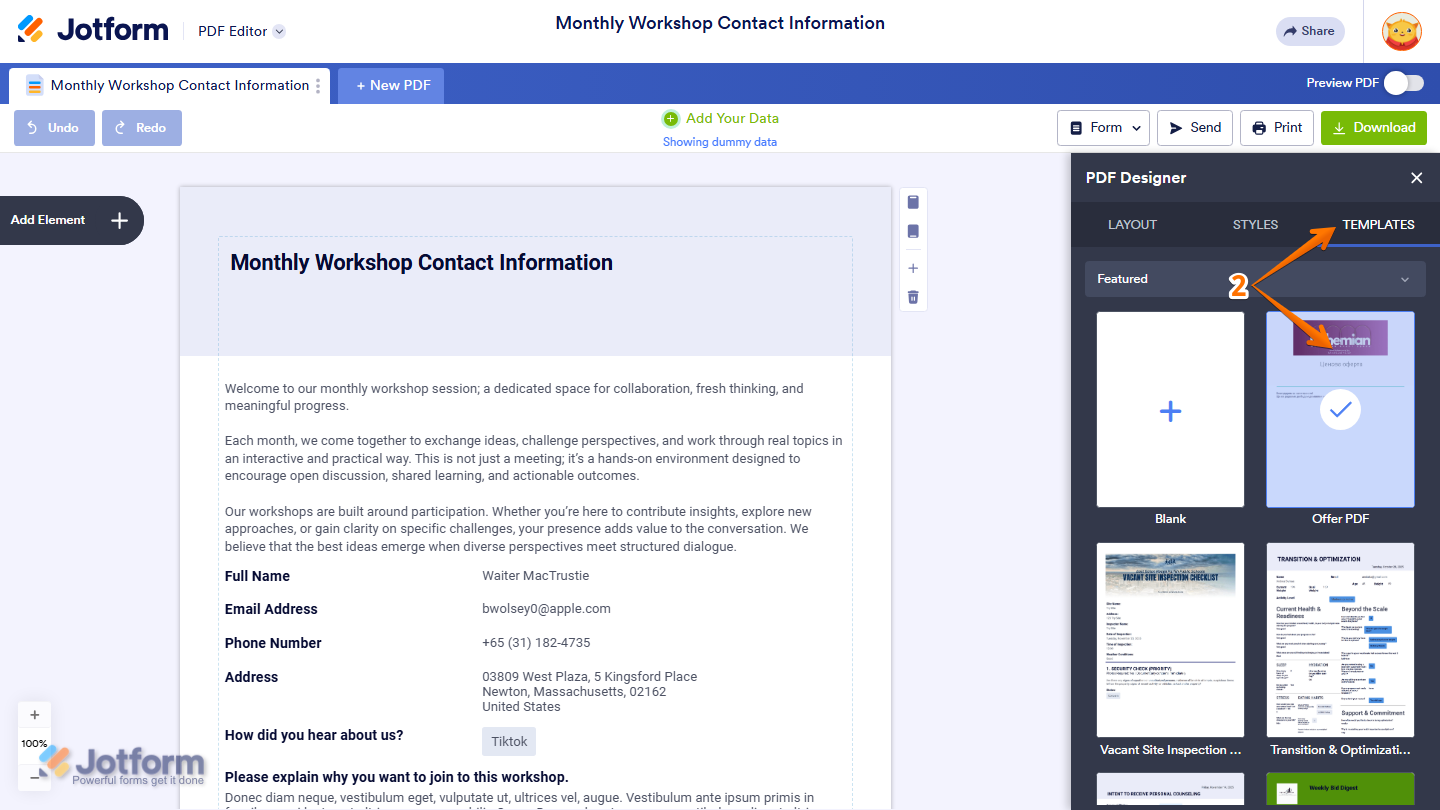
That’s it! The template is automatically applied to your PDF document right away.
Note
Applying a template will update the overall styling of your PDF document, including colors and fonts. Any custom styles you’ve set may be overwritten, so it’s best to apply a template first before making further customizations.
Repositioning Elements and Form Fields in Your PDF Document
You can easily move elements and Form Fields around your PDF document to improve the layout and organize your content the way you want. You can do it in just a few steps:
- In PDF Editor, select the element that you wish to reposition.
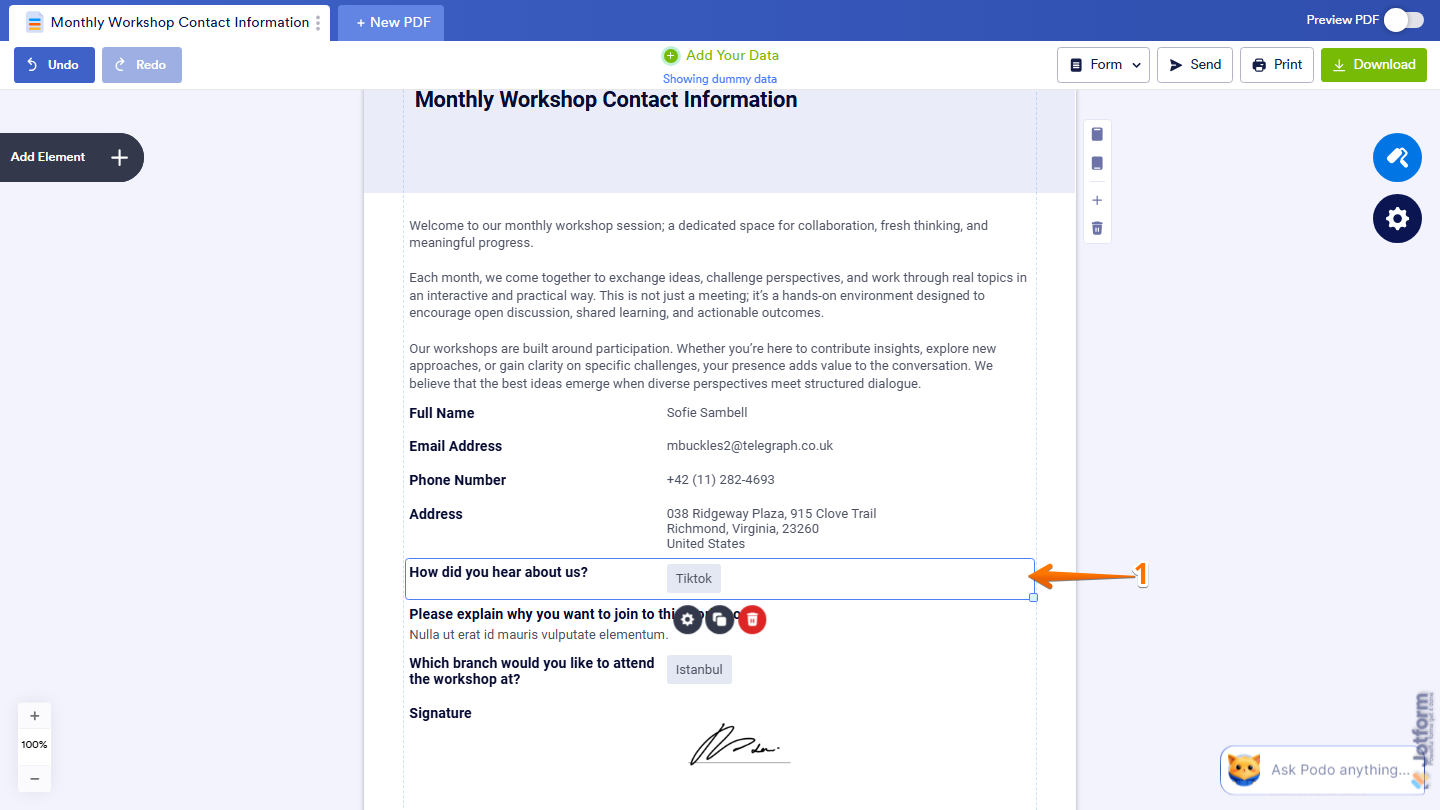
- Then, drag and drop it to its desired position.
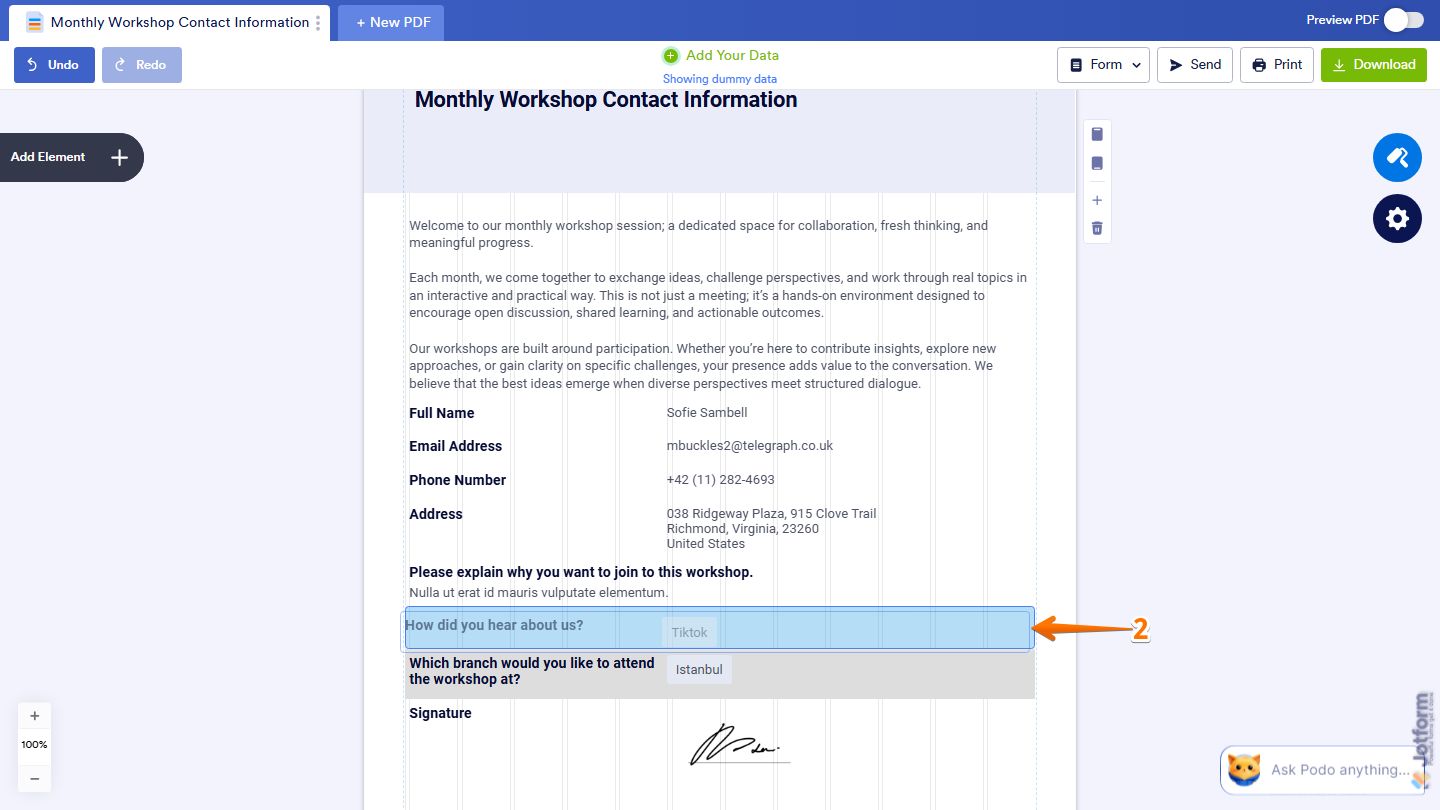
Resizing Elements and Form Fields in Your PDF Document
If you want to make elements or Form Fields larger or smaller to better fit your layout, it only takes a second—here’s what to do:
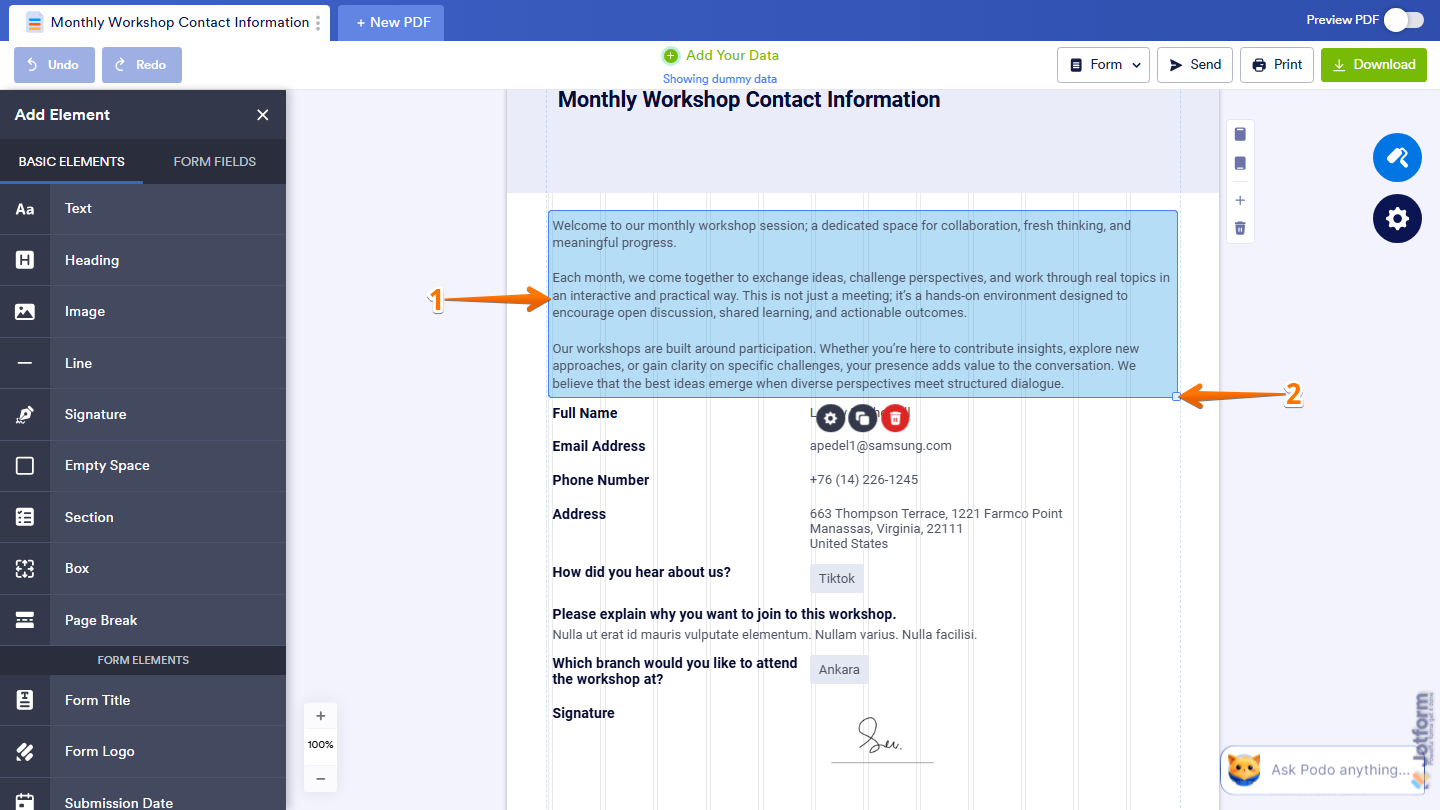
- In PDF Editor, select the element that you wish to adjust.
- Then, place your cursor on the resizer handles, which appear as small squares in the annotations, and hold down your left mouse button and drag the handle inward to make it smaller or outward to make it larger.
Deleting Elements and Form Fields from Your PDF Document
If there are elements or Form Fields you no longer need in your PDF document, you can remove them in just a few clicks. Here’s how to get going:
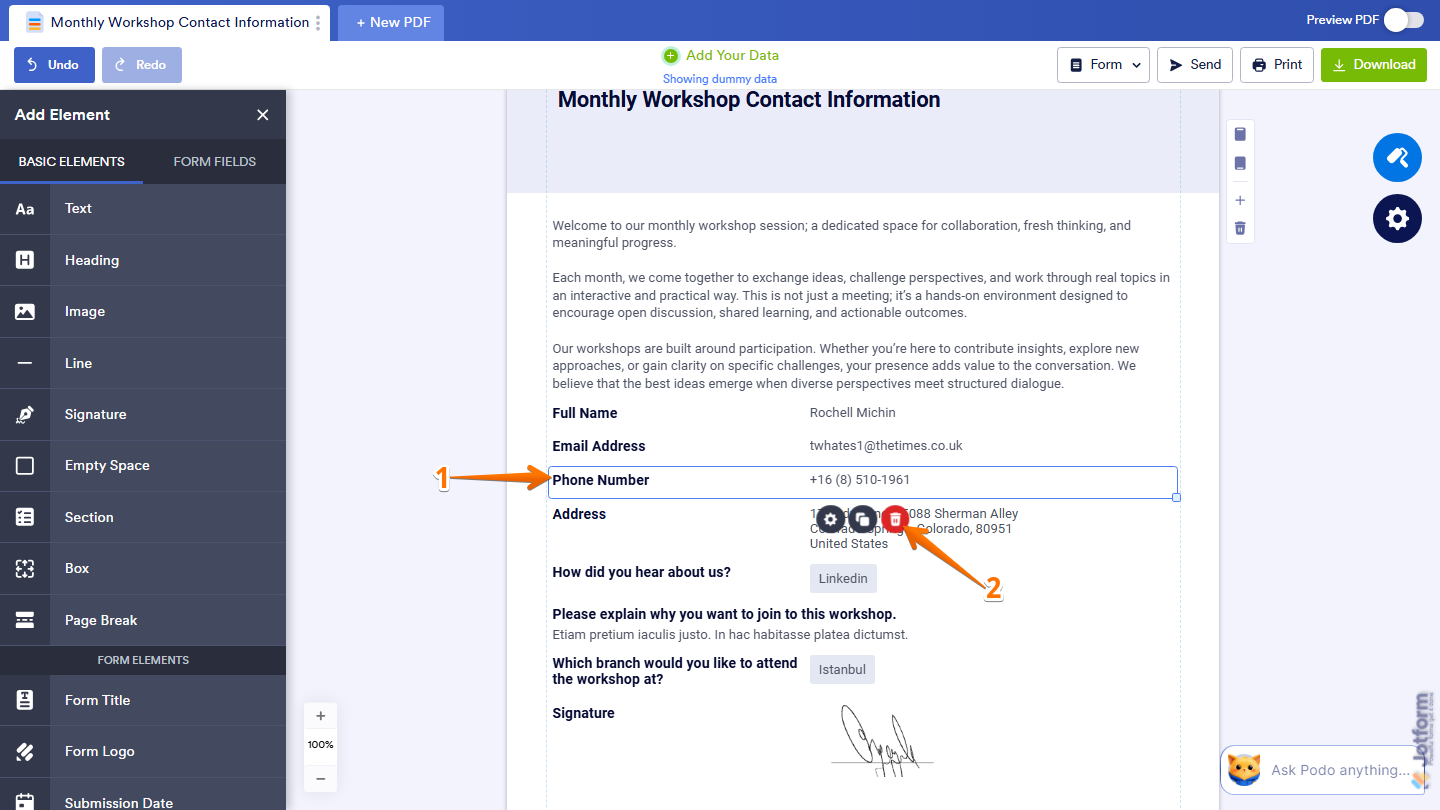
- In PDF Editor, click on the field you want to remove from the PDF.
- Now, click on the Trash Can icon to delete it, and you’re done.
Note
Deleting a Form Field from your PDF document only removes it from the PDF layout. It doesn’t delete the field from your form or affect your submission data in any way.
That’s it! Your PDF submission report is now fully customized and ready to use. Whether you’re creating professional reports, branded documents, or organized submission summaries, the PDF Editor gives you everything you need to make your PDFs look exactly the way you want.
If you want to explore more features about PDF Editor, here are some helpful guides:


Send Comment:
12 Comments:
March 10, 2025
I don’t need PDF form I need corrections in my form
January 2, 2025
my pdf settings doesnt show up
May 30, 2024
We have a multi-lingual form. How do I get the PDF to come out in the language the submitter used?
October 15, 2023
Good afternoon, I want to explain better what I am looking for, once an order is place in the system, I want to make a report per item with the item name, the name of the client and address.
In a case when a person has ordered 2 items, there should be a label per item an dI want to do a standard 1x4 sticker sheet
January 31, 2023
I would like to print my form in pdf without the submissions. Blank form for people do not have access to computers. is there a way to print my form or save a blank one in pdf?
May 12, 2022
Hi, can a PDF report be updated after submission and still be the same submission?
April 25, 2022
How can we create a PDF Report Showing a table of all submissions?
March 16, 2022
Hi there. Many thanks for you reply, I've tried for several hours, I change items in pdf editor but they just don't to save. Kind regards. Steve
January 25, 2022
Gracias
November 12, 2021
Is it possible to create an automatic PDF report based on the forms submission without manually having to change the PDF content if each form submitted varies in its responses? Basically to automatically create a personalized PDF report to each respondent.
October 20, 2021
Bonjour,
Mon formulaire PDF n'est pas le même que je reçois en PDF (pièce jointe) du mail de réponse. Il s'agit de l'ancien formulaire, alors que le nouveau est bien dans l'éditeur PDF.
Merci de votre aide
August 27, 2021
'Can I use "My Tables{ to create agregated charts (in Jotform or Google Charts) for the 4 sections of my survey for an individual survey respondent?
Then add these to PDF editor?
If so, how?