The Form Status settings in Jotform let you automatically close or disable your form based on specific conditions, such as a set date and time or a maximum number of submissions. This is especially useful for event registrations, limited-time promotions, appointment bookings, applications, or any form with limited availability.
This guide focuses on setting a submission limit or an expiration date for your form. If you’d like to restrict responses in other ways, such as allowing only one submission per user or preventing duplicate answers to specific questions, check out the Unique Submissions and Unique Questions features.
Conditionally Disabling a Form
You can automatically disable your form when certain conditions are met, such as reaching a submission limit or a specific date and time. This helps you manage availability without having to manually close the form yourself. You’ll just need to do this:
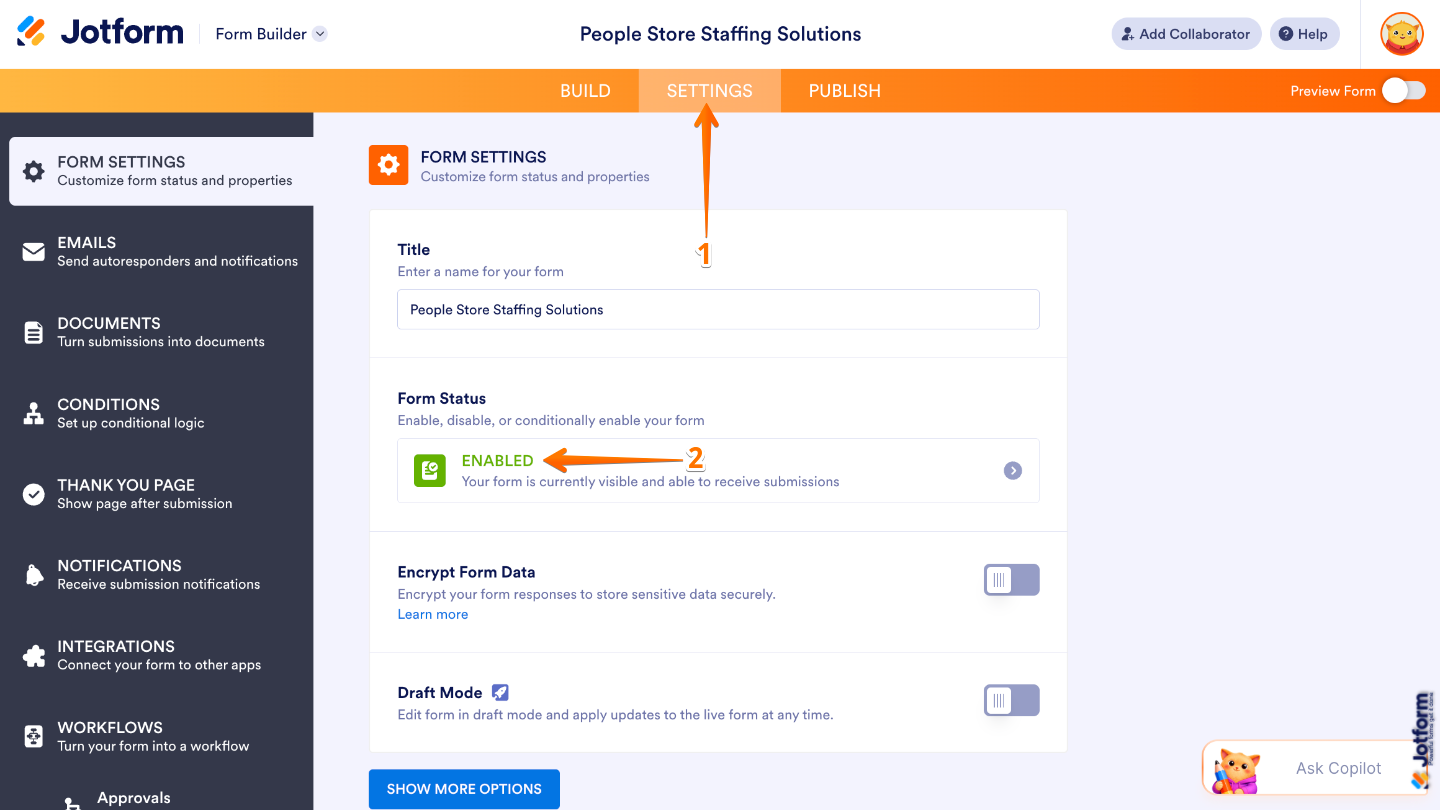
- In Form Builder, in the orange navigation bar at the top of the page, click on Settings.
- Then, under Form Status, click on Enabled.
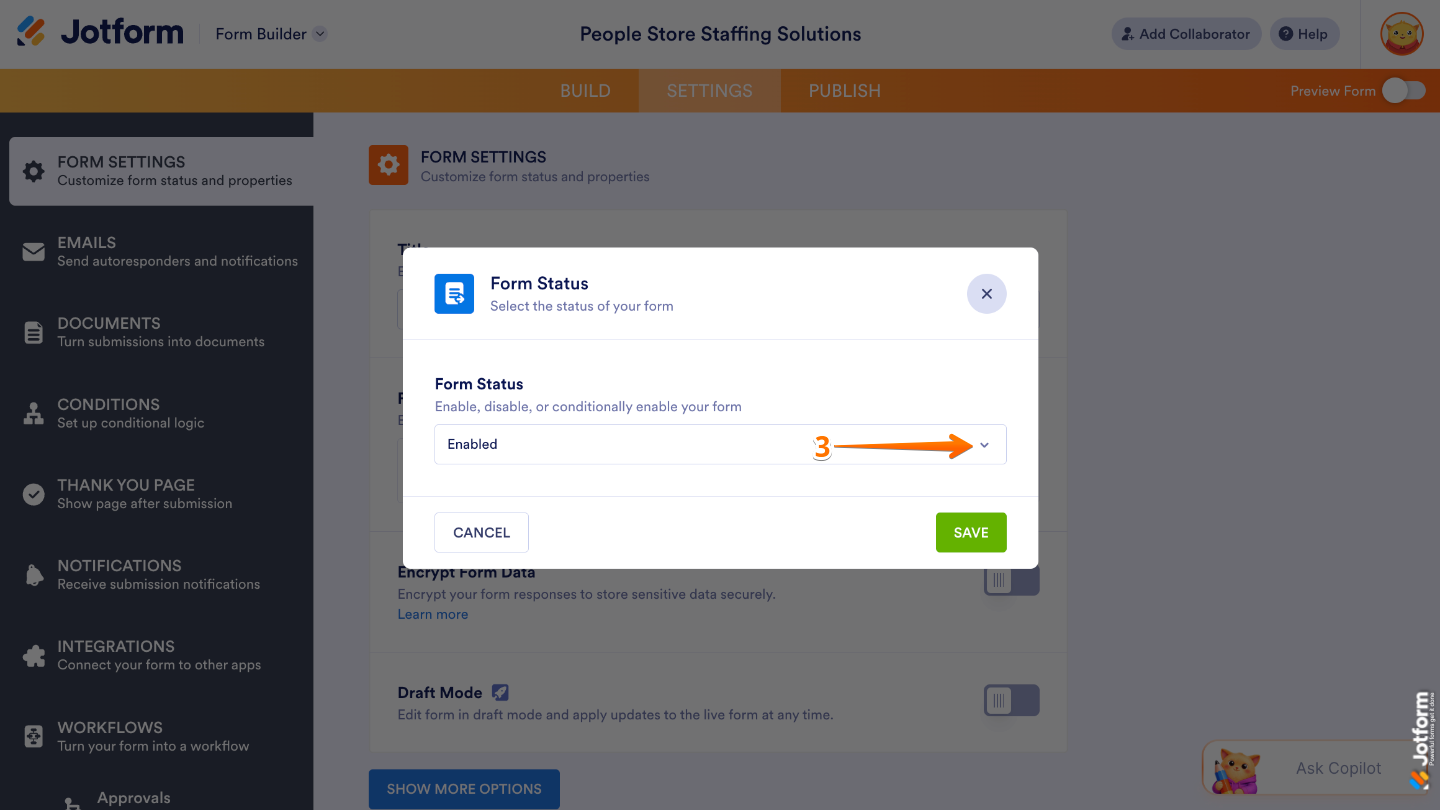
- Next, in the Form Status window that opens, click on the Downward Arrow icon on the right side of the Form Status section.
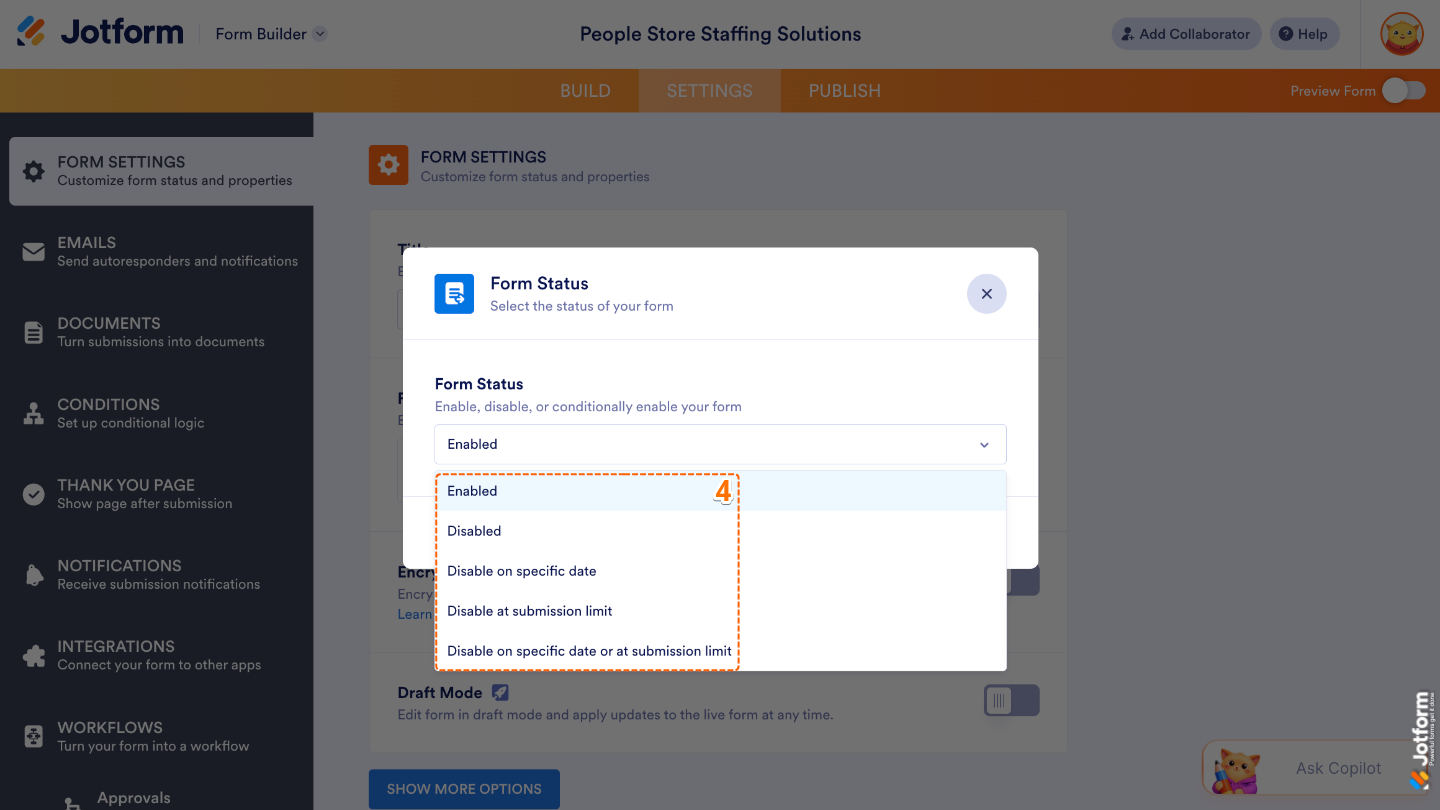
- Now, in the Dropdown menu that opens, select one of the following options:
- Enabled — Keeps your form open and available for users to access and submit responses.
- Disabled — Manually closes your form and prevents new submissions until you enable it again.
- Disable on Specific Date — Automatically closes your form on a date and time you choose. This is useful for deadlines, limited-time offers, registrations, and time-sensitive forms.
- Disable at Submission Limit — Automatically closes your form after it receives a specified number of submissions. This is ideal for events, applications, or promotions with limited slots.
- Disable on Specific Date or at Submission Limit — Automatically closes your form when either the selected date is reached or the submission limit is met, whichever happens first.
Understanding Form Disable Options
Jotform offers several ways to automatically close your form. Here’s a quick overview of each option to help you choose the one that best fits your needs.
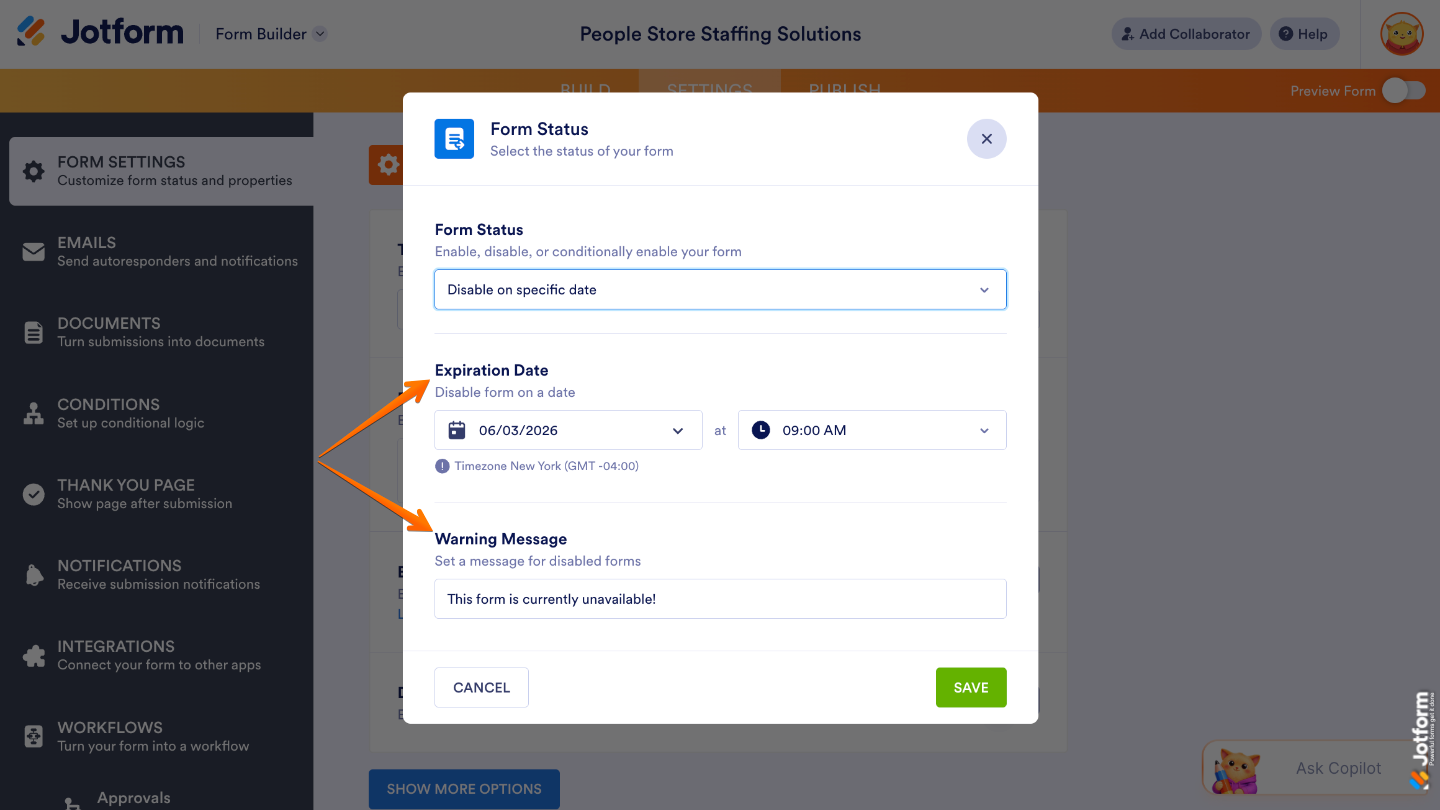
Disable on Specific Date
- Expiration Date — Set this up to automatically close your form on a specific date and time that you choose.
- Warning Message — Lets you display a custom message to visitors when your form is disabled. Use it to explain why the form is no longer accepting submissions or provide additional instructions.
Note
When setting an expiration date, it’s a good idea to allow at least a five-hour buffer before the actual time you want your form to close. For example, if submissions should stop at 5:00 PM, consider setting the expiration time to 12:00 PM to help account for any potential delays.
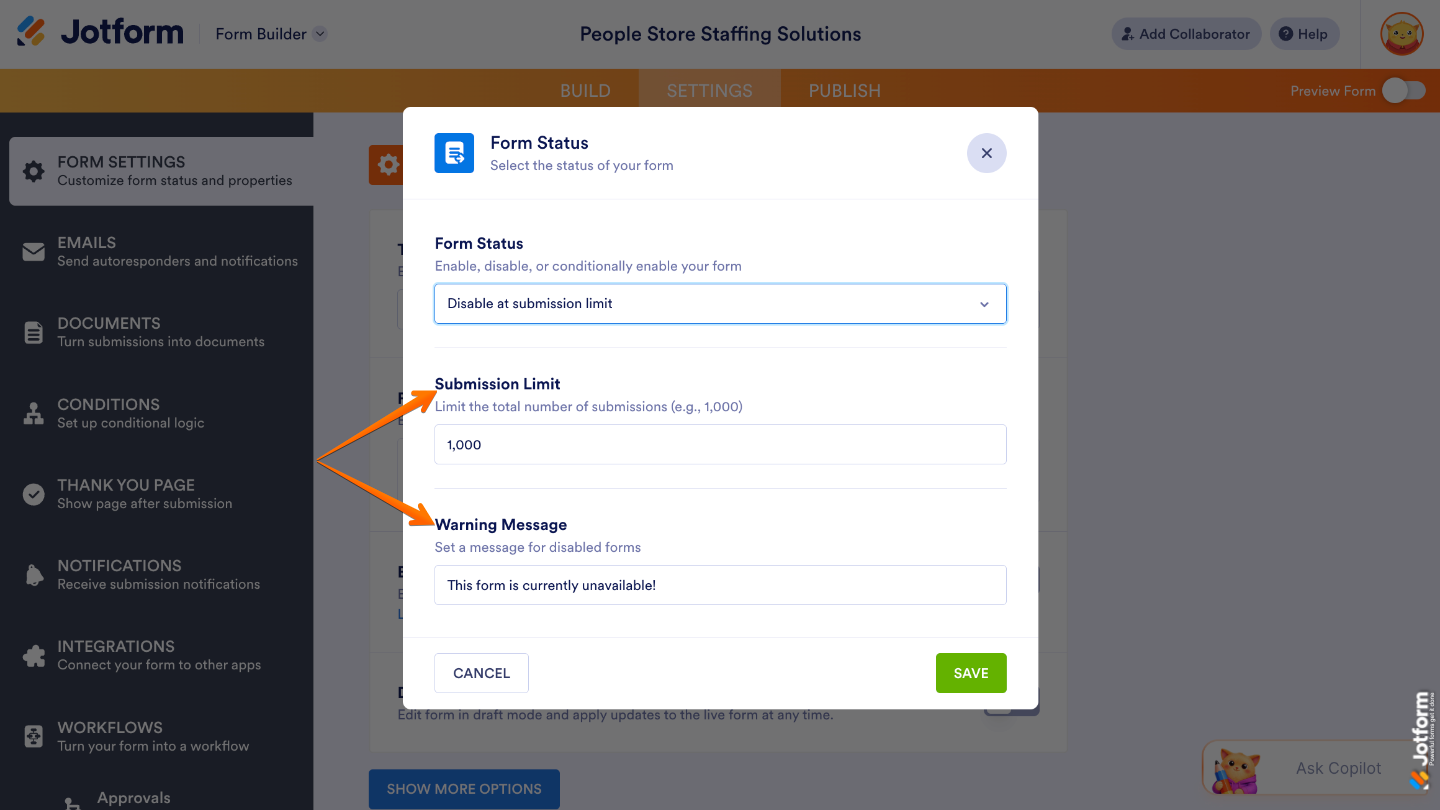
Disable at Submission Limit
- Submission Limit — Enter the maximum number of submissions to automatically disable your form after it receives a set number of submissions.
- Warning Message — Lets you display a custom message to visitors when your form is disabled. Use it to explain why the form is no longer accepting submissions or provide additional instructions.
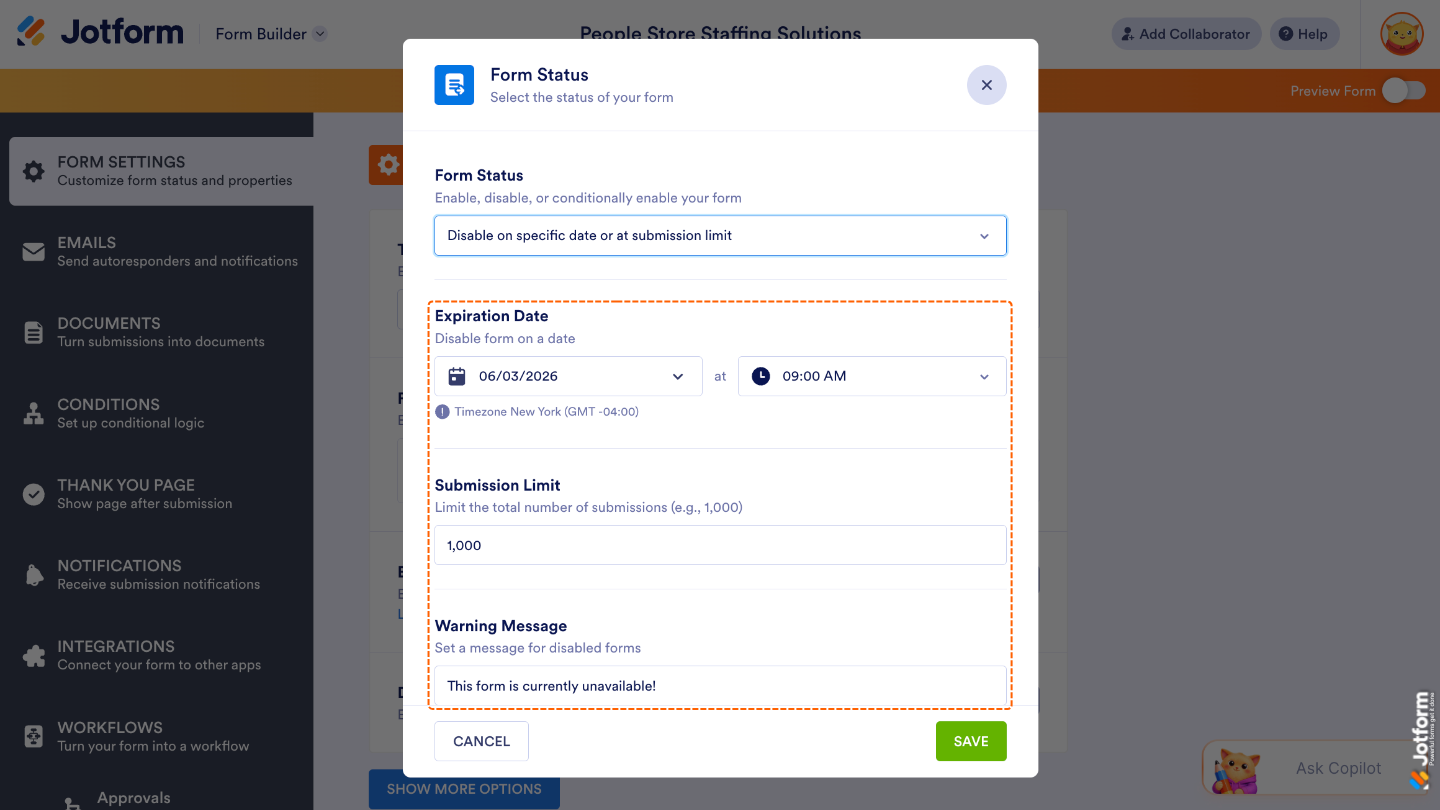
Disable on Specific Date or at Submission Limit
- Expiration Date — Set this up to automatically close your form on a specific date and time that you choose.
- Submission Limit — Enter the maximum number of submissions to automatically disable your form after it receives a set number of submissions.
- Warning Message — Lets you display a custom message to visitors when your form is disabled. Use it to explain why the form is no longer accepting submissions or provide additional instructions.
Pro Tip
When you choose any of the Disable options, you can also add a custom message that visitors will see when the form is no longer accepting submissions. This is a great way to let users know why the form is unavailable or provide information about what to do next.

Send Comment:
90 Comments:
December 12, 2025
Hi, I am writing regarding the Jotform's submission limit. I want to limit the response for gender and age variable, so that if the response hits 500 from Male and Under 40 years, I want to make sure that the next respondent that fits the same criteria is not able to take the survey. Could you please help with that? It is to ensure the representativeness of the survey. Thanks
November 30, 2025
this was very helpful!!
April 16, 2025
Is there a way to put time limits on the forms? For example, I want to make it where they only have 30 minutes to complete the form for a contest. I dont want to limit the amount of submissions, just the time limit
December 4, 2024
Can you set a submission limit for a field within a form? For example, our event ticket sales registration form has a section for attendees to purchase and include additional guests. I want to limit tickets sales for the entire event to 250. I Do Not want to limit the ticket purchases on each form submission unless it reaches our max capacity for the event of 250. Thank you!
December 3, 2024
Can you create a limit on your submissions but still keep a list of those trying to submit? Basically, I would like to set a submission limit and then create a wait list.
October 18, 2024
I want to set a time limit to complete fhe form. How do I do this? Thank you
April 24, 2024
Hola, se puede deshabilitar el formulario para una IP que haya realizado 5 respuestas del formulario?
April 4, 2024
Is there a way to disable form status for a certain time of day vs. a date or number of responses? We need it to stop the form after a certain time of day each day.
Thanks.
January 23, 2024
Thanks a lot, this will help us build a better booking form.
April 28, 2023
What is the max number of responses I can have per month with the paid account?
April 4, 2023
If I want to have one form with multiple date selections and have the form stop taking submissions when a date selection reaches 25, but still show the other date options to choose from how would you do this?
For example, a meeting is happening with choices on April 17, April 18 , April 19. Once April 17th has 25 submissions that choice goes away, but 18th and 19th stays available.
February 23, 2023
Is there a way to disable the form within a condition based the number of submissions?
If the there have been x number of submissions with answer y, then disable?
January 13, 2023
Using a form (multiple choice) for voting. I have it set where once on the form they are limited to one choice per section, but how do I ensure that a person doesn't vote over and over and over. I want to limit the use of the form to a person for 1 time only.
January 3, 2023
Setting a 10 submission limit on a long form. Wondering if a pre-qualification short form and then link to long form until max reached is a good idea? I’m afraid that users will be kicked out because #10 filled while user answering all questions and be upset. There is a big chance 100 people could hit submit all at the same time, so I don’t want to waste their efforts.
August 30, 2022
Once a form is closed, do we have any control over the message that displays when the form is no longer accepting submissions?
July 12, 2022
A couple of questions...
1. Is it possible to trigger another form once this submission limit for this form is reached, and not simply display the URL to the different form (which is poor UX)?
2. If I manually delete one or more submissions to a form and the total of submissions for that form goes back below the limit, does the form become available for submissions again automatically?
May 29, 2022
I suggest you add the "US Eastern Time" to the settings page next to the time we are setting. I had to spend time trying to find the information as to which time zone the system uses (I am not in ET zone).
January 24, 2022
Hello,
Can you set a submission limit for a field within a form? So for example, our registration form has spots for parents to sign up campers for individual days of the camp season. I want to limit 20 spots per camp day, and once that day is filled we don't want anyone else to be able to select it. However, other days may still be available so the form still needs to be enabled. Thank you!
November 17, 2021
Hi
Kindly advise how can I can set a number limit to date & multiple choice options.
October 9, 2021
Is there a way that a user can be re-directed to a different form if the current form's maximum number of submissions has been reached?
For example, I'm doing a registration form but limiting the number of submissions to 24. I'd like for the users after that to be sent to a waiting list.
Is that possible?
Many thanks.
May 28, 2021
Why is my form not allowing a user to submit their form for multiple family members? When the form is filled out and submitted there is a button allowing the parent to fill another form out for an additional patient. They can fill the form out but once they click the submit button for the second child they are given a warning that this form does not allow multiple submissions. Please advise, thanks!
May 12, 2021
Is there a way to send a form that a recipient can only fill out and submit once? Like for elections?
Sincerely,
Valerie Burkett
January 15, 2021
hi!
can I use the time limit in specific date for enable & disable?
for example, I want to set the form to be enabled start at day 3 and disabled the form at day 7.
thanks!
November 20, 2020
What happens when the Submitted limit has reached and then 1 submission is deleted. Will the counter reset. e.g. Your form had a submission limit of 25 and the form did get 25 submissions. Now the new status of the form will be disabled. Now one of the admissions have backed out, so you go in and delete a submission. Will the counter adjust to accept one more submission?
October 17, 2020
Can I put a limitation that will only allow people to submit the form once every week from the same device/ip?