Jotform helps you to quickly create smoother, more user-friendly forms by breaking long or complex questions into multiple pages using Page Breaks. Instead of overwhelming users with everything at once, you can organize your form into clear sections that are easier to navigate and complete, helping create a more focused and comfortable filling experience. By improving the flow and structure of your form, you reduce friction, keep users engaged from start to finish, and make it easier for them to complete and submit their responses.
Here are a few ways to use it:
- Intake or request forms that collect detailed information step by step
- Job application forms that need sections for personal details, work history, and references
- Event registration forms that separate attendee information, preferences, and payment details
- Surveys that group questions by topic for easier answering
Note
The Page Break element is only available in Classic Forms. Need help changing your form layout? See our guide on How to Change Your Form Layout.
Adding the Page Break Element
Whether you’re creating a new form or updating an existing one, you can add the Page Break element to your form in a few easy steps. Here’s how to do it:
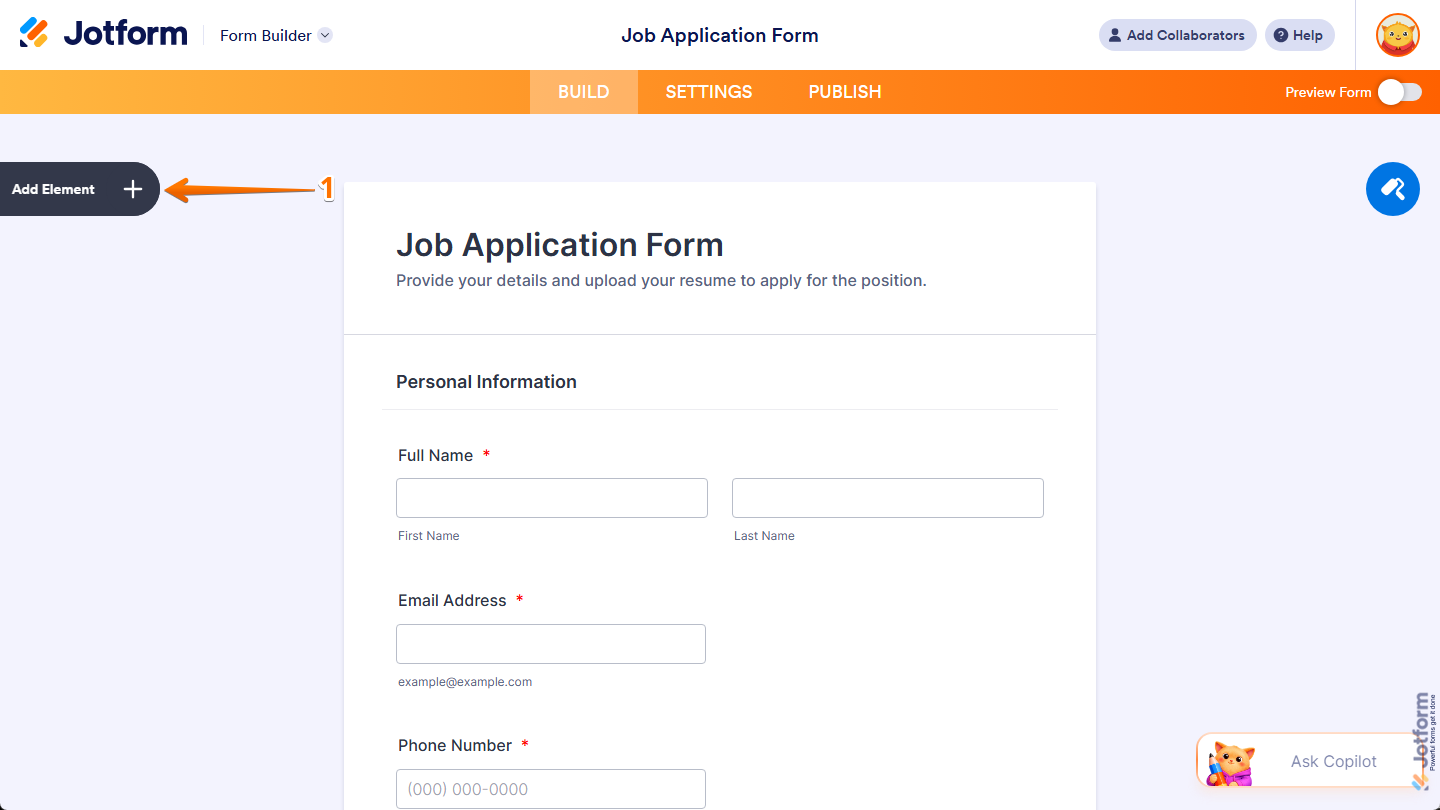
- In Form Builder, click on Add Element on the left side of the page.
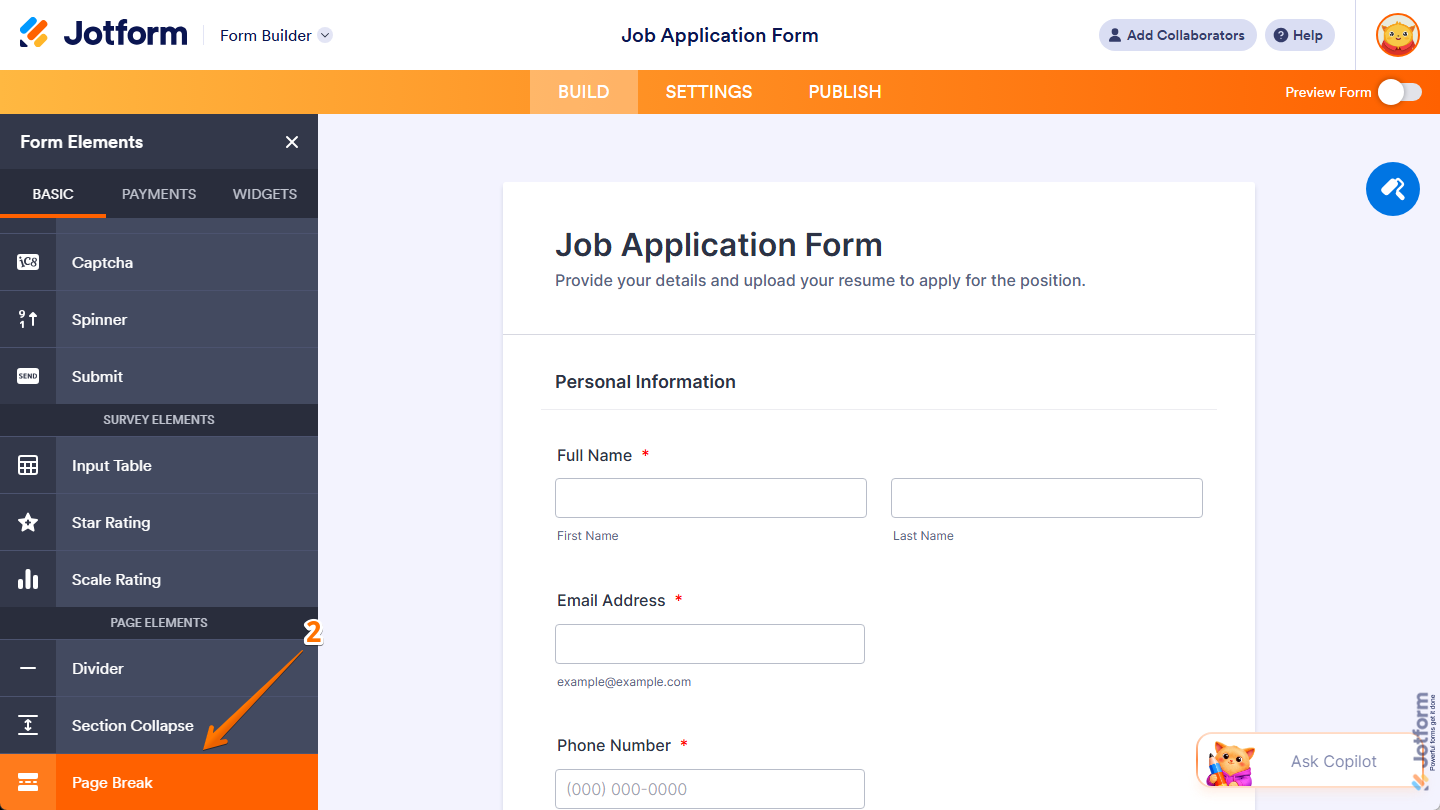
- Then, in the Form Elements menu, under the Basic tab, scroll down and then click on Page Break. Or, just drag and then drop it to where you want it to be on your form.
Notes
- When you add the Page Break element before another element in your form, it creates a new page after the element before it and moves all elements after it to the new page.
- When you add the Page Break element after the last element on a page or click on Add New Page at the bottom-left side of a page, it creates a new blank page after that page.
- When you add the Page Break element at the top of a page, it creates a new blank page before that page.
- When you click on Add New Page in the Page Navigation bar at the bottom of Form Builder, it creates a new blank page at the end of your form.
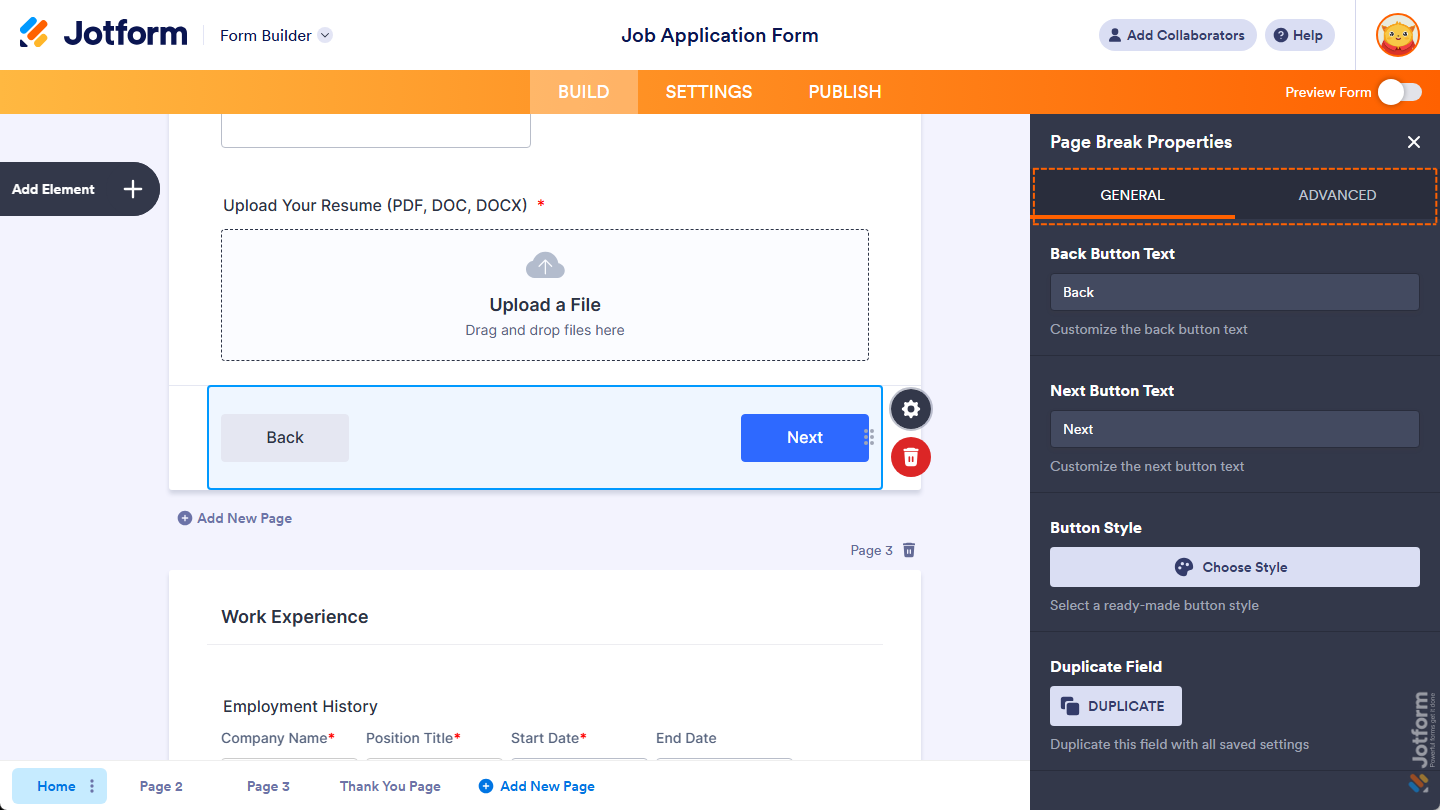
Once you’ve added the Page Break element to your form, you can adjust how it appears and works through the following tabs:
Customizing General Tab Properties
After adding the Page Break element, you can customize its properties to control how the navigation buttons appear. Here’s how to set it up:
- In Form Builder, while your Page Break element is selected on your form, click on the Gear icon on the right side of it.
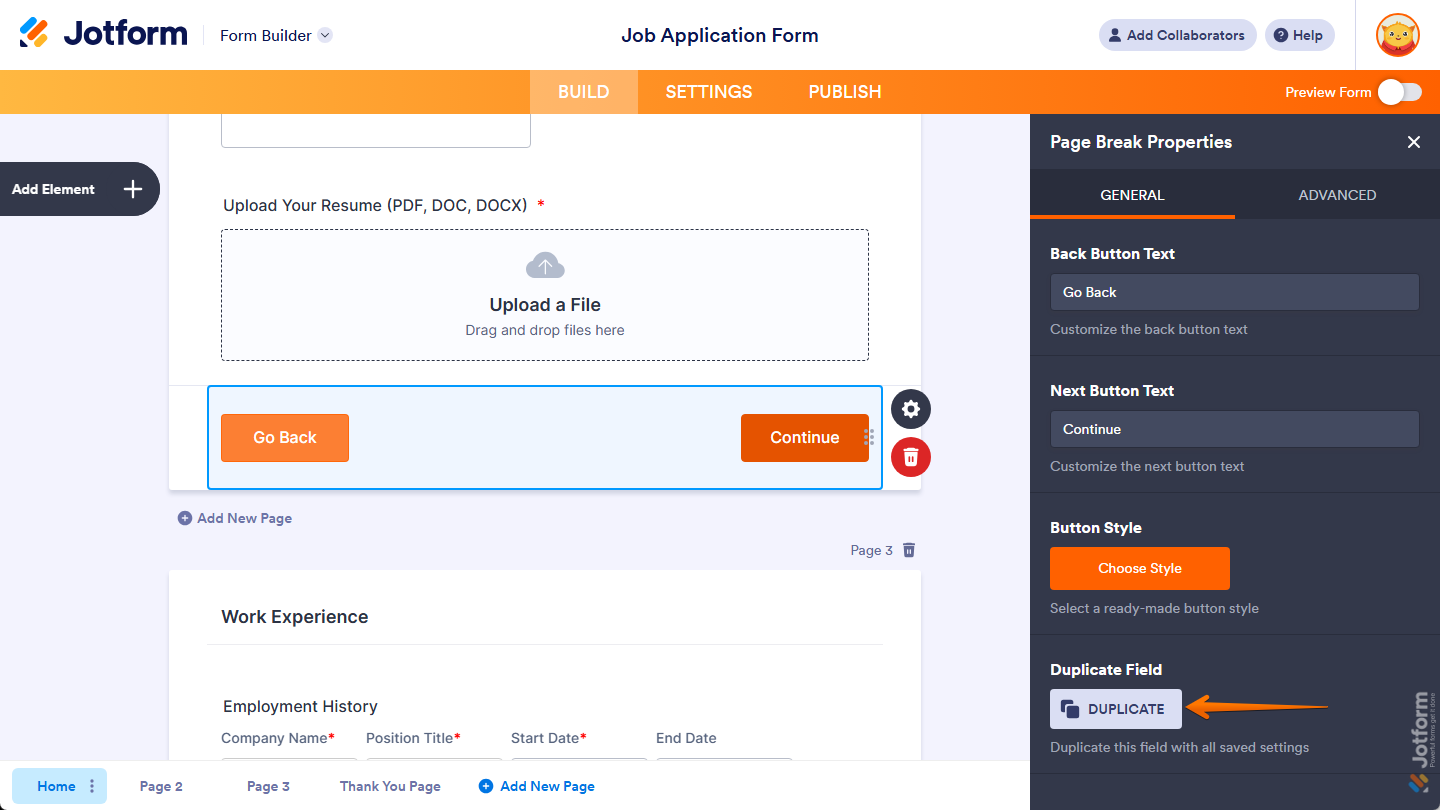
- Then, in the Page Break Properties menu that opens on the right side of the page, under the General tab, you’ll see a list of properties you can customize:
- Back Button Text — Keep the default text or enter a new one you want to show on the Page Break element’s Back button.
- Next Button Text — Keep the default text or enter a new one you want to show on the Page Break element’s Next button.
- Button Style — Click on Choose Style, then in the menu that opens, select the style you want to apply to your Page Break buttons.
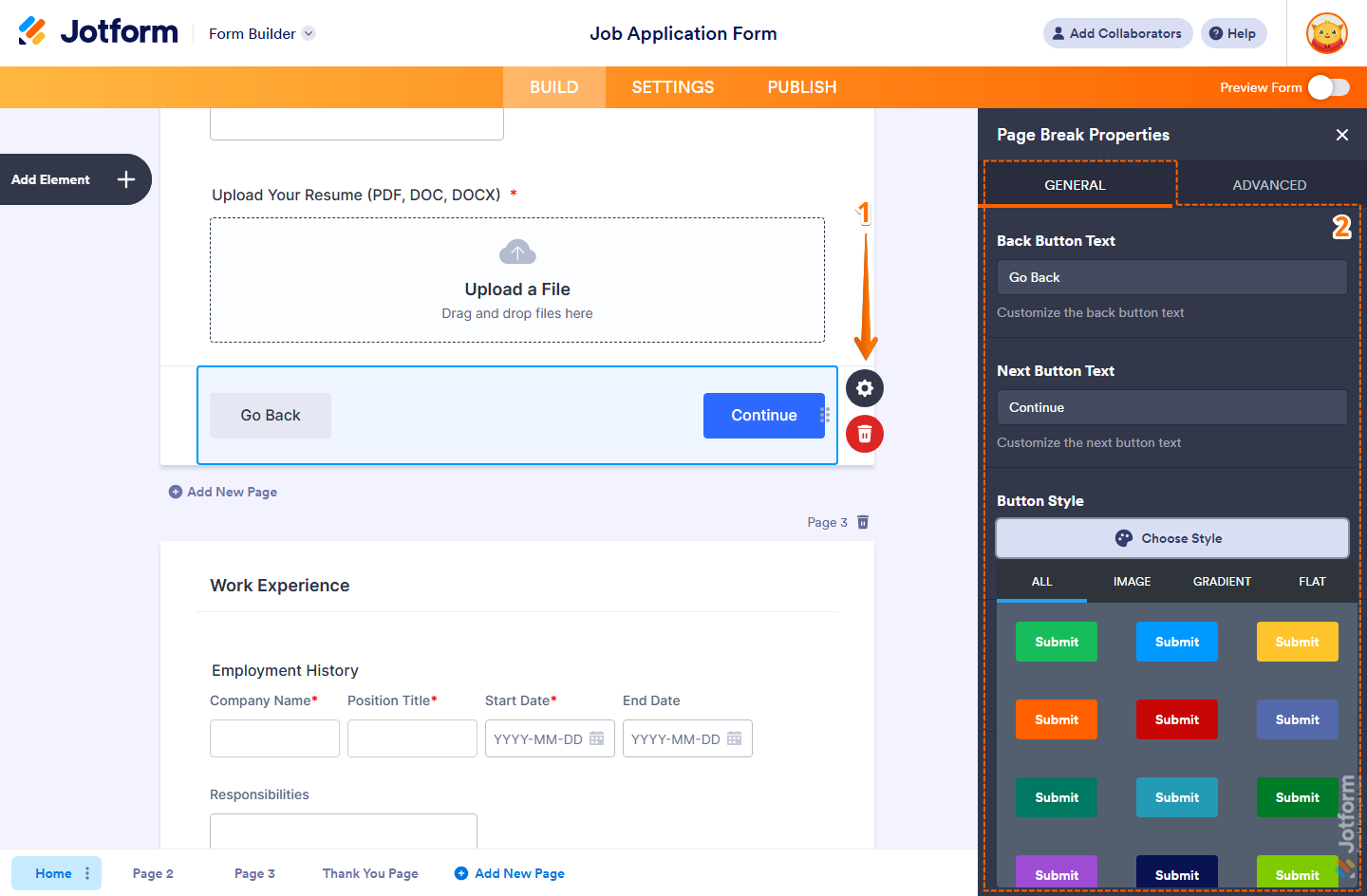
That’s it. You’ve customized the General tab properties of the Page Break element on your form. If you want to add another page with the same Back and Next button setup, click on Duplicate at the bottom of this tab.
Configuring Advanced Tab Properties
With the Page Break element added to your form, you can configure its advanced properties to control how users move through your form. Here’s what to do next:
- In Form Builder, while your Page Break element is selected on your form, click on the Gear icon on the right side of it.
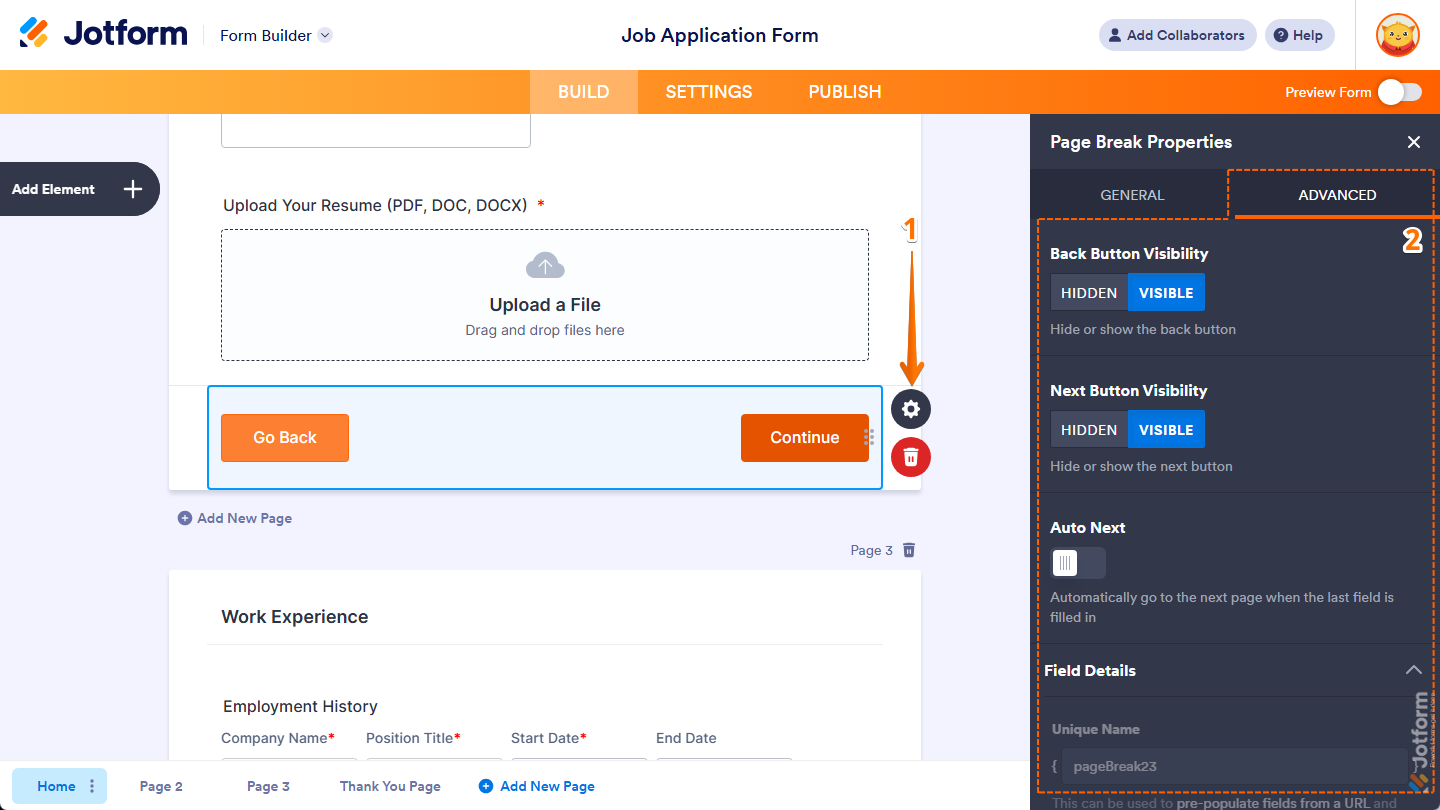
- Then, in the Page Break Properties menu that opens on the right side of the page, under the Advanced tab, you’ll see a list of properties you can configure:
- Back Button Visibility — Keep this set to Visible or select Hidden if you want to hide the Back button on your Page Break element.
- Next Button Visibility — Keep this set to Visible or select Hidden if you want to hide the Next button on your Page Break element.
- Auto Next — Toggle this on if you want your form to automatically move to the next page once the last field on the page is filled in.
- Field Details — Click on this section to expand it and view, copy, or update the Image element’s Unique Name.
That’s it. You’ve configured the Advanced tab properties of the Page Break element on your form.
Note
The Page Break element needs to be added to your form before you can set up Skip To or Hide a Page conditional logic, or use the Form Tabs and Auto Page Timer widgets. If you want to explore more about these features, here are some helpful guides:

Send Comment:
62 Comments:
August 19, 2025
Is it possible to rearrange the order of the pages I've already created in my form, or do I have to add a new page and manually move each element to the new page?
July 28, 2025
how to i delete a page break?
June 6, 2025
Is there a way to duplicate a page?
April 11, 2025
Can I duplicate an entire page? Questions and all?
December 9, 2024
Could not find any "Page break" and neither any pages in the footer of the Form builder.
Leaving Jotform now, as I was looking for this feature specifically!
October 10, 2024
I would like one of my pages to be a PDF by itself once the document is downloaded. Right now it spans across two pages. Is there a way to do that?
June 20, 2024
How do I remove page breaks?
I didn’t realize that I was not supposed to hit add a page now I’m on page 8 and I’m not through with my form and I can’t go any further. I click paragraph from left drop down and I get a page that says to drag your question to 8 page from the list panel.
I want everything on one continuous page
February 28, 2024
How do you remove a page break?
April 28, 2023
in preview, my form displays the last page first...
February 18, 2022
I have added a single choice element to the form. I want someone to pick 1 of 3 choices. Depending on what choice they pick it goes to 1 of 3 different pages. How do I do that?
June 25, 2021
Can I duplicate an entire page?
May 9, 2021
i have create an 3 pages feed back form in with i have given (condition skip to page) but the problem is on the second page NEXT button get applied with submit button, i want only submit button on the second page. is it possible? waiting for your reply
February 8, 2021
When using this method for multiple pages I don't see an option to show the heading on each page.
That would be useful as when you go to the next page it just starts with the next field.
Even a different field type for subsequent pages (as to the first page heading)
Thanks
October 22, 2020
I am trying to add a second form to my original intake form and cannot seem to do so.
September 4, 2020
Can we open another form from one form
May 2, 2020
hello I am trying to get rid of a page break how do i get rid of it
April 16, 2020
Regarding my previous question, I was able to style the dropdown height using CSS, however, I had to use the input number (#input_3). Is there a way to style just #input class globally?
Best,
Bryan
April 16, 2020
Good day,
Is it possible to adjust the height of the dropdown fields (CSS or otherwise)? I only see a width specification.
Best,
Bryan
April 7, 2020
Good day,
I have 7 pages created, and would like to name them according to subject for conditional statements. How do I change the name from "Page 1" to a custom name?
Thanks so much!
Bryan
September 13, 2019
There isn't an "add new page" button on my form builder or in my Survey Elements. How can I add a page?
December 11, 2018
Hi,
when I add multiple pages, on the last page i dont get the option to put a submit button - only back button is available. How can I fix that?
March 8, 2018
If I delete a page, does it delete all the questions on the page or just the page break?
December 18, 2017
Hi,
How can I add new page and page break? I can't see those buttons in creating my form.
October 31, 2017
Hi,
I don't have the add new page button as above. Any suggestions?
September 30, 2017
Hi I can't find the " Page Break" or the "add new page button" , how come?