

If you’re looking to add a link to a Google Form, you may be wondering where the link element is located.
The short answer is that you can add a link just about anywhere. When you click into any editable text field, like a question, form title, or description, you’ll see a formatting toolbar below it, including a link icon. By clicking on the link icon, you’ll be able to enter both the URL and its display text.
In some areas that don’t display the formatting toolbar, Google will also convert pasted URLs into clickable links.
Here’s a summary of where — and how — you can add a link in Google Forms.
Interactive step-by-step tutorial
Pro Tip
Add links to forms and access other advanced link options with Jotform, the perfect Google Forms alternative.
How to add a hyperlink in Google Forms
- Open Google Forms and select the form you want to edit.
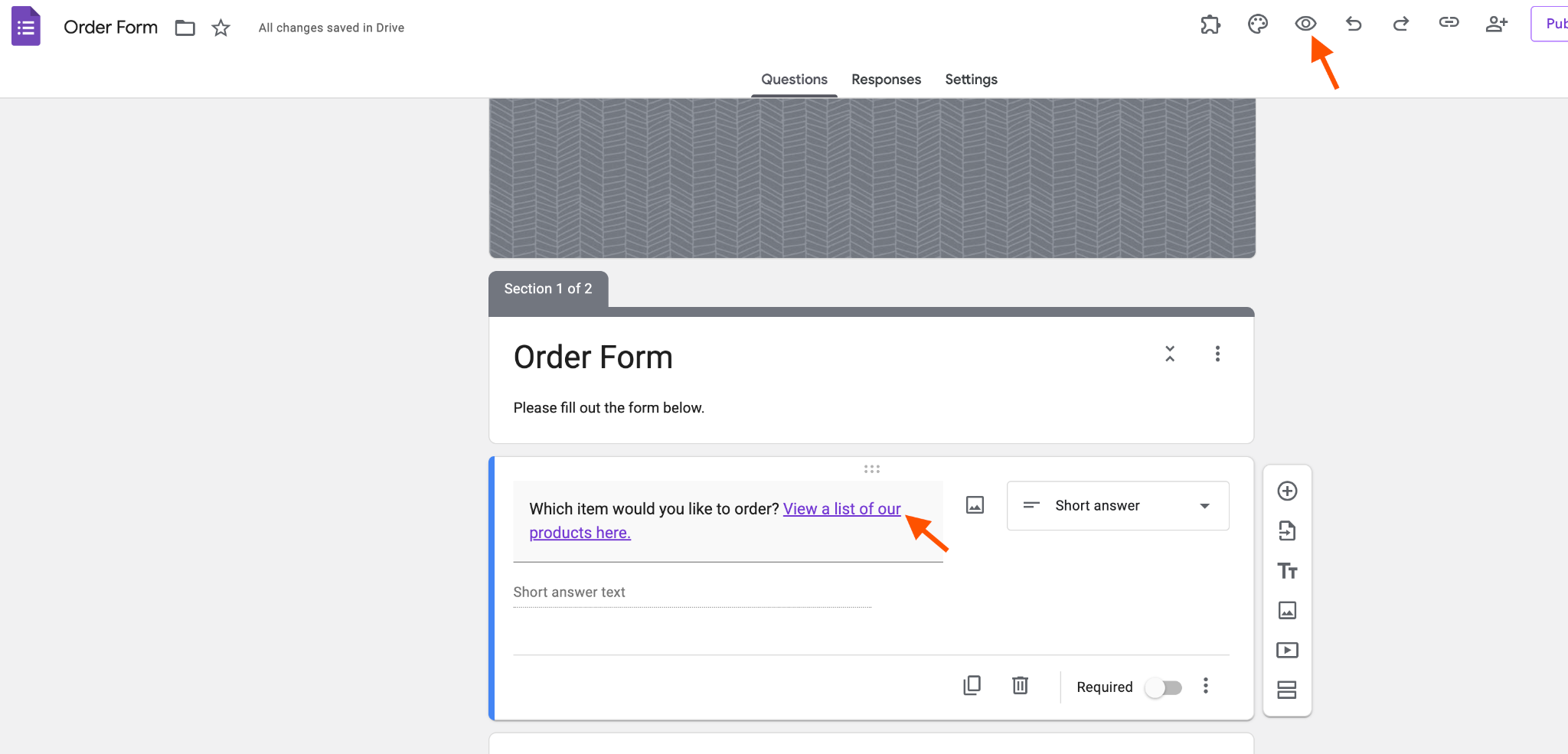
- Add the question you want to insert a hyperlink into. In this case, we’ll add the question ”Which item would you like to order? View a list of our products here.”
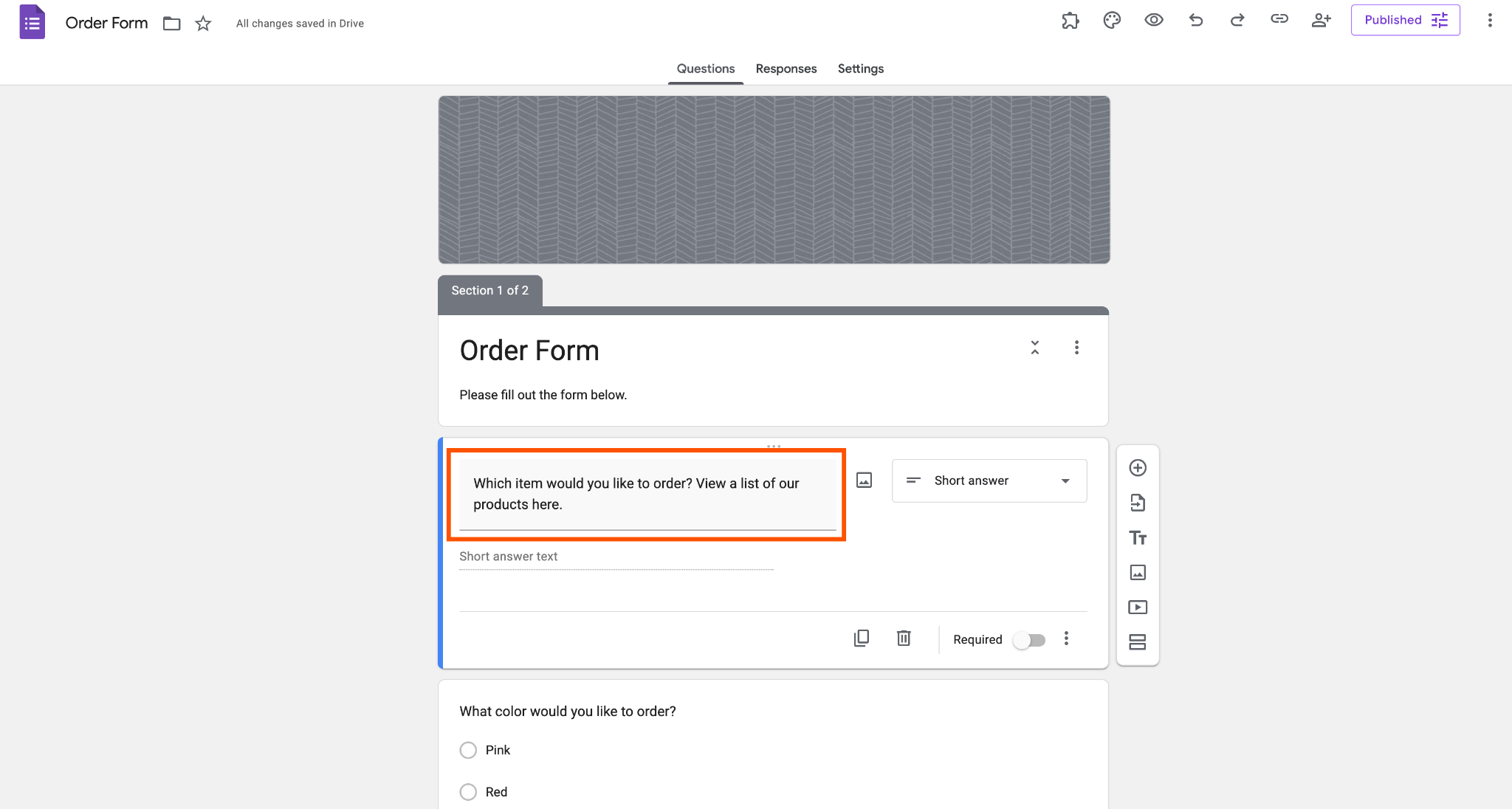
- Highlight the text you want to add a link to.
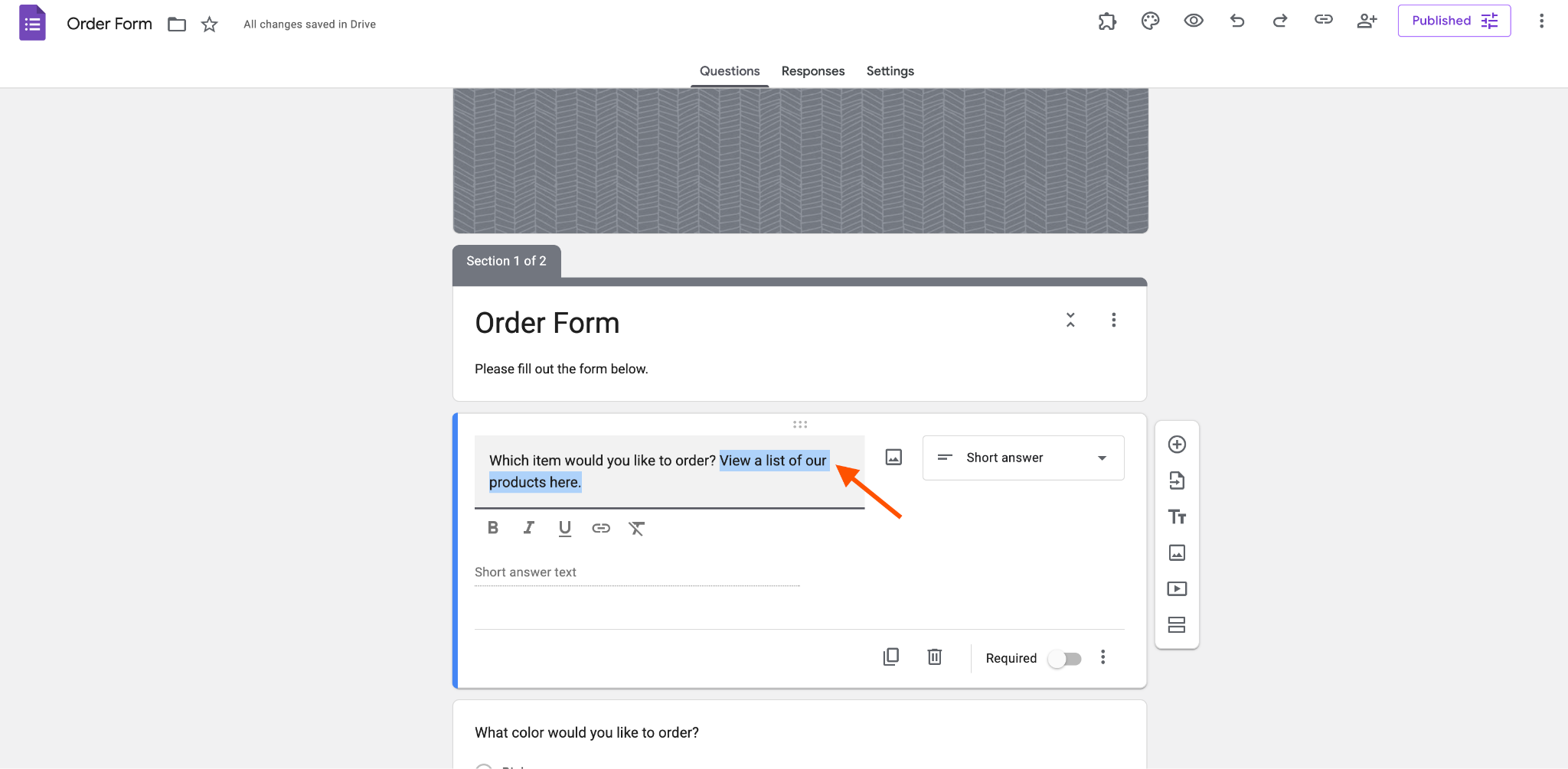
- Directly under your question text is a menu of text options. Select the Link Icon.
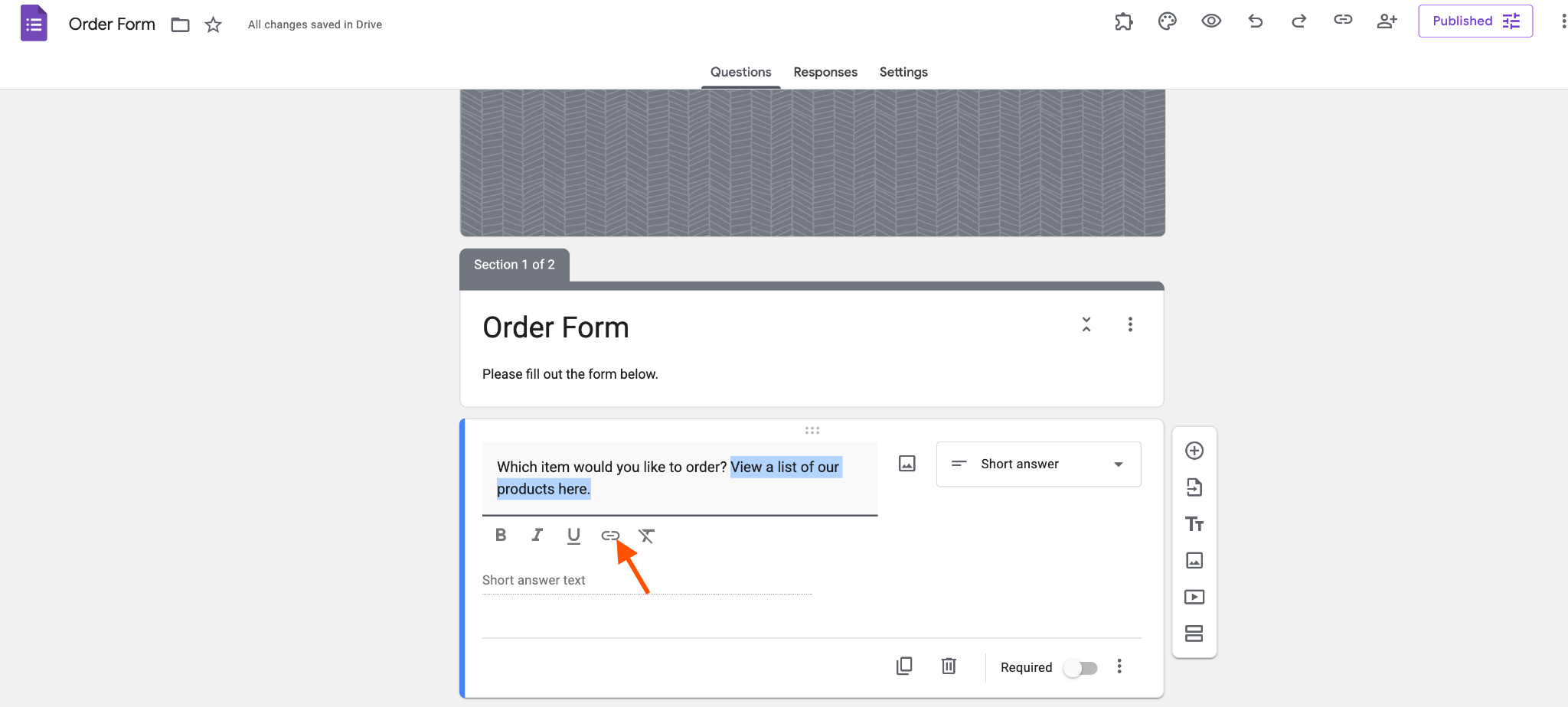
- Enter your desired URL under Link to, then click OK to save it.
- Test your hyperlink by selecting Preview at the top of the page. Once the preview form is displayed, click on the hyperlink to see that it directs you to the right place.
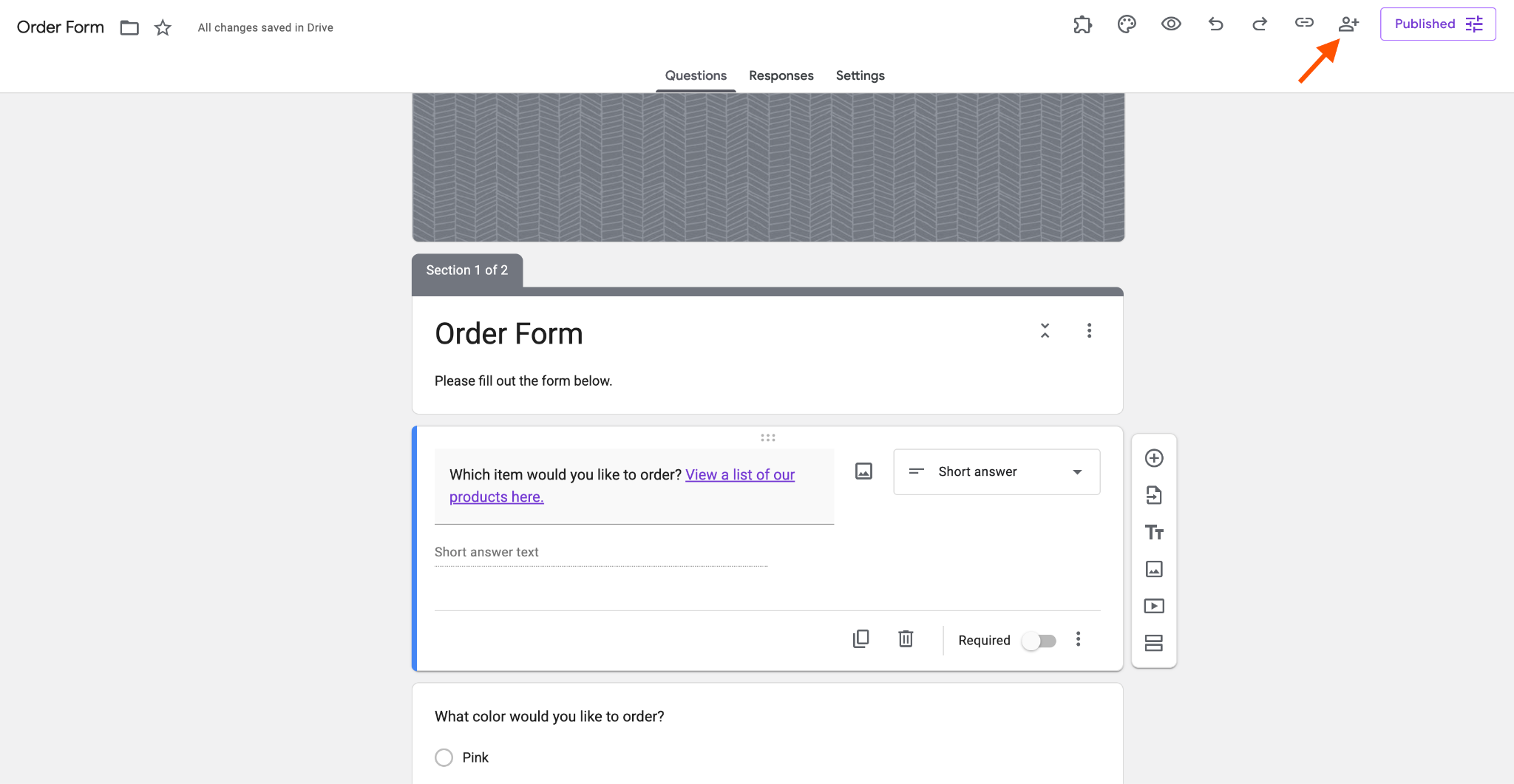
7. To share your form, click the Person-with-plus Icon in the top-right corner of the screen.
Where you can add links to Google Forms
You can add a link to nearly any text area in your form. In fact, there’s almost no part of a Google Form that you can’t add a link to. Here’s a list of places that you can add a link either with the formatting toolbar or by pasting in a URL.
Pro Tip
Learn how and where you can add links in Google Forms so users can move between platforms easily.
- Form title: That’s right: You can turn the first thing visitors see into a link. This is a great way to provide visitors with more information on what your form is about.
- Form description: This is probably an even better place to add links for visitors to get more information. You could even go so far as to turn this into a FAQ section with links to lots of other information.
- Other titles and descriptions: You can add a link anywhere you create a title element in your form. That goes for their descriptions as well.
- Image titles: While you can’t actually link the image itself, you can add a link to the image title.
- Video titles: Videos already link to YouTube, of course. But you can also add a link in the video title just like you can with images.
- Questions: You can add a link to any question. Since there isn’t space for separate descriptions for questions, links can help clarify what you’re asking.
- Multiple-choice options and checkboxes: You can add links to the answer options in multiple-choice and checkbox questions. To do this, you’ll need to paste the URL in the answer field. (Note that this will only display the hyperlinked URL, not hyperlinked text.)
- Scales and grids: All of the labels for scale or grid questions can have links assigned to them. That includes the columns and rows for matrix-style questions. Again, you’ll only see the hyperlinked URL, not hyperlinked text.
Where you can’t add links to Google Forms
You can technically add URLs anywhere there’s text in your form — unless those areas aren’t clickable.
That means you can’t add a link to dropdown options. The default action when you click on a dropdown option is that you select the option. It wouldn’t make sense to make that a link also.
You also can’t add a link to image hover text. Hover text shows up when your mouse stops moving on an image. Once you move your mouse, the hover text vanishes, making it impossible to click on.
See also Jotform’s detailed guide about: Google Forms
Where to get even more link options

Migrate existing forms instantly
There’s no need to rebuild your online forms from scratch. Instead, migrate existing forms and submission data into your Jotform account in one click — so you can collect data without skipping a beat.
What if you don’t want to add just links to your online forms, but also preformatted design blocks, like social media previews? Basic links are a good standby, but there are so many ways to display links as more than just text.
For example, wouldn’t it be nice to just add the URL for one of your social media accounts and have it automatically display your last few posts? Or how about a rich text editor that lets you add links to images and advanced formatting to text in your form?
Advanced options like that aren’t available in Google Forms. But they are available in Jotform.
Jotform has a ton of widgets to help you customize your form however you like. That includes rich text editors and social media widgets.
Just like Google Forms, Jotform is free to try. The difference is that Jotform will grow with your needs. Take a look!
This article is for anyone who builds Google Forms for real-world use, teachers sharing lesson resources, event organizers linking schedules or policies, small business owners adding product pages or payment details, and HR or ops teams connecting to documents, handbooks, or intake instructions.






























































































Send Comment: