Jotform Inbox makes it easy to collaborate with your team by adding comments to submissions. Comments can help you share feedback, ask questions, provide updates, or discuss submission details without leaving Jotform Inbox.
Depending on what you need, you can:
Adding General Comments
General comments let you leave notes or feedback about a submission without attaching them to a specific answer. It only takes a minute to set up—here’s how:
- In Jotform Inbox, select the submission you want to comment on.
- Then, on the top-right side of the page, click on Comment.
- Next, in the Comment window that comes up at the bottom of the page, enter your comment.
- Now, click on Comment on the bottom-right corner of the window, and you’re done.
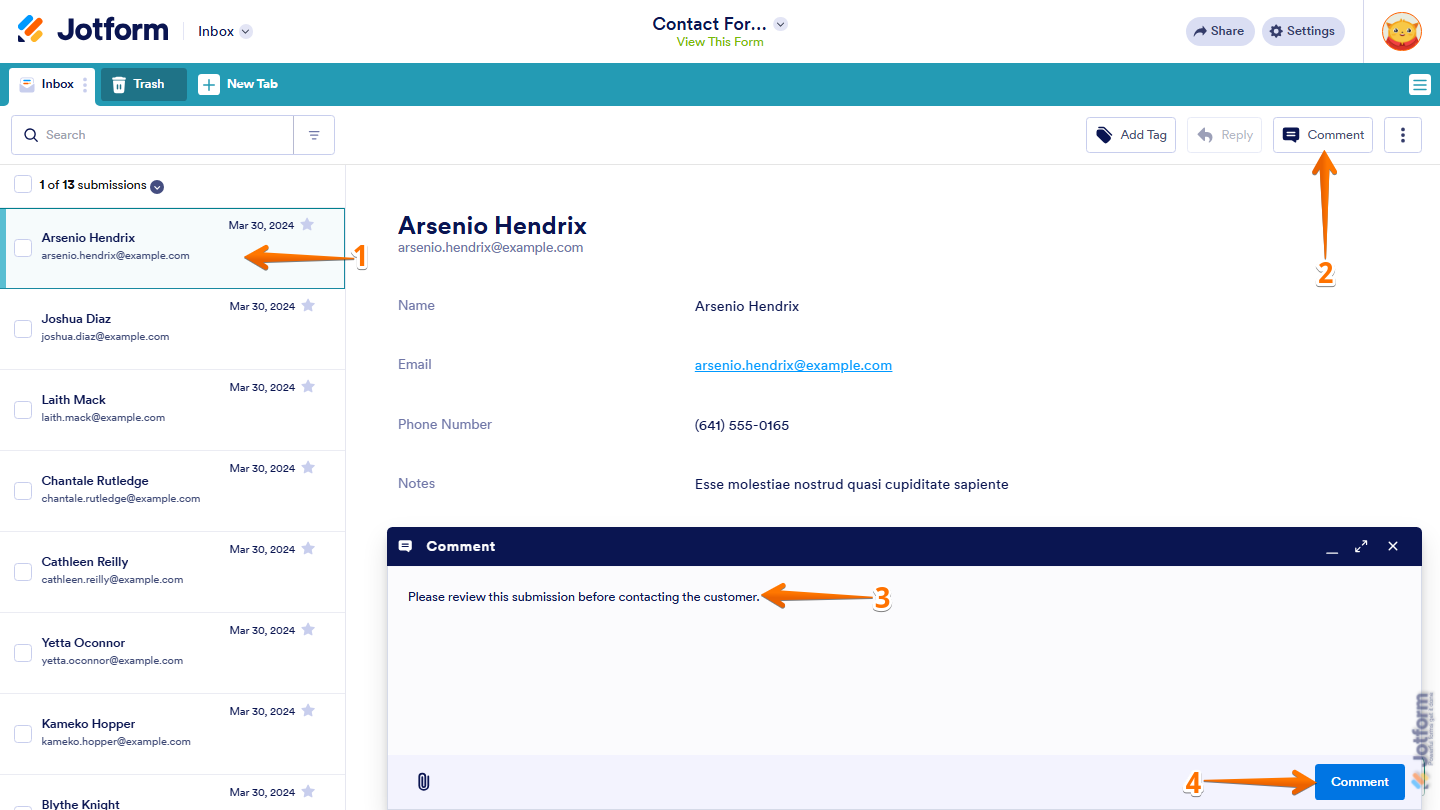
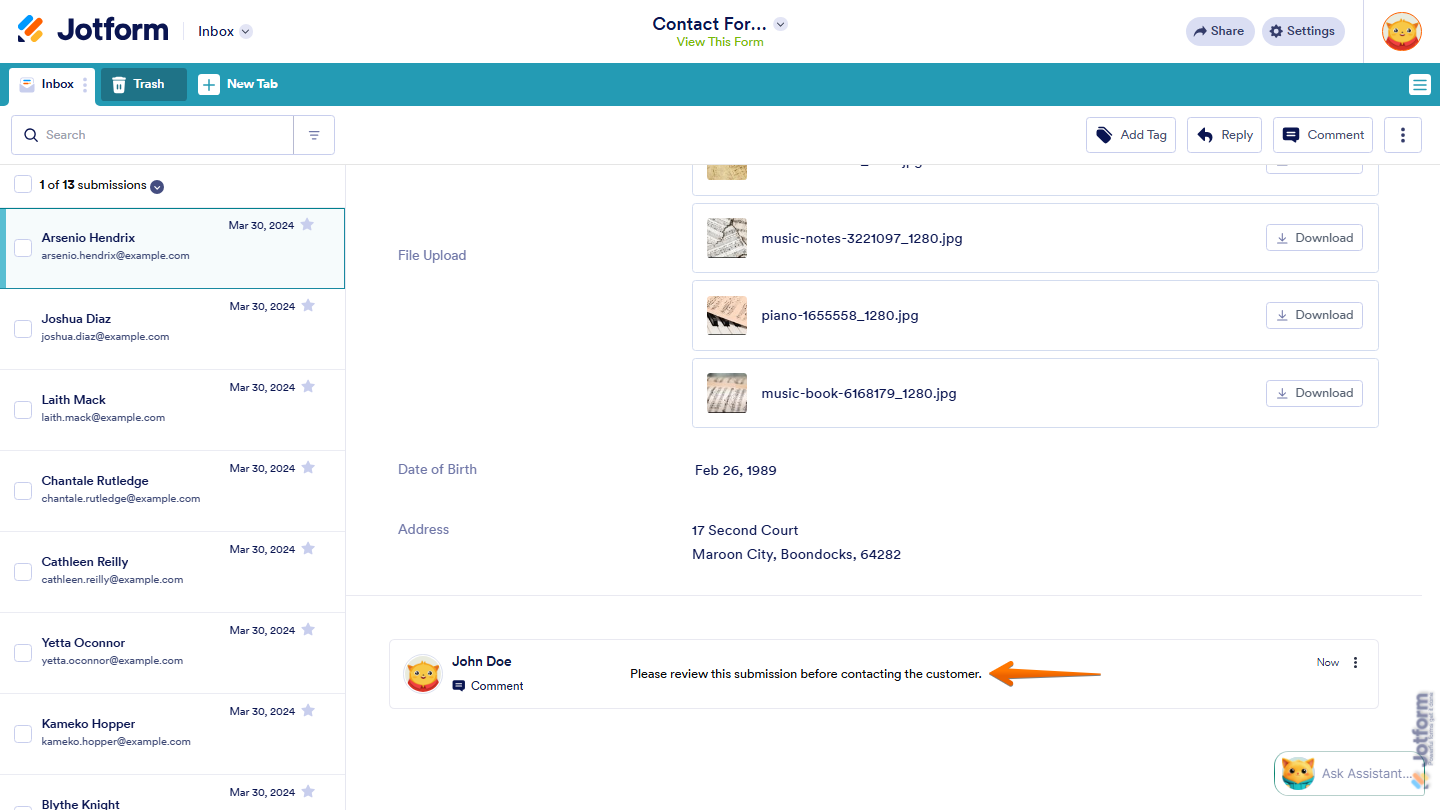
That’s it! Your comment will now be added to the submission and visible to users who have access to the Inbox.
Adding Inline Comments
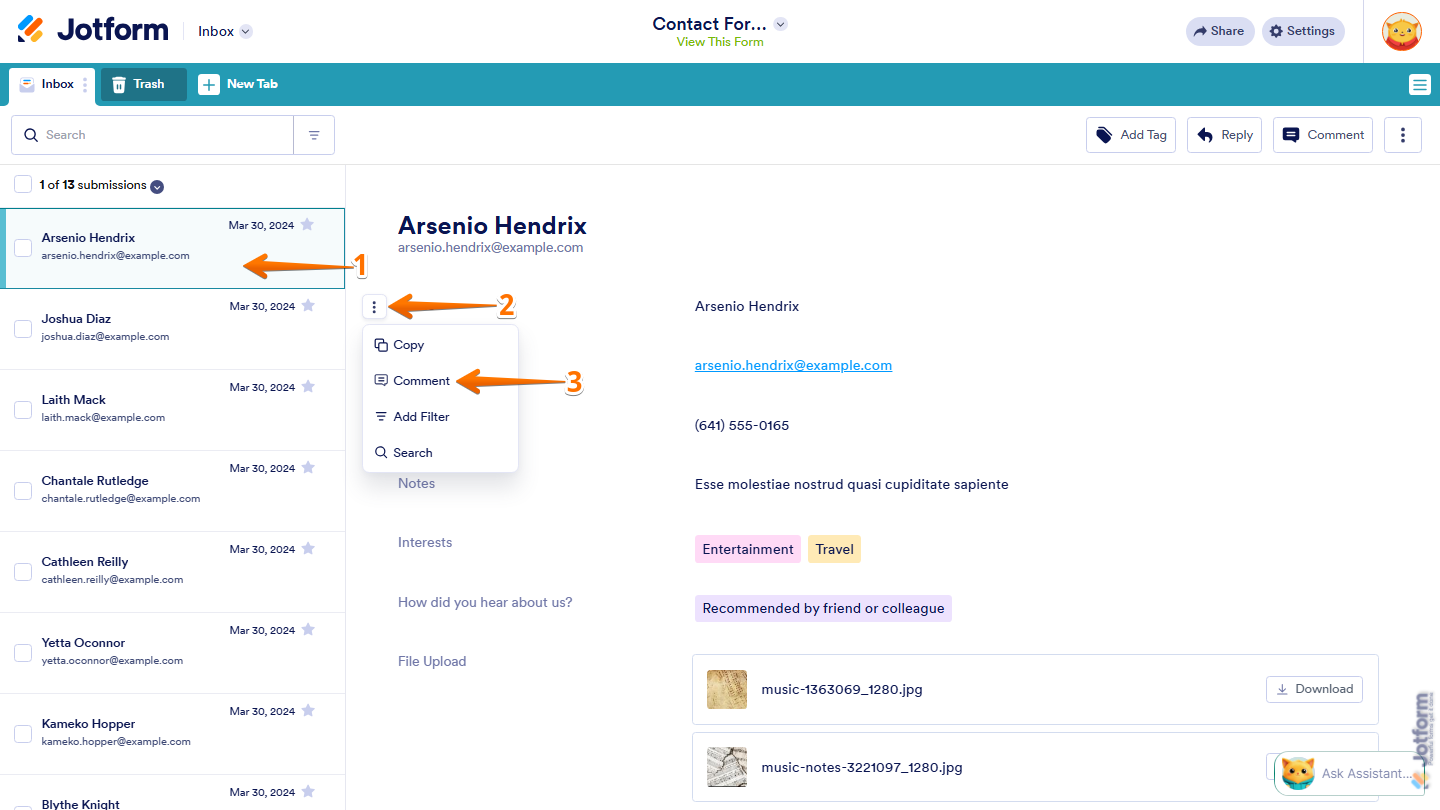
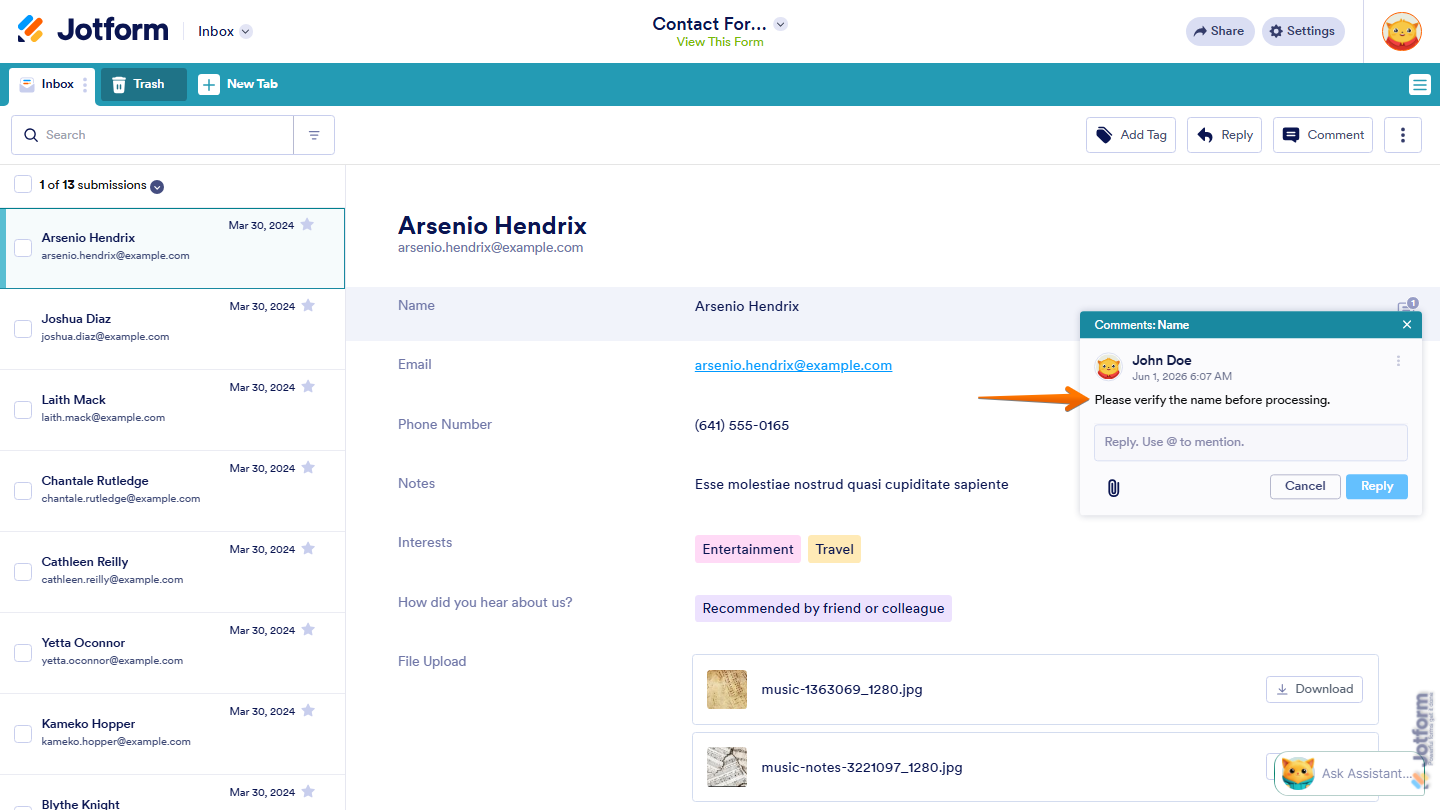
If you want to leave feedback on a specific field or answer, you can add an inline comment directly to it. You can do it in just a few steps:
- In Jotform Inbox, select the submission you want to comment on.
- Next, hover your mouse over the field or answer where you want to add a comment, then click on the Three Dots icon.
- Then, in the menu that opens, click on Comment.
- Now, in the Comments window that opens on the right side of the page, enter your comment, and then click on Comment.
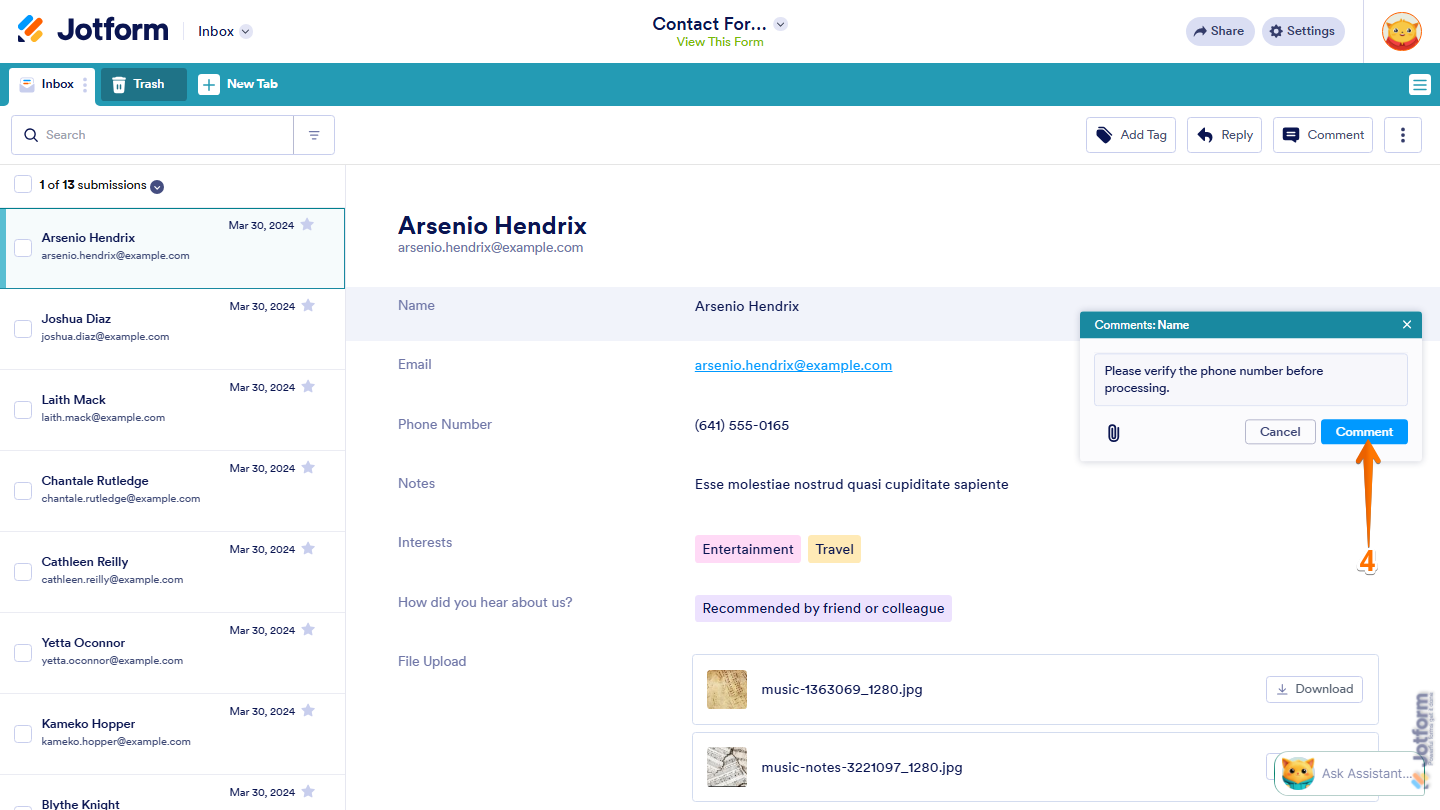
The comment will now appear next to the selected answer, making it easier to keep feedback tied to a specific response.
Replying to Comments
Once a comment has been added, you can continue the conversation by replying directly to it. Here’s how to get going:
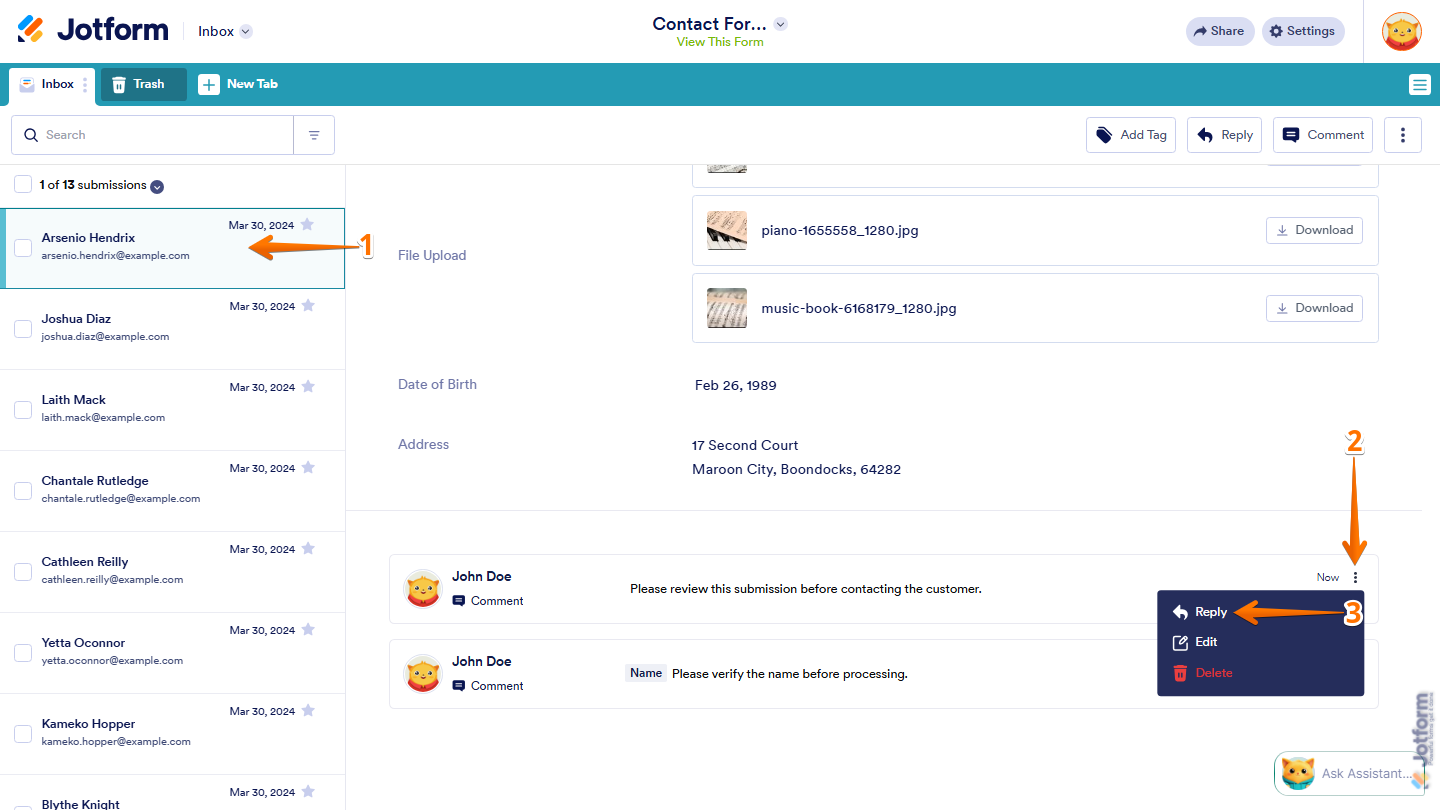
- In Jotform Inbox, select the submission that contains the comment you want to reply to.
- Then, scroll down to the bottom to locate the comment and click on the Three Dots icon next to it.
- Now, in the menu that opens, click on Reply.
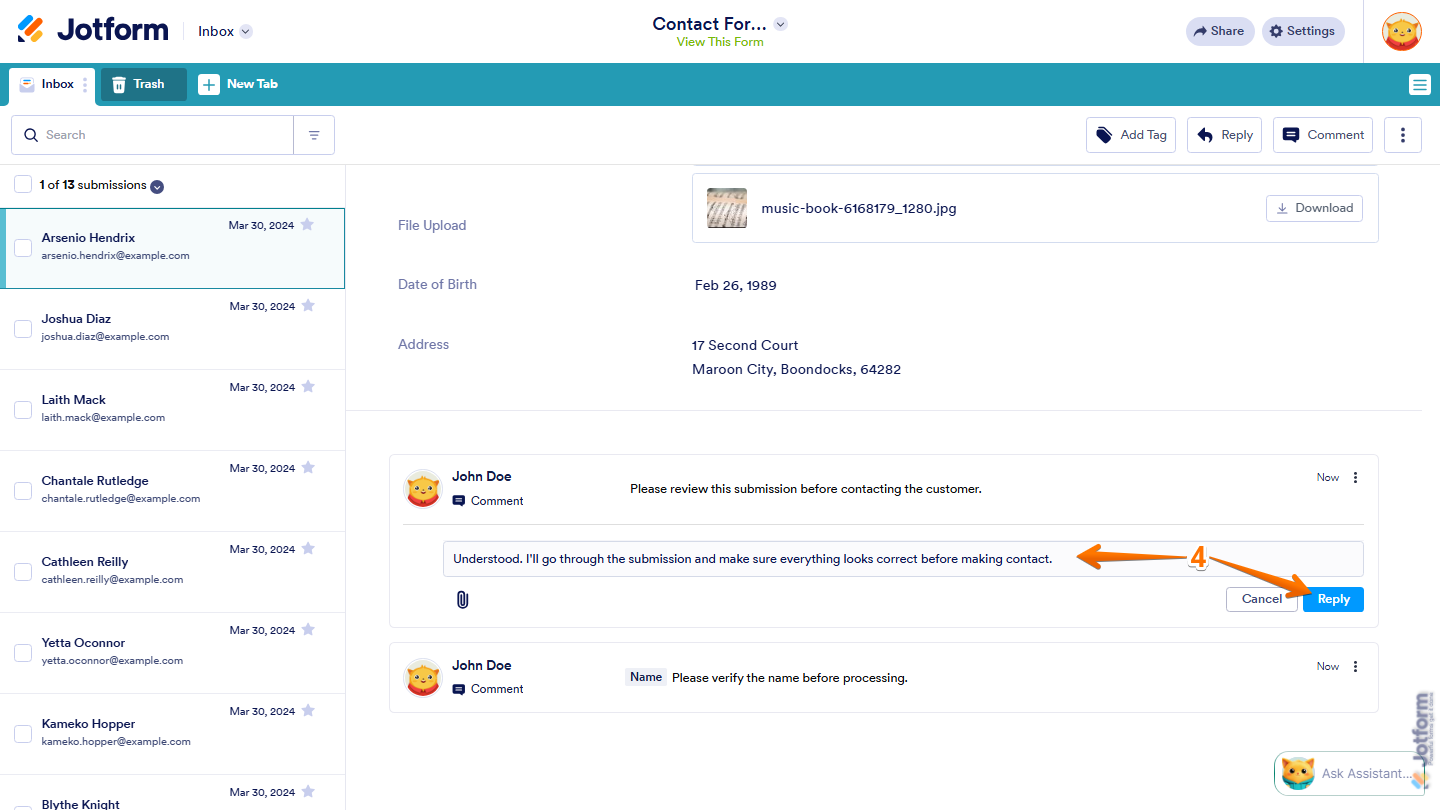
- Finally, in the Comment box that comes up, enter your comment, and then click on Reply.
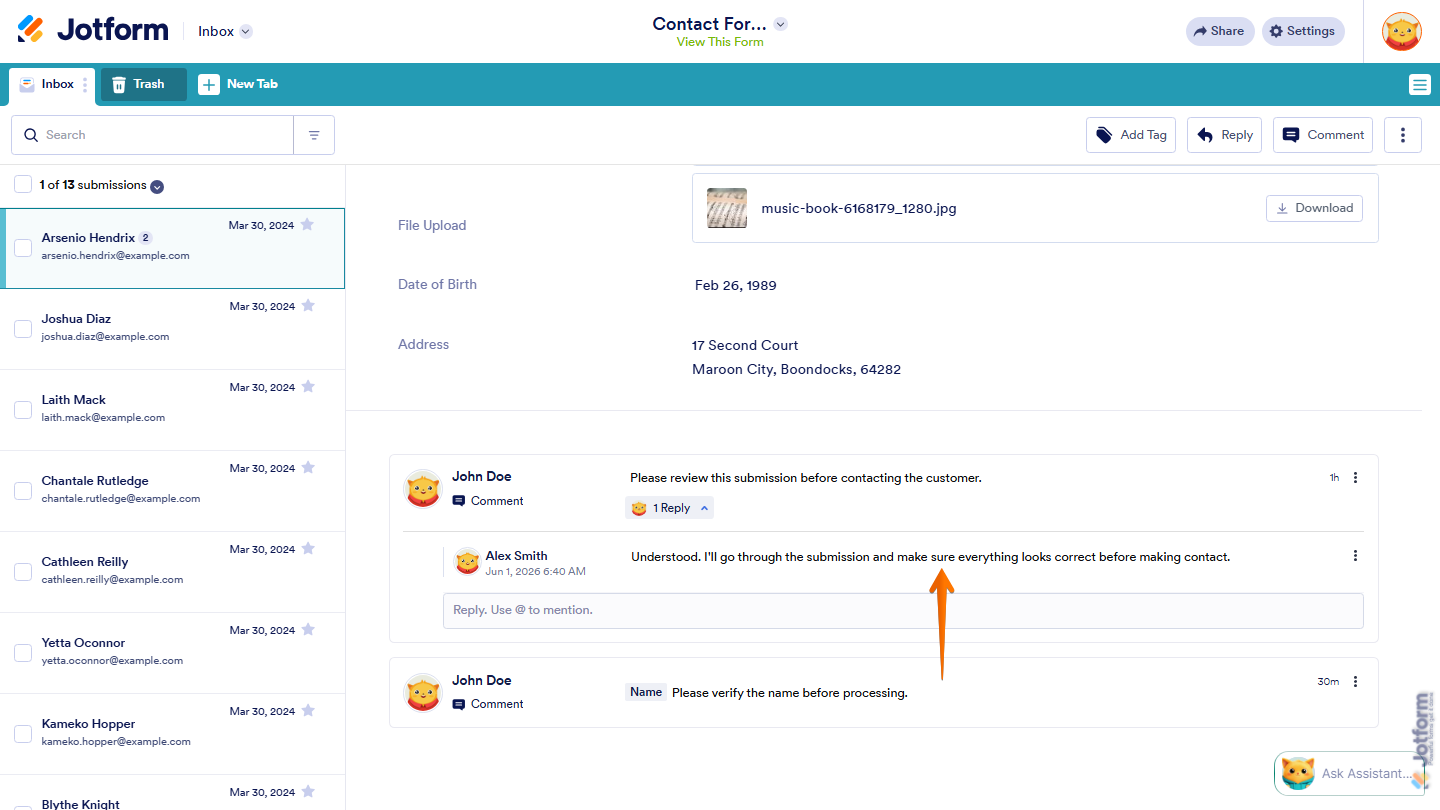
Now, your reply will be added to the conversation thread so everyone with access can follow the discussion.
Pro Tip
- Need to get someone’s attention? Type @ followed by their name to mention them in a comment or reply.
- You can also click the Paperclip icon to attach files and provide additional context when collaborating with your team.

Send Comment:
8 Comments:
October 21, 2025
Everyone on the team receives a notification email about each comment. Can we turn off comment notification? Our comments are notes for future reference only.
July 18, 2025
The steps for adding both general and inline comments are really clear. Makes collaboration in Jotform Inbox much smoother love how simple it is to reply and keep the conversation going within submissions.
December 17, 2024
I'm brand new and have not used Jotform before. I need to send an automatic reply to those submitting forms telling them that our office will be closed for our holiday break. How do I do that?
December 18, 2023
Are there any notifications or alert mechanisms in place to inform users about new comments or replies within Jotform Inbox, ensuring timely communication among team members? Regard Telkom University
October 2, 2023
Hoe kan ik ervoor zorgen dat mijn collega ook alle inzendingen ontvangt in zijn mail box?
July 19, 2023
How does teams work if you can't add people to your jotform account. I'm reallly confused.
May 5, 2022
If I reply to a submission from my form with a comment in the Inbox, does it go directly to their email address? Why I'm asking is because I have not yet gotten responses back.
August 26, 2021
Anything look good