Jotform Inbox makes it easy to download your submissions so you can review, share, or store them outside of Jotform. Whether you need to export a few submissions or download everything at once, Jotform Inbox gives you flexible options to fit your workflow.
Depending on your needs, you can:
Downloading Selected Submissions
You can export specific submissions from Jotform Inbox in different file formats depending on how you want to review, share, or store your data. Here’s how:
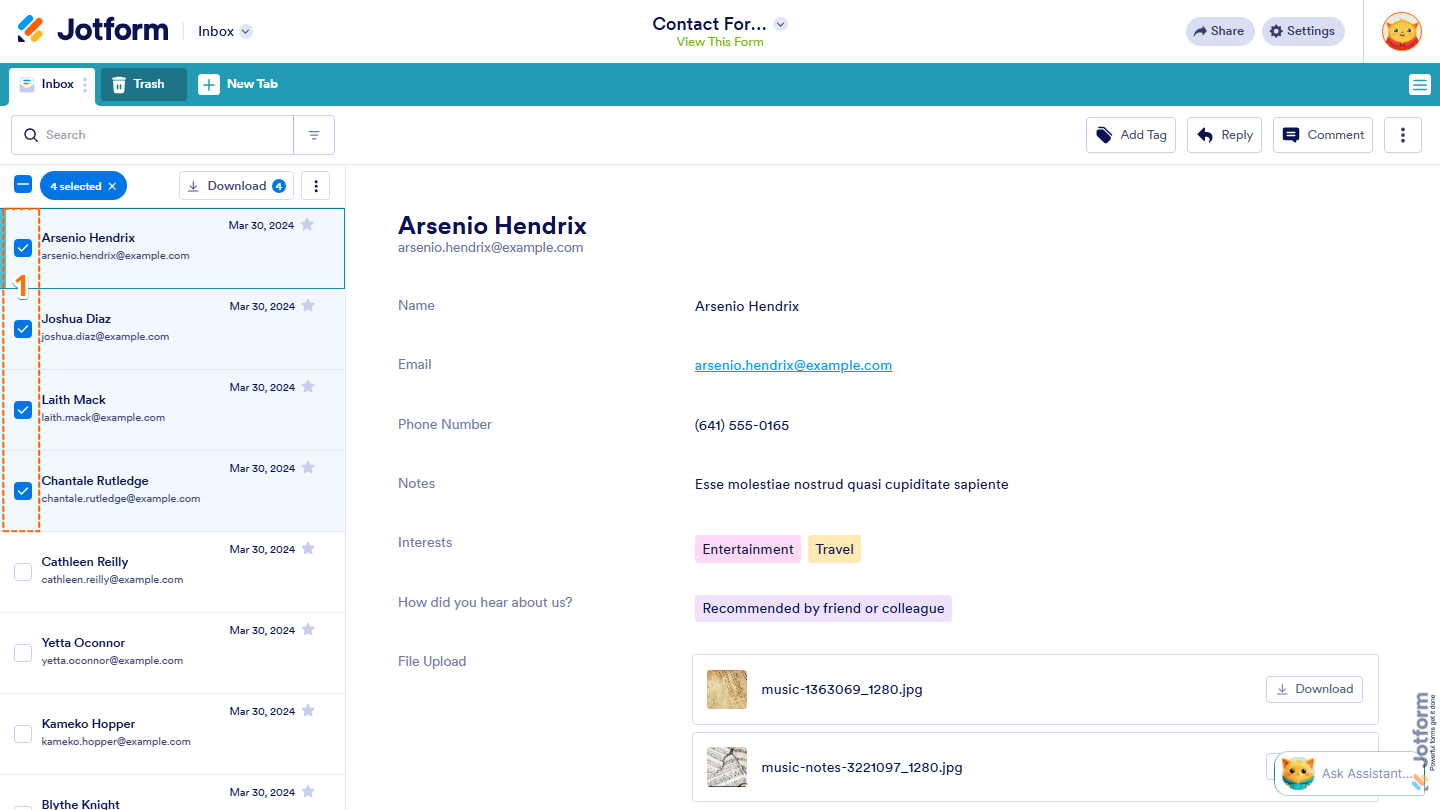
- In Jotform Inbox, select the checkboxes next to the submissions you want to download.
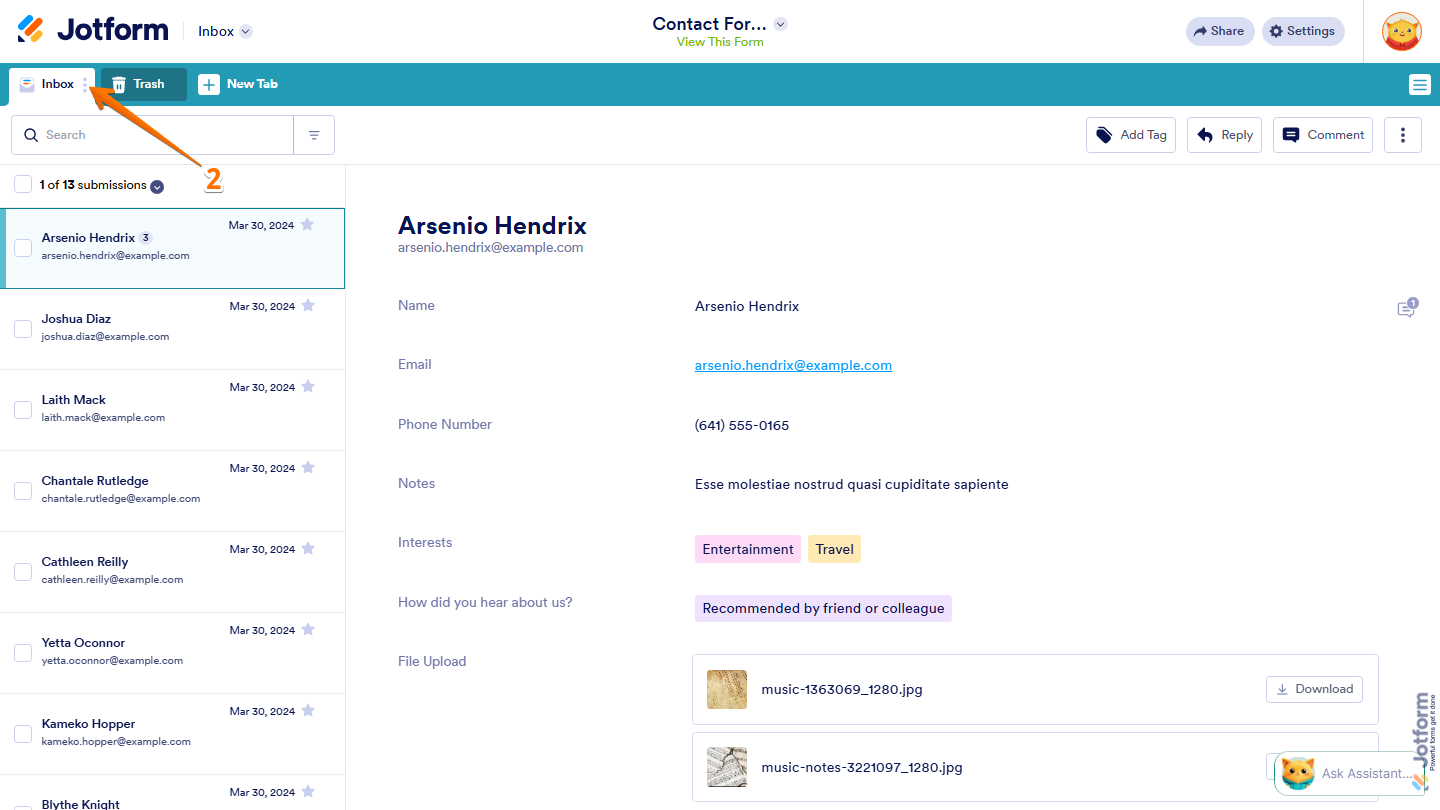
- Then, on the left side of the page, next to the Inbox tab, click on the Three Dots icon.
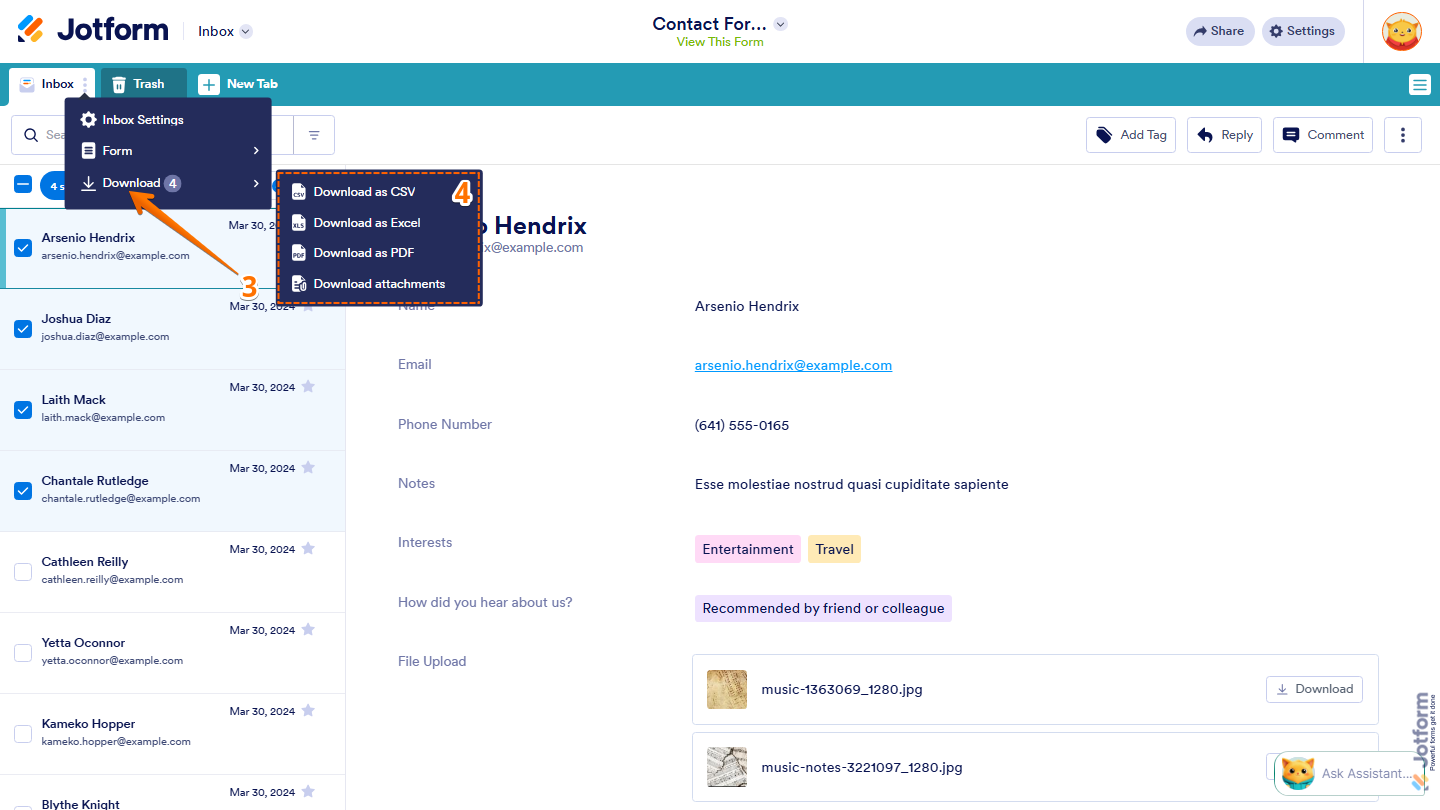
- Next, in the menu that opens, click on Download.
- Now, select the download format you want, and the selected submissions will download automatically:
- Download as CSV — Export the selected submissions as a CSV file.
- Download as Excel — Export the selected submissions as an Excel spreadsheet.
- Download as PDF — Download the selected submissions as PDF documents.
- Download as Attachments — Download all files uploaded through the selected submissions.
Note
The Download as Attachments option only works for forms that contain File Upload fields with uploaded files. If the selected submissions don’t contain any attachments, Jotform will display an error message, and no files will be downloaded.
Downloading All Submissions
Downloading all submissions at once can save time when working with larger sets of data. You can do it in just a few steps:
- In Jotform Inbox, on the left side of the page, next to the Inbox tab, click on the Three Dots icon.
- Then, in the menu that opens, click on Download All.
- Now, select the download format you want, and all submissions will download automatically:
- Download as CSV — Export all submissions as a CSV file.
- Download as Excel — Export all submissions as an Excel spreadsheet.
- Download as PDF — Download all submissions as PDF documents.
- Download as Attachments — Download all files uploaded through the submissions.

That’s it! Whether you need a single submission or your entire Inbox data, Jotform Inbox gives you several download options to help you review, share, and store your submissions the way that works best for you.
Pro Tip
Before downloading submissions, you can use Jotform Inbox’s search and filter options to quickly find the entries you need. For a quick how-to, check out our guide on How to Search and Filter Submissions in Jotform Inbox.

Send Comment:
2 Comments:
October 27, 2025
Im having troubles downloading my forms from the Andriod mobile app. When i click the download button it only gives me an option to share the document, not download it
May 28, 2024
How do I download the photos uploaded in the forms ?