-
 Sara_Almeida
Hi,
i've tried adding SVG as a file type in my forms under file upload / settings / options but it won't stick. I cleared my form cache and that didn't help either. Can someone help me with this. thanks. Sara

-
 Podo: Support Specialist
Hi Sara,
Thanks for reaching out to Jotform Support. I'm an AI assistant here to assist you.
Regarding your issue with adding SVG as a file type in your form's File Upload field, here’s how it works:
The File Upload field allows you to specify which file types to accept by entering the file extensions separated by commas in the File Types box under the Options tab of the field's settings. However, the default accepted image file types are JPG, JPEG, PNG, and GIF. SVG is not listed among the default accepted image types, and it may not be supported as an allowed file type in the File Upload field.
To set allowed file types, you should:
- Click on your File Upload field in Form Builder.
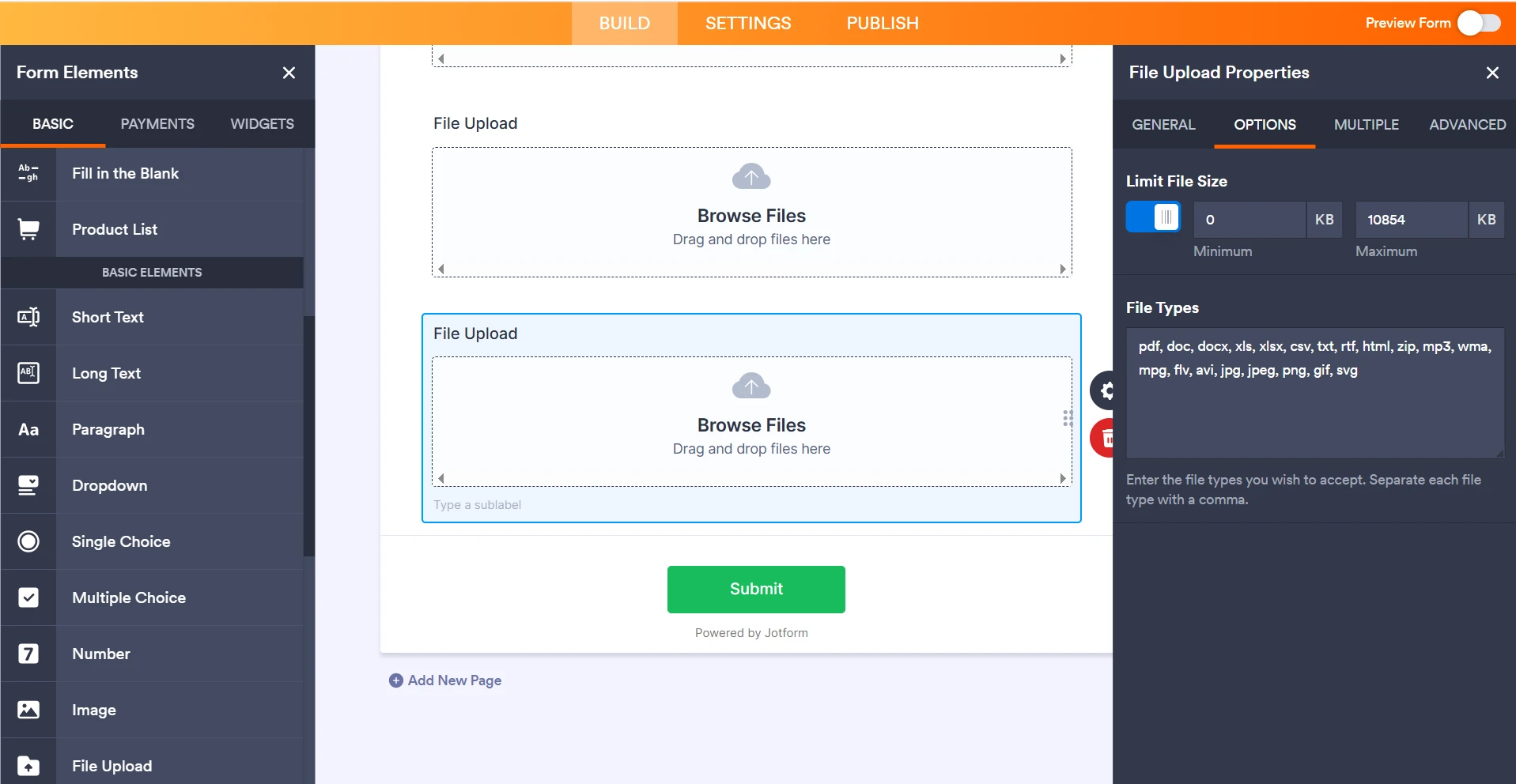
- Click the Gear icon on the right side to open File Upload Properties.
- Under the Options tab, enter the file types you want to accept in the File Types box, separated by commas (without dots, e.g., svg).
Note that any changes you make are automatically saved, and file extensions are not case-sensitive.
Since SVG is not officially supported as an accepted file type in the File Upload field, this is likely why the setting won't stick even after clearing your form cache.
If accepting SVG files is critical for your form, you might consider alternative approaches such as:
- Allowing all file types by entering an asterisk (*) in the File Types box (which allows all file types).
- Using a different method or field type to collect SVG files, if available.
Please try these options and see if they work for your needs.
Give it a try and let us know how it goes.
-
Sara_Almeida
how do i add * i don't know what you mean - do i add an * at the end of svg or where do i add it?
-
Podo: Support Specialist
Hi Sara,
Let me help you with that:
- Click on your File Upload field in Form Builder.
- Click the Gear icon on the right side to open File Upload Properties.
- Go to the Options tab.
- In the File Types box, instead of typing specific file extensions like "svg", simply type an asterisk (*) by itself. This means you are allowing all file types to be uploaded, including SVG files.
You do not add the asterisk after "svg" or with any other file extension. Just use the asterisk alone to allow all file types.
Give it a try and let us know how it goes.
-
Sara_Almeida
did not work. still reverts back to all the original file types
-
 Eliza Enterprise Support
Hi Sara,
Is this the form you're working on? If yes, I cloned your form and tried to replicate the issue, but everything worked the way it should. Check out my results in the screencast below:
Can you confirm if this is happening to all File Upload elements on your form? I recommend clearing your browser's cache and cookies before trying again. If the same thing happens, can you also try using other browsers or Incognito/Private browsing?If it's still the same, a screenshot of your browser's Console Log might help us get an idea of what’s happening. Our guide on How to Post Screenshots to Our Help Center will help you do that.
As soon as we hear back from you, we can work on getting you a solution for this.
-
SSara
It does not give me the small check mark at the bottom of the page like it is showing on yours. and yes i cleared my cache
-
 Rehan Support Team Lead
Hi Sara,
I tried it in a clone of your form, and it is also working for me, as you can see in the screencast below:
Can you try it from a different browser? And also make sure the internet is working properly. If it still doesn't work, then you can allow us, and we can try to add it to your form from here.
Let us know how it turns out.
-
Sara_Almeida
thank you for trying again. i have now tried in Microsoft Edge and Chrome and it's not sticking for me on either. i might be doing something wrong but I am doing what is shown in your video screenshot. Open my form, edit form, add an element, go to file upload, choose settings, options, add in comma svg - exactly what you are doing.....when i leave it disappears. if you could add it for me that would be great. to this form and Creative Brief and Victoria Promo Request. thanks.
-
 Joeni JotForm Support
Hi Sara,
Could you send us a screenshot of your browser’s console report while you add the SVG file type and it disappears so we can take a closer look? We’ve got a quick guide on how to do that here.
Once we hear back from you, we'll be able to help you better with this.

Your Reply
Something Went Wrong
An error occurred while generating the AI response. Please try again!