-
 hmaydak
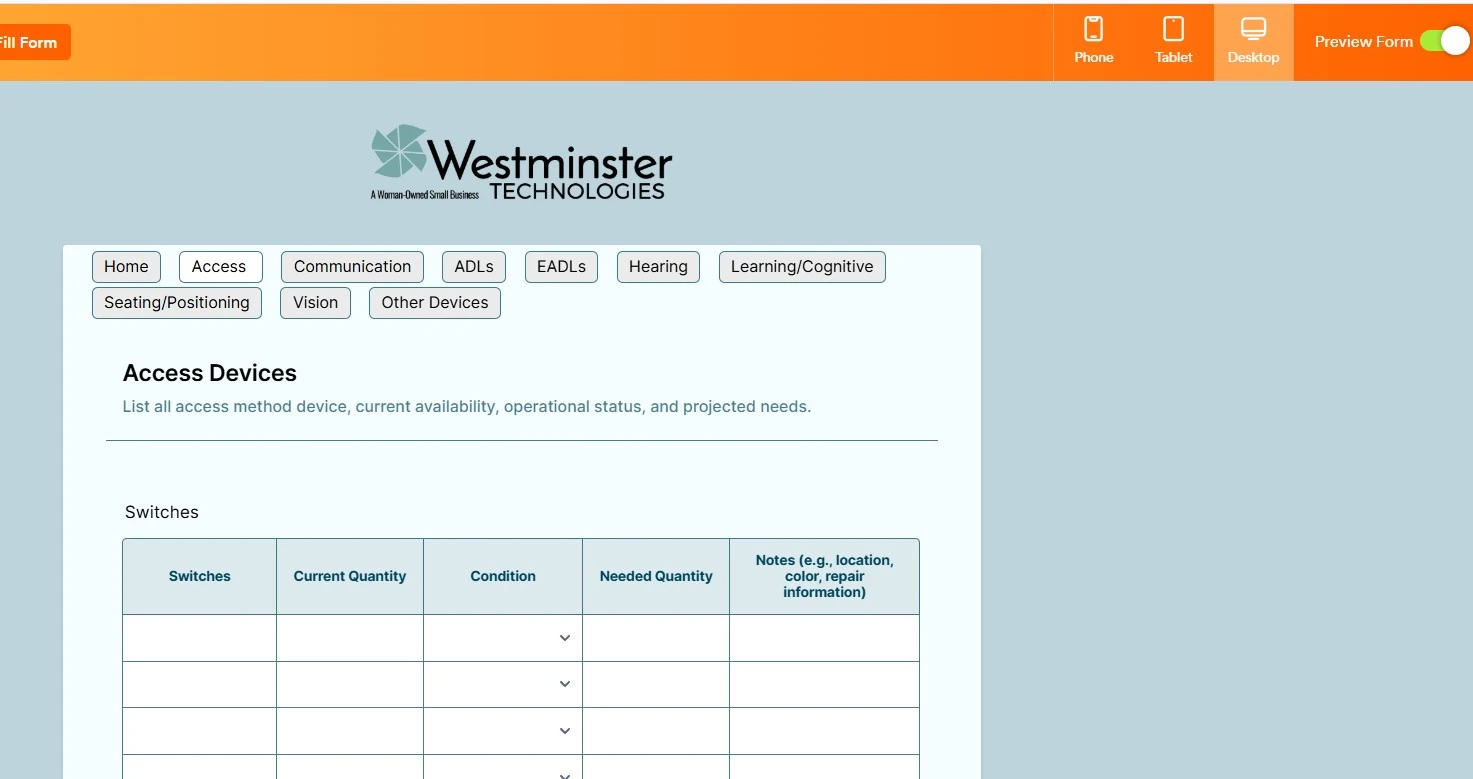
I set up all my pages and I'm using the Form Tab Widget - I had one page not showing and I couldn't figure out way so I asked the AI Agent. The AI ended up moving pages around and now it's all messed up. When I preview the form, I can see page 2, but it's not showing in build and then it merged page 3 (communication) with page 2. How do I fix this?
I need this form available for tomorrow and don't have time to start over.

-
 Podo: Support Specialist
Hi Heather,
You can easily add the Form Tabs widget to create tabs in your form. Let me show you how:
- In Form Builder, click on the Add Element menu on the left side of the page.
- Under the Widgets tab, enter Form Tabs in the search bar, and drag and drop it to your form.
- Enter your tab names in the Tabs Titles section of the panel menu on the right side of the page.
Check out the screencast below to see how it'll look:
You can also check this related guide about How to Add a Widget to Your Form to learn more.
Reach out again if you need any other help.
-
hmaydak
Per the AI support - I know how to use the form tab widget; AI Agent messed it up after I asked it a question
-
Podo: Support Specialist
Hi Heather,
I understand you already know how to use the Form Tabs widget. To fix the issue where pages are merged or missing after changes, the best approach is to carefully review your tab titles and page setup in the Form Tabs widget settings.
Let me walk you through the key steps to ensure your pages display correctly as separate tabs:
- Open your form in Form Builder and locate the Form Tabs widget.
- Click on the widget to open its settings panel on the right side.
- Check the Tabs Titles field and make sure each tab name corresponds exactly to the pages you want to display separately.
- Verify your form pages in the form builder to ensure each page is distinct and not merged with another.
- Save your changes and preview the form again to confirm the pages appear as separate tabs.
If the issue persists, you might want to remove the Form Tabs widget and add it again, then re-enter your tab titles carefully to reset the tab structure.
Here is a helpful guide on Form Tabs widget for more details.
Reach out again if you need any other help.
-
 Ronald JotForm Support
Hi Heather,
I understand the issue that the AI Agent caused when editing your form. I suggest that you revert to the previous stable version so you can recover the page that was deleted. You can use the Revision History feature that lets you revert your form back to an older version you select. Let me show you how to use it:
- In Form Builder, click on the Circular Arrow icon at the top middle of the page to open the Revision History menu.
- In the menu on the right side of the page, select the version you want to restore the form to.
- Now, just click on Revert next to the version you select, and then close the Revision History menu in the top right corner.
Your Reply
Something Went Wrong
An error occurred while generating the AI response. Please try again!