Jotform’s Revision History feature is like a time machine for your forms—it keeps track of every change you make so you never have to worry about losing your work. Each edit is automatically saved, letting you easily scroll back through previous versions and restore any one of them with just a few clicks.
This is especially helpful when you need to undo a mistake, fix a condition conflict, or simply check what’s been changed over time. Instead of stressing about breaking your form or forgetting how it looked before, you can experiment freely, knowing you can always roll things back.
Note
Revision history is only available to the form owner. This means that collaborators, even if they have editing access, won’t be able to view or use the form’s revision history.
With the form’s Revision History, you get the peace of mind to edit confidently, try out new ideas, and keep your forms looking and working exactly the way you want. To get going, here’s what you’ll do:
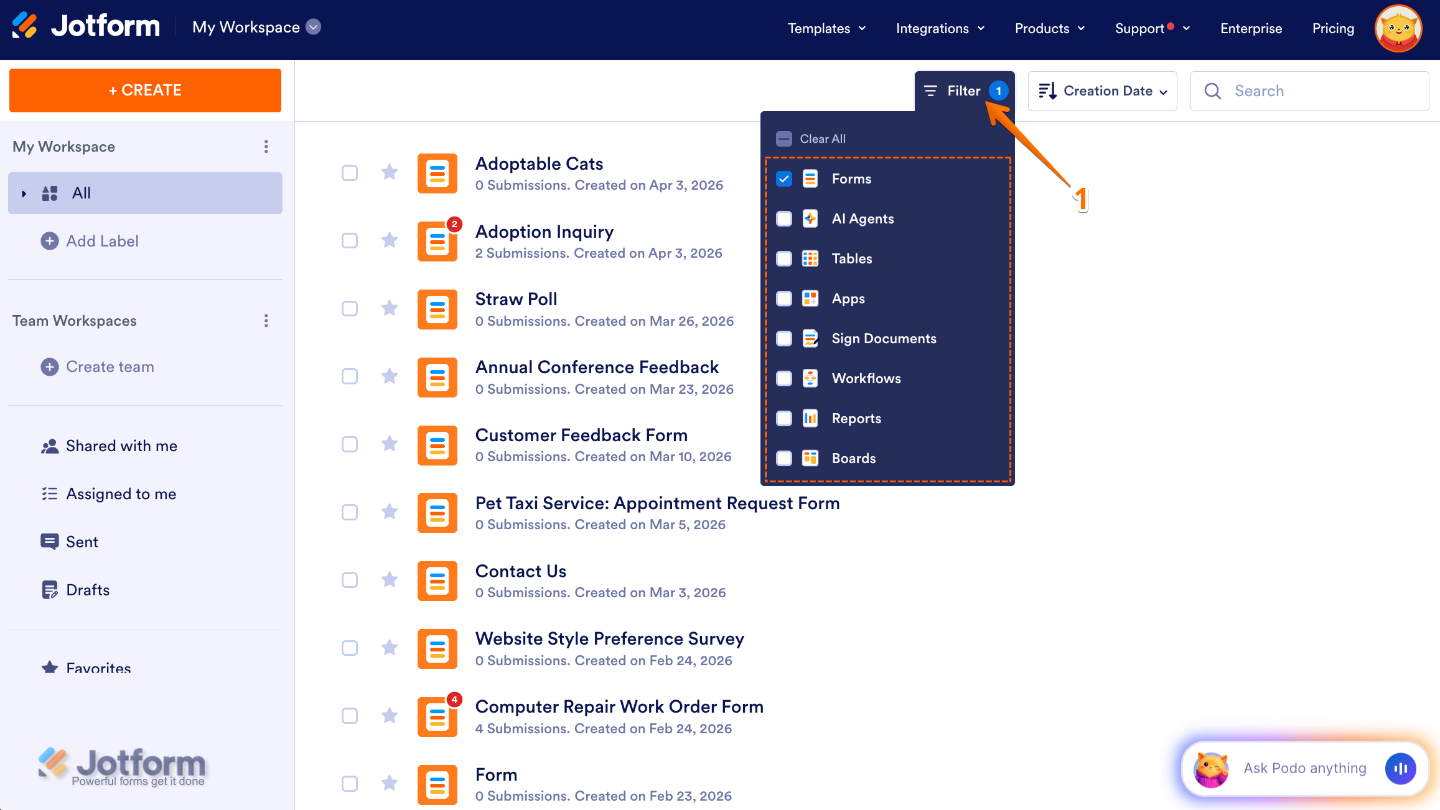
- On your Workspace page, click on Filter at the top, and in the Dropdown menu that opens, uncheck the boxes next to all the assets except Forms, so only they’ll be shown on the page.
- Now, hover your mouse over the form you want to manage, and then click on More on the right side of the page.
- In the Dropdown menu, under the Form tab, click on Revision History.
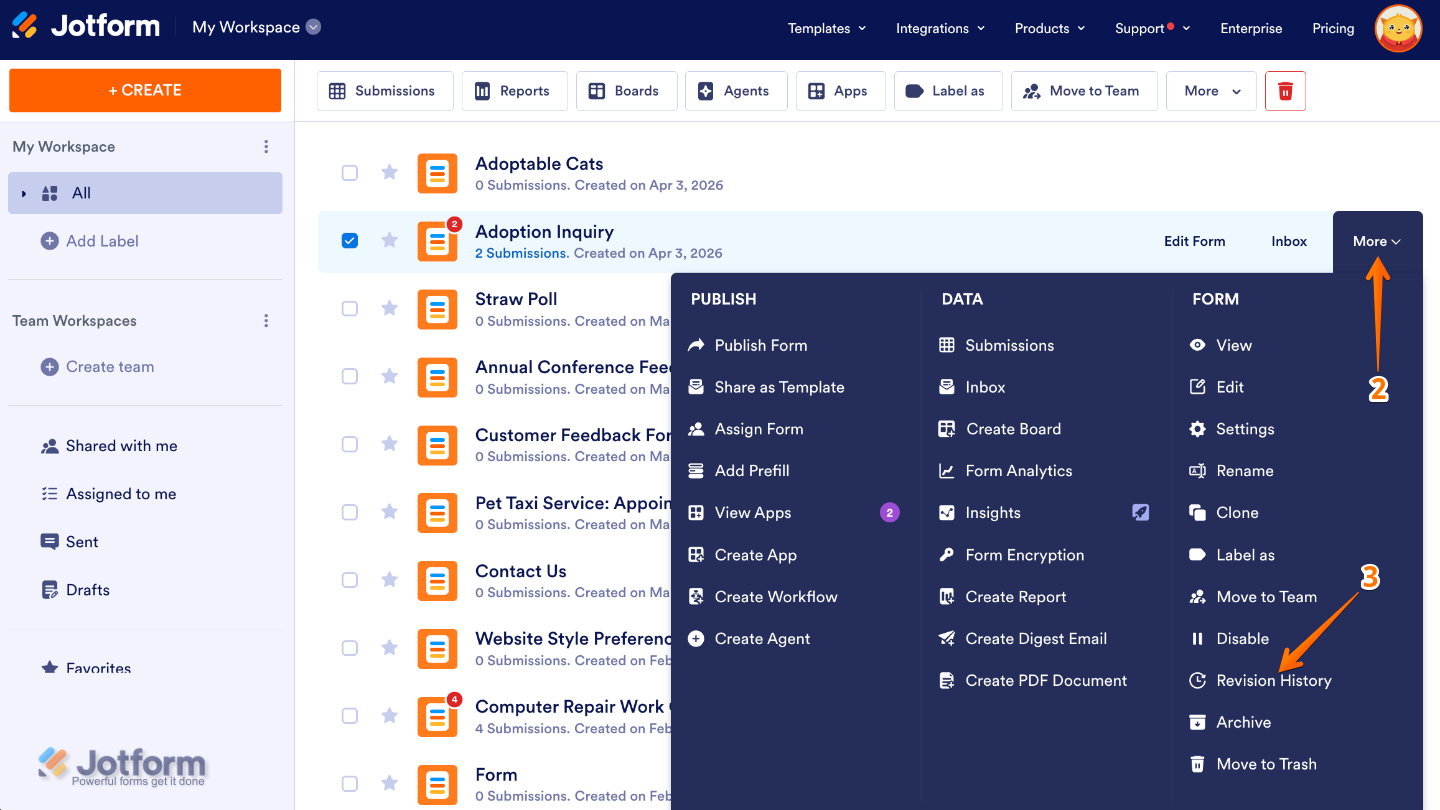
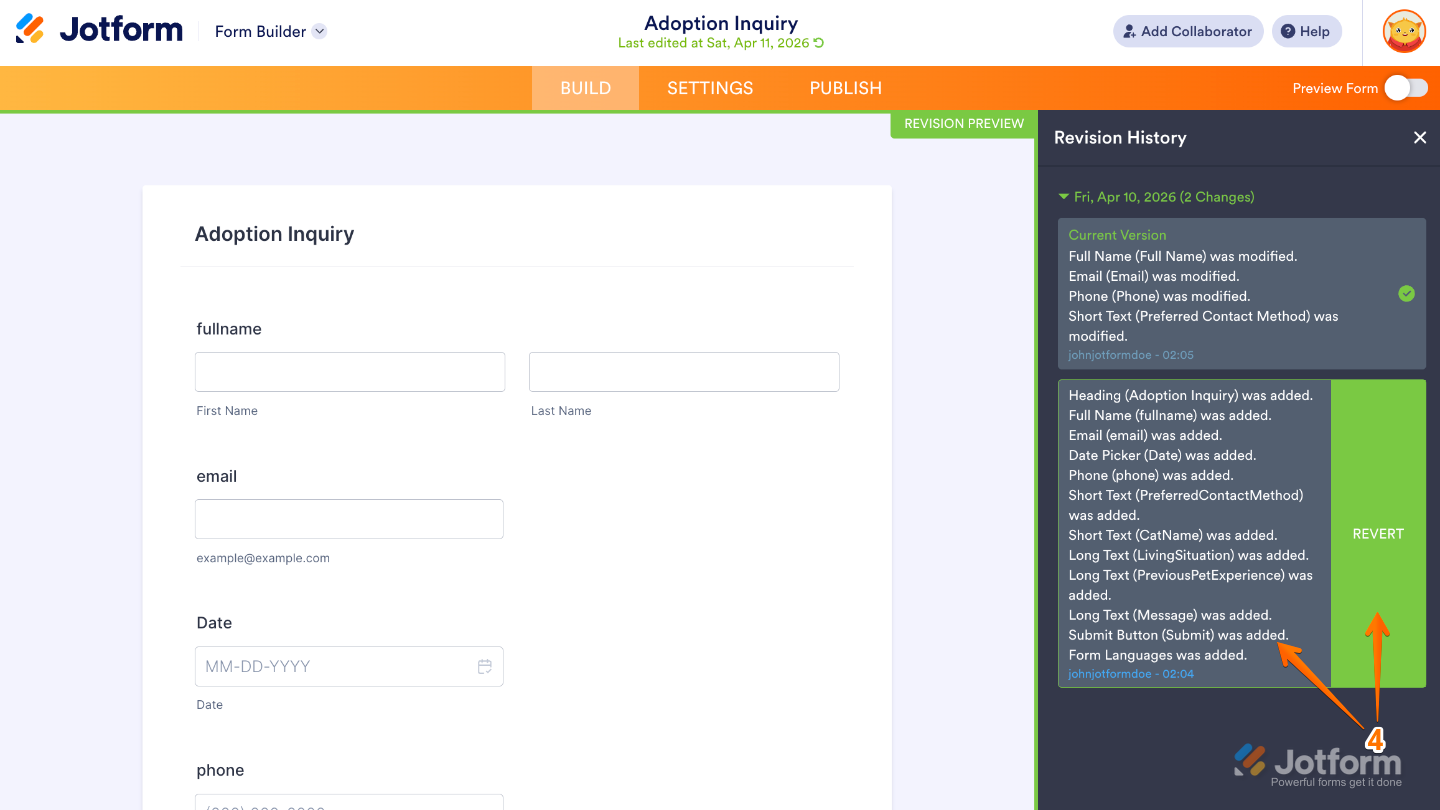
- Next, in the menu on the right side of the page, select a revision and then click on Revert.
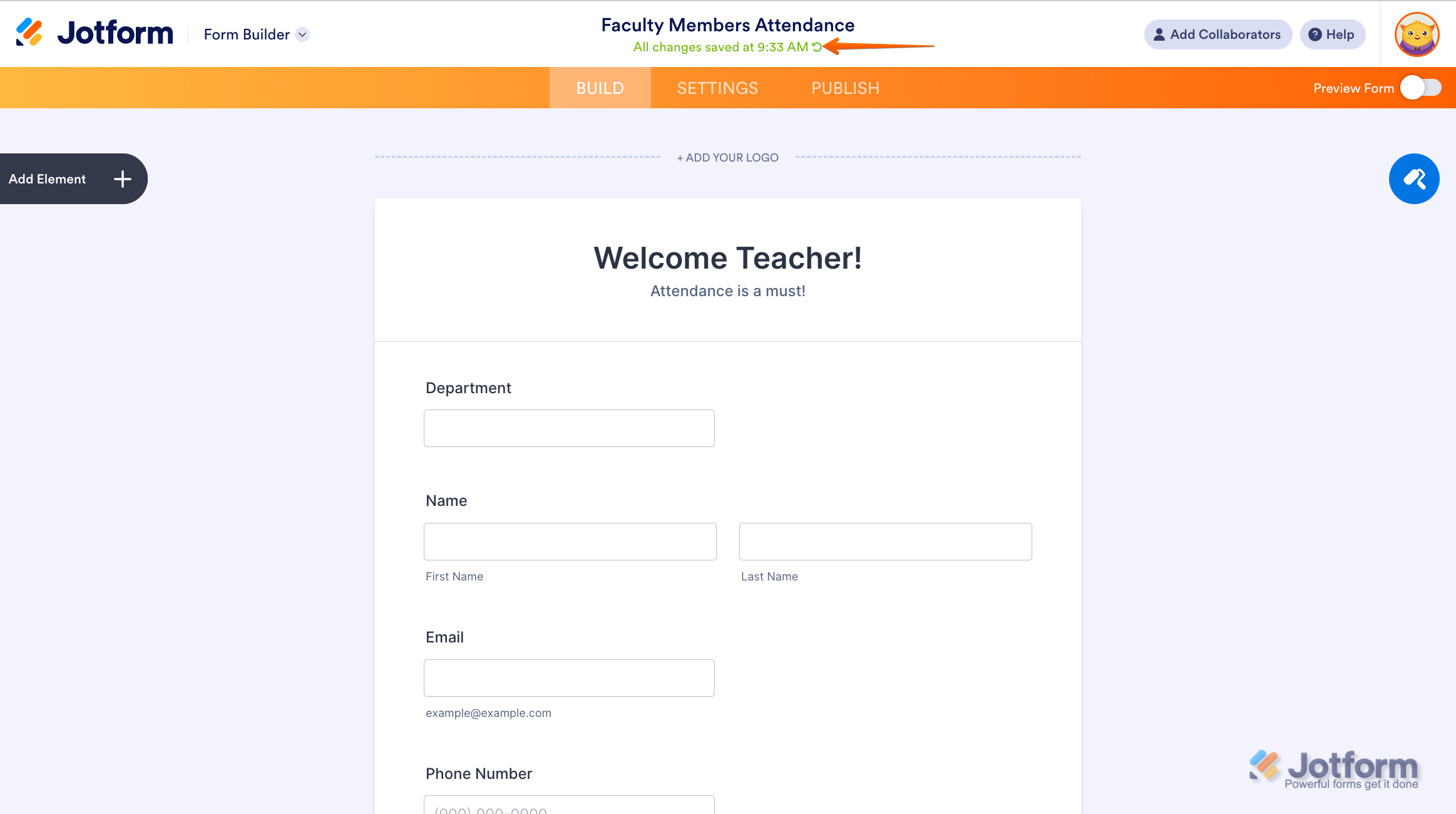
You can also access the revision history in the Form Builder; while you’re in there, just click on the Circular Arrow icon at the top of the page in the middle, right under the Form Title.
That’s it. Now you have a simple way to look back at every change made to your form, compare different versions, and restore the one that works best for you.
Note
Revision History isn’t just available in Form Builder, it’s also right there in Jotform Tables. That means whether you’re tweaking your form design or managing your submission data, you can easily review past changes and restore previous versions whenever you need to. Take a look at our guide on How to View Submission Revisions for more details.

Send Comment:
27 Comments:
April 9, 2026
Bizarrely I can't see the answers to previous question (which seems a bit dumb for a tech support forum!) so I'm writing the workaround here for everyone to see:
SO... this process DOES work but the steps in the step-by-step walkthrough are misleadingly WRONG! They should be:
1. click on workspace and find the form you want to manage
2. hover over the form and click on More
3. in the dropdown menu over FORM click Revision History
4. then, in the menu on the right side of the page, select a version that you want to revert to and then click on Revert.
Its also NOT clearly stated that there are TWO ways to reach here (one way being to simply click the green circular arrow when you are in Edit Form mode) which just makes the screenshots even more confusing.
ALSO there's NO mention that this is ONLY available to the user who created the form, and not necessarily to everyone editing the form, especially those who might not even be logged in to a Jotform account.
August 4, 2025
This is not an option if it is an app rather than a form.
May 14, 2025
Too bad this doesn't actually work.
April 29, 2025
Can you please let me know if there is a way to save a previous version, and still keep the current version?
March 10, 2025
How can I restore the form to the previous version if the restore button is greyed out?
November 25, 2024
Riwayat revisi tidak dapat muncul , Screen white blank ? Kenapavm??
January 9, 2024
Same issue. I just lost days of work from a glitch that deleted maybe 70 PDF fields. And the revert button isn't working.
I need the fields ON my PDF for our use-case (not just digital/spreadsheet), that's part of why we chose Jotform. I'm feeling very let down.
Stressed and angry.
August 8, 2023
At minute 1:17 in this video, it says "if you want to revert to this version, you just have to click on this orange button." My version of JotForms doesn't have that orange button. If it did this would have worked fine.
July 23, 2023
This is extremely stressful. The Revert button doesn't work 90% of the time. Haven't worked on this document in 2weeks and need to pick back up where I left off. Now, I've spent two days (50 hours) revising the same form, because I inadvertently deleted the wrong item and it saves immediately. There is no undo button and the REVERT BUTTON DOESN'T WORK. No way to view previous contents from 2 weeks ago. Then I have to retype all my work over and over and over again. No room for forgiveness if you're new to Jotform and inadvertently click the delete button.
July 20, 2023
Doesn't work for me. I'm in the PDF Editor mode. No undo function and why is it saving and updating automatically? I clicked on another Template which is applyed automatically without undo function. Jesus!
February 8, 2023
This feature is not working for me . I have lost half of my form. I came to this help page to see if I was doing some thing wrong and I wasn't. This has really cost me a lot of time. I am very disappointed and don't understand why Jotform chooses to make it so difficult when there could simply just be an undo button for when subtle change is needed.
January 11, 2023
I have been having trouble reverting to a previous version of my form since Friday, please help
December 16, 2022
The revert function is now working on my form
December 5, 2022
Hi I am pressing revert to get to a previous version and it isn't doing anything ........ ahhhh this is a whole day's work
November 7, 2022
I have tried to use the form revision history function to restore all products that I had accidentally deleted, however it is not working. When I select the appropriate version and click revert, it tries for a few seconds but fails to load the data.
October 19, 2022
How can I create a new revision in time, right now I only see the last revision saved from many days ago, it doesn't show options from a recent date change or even today's changes I've made.
thanks
October 2, 2022
You guys make it completely IMPOSSIBLE TO FIND FORMS that I made. PLUS YOUR TERRIBLE IMAGE TOOL TURNS MY PHOTOs horizontal 🤷♀️So very embarrassing, NOT PROFESSIONAL at all. Why isn’t there a tool to turn the photo.
I AM ONLY GONNA BUILD THIS FROM MY IPAD. What’s the point of building a JOTFORM if you cannot build it from a mobile device????? NOW IT SEEMS that you cannot get all the features when u use such a device. I’m feeling a nightmare coming on. I need to be having a sale, now I can’t because I have to babysit your product🚨🚨🚨red flag red flag. My body is saying go back to Shopify even though you DO NOT LIKE THEM ! OR THEIR SHADY BUSINESS ETHICS😳🤯😳
and the completed product page I made… it is NOT THERE at all,!!!!! The half finished pages are there, but not the major page! ALL MY WORK IS MISSING. Plus wherever you got me has NO WAY TO USE FORM FROM THERE! NO WAY TO GET TO IT, THIS SERVICE IS A COMPLETE MESS! I will never refer anyone to this service.
September 20, 2022
My revision history is only showing yesterday at 1:19pm. But I worked on the form until 9:30pm last night and since 9am this morning. It’s now 12:53 and when I updated a product the majority of my products went missing and now my revision history is way outdated. I have no way to recover without the revision history being correct
August 12, 2022
Hi I tried to delete just the STRIP information on part of the form, as i was told by one of your employees, and I knew it would happen, it deleted all my inventory listed. I went to revisions to bring it back, and it is still not showing. Where can i go to get the field that i just removed put back. So sorry for the inconvenience, I am a real novice at this. When I removed the stripe CC input are, it also removed my products that were listed. Please advise. Feel free to access account and Id like to have the form the way it was before I made the last deletion. Thanks
August 7, 2022
Hi
It looks like one of my purchased items column has been deleted. Ive referred but the green button doesn't actually work.
When I view the page that I would like to revert too... Ive still lost purchases. However when dowloaded via Excel all the information is correct.
I need assistance ASAP as I'm losing customers orders...
July 5, 2022
This response and guide saved the day for me!
May 30, 2022
I have the green revert button but nothing happens when I click on it.
This is my form:
May 4, 2022
I also have the green revert button but nothing happens when I click on it.
March 12, 2022
I have the green revert button but nothing happens when I click on it.
December 24, 2021
Thanks. I was able to revert my form to an earlier version but I was not able to obtain the submission information as it was at that point. Is that information not retrievable?