-
 msowners
I have a public form where I created a report to attach to the app so people can see submissions. When people are clicking the report to see submissions, its saying access denied. The permission isn't password protected and the form the report is attached to is a public link.
-
 Podo: Support Specialist
Hi msowners,
Thanks for reaching out to Jotform Support. I'm an AI assistant here to assist you.
Regarding your issue with the public report showing "access denied" despite no password protection and the form being public, here’s what you need to check:
When sharing visual reports in Jotform Report Builder, the report's access settings must be properly configured. In the Publish Report window, under Settings for the report link, you can select the access setting for your report:
- Private Report – requires a Jotform account to view.
- Public Report – available to anyone with the link.
- Company Access – requires a Jotform account within your defined email domain.
Make sure your report is set to Public Report to allow anyone with the link to view submissions without login.
Also, check if the option Allow users to request access to this report is unchecked if you want to avoid any access requests or login prompts.
Here’s how to verify and adjust these settings:
- Open Report Builder and click on the Publish button on the right side.
- In the Publish Report window, click on Settings next to the link.
- Select Public Report as the access setting.
- Uncheck Allow users to request access to this report if it’s enabled.
- Click Go Back and copy the link to share.
If these settings are correct and the issue persists, it might be related to how the app or workspace is handling permissions or logged-in user sessions.
For more detailed guidance, you can refer to the Jotform help article on How to Disable Request Access for Private and Company Access Assets.
Give it a try and let us know how it goes.
-
msowners
I have verified that the form is public. I have tried to locate "Report Builder" but can only fine "My Reports" so I am unable to check the following steps.
Also, check if the option Allow users to request access to this report is unchecked if you want to avoid any access requests or login prompts.
Here’s how to verify and adjust these settings:
- Open Report Builder and click on the Publish button on the right side.
- In the Publish Report window, click on Settings next to the link.
- Select Public Report as the access setting.
- Uncheck Allow users to request access to this report if it’s enabled.
- Click Go Back and copy the link to share.
-
Podo: Support Specialist
Hi msowners,
It seems you are seeing "My Reports" instead of "Report Builder." In Jotform, "My Reports" is where you can access and manage your existing reports, while "Report Builder" is the tool used to create and customize those reports.
To adjust the access settings for your report, you need to open the specific report from "My Reports" and then access the Publish settings within that report. Let me walk you through it:
- Go to My Reports from your Jotform dashboard.
- Select the report you want to share (the one attached to your app).
- Look for a Publish or Share button within the report view.
- In the Publish window, find the Settings option next to the report link.
- Set the access to Public Report to allow anyone with the link to view it.
- Uncheck the option "Allow users to request access to this report" if it is enabled.
- Save your settings and copy the updated link to share.
This process is done inside the report interface, not directly from the form or app settings.
If you still cannot find these options, please let me know, and I can guide you further.
Give it a try and let us know how it goes.
-
msowners
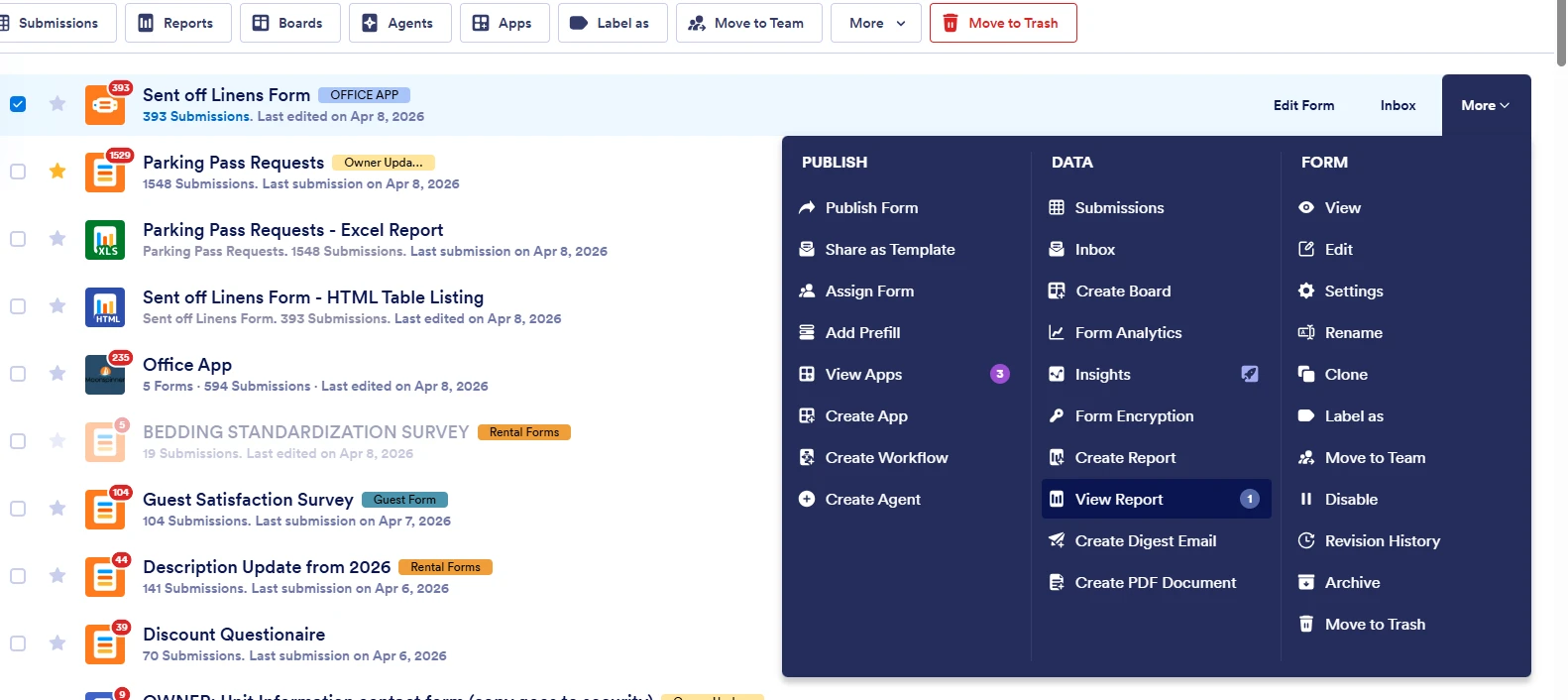
The report we created doesn't have these options. I made the report by going to the form and selecting More. It is an html table listing.
-
Podo: Support Specialist
Hi msowners,
Thank you for the clarification. Since you created the report using the More option on the form and selected HTML Table Listing, this type of report has different sharing and access settings compared to visual reports created in Report Builder.
Here’s how the HTML Table Listing Report works and how to manage its access:
- Create the HTML Table Listing Report by going to your Workspace page, hovering over the form, clicking More, then Create Report, and selecting HTML Table Listing.
- Configure the report by naming it and selecting the fields to include, then create it.
- Share the report by copying the link provided after creation.
Regarding access permissions:
- The HTML Table Listing Report can be set as Private Table, Public Table, or Company Access.
- By default, the table is Private, which means only invited people can access it.
- If the table is private, users accessing it without invitation will see an Access Denied message.
- To allow public access, you need to change the table to Public Table in the table's Share Settings.
To change the table to public and manage sharing settings, follow these steps:
- Open Jotform Tables and locate your HTML Table Listing Report.
- Click on the Share button or look for sharing options in the table interface.
- Set the table to Public so anyone with the link can view the submissions without logging in.
- Copy the public link and use it in your app.
This should resolve the access denied issue for your public report.
If you need detailed guidance with screenshots or step-by-step visuals, please let me know.
Give it a try and let us know how it goes.
-
msowners
Can I please speak with a real person? I appreciate the effort but I need someone to be able to follow the link I am trying to give people access to.
-
 Reymae JotForm Support
Hi msowners,
You can easily update the report access to public so its accessible to anyone. Let me show you how:
- In Tables, go to your Report tab.
- Click the Publish button on the upper right side.
- In the window that opens, click on Share Settings and set your Report’s Privacy option to Public Report.

Give it a try and reach out again if you have any other questions.
-
msowners
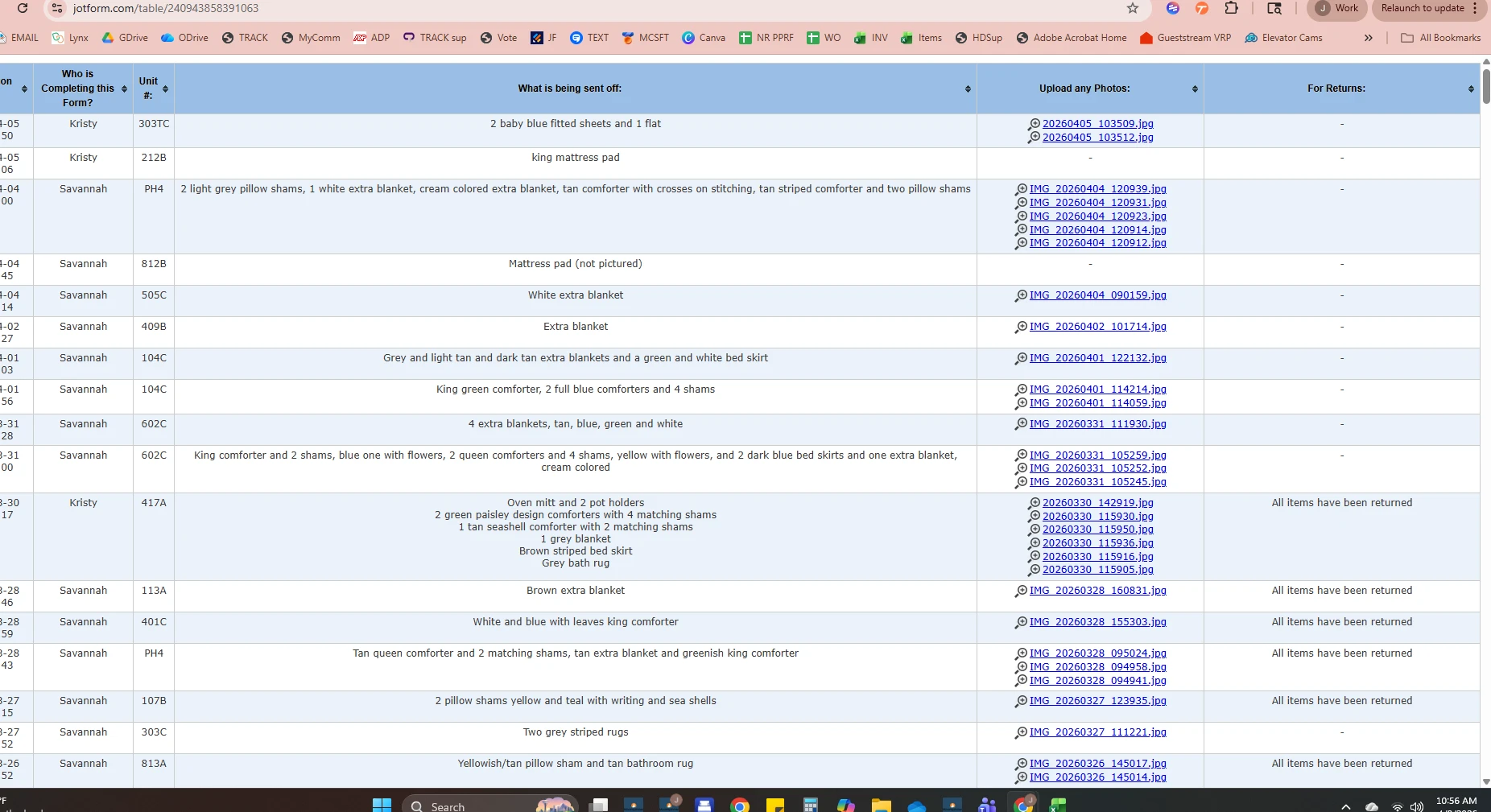
Here is what the report looks like. I created this report from going to the form and selecting "More". in the more section you can create a report. It has worked for over a year and now it won't allow others to access it.
-
 Ronald JotForm Support
Hi msowners,
To prevent our system from asking you to log in before viewing or downloading submission attachments, you can Disable the Requirement to Login to View Uploaded Files. It only takes a few simple steps. Here’s how:
1. On your Workspace page, click on your Avatar/Profile Image in the top-right corner of the screen.
2. In the Dropdown menu that comes up, click on Settings.
3. Next, click on the Security tab on the left side of the page.
4. Then, click on Send Verification Code.
5. In the Confirmation window that opens, enter the Authentication Code sent to your email and click on Verify.
6. Now, uncheck the box next to Require Log-in to View Uploaded Files. That’s it. You’re done.
You can also disable the option to Log-in to See submission to help with the issue. See below:
Reach out again if there’s anything else we can help you with.
-
msowners
Issue has been resolved! Thank you
-
Podo: Support Specialist
Hi Moonspinner,
Your request has been answered and the thread is closed.
If you have another question or need more help, feel free to reply here and we'll assist you right away.


Your Reply
Something Went Wrong
An error occurred while generating the AI response. Please try again!