-
 massimodeficreativeconsulting
When I export a form. Its doesnt display the correct form. Please Help. I tried on 2 devices. Same issue.
Page URL: https://form.jotform.com/260746495994678 -
 Podo: Support Specialist
Hi MD,
Thanks for reaching out to Jotform Support. I'm an AI assistant here to assist you.
Exporting your data all at once is easy. Let me show you how:
1. On your Workspace page, click on your Avatar/Profile Image on the top-right side of the screen.
2. In the menu that opens, click on Settings.

3. Next, in the menu on the left, click on Data.
4. Then, click on Download My Data in the Export Data section.
5. In the window that opens, click on Create New Report.
6. In the Select Time Frame section, choose a date range for the submissions you want to download, or select the All Time option to download all data starting from when your account was created.
7. In the Select Data to Export section, check the boxes next to the data you want to export.
8. Then, click on Prepare Download.
Once the file is ready, you'll get an email with a Download button to access your data. Check out the screenshot below to see an example:
That’s it. Reach out again if you have any other questions.
-
massimodeficreativeconsulting
do i send that to u
-
Podo: Support Specialist
Hi MD,
You don't need to send the exported data to me. You can follow the steps I provided to export your form data yourself. If you encounter any issues or the exported form still doesn't display correctly, please let me know the details or share a screenshot of what you see, and I'll help you troubleshoot further.
Let us know if you have any other questions.
-
 Joeni JotForm Support
Hi massimodeficreativeconsulting,
I cloned your form to see if I could replicate the issue on my end, but everything works as expected. Take a look at the screencast below:
Once we hear back from you, we'll be able to help you better with this.
-
massimodeficreativeconsulting
Can you please. Fill out the form. and sign. add your email. Tell me what you see?
-
massimodeficreativeconsulting
I tried on my laptop and my phone. It displays a Exposure Control Plan as the header - Not HazCom Plan
-
 Gian_D JotForm Support
Hi massimodeficreativeconsulting,
I saw that you're seeing an incorrect format of your form when trying to export it on your end. I've cloned your form and tested it to see if I can replicate the issue, but it is working properly on my end. Check out the screenshot below:
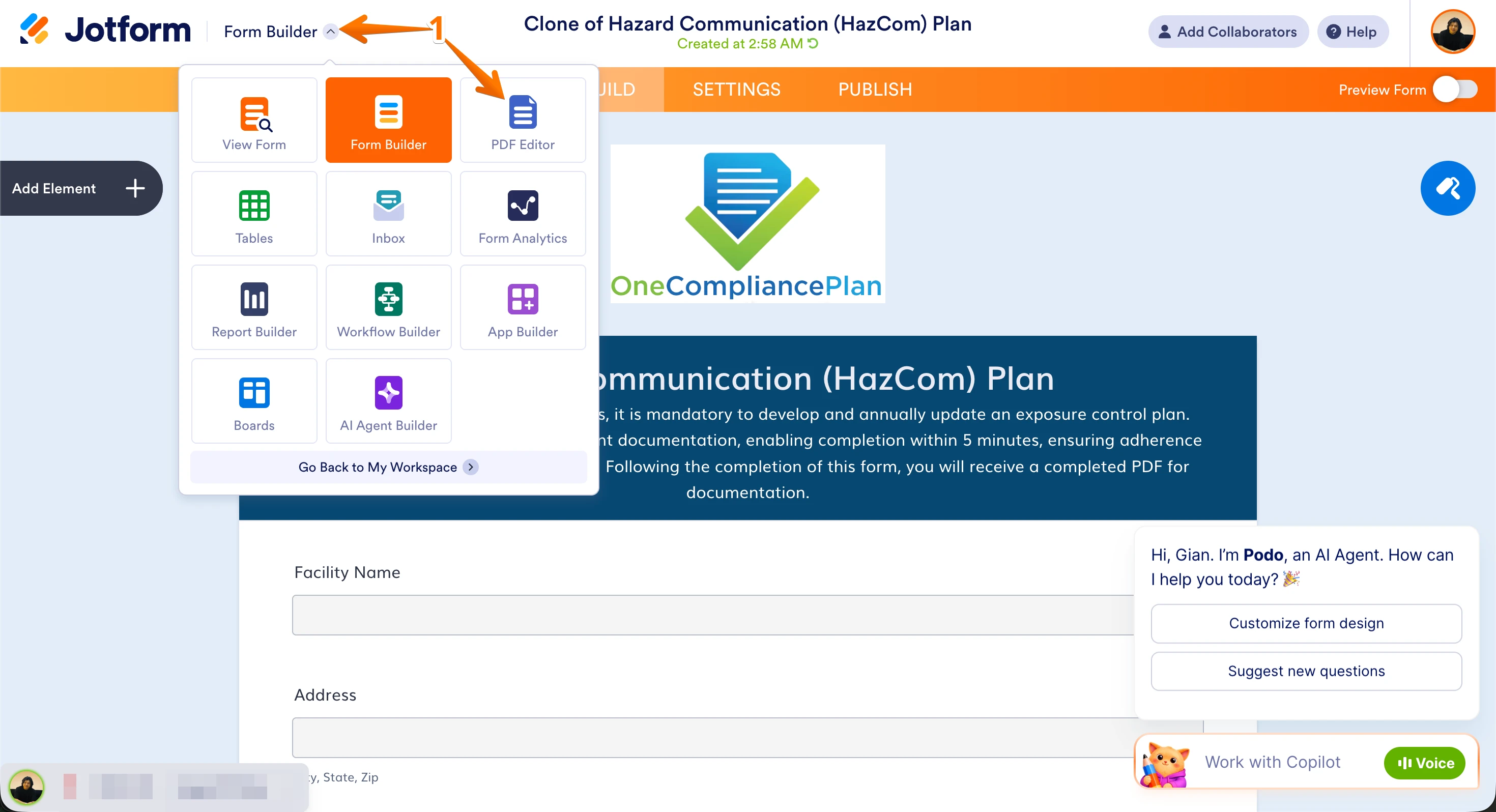
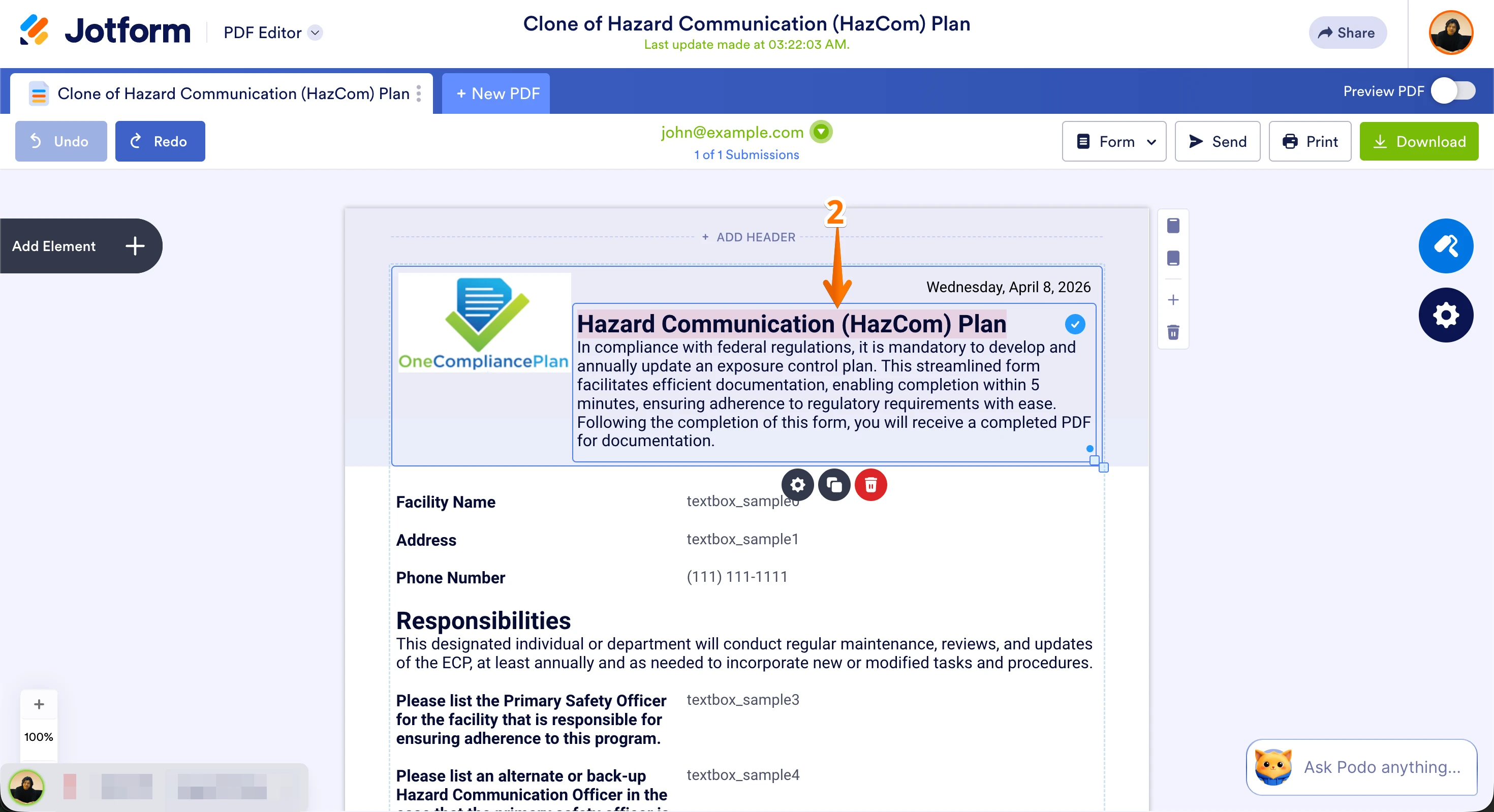
As you can see, it is working as expected. I saw that you're seeing a different header on your end. Take note that you can edit your PDF document header to fix it in PDF Editor. Let me show you how to do it:
1. In Form Builder, click on the Downward Arrow icon on the upper left side of the page, and click on PDF Editor in the menu that opens.
2. In PDF Editor, enter your preferred header in the Header element of your PDF document.
Once done, can you try to export your form again to see if it's going to work?
As soon as we hear back from you, we can work on getting you a solution for this.
-
massimodeficreativeconsulting
is this because its the free version? The 2nd image of a signature is not popping up. The heading still says Exposure control plan. Give me your email. You'll see what I mean
-
 Bojan Support Team Lead
Hi massimodeficreativeconsulting,
If you don't make any changes, the default PDF document will be sent out with signatures, which can't be updated. If you created a new PDF DOcument in related editor, and wish to use that PDF with the Sign Flow, you can easily select it. Let me show you how:
- While in Form Builder, click on Settings at the top orange bar.
- From the left menu, choose Jotform Sign.
- Under the Select a PDF Document, choose the document you wish to use.
If you would like to make changes to this document, you can follow the previously provided instructions on how to update PDF Document in PDF Editor.
Give it a try and let us know how it goes.
-
massimodeficreativeconsulting
Are you saying I have to make a PDF form for each 5 forms then add it?
-
Gian_D JotForm Support
Hi massimodeficreativeconsulting,
Yes. You must have a PDF document on each form. By simply visiting the PDF Editor, you can instantly generate a default PDF document for your form. Let me show you how to do it:
1. In Form Builder, click on the Downward Arrow icon on the upper left side of the page, and then, click on PDF Editor in the menu that opens.
That's it. Do you need further assistance with your PDF document?
Once we hear back from you, we can help you sort this out.
-
massimodeficreativeconsulting
everytime i edit the form. then go Back to PDF editor it says this
It seems that you have updated your form.
Do you want these updates to be applied to your document? Please note that these changes may affect your current design
I add the changes?
-
 Jerlan JotForm Support
Hi massimodeficreativeconsulting,
When you see the prompt "It seems that you have updated your form. Do you want these updates to be applied to your document? Please note that these changes may affect your current design," it means your form has changes that can be synchronized with your PDF.
Here’s what you should do:
- Click Yes to apply the updates to your PDF document. This will sync the PDF with the latest form changes.
- Be aware that applying these updates may alter your current PDF design, so if you have heavily customized it, you may need to adjust it again afterward.
- After applying updates, review your PDF document to ensure everything looks as expected, especially the header and signature fields.
If you want to keep your current PDF design without changes, you can choose not to apply the updates, but your PDF may not reflect the latest form edits.
Let us know if you have any other questions.
-
massimodeficreativeconsulting
I got it! I understand now. Thank you so much!
-
Podo: Support Specialist
Hi MD Creative Consulting,
Your request has been answered and the thread is closed.
If you have another question or need more help, feel free to reply here and we'll assist you right away.




Your Reply
Something Went Wrong
An error occurred while generating the AI response. Please try again!