-
 ccr_sv
Dear team,
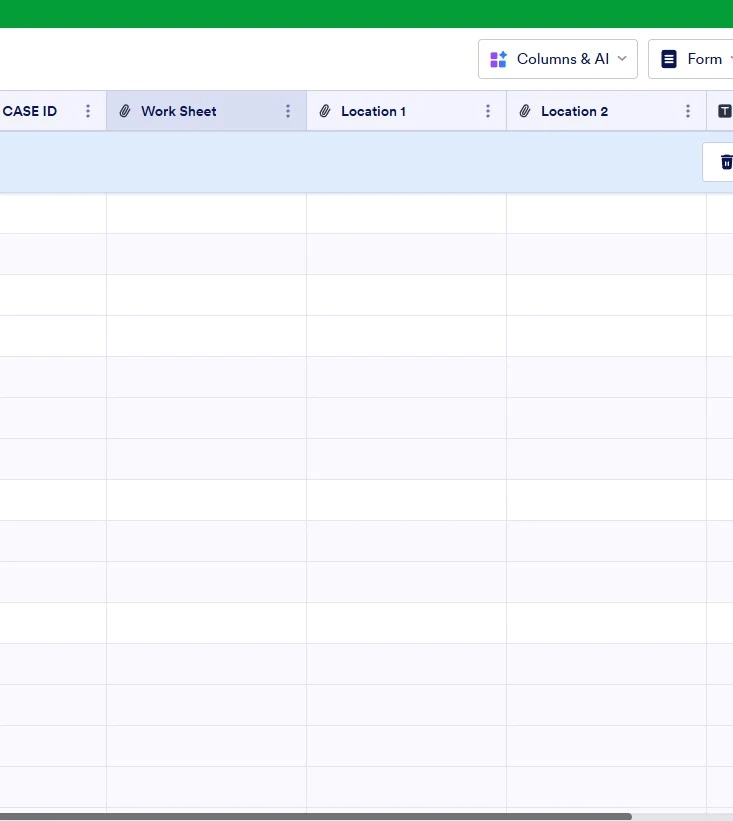
May i know is there any way to download the data ( last month data) from the form mention below for the collumn (Worksheet, Location 1 and Location 2) . Its seems like the data is deleted after change the widget from TAKE PHOTO to Upload.
Form Name:
Site Visit Details Form
 Page URL: https://www.jotform.com/231928563100451
 -
 Podo: Support Specialist
Hi CCR_SV,
Thanks for reaching out to Jotform Support. I'm an AI assistant here to assist you.
Regarding your question about downloading last month's data from the form "Site Visit Details Form" for the columns Worksheet, Location 1, and Location 2 after changing the widget from TAKE PHOTO to Upload, here is what you can do:
Downloading form submissions:
- Go to Jotform Tables where your form submissions are stored.
- Select the entries you want to download. You can use filters to narrow down to last month's data specifically.
- Click on the Download All button in the upper-right corner.
- Choose your preferred file format such as Excel, CSV, or PDF to download the data.
This will allow you to download the data including the columns you need.
Note that changing the widget from TAKE PHOTO to Upload should not delete existing submission data. If you notice missing data, it might be due to how the widget stores or displays data, but the submissions themselves should still be available for download.
Give it a try and let us know how it goes.
-
 Kris JotForm Support
Hi CCR_SV,
If a field or a widget were removed from the form, the data collected would be automatically deleted. There's a pop-up notification message before you permanently delete them. A sample of this is shown in the screenshot below:
You can try to use the Revision History feature that lets you revert your form back to an older version you select. Let me show you how to use it:- In Form Builder, click on the Circular Arrow icon at the top middle of the page to open the Revision History menu.
- In the menu on the right side of the page, select the version you want to restore the form to.
- Now, just click on Revert next to the version you select, and then close the Revision History menu in the top right corner.
-
ccr_sv
Dear team,
Upon my checking, i have generate how ever the details is not there.
Need asisstance.
Thank you
-
Kris JotForm Support
Hi CCR_SV,
I've made a test on my end by deleting two form fields. It shows in the screencast below, the submission table removed the columns. Then, I went to the Form Builder to revert to a specific version. You can refer to the screencast below:
By default, the restored columns are hidden. Let me show you the steps to show them in the submission table:
- In the Submission Table, click on the Columns & AI dropdown.
- Then check the boxes on the left side of the labels to show the columns.
You can easily download your data from Jotform Tables as a CSV, Excel, or PDF file. Let me show you how:
- On your Workspace page, click on the form with the data you want to download, and click on Submissions on the top-left side of the page.
- In Tables that opens, in the upper-right side of the page, click on Download All.
- Now, select Download as CSV, Excel, or PDF to download your data.
-
ccr_sv
hai team,
thank you for the asistance, able to retrived the data by using revision version for the form
-
Podo: Support Specialist
Hi CCR_SV,
Your request has been answered and the thread is closed.
If you have another question or need more help, feel free to reply here and we'll assist you right away.