-
 SotaFab
I have explained what is happening in an attached PDF.
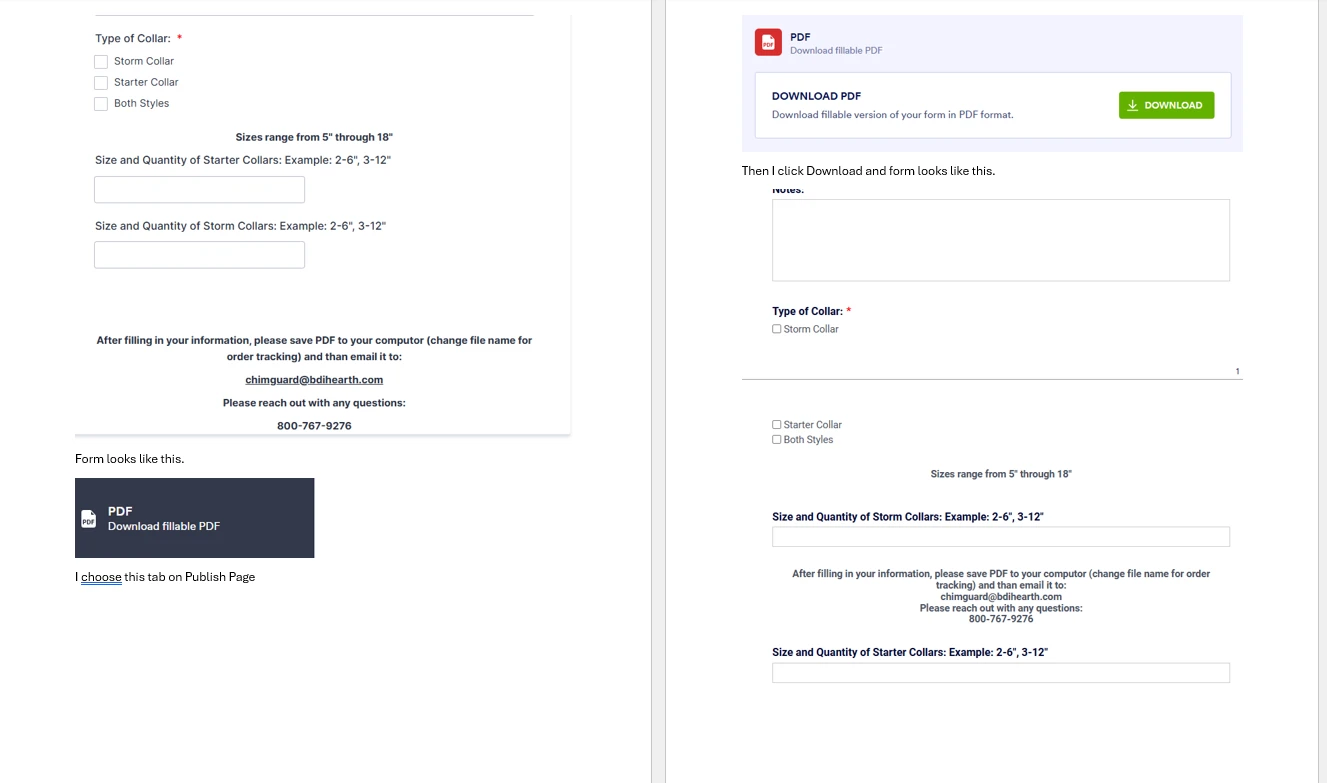
Basically, it keeps changing the order of items. Notice bottom of page.

-
 Podo: Support Specialist
Hi Joe,
Thanks for reaching out to Jotform Support. I'm an AI assistant here to assist you.
Regarding the issue with your fillable PDF where the order of items keeps changing, this can happen when converting or mapping fields in Smart PDF Forms. Here’s how you can address this:
- Open PDF Editor: In Form Builder, click the down arrow next to the form title or page switcher, then select PDF Editor.
- Adjust Configurable List Widget Settings: If you are using a Configurable List widget, select it in PDF Editor, click the Gear icon, and under Question Alignment, choose Top Aligned to maintain proper order.
- Update Original PDF: If you have made changes to the original PDF, update it in Smart PDF Forms by re-uploading the PDF to keep the field connections intact and avoid layout issues.
- Map Fields Carefully: When linking online form fields to the PDF, ensure fields are mapped correctly and positioned as desired by dragging and resizing them in the PDF Editor.
These steps help maintain the order and layout of items when converting to fillable PDFs in Jotform.
Give it a try and let us know how it goes.
-
SotaFab
No relevant
-
Podo: Support Specialist
Hi Joe,
In a few quick steps, you can create a fillable PDF version of your form. But keep in mind that some widgets and elements won't work in fillable PDFs. Here’s how to get started:
1. In Form Builder, in the orange navigation bar at the top of the page, click on Publish.
2. Next, click on PDF in the menu on the left.
3. Then, in the Download PDF section, click on Download.
4. After that, click on Continue in the Warning window that opens.
5. Now, in the upper-right corner of the page, click on Download.
-
SotaFab
Already done than dozens of times. It is not working properly.
-
Podo: Support Specialist
Hi Joe,
One of our Support Team members will take it from here to follow up shortly.
-
SotaFab
Thank You
-
 Joeni JotForm Support
Hi Joe,
I cloned your form to see if I could replicate the issue on my end, but everything is working as expected. Take a look at the screencast below:
It would also be helpful if you let us know which PDF viewer you’re using to open the downloaded file so we can try to replicate the issue on our side.
Once we hear back from you, we'll be able to move forward with the solution.
-
SotaFabI put it in chat
Dave Trumble
Brand Ambassador
612-889-0562
Sota Metal Fabrication
www.SotaMetalFabrication.com<http: />
Featuring ChimGuard Products….Providing Ultimate Chimney Protection
www.ChimGuard.com<http: />
... -
 Mikhail JotForm Support
Hi Joe,
The screen recording didn’t show up for me. Can you try uploading it again? You can upload to Google Drive or Dropbox and share the link, and Loom works great for video too. Or check our guide on How to Post Screenshots to Our Help Center to send a screenshot.
Once we hear back from you, we can get moving on a solution.
-
SotaFab
-
 Skylar
Hi there,
I can see that when you move to Download Fillable PDF, it is coming in the wrong order. I would suggest trying to reformat the PDF, which you can do by moving to the settings tab > documents > and pressing on the PDF Form option under the list of documents.
From here, press the three dots on the right of the name and go to "Edit Document." Here, you can edit the fillable PDF and change the order to it best replicates your original form.
Let me know if this helps!