-
 valmontben
Hi, I have my form which is : https://form.jotform.com/260771093163052
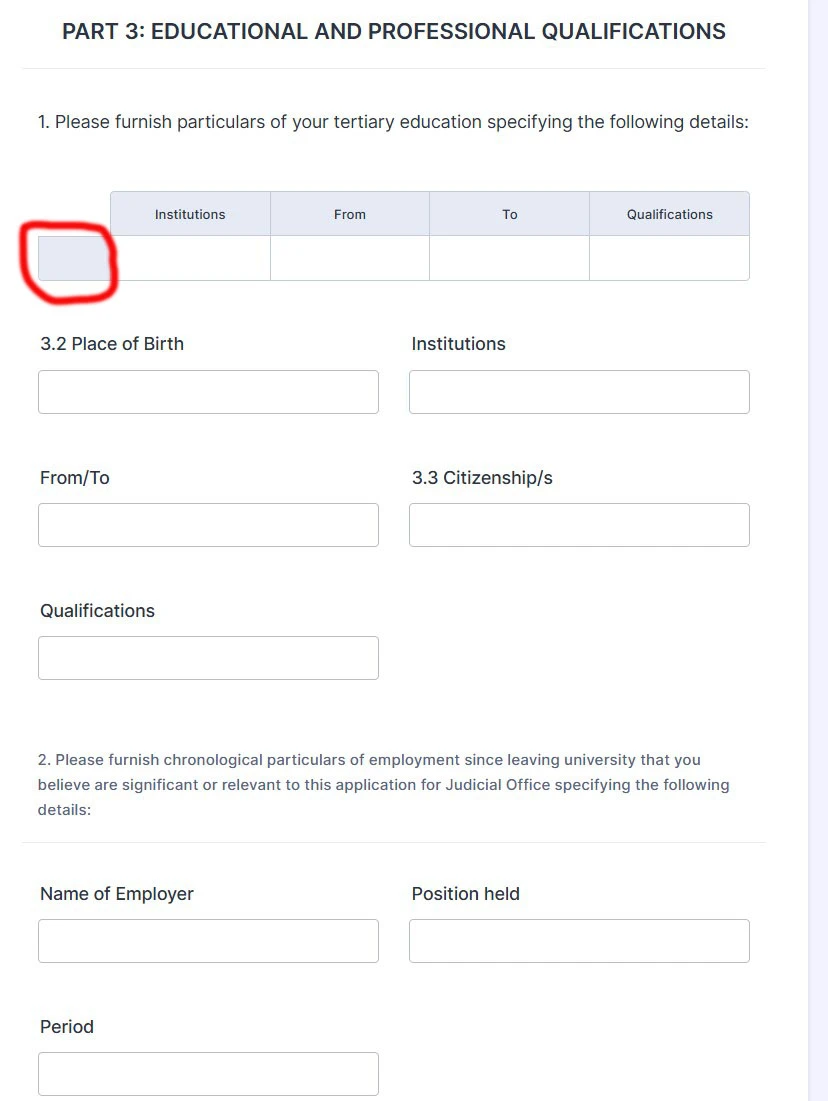
i have used an input table but i want to remove the left part of it as in the photo attached, how do i go about doing this, this table will be used for the user to type in.
 Page URL: https://form.jotform.com/260771093163052
 -
 Podo: Support Specialist
Hi Benjamin,
Thanks for reaching out to Jotform Support. I'm an AI assistant here to assist you.
Regarding your input table, if you want to remove the left part of it (likely the first column or label column) so that users can type in the rest of the table, Jotform's input table field does not allow deleting or hiding individual columns directly within the form builder.
However, you can try these approaches:
- Use the Input Table Properties: Check if you can rename or leave the first column header blank to minimize its appearance.
- Use CSS Injection: You can inject custom CSS to hide the first column of the input table on your form. This requires adding CSS code in the form's Custom CSS section.
- Recreate the Table: If the left part is a label column, consider creating separate fields or a different layout that better fits your needs.
If you want, I can guide you on how to add custom CSS to hide the first column or help you with alternative form design options.
Give it a try and let us know how it goes.
-
valmontben
How do i inject css and what css do i need
-
Podo: Support Specialist
Hi Benjamin,
Let me help you with that:
To inject custom CSS in your Jotform to hide the left part (first column) of your input table, follow these steps:
- Open your form in Form Builder.
- Click on the Paint Roller icon at the top-right to open the Form Designer.
- Go to the Styles tab and scroll down to the Inject Custom CSS section.
- Paste the following CSS code into the code editor to hide the first column of your input table:
.form-input-table th:first-child, .form-input-table td:first-child { display: none; }- Click outside the code editor to save your changes.
- Preview your form to see the changes in effect.
Note: This CSS hides the first column header and cells in the input table, effectively removing the left part visually.
For more detailed guidance on injecting custom CSS, you can check Jotform's help articles on customizing your form using CSS and how to inject custom CSS codes.
Give it a try and let us know how it goes.
-
valmontben
it did not work
-
Podo: Support Specialist
Hi Benjamin,
I understand the CSS injection did not work as expected. Since this issue requires further investigation, one of our Support Team members will take over and follow up with you shortly.
Thank you for your patience.
-
 Mark_S
Hi Benjamin,
I cloned and tested your form, but was unable to replicate the issue you experienced. See the screenshot below:
After checking your form's CSS configuration, it was actually correct. So, I've gone ahead and cleared your form cache that fixed the issue. See the screenshot below for my results:
Although Clearing Your Form Caches isn't done automatically, it's easy to do it manually. Let me show you how:
1. On your Workspace page, click on your Avatar/Profile Image icon.
2. In the dropdown menu, click on Settings.
3. In the Settings menu, click on Clear Cache. And that's it, you're done.
Try logging out of your account, clear your browser cache, and then log back in to refresh your session.
Let us know how it turns out.
-
valmontben
Hi Mark
on my end this problem still stays...i can still see this left part of the table.
-
 Christian Ice JotForm Support
Hi Benjamin,
Can you try using the CSS code below? You can follow the same guide provided here, but make sure to remove the existing CSS code before pasting it.
.form-matrix-row-headers {

    display: none !important;

}

.form-matrix-table th:first-child {

    display: none !important;

}
Here's my result:
Give it a try and let us know if you have any other questions. -
valmontben
Now its perfect, thanks Christian :)
-
Podo: Support Specialist
Hi Benjamin Valmont,
Your request has been answered and the thread is closed.
If you have another question or need more help, feel free to reply here and we'll assist you right away.


 Give it a try and let us know if you have any other questions.