-
 patdixon59
I hope a human can respond to this. I have been working on creating this form: "Digital Deacon" for days. There were easier apps I could have used but I like your features. Podo has been very helpful up until now...I need a human. I only have one form in my list on my workspace. I have deleted all other forms. When I click on it from my workspace, I can see the correct form. But when I try to edit the form, it is pulling an older version of the form with a different background and it doesn't have the most recent edits I've made. I really need to finish this form today. I'm baking a wedding cake and I want to finish this before I start decorating. Other wise, I will be looking at this issue Monday and I just can't. Please respond as soon as you can, by the way I've cleared my Cache...I think.
i have provided a link to the form I want to keep below. I look forward to hearing from you.
Thanks!!!
Page URL: https://form.jotform.com/260748627709065 -
 Podo: Support Specialist
Hi Patricia,
Thanks for reaching out to Jotform Support. I'm an AI assistant here to assist you.
You can use the Revision History feature that lets you revert your form back to an older version you select. Let me show you how to use it:
- In Form Builder, click on the Circular Arrow icon at the top middle of the page to open the Revision History menu.
- In the menu on the right side of the page, select the version you want to restore the form to.
- Now, just click on Revert next to the version you select, and then close the Revision History menu in the top right corner.

Give it a try and let us know if you need any help.
-
patdixon59
I can see the form in the revision history. But, when I click the Revision Preview, it shows and old version that is not in my revision list.
-
patdixon59
Will this be a call? ....706-575-9809
-
Podo: Support Specialist
Hi Patricia,
One of our Support Team members will take it from here to follow up shortly.
-
 Joeni JotForm Support
Hi Patricia,
We don’t have phone support, but I’m right here to help and we can sort this out together. Now coming back to your questions, It looks like the background image isn’t displaying correctly in preview mode. Take a look at the screenshots below. Form Builder:
Live mode:I checked your form and saw that it’s currently using the Blue Ocean theme, which is why the background image looks different. Take a look at the screenshot below:If you’re trying to change the background image in the form builder, set the theme to Default. Let me show you how:- In Form Builder, click on the Paint Roller icon on the upper right side of the panel and go to the Themes tab.
- Then, click on the Use Theme button of the Default Theme option.
- In Form Builder, click on the Paint Roller icon on the upper right side of the panel and click on the Choose a File button of the Page Image section.
- Then, click on the Upload File button and select the Image in your external device.
-
patdixon59
Just in case you call my CORRECTED # IS 706-575-9709
-
patdixon59
I sure will...Thank you Joeni
-
 Eliza Enterprise Support
Hi Patricia,
As mentioned by my colleague, we handle support requests here instead of by phone. I’ll make sure you get the answers you need. I checked your form, and it looks like it's already fixed. Check out the screencast below to see my results:
Can you confirm if you're still having the issue?
Reach out again if there’s anything else we can help you with.
-
patdixon59
JOENI, Thank you so much! I have restored the background of the form! In my effort to remove the background of the graphic and title at the top of the pages 1 and 2 I have added a background to the form! I was simply trying to take out the background of the "AI" Church at the top of page 1. instead I uploaded an image where I put the image in the background of the FORM. Can you please help me?
-
patdixon59
Hey, I have removed the FORM Background...I think i'm OK ...foro now ( : Thanks for hanging in there with me!!!
-
 Jan JotForm Support
Hi Patricia,
I am glad to hear the previous steps helped you restore the theme. If you accidentally added the image as the background for the entire form, you can easily remove it and place it just at the top using an Image element instead. It is easy to do. Let me show you how to remove the background image:
- In Form Builder, click on the Paint Roller icon on the right side of the page to open Form Designer.
- Then, under the Colors tab, scroll down to the Page Image section.
- Now, click on the Remove button next to the image you uploaded.
After that, to add your graphic just at the top of your pages, here’s how to do it:
- In Form Builder, click on the Add Form Element menu on the left side of the page.
- Then, under the Basic tab, scroll down and drag and drop the Image element to the very top of your form.
- Now, click on the Gear icon next to the Image element to open Image Properties.
- Lastly, click on Choose a File to upload your graphic.
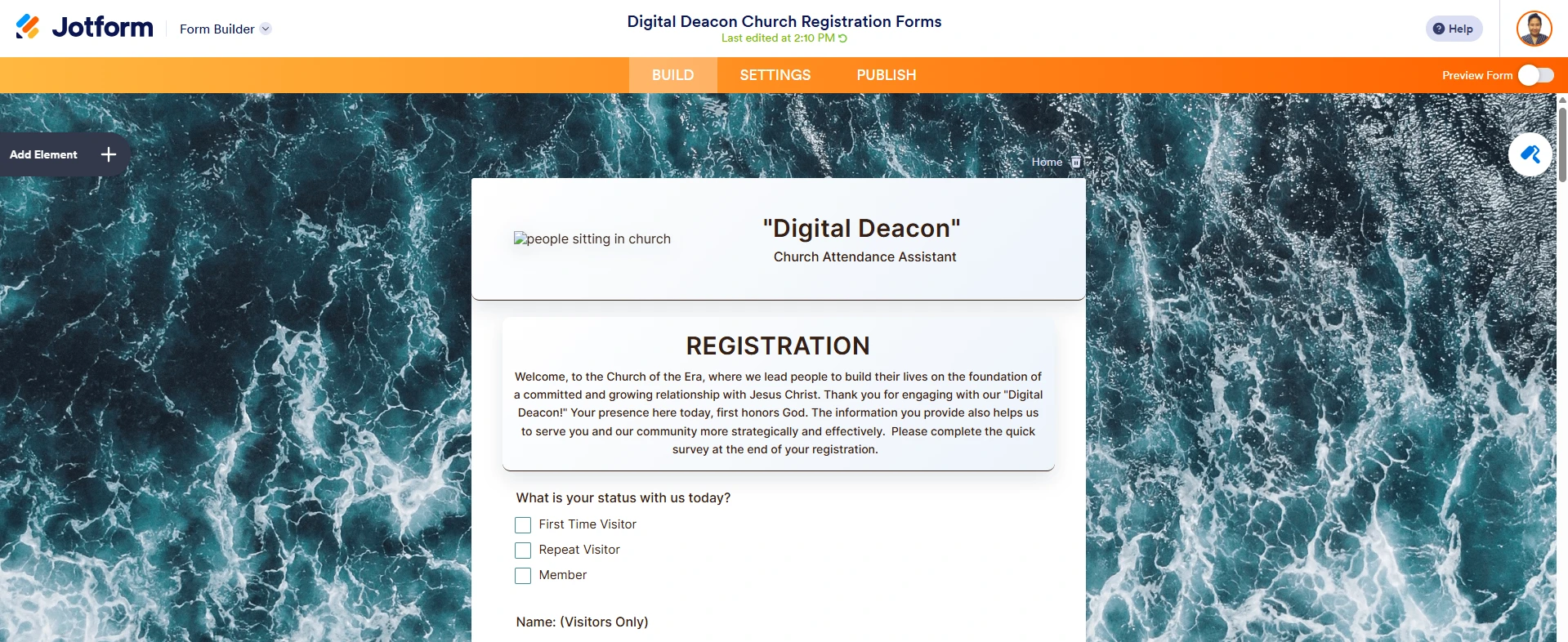 Live mode:
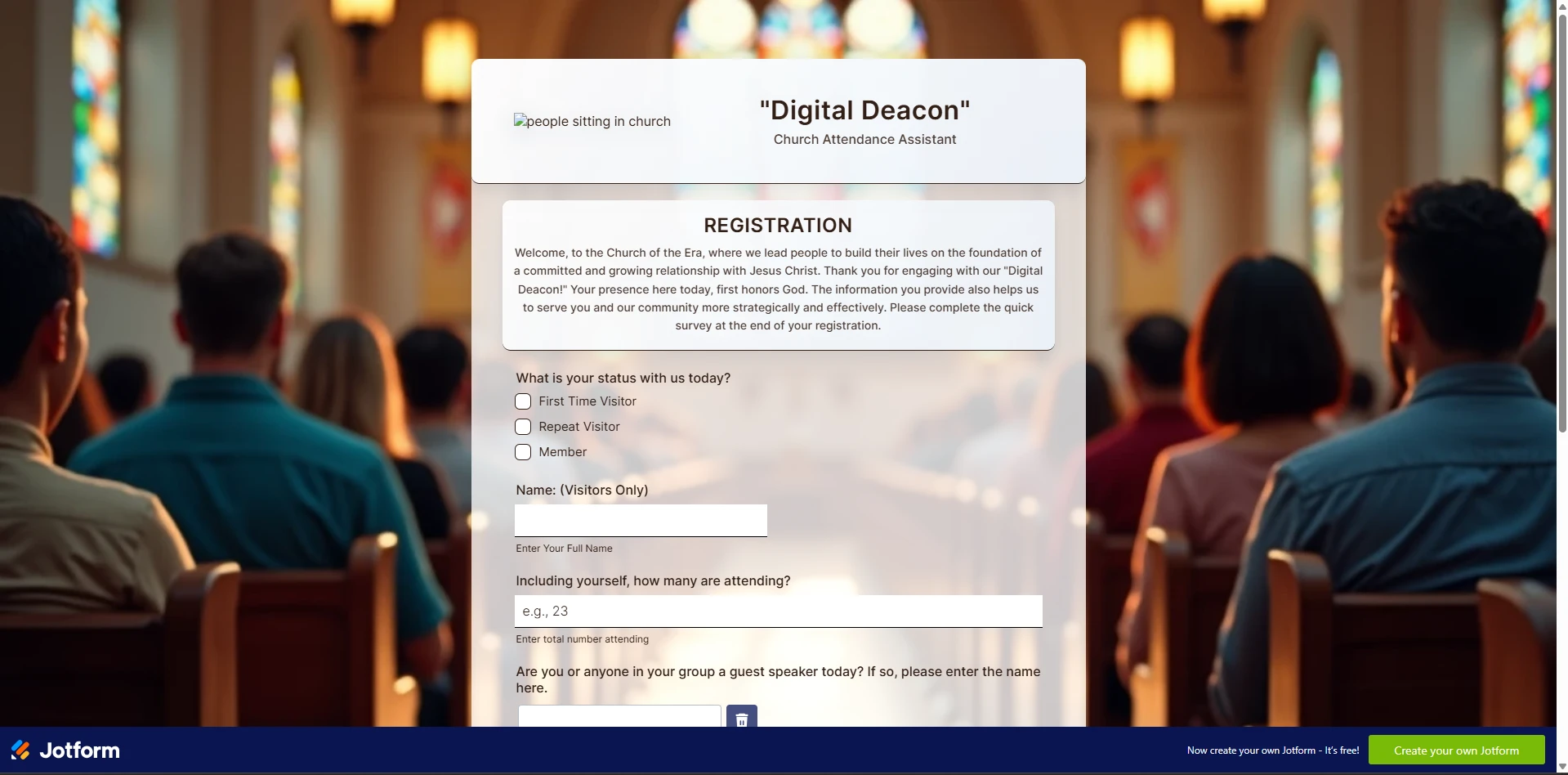 I checked your form and saw that it’s currently using the Blue Ocean theme, which is why the background image looks different. Take a look at the screenshot below:
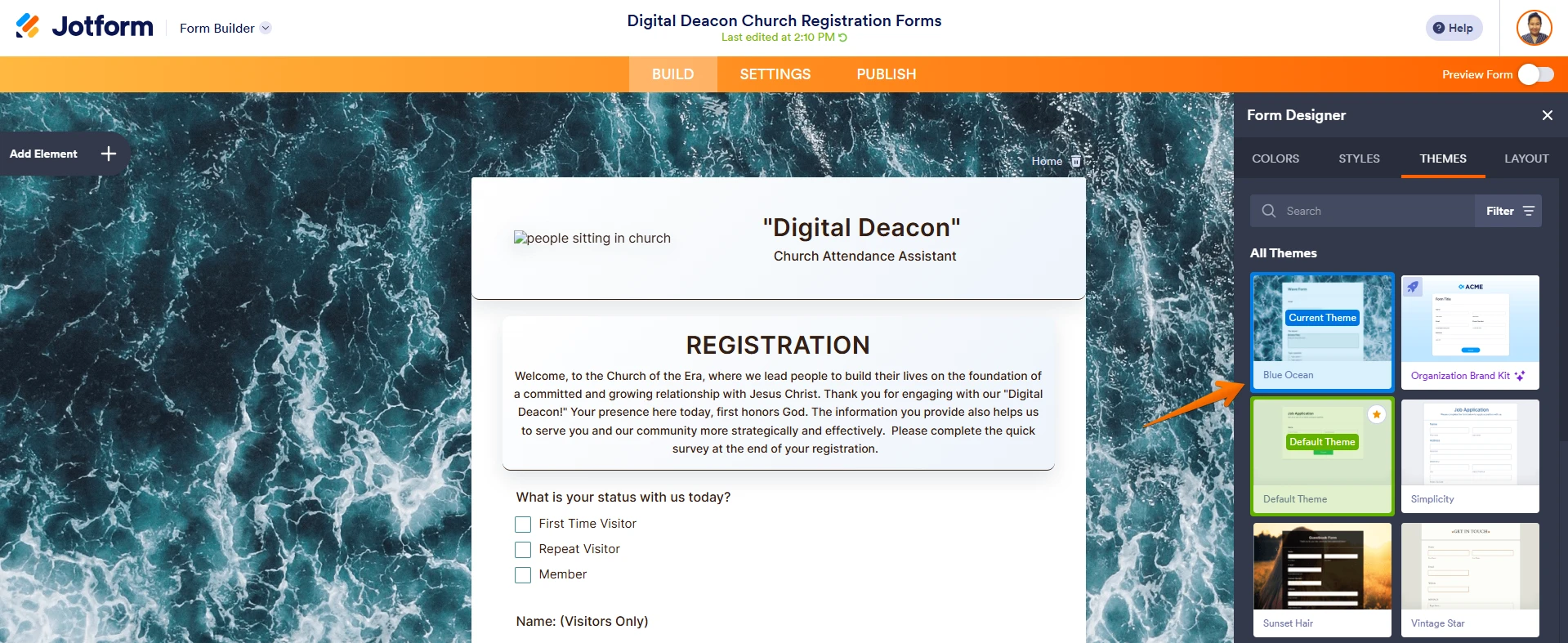 If you’re trying to change the background image in the form builder, set the theme to Default. Let me show you how: