-
 barbaraschulenburg
Hello,
I have several forms which I need to download as PDF's. I selected all the forms (37) but when I click the Download All button, the option to Download as PDF is locked. I've never had this problems before.
Please advise as soon as possible.
Thank you,
Barb Schulenburg

-
 Podo: Support Specialist
Hi Barb Schulenburg,
Thanks for reaching out to Jotform Support. I'm an AI assistant here to assist you.
Let me show you how:
You can easily download your submissions as a PDF file in the Jotform Mobile App or from Jotform Tables. Here’s how to do it:
- On the Jotform Mobile App, tap on the form you want to download the submissions from.
- In the menu at the bottom, tap on Submissions.
- Tap on the submission you want to download, then tap the Three Dots icon at the top right corner.
- Tap on Download as PDF, then tap the Download icon.
You can also download multiple submissions as a single PDF:
- While on the Submissions page, tap and hold a submission, then select the submissions you want.
- Tap the Three Dots icon at the top right.
- Tap Download.
- Tap Download as PDF, then Okay, Thanks.
The submissions will be sent to the email linked to your Jotform account.
If you are using Jotform Tables:
- On your My Tables page, hover over the form and click View Table.
- Click Download All on the upper-right.
- Select Download as PDF.
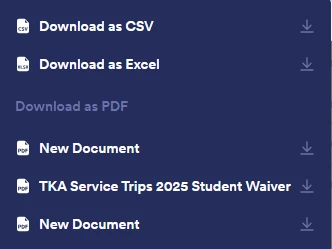
If the Download as PDF option is locked, it could be due to a temporary issue or a restriction on bulk PDF downloads. Try downloading fewer forms at a time or check if there are any account limitations.
Give it a try and let us know how it goes.
-
barbaraschulenburg
The PDF download is still not an option. I only chose one file.
-
Podo: Support Specialist
Hi Barb Schulenburg,
You can easily download your submissions as a PDF file in the Jotform Mobile App. To get going, here’s what you’ll do:
- On the Jotform Mobile App, tap on the form you want to download the submissions from.
- Now, in the menu that opens at the bottom of the screen, tap on Submissions.
- Then, tap on the submission you want to download, and then tap on the Three Dots icon at the top right corner of the screen.
- Next, in the menu that opens at the bottom of the screen, tap on Download as PDF, and then tap on the Download icon at the top right corner of the screen.
You can also download multiple submissions as a single PDF file. Getting started is simple. Here’s what to do:
- While still on the Submissions page, tap and hold a submission, then select the submissions you want to download.
- Then, tap on the Three Dots icon at the top right corner of the screen.
- Now, in the menu that opens, tap on Download.
- Next, in the menu that opens at the bottom of the screen, tap on Download as PDF, and then tap on Okay, Thanks.
That’s it. The submissions will be sent to the email address linked to your Jotform account. Check out my screenshot below to see my results:
Give it a go and let us know if anything else comes up.
-
 Shaira JotForm Support
Hi Barb,
I tested your form and had the same issue, so I created a ticket and escalated this to our Developers. Although we don't know exactly when it'll be fixed, we’ll circle back to this thread when we have an update.
As a workaround, have you tried downloading the submission through PDF Editor? If not, I suggest doing so. Let me show you how:
1. In Form Builder, click on the Downward Arrow icon at the top-left side of the page and select PDF Editor.
2. In PDF Editor, click on the Download button at the top-right side of the page.
3. In the Dropdown menu, click on Download PDF or Download All. That's it.
Example of how it looks when you open the document downloaded via the Download PDF button:
Example of how it appears in the email when you click on the Download All button:Reach out again if you have any other questions. -
Shaira JotForm Support
Hi Barb,
I've just heard back from our Developers. The behavior you're currently experiencing is expected since your form has more than one PDF document connected to it. The Download as PDF text in the Jotform Tables download menu serves as a section header that separates the available PDF options.
As a workaround, you can download your submissions through the PDF Editor instead. You may follow the instruction I've provided above.
Give it a try and let us know how it goes.
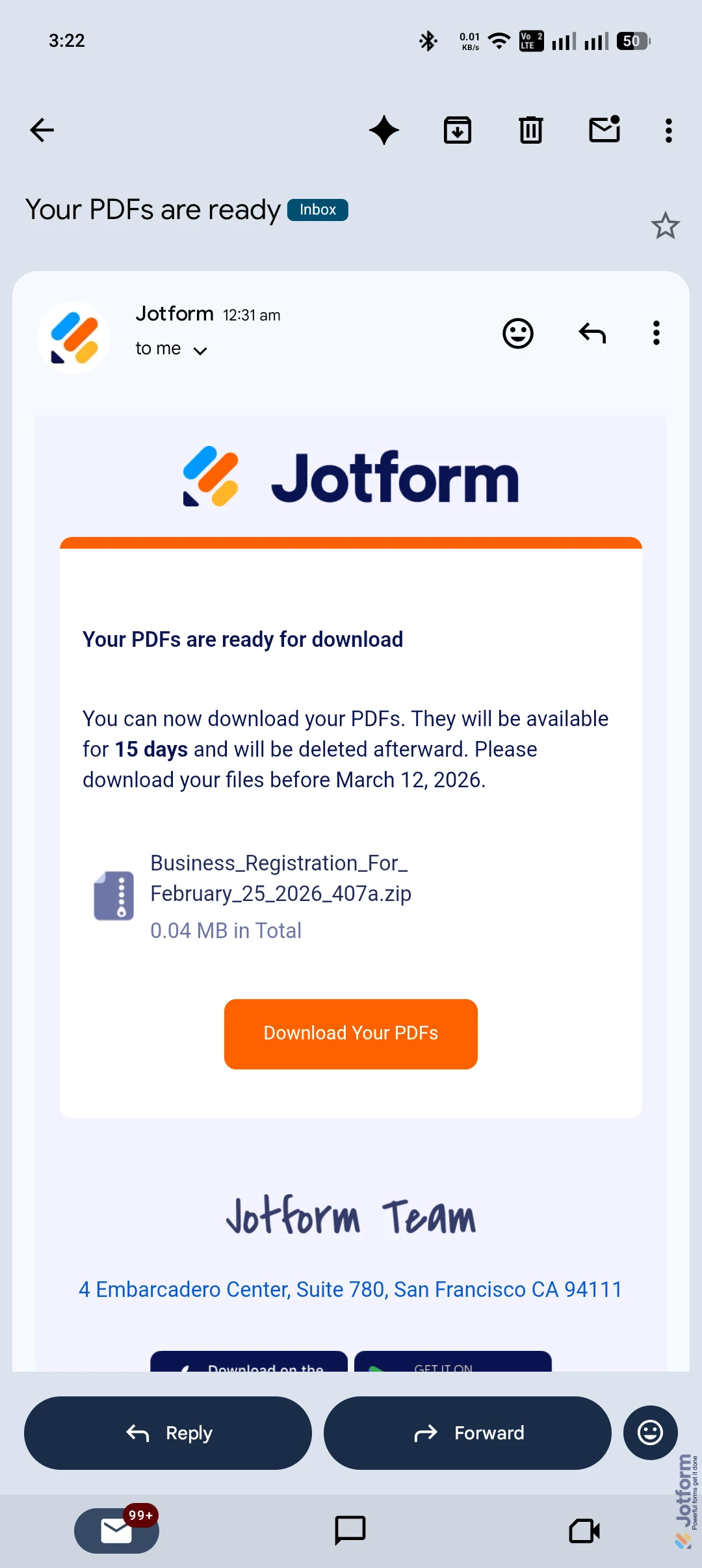
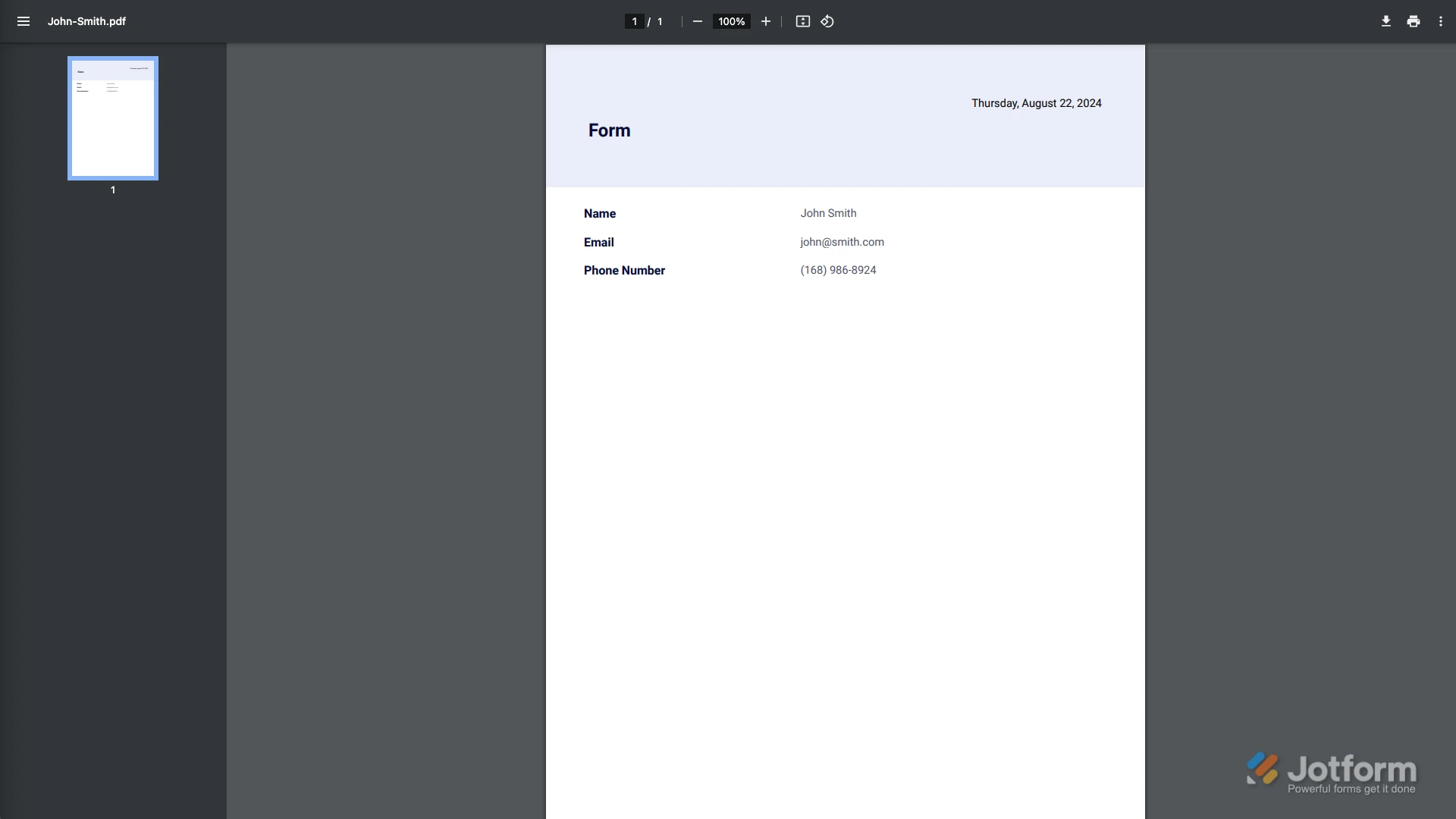 Example of how it appears in the email when you click on the Download All button:
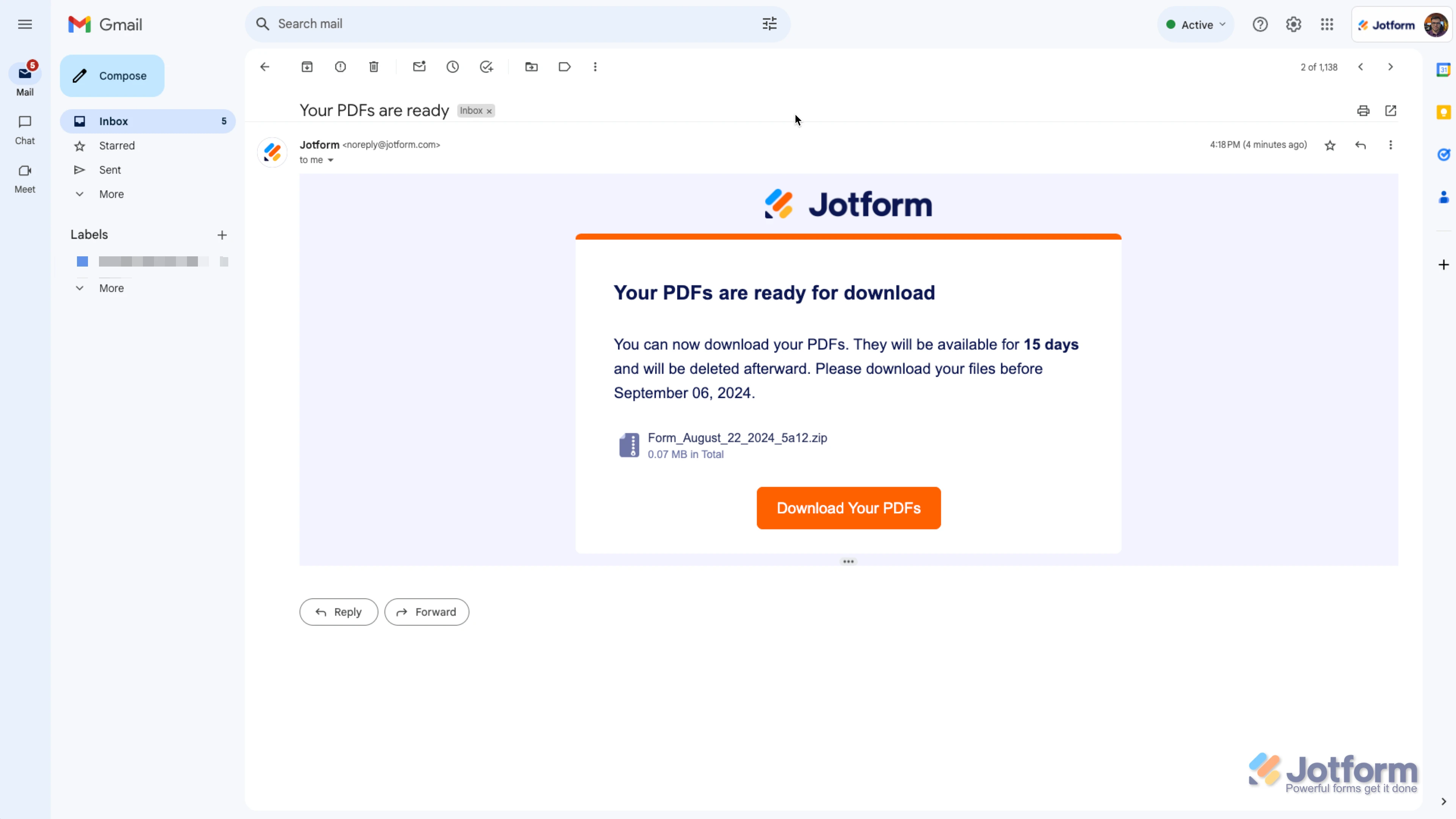 Reach out again if you have any other questions.
Your Reply
Something Went Wrong
An error occurred while generating the AI response. Please try again!