Jotform Apps lets you configure company access permissions, so you can limit your app’s availability to people within your organization. This is especially helpful if your app contains internal content, sensitive information, or features meant only for your team.
By setting these permissions, you can make sure that only authorized users can view and interact with your app, helping you keep everything secure and organized. It’s a simple way to maintain control over who has access while still making it easy for your team to use the app whenever they need it.
Setting Your Jotform App Exclusive to an Organization
Once you’ve created or updated your app, you can follow these steps to make sure it’s only accessible to members of your organization:
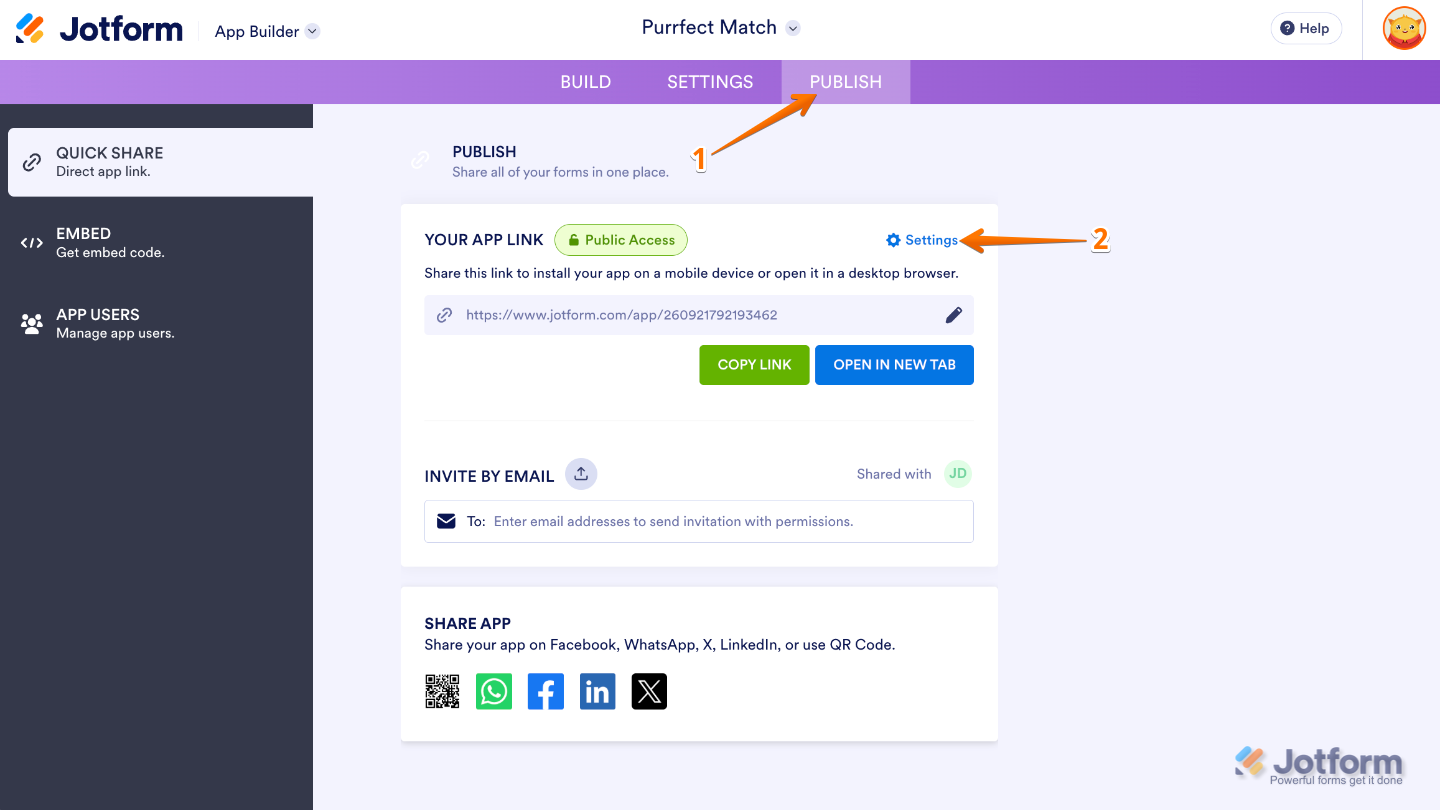
- In App Builder, in the purple navigation bar at the top of the screen, click on Publish.
- Then, in the Quick Share page, under the Publish section, click on Settings.
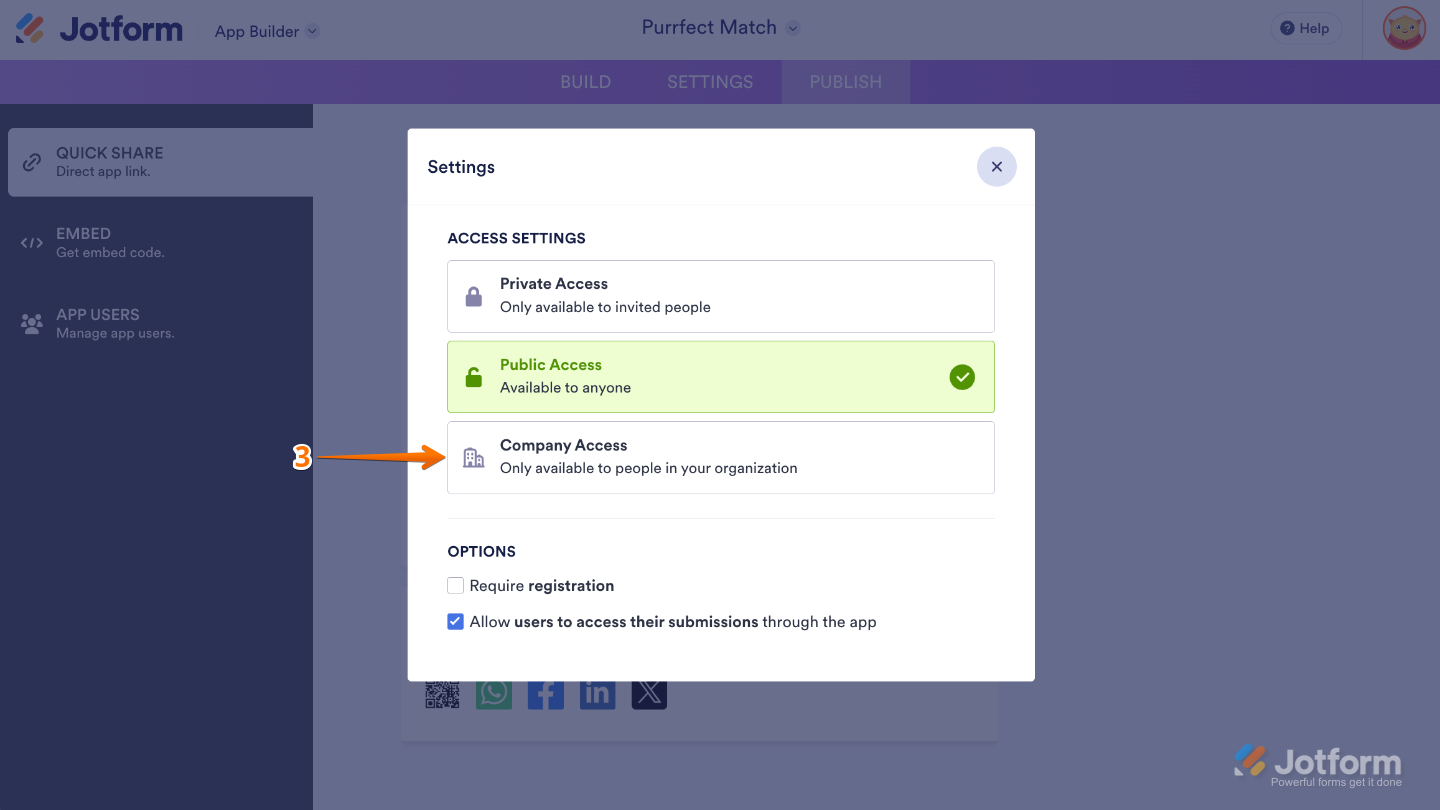
- Next, in the Settings window that opens, under the Access Settings section, click on Company Access.
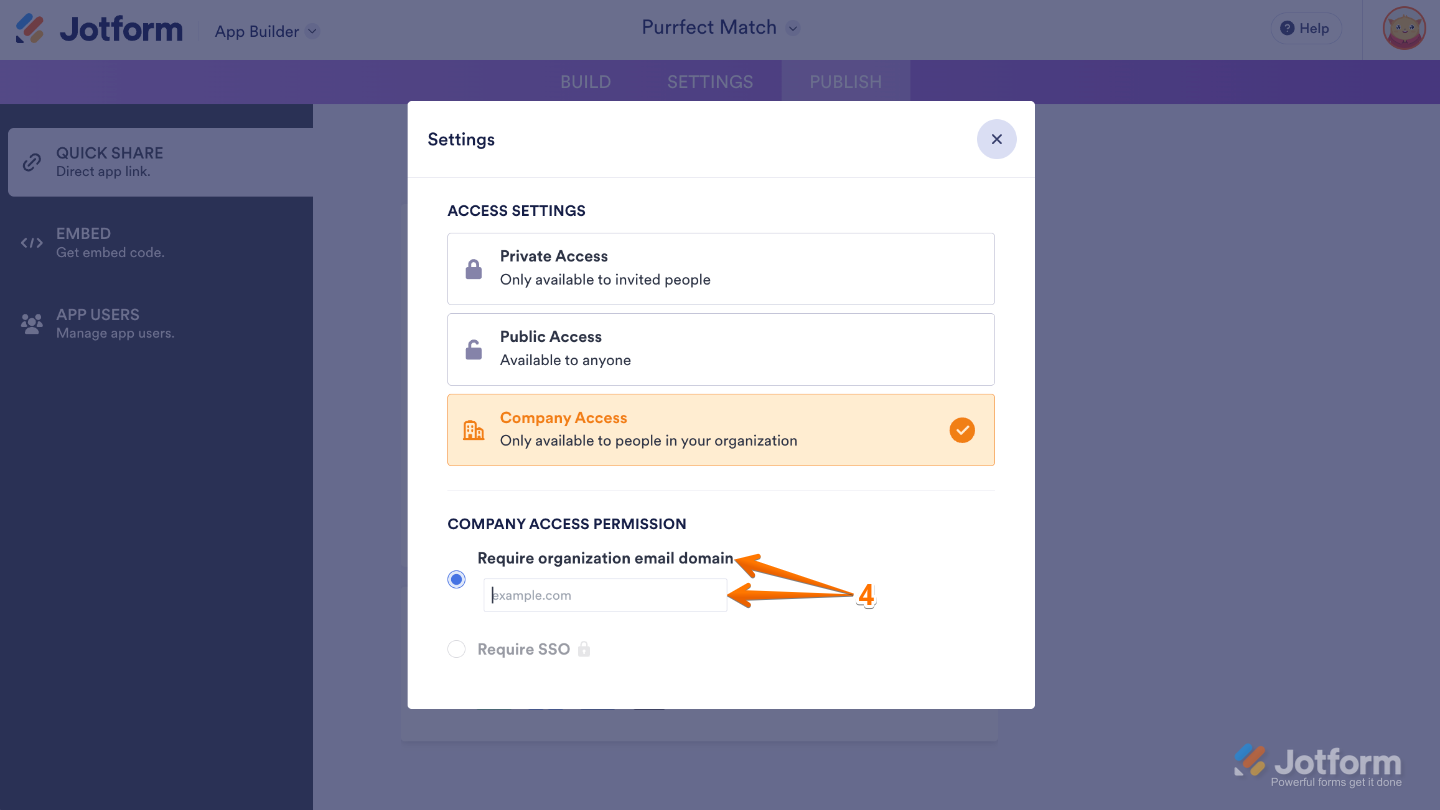
- Now, while Company Access Permission is set to Require organization email domain, enter your company’s domain name in the field below.
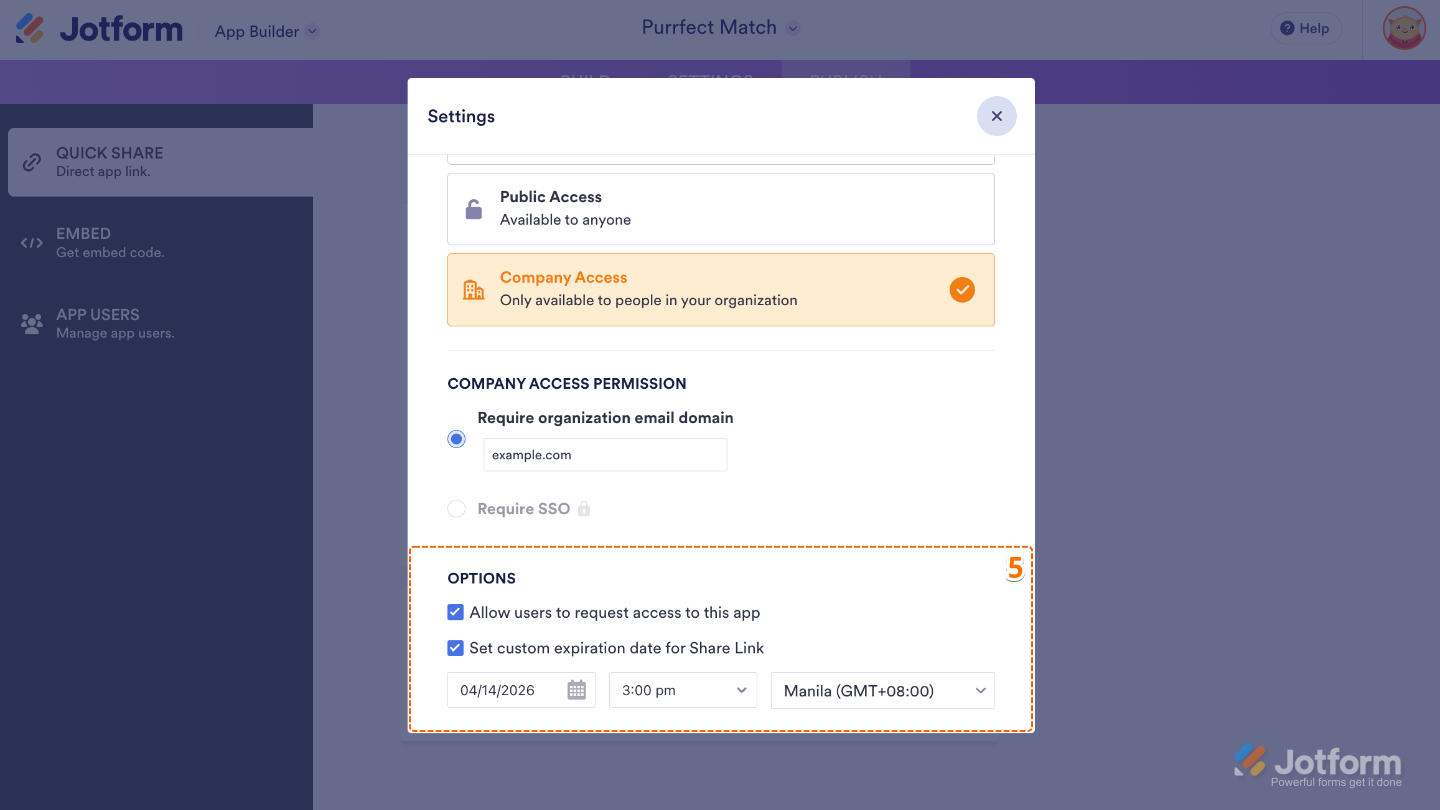
- Finally, select the checkboxes next to the Options you want to use:
- Allow users to request access to this app — When enabled, users who open the app link but don’t meet access requirements (like not having the correct email domain) will see an option to request access
- Set custom expiration date for Share link — This option lets you set a time limit for how long the app’s share link remains active.
Once everything is set up, users will need to log in with an account that uses an email address matching the domain you specified in your app’s publish settings. This helps make sure that only people within your organization can access the app.

Send Comment:
3 Comments:
May 1, 2025
can you set it up to have to verify registration after a period of time? Or see/track who has access?
December 28, 2024
When you state '1 user" what does that mean to a company account.
February 3, 2022
Is there any way to register users who ado not have a company email address and therefor liit access to the app?