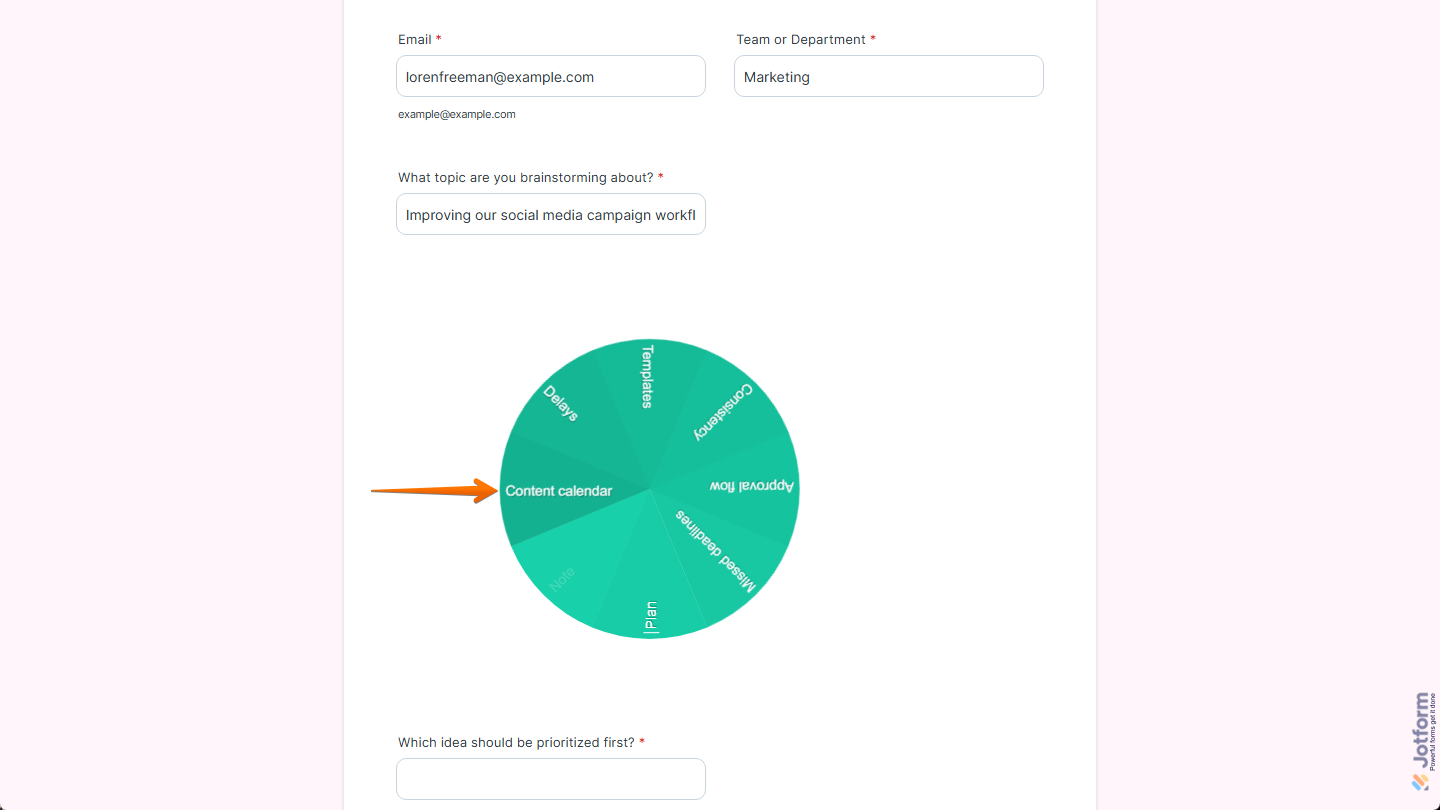
With Jotform’s Circular widget, you can easily add a more creative and interactive way for users to respond on your form. It displays input areas in a circular layout, letting users click each segment and enter their answers directly into it, which can make your form feel more visually engaging while still keeping the response experience clear and easy to follow. It’s a good fit for forms that could benefit from a more dynamic presentation without taking away from usability.
Here are a few ways to use it:
- Add circular input fields to your form
- Give your form a more creative and interactive look
- Collect short responses in quizzes and learning activities
- Organize related answers in a single visual layout
- Make feedback and brainstorming forms more engaging
- Add a unique touch to creative or themed forms
Whether you’re starting fresh or updating a form, adding and setting up the Circular widget takes only a few steps. Here’s a quick how-to:
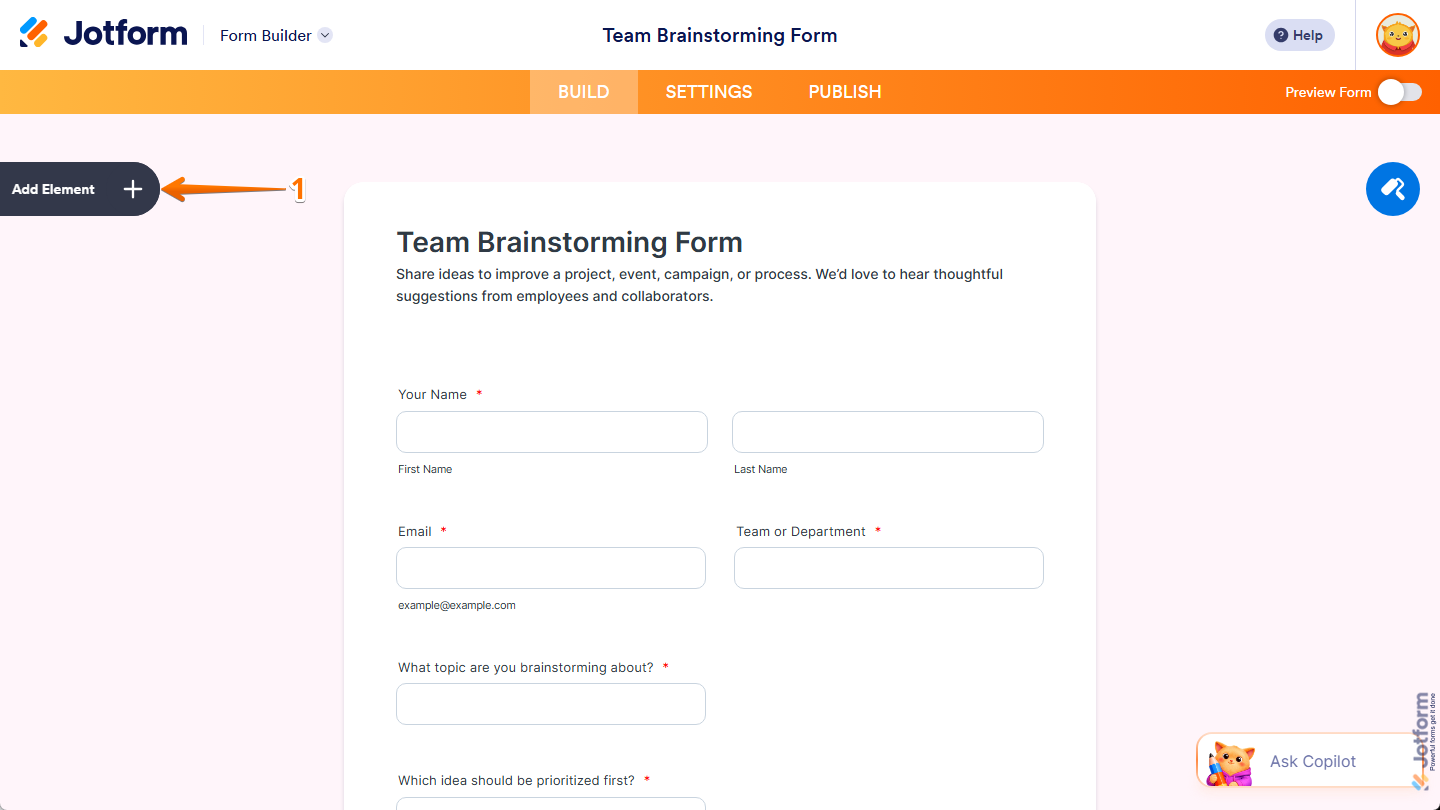
- In Form Builder, click on Add Element on the left side of the page.
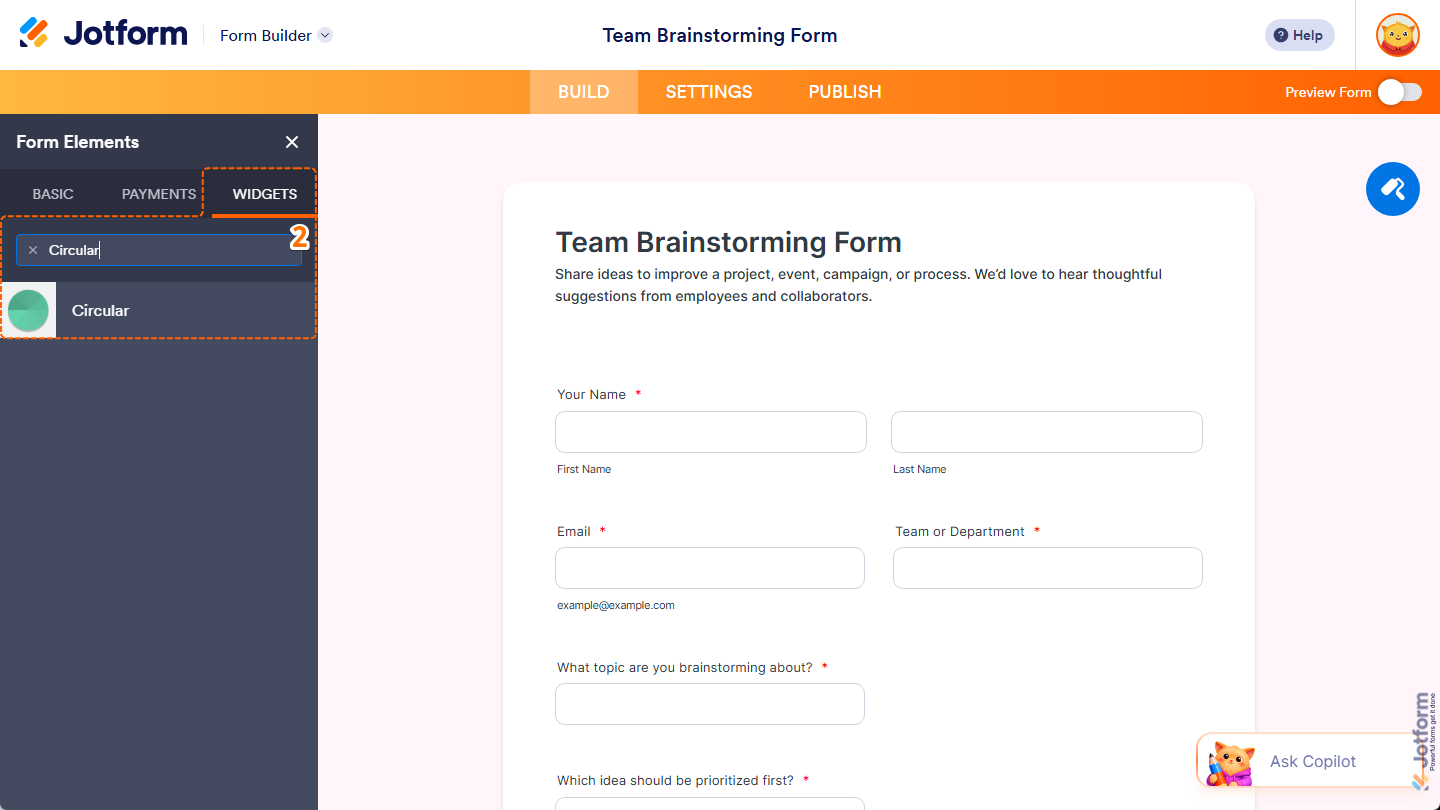
- Now, in the Form Elements menu, under the Widgets tab, search for Circular and click on it. Or, just drag and drop it to where you want it to be on your form.
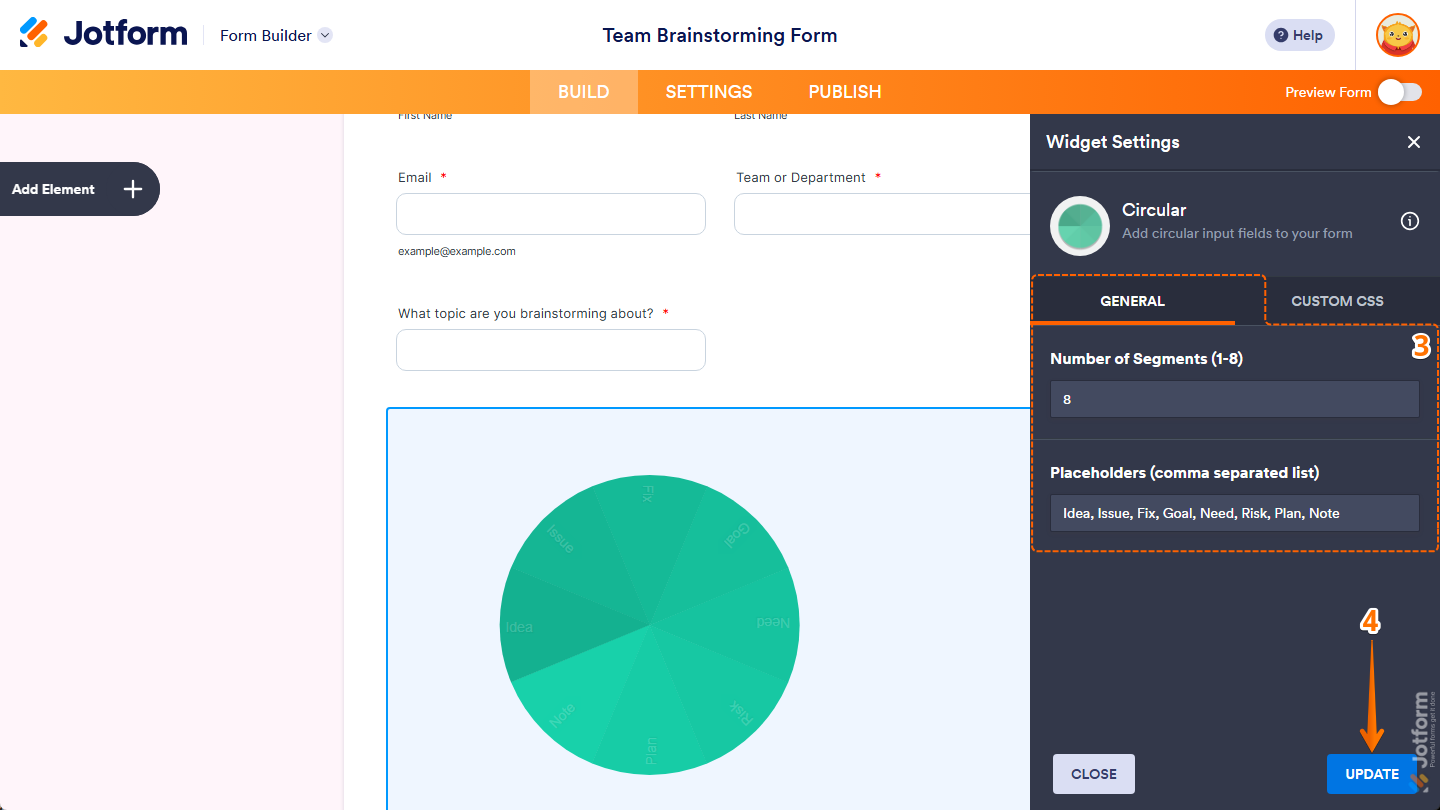
- Next, in the Widget Settings menu that opens on the right side of the page, under the General tab, you’ll see this list of settings you can configure:
- Number of Segments (1-8) — Enter a number from 1 to 8 to choose how many segments appear in the circle on your form.
- Placeholders (comma separated list) — Enter the placeholder text you want to show for each segment, separating each one with a comma.
- Once everything’s set, click on Update.
That’s it. You’ve successfully added and set up the Circular widget on your form. You can test it on this demo form.
Notes
- For advanced styling of the Circular widget, you can add your own custom CSS code under the Custom CSS tab in the Widget Settings. Our guide on How to Inject CSS Codes to Widgets walks you through everything.
- You can also configure the widget properties, like alignment, labels, size, visibility, and more, to control how it looks and behaves on your form. Check out our guide on How to Access and Configure the Question Properties of a Widget to learn more.

Send Comment: