With Jotform Smart PDF Forms, you can turn your PDF documents into fillable online forms and automatically generate completed PDF copies from each submission. These PDFs can be sent as attachments through notification and autoresponder emails after a form is submitted.
Adding a password to your PDF attachments helps protect sensitive information by making sure only authorized people can open the file. It’s a simple way to add extra security when sharing completed PDF documents through email.
Setting Up a Password for PDF Attachments in Notification Emails
You can protect PDF attachments in your notification emails by enabling password protection in your email settings. Getting started is simple—here’s what to do:
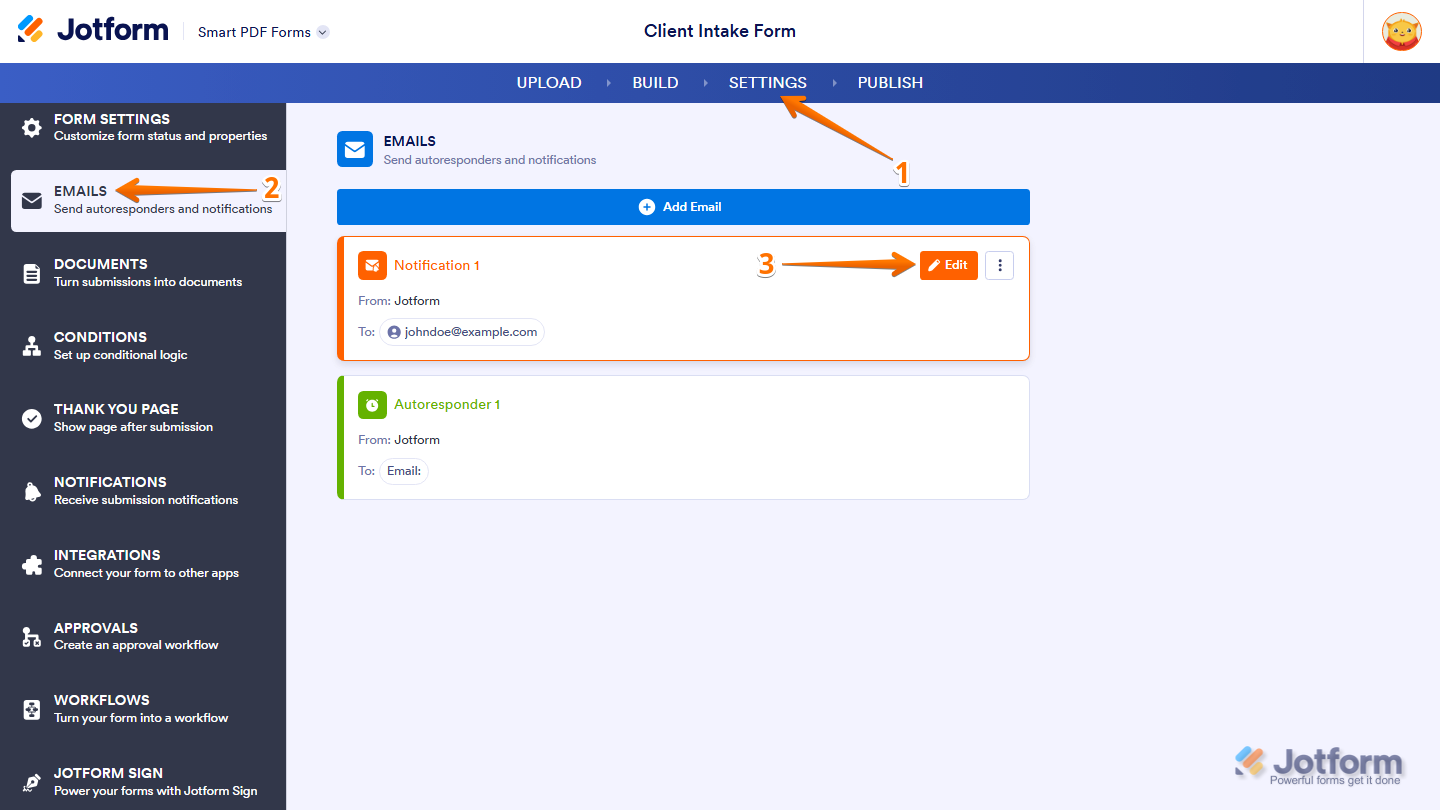
- In Smart PDF Forms, in the blue navigation bar at the top of the page, click on Settings.
- Then, in the menu on the left side of the page, click on Emails.
- Now, hover your mouse over the Notification Email and click on Edit.
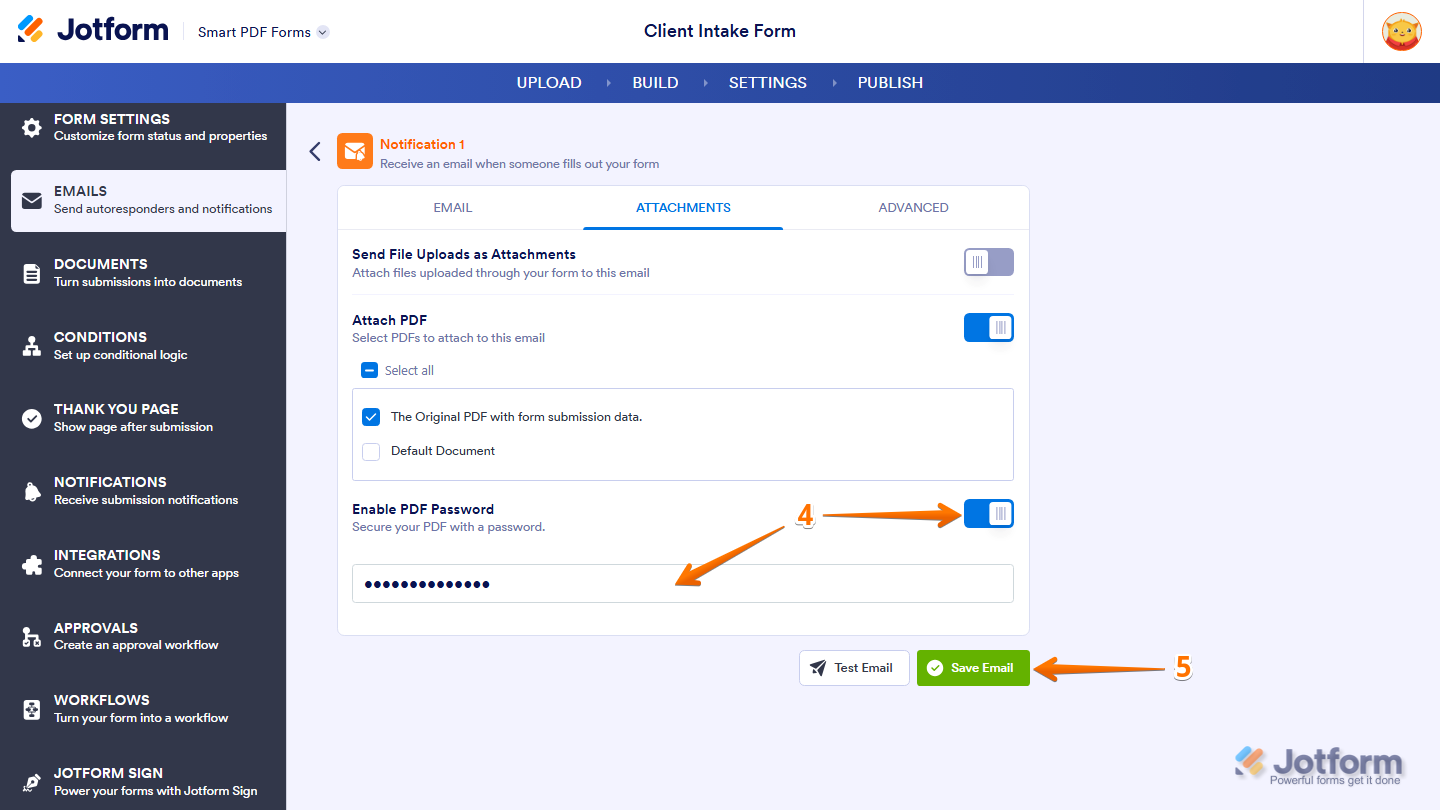
- Next, under the Attachments tab, toggle on the Enable PDF Password and enter the password that you want to use.
- Now, click on Save Email, and you’re done.
Note
Your PDF password must contain at least 8 characters. We also recommend using a strong password to help keep your PDF attachments secure.
Setting Up a Password for PDF Attachments in Autoresponder Emails
You can also add password protection to PDF attachments sent through autoresponder emails. Here’s how to set it up:
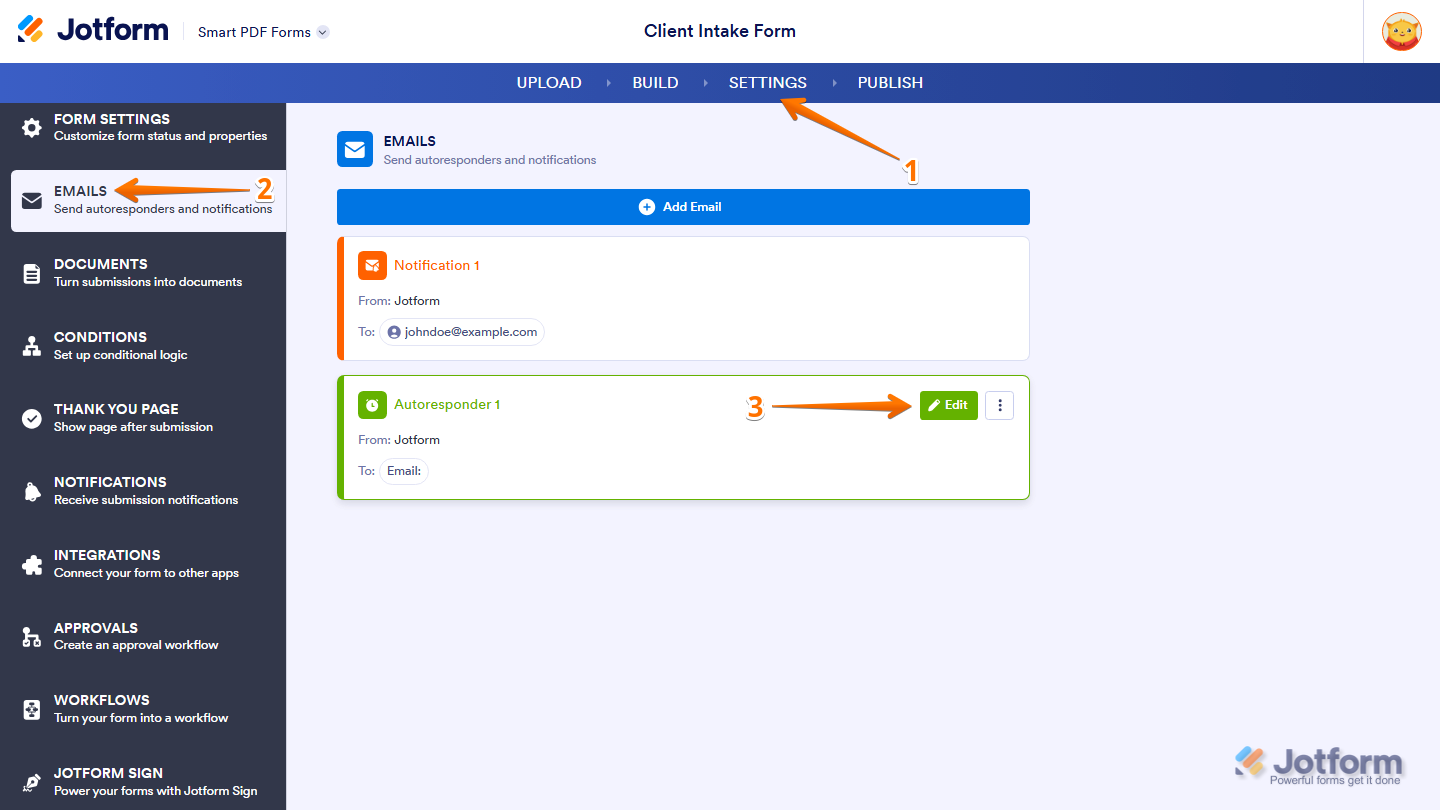
- In Smart PDF Forms, in the blue navigation bar at the top of the page, click on Settings.
- Then, in the menu on the left side of the page, click on Emails.
- Now, hover your mouse over the Autoresponder Email and click on Edit.
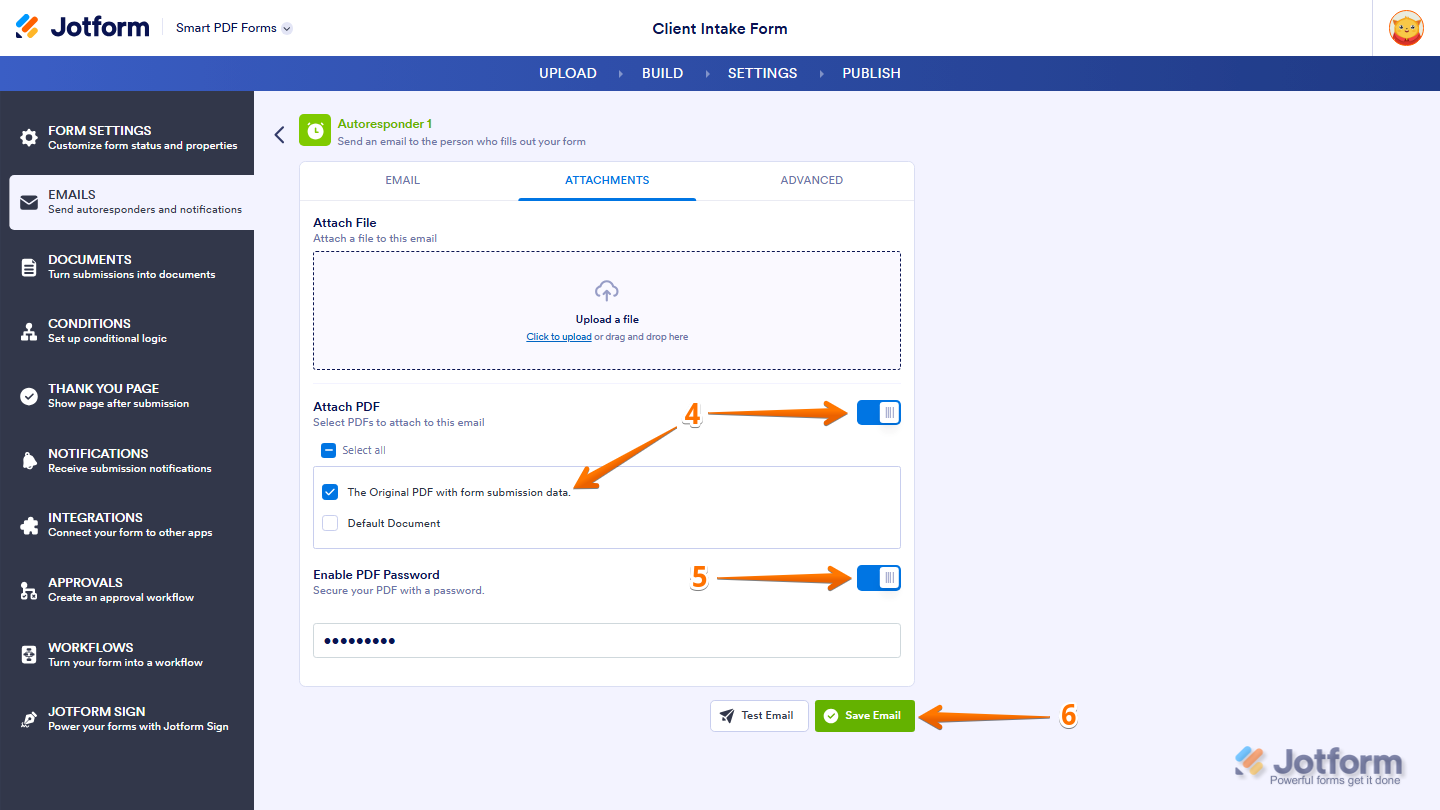
- Next, under the Attachments tab, toggle on the Attach PDF and select the PDF Document you want to attach to the email.
- Then, toggle on the Enable PDF Password and enter the password that you want to use.
- Now, click on Save Email, and you’re good to go.
Note
- This feature is also available in regular forms through Form Builder, though the steps and interface may vary slightly from Smart PDF Forms.
- If you enable password protection for autoresponder emails, make sure to share the password with your recipients so they can open the PDF attachment.
- For HIPAA-friendly accounts, the original PDF attachment is disabled by default for both notification and autoresponder emails in the PDF connection settings. A password is required to enable the original PDF attachment. For more details, check out our guide on How to Include Submissions as PDF Attachment in the Email Notifications.

Send Comment:
2 Comments:
December 18, 2024
Is there a way to view what password was set for the pdf in the back-end? How do people keep track of these passwords?
February 11, 2021
Hi:
For password protected PDF attachments created from a client submission, is the PDF encrypted? and if so, what type of encryption is used?
Thank you.