
You already know how to sell on Shopify, you’re well-versed in how to ask for testimonials from your customers, and now you want to take your Shopify store to the next level by showcasing those reviews. One way to accomplish that is to embed testimonials from another platform in your online store for visitors to read.
Trustpilot is one of those platforms. But while you can embed Trustpilot reviews on Shopify, there’s no native Trustpilot Shopify integration — you’ll need to use a third-party solution.
We’ll cover three practical ways to display Trustpilot reviews on your Shopify store, from the official app to a no-code widget, so you can choose the method that best suits your needs.
Method 1: Use the Trustpilot official Shopify app
Trustpilot has its own app within Shopify, and for merchants already committed to the Trustpilot ecosystem, it’s the most straightforward place to start. The app handles the connection between your Trustpilot profile and your Shopify storefront, allowing you to pull in reviews without manually copying any embed code.
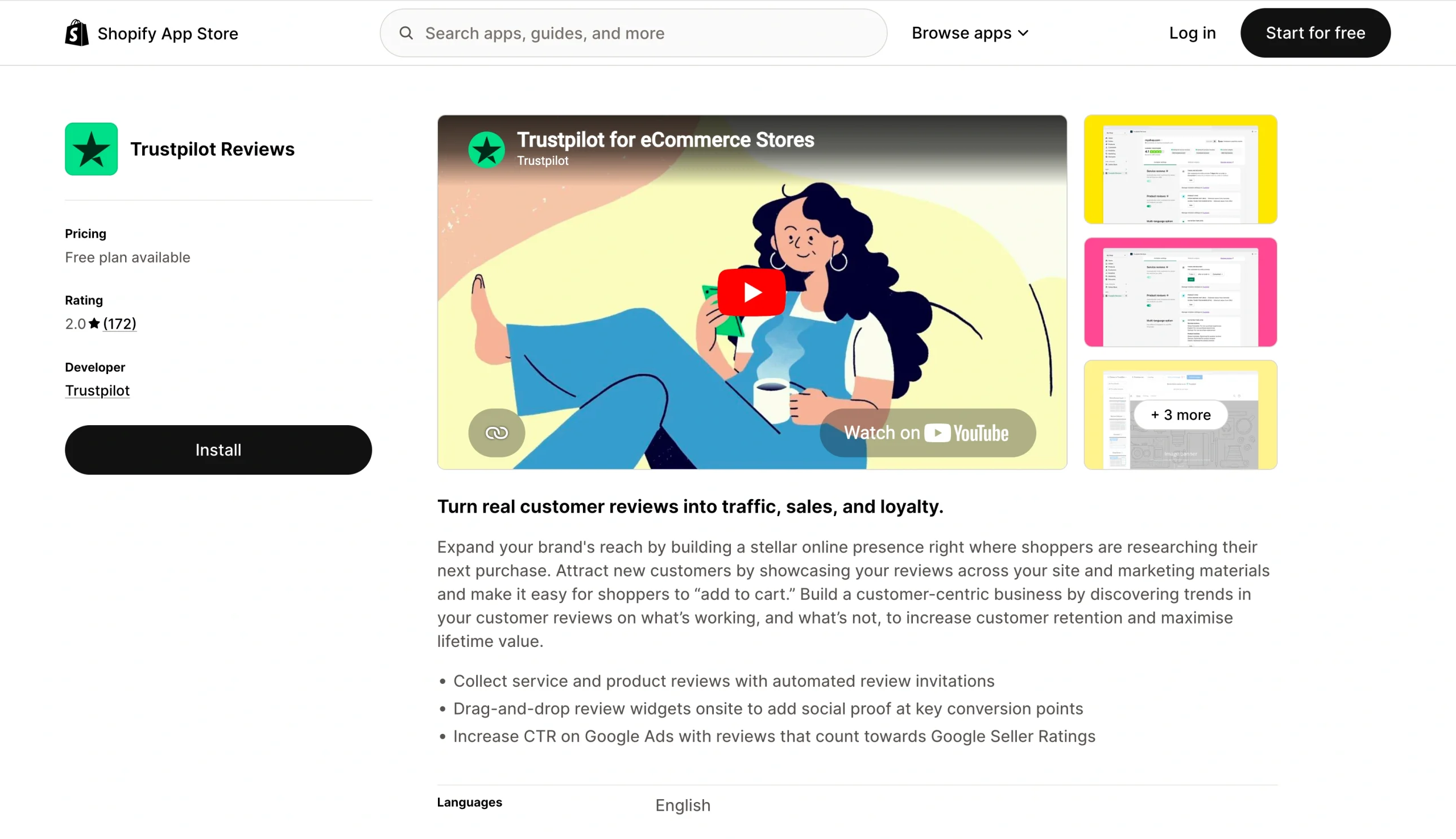
One thing worth noting up front is that many of the most useful display features — such as custom widget styles, advanced branding options, and full review management — are available only through paid Trustpilot plans. If you’re using a free Trustpilot account, you may find the options more limited than you’d expect.
To add Trustpilot reviews to Shopify using this app, follow these steps:
- In Trustpilot Business, navigate to Integrations > Ecommerce > Shopify.
- In the text field, enter your Shopify domain, then click Connect to open Shopify in a new window.
- Click Install app.
- When a new Trustpilot Business window opens, log in to continue.
- From the dropdown menu, choose which Trustpilot domain to connect with your storefront and check the box.
- Click Connect to finalize. Shopify will redirect you to its Trustpilot app.
Using this approach to display Trustpilot reviews on Shopify is best suited to merchants who already have an active Trustpilot subscription and want a managed integration. If you’re working with a free Trustpilot account or want more flexibility in how your widget looks, the next option provides more fine-grained customization options without requiring a paid plan.
Method 2: Use a Trustpilot reviews widget for Shopify
A Trustpilot reviews widget is worth considering when you want control over how your reviews look before they ever reach your storefront. This is the main method to embed Trustpilot reviews on Shopify that we’d recommend for most merchants, especially those who want a customizable Trustpilot Shopify integration without needing to hire a developer.
Jotform’s Trustpilot Reviews Widget makes the process easy and pain-free. You simply configure the widget using a visual editor, generate an embed code, and paste it into your Shopify theme. There’s no app to install and no account connection required. Your only concern is a simple embed that you control.
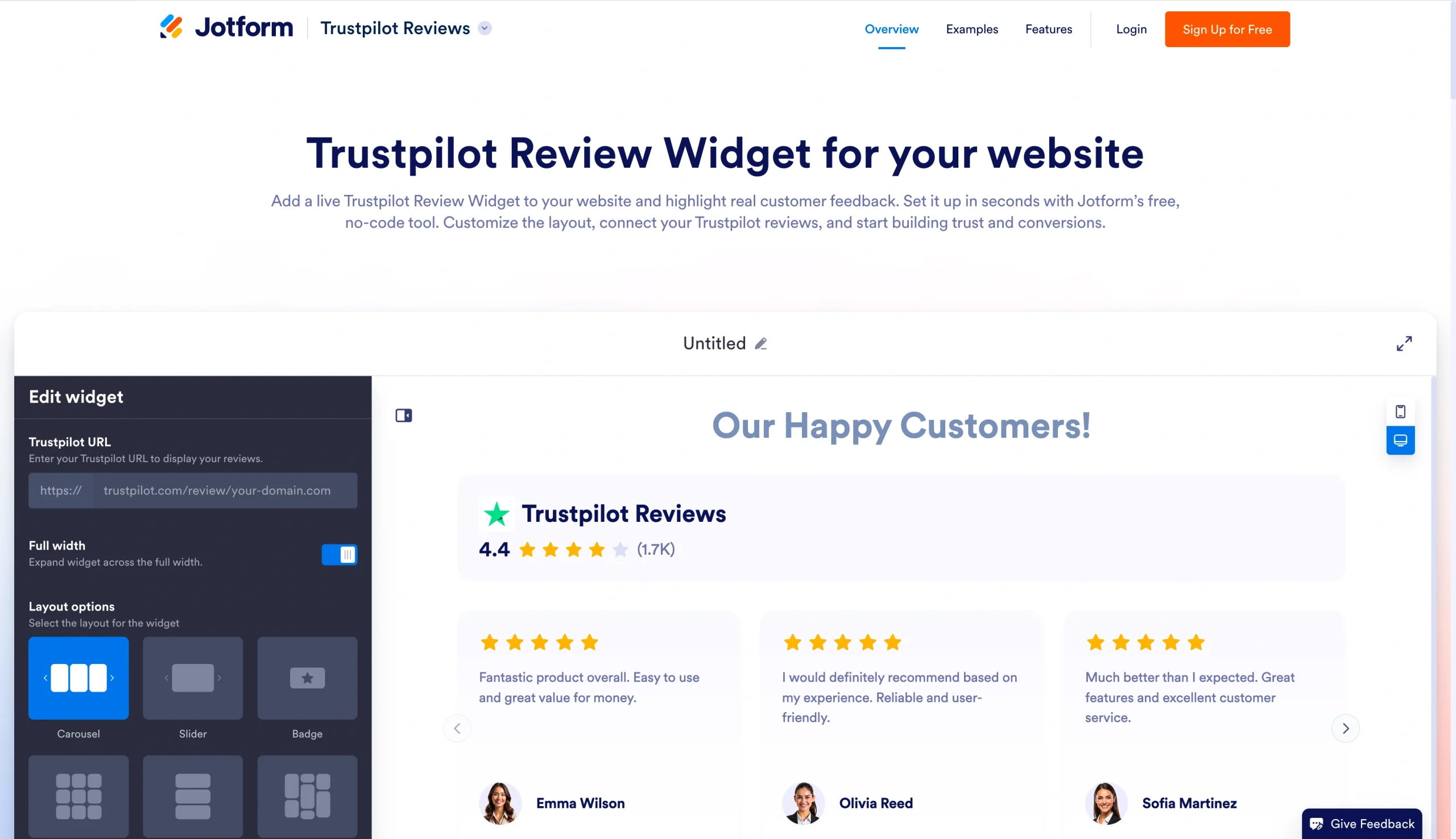
Here’s how to add Trustpilot reviews to Shopify using Jotform’s widget:
Step 1: Customize your widget
Go to the Jotform Trustpilot Reviews widget page, enter the URL for your Trustpilot profile, and use the customization options in the visual builder to set up your widget the way you want it.
You can:
- Toggle display items.
- Change the widget’s title and button text.
- Choose carousel, grid, slider, badge, masonry, or list from the layout options.
- Select text and button colors that match your brand.
- Add a CTA button, such as “Write a review.”
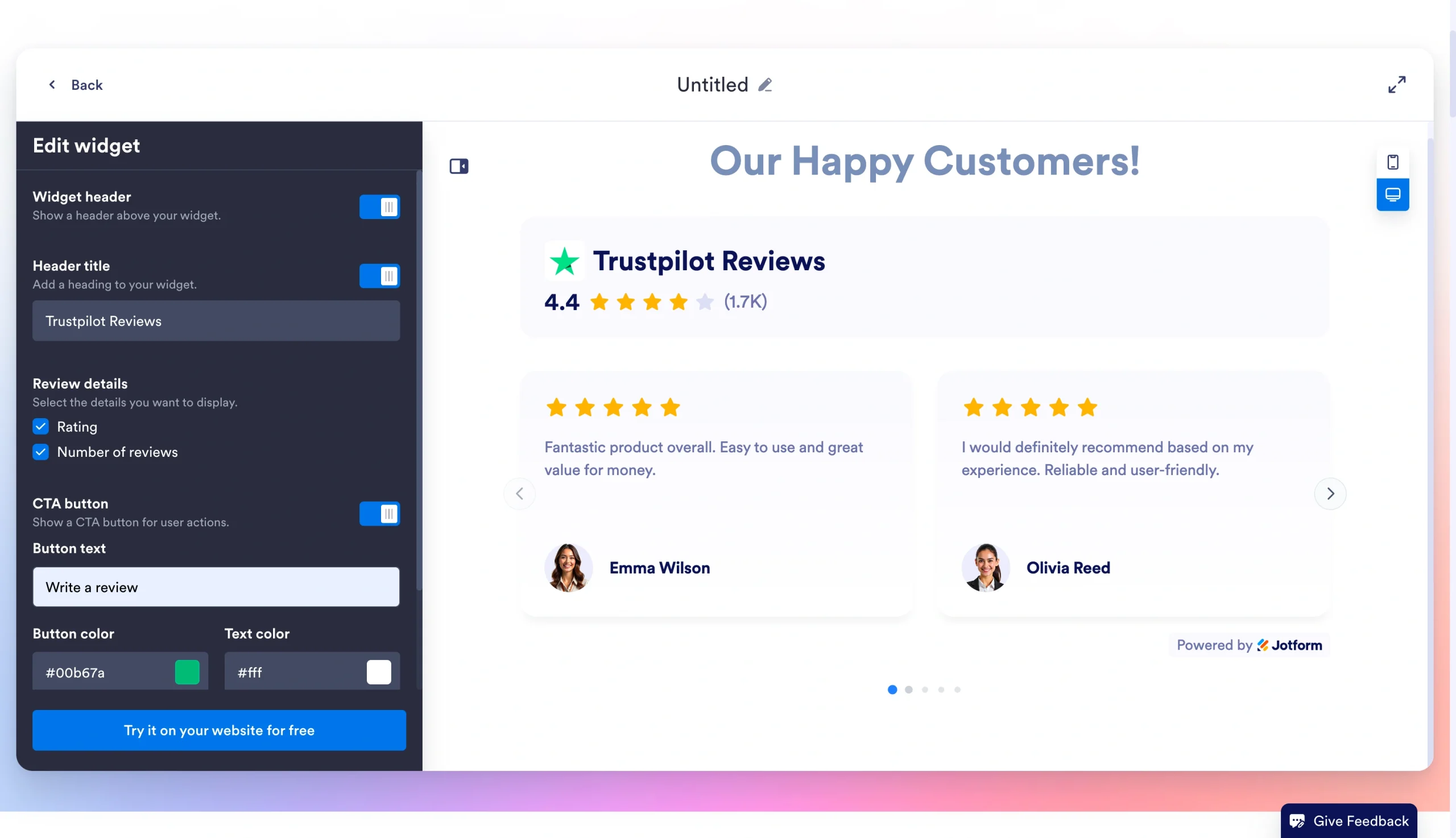
The live preview updates as you make changes, so you can see exactly what your widget will look like before you copy the code.
Step 2: Generate your code
When your widget looks the way you want it, click Try it on your website for free to generate your code. Copy the full embed snippet, which you’ll paste directly into Shopify in the next step.
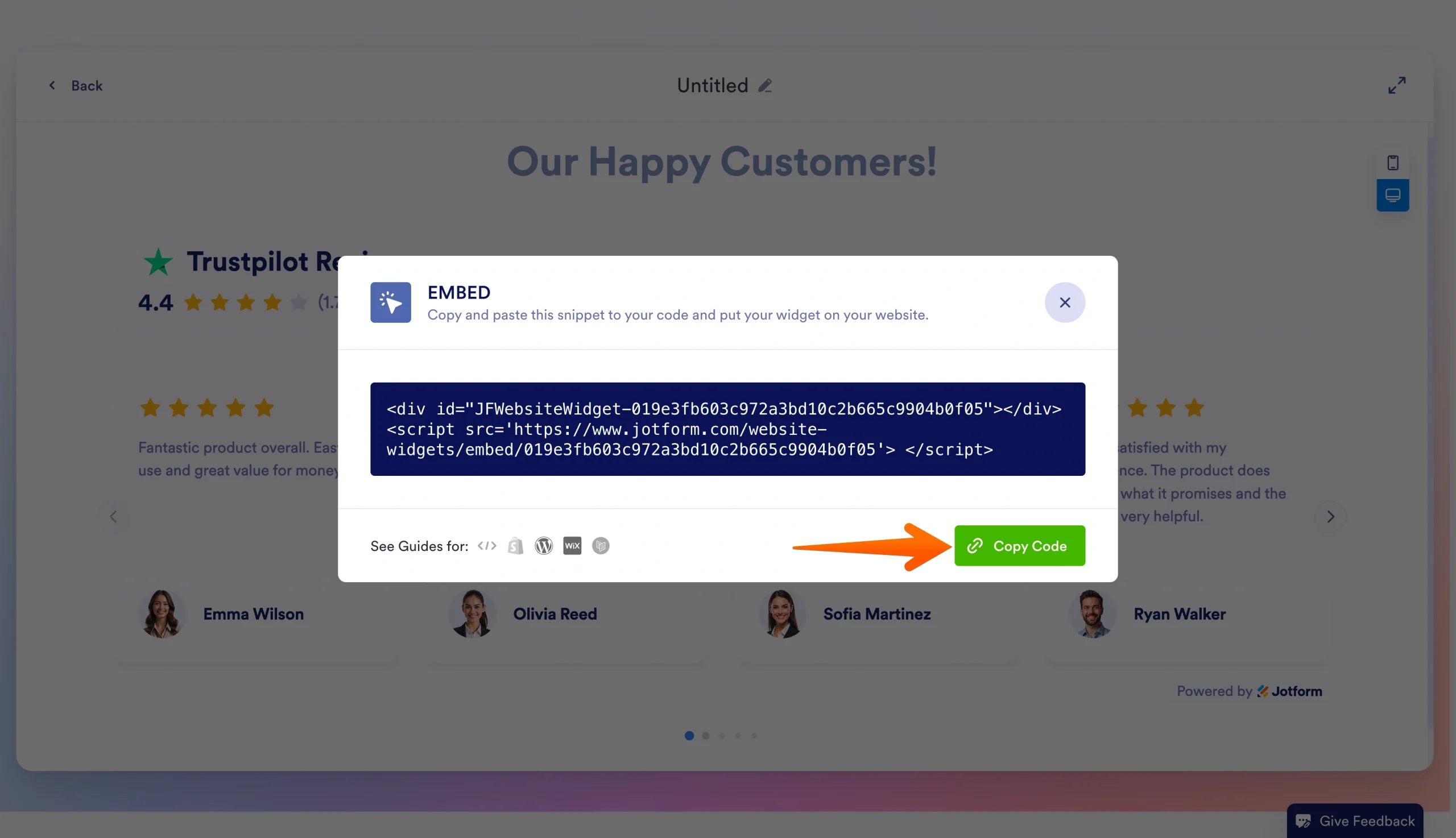
Step 3: Paste your code into Shopify
In your Shopify admin, navigate to Online Store > Themes > Customize. Click Add section or Add block, and select Custom Liquid or Custom HTML to create a new custom content block. Paste the embed code you copied from the Jotform widget into your new content block and save. Your Trustpilot reviews will appear live on your store exactly where you created the block.
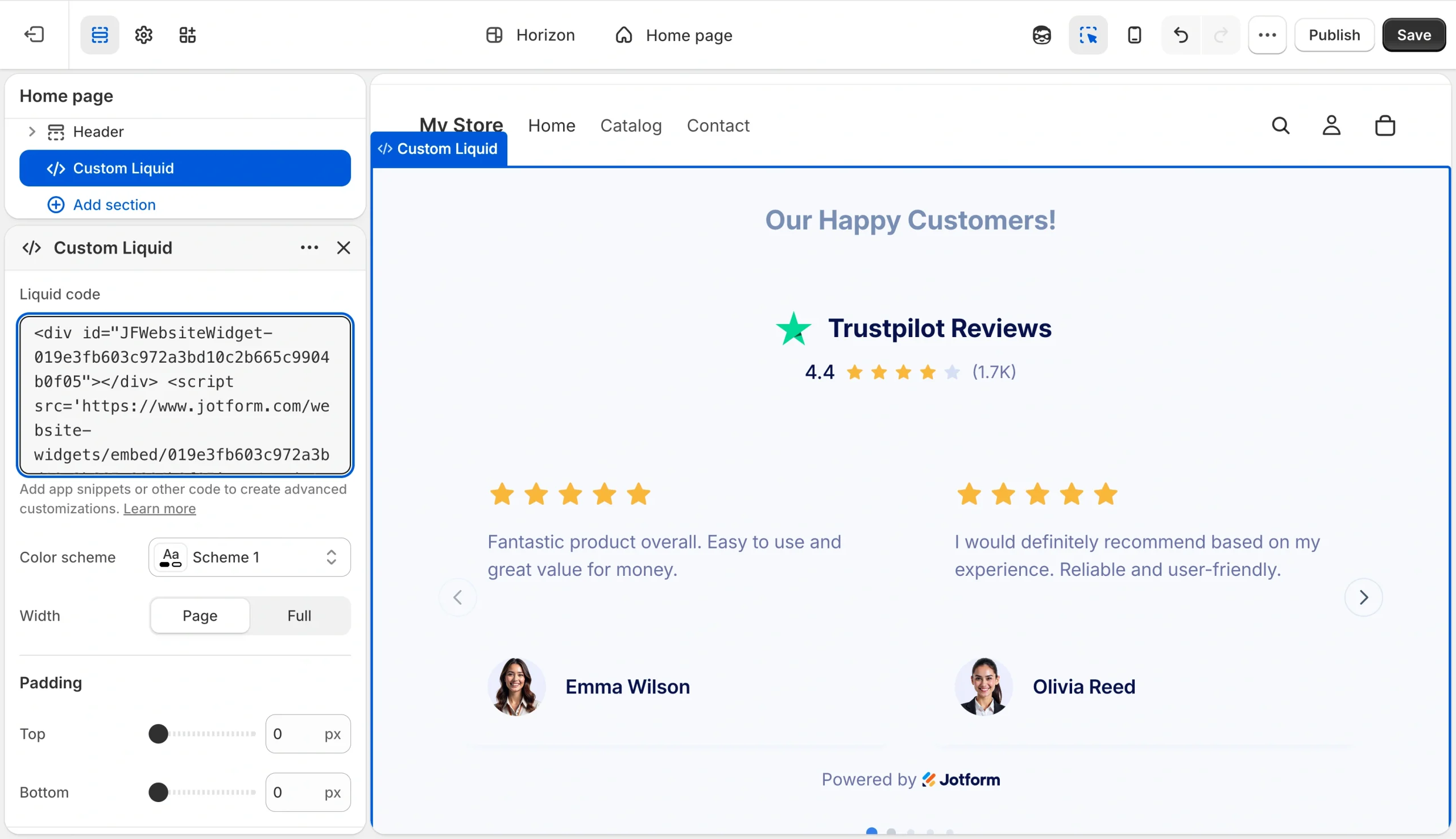
Why this option works
Shopify themes commonly support custom Liquid or app embed areas throughout the theme editor, so embedding Trustpilot Shopify widgets like this one is practical even for non-developers.
- No coding required: There’s nothing to write, edit, or debug. You configure everything visually in Jotform’s widget builder and then push a button to generate the embed code.
- Robust customization options: You can customize the widget to your liking before publishing. The preview panel shows you exactly how your reviews will look, so you’re not guessing at the results. Adjust colors, layout, review count, and more — and when it’s right, just copy the code.
- Fits a flexible embed workflow on Shopify: Because the widget generates a standard embed snippet, it works with any custom content block your Shopify theme supports without requiring special setup or compatibility concerns.
With a simple copy and paste, it’s that easy to embed Trustpilot reviews on Shopify using Jotform’s widget.
Method 3: Manually add Trustpilot reviews to your Shopify store
Through a paid Trustpilot Business plan, you can also grab a widget embed code directly from your Business account dashboard, so you don’t need third-party tools. This manual embed workflow is a good choice if you want a fast, no-code option and the freedom to place reviews wherever you want inside your Shopify store.
The main difference from Jotform’s widget is that you’re working with Trustpilot’s own widget builder, which offers its own set of display options. Customization here is more limited, but if you already have a Trustpilot Business account, you can quickly get reviews live in your store.
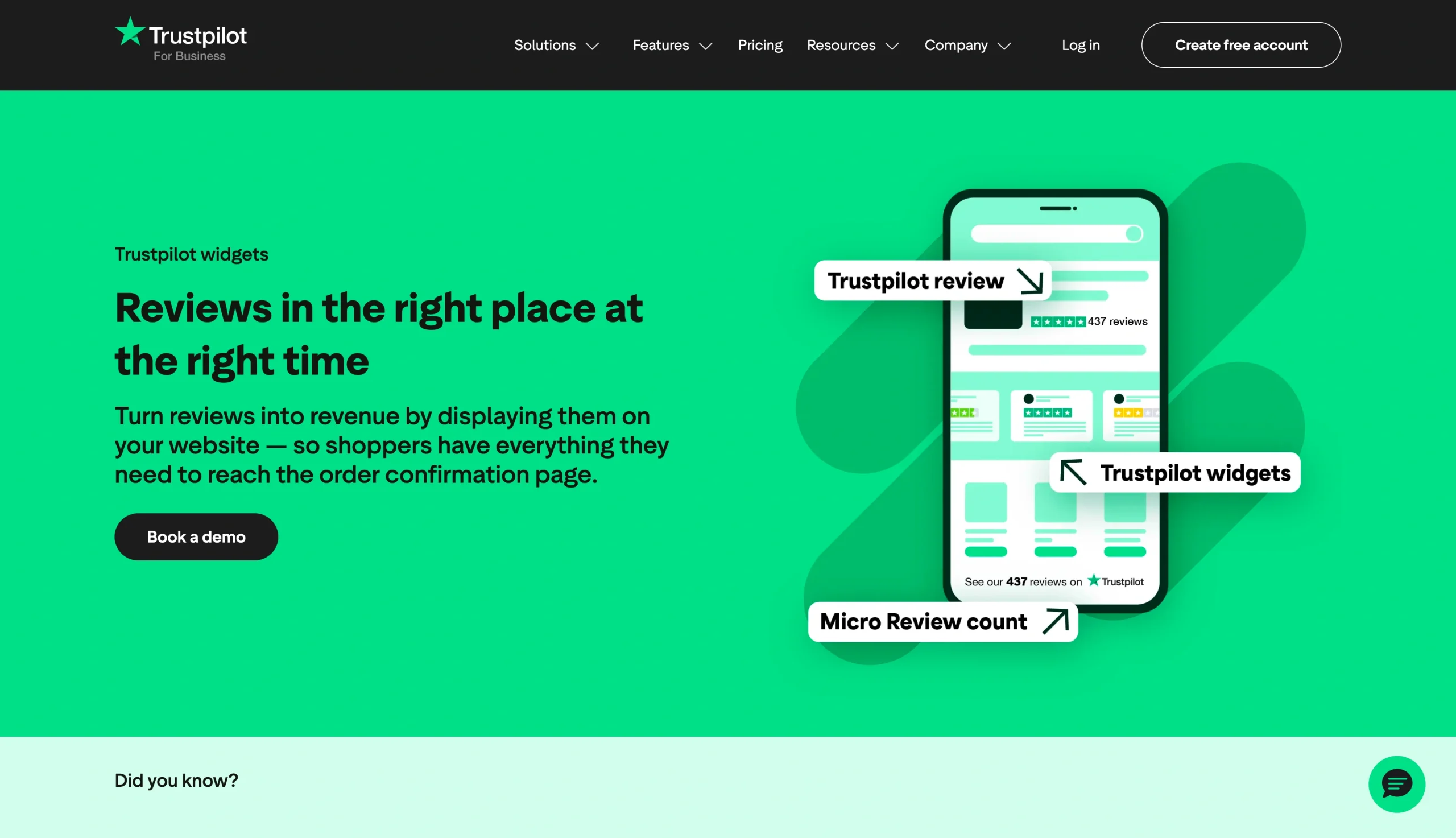
To embed Trustpilot reviews on Shopify using Trustpilot’s service review widget:
- Log into your Trustpilot Business account. Under your profile settings, go to the TrustBox widgets section. Here, you can browse the available widget layouts and select the one you like best. Use the customization panel to adjust colors and display settings, and then copy the embed code that Trustpilot generates for you.
- Open your Shopify admin and go to Online Store > Themes > Customize. Find the page or section where you want to display your Trustpilot reviews, and navigate to that area in the theme editor.
- Add a Custom Liquid block to the section and paste in the embed code that the TrustBox widget generated. The widget will pull in live review data from your Trustpilot profile and display it automatically on your storefront. The display will stay current even as customers leave new reviews, without any extra work on your end.
This option is a practical shortcut for anyone who already uses a Trustpilot Business account and wants to add reviews to their store without installing anything new. The main trade-off compared to Jotform’s Trustpilot Review Widget is that you won’t have as much granular control over how the widget appears before you embed it.
Best places to display Trustpilot reviews on a Shopify store
Where you place your reviews is just as important as whether you display them at all. Embedding them somewhere no one looks is futile, but placing them at strategic points in the shopping experience can significantly influence your customers’ behavior.
Here is where embedded reviews tend to have the most powerful impact.
Your store homepage
Your homepage is usually the first screen a new visitor sees, and a trust section featuring real customer reviews immediately tells them that others have bought from you and had a good experience. A star-rating badge or a short review carousel near the top of the page is enough to establish brand credibility before a visitor scrolls further.
Product pages
Reviews play a very specific role on product pages: They address the purchase hesitation that can kick in right before a shopper clicks “add to cart.” Seeing a few positive reviews about the exact product they’re looking at can alleviate that hesitation, making them far more likely to follow through on the purchase than someone who sees no social proof at all.
Landing pages
If you’re sending paid traffic to dedicated landing pages, place reviews there. Someone who clicked an ad is already interested in what they saw, and they just need a reason to trust a store they haven’t bought from before. A Trustpilot widget showing your overall rating and recent reviews on your landing page establishes that trust.
Collection pages
By the time they reach collection pages, shoppers are often in comparison mode, looking at multiple products side by side before committing to one. An overall brand rating displayed at the top of those pages adds a layer of credibility that applies across your entire catalog, even before they begin comparing products.
Your about us page (or dedicated reputation page)
These pages are designed to cement your overall brand trust, so placing reviews here makes perfect sense. Your about us page, a dedicated reputation page, or a customer testimonial page are the perfect spots to showcase your total review count, your Trustpilot rating, and a selection of standout quotes — particularly for first-time visitors who want to know who they’re buying from before they start browsing.
Use Jotform’s Trustpilot Review Widget for a faster setup
For merchants who want to embed Trustpilot reviews on their Shopify store without touching their theme files or adding another app subscription, Jotform’s Trustpilot Reviews Widget is worth a closer look. It makes the embedding process as straightforward as possible: customize, copy, paste, done.
The widget is completely no-code, too, so you don’t need a developer to include it in your store. You simply use Jotform’s visual editor to customize how your reviews look, including layout style, color scheme, and buttons, and you’ll see a real-time preview as you make changes. Once you’re satisfied with the result, you generate the embed code by clicking a button, paste it into your site, and save. The widget renders your Trustpilot reviews exactly the way you configured them.
Using this widget provides a huge advantage over manually managing a testimonial section. The widget pulls real-time data from Trustpilot, so your embedded reviews automatically stay up to date. As new reviews come in, you don’t have to lift a finger to update your review display. Jotform’s Trustpilot Reviews Widget is part of a larger collection of Website Widgets designed to work across popular platforms, including Shopify. If you’re running a Shopify store and want to highlight real customer feedback without rebuilding your theme or paying extra for a Trustpilot plan, Jotform widgets are a simple, practical way to do it. Try our free, no-code tool today.
This article is for Shopify store owners, ecommerce teams, website operators, and anyone who wants to embed Trustpilot reviews on a Shopify store to build credibility, reduce purchase hesitation, and improve conversions.







































Send Comment: