-
CChelz Chan
Hi Team,
We have a customer that uses Jotform for customer detail registration for a trade-show and were wondering if you have any intergrations into SharePoint Lists/Microsoft Lists.
What we are really looking for is some sort of automation from Jotform where data recieved by a Jotform inserts into a List. I've attached a screenshot of the list with some example data, which is integrated into a PowerApp so that users can use an Ipad and perform safety checks on vehicles when they arrive to the tradeshow.
Thanks
Chelz

-
 Billy JotForm Support
Hi Chelz,
Thank you for reaching out to Jotform Support. Unfortunately, we don't have a native integration with SharePoint List. I was thinking maybe Zapier or Make have this integration but they don't have it either. Fortunately, it looks like this you can create the list using Microsoft Power Automate. See the screenshot below:
Another possible workaround is to send your submission data to a Webhook endpoint, extract the data from the endpoint and use it to create the list. This is something that we can't help you with as it's quite an advanced type of automation. You may also consider hiring our Solution Partners here.
I've also gone ahead and escalated a request to our developers, but when or if it's developed depends on their workload, how viable it is, and how many other users also request it. If there are any updates, we’ll circle back to this thread and let you know.
Reach out again if you need any other help.
-
 Yale Product Triage Specialist
Hi there,
With our new Microsoft SharePoint integration, you can automatically send files collected from your forms straight to SharePoint—so everything stays organized, accessible, and in sync. It’s a faster, more connected way to manage file uploads, built to fit seamlessly into your workflow. Here’s how to set it up:
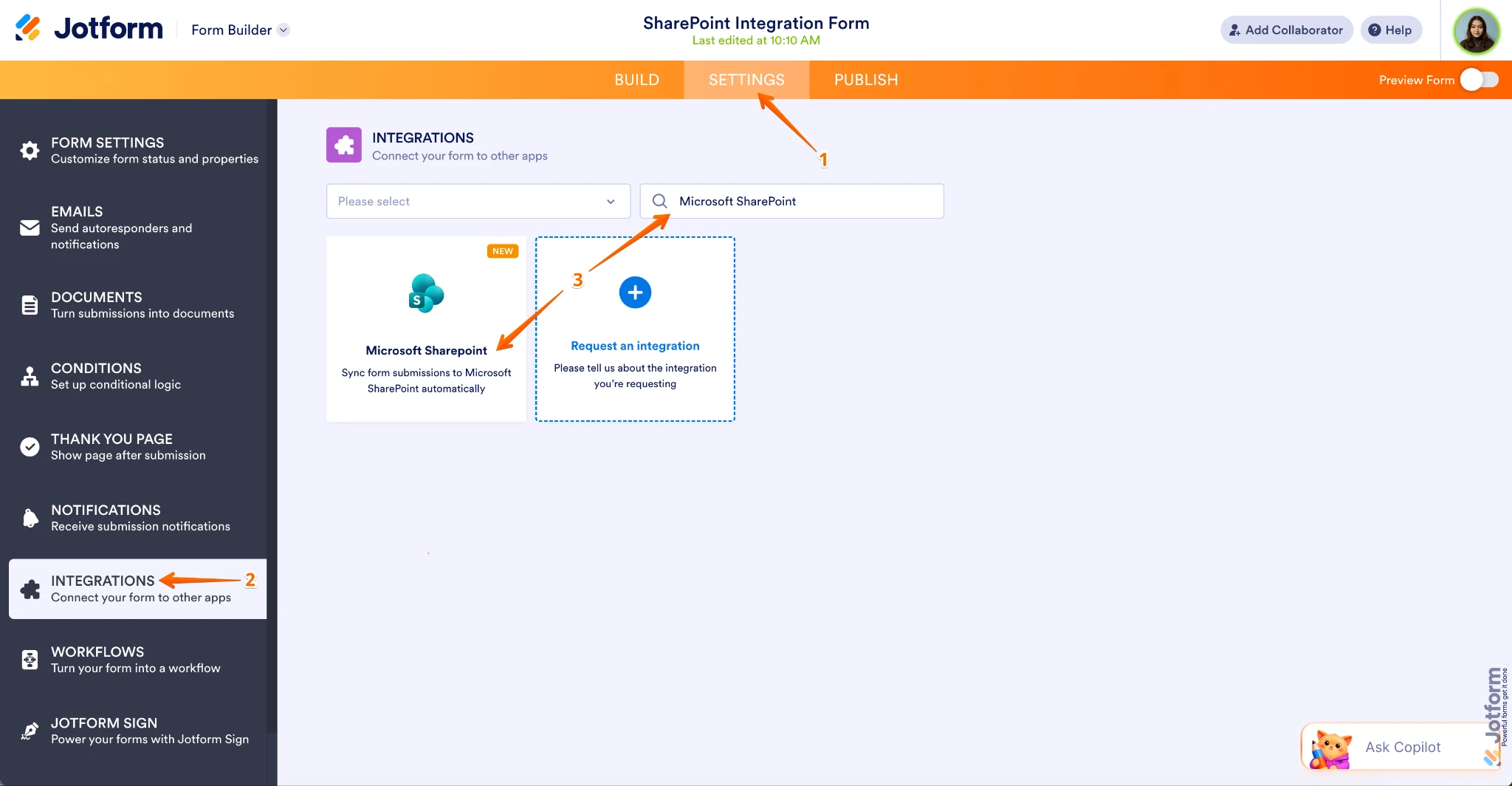
- In Form Builder, in the orange navigation bar at the top of the page, click on Settings.
- Then, in the menu on the left side of the page, click on Integrations.
- Now, search for Microsoft SharePoint and click on it.
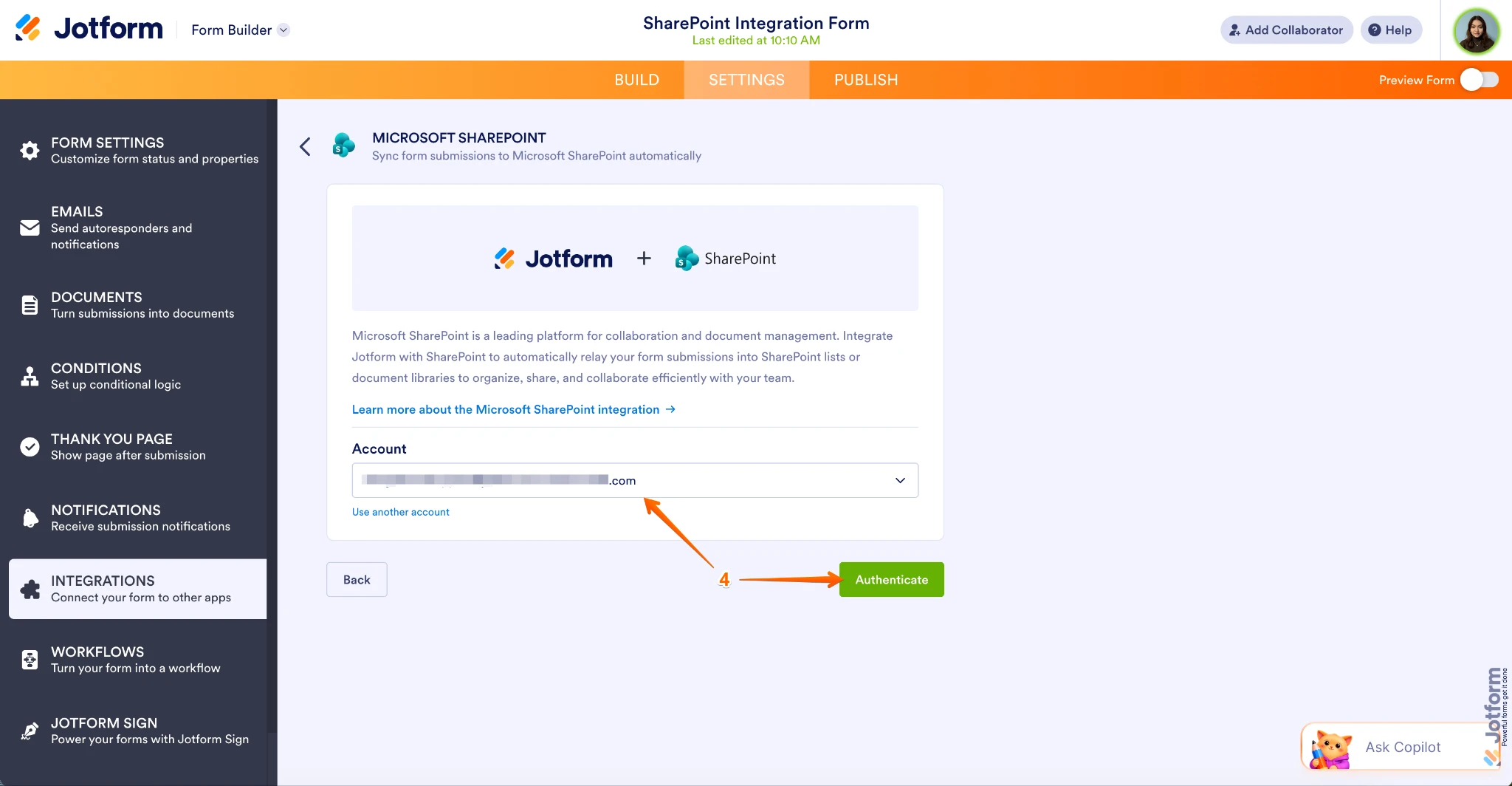
- If you’ve already connected your Microsoft account with Jotform, you’ll see your email address in the Dropdown menu, and you’ll just need to click on Authenticate.
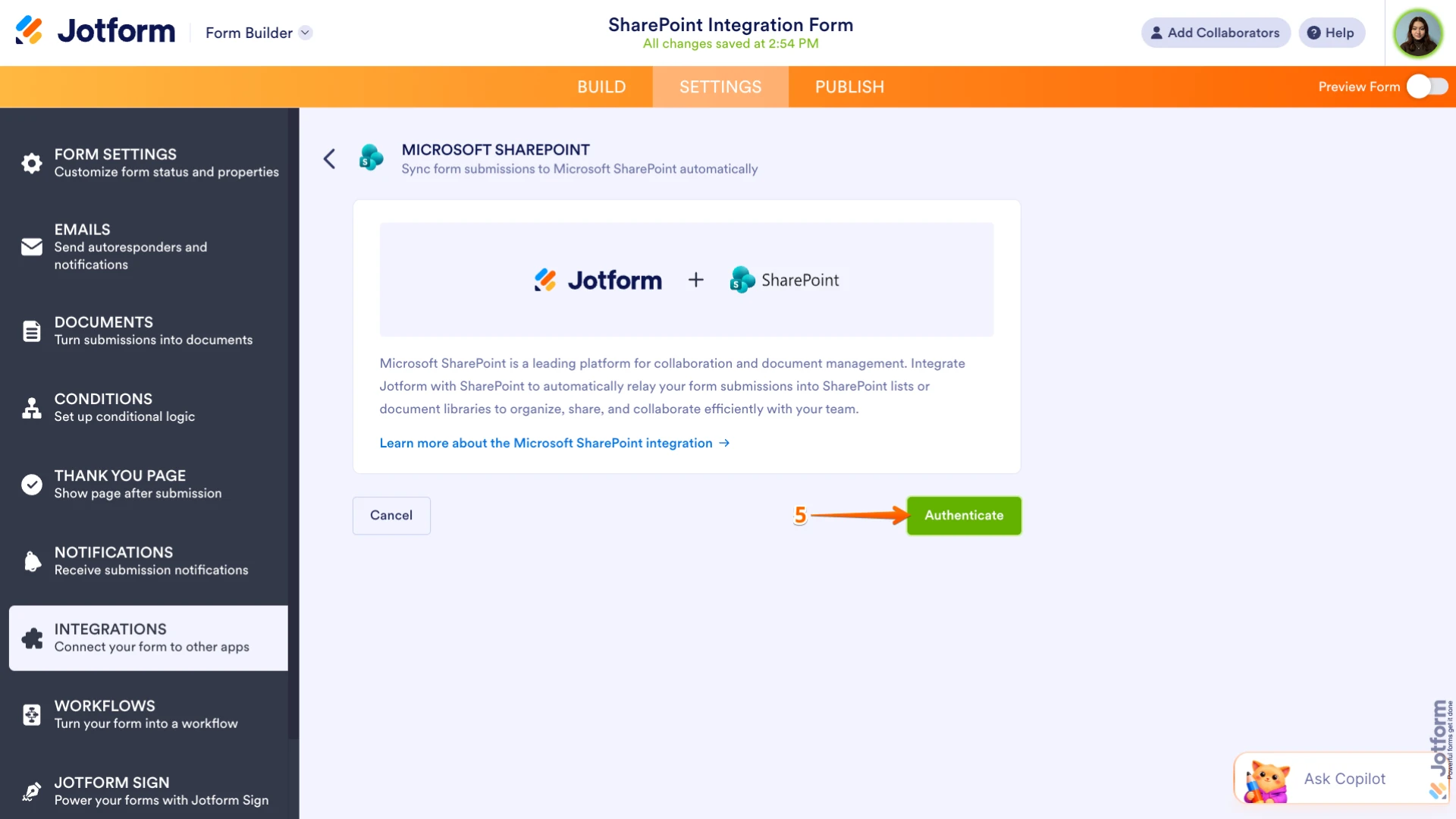
- If it’s your first time connecting your Microsoft account, click on Authenticate and you’ll be redirected to the Login window.
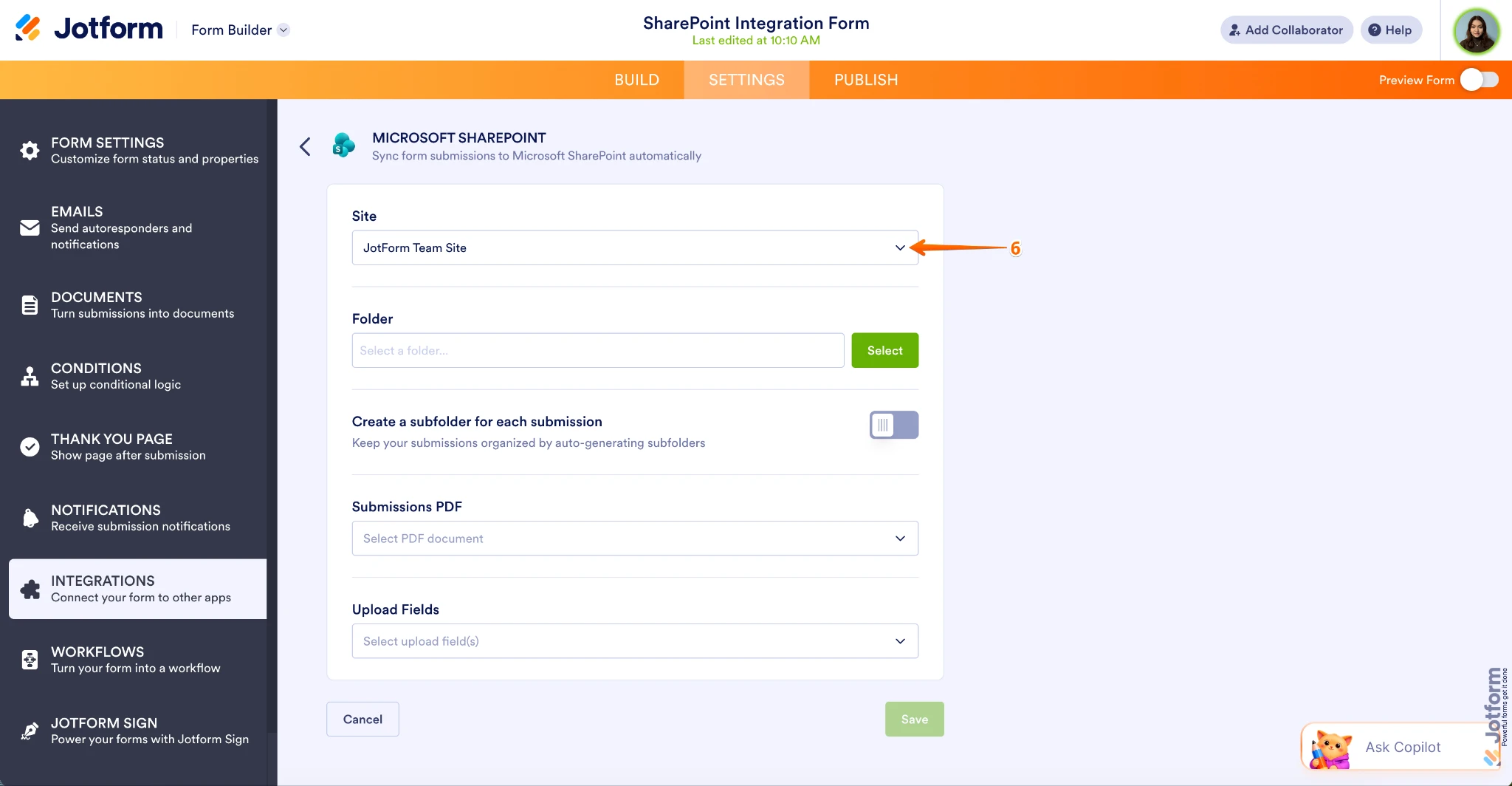
- Now, on the Microsoft SharePoint Settings page, click on the Downward Arrow icon in the Site Dropdown menu and select your SharePoint site.
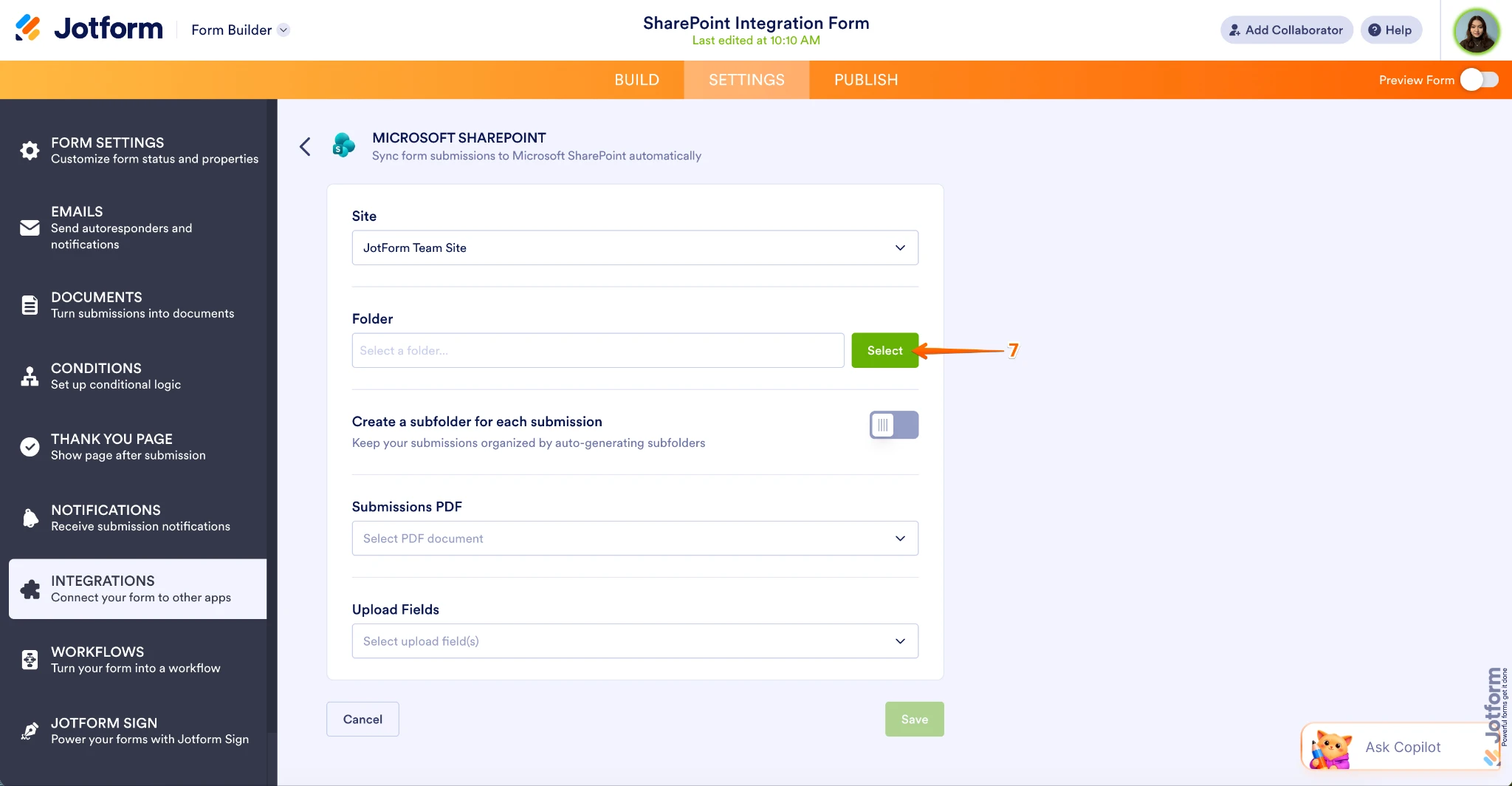
- Then, in the Folder section, click on Select.
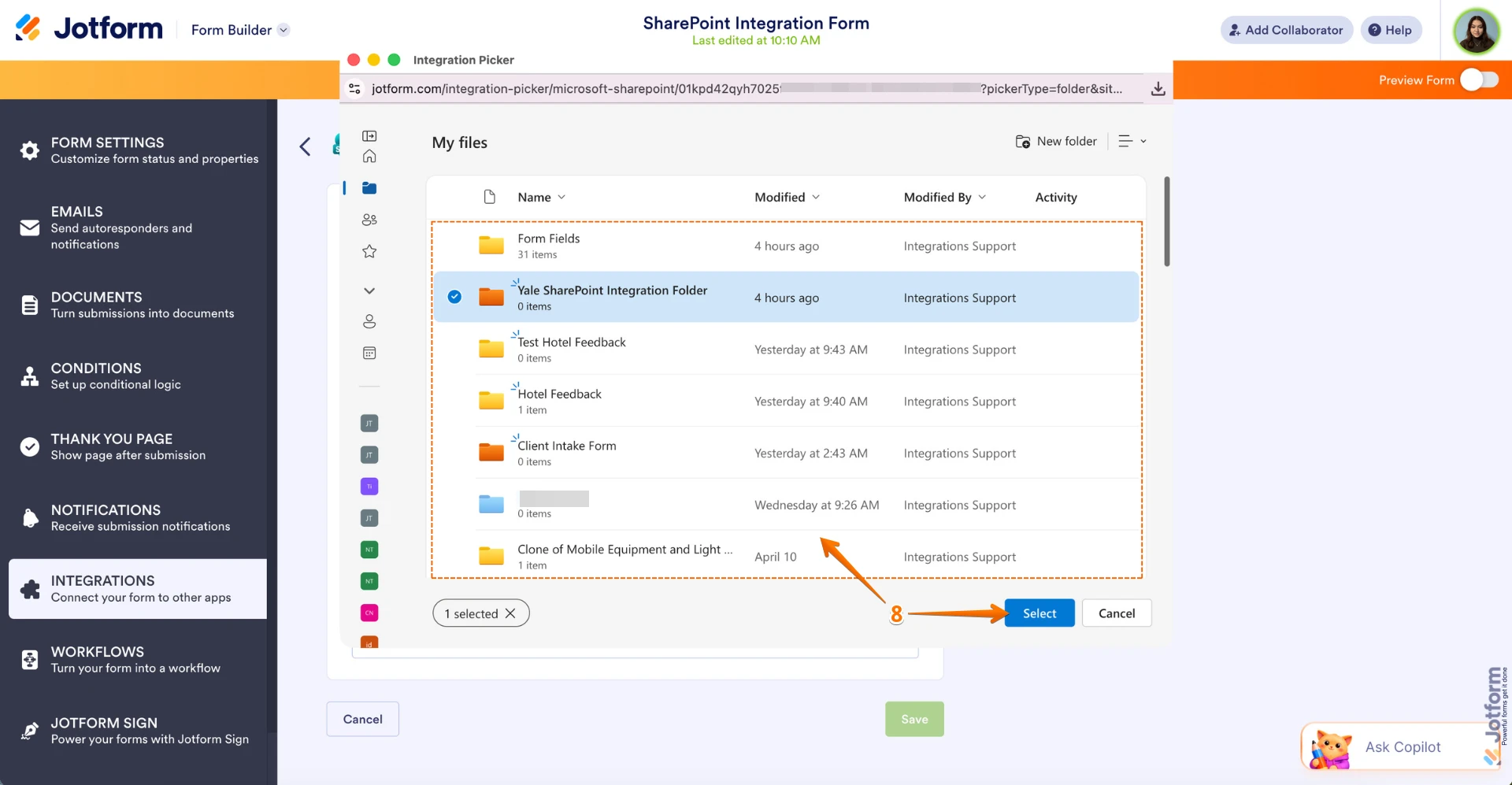
- In the Integration Picker window, select the folder you want the files from your form to go into, and then click on Select.
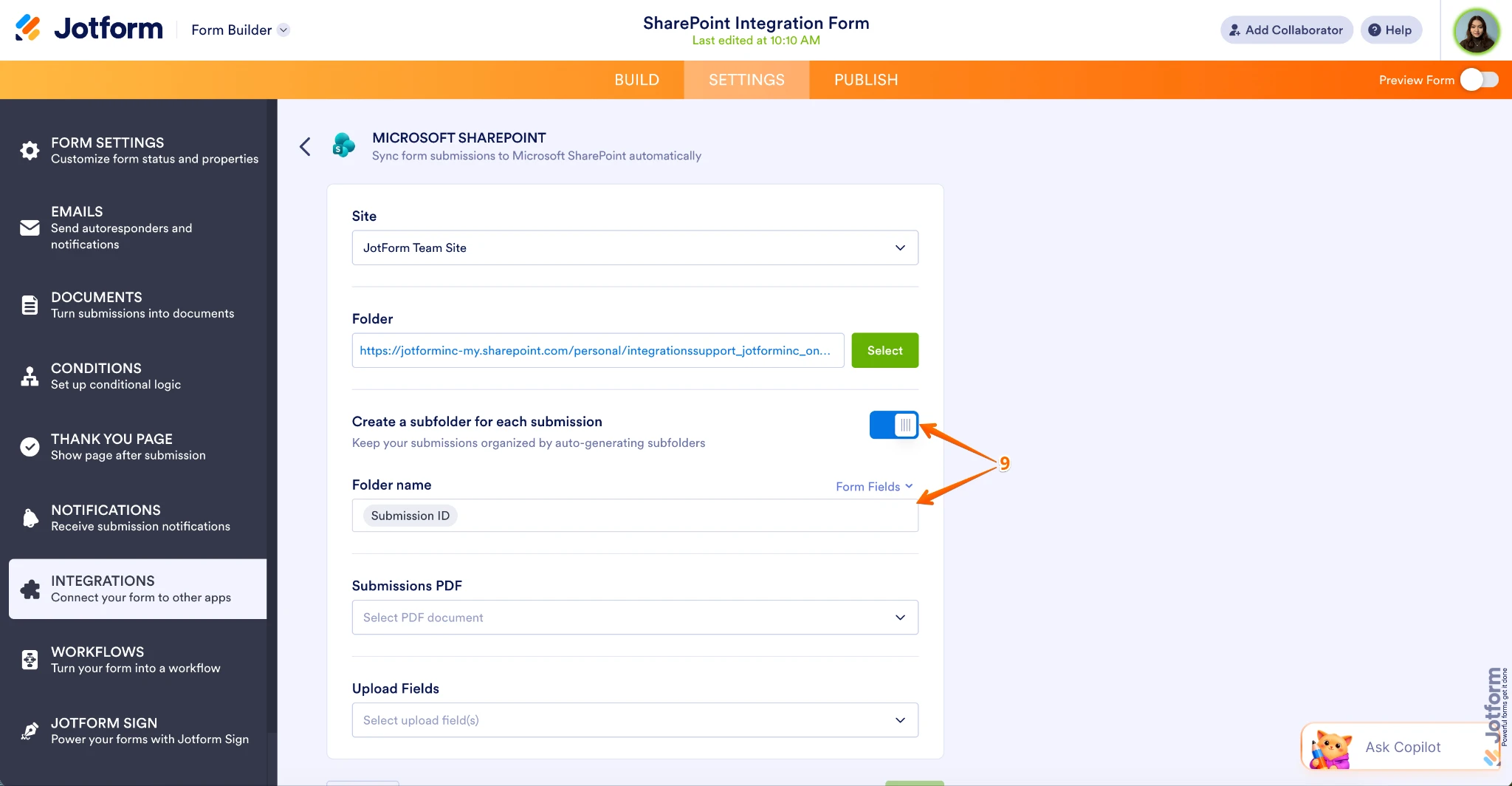
- To keep things organized, toggle on Create a Subfolder for Each Submission. Once you enable it, select a Folder Name.
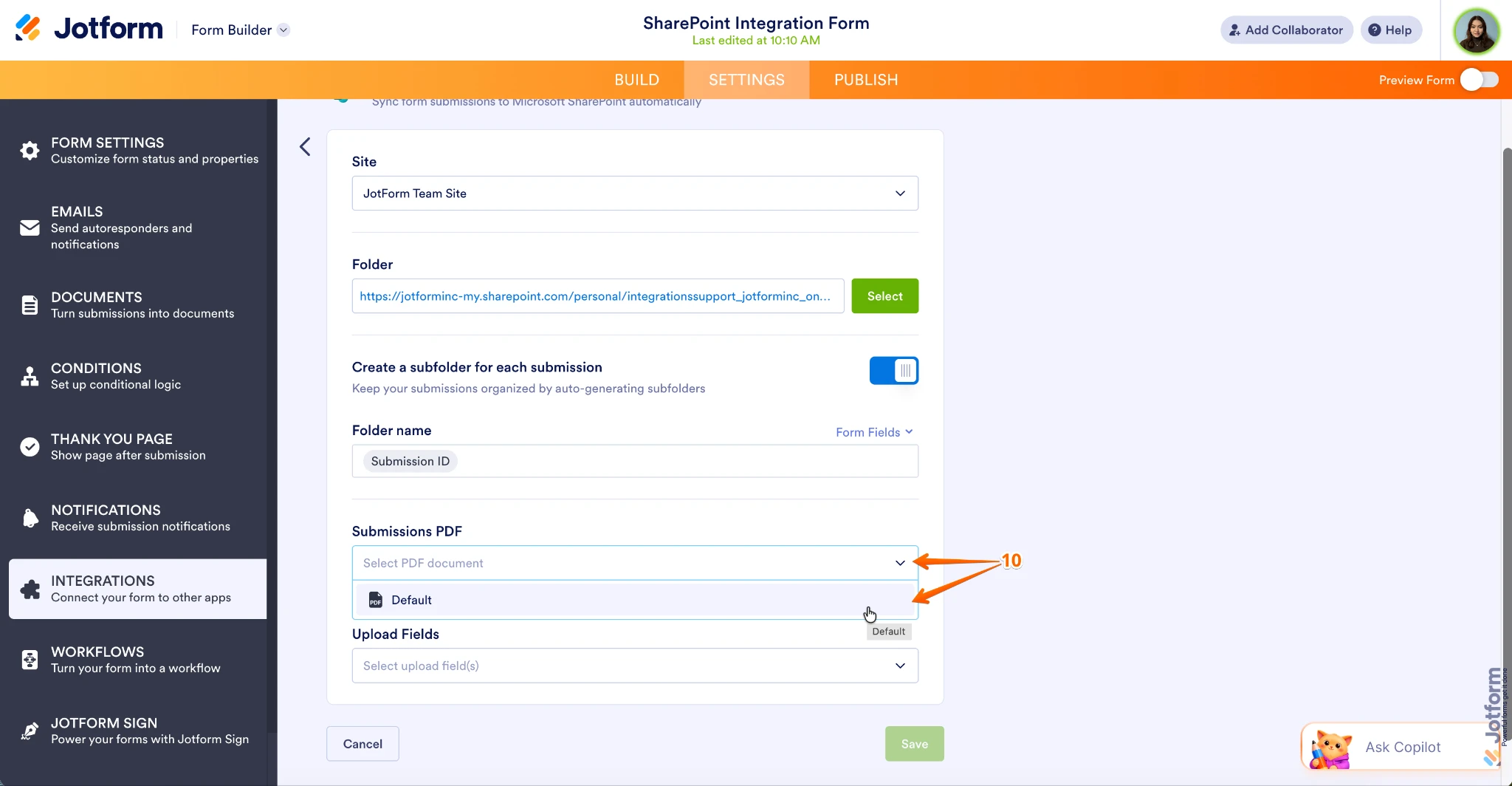
- In the Submission PDF section, click on the Dropdown menu and select a PDF document.
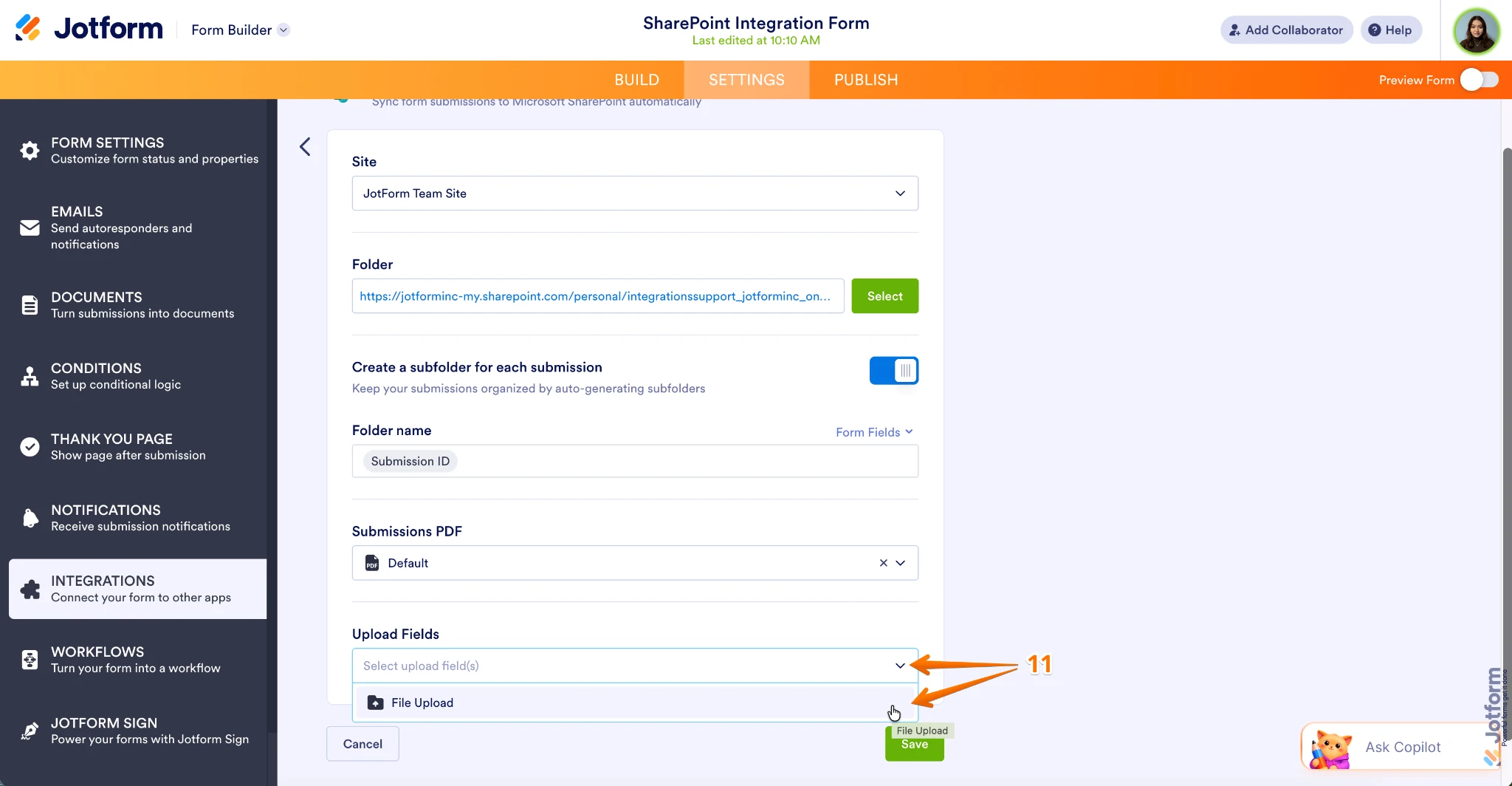
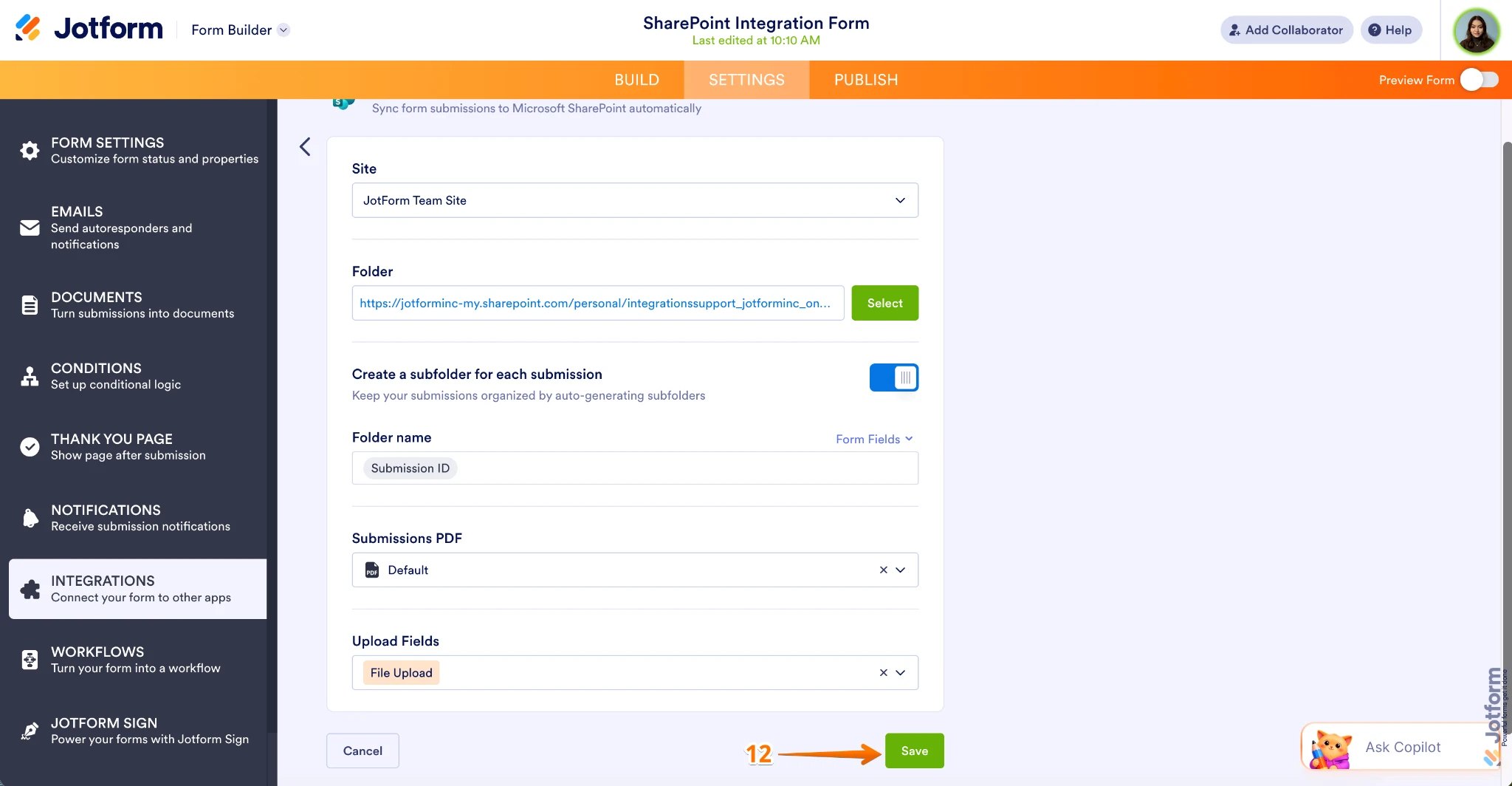
- Now, in the Upload Fields section, select the fields with the data you want to send to SharePoint.
- Once you’re finished, click on Save at the bottom.
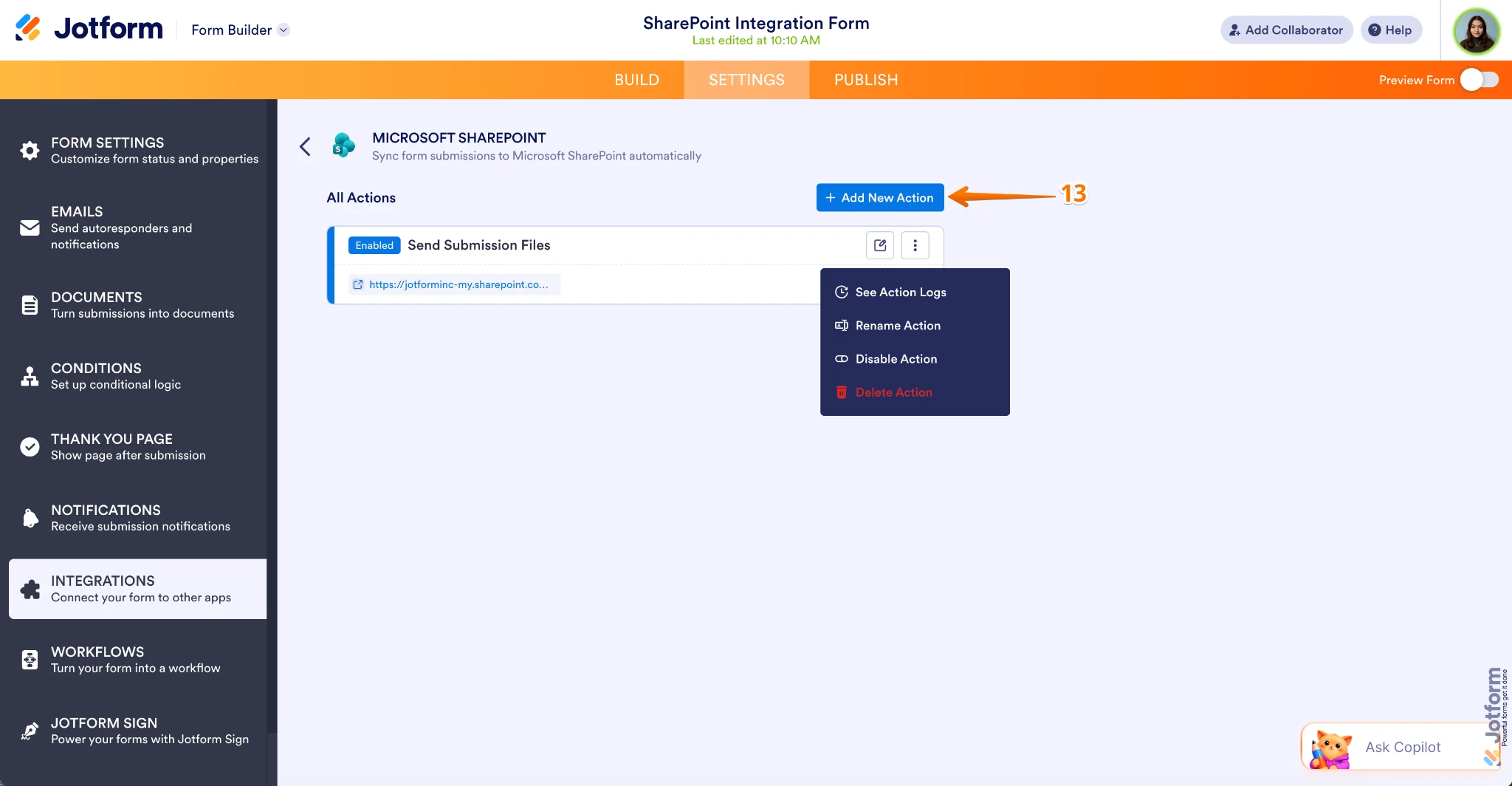
- Now, you’ll see the list of actions you’ve set up and the Add New Action button on the main page.
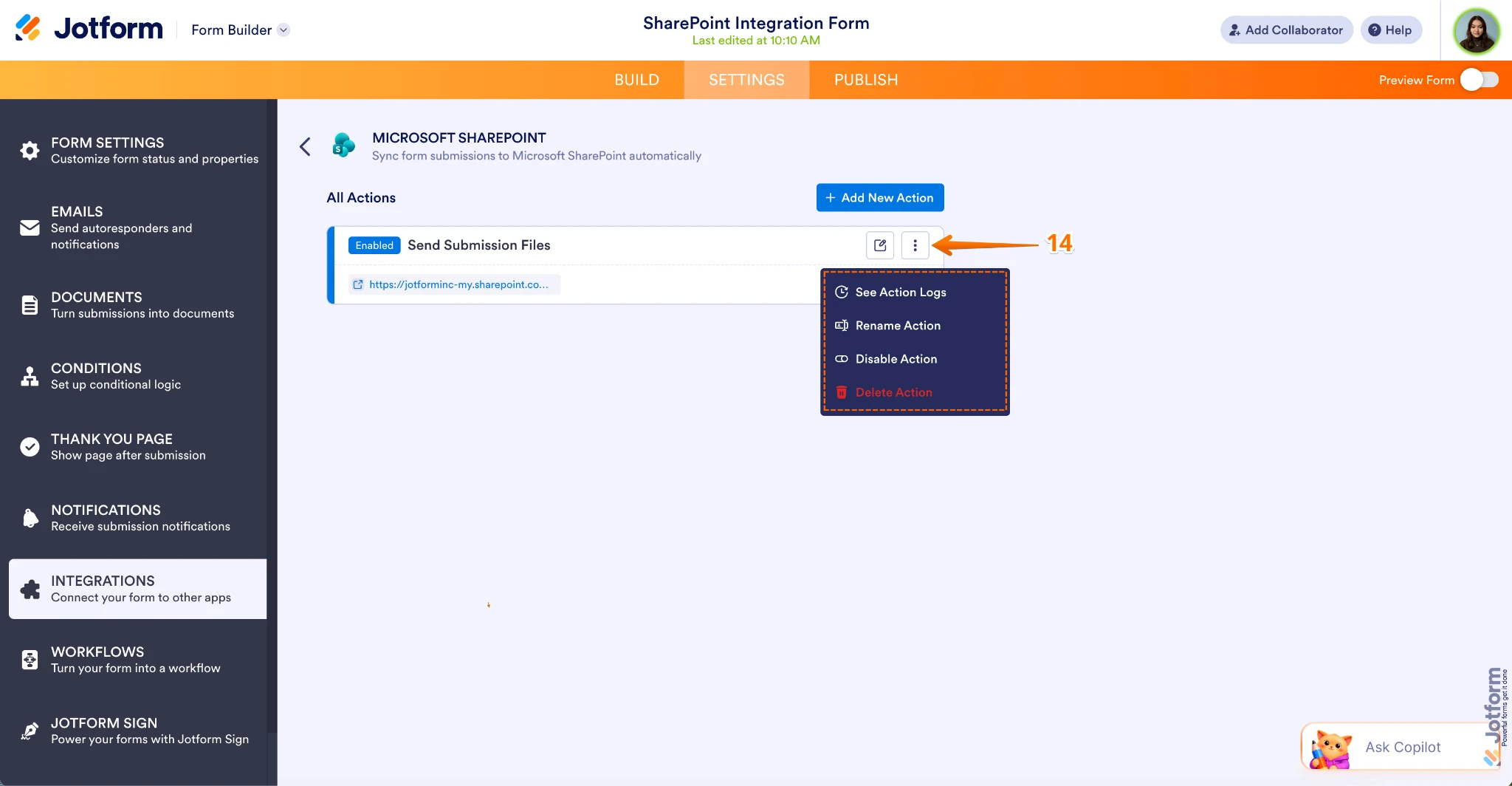
- Hover your mouse over an action and click on the Pencil icon to edit it or the Three Dots icon to access these other options:
- See Action Logs — View successful and failed runs, helpful for troubleshooting.
- Rename Action — Change the title of the action.
- Disable Action — Temporarily stop the integration from sending data.
- Delete Action — Remove the action from your form.
And you’re all set. Now your files will automatically be sent to Microsoft SharePoint, keeping your data structured, synced, and always up to date. And good news—the Add Row to Existing List action is coming soon.
Give it a try and let us know if you have any questions.