-
 TSRPO
TSRPOCan you guys integrate directly with SmartSheet like you do with Monday.com?
-
 Harvey Enterprise Support
Hi TSRPO,
Thanks for reaching out to Jotform Support. Unfortunately, we don't have a direct integration yet with SmartSheet. You would need to use your Zapier account to connect your form with SmartSheet. Check the screenshot below:

I've gone ahead and escalated a feature request to our Developer Team about having direct integration with SmartSheet. When or if it's developed depends on their workload, how viable it is, and how many other users request it. If there are any updates, we’ll circle back to this thread and let you know.
Let us know if you have any other questions.
-
 Yale Product Triage Specialist
Hi there,
From submission to sheet—instantly. Smartsheet is now part of your workflow. It’s a dynamic work management platform that helps teams plan, track, automate, and report on projects within a collaborative, spreadsheet-style interface, bringing clarity to processes, improving visibility, and keeping teams aligned in real time.
With this integration, you can automatically send your form submissions to Smartsheet, keeping your data structured, organized, and easy to track. Submissions are added as new rows instantly—no manual entry required—allowing data to flow directly into your sheets. This helps simplify workflows, maintain accuracy, and ensures your team always has access to the most up-to-date information.
Whether you’re setting up a new form or updating an existing one, integrating your Smartsheet account takes no time at all—here’s how to do it:
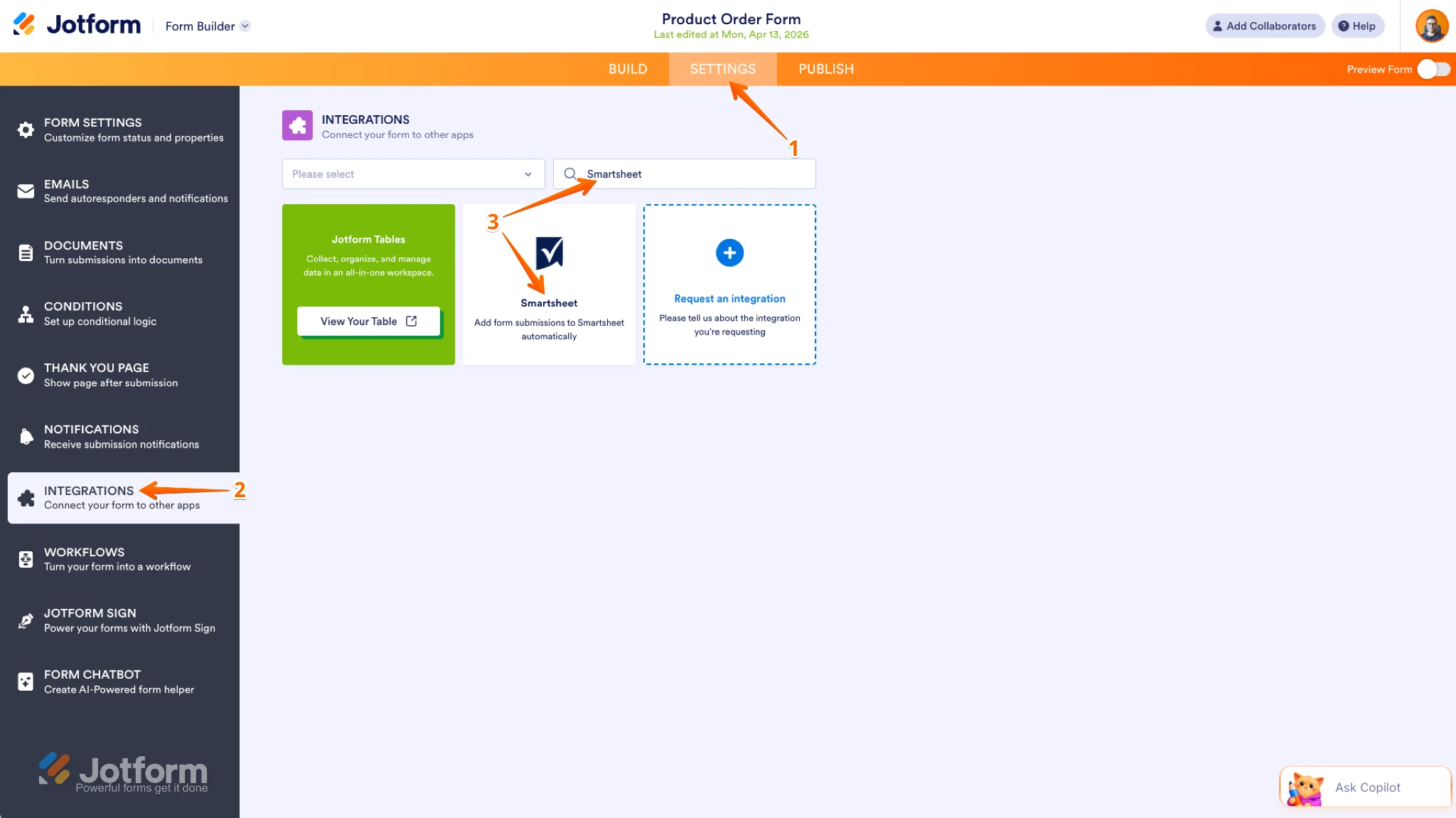
- In Form Builder, in the orange navigation bar at the top of the page, click on Settings.
- Then, in the menu on the left, click on Integrations.
- Now, search for Smartsheet and click on it.
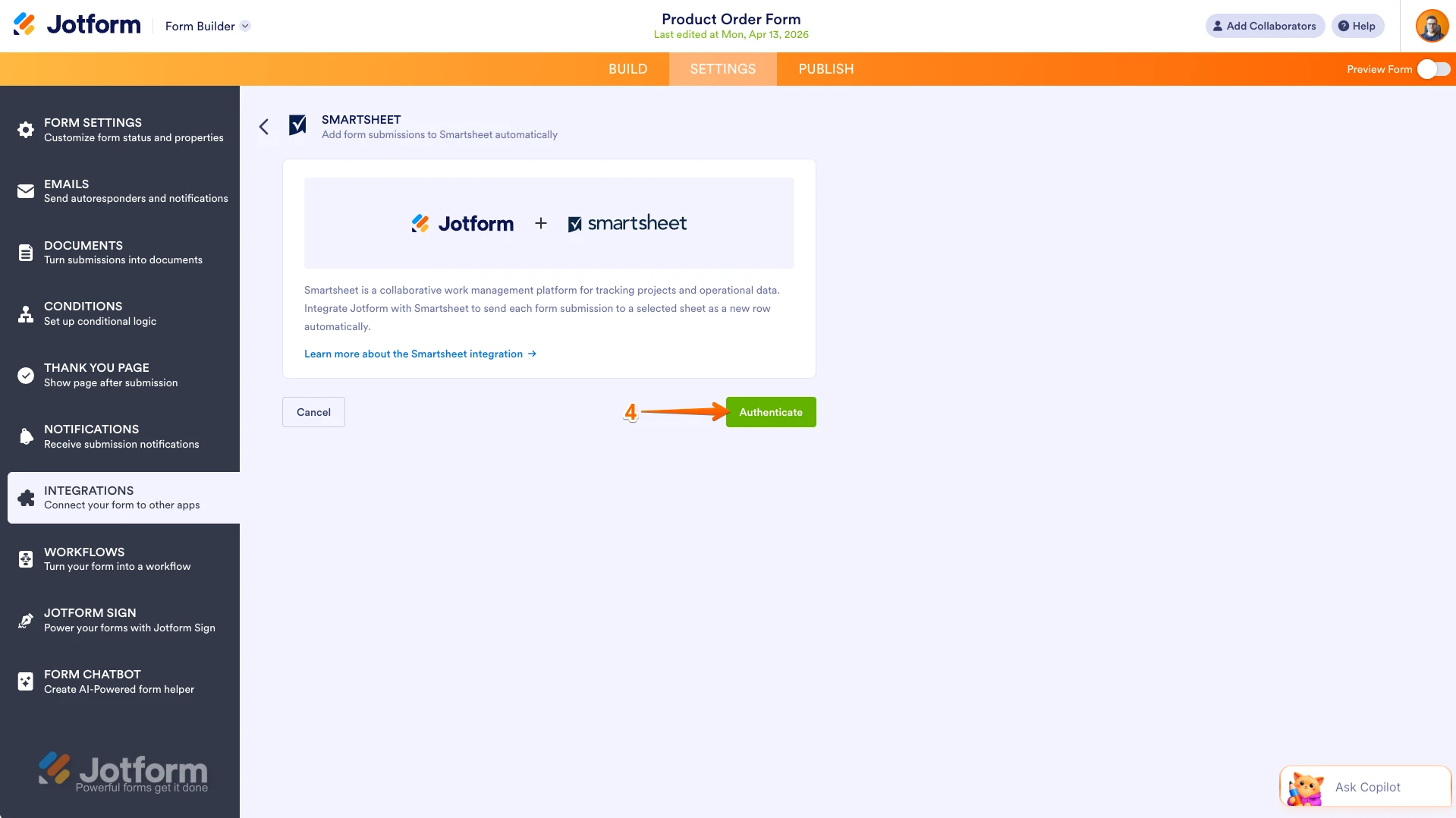
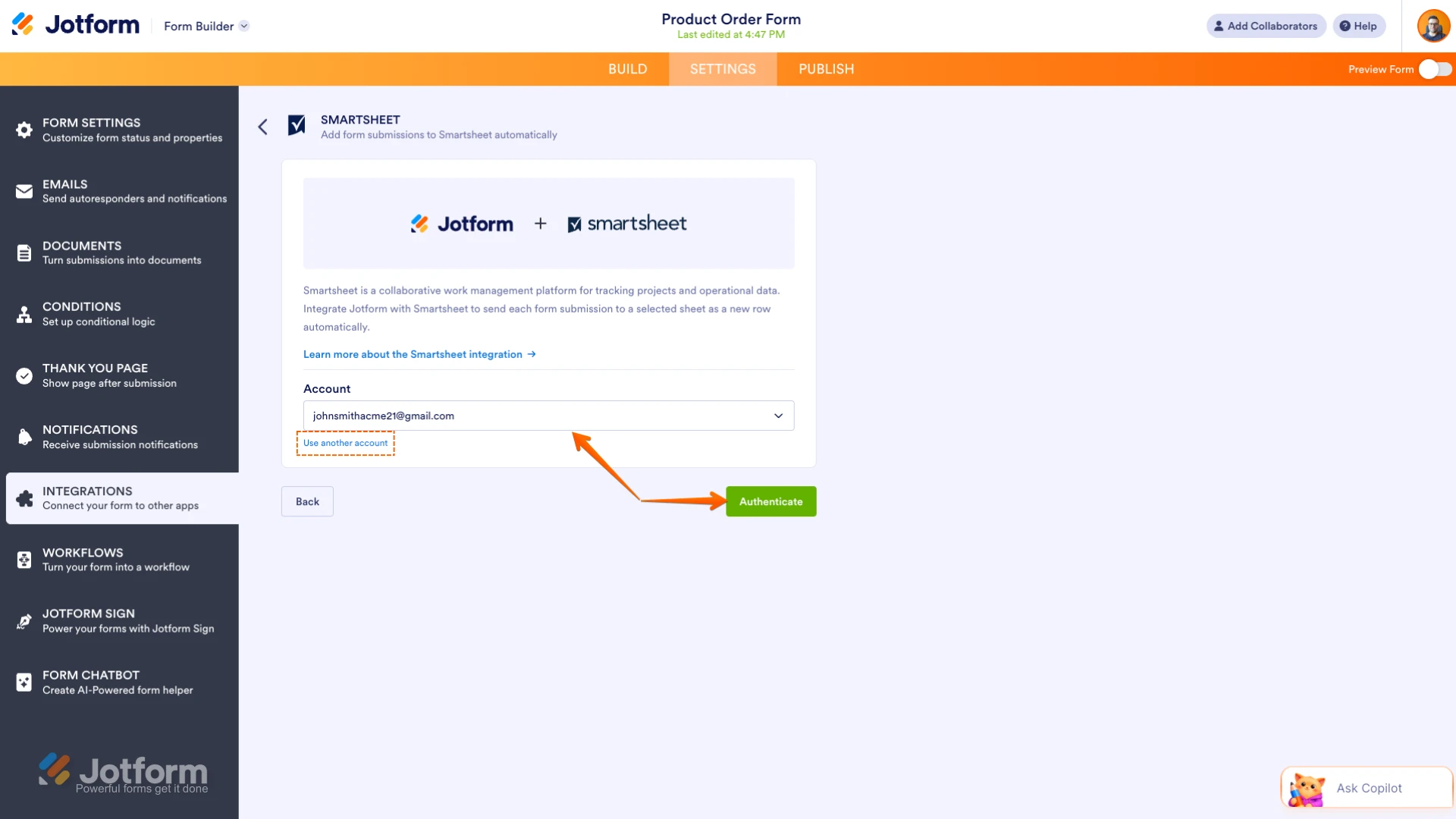
- In the Smartsheet section, click on Authenticate.
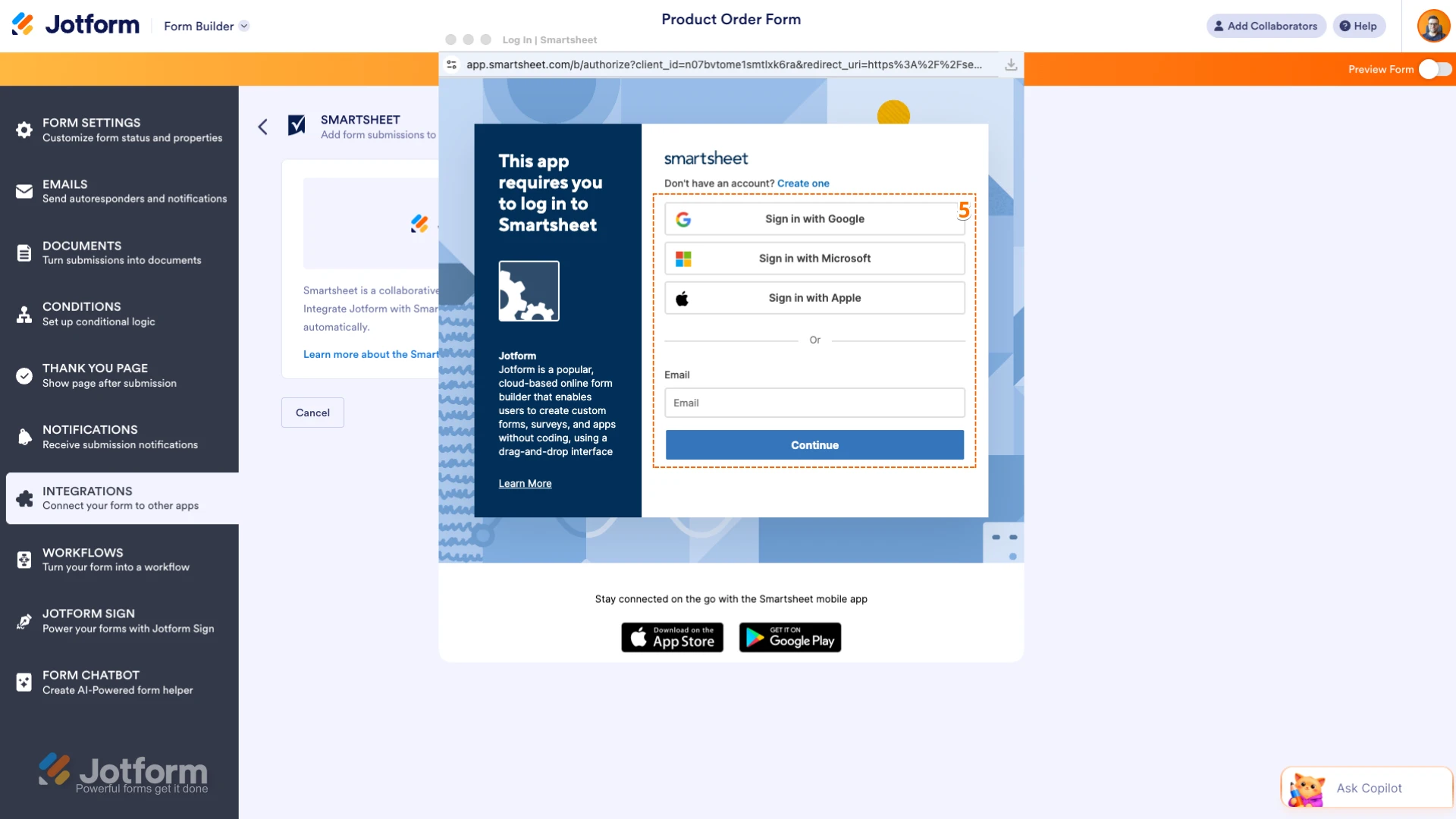
- Now, log in to your Smartsheet account.
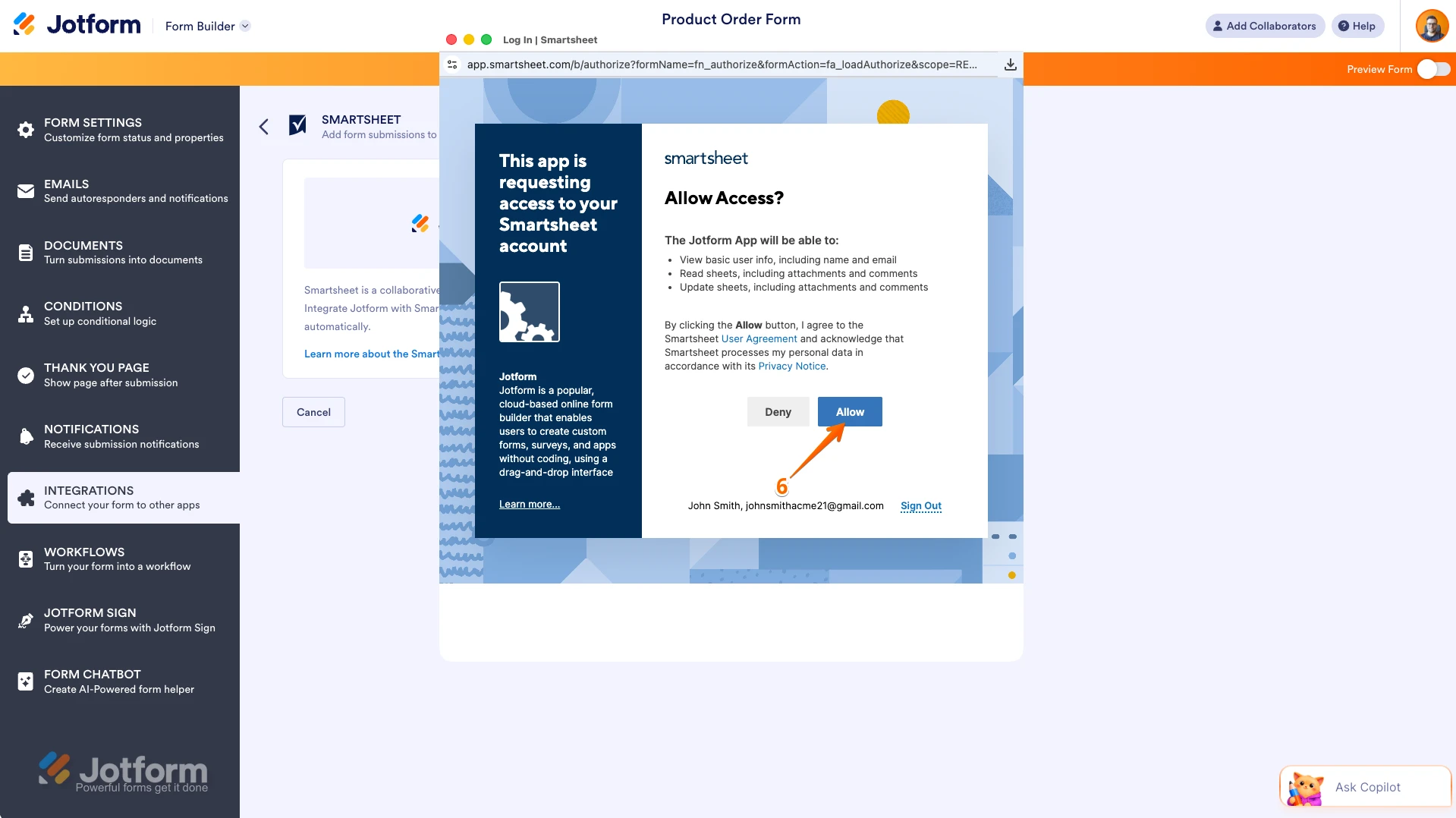
- In the Allow Access window that comes up, click on Allow to give Jotform access.
If you logged in before through another form, select that Smartsheet account from the Dropdown menu and click on Authenticate or click on Use Another Account to use a different one.
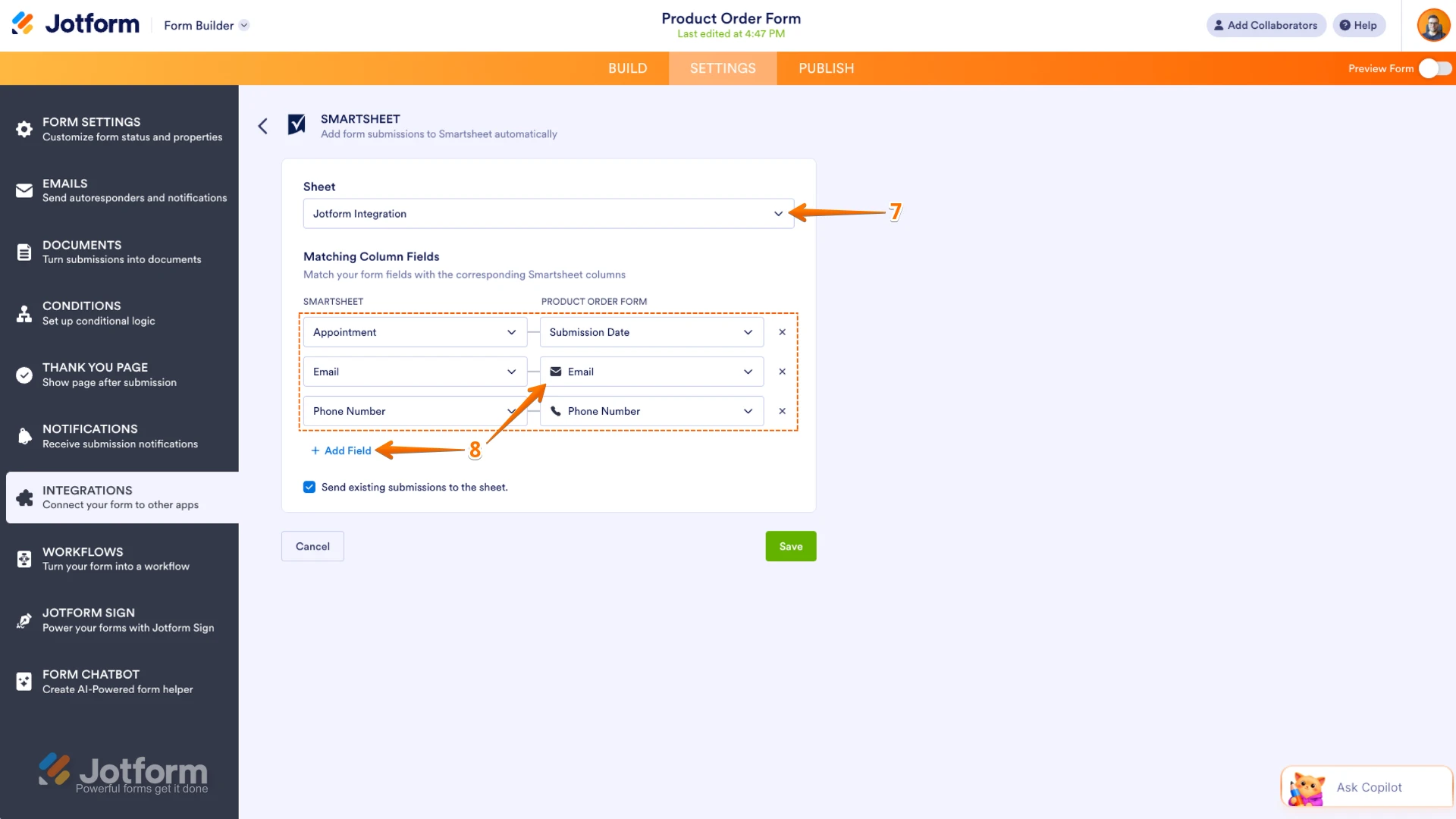
7. Now, in the Sheet Dropdown menu, select the sheet you want to send data to.
8. In the Matching Column Fields section, match your sheet columns with the corresponding form elements and click on Add Field to add more.
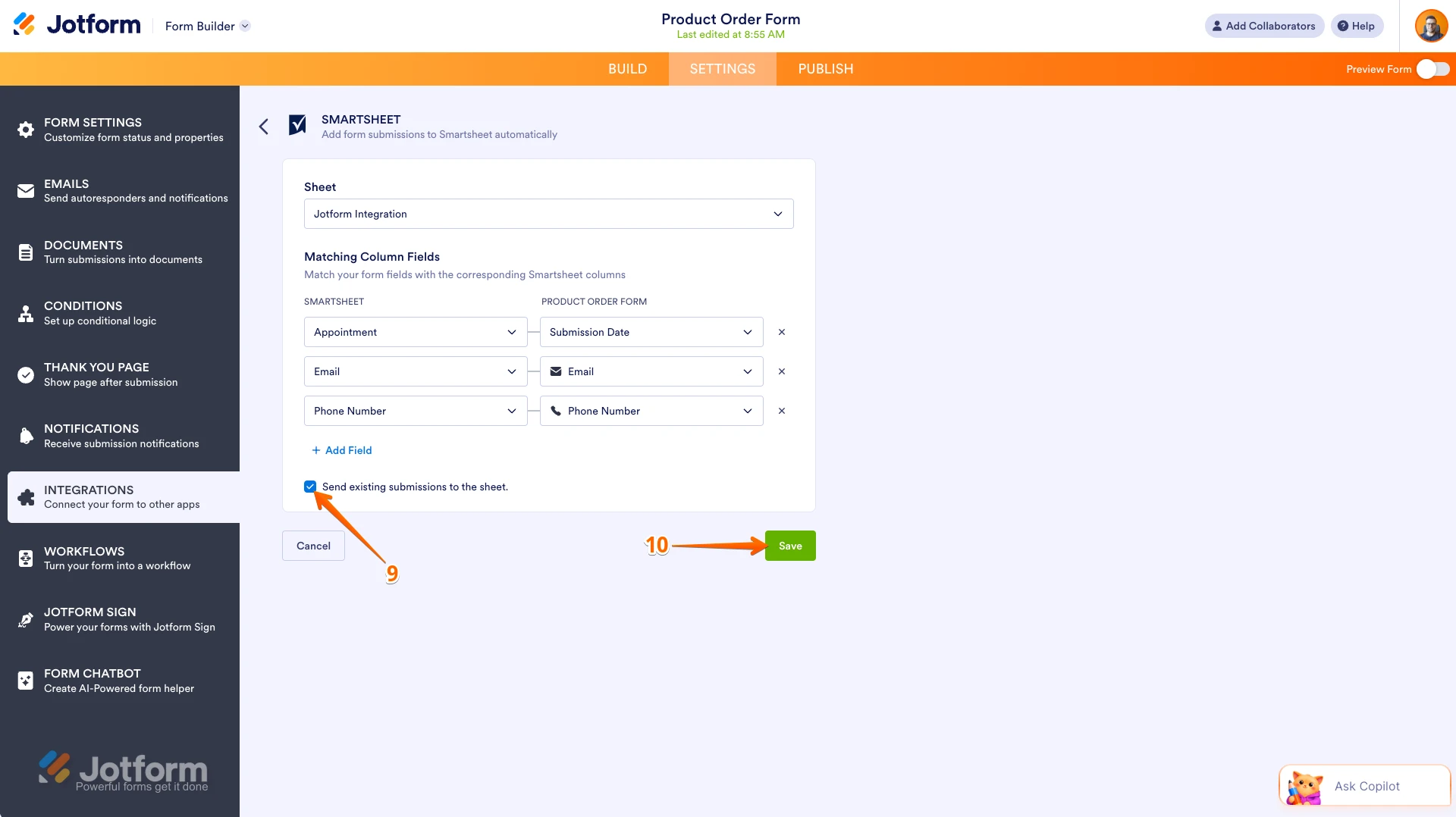
9. Next, tick the Send Existing Submissions to the Sheet box if you want to include previously submitted form entries in the Smartsheet sheet.
10. Once those are set, click on Save at the bottom.
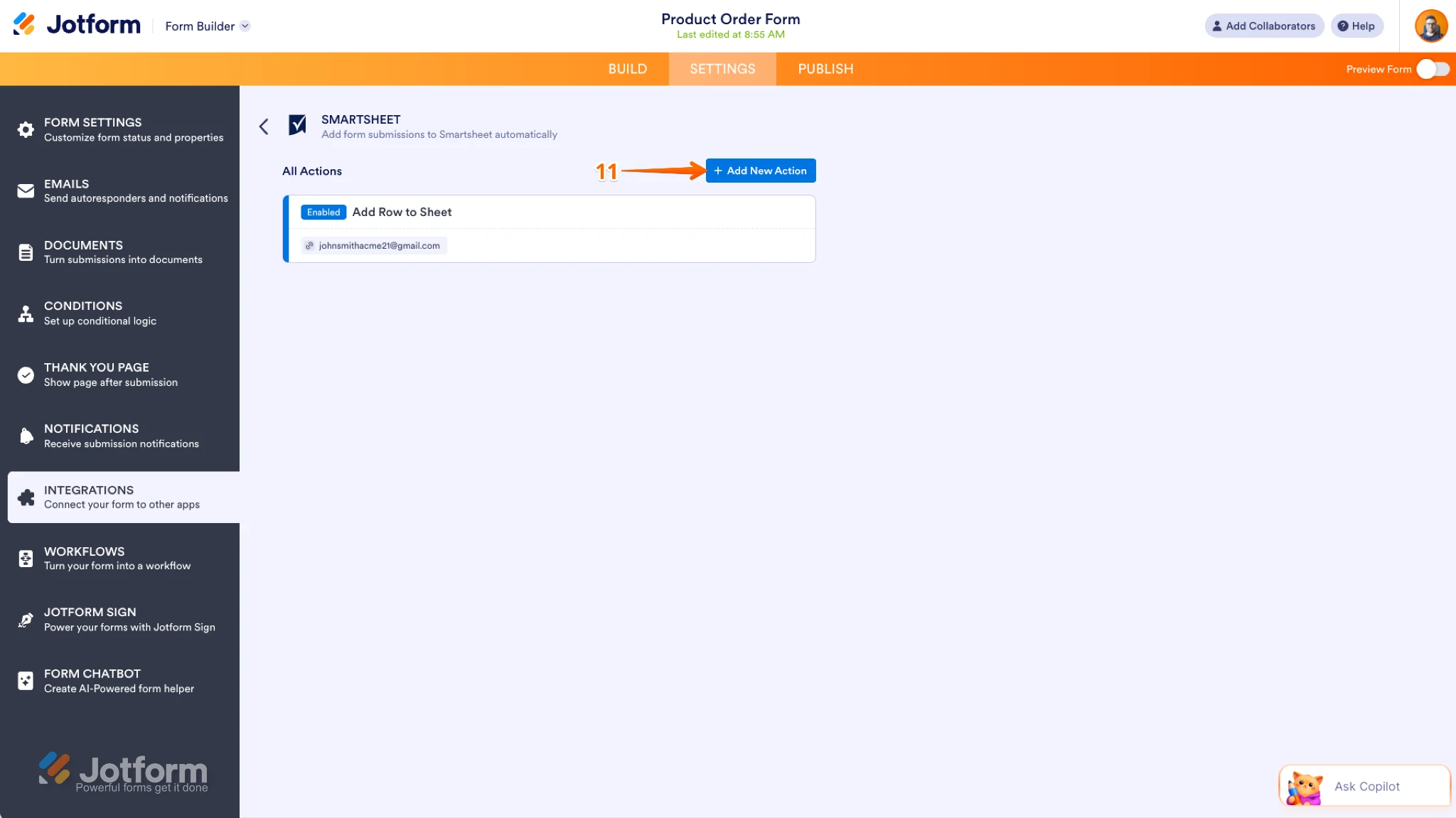
11. Now, you’ll see the list of actions you’ve set up and the Add New Action button on the main page.
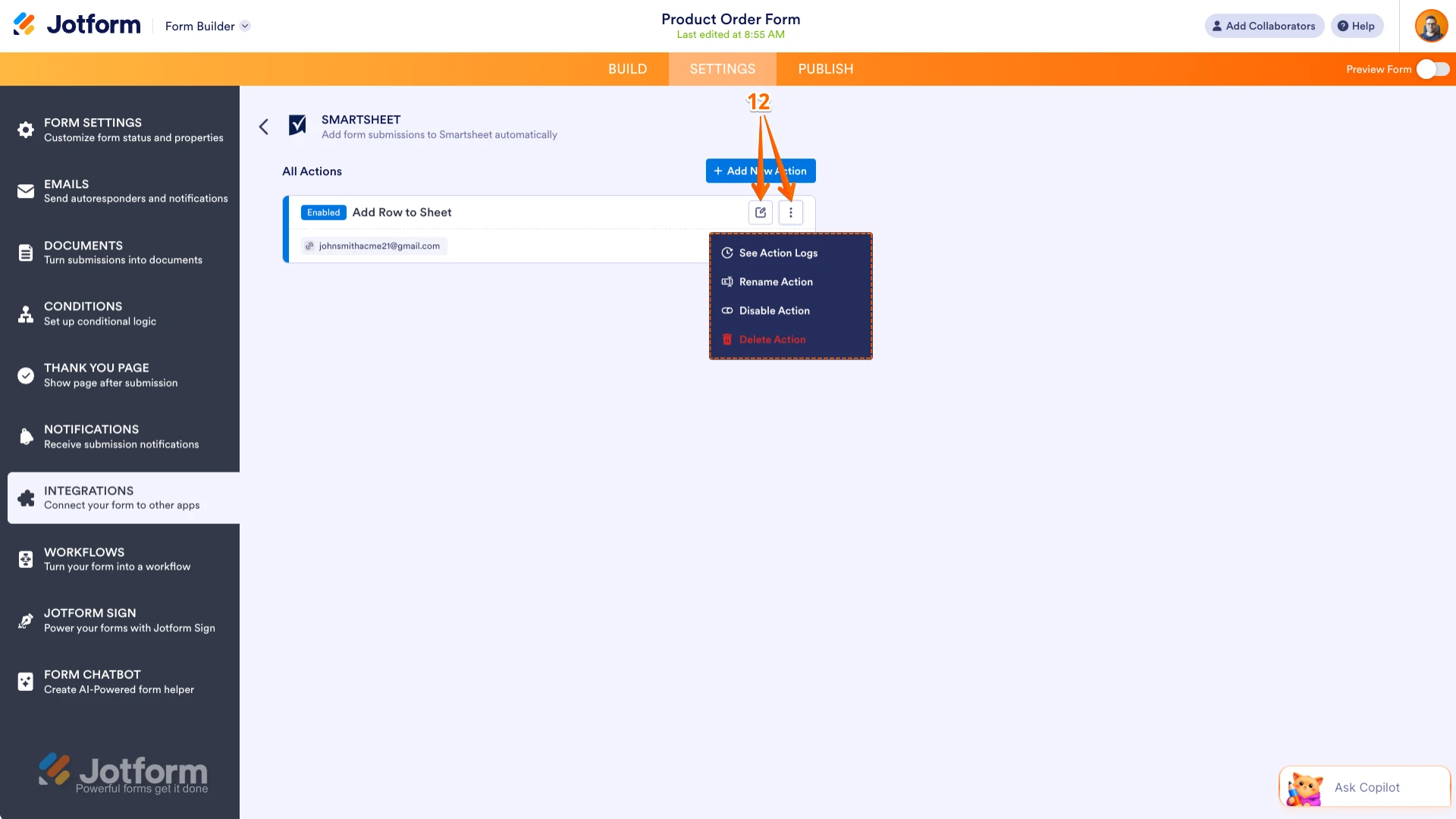
12. Hover your mouse over an action and click on the Pencil icon to edit it or the Three Dots icon to access these other options:
- See Action Logs — View successful and failed runs, helpful for troubleshooting.
- Rename Action — Change the title of the action.
- Disable Action — Temporarily stop the integration from sending data.
- Delete Action — Remove the action from your form.
And you’re all set. Your submissions will now flow directly into Smartsheet, keeping your data structured and up to date.
With the process automated, you can focus on your workflows and team collaboration without manual entry. Looking to dive in deeper? Check out our guide on How to Integrate Your Form with Smartsheet.
Give it a try and let us know if you have any questions.