-
 OKIYOMESHO
Every time I delete the form image, at first it deletes but once I come out of the form then go back in the form image comes back.
-
 Keenly JotForm Support
Hi Robert,
Thanks for reaching out to Jotform Support. I cloned your form, deleted the logo at the top and the image in the Heading element, then closed and reopened the form. The deleted images didn’t come back, as expected. Check out the screenshot below:
 Could you try to clear your form caches to rule out any temporary loading issues? It's easy to do it manually. Let me show you how:
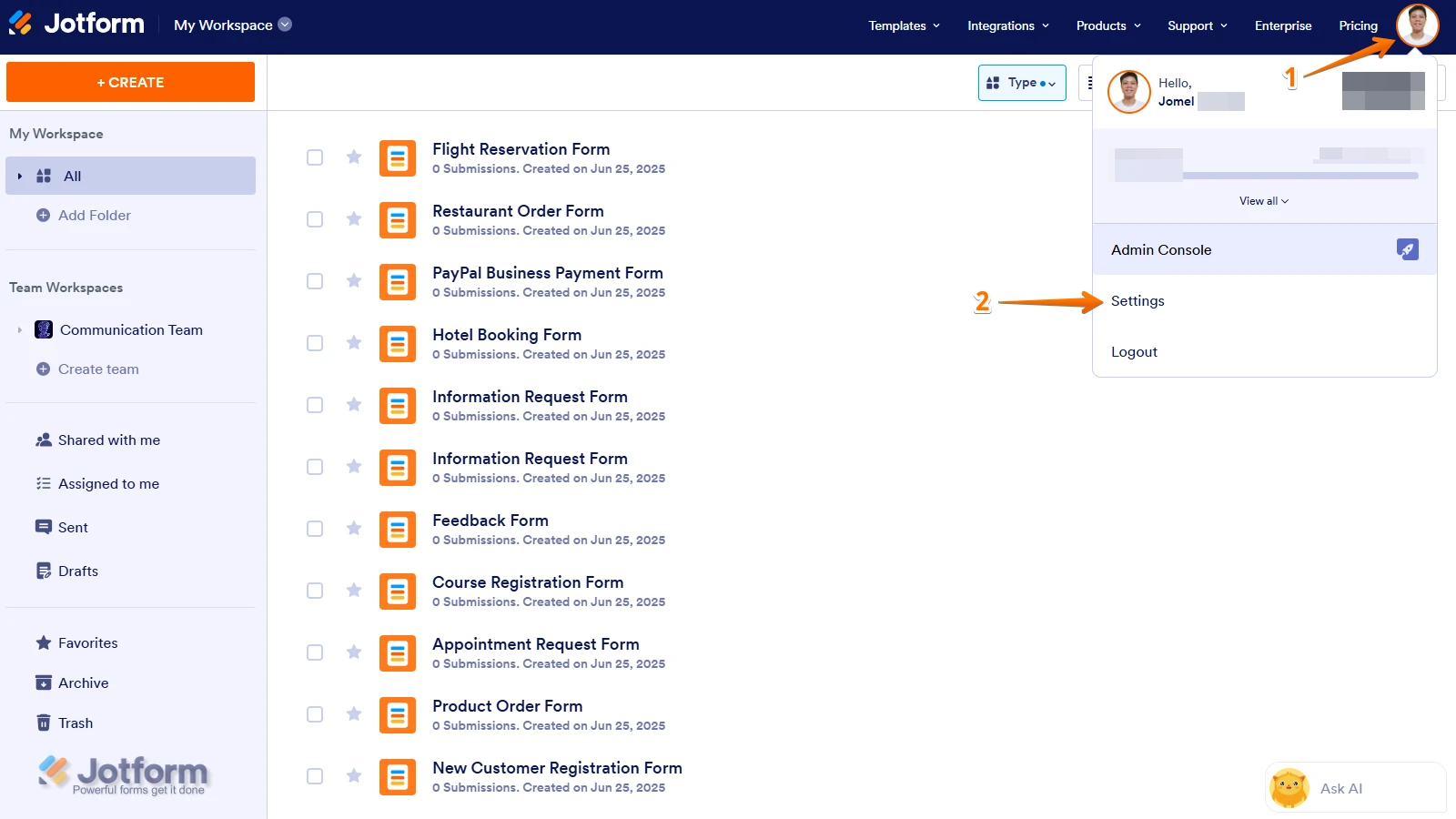
1. On your Workspace page, click on your Avatar/Profile Image icon.
2. In the Dropdown menu, click on Settings.
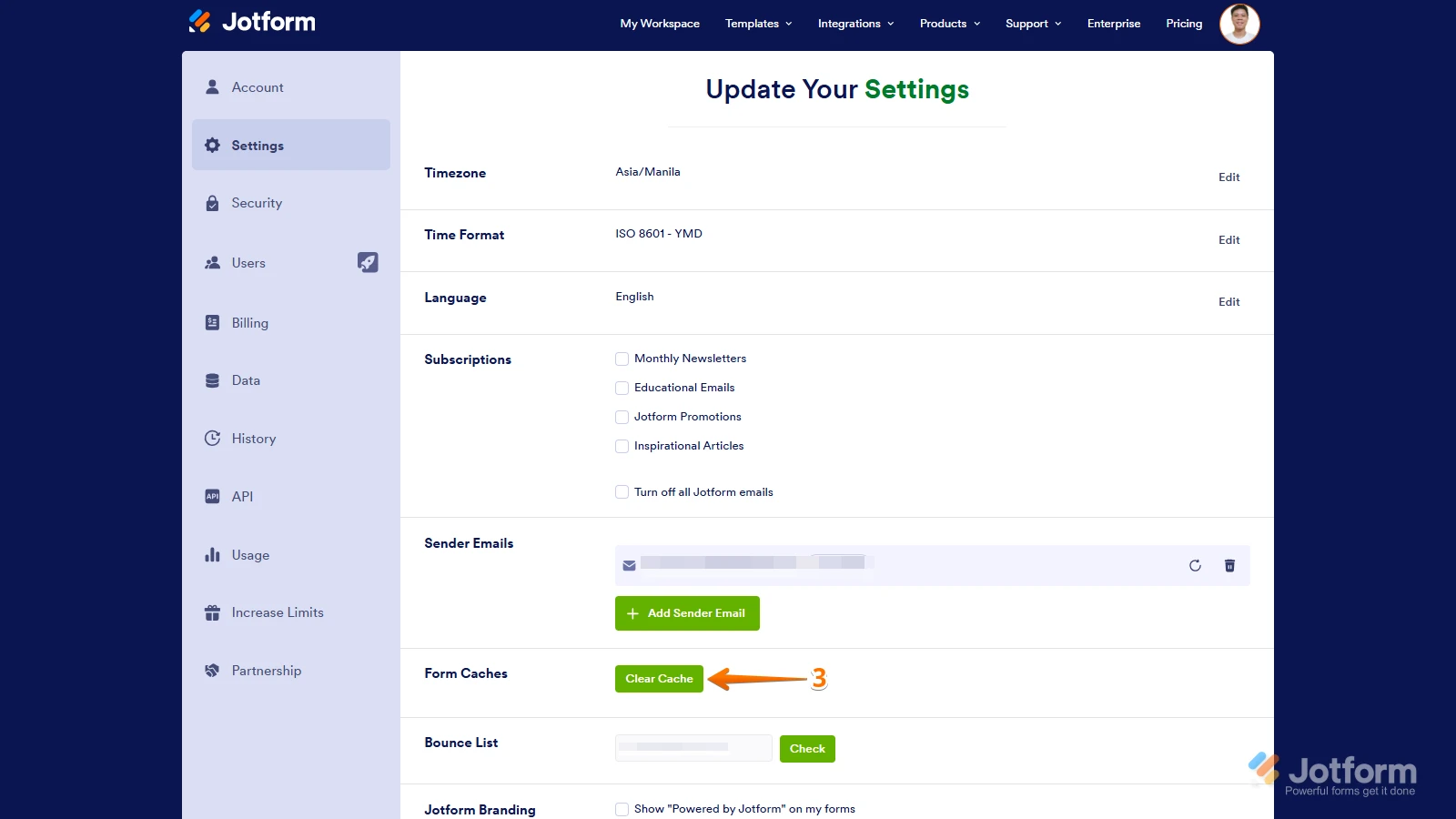
3. In the Settings menu, click on Clear Cache. And that's it, you're done.
Once that's done, you can try deleting the image from your form again and see if that helps. If the issue continues to occur, can you capture a video of what’s going on and share it? Loom works great, or you can upload it to Google Drive or Dropbox.Keep us updated and let us know if you need any more help.
-
OKIYOMESHO
Hi Thank you but I did not say 'Logo', I said 'form Image', the image with the hands. I guess I will try clearing the Cashe although I believe I did that already.
-
 Rehan Support Team Lead
Hi Robert,
I tried it in a cloned form and the hands images didn't come back. It was removed as expected. If you are still facing the issue then can we try to remove the hands image in your form? To see if it works from here.
Reach out again if you need any other help.
-
OKIYOMESHO
It hasn't worked, Is there a save that I am supposed to hit or something? You can most certinly go ahead and delete it. The permission switch is already toggled.
Robert
-
Keenly JotForm Support
Hi Robert,
Could you try removing the form image from the Advanced Form Designer page instead? This might help fully remove the image from the form. Let me walk you through the steps:
1. In Form Builder, click on the Paint Roller icon on the right side of the page.
2. Next, in the Form Designer menu on the right, under the Colors tab, click on Advanced Designer at the bottom.
3. Now, in Advanced Form Designer page, click on Background Image in the Advanced Designer menu on the right under the Design tab.
4. Then, click on Remove Image under the Form Background Image section.
5. While still in Advanced Form Designer page, click on Back to Builder at the top of the page.

 Once that's done, you can try deleting the image from your form again and see if that helps. If the issue continues to occur, can you capture a video of what’s going on and share it?
Your Reply
Something Went Wrong
An error occurred while generating the AI response. Please try again!