-
 MiniBody
Hi,
We are new to Jot Form and are creating our paper forms into electronic documents slowly.
I have just created a document called "delivery docket" and I am wondering if there is a way to have this document in two drafts at once. We are using this document for sign off of the delivery of trucks. Some days 2 or 3 trucks may get delivered and therefore we need to fill the document out more then once. We can not submit the document as we need the truck drivers who collect the trucks to sign the form on pick up.
I do hope I am explaining my issue properly.
thank you in advance for your help
Lisa
-
 Podo: Support Specialist
Hi MiniBody,
Thanks for reaching out to Jotform Support. I'm an AI assistant here to assist you.
Allowing the same person to fill out your form multiple times is quick and easy. Setting it up takes no time at all, here’s how:
- In Form Builder, in the orange navigation bar at the top of the page, click on Settings.
- Then, click on Show More Options.
- Next, in the Form Settings menu, scroll down and select No Check in the Unique Submission Dropdown menu.

Give it a try and let us know how it goes.
-
MiniBody
that didn't work
-
 Raymond JotForm Support
Hi Lisa,
From what I understand, you’re using the Save button to create drafts for later submission and specifically need to manage two or three of them at once. While the Jotform Mobile Forms app doesn't currently support multiple simultaneous drafts, you can easily achieve this by using your mobile or desktop web browser instead.
To make this work, you should ensure you aren't logged into your Jotform account while filling out the form. Using your browser’s incognito or private mode is the most reliable way to do this. The process is straightforward, just open the form in an incognito window, enter the details for your first truck, and click Save to generate a unique draft link that you can copy and store.
To start a second draft, simply close that window, open a fresh incognito tab, and repeat the steps for the next truck. This allows you to generate a unique, individual link for every draft, which you can click on to return to a specific truck's entry at any time.
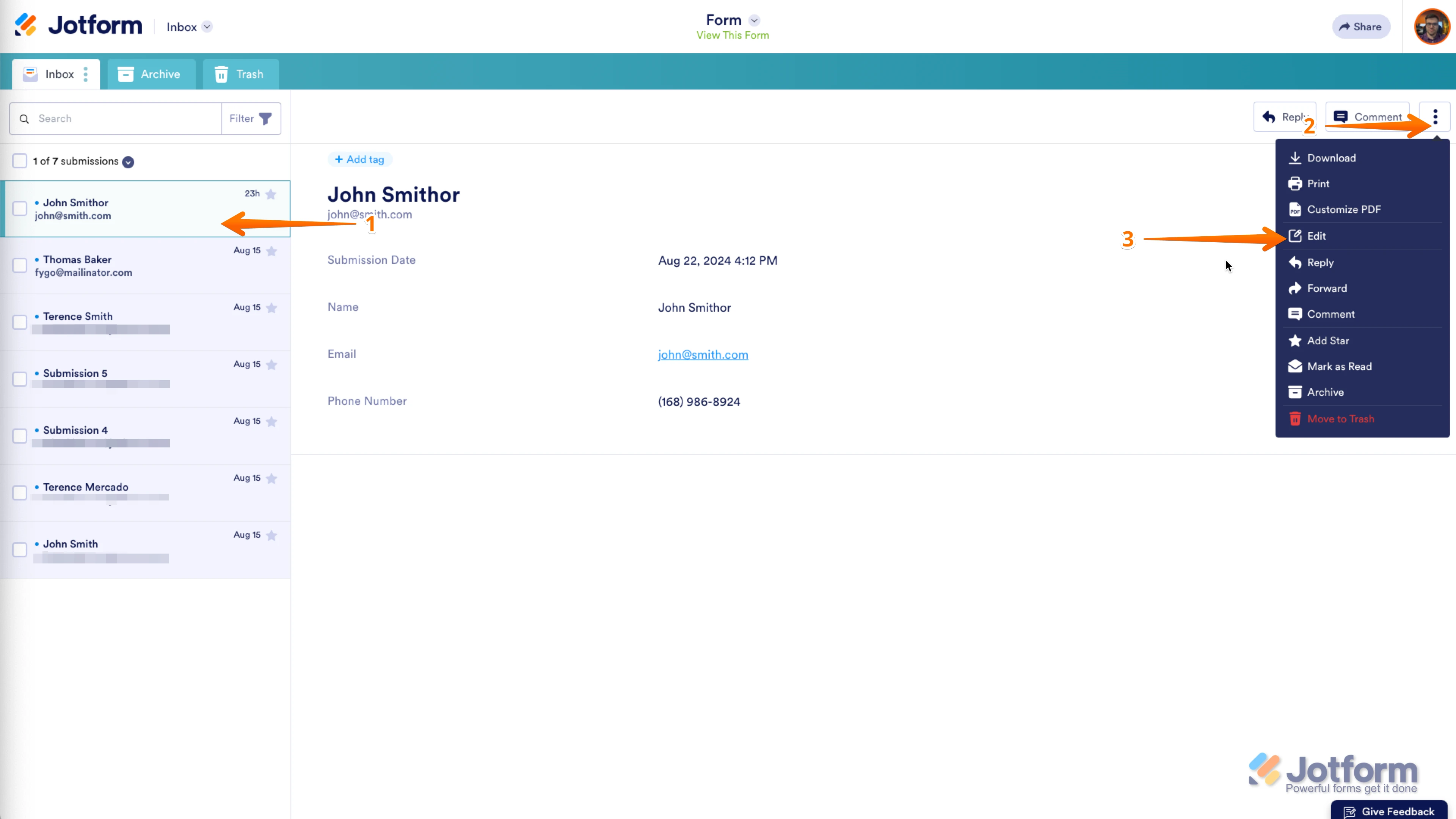
Alternatively, you can also just make submissions and edit them at a later time. Editing your submissions is easy in Inbox. Let me walk you through it:
1. In Inbox, on the left side of the page, click on the submission that you want to edit.
2. Click on the Three Dots icon at the top-right side of page.
3. In the dropdown list that opens, click on Edit.
4. Now, edit the submission and click on the Submit button like sending submission.
That's it. You can also add an edit link to notification emails so the recipient can edit the submission any time. Note that this method will allow anyone with the edit link to edit the related submission anytime.
Reach out again if you need any help.

Your Reply
Something Went Wrong
An error occurred while generating the AI response. Please try again!