-
 CraigL61
I'm trying to create a dynamic event registration form using conditional logic. If the user selects additional people to attend the event I need for additional fields to then display to collect name and contact info for each attendee. Please help. Thank you!
-
 Kris JotForm Support
Hi CraigL61,
Thanks for reaching out to Jotform Support. You can use the Configurable List widget. The Configurable List widget is easy to use. Let me show you how:
- In Form Builder, click on Add Element on the left side of the page.
- Under the Widgets tab, drag and drop the Configurable List widget into your form or just click on it to add.
- In the menu on the right, customize the Fields Configuration section according to the syntax below.
{label} : {type} : {placeholder}

Give it a try and let us know how it goes.
-
CraigL61
That's not quite what I'm looking for. What I want is for when the user increases the number of attendees under Deacons Retreat, that fields for name and contact info will then appear based on how many attendees the user selected. How do I create that?
-
Kris JotForm Support
Hi CraigL61,
This is possible using the Show/Hide Field conditional logic. You'll need to add basic elements like Full Name, Email, and Phone Number. Then, let the Show/Hide Field condition work on when they should show. You can display questions based on selected answers in a few simple steps. Let me first show you how to add the questions:
- In Form Builder, click on Add Element and drag-and-drop the fields you want to use as follow-up questions (I used Short Text fields in this example)
- Next, click on the Type a Question text and change it to the question you want to use.
Now, let's set up the conditions:
1. In Form Builder, in the orange navigation bar at the top of the page, click on Settings.
2. Next, click on Conditions on the left of the page.
3. Now, click on Show/Hide Field to create your condition (if you already have a condition, first click on Add Condition and then click on Show/Hide Field).
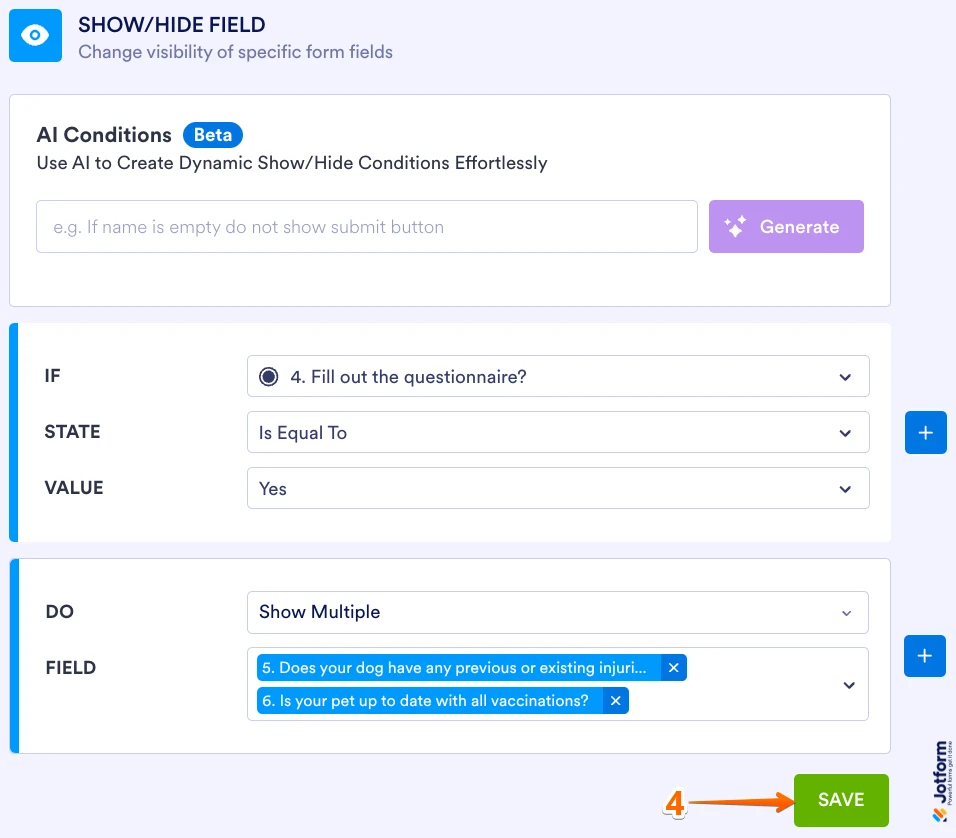
4. Set the conditions like you see below and click on Save:
The condition is set to show the follow up questions when the user selects Yes. Check out the screencast below to see what happens when the condition is met or not met:

Your Reply
Something Went Wrong
An error occurred while generating the AI response. Please try again!