-
 John_Pembroke
Hello, we have a form with a simple calculation to show pricing when the user selects their age. How do we get the AI Agent to show pricing in the chat as it works through the form? I've included the form link and AI Agent screenshot.
 Page URL: https://www.jotform.com/261164777422056/
 -
 Podo: Support Specialist
Hi John,
Thanks for reaching out to Jotform Support. I'm an AI assistant here to assist you.
You can easily Create an AI Agent and Connect it to an Existing Form. Once your form (with the age-based pricing calculation) is connected as the AI Agent’s primary form, the agent will walk users through the same fields and can reflect the calculated pricing as they progress, based on how the form is set up. Let me show you how to create the agent from your existing form:
- On your Workspace page, click on Type on the upper-right side of the page.
- Then, in the Dropdown menu that opens, put a check in the box next to Forms.
- Next, hover your mouse over the form you want to create an AI agent of, and then click on More on the right side of the page.
- Now, in the Dropdown menu that opens, under the Publish column, click on Create Agent, and it will automatically redirect you to AI Agent Builder, where you can continue setting up your AI Agent.
If your pricing is already calculated in the form (for example, using Form Calculation or conditional logic tied to the age field), the AI Agent will follow that same logic while guiding the user through the form, and the calculated price will appear in the relevant form field as they proceed.
Give it a try and let us know how it goes.
-
 Lesther Support Team Lead
Hi John,
I cloned your form and added an agent for testing, and I was able to replicate the issue. I tried different actions and at the same time, talked to AI in the Teach Your Agent section to refine the result. Talk to the AI like a normal conversation to give instructions, and what's not working, so it will adjust accordingly. Check the following screenshot showing our conversation:
As a result, the following action works:Here's a screenshot of my successful test:
For reference, here's how to navigate to the Teach Your Agent section:1. In AI Agent Builder, in the blue navigation bar at the top, click on Training.
2. Then, in the menu on the left, click on Teach Your Agent.
1. In Form Builder, in the orange navigation bar at the top, click on Settings.
2. Then, in the menu that opens on the right, click on Conditions, click on Add Condition, and then select Update/Calculate Field.
3. Add a similar condition as shown below, and then click on Save to finish.
Clone my form to test. You can find the guide on how to clone a form here. Open this link as well to test my AI Agent.Give it a try and let us know if you have any other questions.

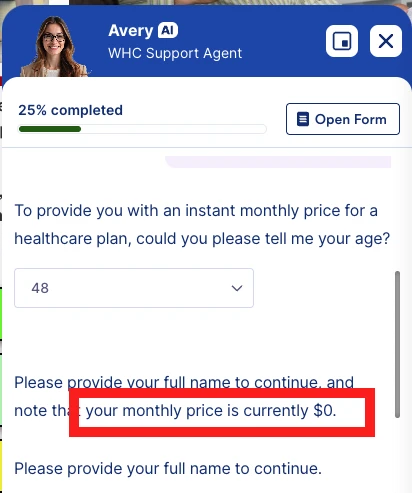
 As a result, the following action works:
 For reference, here's how to navigate to the Teach Your Agent section:
 Clone my
 Your Reply
Something Went Wrong
An error occurred while generating the AI response. Please try again!