-
 strategicsolutionsliving
I have been using jotform for quite a while and I have never seen this.
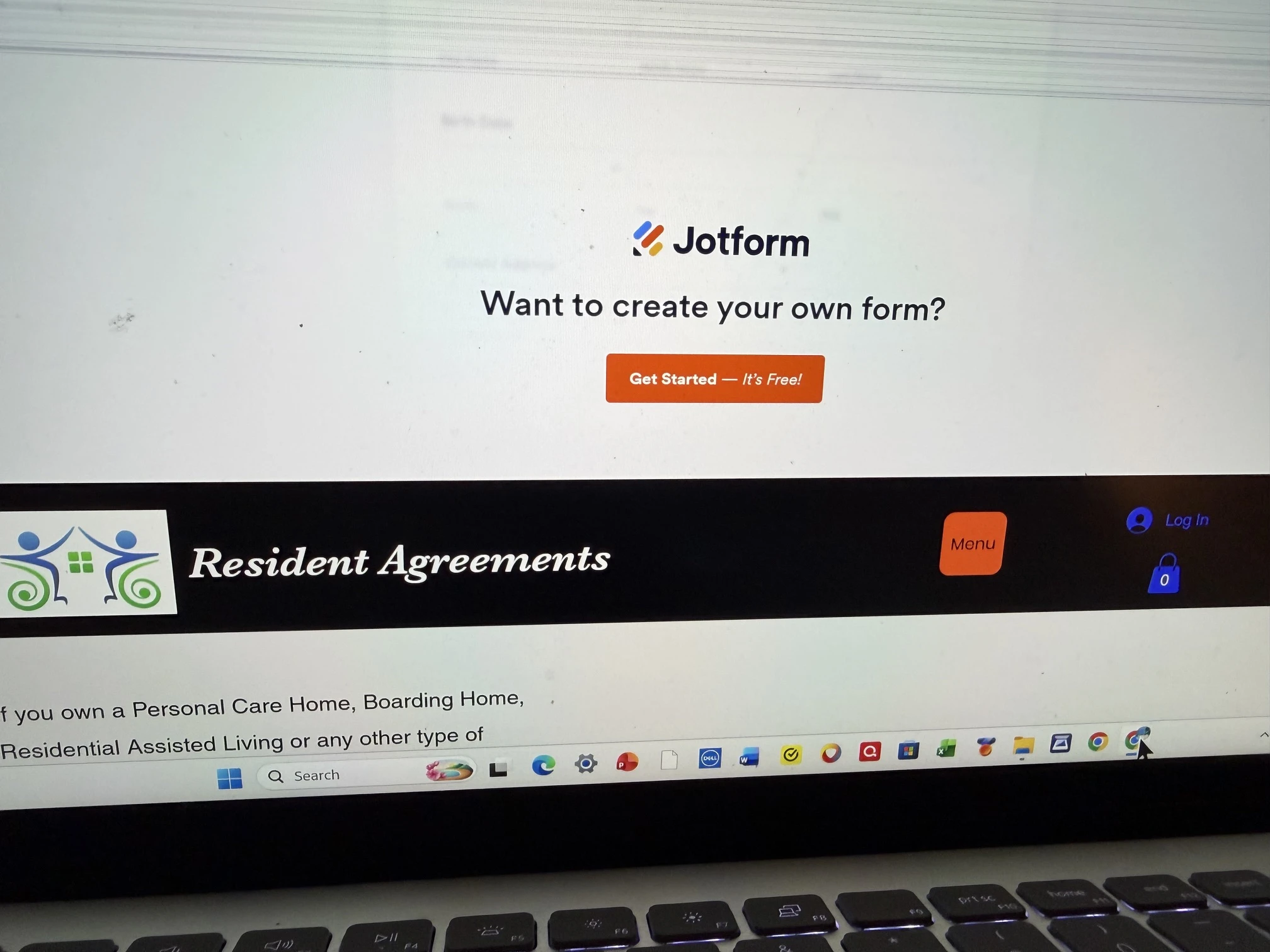
I added a jotform by embed data on a separate web page and when published, the form was on top of the website page. This shows it after the form was deleted.
 Page URL: https://residentagreements.com
 -
 Podo: Support Specialist
Hi Patti,
Thanks for reaching out to Jotform Support. I'm an AI assistant here to assist you.
When you embed a Jotform on a separate webpage using the embed code, the form is displayed directly on that page. If you delete the form from your Jotform account, the embedded form will no longer be accessible from Jotform's side, but the previously embedded code on your website may still show the form or a placeholder depending on how your website caches or handles the embed code.
This can cause the form to appear at the top of your webpage or in an unexpected position even after deletion because the embed code is still present in your website's HTML.
To resolve this issue, you should:
- Remove the embed code from your website's HTML where the form was embedded.
- Clear your website cache if your site uses caching, to ensure the old embed code is not being served.
- Clear your browser cache or try viewing the page in a different browser or incognito mode to check if the form still appears.
If you want to embed a form again, make sure to use the current embed code from your active form in Jotform.
Here is a helpful guide on How to Embed a Form on a Web Page that explains the embedding process and troubleshooting tips.
Give it a try and let us know how it goes.
-
strategicsolutionsliving
That is what the screenshot shows.
-
Podo: Support Specialist
Hi Patti,
Embedding your form on a webpage is really easy. Let me show you how:
- In Form Builder, in the orange navigation bar at the top of the page, click on Publish.
- In the menu on the left side of the page, click on Embed.
- Now, select the embed option you want to use, and click on Copy Code. (I used the iFrame method only to show in this case.)
- Paste your code into your webpage's embed area, and that’s it.
Reach out again if you have any other questions.
-
 Emre
EmreHi Patti,
Thanks for using Jotform. Thank you for providing the page URL. After inspecting the source code of your website, I found that the Jotform embed script is currently placed at the very beginning of the Body tag.
In Wix, this behavior typically occurs when the code is added via the Custom Code (Tracking & Analytics) section in the dashboard with the position set to Body - Start. This configuration tells the browser to render the form before any other elements on your page.
To place the form in a specific section of your site, please follow these steps:
Remove the Current Code- Navigate to your Wix Dashboard.
- Go to Settings > Custom Code.
- Locate the Jotform script and Delete or Disable it from this section.
Instead of adding the code to the entire body, use a dedicated container for the form:
- Open your site in the Wix Editor.
- Click the Add Elements (+) button.
- Select Embed Code > HTML Embed > HTML iFrame.
- Drag the widget to the exact location where you want the form to appear.
- Click Enter Code and paste your Jotform iFrame Embed code.
- Adjust the height and width of the widget to match your form’s dimensions.
This ensures the form stays within the layout of your page rather than jumping to the top.
Reach out again if you have any other questions.
Your Reply
Something Went Wrong
An error occurred while generating the AI response. Please try again!