-
 malmack4444
Hi. This form is for an event. Creating this form getting their information, then asking questions about themselves. Then I created a love language “quiz,” and an attachment “quiz”. I want to be able to add a point from each question. Which by the end of the love language test, they will get percentage results of each love language. And the attachment test, they will see which attachment style they are. And i want to be able to put their results into the auto responder after they filled everything out. Everytime I’ve tried to add calculation values of “1” to each choice, it doesn’t add up at the end. Can you help me please.
-
 Podo: Support Specialist
Hi Mariah,
Thanks for reaching out to Jotform Support. I'm an AI assistant here to assist you.
Let me help you with that:
To create quizzes like your love language and attachment style tests with point calculations and percentage results, you can use Jotform's Quiz Form feature. Here’s how you can do it:
- Assign Calculation Values: For each question choice, assign a calculation value (e.g., 1) to each answer option that contributes to a specific love language or attachment style.
- Use Quiz Form Tool: Go to the Quiz Form tool, open your form, and specify the correct answers or scoring system for each question.
- Show Results as Percentages: The Quiz Form tool can calculate the total points and display results to users after submission, including percentages for each category.
- Include Results in Autoresponder: You can customize the autoresponder email to include the quiz results by adding the relevant form fields or calculation fields that hold the results.
This method ensures your quiz questions add up correctly, and the results are displayed and emailed as you want.
For detailed steps and options, you can visit the Jotform guide on How to Turn Your Form Into a Quiz or Exam.
Give it a try and let us know how it goes.
-
malmack4444
how do I score each question from quiz form
-
Podo: Support Specialist
Hi Mariah,
You can easily Turn Your Form Into a Quiz or Exam where responders can see their score at the end. Let me show you how:
- Go to the Quiz Form page, and click on the Open Quiz Form button.
- In the window that pops up, click on Allow, select the form you want to turn into a quiz, and then click on the Continue button in the top-right corner of the Form Picker window.
- Click on the Cross icon to close Form Picker, then in the Options section, click on Checkbox next to Email Results to and enter the email address and subject.
- Click on Checkbox next to the Show Results to User After Submission option.
- Scroll down, select the correct answers for your quiz, and click on Save Quiz at the bottom left of the page.
Now, when someone finishes your quiz and submits the form, they will see their results. You will also receive an email as the form owner. If you want to change the email content, check the Use Custom Email Page box and customize it as you like.

Give it a try and let us know if you need any other help.
-
malmack4444
There are no right or wrong answers for the quiz sections.
-
Podo: Support Specialist
Hi Mariah,
Since your quiz sections don't have right or wrong answers and you want to score points for each category (like love languages or attachment styles), you can assign calculation values to each choice based on the category it belongs to.
Here’s how to do it:
- Assign Calculation Values: For each answer option in your quiz questions, assign a calculation value that corresponds to a specific category (e.g., 1 point for a particular love language or attachment style).
- Use Calculation Fields: Add calculation fields to sum the points for each category separately across all relevant questions.
- Calculate Percentages: Use Form Calculation widgets to calculate the percentage results for each category by dividing the category's total points by the maximum possible points and multiplying by 100.
- Display Results: You can then show these calculated percentage results on the Thank You page or include them in the autoresponder email by adding the calculation fields to the email content.
This approach lets you score quizzes without right or wrong answers and provide personalized percentage results for each category.
Give it a try and let us know if you need further assistance.
-
malmack4444
I have tried this. And I have calculation widgets for each category. It doesn’t add up. Or show all percentages. For each question there are two choices for two different categories.
-
Podo: Support Specialist
Hi Mariah,
It sounds like the calculation widgets in your form are not adding up or showing percentages correctly, especially since each question has two choices for two different categories. Here are some important points and tips to troubleshoot and fix this issue:
- Assign Calculation Values Correctly: Make sure each choice in your questions has a calculation value assigned. You can do this by selecting the field, going to the Options tab in Properties, and toggling on Calculation Values. Then enter the numeric value for each choice.
- Check Calculation Widget Setup: In each Form Calculation widget that sums points for a category, ensure you have included all relevant fields and that the formula is correct. Use the Add Field button to add fields and operators (+, -, etc.) properly.
- Use Number Format for Calculation Fields: In the formula editor, make sure the fields are set to be treated as numbers (0-9) and not text (A-Z). This ensures the values are calculated correctly.
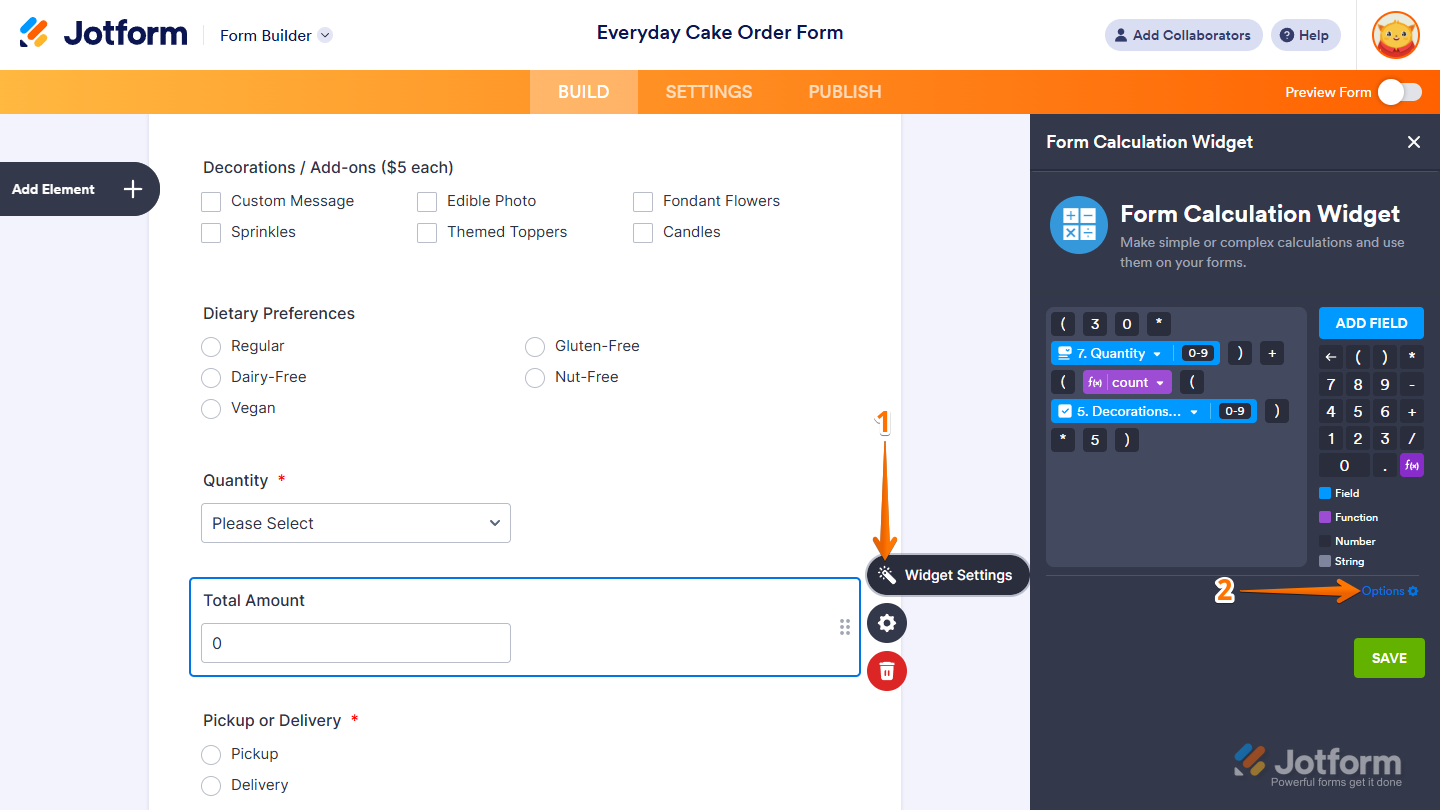
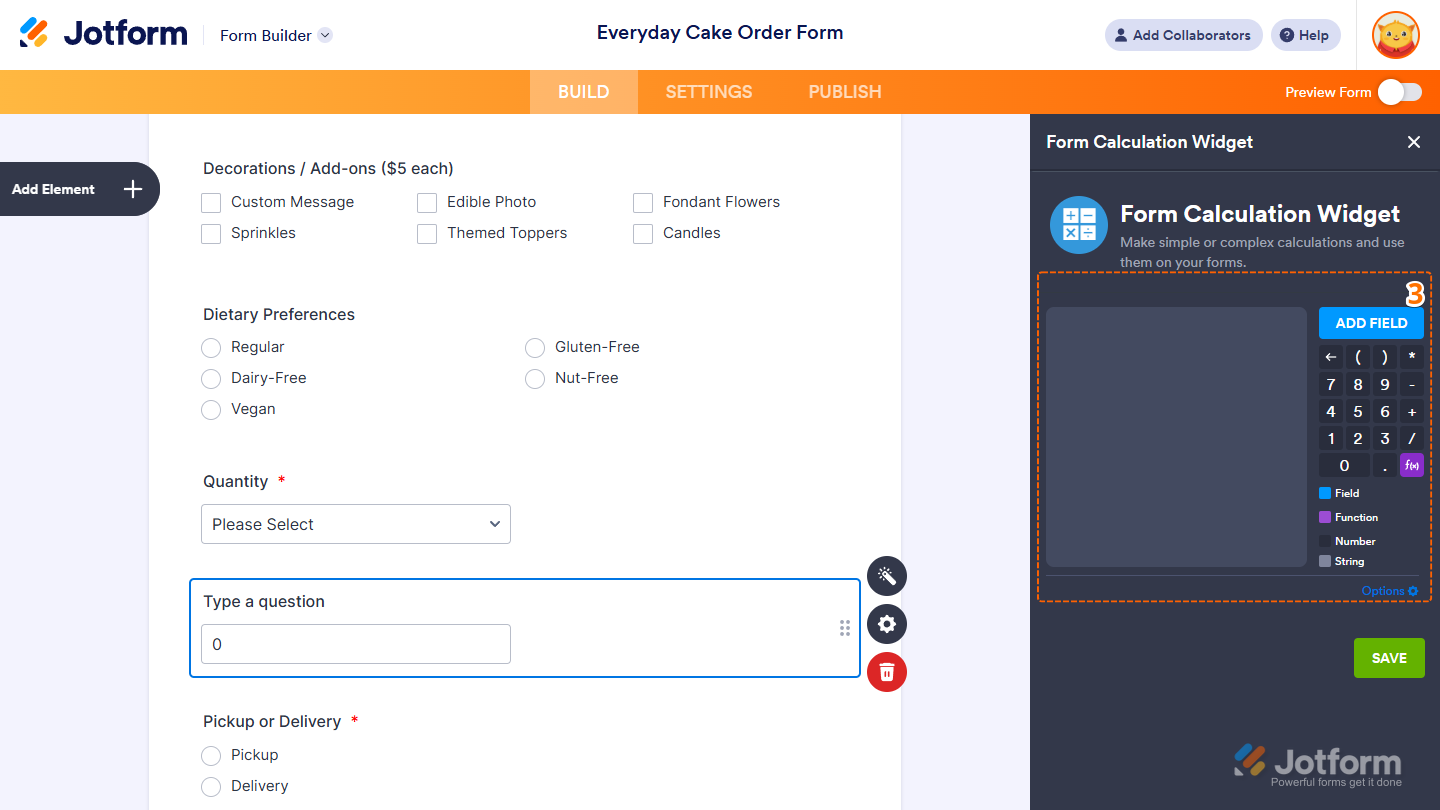
- Configure Widget Options: Click the wand icon on the calculation widget, then go to Options. Enable settings like "Result Field is Read Only" and "Ignore Hidden Fields" as needed. These options help keep calculations accurate and clean.
- Calculate Percentages: To show percentages, use additional calculation widgets to divide the category total by the maximum possible points and multiply by 100.
- Test Step-by-Step: Test each calculation widget separately to confirm it sums correctly before combining results or calculating percentages.
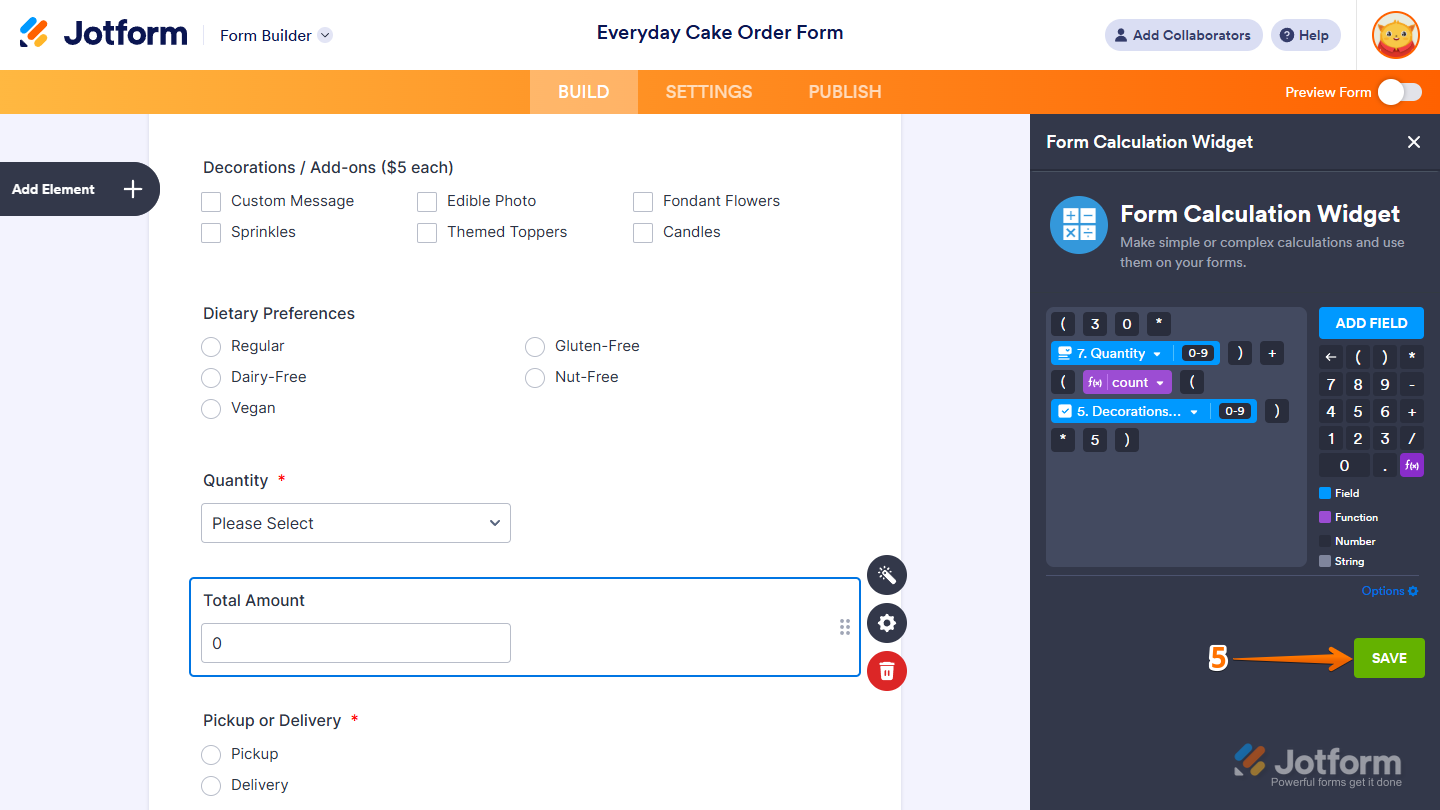
Here are some images to guide you through the Form Calculation widget setup and options:
For more details, you can also check our guide on How to Perform Form Calculation Using a Widget and How to Assign Calculation Values.
Give it a try and let us know how it goes.
-
malmack4444
Nah I don’t get it. I need to speak to a real person
-
Podo: Support Specialist
Hi Mariah,
One of our Support Team members will take it from here to follow up shortly.
-
 Mary JotForm Support
Hi Mariah,
I checked and see that you have sucesfully assigned values to your answers. Also, I see you have added calculations to your Form Calculation widgets. For example, the Love Laguage Score is calculating correctly:
But, for other fields, it seems that the calculations were not set up correctly. For example, in the Physical Touch %, the calculation involves the Physical Touch field, which is returning a blank calculation. Can you share more details on what you are trying to do in this calculation:Once we hear back from you, we can get moving on a solution.
-
MMariah
Hi! Thank you for helping me!
Sorry. Those are in there because I was trying different things. What I want is for each choice in each question to add 1 point to its corresponding category. By the time the form is filled out. Each category would have however many points in them. Which I wanted to convert to percentages in the autoresponder email.For an example. Let’s say I filled out the form and each category would like this:
Physical Touch: 7 (points)
Quality Time: 6 (points)
Words of Affirmation: 7 (points)
Gifts: 6 (points)
Acts of Service: 4 (points)
In their email, it would give the percentages (which would be out of 30). Now, for the attachment style test it’s the same concept (except it’s out of 20).
And whichever category has the most points or highest percentage, that said category is in their email to tell them which attachment they mostly are.Did I explain that well enough?
-
MMariah
I tried to just input “1” in each condition, but I kind of understand why it just ends up being 1 by the en of the form. I just want to be able to add. And I know I’m doing something wrong with the calculation.
-
 Rica Support Team Lead
Hi Mariah,
I need a bit more information so I can point you in the right direction. Does each option represent a category? For example, in Question 1, if they answer I’m a big fan of a good hug, would 1 point be added to the Physical Touch category, while selecting another option would add a point to a different category?
If this is the case, you will have to add a hidden Single Choice or Number element for each category after every question, add value to them based on the user's answer, and use a Form Calculation widget to get the total points for each category. Let me show you how to set up:
First, add the hidden Single Choice or Number element after each question. Here's an example:
Next, add an Update/Calculate Field condition for each option. It will be similar to the disabled conditions you added in your form, but this time, you will need to pass the value to the hidden Short Text or Number field after each question instead of sending it to the Form Calculation widget. Here are examples:
Once you have set this up for all questions, you can calculate the total for each category using the Form Calculation widget. You do not need to use conditions. You can simply add the formula inside the widget. Let me show you how:
1. In Form Builder, click on the Form Calculation widget to highlight it, then click on the Wand icon.
2. On the right side of the page, click on the Add Field button, then select the Short Text or Number field with the same category name.
3. Add the Plus Sign, then repeat steps 2 and 3 until all Short Text or Number fields with the same category name are added in the formula.
4. Lastly, click on the Save button.
That's it. Note that this workaround may affect your form’s performance due to the number of fields and conditions involved. I suggest creating a separate form for the Attachment Style Test to ensure better performance.
I separated your other requirement into a new thread so we can focus on it properly. You can view and follow it here.
Let us know if there’s anything else we can help you with.
 But, for other fields, it seems that the calculations were not set up correctly. For example, in the Physical Touch %, the calculation involves the Physical Touch field, which is returning a blank calculation. Can you share more details on what you are trying to do in this calculation:


Your Reply
Something Went Wrong
An error occurred while generating the AI response. Please try again!