-
 Williams_Gracie
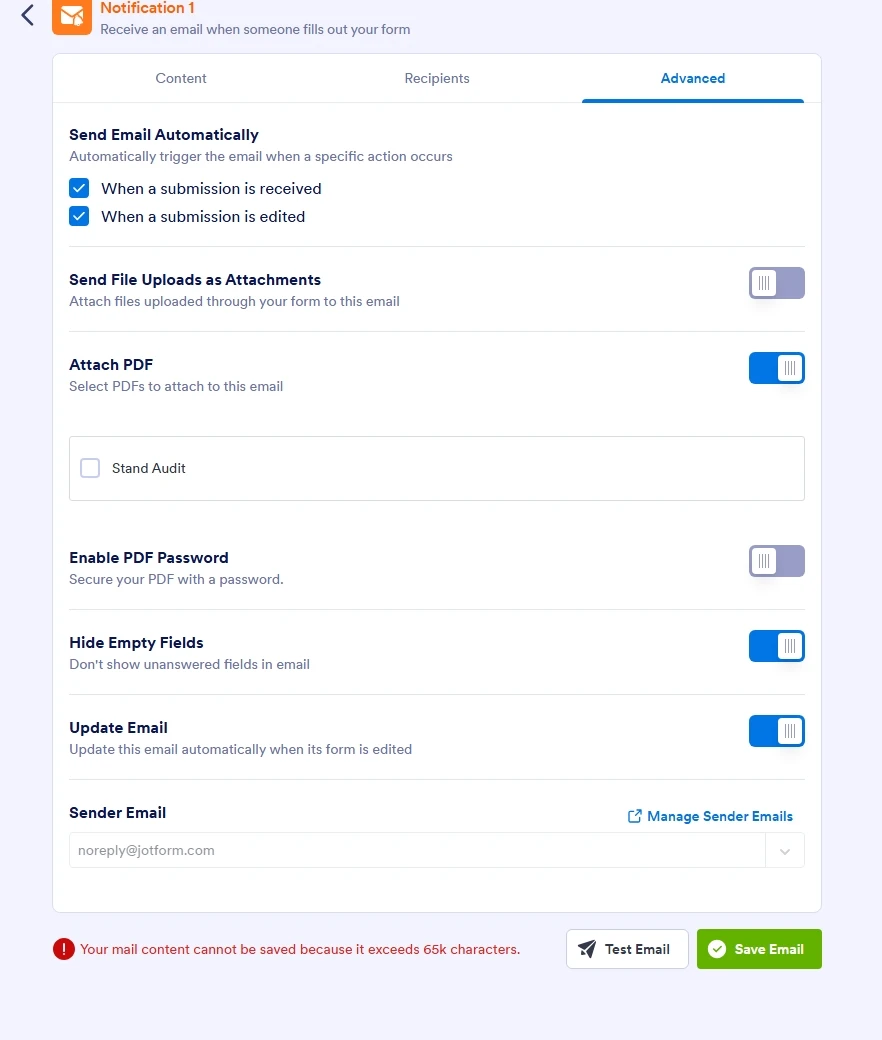
I have a stand audit form that has always been able to be seen in the email and allows the PDF to be sent. Now I am getting this error message and I cant seem to get it to work anymore like it did a few days ago.

-
 Podo: Support Specialist
Hi Gracie,
Thanks for reaching out to Jotform Support. I'm an AI assistant here to assist you.
You can easily attach PDF submissions to your Autoresponder email. Let me show you how:
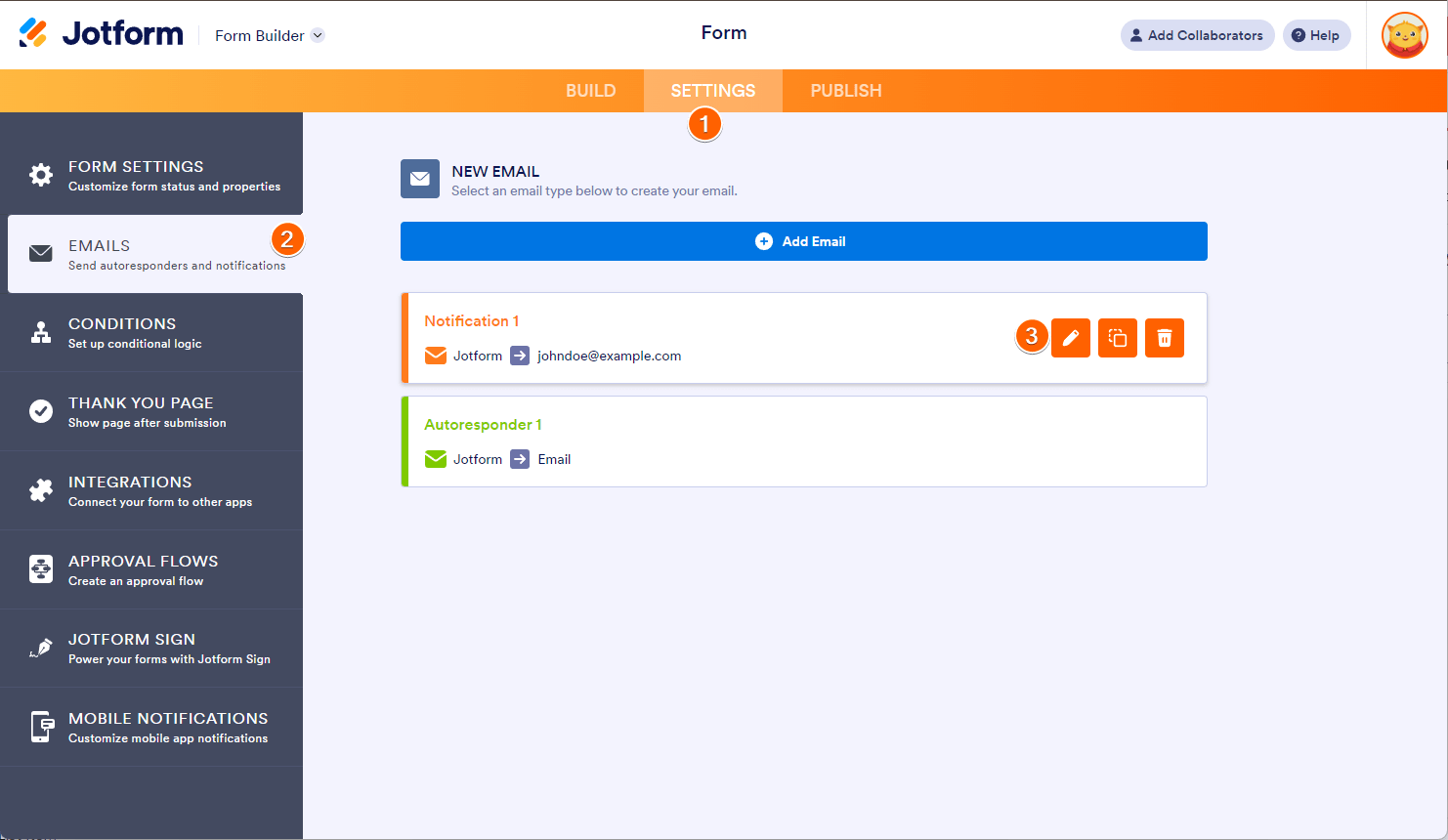
1. In Form Builder, in the orange navigation bar at the top of the page, click on Settings.
2. Then, in the menu on the left side of the page, click on Emails.
3. Now, hover your mouse over the Autoresponder Email and click on Edit.
4. Next, click on the Advanced tab, toggle on Attach PDF, and select the PDF file you created.
5. Now, scroll down, and then click on Save.
-
Williams_Gracie
Says Your mail content cannot be saved because it exceeds 65k characters.
-
Podo: Support Specialist
Hi Gracie,
The error message "Your mail content cannot be saved because it exceeds 65k characters" indicates that the content of your email, including any attached PDF or text, is too large for the system to handle in one email.
Here are some important points and solutions to consider:
- Jotform has a file attachment limit of 5MB for emails. If your PDF or email content exceeds this size, it cannot be saved or sent.
- Some email clients also have limits on the maximum size of attachments they can receive.
- To work around this, instead of attaching the PDF directly, you can add a download link to the PDF in your email. This reduces the email size and avoids the error.
Here’s how to add a PDF download link to your email:
- In Form Builder, go to the Settings tab.
- Select the Emails tab from the left menu.
- Hover over the notification or autoresponder email and click the Pencil icon to edit.
- Click anywhere in the email content where you want to place the PDF link.
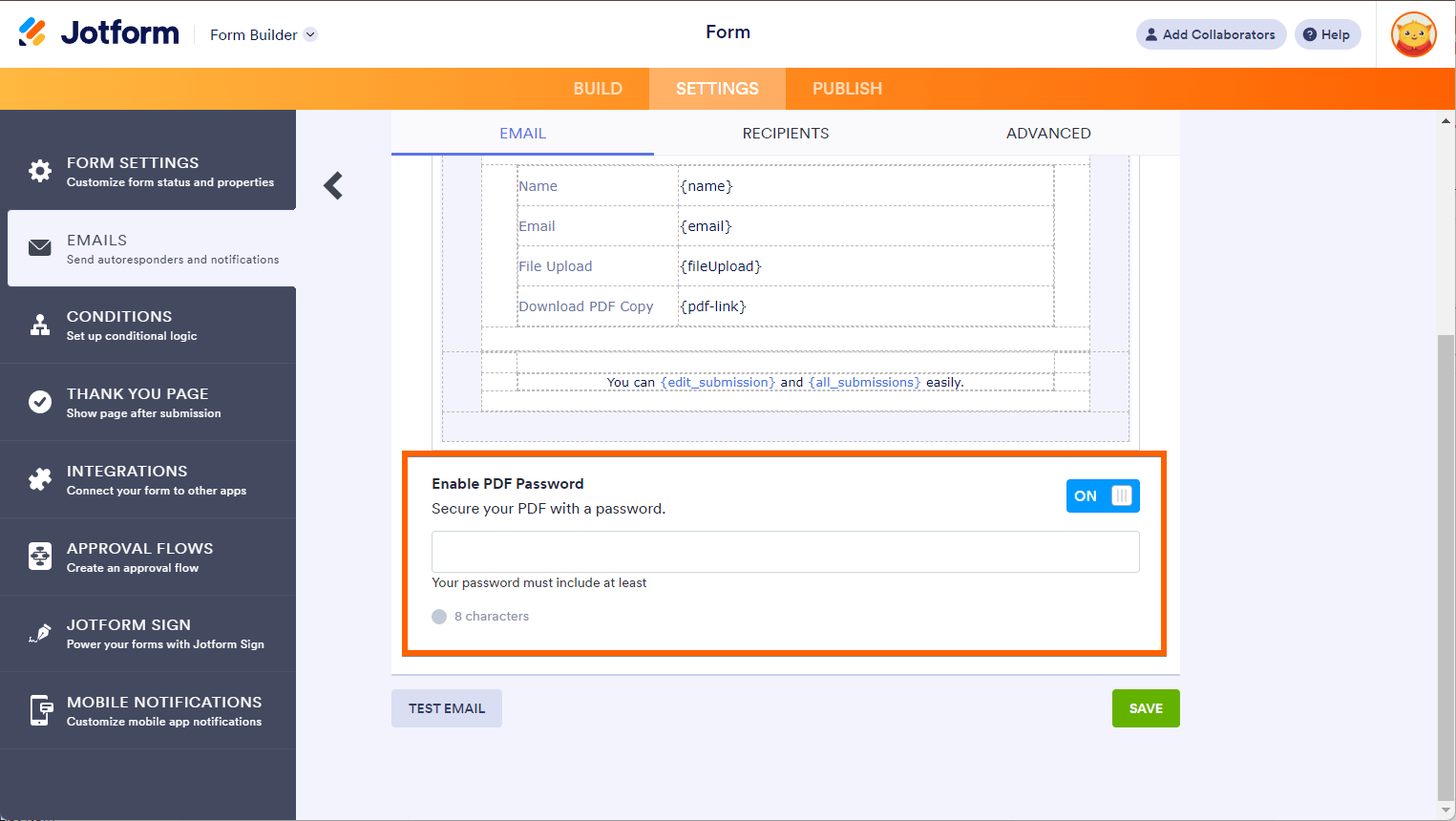
- Click the Form Fields button in the formatting toolbar and select PDF Link. This inserts the {pdf-link} tag.
- Optionally, you can enable a password for the PDF if needed.
- Click Save to save your changes.
This way, recipients will receive an email with a link to download the PDF instead of the PDF being attached, avoiding the size limit issue.
Give this a try and let us know if you need any further assistance.
-
Williams_Gracie
But my form doesnt have over 65k characters
-
Podo: Support Specialist
Hi Gracie,
Even if your form content itself does not exceed 65k characters, this error can still occur due to other factors affecting the total email content size. Here are some possible reasons:
- The combined content of your email, including all text, images, and attached PDF files, might exceed the 65k character limit.
- Large or complex PDF files attached to the email can increase the total size beyond the limit.
- Embedded images or lengthy email templates with extensive formatting can also contribute to the size.
- Sometimes, hidden or system-generated content in the email template adds to the total character count.
To resolve this, consider these steps:
- Use a PDF download link in the email instead of attaching the PDF file directly. This reduces the email size significantly.
- Review and simplify your email template content to reduce length and formatting.
- Check for any embedded images or large attachments and minimize their size.
If you want, I can guide you on how to add a PDF download link to your email to avoid this error.
Give it a try and let us know how it goes.
-
Williams_Gracie
Help me do a download link
-
Podo: Support Specialist
Hi Gracie,
You can add a Download PDF Link to your Autoresponder Email in just a few steps. Here’s how:
- In Form Builder, in the orange navigation bar at the top of the page, click on Settings.
- Then, in the menu on the left side of the page, click on Emails.
- Now, hover your mouse over the Autoresponder Email and click on Edit.
- In the Email Content window, click on the area where you want to place the PDF Link.
- Then, click on Form Fields, and select PDF Link. You can also toggle on Enable PDF Password to set a password for the PDF file.
- Now, click on Save.
Now, anyone filling out your form will get an email with a link to download the submission PDF.
Reach out again if there’s anything else we can help you with.

Your Reply
Something Went Wrong
An error occurred while generating the AI response. Please try again!