-
 primebaseball
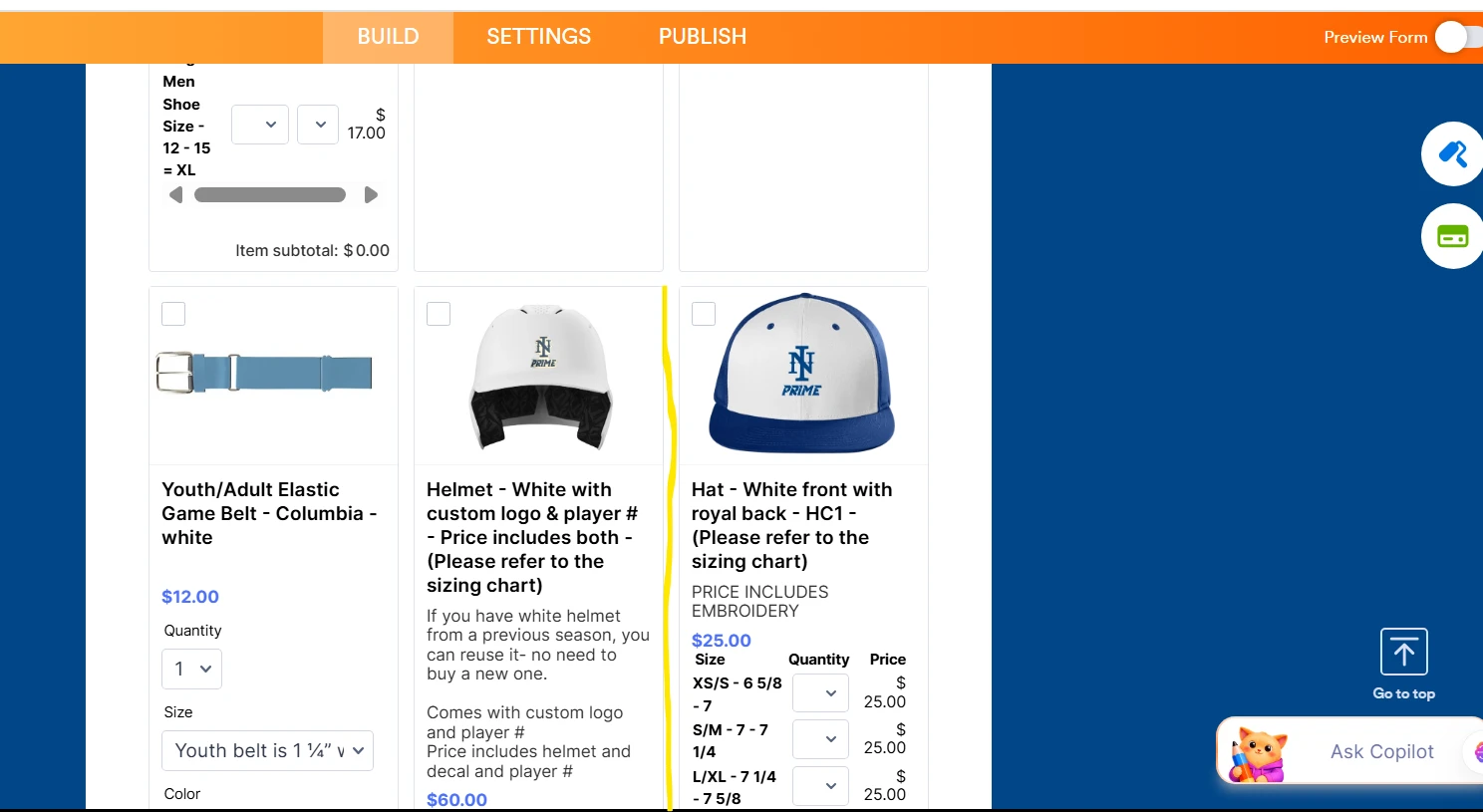
I have required products that need to be bought and then optional items. How do I add a divider or or a text box / Header saying "Optionial Items.? I want to have divider where I drew the yellow line in the screenshot.

-
 Podo: Support Specialist
Hi Sarah,
Thanks for reaching out to Jotform Support. I'm an AI assistant here to assist you.
Let me help you with that:
To add a divider or a header like "Optional Items" in your product list to separate required and optional products, you can use the Category feature in the Product List element of your form.
Here’s how to do it:
- Open your form in Form Builder and select the Product List element.
- Click on the Gear icon (settings) for the Product List.
- Go to the Category tab and enable the Enable Categories option.
- Add new categories such as "Required Items" and "Optional Items" by clicking the +Add button.
- Assign your products to the appropriate categories.
This will create a clear divider or header in your product list where you can separate required products from optional ones, similar to where you drew your yellow line.
If you want a simple text box or header without categories, you could also add a Header element or Text element in your form above the optional products section to visually separate them.
Give it a try and let us know how it goes.
-
primebaseball
Perfect. It works!!!
-
Podo: Support Specialist
Hi Sarah,
I'm glad to hear that it works perfectly for you.
Let us know if you have any other questions.
-
primebaseball
How can you put "Add to cart" for a product you want to purchase?
-
Podo: Support Specialist
Hi Sarah,
To have an "Add to cart" option for a product you want to purchase in Jotform, you typically use the Product List element in your form where users can select products and quantities. Jotform does not have a separate "Add to cart" button like traditional e-commerce platforms, but the Product List allows users to choose items and quantities, which acts similarly.
If you want to collect payments, you need to integrate a payment gateway with your form. Here’s how to do it:
- Create your form and add the Product List element with your products.
- Go to the Payments tab in Form Builder and select a payment gateway (like Stripe, PayPal, etc.).
- Connect your payment gateway by following the setup instructions.
- Configure your products in the Product List to match your payment options.
- Publish your form and share it with your customers.
When users select products and submit the form, they will be prompted to pay for the selected items, which functions like an "Add to cart" and checkout process combined.
If you want a more detailed step-by-step guide or screenshots, please let me know.
Give it a try and let us know if you need any other help.
-
primebaseball
When you select a the size and color of the product and enter the quanity, how can you have add to cart or something similar?
-
Podo: Support Specialist
Hi Sarah,
When you select size, color, and enter quantity for a product in Jotform, you can create an "Add to Cart"-like experience by setting up product options and quantity selectors within the Product List element.
Here’s how to do it:
- In Form Builder, click on your Product List field and then click on the Shopping Cart icon on the right side.
- Hover over the product you want to add options to and click the Pencil icon to edit its settings.
- Under the Options tab, click Add next to Add a Quantity Selector to enable quantity selection. You can choose to show quantity as a dropdown or text box.
- Still under the Options tab, click Add next to Add a Product Option to add options like size or color. You can enter options manually or use presets (e.g., Color, T-Shirt Size).
- Toggle on Create Sub Products from Options if you want each option to be treated as a separate sub-product with its own pricing.
This setup allows customers to select size, color, and quantity for a product, which functions similarly to an "Add to Cart" feature within the form.
For more detailed guidance, you can check Jotform's help on How to Add Options to Payment Forms.
Give it a try and let us know how it goes.
Your Reply
Something Went Wrong
An error occurred while generating the AI response. Please try again!