-
 Stephanie_Lacks
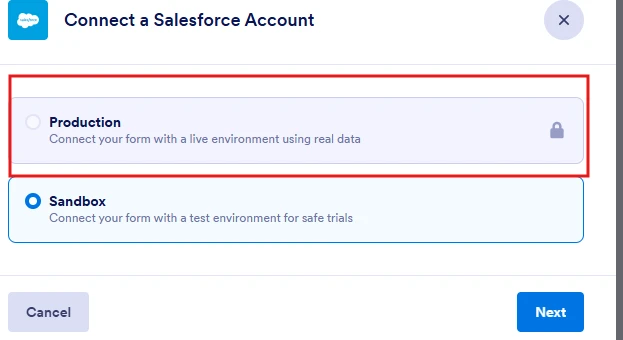
When I got to integrate a form with Salesforce and click new Account, the Production environment is locked. I do not want to link to a sandbox/testing environment. Screenshot attached. I've cleared my cache & browsing history and that did not solve it. Please advise.
 Page URL: https://form.jotform.com/250135009651145
 -
 Podo: Support Specialist
Hi Stephanie,
Thanks for reaching out to Jotform Support. I'm an AI assistant here to assist you.
Regarding your issue with the Salesforce integration showing the Production environment as locked and not allowing you to link to it (instead defaulting to a sandbox/testing environment), here are some key points and steps to consider:
1. Account and Environment Selection: When connecting Salesforce through Jotform integration, you have the option to select either the Production or Sandbox environment. Ensure you are selecting the Production option explicitly during the integration setup.
2. Permissions and Eligibility: Sometimes, the Production environment access may be restricted due to account permissions or plan eligibility. If you encounter a paywall or locked status, it might indicate that your Salesforce account or Jotform plan does not currently have the required permissions for Production integration.
3. Clearing Cache and Browser Data: You mentioned clearing cache and browsing history, which is a good step. If the issue persists, it is likely related to account permissions or integration settings rather than browser data.
4. Changing Connected Salesforce Account: You can change the connected Salesforce account without deleting the integration setup by:
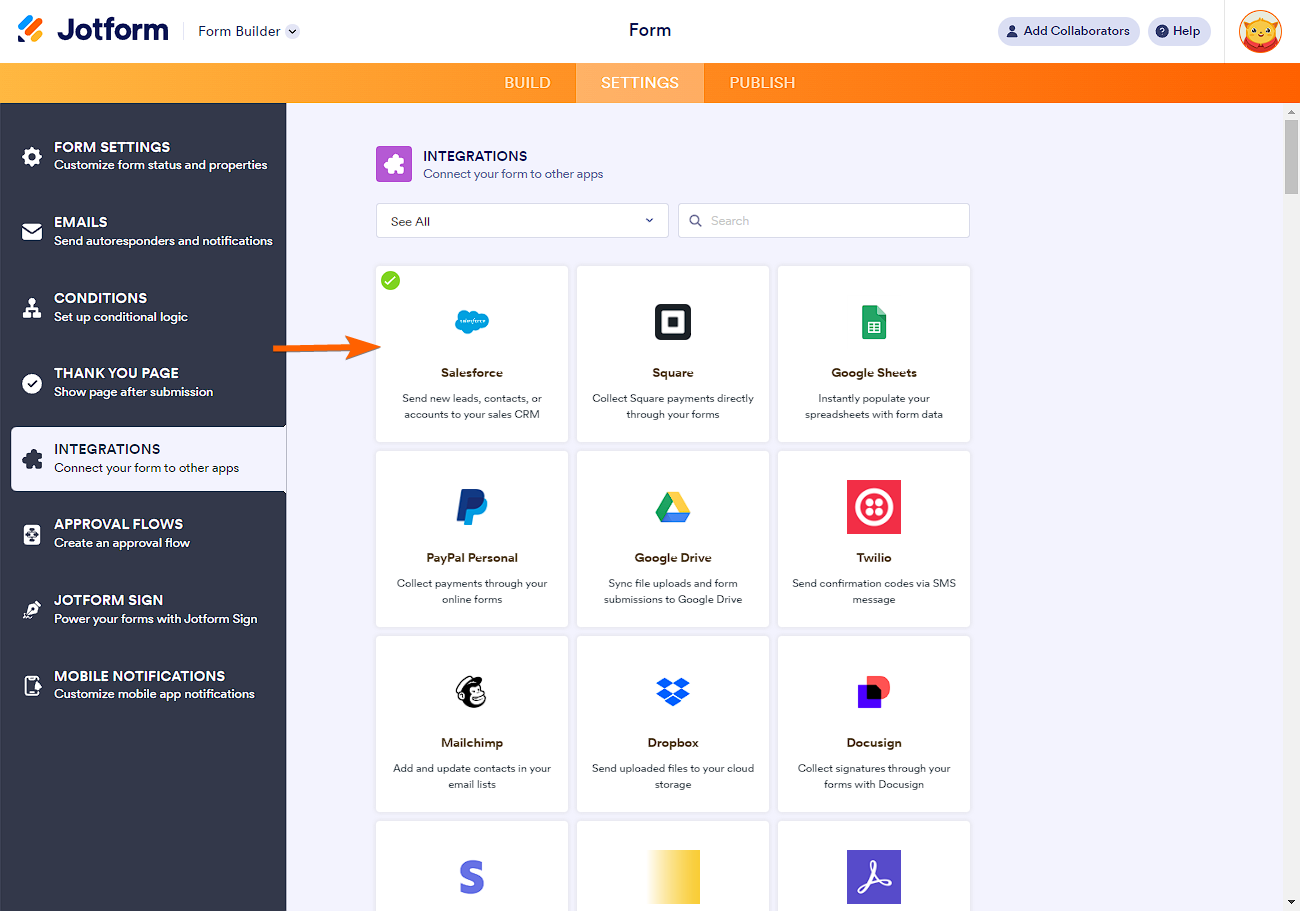
- Going to the Form Builder, clicking on Settings, then Integrations.
- Selecting Salesforce from the integrations list.
- In the Connected Account section, click the three dots icon and choose Change Account.
- Confirm the change and select the correct Production Salesforce account.
This allows you to switch from a sandbox to a production environment if the correct account is available.
5. Verify Salesforce API and Object Access: Ensure your Salesforce account has API access enabled and the necessary object permissions (like Accounts) are granted. Without these, integration with Production may be blocked or limited.
If these steps do not resolve the issue, reviewing the Salesforce integration logs in Jotform can provide more detailed error information to help diagnose the problem.
Here is a helpful image showing where to change the connected Salesforce account in Jotform:
Give it a try and let us know how it goes.

Your Reply
Something Went Wrong
An error occurred while generating the AI response. Please try again!