-
 AGSDevelopment
My conditions were not altered much from the year prior that had no issues but now people arent able to get through a ticket purchase process for our event. there's a random "next" page on some, some do not have the next page, and some are just blank like the photo attached.

-
 Podo: Support Specialist
Hi Anne,
Thanks for reaching out to Jotform Support. I'm an AI assistant here to assist you.
It sounds like your form's page navigation is behaving inconsistently, which can often be caused by conditional logic affecting the "Next" button or page breaks.
Let me show you how to check and fix this using conditional logic:
- Open your form in Form Builder and go to the Settings tab in the top orange navigation bar.
- Click on Conditions in the left menu.
- Review any existing conditions that control page navigation, such as "Skip To/Hide a Page" or "Show/Hide Field" conditions.
- Ensure conditions are not conflicting or causing some pages to be skipped unexpectedly or shown as blank.
- Test your form after adjusting conditions to confirm the navigation flows correctly and no random or blank pages appear.
Here is a helpful guide on Skipping a page using conditional logic that explains how to control page navigation based on user responses.
If you want, you can also add a hidden question with conditional logic to ensure users fill required fields before proceeding, which can prevent blank pages.
Give it a try and let us know if you need any other help.
-
 Jerlan JotForm Support
Hi Anne,
I cloned your form and tested it to see if I could replicate the issue, and I ran into the same thing. When I looked at your form, I saw that there conditions that hasn't been configured correctly. Take a look at the screenshot below:
It looks like there are pages and fields that has been deleted. Can you check all the conditions that you've set up and make the necessary changes? If the issue continues, can you share your form flow so that we can review and configure the correct conditions?Give it a try and let us know how it goes.
-
AGSDevelopment
I fixed those errors in your screenshot - those were created after the Jotform AI tried to "clean up" the form. Even after fixing that, I am still unable to get past the dead pages after filling out 1 ticket. :(
-
Jerlan JotForm Support
Hi Anne,
I have checked the conditions and I have identified conditions that were incorrectly configured below:
I observed that when an option is selected, certain common fields should be displayed. Could you share the fields that need to be shown for each option, and indicate if there's any page that can be skipped?When we hear back from you, we’ll be ready to move forward.
-
AGSDevelopment
If they select purchase tickets, there should be the "How many tickets" option.
If 1, they don't need to fill out anything else besides their contact info and payment side (including where it asks them to round up 3%)
If 2, it should prompt for the page 3 warning on the collecting info of guests, then first guest options.
If 3, it should prompt for page 3 warning on collecting info, then first and second guest options.
If 4, it should prompt for page 3 warning, then first, second and third guest options.
If 5, page 3 warning, then first through fourth guest options.
if 6, page 3, then first through fifth guest.
If 7, page 3, then first through sixth.
If 8, page 3, then first through seventh.
If 9, page 3 then first through eighth.
If 10, page 3 then first through ninth.
All of those quantities of tickets should end with the payment options including the 3%.
If they chose donate towards a purse it should just be the donation amount and payment options.
If they chose sponsorship amount, it should prompt the drop down for sponsor levels, page 3 warning, then how will they pay their sponsorship (check or e-pay) - if e-pay, then payment options.
-
Jerlan JotForm Support
Hi Anne,
I've cloned your form and made few changes on the conditions. Checkout the screencast below to see my results:
Give it a try and let us know how it goes.
-
AGSDevelopment
Yes that is how the flow should go! And mine is getting stuck somewhere in the middle!
-
Jerlan JotForm Support
Hi Anne,
There are conditions that you need to modify and add. Let me show you how:
- In Form Builder, click on How Would You Like to Help? field and click on Conditional Branch icon.
- Hover your cursor to the Condition 4 and click on the Pencil icon.
3. Edit the condition as shown in the screenshot below:
4. Go back to the Builder page, click on How Many Tickets? field and click on Conditional Branch icon.
5. Hover your cursor to the Condition 12 and click on the Pencil icon.
6. Edit the condition as shown in the screenshot below:
7. Under the Condition page, click on Add condition and select Update/Calculate field.
8. Set up the condition as shown in the screenshot below:
Give it a try and let us know how it goes. -
AAnne Grady
IT and i were able to fix some of them but there are still multiple that are broken, and the credit card subheadings are not showing.
Is there anyway you're able to get into my account to fix it? Or for me to clone your fixed version? I am just trying to avoid rebuilding the whole thing with how many errors we are finding as we need to start collecting ticket donations ASAP!
-
 Mikhail JotForm Support
Hi Anne,
You can use this form link to clone the form. Cloning an Existing Form From a URL is easy. Let me walk you through it:
1. On your Workspace page, click on Create on the top-left side of the page.
2. Select Form from the assets, and then click on Import Form.
3. In the next window, click on From a Web Page.
4. Paste the form link into the Enter URL field and click on Create Form.
Give it a try and let us know if you need any other help.


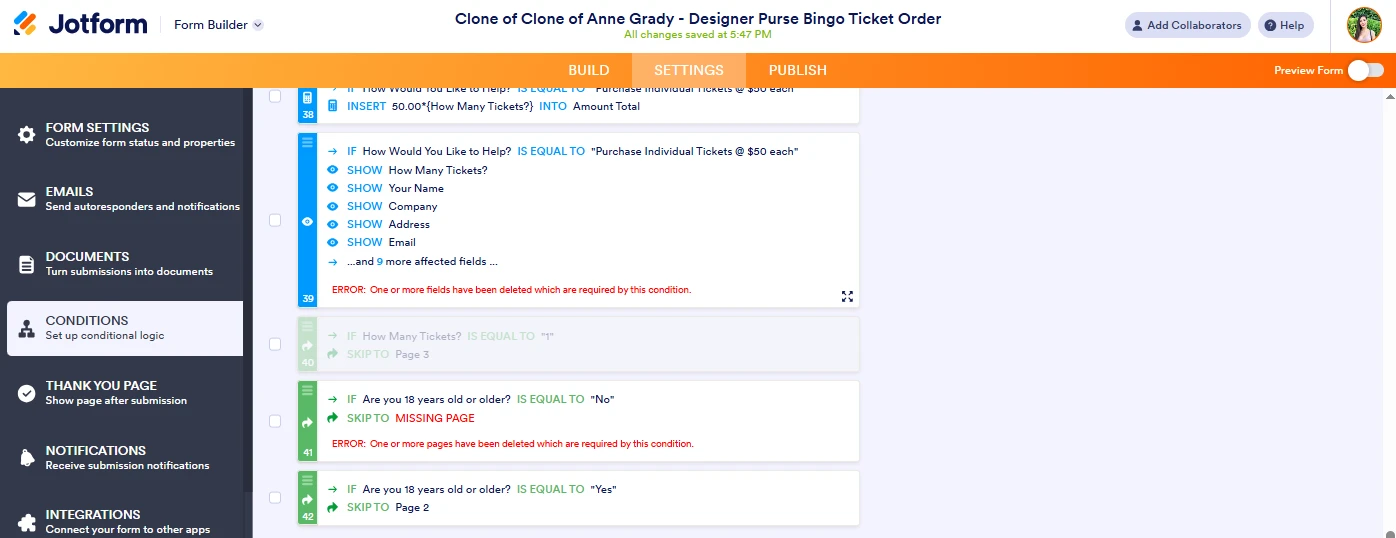 It looks like there are pages and fields that has been deleted. Can you check all the conditions that you've set up and make the necessary changes? If the issue continues, can you share your form flow so that we can review and configure the correct conditions?


 Give it a try and let us know how it goes.
Your Reply
Something Went Wrong
An error occurred while generating the AI response. Please try again!