-
 JOSHUA_DEL
Recipients are not receiving send to sign documents.
-
 Mikhail JotForm Support
Hi JOSHUA,
Thanks for reaching out to Jotform Support. Can you share the email addresses of the recipients who are not receiving the sign documents?
Once we hear back from you, we can get moving on a solution.
-
JOSHUA_DEL
I tried to send them to my hr manager to test it as well as my email.
neither are receiving or anyone else we have tried to send to
-
 Rose Enterprise Support
Hi Joshua,
I checked our Bounce List, and the two emails are not added to it. Also, I checked the email logs, and I confirmed that the Jotform Sign emails are being sent. Here's a screenshot of one of the email logs:

Can you ask the affected users to add noreply@jotformsign.com to their contacts list?
Let us know if there’s anything else we can help you with.
-
JOSHUA_DEL
noreply@jotformsign.com was added to both and emails are still not being received. NO ONE is receiving the signed links. I mean NONE of the recipients.
-
 Royce JotForm Support
Hi Joshua,
You can inform the affected recipients to check their Spam or Junk Folder as emails can end up there for various reasons. Also, you can inform the affected recipients to Whitelist Jotform IP Addresses and Domains to prevent important emails from being marked as spam or blocked.
Additionally, you can inform the affected recipients that if their organization is using Gmail as the primary Mailbox provider, they can prevent Jotform emails from landing in Gmail’s spam folder. I'll walk you through setting that up:
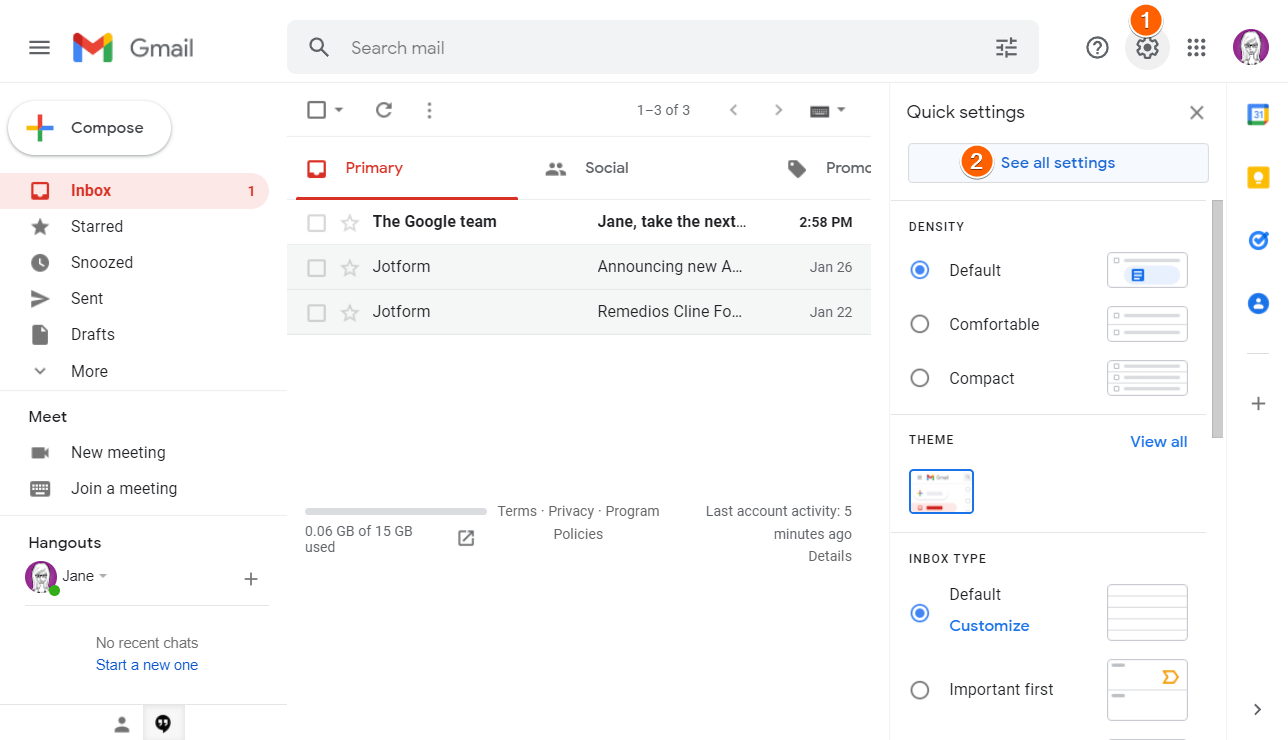
1. Go to Gmail, make sure your account is logged in, and click on the Gear icon on the upper-right part of the screen.
2. Under Quick Settings, click on See All Settings.
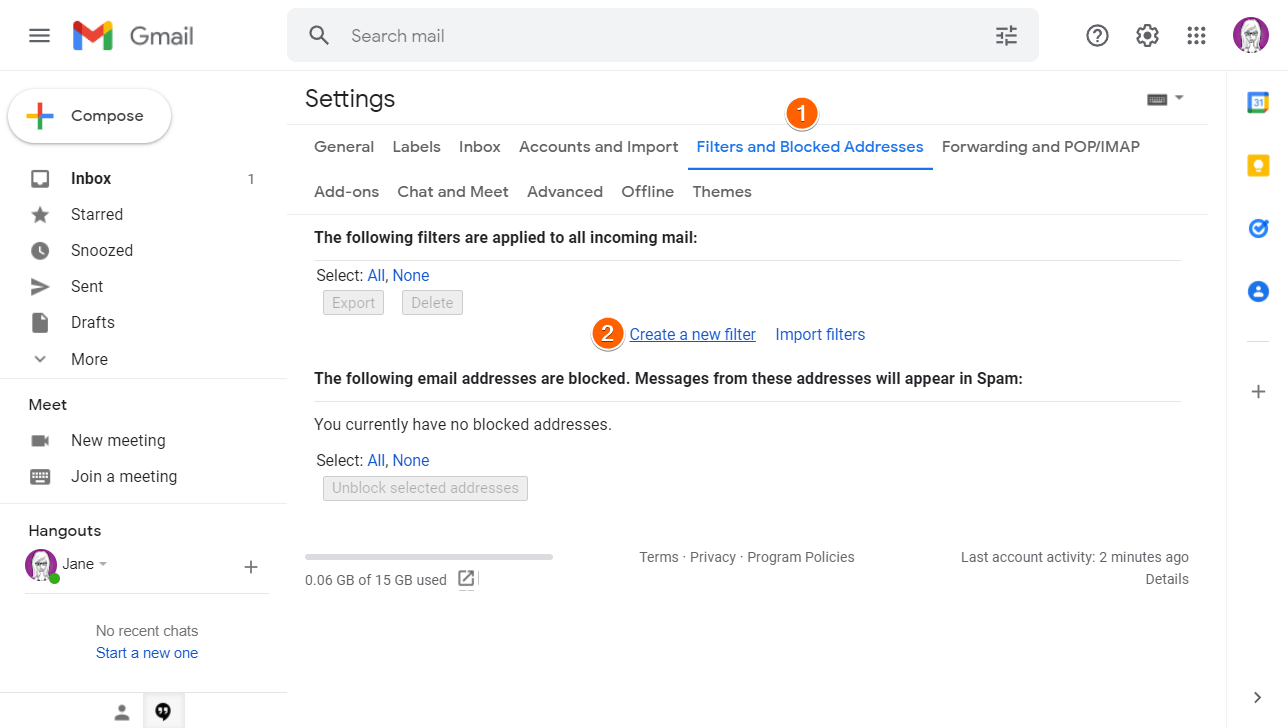
3. Under Settings, click on the Filters And Blocked Addresses tab next to the Accounts And Import tab and click on Create A New Filter.
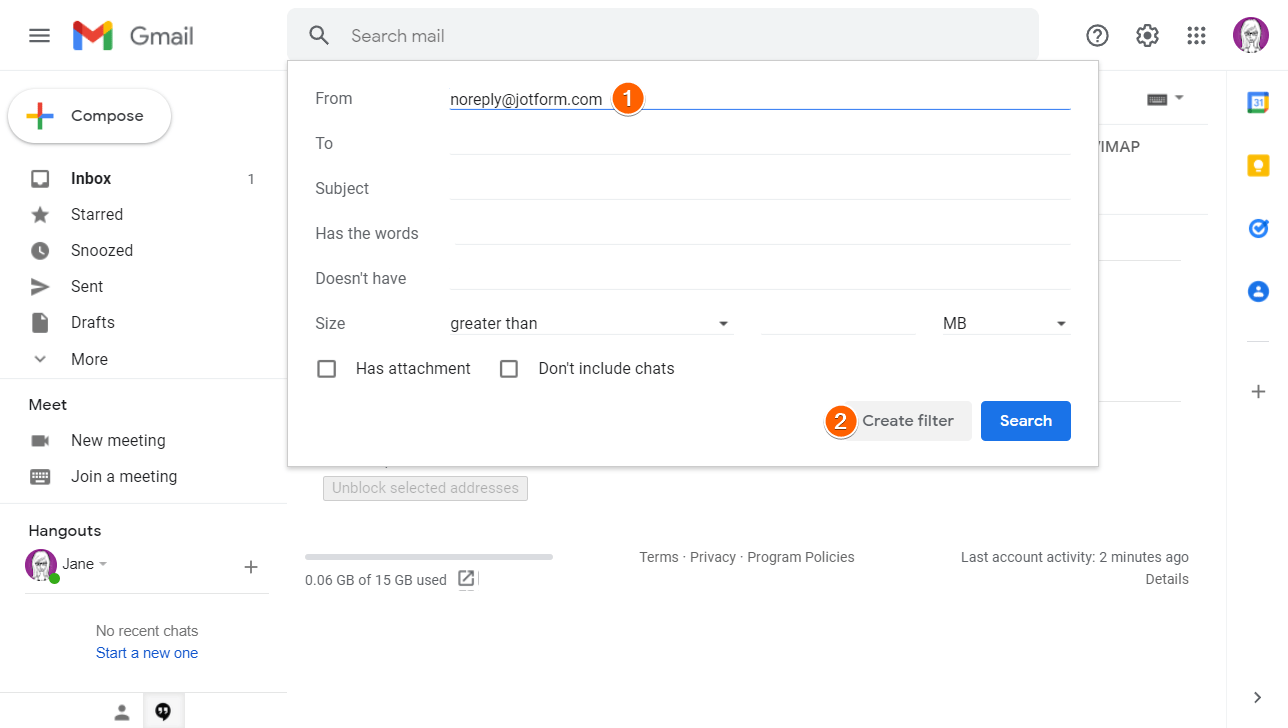
4. Then, enter noreply@jotform.com in the From field and click on Create Filter next to Search.
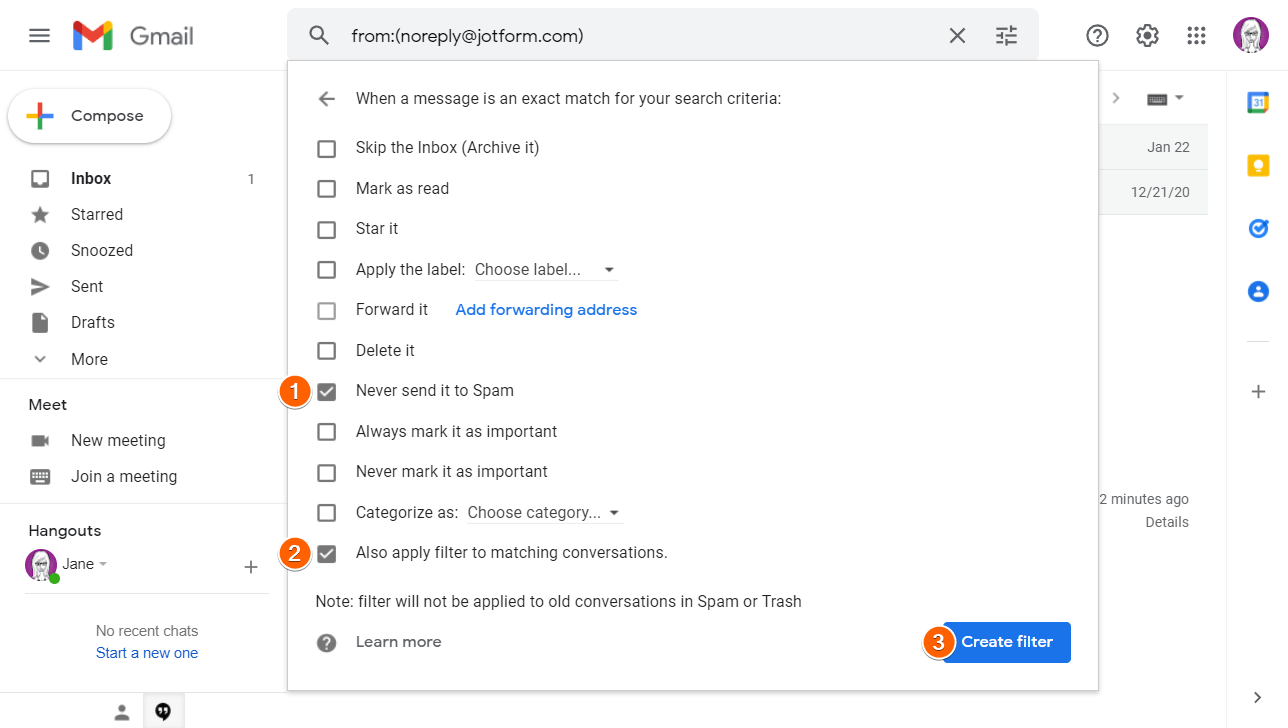
5. Next, tick the checkboxes labeled Never Send It To Spam and Also Apply Filter To Matching Conversations.
6. Finally, click on Create Filter on the lower-right part of the menu to complete the setup.
That's it. The filter should send all emails from noreply@jotform.com to your Inbox and never to your Spam folder. You can also apply a specific label to the filtered emails by following our guide on how to label emails in Gmail. If the same thing happens, you can add noreply@jotform.com and noreply@formresponse.com to your Contact.
Keep us updated and let us know if you need any more help.


Your Reply
Something Went Wrong
An error occurred while generating the AI response. Please try again!