-
 massimodeficreativeconsulting
 -
 Mikhail JotForm Support
Hi massimodeficreativeconsulting,
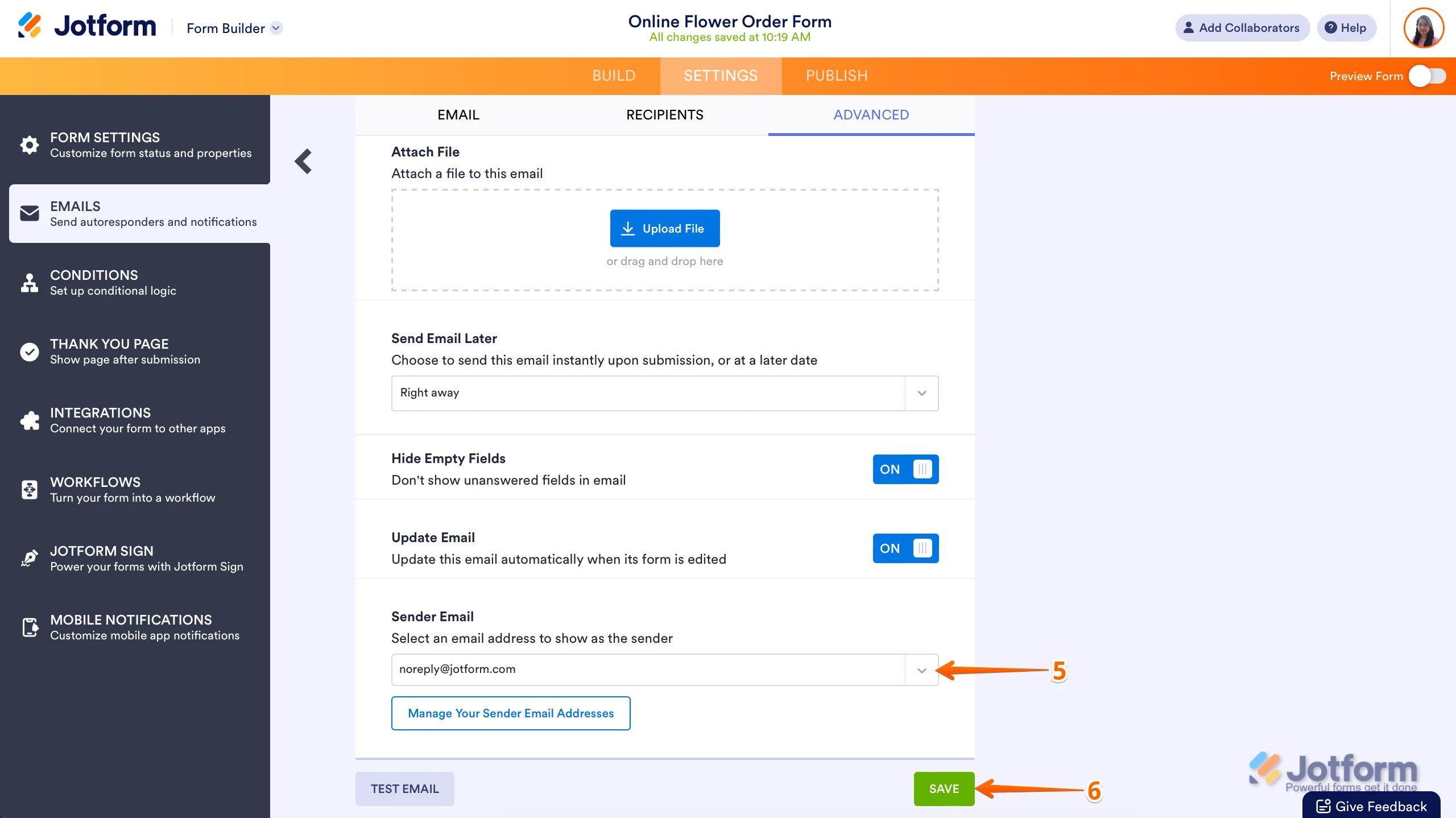
Thanks for reaching out to Jotform Support. You can easily change the sender email in the Autoresponder email. Let me show you how:
1. In Form Builder, in the orange navigation bar at the top of the page, click on Settings.
2. Then, in the menu on the left side of the page, click on Emails.
3. Next, hover your mouse over the Autoresponder Email, and click on Edit.
4. Now, click on the Advanced tab.

5. Select the email address you want to use under Sender Email.
6. Now, click on Save. That's it. You’re done.
Reach out again if there’s anything else we can help you with. -
massimodeficreativeconsulting
Got it. Then it says
Dear MD Creative Consulting,
Due to a technical issue, your SMTP email address info@onecomplianceplan.com is no longer configured. As a result, your sender email address has been temporarily switched to noreply@jotform.com.
Log in to your Jotform account to reset your SMTP configuration and update the sender address on related forms.
If you have questions, please post them to https://www.jotform.com/contact or send an email to support@jotform.com.
-
 Ronald JotForm Support
Hi massimodeficreativeconsulting,
You can first fix the SMTP email in your account before changing the Sender Email settings. You can easily set up a custom SMTP to use your email sender as provider. Let me walk you through it:
1. Go to the Settings page while logged in to your Jotform account and click on Add Sender Email in the Sender Emails section.
2. In the window that opens, select Custom and click on the Continue button.
3. Enter your email provider's details, click on Send Test Email to check if it’s set up correctly, and then click on Save.
Now you should select your custom SMTP in your email properties under email settings in Form Builder, and if you’re using Workflow Builder, do the same there. Check below to see how it looks in Form Builder:And here’s how it looks in Workflow Builder:Give it a try and let us know if you need any help.


 Now you should select your custom SMTP in your email properties under email settings in Form Builder, and if you’re using Workflow Builder, do the same there. Check below to see how it looks in Form Builder:
 And here’s how it looks in Workflow Builder:
 Give it a try and let us know if you need any help.
Your Reply
Something Went Wrong
An error occurred while generating the AI response. Please try again!