-
 gorhambike
Hi,
Submission to my form https://pci.jotform.com/form/241155091889161 are inconsistenly coming through with no dates captured for the reservations using the Date Picker widget. It's a required feild so I am unclear why this is happening.
I have tried troubleshooting but can't figure it out.
Thanks for you help.
-
 Podo: Support Specialist
Hi gorhambike,
Thanks for reaching out to Jotform Support. I'm an AI assistant here to assist you.
You can easily set the Current Date as the Default Date in the Date Picker element. Let me show you how:
- In Form Builder, select click on the Date Picker field, and then click on the Gear icon to open Date Picker Properties.
- Then, in the Date Picker Properties menu on the right, click on the Options tab.
- Under Default Date, select Current.

Reach out again if there’s anything else we can help you with.
-
 Kyle JotForm Support
Hi gorhambike,
Let me take a look at this for you. To do that, we’ll need your permission to access your account. Don’t worry, you can turn it off again once we’re done. Let me show you how to do it:
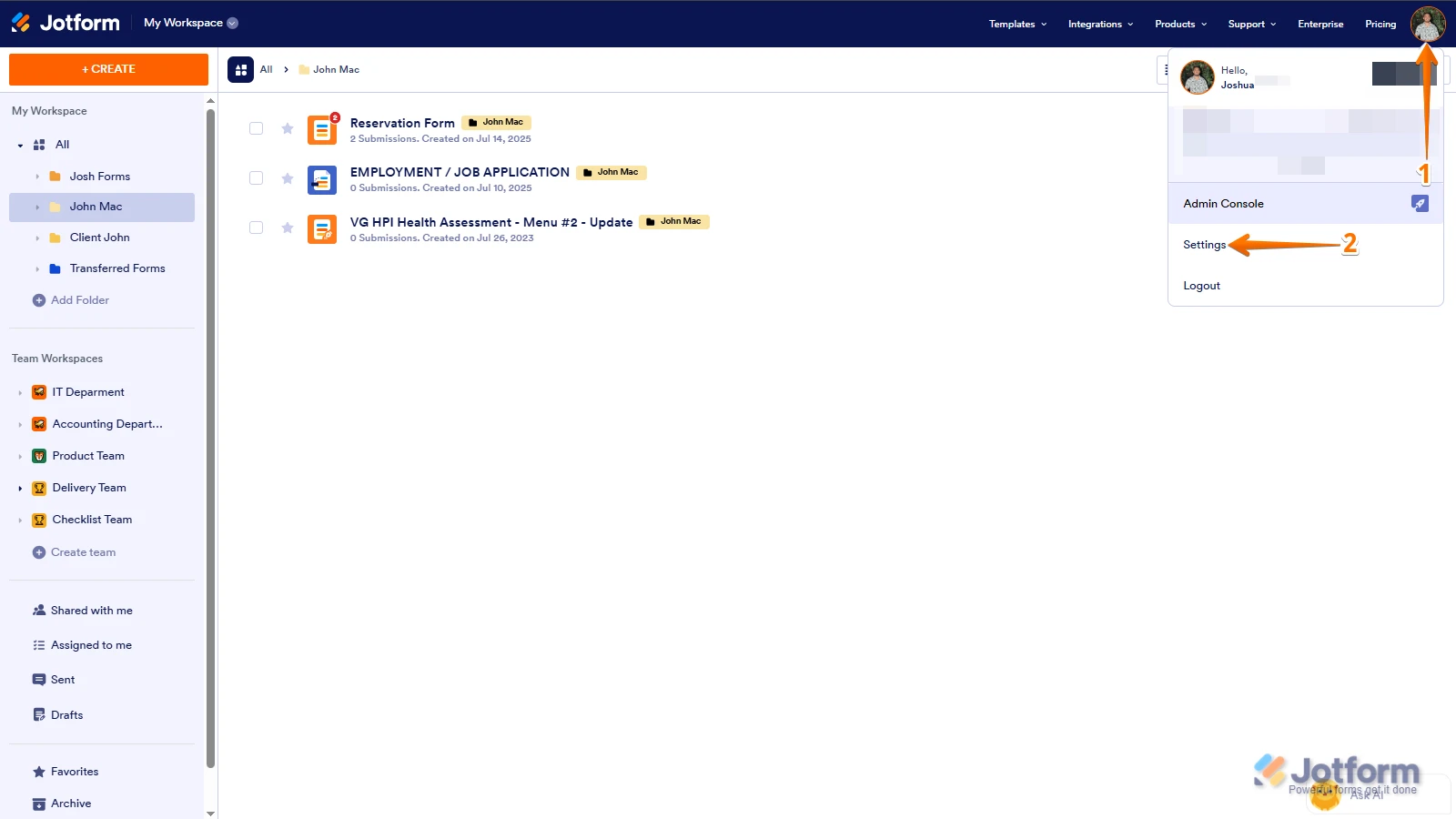
1. In the top-right corner of your Workspace page, click on your Avatar/Profile Image icon.
2. Then, in the Dropdown menu that opens, click on Settings.
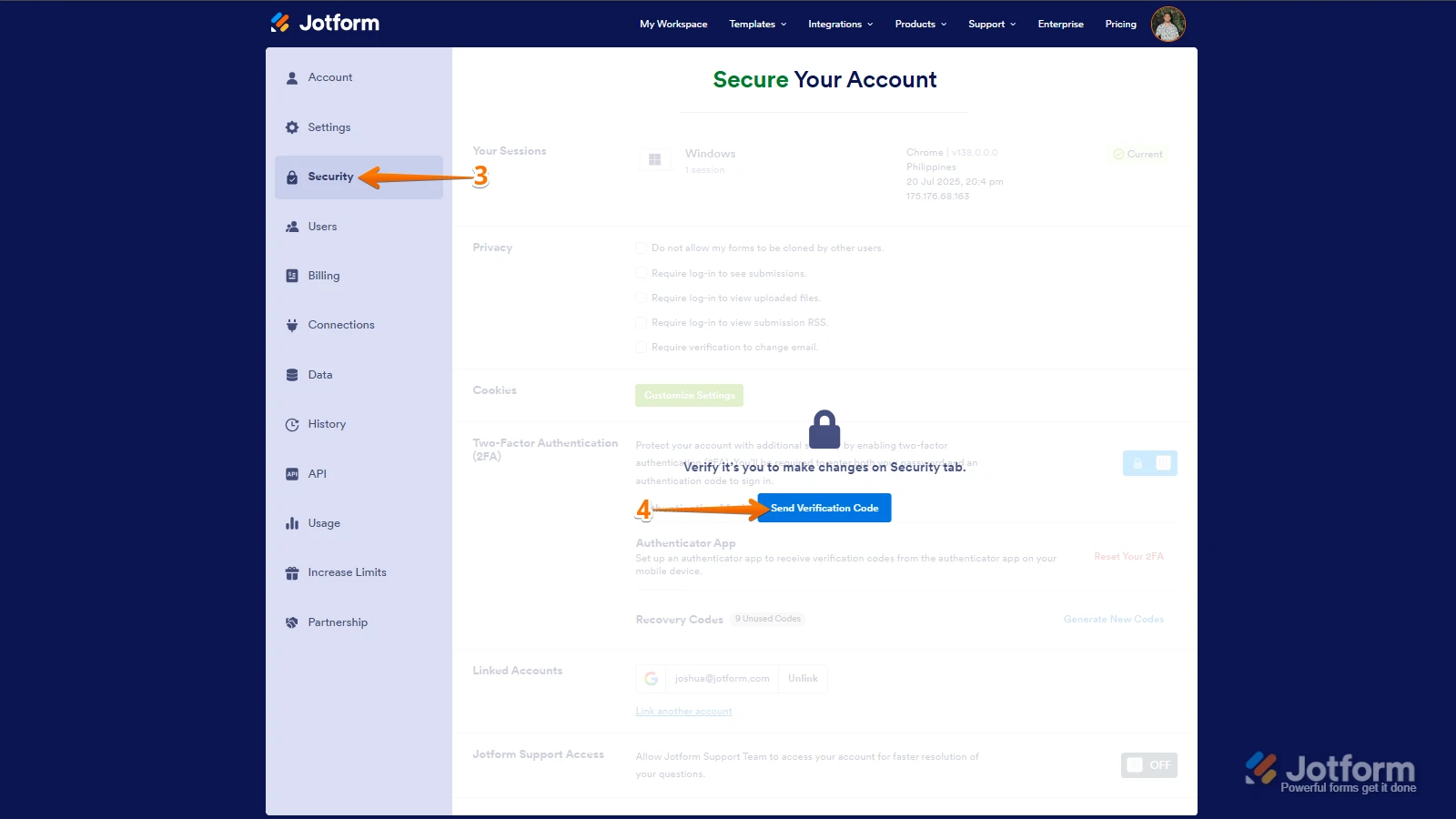
3. Next, in the panel on the left, click on the Security tab.
4. If you haven’t opened your Security page in a while, it’ll ask you to verify. To do that, click on Send Verification Code.
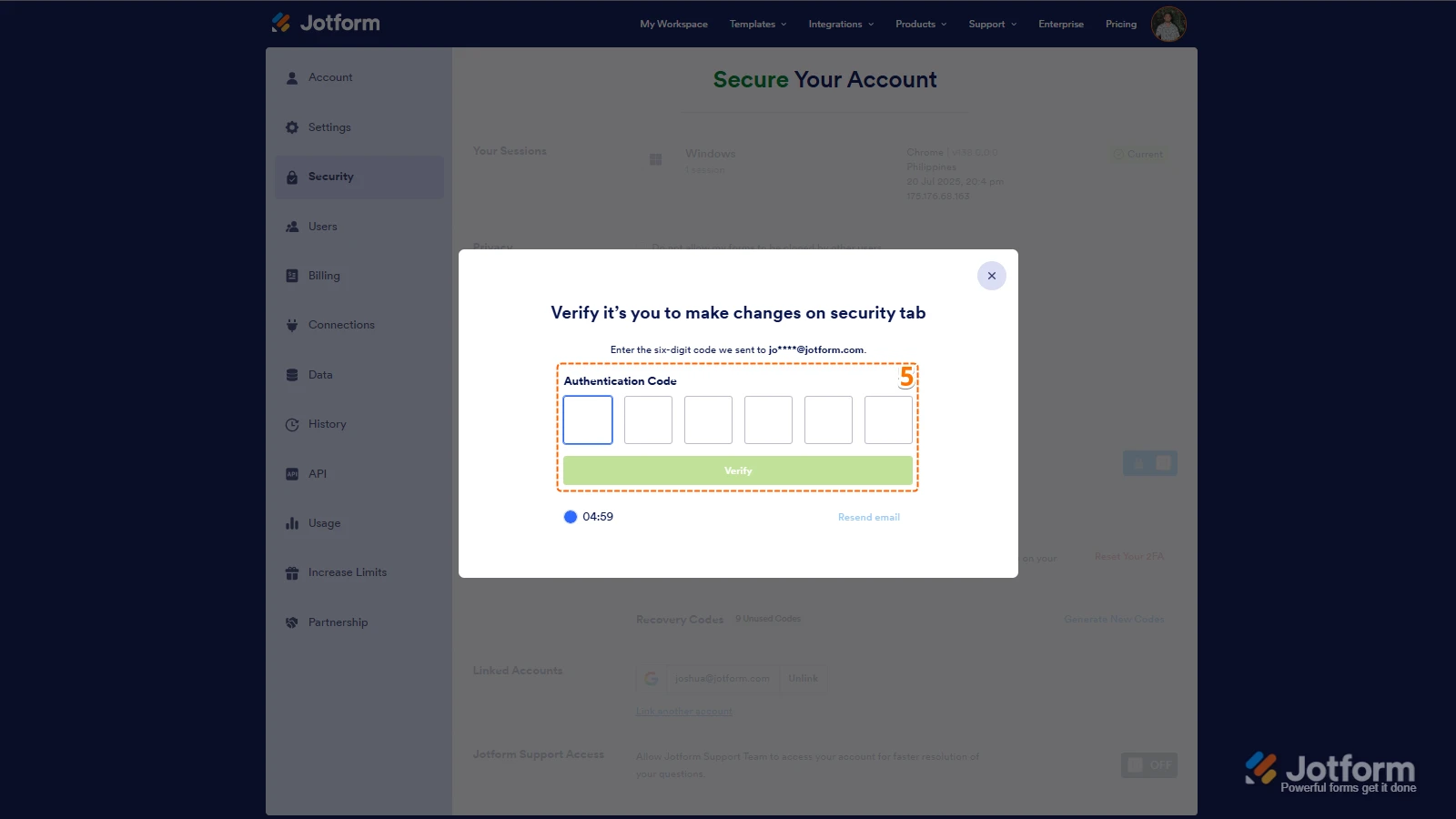
5. Then, enter the Verification Code you receive in your email.
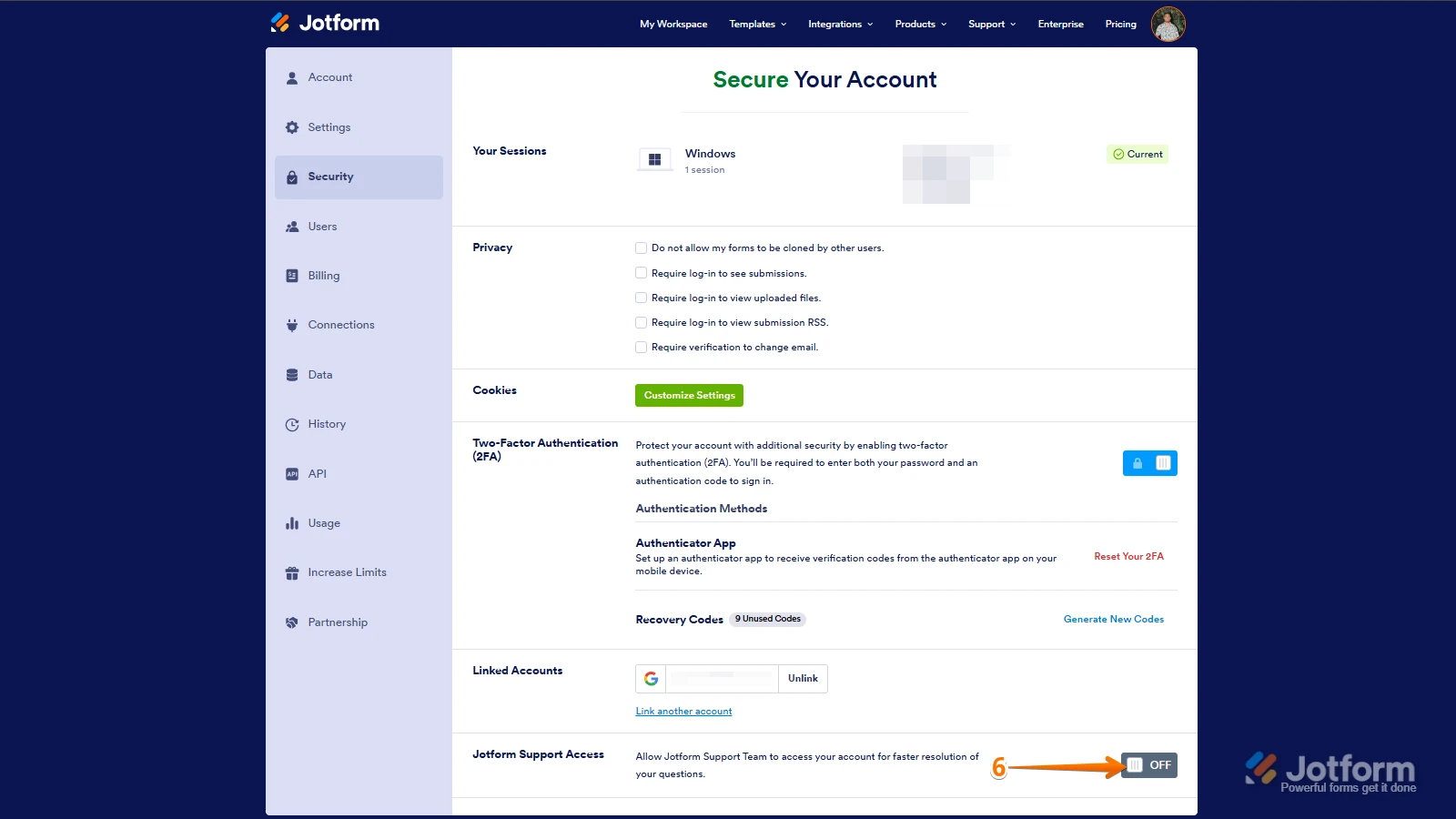
6. Finally, at the bottom of the page, toggle on Jotform Support Access.
After we hear back from you, we’ll have a better idea of what’s going on and how to help. -
gorhambike
All set, Kyle. Thanks
-
Kyle JotForm Support
Hi gorhambike,
I checked your submission Tables and confirmed that some submissions did not capture the Appointment field values, even though the field is set as required. I also noticed that this only occurs when the option My bike is broken! I can't ride it! (i.e. something is broken). Help me! is selected. Check out my screenshot below to see the result:
I replicated the same issue on a cloned version of your form, and the Appointment field was not captured in those cases. Check out my screencast below to see the result:
To resolve this, I recommend deleting the existing conditions for that option and creating a single Show/Hide a Field condition that displays all the necessary fields, including the Appointment field. This approach avoids overlapping logic and ensures the Appointment field is consistently shown and validated whenever that option is selected. Let me show you how:
1. In Form Builder, in the orange navigation bar at the top of the page, click on Settings.
2. Next, click on Conditions on the left of the page.
3. Now, input broken in the Search bar, hover your mouse over the condition, and select the Trash icon.
4. Click on Add Condition and then click on Show/Hide Field.
5. Set the conditions like you see below and click on Save:
You can add more fields or remove them from the example I shared above depending on your preference. Check out my screencast below to see the result:
Give it a try and reach out again if you have any other questions.
-
gorhambike
I see the same issue even when you select the "Regular Service" option. See below.
-
 Mikhail JotForm Support
Hi gorhambike,
I cloned your form and tested it to see if I could replicate the issue, but everything was working properly. Check out the screenshot below to see my results:
You can also try to disable the setting that automatically clears hidden field values on form submission. Let me show you how:
- In Form Builder, in the orange navigation bar at the top of the page, click on Settings.
- Then, click on Show More Options, and scroll down to the Clear Hidden Field Values section.
- From the Clear Hidden Field Values Dropdown menu, select Don’t Clear.
 After we hear back from you, we’ll have a better idea of what’s going on and how to help.


Your Reply
Something Went Wrong
An error occurred while generating the AI response. Please try again!