-
 solimoham271
We are missing an application ID 00828 in the Admissions form. Can you please explain the reason.
-
 Podo: Support Specialist
Hi MLS,
Thanks for reaching out to Jotform Support. I'm an AI assistant here to assist you.
Regarding the missing application ID 00828 in your Admissions form, here are some important points to consider:
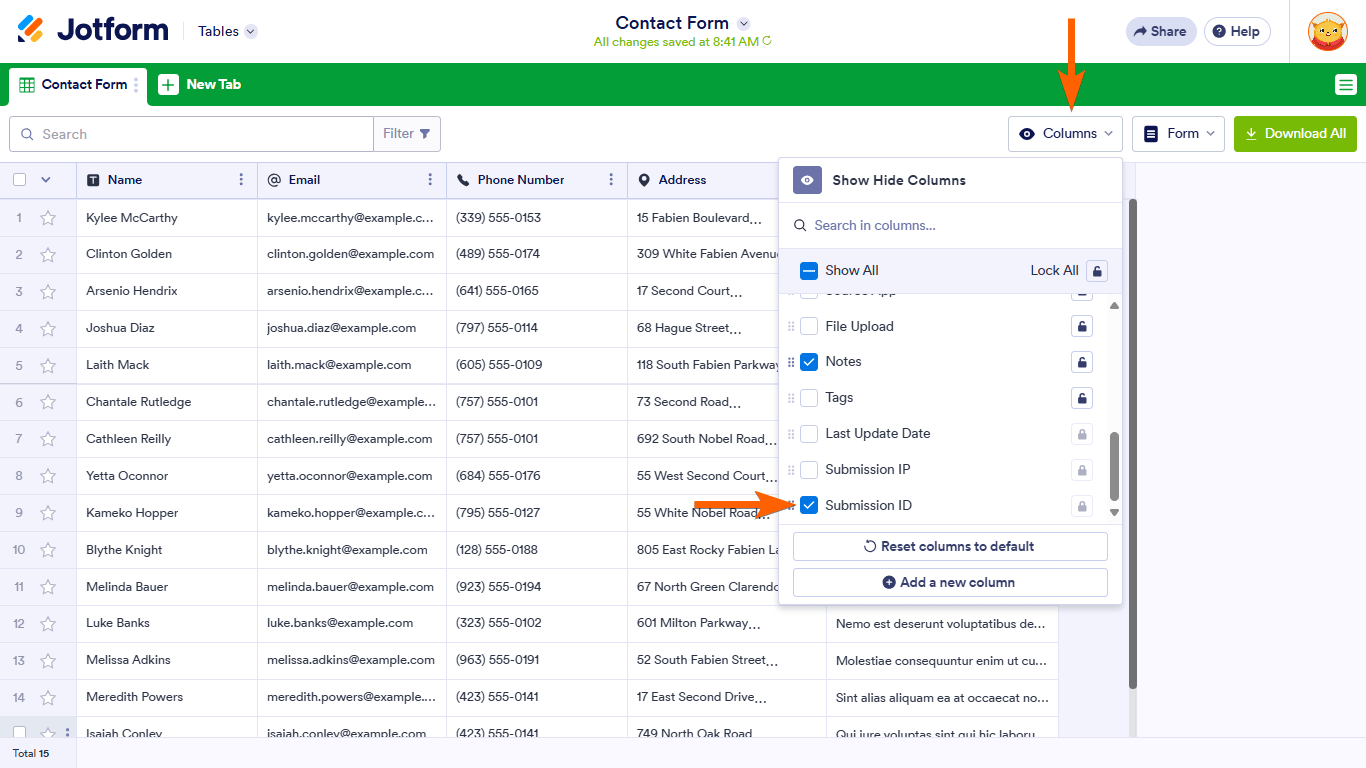
The default unique identifier for form submissions in Jotform is the submission ID, which is automatically assigned to each entry. This ID can be viewed in Jotform Tables by enabling the Submission ID column.
If you are using a custom ID system, such as the Unique ID widget, it generates a custom sequential ID for each submission. This widget allows you to set a prefix, number of digits, and starting index for the IDs. If the application ID 00828 is missing, it could be due to the following reasons:
- The Current Index in the Unique ID widget settings might have been changed or reset, causing some IDs to be skipped or duplicated.
- The submission with ID 00828 might have been deleted or not submitted properly.
- There could be a configuration issue with the Unique ID widget on your form.
To check and manage these IDs, you can:
- View submission IDs in Jotform Tables by enabling the Submission ID column.
- Review the Unique ID widget settings in your form builder to ensure the Current Index and other properties are set correctly.
- Check for deleted submissions that might have included the missing ID and restore them if necessary.
If you need detailed steps on how to add or configure the Unique ID widget or how to view submission IDs, I can provide that as well.
Give it a try and let us know how it goes.
-
solimoham271
I need more help finding what happened to this ID
-
Podo: Support Specialist
Hi MLS,
Let me help you with that:
To find what happened to the missing application ID 00828 in your Admissions form, you can follow these steps:
- View Submission IDs in Jotform Tables: Go to your form's submission table, click on Columns in the upper-right corner, and enable the Submission ID column. This will show the unique submission IDs assigned to each entry.
- Check Unique ID Widget Settings: If you are using the Unique ID widget for custom IDs, review its settings in the Form Builder. Check the Current Index to see if it was changed or reset, which might have caused the missing ID.
- Search for Deleted Submissions: Look for any deleted submissions that might have included the missing ID. If found, you can restore them from the Trash in your Jotform account.
- Manually Search Submissions: Use the search field in your submission table to look for the specific application ID or related data to see if it exists under a different ID or was misrecorded.
These steps will help you trace the missing ID and understand if it was skipped, deleted, or affected by widget settings.
Here is a helpful image showing how to enable the Submission ID column in Jotform Tables:

Give it a try and let us know how it goes.
-
solimoham271
I did all this and nothing is there
-
Podo: Support Specialist
Hi MLS,
One of our Support Team members will take it from here to follow up shortly.
-
 Sheena JotForm Support
Hi solimoham271,
Let us take a look at this for you. To do that, we’ll need your permission to access your account. Don’t worry, you can turn it off again once we’re done. Let me show you how to do it:
1. In the top-right corner of your Workspace page, click on your Avatar/Profile Image icon.
2. Then, in the Dropdown menu that opens, click on Settings.
3. Next, in the panel on the left, click on the Security tab.
4. If you haven’t opened your Security page in a while, it’ll ask you to verify. To do that, click on Send Verification Code.
5. Then, enter the Verification Code you receive in your email.
6. Finally, at the bottom of the page, toggle on Jotform Support Access.
After we hear back from you, we’ll have a better idea of what’s going on and how to help.


 After we hear back from you, we’ll have a better idea of what’s going on and how to help.
Your Reply
Something Went Wrong
An error occurred while generating the AI response. Please try again!