-
 jciccarello
I have 2 forms:
• Credit Application • Credit Request
On the Credit Application the customer is filling in the details of who they would like us to send their credit request to to verify their creditworthiness. This information is filled out on the credit application, so could it be prefilled into the credit request form and sent as an automated email?
In addition, there are 4 credit requests so I would need the same form to go to 4 different emails.many thanks!
-
 Podo: Support Specialist
Hi Jodie,
Thanks for reaching out to Jotform Support. I'm an AI assistant here to assist you.
You can prefill your Credit Request form with data from the Credit Application form using Jotform's Form Prefill feature. This allows you to map fields from the Credit Application to the Credit Request form so that the information entered by the customer can automatically appear in the Credit Request form, saving time and ensuring accuracy.
Here’s how to do it:
- Set up Form Prefill: In the Form Builder, go to the Publish tab, select the Prefill tab, and choose Form Prefill. Select your Credit Application form as the source and map the fields to the Credit Request form accordingly.
- Create Prefilled URLs: Add new prefill items by selecting submissions from the Credit Application form. This generates prefilled URLs for the Credit Request form.
- Send Prefilled Forms: You can send these prefilled URLs via email directly from Jotform. You can send invitations to up to five recipients at once, or copy the URLs to share manually.
Regarding sending the same Credit Request form to 4 different emails, you can add multiple recipients in the notification email settings of the Credit Request form:
- Go to the Settings tab in the Form Builder.
- Select the Emails tab and edit the notification email.
- Under the Recipients tab, add the 4 email addresses where you want the form submissions to be sent.
- Save the changes.
This way, when the Credit Request form is submitted, notifications will be sent to all specified email addresses.
If you want to automate sending the Credit Request form based on the Credit Application submission, you might also consider using Jotform Workflows to assign follow-up forms and automate email invitations with prefilled data.
Let me know if you want detailed steps on setting up workflows or any other assistance.
Give it a try and let us know how it goes.
-
jciccarello
Yes detailed steps
-
Podo: Support Specialist
Hi Jodie,
Let me help you with that:
You can use the Change Email Recipient feature in Jotform, which lets you select which email will be used based on the conditions you set. I'll show you how to do that:
- In Form Builder, in the orange navigation bar at the top of the screen, click on Settings.
- In the menu that opens on the left side of the page, click on Conditions.
- Under the New Condition section, click on Change Email Recipient.

- Set up the conditions as you see below and click on Save:
You can either manually enter the desired email address or use the Unique Name of the email field you created, so the respondent’s email address is captured automatically:
If you don't see different options in the Send section of the conditions, it's because you haven't created autoresponders yet. Let me show you how to create one:
- In Form Builder, in the orange navigation bar at the top of the page, click on Settings.
- In the menu on the left side of the page, click on Emails.
- Now, click on Add Email, and select the Autoresponder Email option.
- Then, customize the options the way you want them, and click on Save.
You can also check out our guide on Setting Up Autoresponder Emails to learn more.
Reach out again if there’s anything else we can help you with.
-
jciccarello
Here’s how to do it:
- Set up Form Prefill: In the Form Builder, go to the Publish tab, select the Prefill tab, and choose Form Prefill. Select your Credit Application form as the source and map the fields to the Credit Request form accordingly.
- Create Prefilled URLs: Add new prefill items by selecting submissions from the Credit Application form. This generates prefilled URLs for the Credit Request form.
- Send Prefilled Forms: You can send these prefilled URLs via email directly from Jotform. You can send invitations to up to five recipients at once, or copy the URLs to share manually.
I don't understand what to do for numbers 2 and 3 above.
-
Podo: Support Specialist
Hi Jodie,
Let me walk you through what to do for numbers 2 and 3 regarding creating prefilled URLs and sending prefilled forms via email:
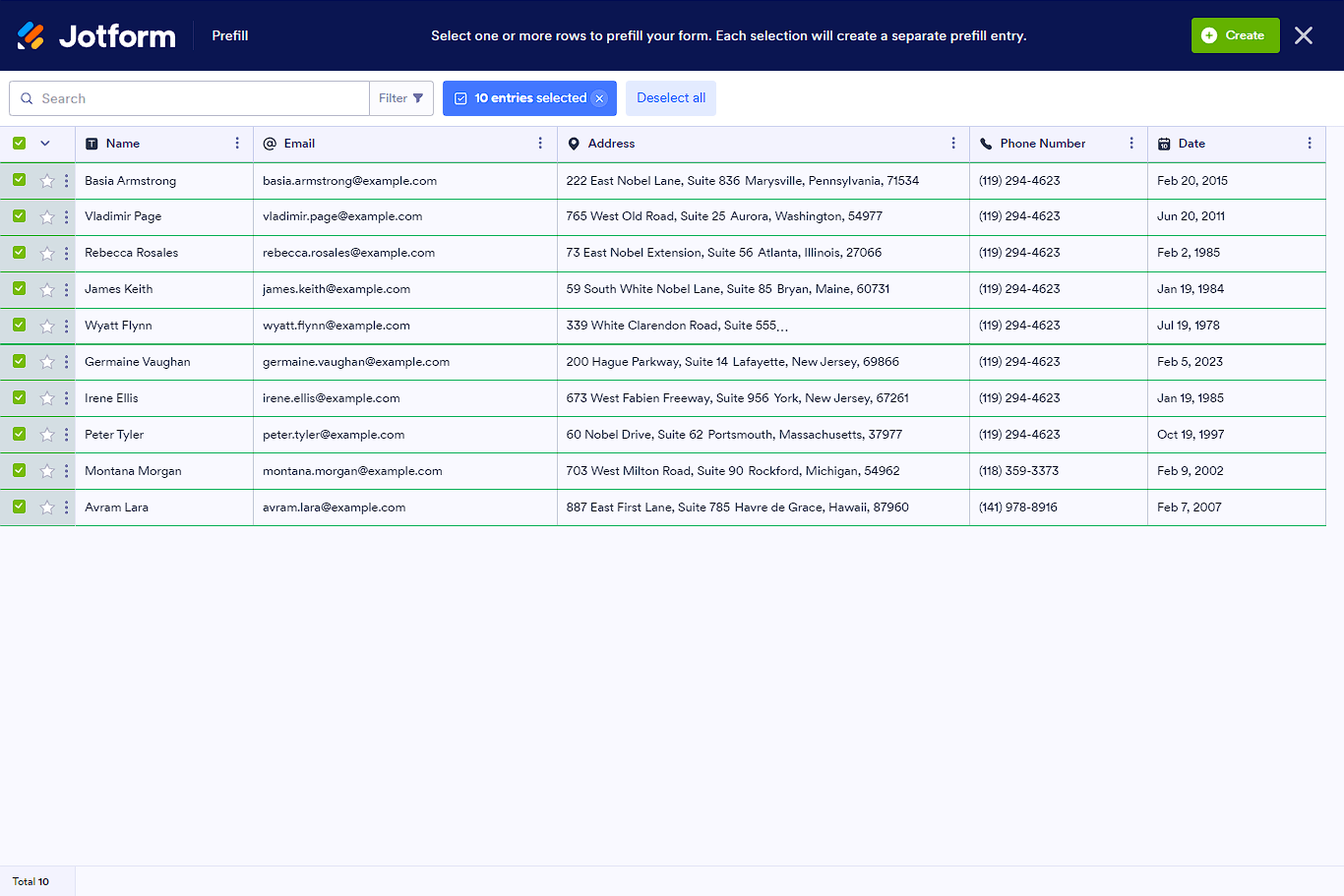
Create Prefilled URLs- Click on the Add a New Prefill button in the Form Prefill section. This will open the submissions table of your source form (Credit Application).
- Select the submissions you want to use to prefill the Credit Request form by checking the boxes next to each entry.
- Click the Create button to generate prefilled URLs for the Credit Request form based on the selected submissions.
- Note: You can create up to 20 prefilled URLs at a time. Each URL will be labeled based on the user's name or other identifying information from the submission.
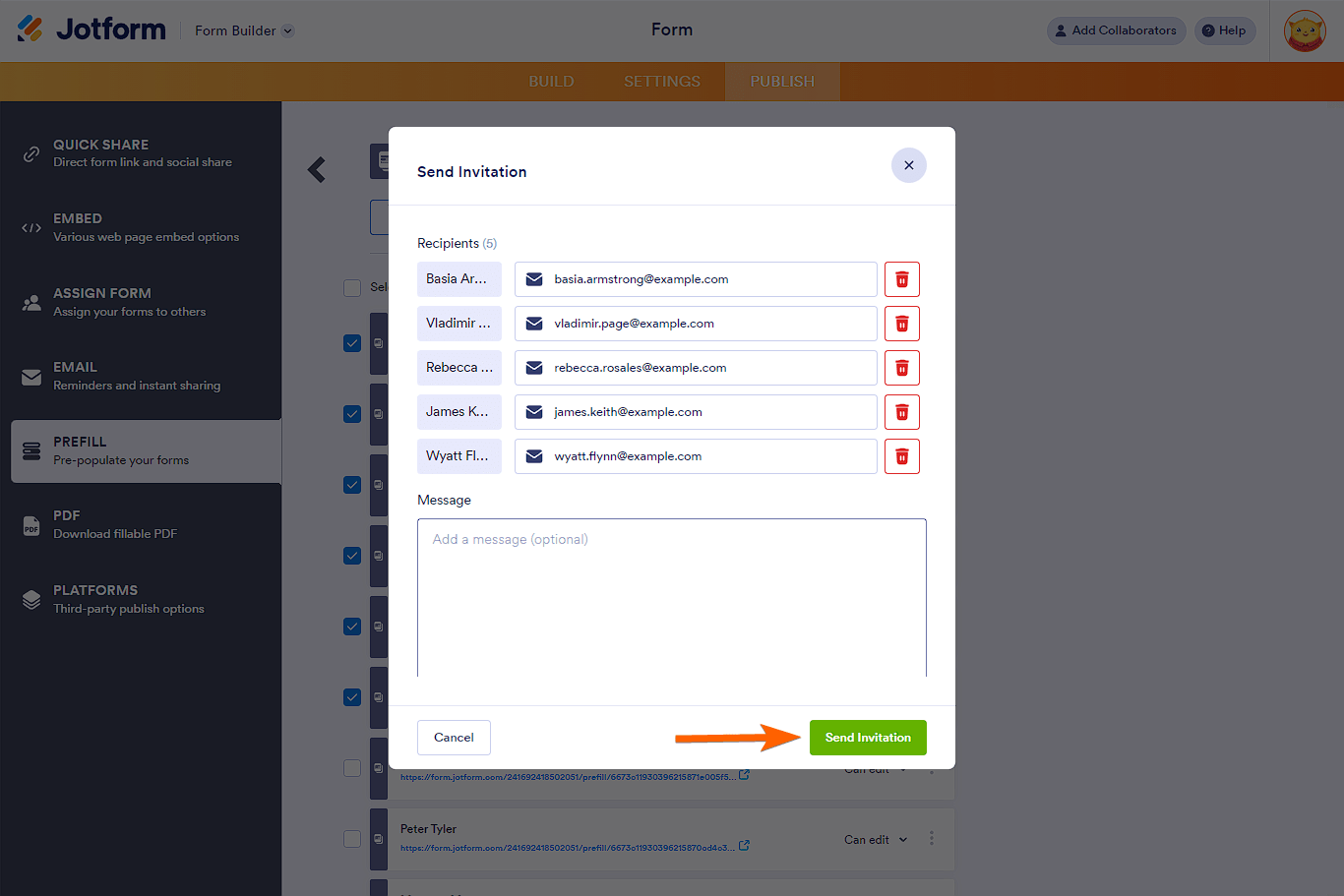
- Select the prefilled URLs you want to send from the list of created prefill items.
- Click on the Send Invitation button at the top. A popup window will appear.
- The recipient email address will be automatically populated if your form includes an email field in the prefill data. You can edit or add email addresses as needed.
- Add an optional message to include in the email invitation.
- Click Send Invitation to email the prefilled form links to the recipients.
- Note: You can send invitations to up to five recipients at once.
Here are some images to help illustrate these steps:
Give it a try and let us know how it goes.
-
jciccarello
- Select the prefilled URLs you want to send from the list of created prefill items.
Where is this located?
-
jciccarello
Where are prefilled URLs located for the prefill items?
-
 Brandon
Hi Jodie,
For that specific step, you can do the following.- Once you have the pre-filled URLs set up, you can click the checkmark box next to one of them or the top box to select them all.
- Doing so will result in more buttons appearing above the urls, which includes a blue "send invitations" button.
- Click that button to then send the links via email addresses.
Let us know if you have any other questions.



Your Reply
Something Went Wrong
An error occurred while generating the AI response. Please try again!